Best Video Transcript Format: YouTube, Podcasts, SEO
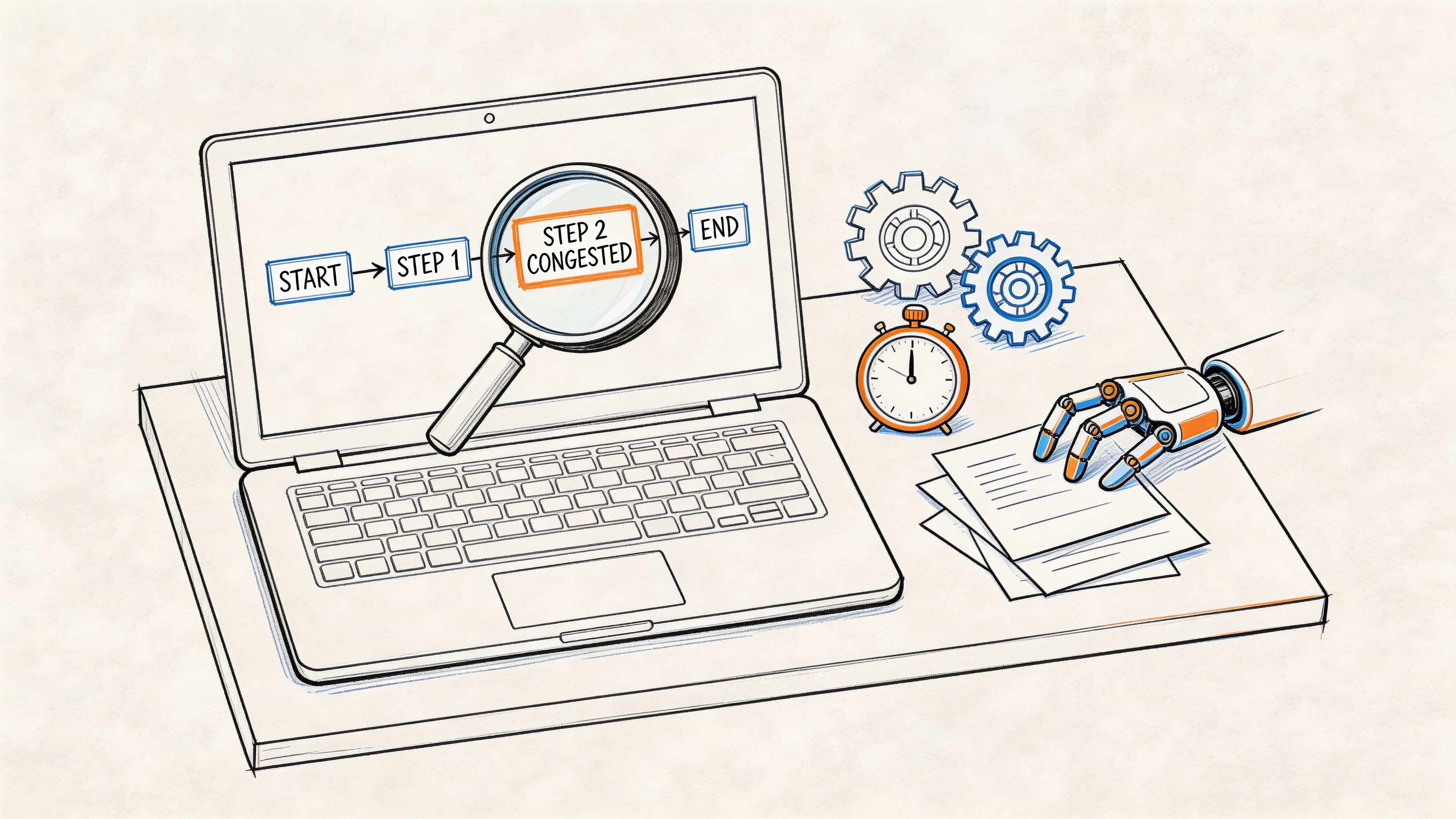
You uploaded the video. The edit is clean. The thumbnail is live. Then someone on your team asks for the transcript, and the easy part suddenly gets messy.
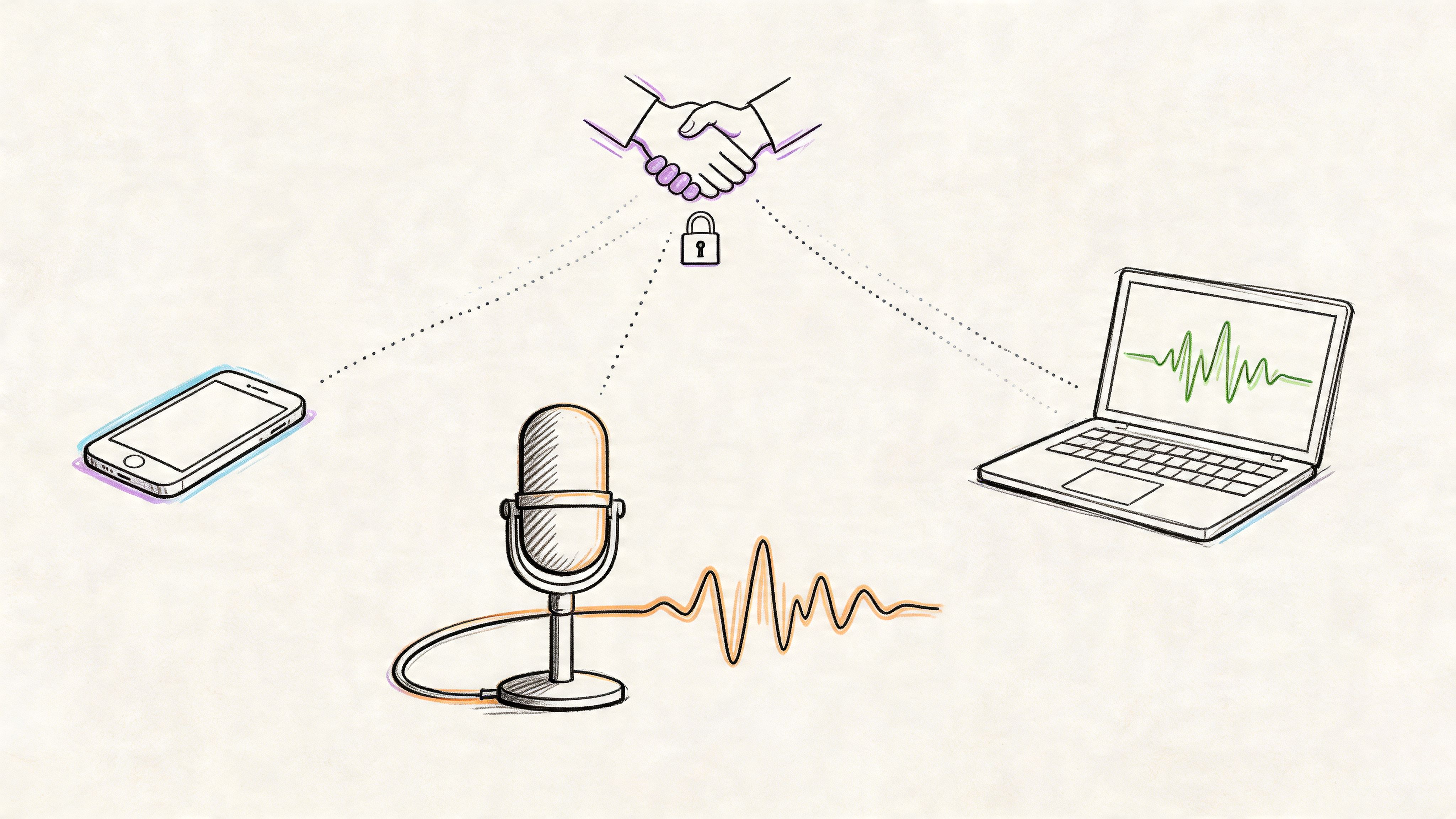
Do you need a plain text file for a blog post? Captions for YouTube? A document your client can comment on? Something accessible on your website? Many realize the same thing at that moment: a transcript isn’t one thing. It’s the same spoken content packaged in different ways for different jobs.
That’s why choosing a video transcript format matters more than people expect. The format changes how easy the transcript is to read, search, publish, edit, reuse, and share. A bad choice creates cleanup work. A smart choice turns one video into captions, notes, articles, and accessible web content with much less friction.
Your Video Is Done Now What
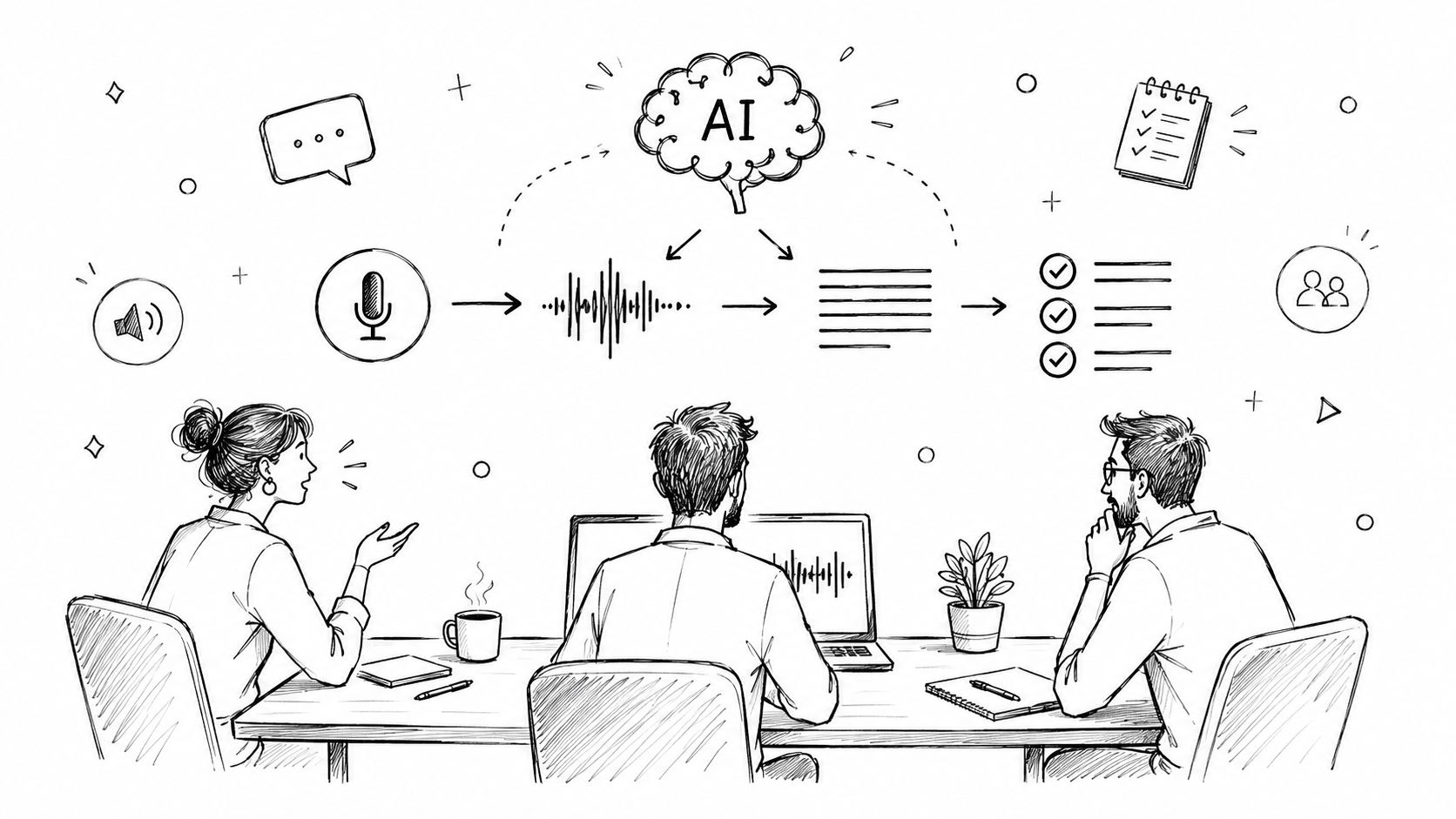
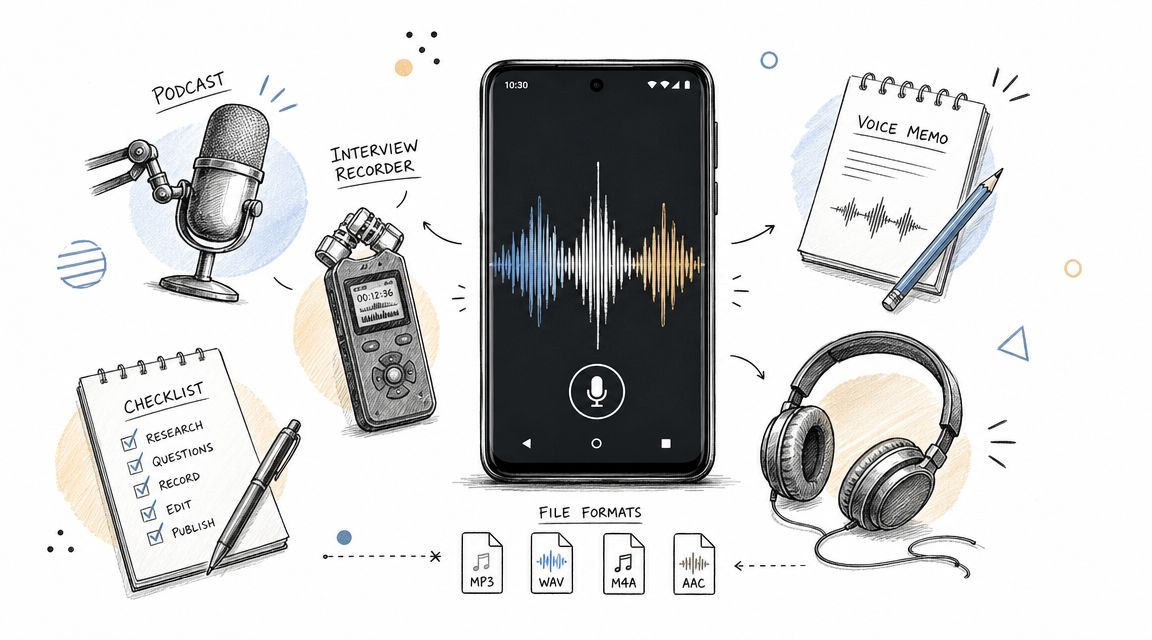
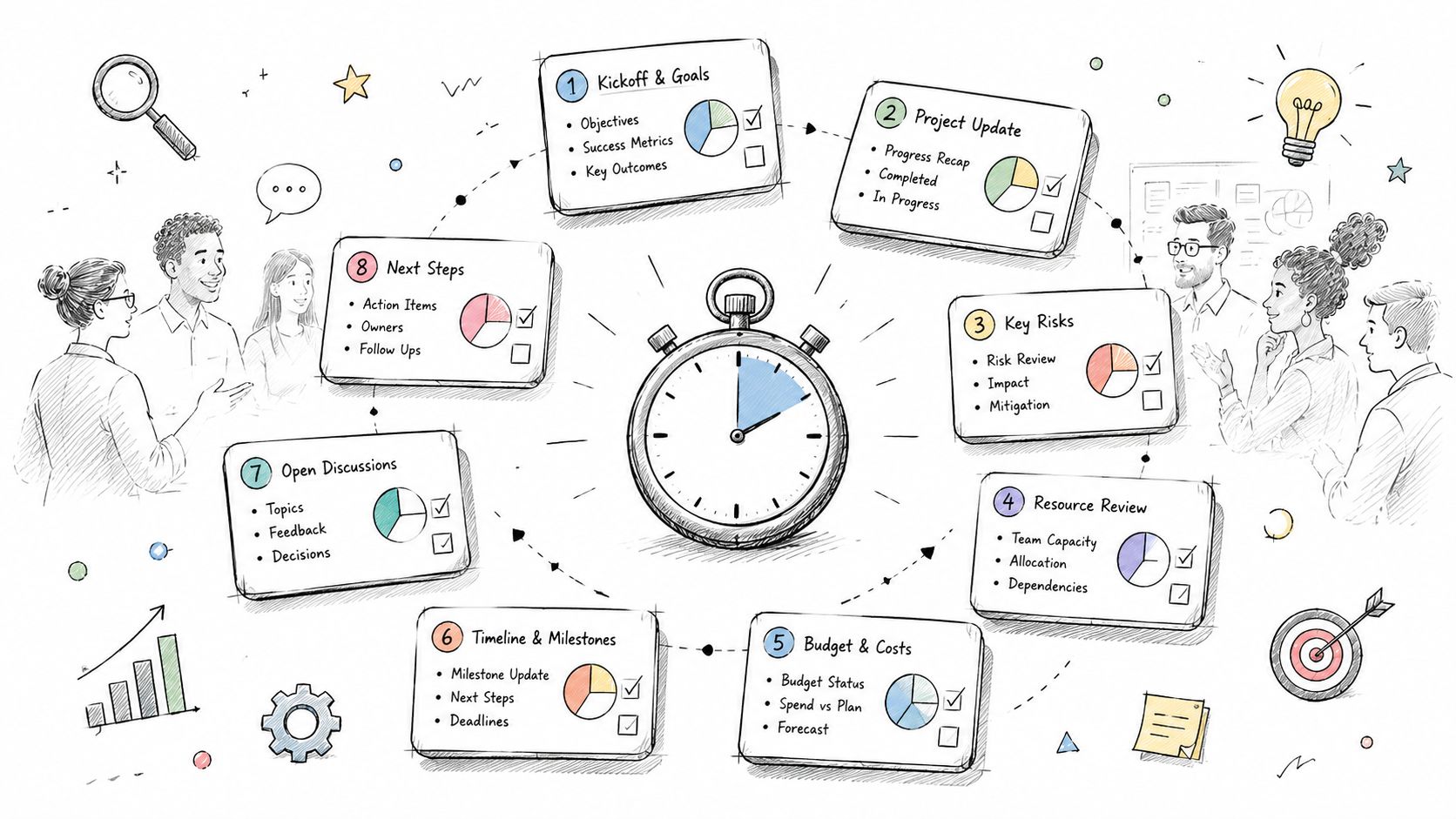
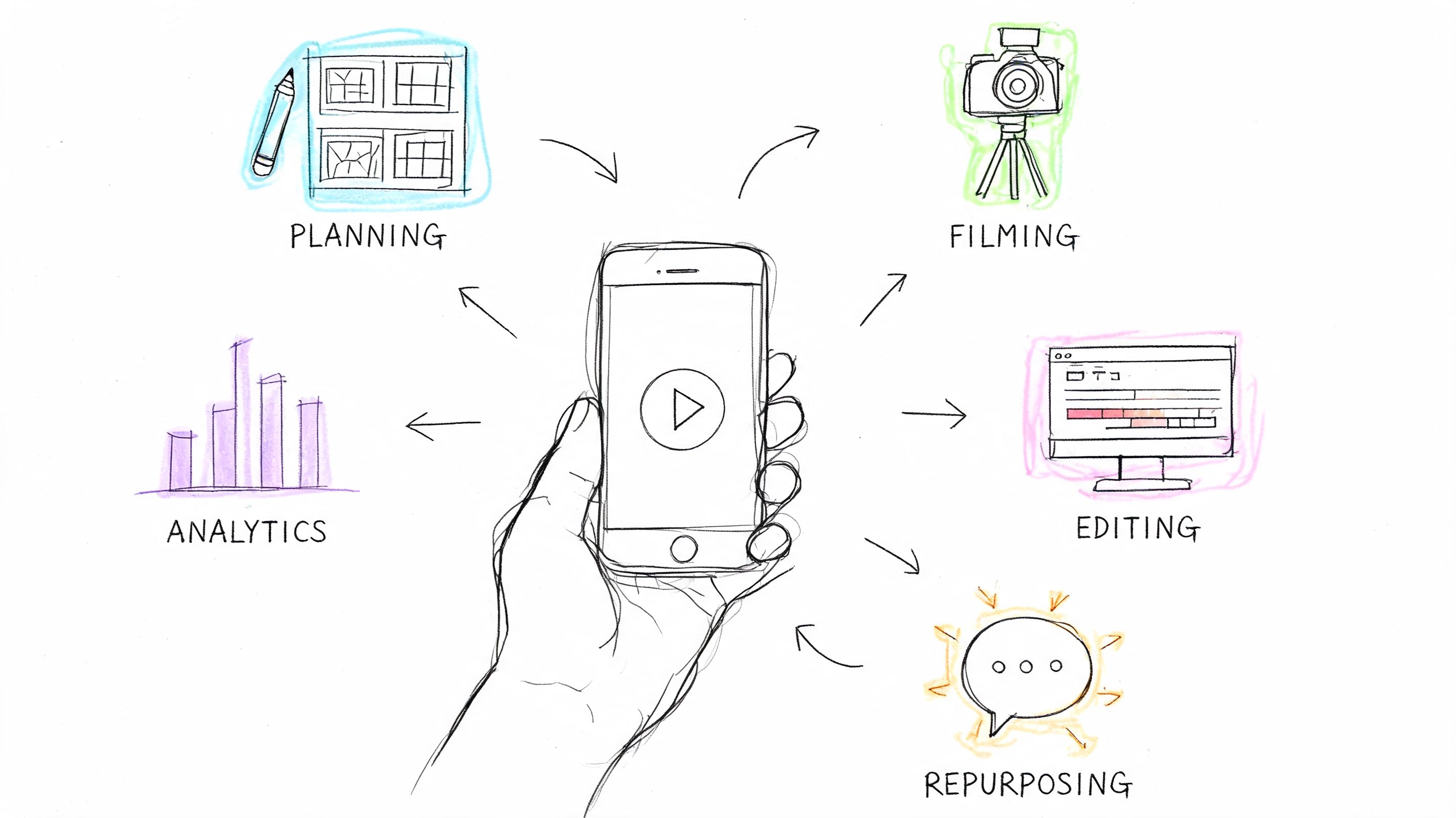
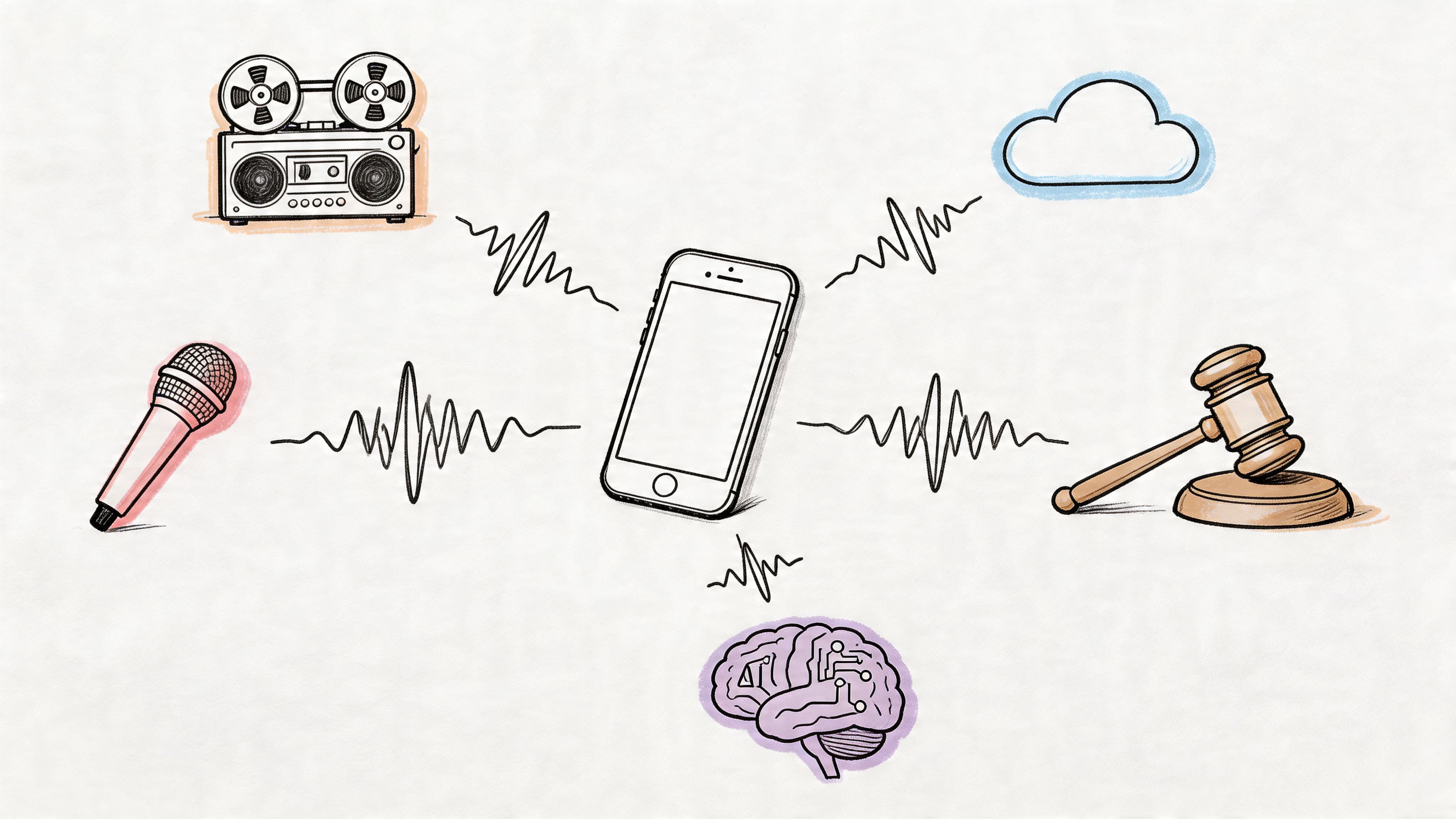
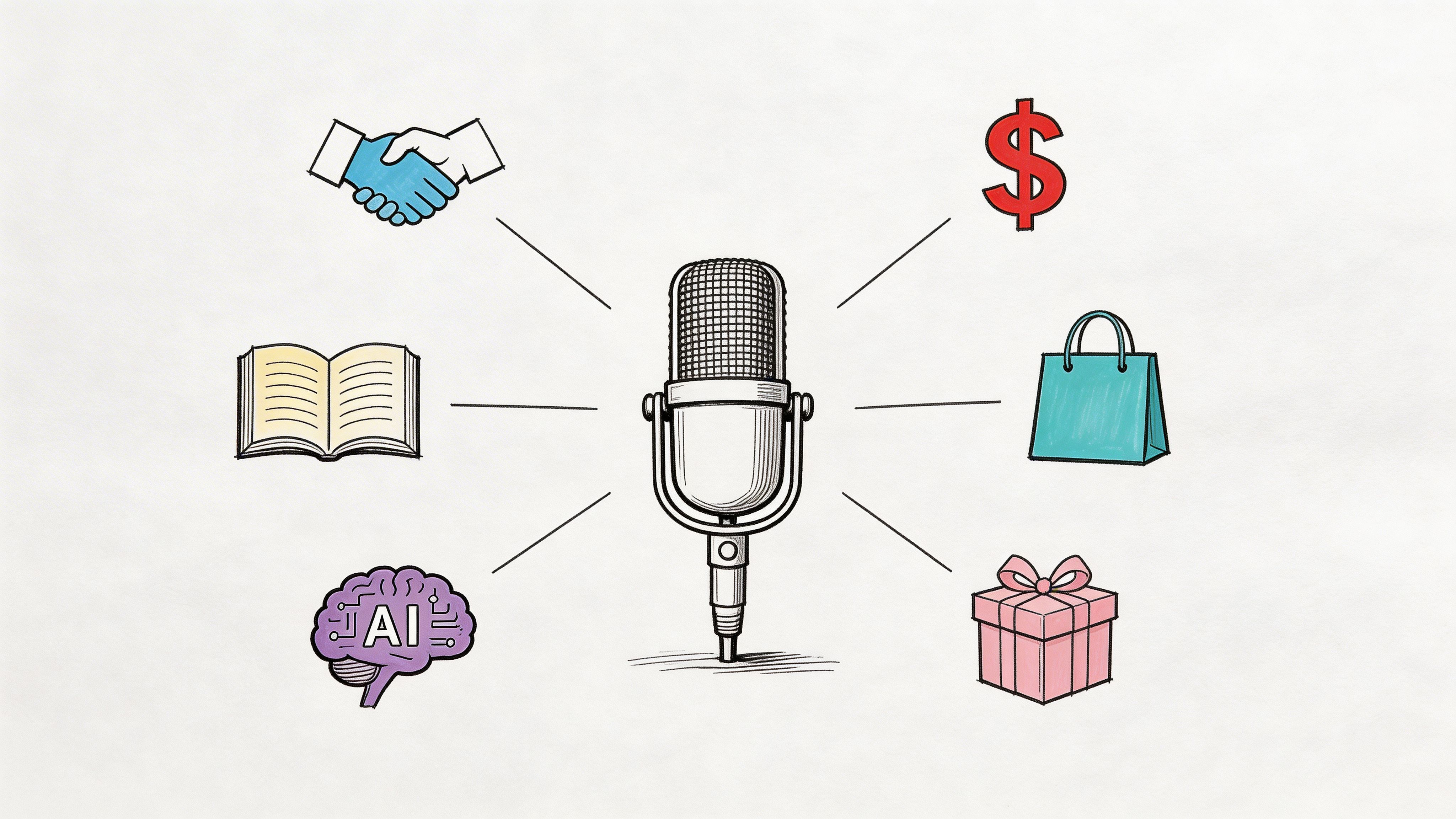
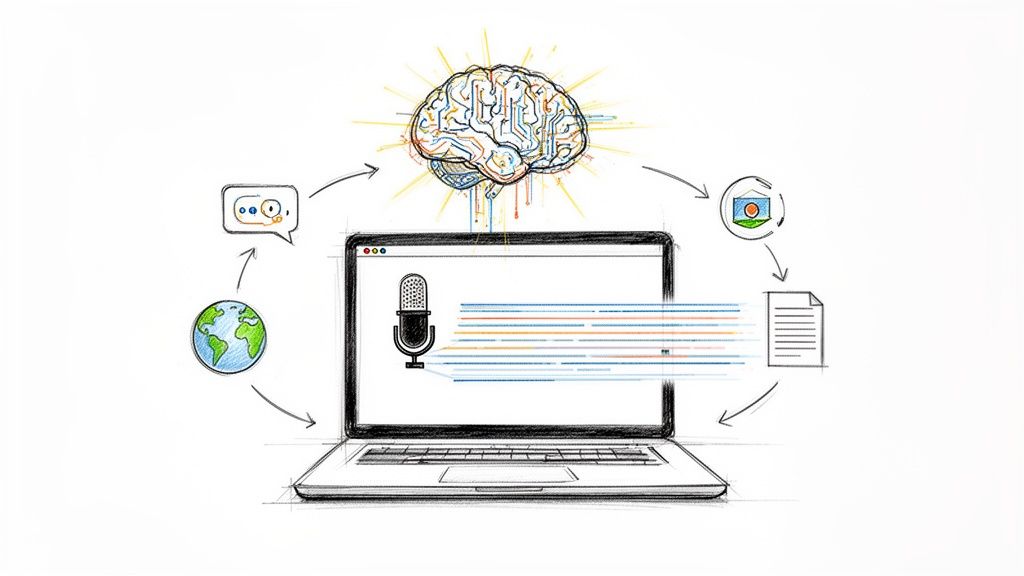
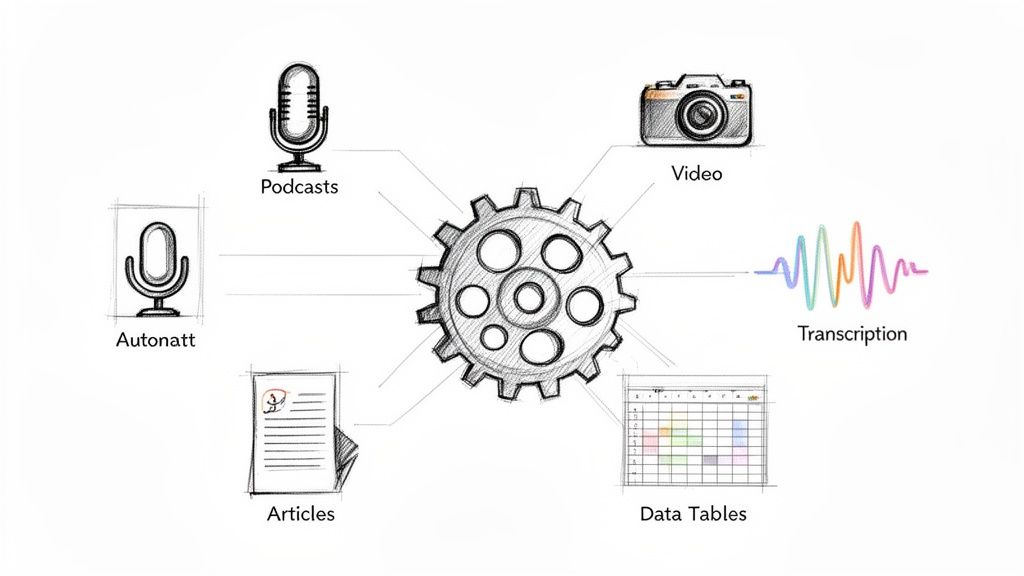
A creator finishes a podcast interview, uploads it to YouTube, and checks the job off the list. A day later, the same recording needs to do five more jobs. The marketer wants quotes for LinkedIn. The editor wants captions. The website team wants a readable transcript. The accessibility lead wants a version that works well in the browser and a downloadable file. The founder wants to pull the best answers into a newsletter.
That’s the moment where content gets trapped or released.
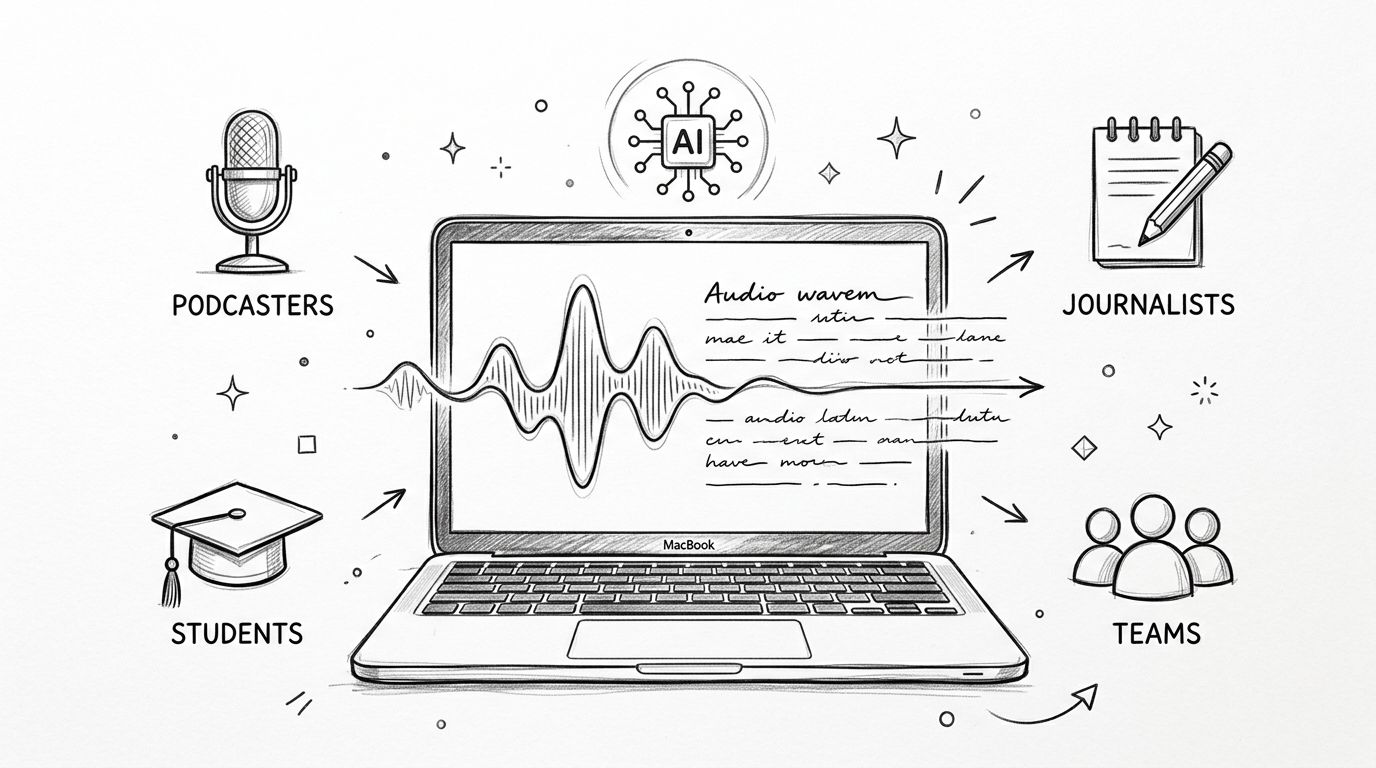
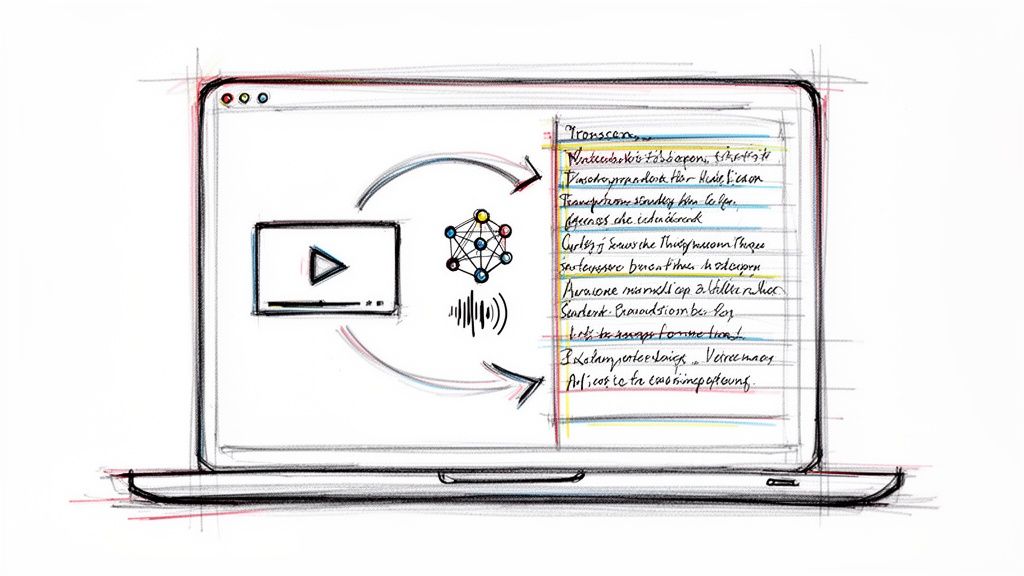
Without a transcript, your ideas stay inside the video player. People have to watch in real time to find one useful moment. If someone is hard of hearing, skimming for a quote, or trying to review the content in a quiet office, that friction shows up immediately. A transcript turns spoken content into working material.
It also gives your team raw ingredients for reuse. A strong interview can become show notes, an article, social posts, a sales enablement doc, or support documentation. If you’re building a repeatable workflow, content repurposing then stops being a buzzword and starts becoming a system.
Practical rule: Treat the transcript as the source material for the rest of the content stack, not as an afterthought after publishing.
The confusing part is that many teams ask for “the transcript” as if there’s a single correct output. There isn’t. A TXT file is good for reading and rewriting. An SRT file is built for timed captions. A DOCX file works when people need comments and formatting. An HTML transcript is the right choice for web access. A JSON file helps software do far more precise things with the text than a person ever could.
The right format depends on the job you need done next.
Choosing Your Video Transcript Format
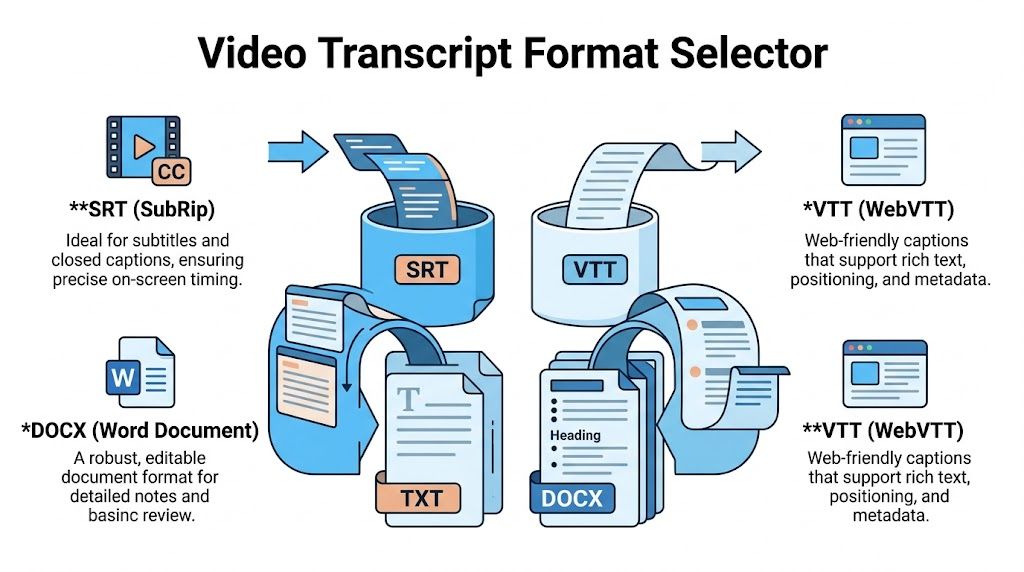
Think of transcript formats like food containers in a kitchen. The soup, salad, and leftovers may all come from the same meal, but you wouldn’t store each one in the same container. One needs a lid. One needs space. One needs to go straight to the table. Transcript formats work the same way.
Plain text for simple reading
A .txt transcript is the plain container. No styling. No layout. Usually no timing. Just words.
That simplicity is exactly why people use it. Writers can paste it into Google Docs, Notion, Word, or a CMS without stripping out formatting. If your next step is “turn this interview into an article,” TXT is usually the least annoying starting point.
TXT also travels well. Nearly every device and editor can open it. If you need a transcript for review, note-taking, quoting, or rough editing, plain text keeps friction low.
SRT and VTT for timed captions
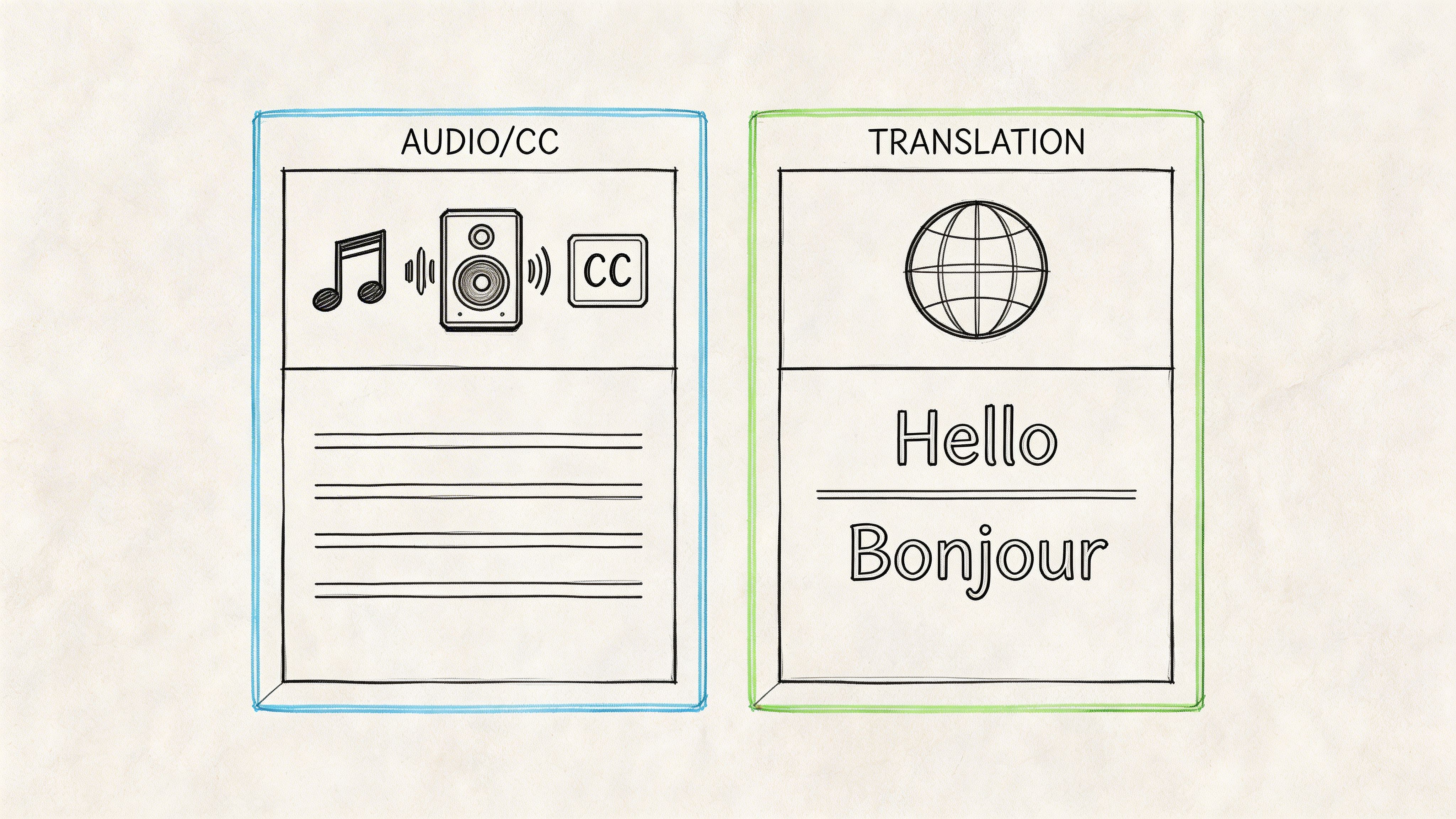
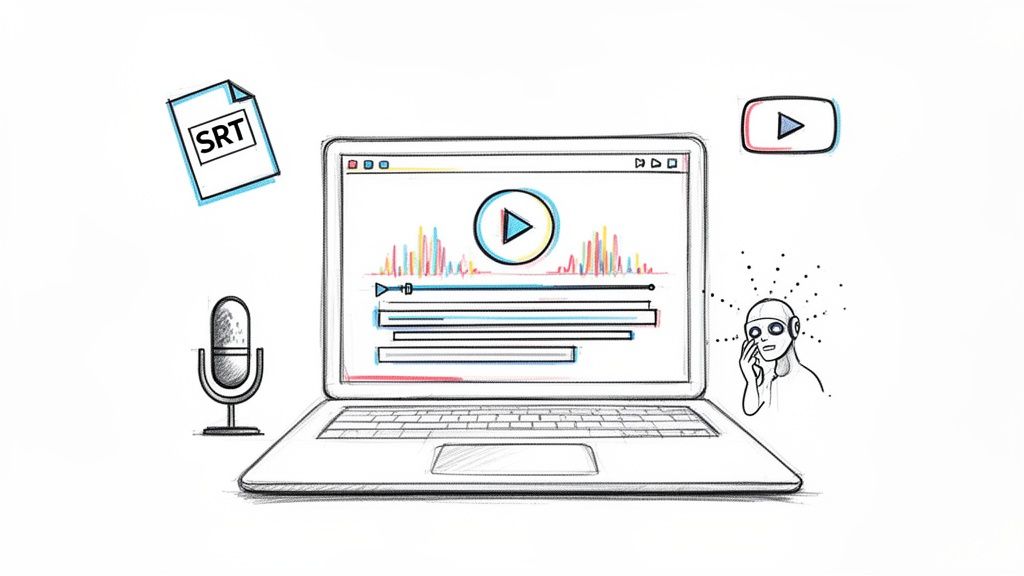
.srt and .vtt are different containers because they hold timing as well as text. These formats are designed for subtitles and captions, not casual reading.
An SRT file usually includes numbered caption blocks plus start and end times. A VTT file serves a similar purpose but is more web-oriented. If your team is uploading captions to a platform or syncing words to video playback, these are the formats you reach for.
One common mistake is trying to use SRT as a writing document. It’s possible, but painful. Every few lines, the timestamps interrupt the flow. If someone on your team says, “This transcript feels hard to read,” there’s a good chance they’re opening the wrong file type. If you want a deeper primer on subtitle files, this quick guide to what SRT stands for helps clear up the naming and purpose.
DOCX and PDF for collaboration and delivery
.docx is the working container for people. It’s useful when editors, clients, researchers, or producers need to comment, highlight, revise speaker labels, or add notes.
.pdf is different. It’s better when the transcript needs to look fixed and consistent after export. That makes it helpful for sharing, printing, approvals, or archiving. PDF is not usually the best place for active editing, but it’s a dependable delivery format.
A transcript meant for collaboration should open like a working draft. A transcript meant for distribution should open like a finished handoff.
HTML and JSON for the web and systems
HTML is the strongest native format for transcripts published directly on a website. The Section 508 transcript guidance notes that HTML is the optimal native format for web-hosted transcripts, while accessibility requirements may also call for downloadable alternatives such as TXT or DOC. That matters because readers don’t all consume transcripts the same way. Some want to scan in the browser. Others need a file they can save offline or move into another tool.
JSON sits at the opposite end of the spectrum. It isn’t pleasant for a casual reader, but it’s powerful for software. Advanced transcript formats like JSON can support millisecond-level word timestamps, which makes precise syncing and machine processing possible. That’s not a “read this in your downloads folder” format. It’s a systems format.
Video transcript format comparison
| Format | Primary Use Case | Key Feature | Human Readable? |
|---|---|---|---|
| TXT | Writing, review, repurposing | Clean plain text | Yes |
| SRT | Captions and subtitles | Time-synced caption blocks | Somewhat |
| VTT | Web video captions | Timed text for web playback | Somewhat |
| DOCX | Editing and collaboration | Comments and formatting tools | Yes |
| Sharing and archiving | Fixed layout for distribution | Yes | |
| HTML | Web-hosted transcripts | Browser-friendly access | Yes |
| JSON | App workflows and automation | Structured data with detailed timing | No, not comfortably |
Essential Transcript Formatting Best Practices
A file format solves only part of the problem. The transcript still has to be usable.
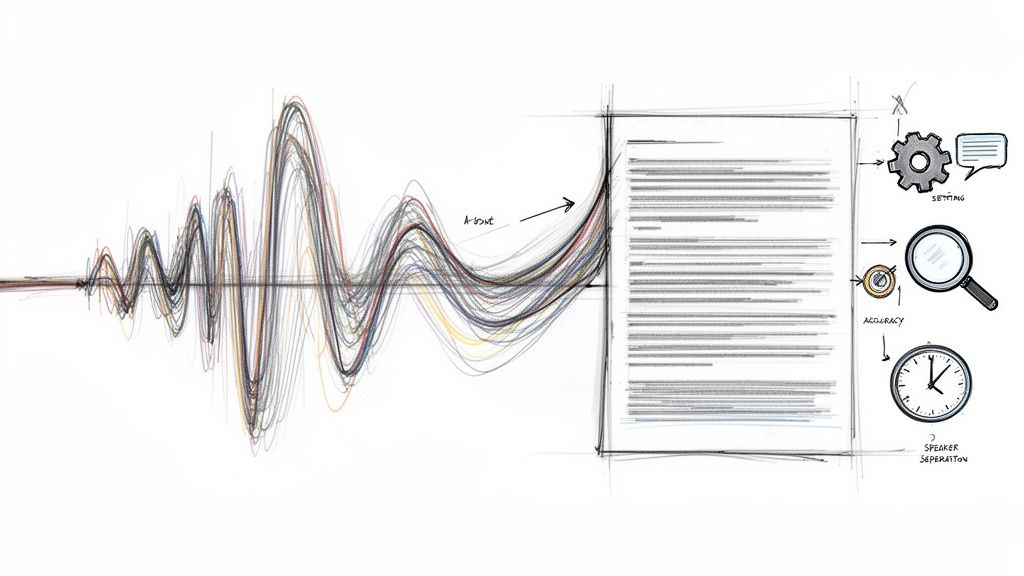
You can have the right export type and still end up with a transcript nobody wants to read because the speakers are unclear, the paragraphs are too long, or the non-speech moments are missing. Formatting is where a transcript starts to feel professional instead of machine-dumped.
Label speakers in a way humans can follow
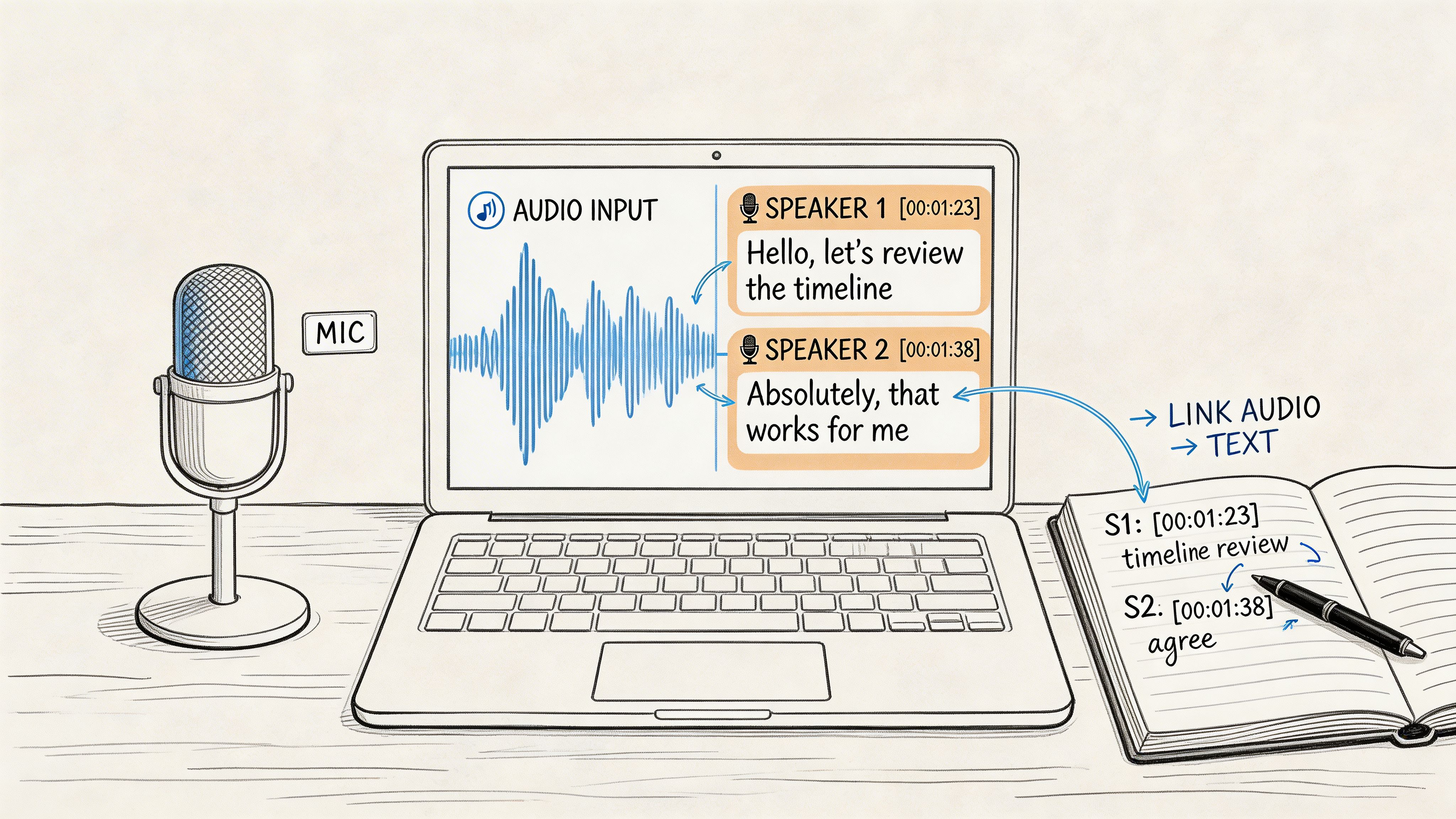
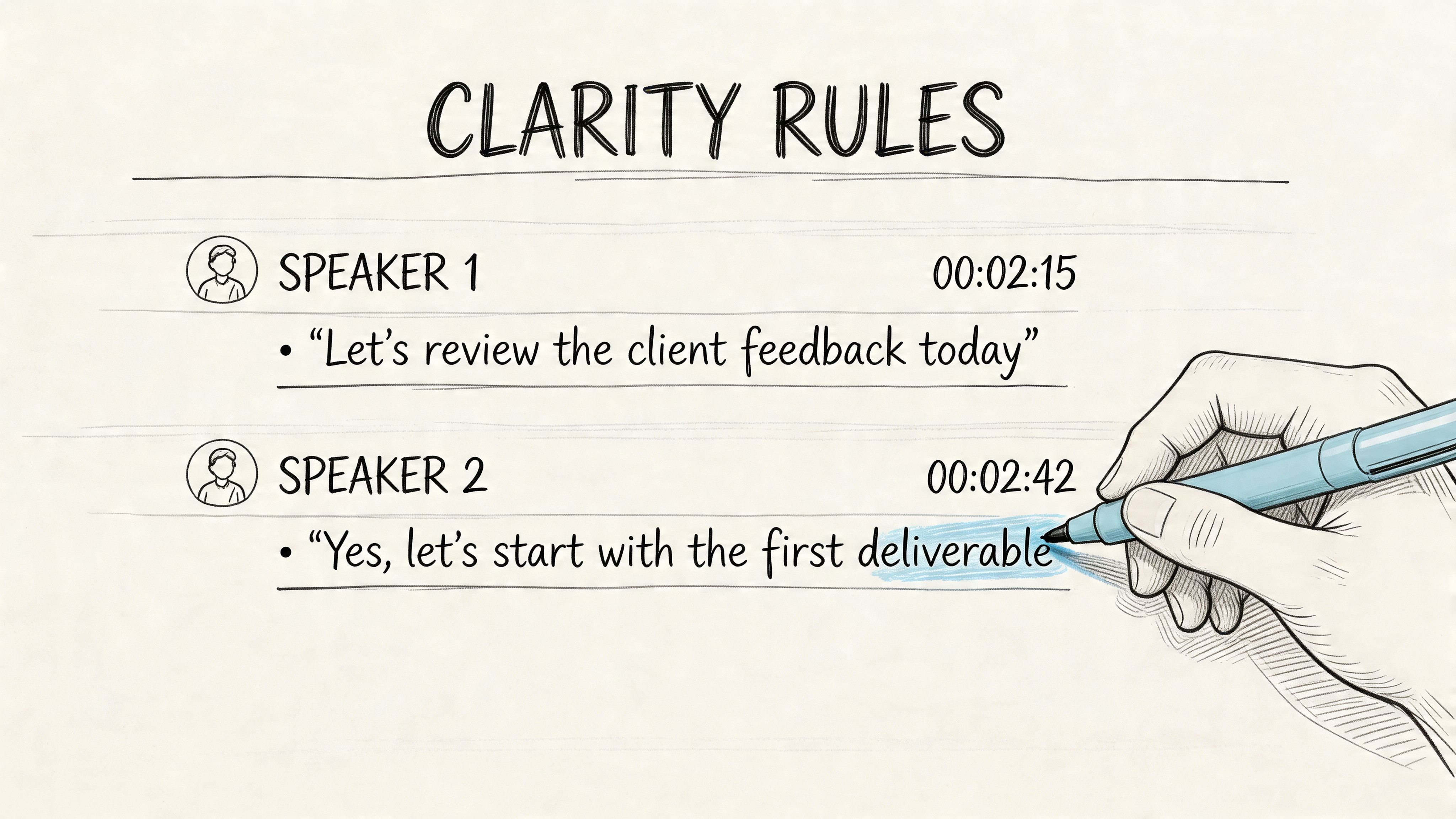
If more than one person is talking, speaker labels aren’t optional. They let readers track the conversation without replaying the recording.
Use the clearest label your workflow supports. If names are known, real names are better than “Speaker 1” and “Speaker 2.” If names aren’t confirmed, neutral labels are safer than guessing. Consistency matters more than style.
A good transcript might look like this:
- Named speakers: “Maya:” and “Chris:”
- Unknown speakers: “Speaker 1:” and “Speaker 2:”
- Role-based labels: “Host:” and “Guest:”
Use timestamps on purpose
Not every transcript needs a timestamp on every line. A marketing team turning a webinar into a blog post usually doesn’t need second-by-second timing cluttering the page. A researcher reviewing an interview probably does.
Choose timestamp density based on the task:
- For reading: add timestamps at section breaks or topic shifts
- For review: add them at paragraph level
- For editing or captioning: use detailed timing from subtitle files
- For searchable playback tools: keep the underlying precise timing, even if the visible transcript stays clean
Editing shortcut: If a person is going to quote, verify, or jump back into the media, keep timestamps. If they’re going to rewrite, simplify them.
Decide between verbatim and edited transcript style
A verbatim transcript includes filler words, repetitions, false starts, and speech patterns. That’s useful for legal review, research, or discourse analysis.
An edited transcript cleans up the language for readability. It removes some “ums,” repeated starts, and spoken detours that make sense in audio but feel messy on the page. For blog posts, show notes, and public-facing resources, edited transcripts usually create a better reading experience.
Here’s the practical distinction:
| Style | Best For | What It Keeps |
|---|---|---|
| Verbatim | Research, legal, documentation | Fillers, pauses, repetitions |
| Edited | Publishing, SEO, repurposing | Meaning, structure, readability |
Mark non-speech information that matters
Accessible transcripts need more than spoken words. Current guidance recognizes that transcripts should include visual information such as speaker identification and scene context, but there’s still ambiguity around what counts as “relevant” for creators working at scale, as discussed in BOIA’s accessible transcript best practices.
That means teams need judgment calls.
Useful non-speech notes often include:
- Sound cues: [laughter], [applause], [music fades]
- Visual context: [slide changes to pricing chart]
- On-screen text: [screen shows “Early access closes Friday”]
- Scene shifts: [camera cuts to demo screen]
Don’t annotate every tiny movement. Add the details a reader would need to understand the moment without watching the video.
Matching Transcript Formats to Your Goals
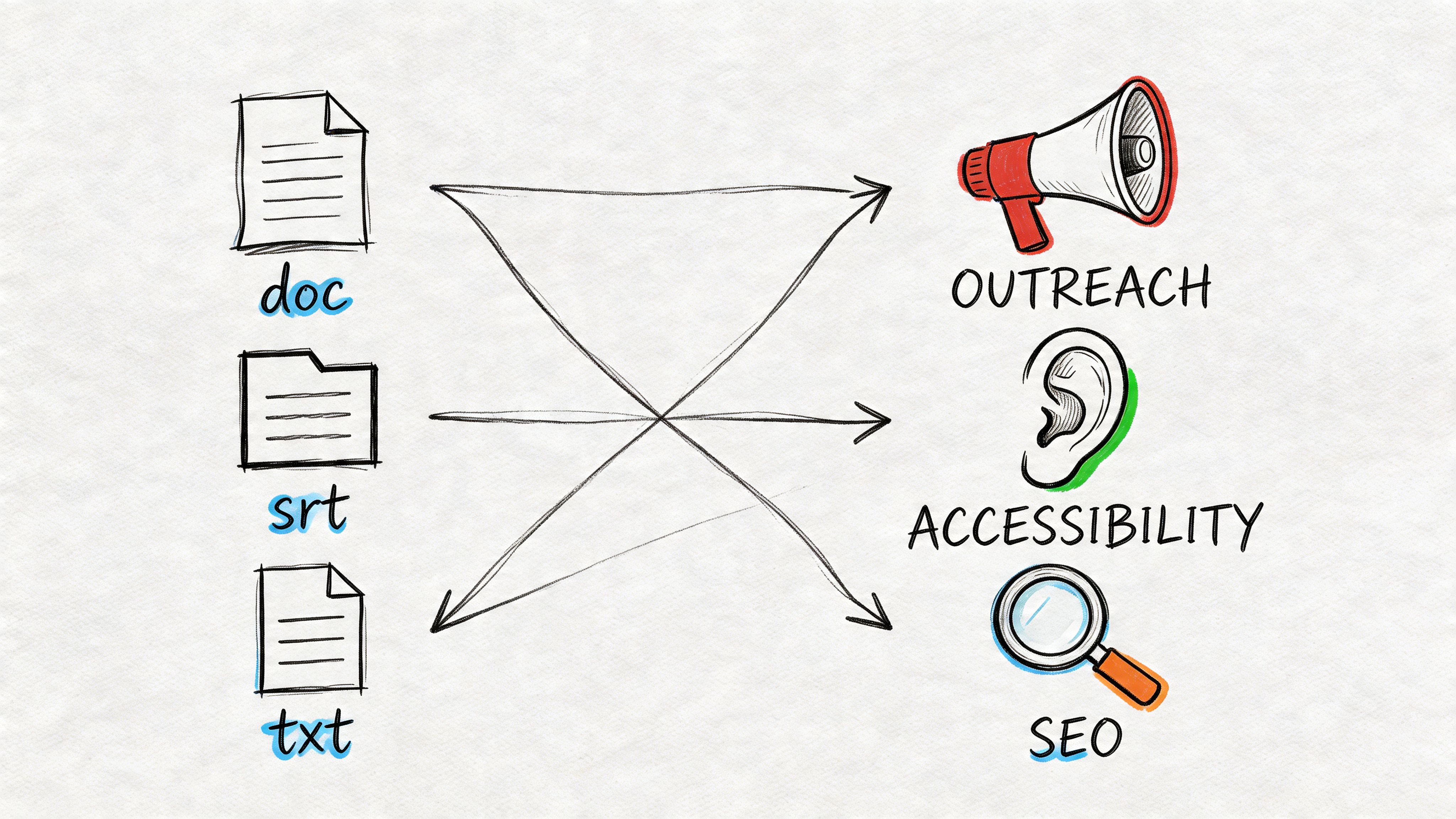
Many teams don’t need one transcript. They need one recording to perform in several contexts. The “job-to-be-done” lens helps address this need.
A format isn’t good or bad on its own. It’s useful when it reduces work for a specific outcome.
For YouTube videos
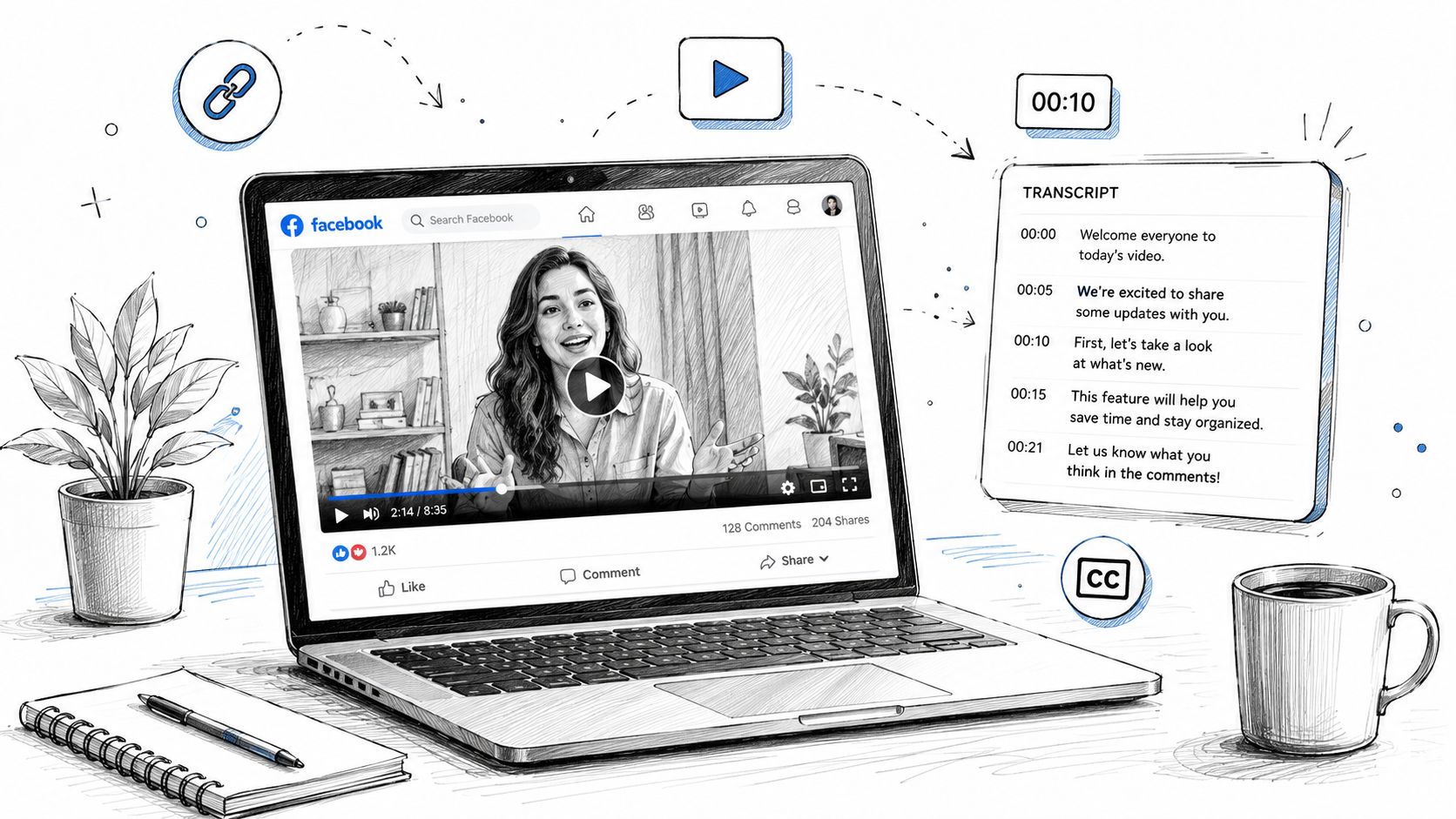
If the goal is a better viewer experience on a video platform, use a timed caption file such as SRT or VTT. That gives the player the timing it needs.
If the goal is repurposing the same video into descriptions, chapter notes, blog drafts, or quote libraries, export a TXT or DOCX version too. One file supports playback. The other supports content work.
For podcasts and interview shows
Podcasts usually need two different transcript outputs. The producer needs a clean readable version for show notes and article drafting. The website team may want an HTML transcript for browser-based access.
There’s also growing interest in interactive transcripts that are synchronized, searchable, and clickable. Platforms like YouTube and Kaltura offer this kind of experience, yet most accessibility guidance still centers on static transcript documents, as noted by Colorado State University’s accessibility guidance. For creators, that leaves a gap. The technology exists, but the practical decision framework is still thin.
For internal documentation and research
Interview archives, meeting records, and qualitative research often work best in DOCX. People can add comments, correct names, flag quotes, and organize sections. If your team needs traceability back to the media, keep timestamps in the working draft.
If legal, compliance, or institutional workflows are involved, teams often pair DOCX for working edits with PDF for final circulation.
For websites and accessibility
For web publishing, HTML is the natural home base. It lives in the browser, works cleanly with web reading patterns, and can be easier to use than a downloaded file. But many audiences still need alternatives, so the practical setup is often “HTML plus download options.”
That combination works because different readers want different things:
- Browser readers: scan and search inline
- Offline users: save TXT or DOCX
- Review workflows: annotate DOCX
- Distribution needs: share PDF
Pick the first format based on the next action someone needs to take, not on what your transcription tool exports by default.
How to Export and Optimize Transcripts with Whisper AI
Once you know which file fits the job, the workflow gets simpler. The challenge isn’t understanding formats in theory. It’s generating the right one without turning your team into part-time cleanup editors.
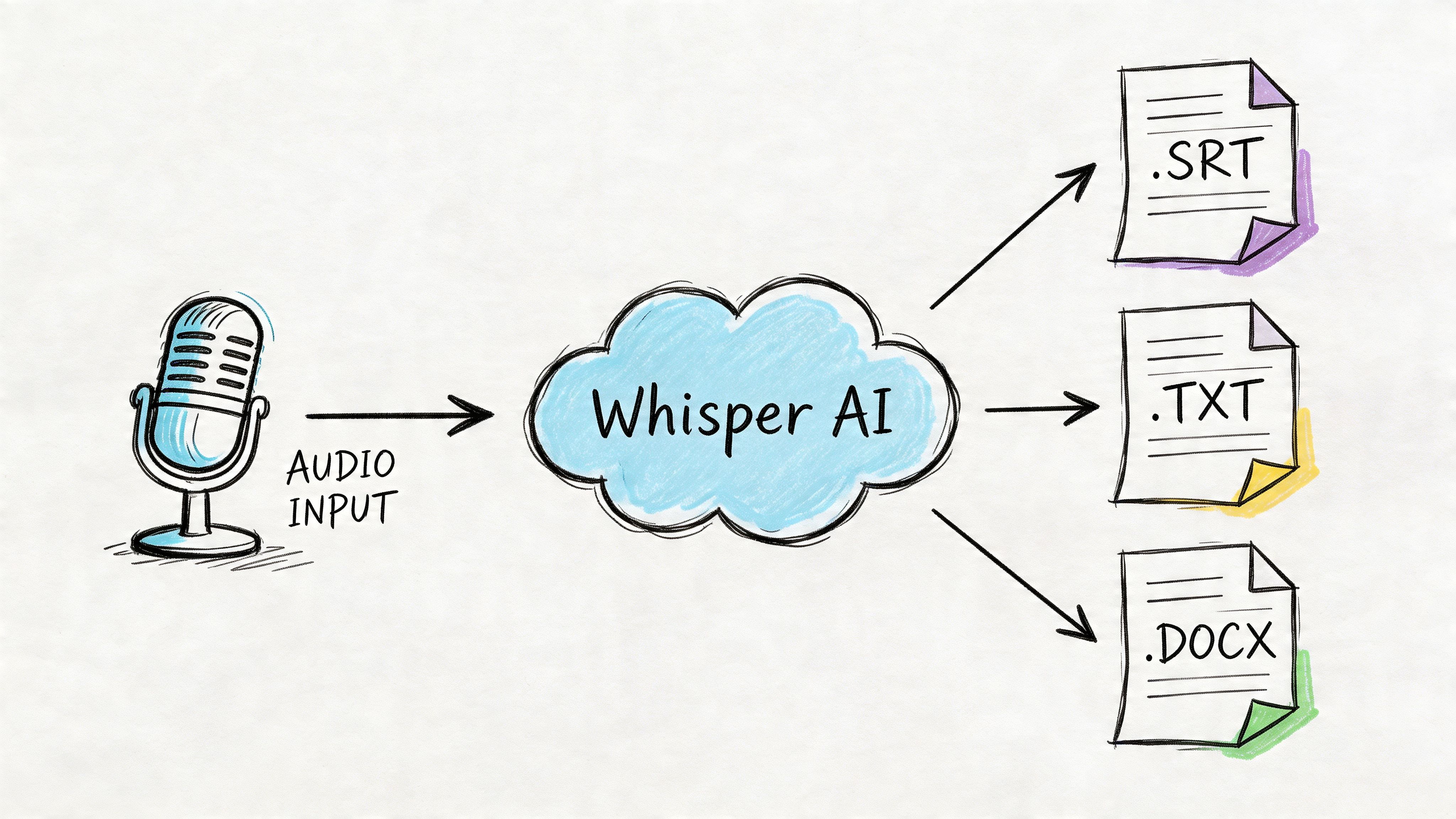
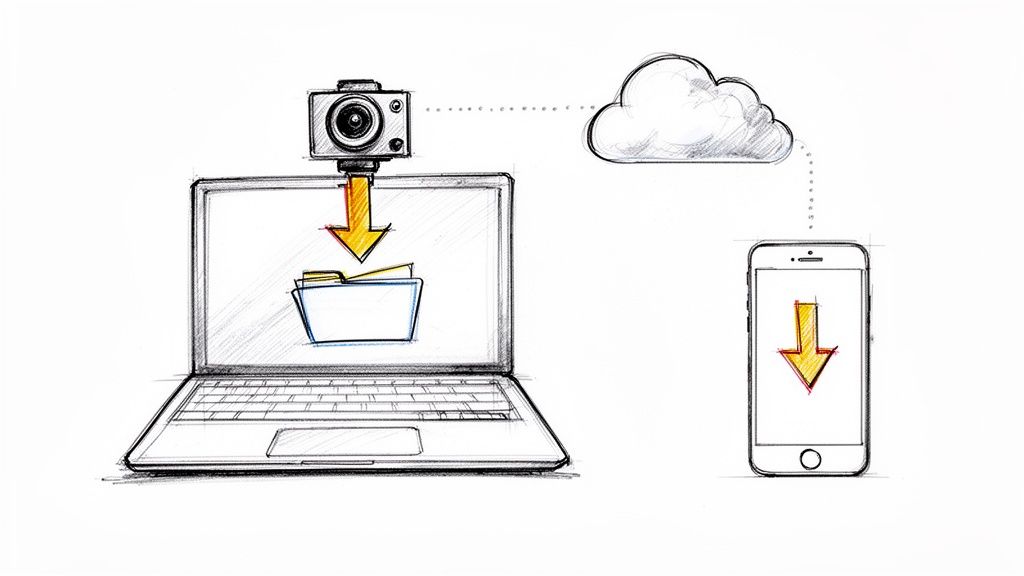
A practical setup starts with one source file, then branches into different exports depending on what happens next. For example, the same interview might produce an SRT for captions, a TXT file for a writer, a DOCX for editorial review, and a PDF for stakeholder sharing. If your team is mapping transcript outputs into broader publishing workflows, these AI-driven content optimization strategies are useful for thinking beyond transcription and into what gets published next.
A simple export workflow
Here’s the cleanest way to work:
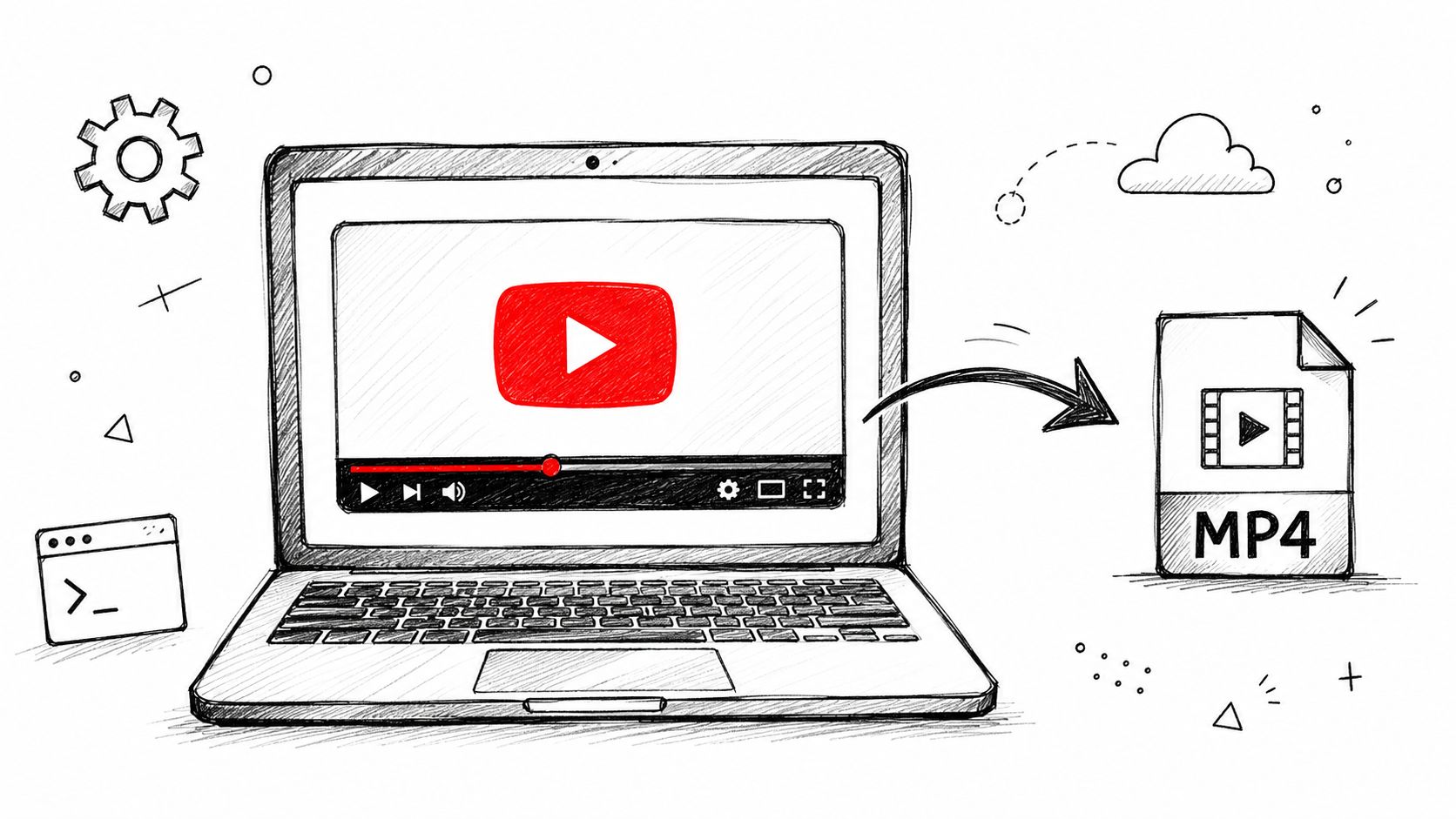
Upload the media or paste the link
Start with the original audio or video file, or use a hosted link if your tool supports it.Generate the transcript draft
Let the system identify speakers and place timestamps before you begin editing.Review the sections that matter most
Fix names, technical terms, branded language, and any quote you plan to publish.Export by outcome, not habit
Choose SRT or VTT for captions, TXT for repurposing, DOCX for collaboration, PDF for distribution, and structured outputs if your product or archive needs them.
If you want the mechanics of that process in more detail, this walkthrough on how to use Whisper AI shows the upload and export flow.
Why structured export matters
Some transcript outputs are designed for people. Others are designed for machines.
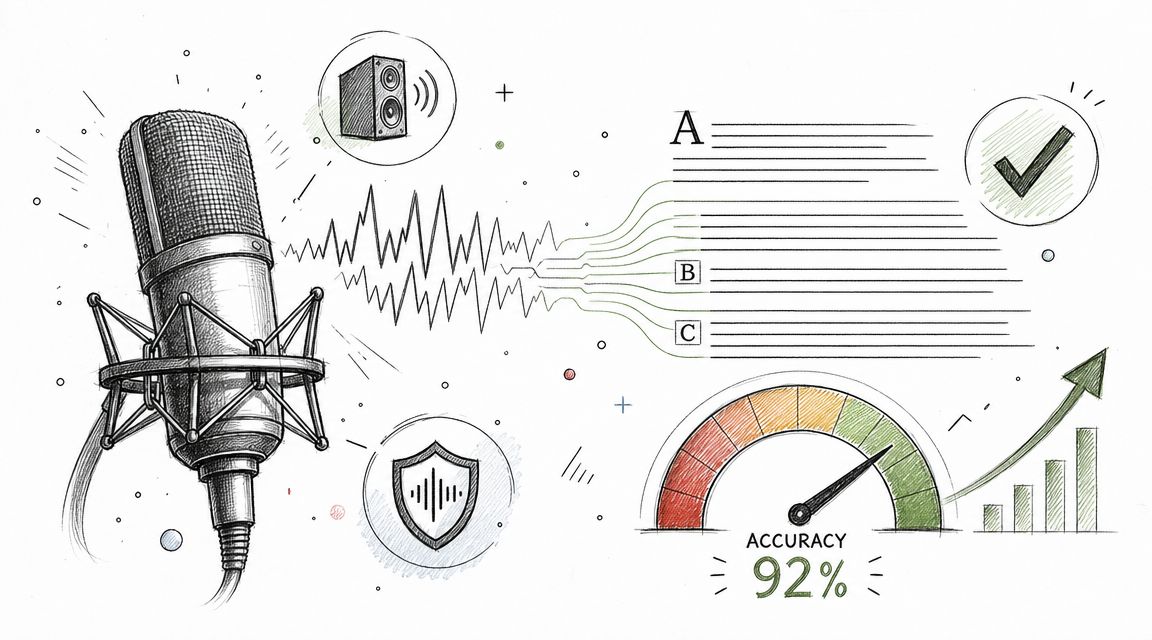
Advanced transcript formats like JSON can support millisecond-level word-timestamp synchronization, which allows interactive transcript experiences where a user can click a word and jump to that exact moment in playback, according to Rev’s transcript format guide. That kind of precision isn’t practical in a human-readable download, but it’s extremely useful behind the scenes.
This is the part many creative teams miss. The machine-friendly file isn’t the file you hand to the audience. It’s the file your system can use to power search, playback jumps, editing references, and richer transcript features.
A quick visual demo helps if you’re trying to explain the workflow to teammates:
One recording, several outputs
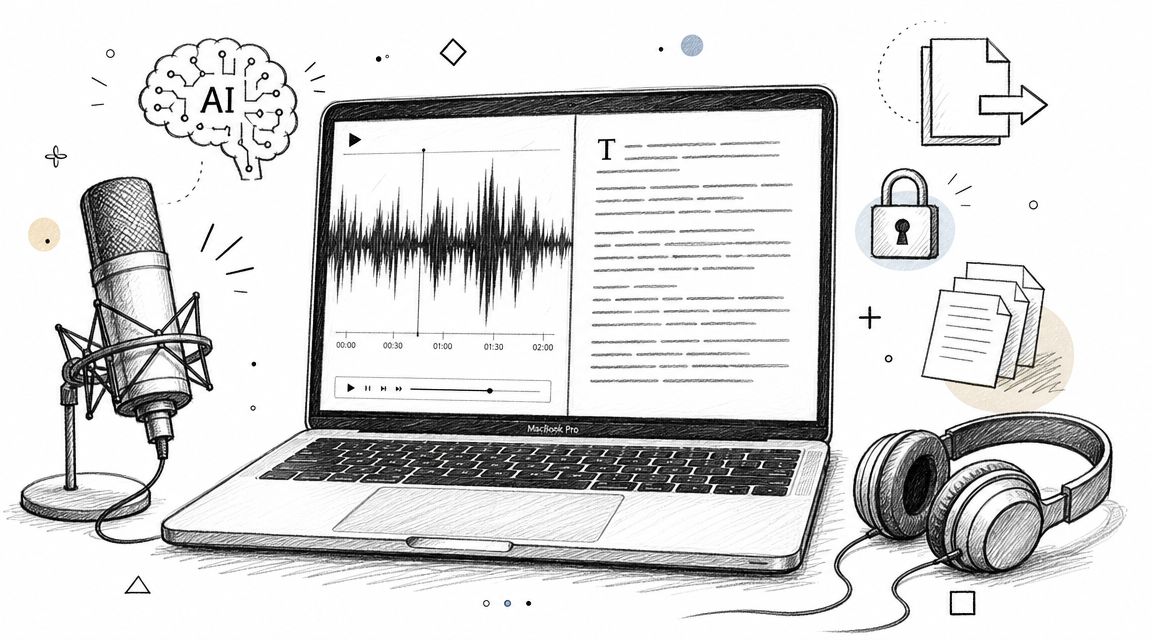
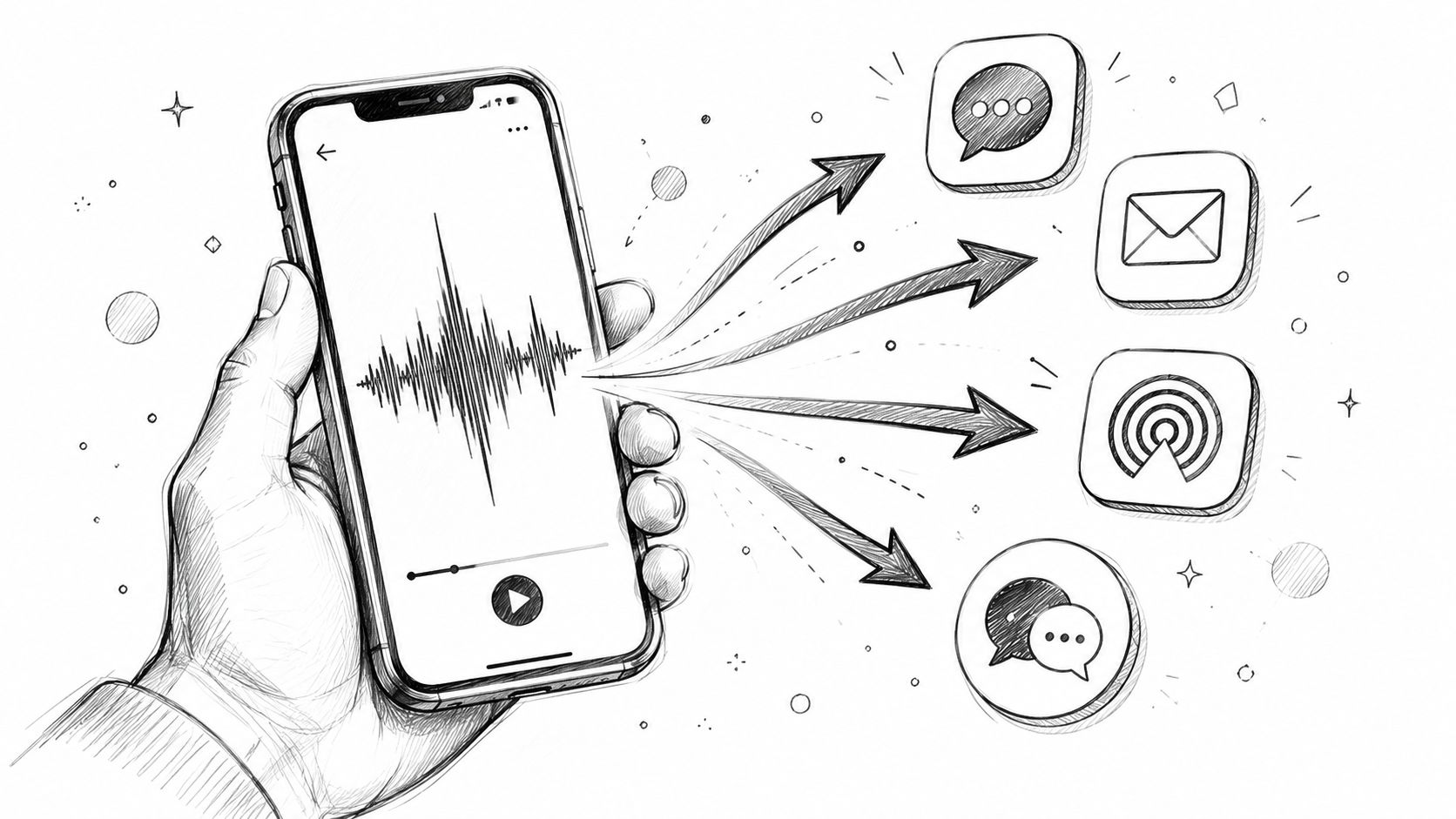
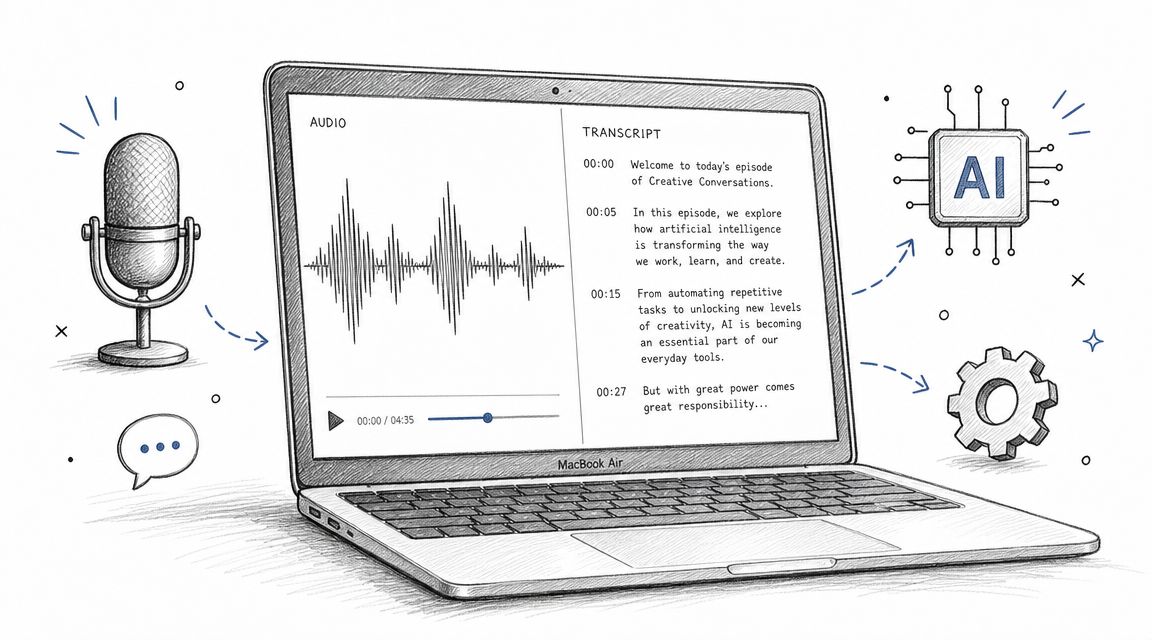
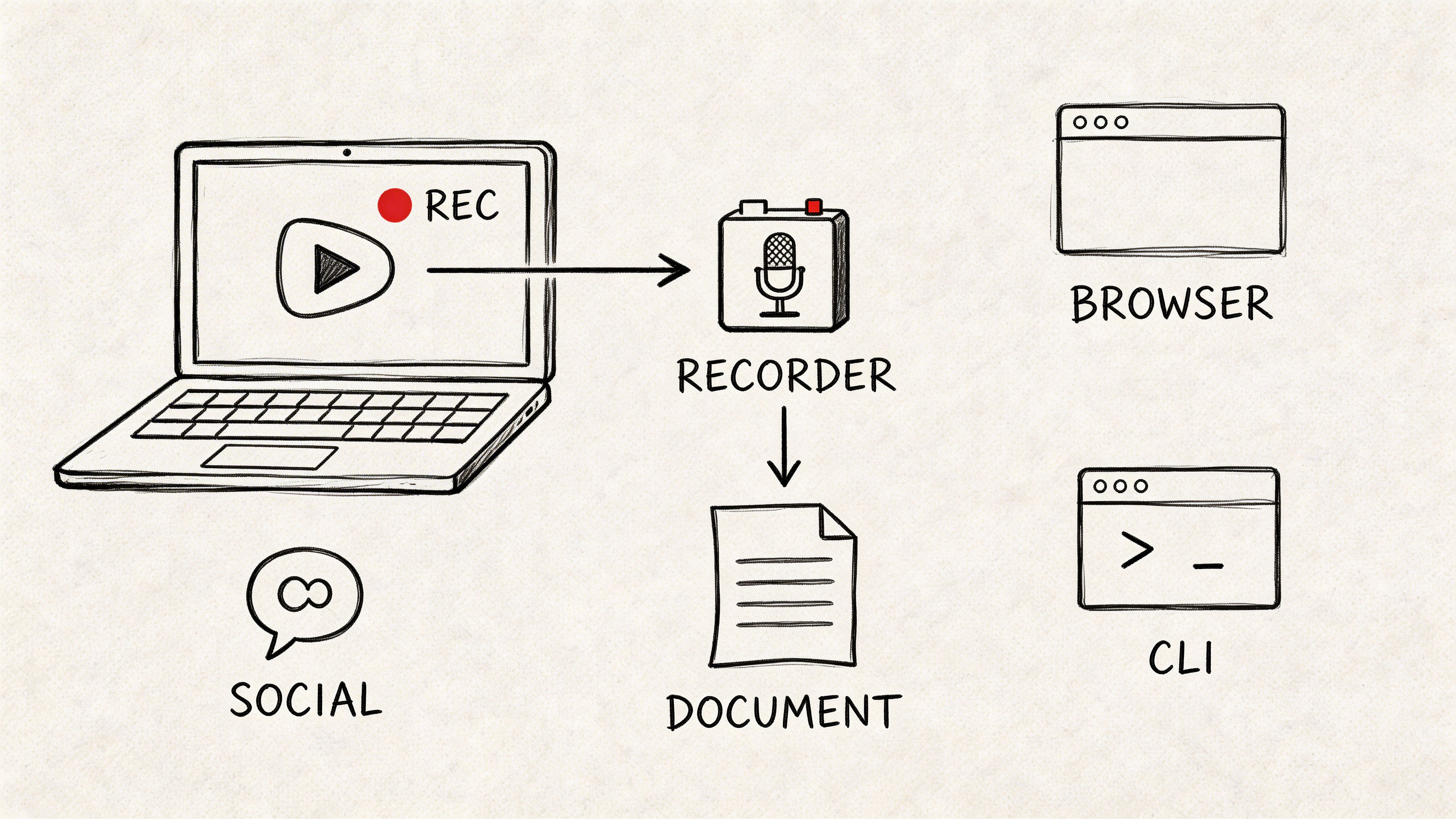
Whisper AI is one tool that supports this workflow by converting audio, video, and social clips into transcripts with speaker detection, timestamps, summaries, and exports such as Google Docs, Word, PDF, TXT, and Markdown. Used that way, the transcript becomes less of a final file and more of a source asset that can move into different channels without repeated manual formatting.
Putting Your Transcripts to Work
The useful question isn’t “What is the best video transcript format?” The better question is “What do I need this transcript to do next?”
If you need readability, start with TXT or DOCX. If you need synced captions, use SRT or VTT. If you’re publishing on the web, think in HTML. If your product, archive, or workflow depends on precise machine-readable data, keep the structured export too. The format changes the labor that comes after it.
That choice also affects how much value you get from the original recording. A transcript can support accessibility, speed up content repurposing, help teams review interviews, and make long-form media easier to process. It can also reduce avoidable busywork, which is often the hidden cost of picking the wrong file type.
For teams connecting transcripts to search performance and content distribution, it helps to pair transcription decisions with broader comprehensive SEO strategies so the transcript doesn’t live in isolation from the rest of your publishing system.
The transcript isn’t the paperwork after the creative work. It’s part of the creative work because it determines how far the content can travel.
If your current process still ends with “download whatever file the platform gives us,” that’s the place to improve. Start with the job. Match the format to the outcome. Keep one clean source of truth. Then export outward for each channel.
If you want a faster way to turn recordings into usable transcript formats, try Whisper AI. Upload a file or paste a link, review the draft, and export the version that fits your next task, whether that’s captions, show notes, documentation, or a web-ready transcript.