
How to Turn On Closed Captioning on Any Device in 2026
You're probably here because the dialogue is too quiet, the room is too loud, the speaker talks too fast, or the app buried the setting where no normal person would look. That's the actual problem with captions. Turning them on is often simple, but finding the right control depends on where the video is playing.
The fastest way to solve it is to think in layers. First, check the video player itself for a CC, Subtitles, or Audio & Subtitles button. If that fails, check the device's Accessibility or Captioning settings. If that still fails, the video may not have a caption track available at all.
Why Almost Everyone Uses Captions Now
Captions aren't a niche feature anymore. They're part of normal viewing, whether you're watching on a train, in a waiting room, in bed next to someone sleeping, or on a phone speaker you can barely hear.
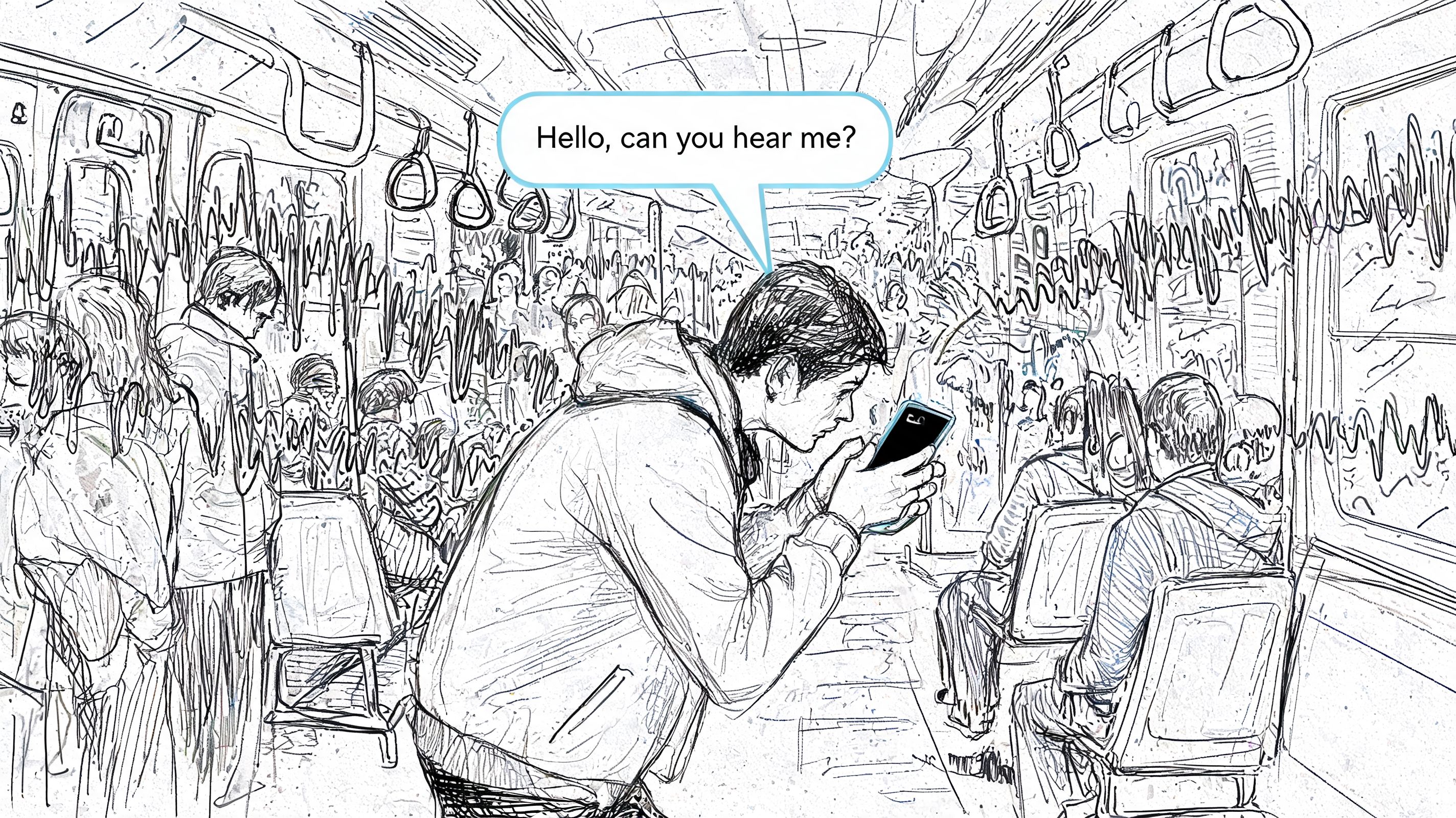
A CBS News poll on subtitle use reported that over half of Americans keep subtitles on either some of the time (21%) or all of the time (34%), which adds up to 55% regular usage. That matters because it changes how to think about how to turn on closed captioning. You're not enabling some obscure accessibility mode. You're using a mainstream viewing tool.
A lot of people still use “subtitles” and “closed captions” as if they mean exactly the same thing. In practice, most apps also blur the terms. If you want the distinction, this guide on what closed captioning means is a useful quick read.
Captions help with more than hearing. They help with accents, low-volume audio, fast dialogue, noisy rooms, and attention.
The good news is that most platforms now expose captions as a direct playback control. The bad news is that every platform names it a little differently, and some devices let the app override the system setting. That's why people feel like captions “randomly” work on one screen and disappear on another.
Enabling Captions on Streaming Services and TVs
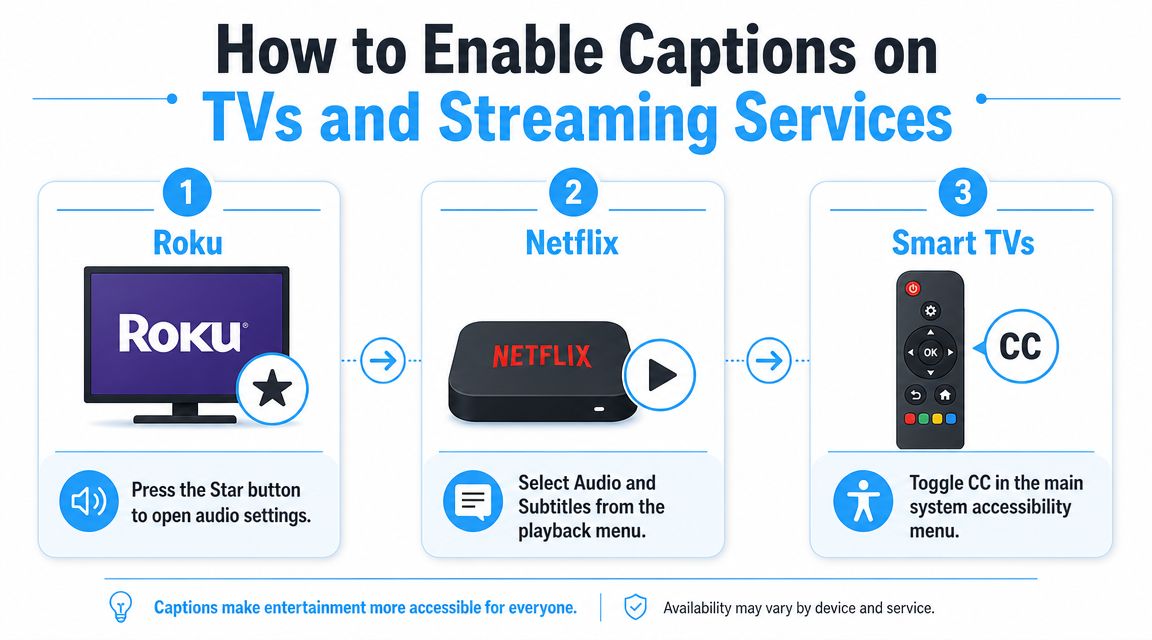
If you're on a TV, streaming stick, or set-top box, use this rule first: look inside the player before you dig through the TV's full settings menu. In most cases, the player overlay is faster.
Netflix and similar streaming apps
On Netflix, Hulu, Disney+, Max, and many similar apps, start playback and then open the on-screen controls with your remote. Look for Audio & Subtitles, a speech bubble icon, or a subtitle menu. Select the caption language, then return to the video.
If you don't see the option while browsing menus outside the video, that's normal. Many streaming apps only show subtitle controls after playback starts.
A few things trip people up:
- Paused state matters: Some apps only reveal subtitle controls after you pause or press the center/select button.
- Profile differences matter: One profile can have captions on while another profile doesn't.
- Live content behaves differently: Some streams have fewer language and caption options than on-demand shows.
YouTube on TV and desktop
YouTube is one of the cleanest examples because Google spells out both methods. You can turn captions on for a single video with the CC button, or make them the default by going to Profile picture → Settings → Playback and performance → Always show captions, as described in YouTube's official caption settings help.
If available, YouTube also lets you include auto-generated captions for videos that don't have creator-uploaded subtitles. That's useful when a channel didn't upload a proper caption file.
If you also watch Prime Video, this walkthrough on closed captioning on Amazon Prime covers the same player-overlay logic on another major platform.
Practical rule: On YouTube, if the CC button is missing, don't keep searching the TV settings forever. The video may not have a usable caption track on that device or for that specific upload.
Roku and streaming boxes
Roku, Fire TV, Apple TV, and cable boxes all follow the same broad pattern, but the path changes. Some let you toggle captions from the player. Others require a trip through system settings or the receiver menu first.
Here's the quickest mental model:
| Device type | First place to check | Second place to check |
|---|---|---|
| Streaming app on smart TV | Player overlay | TV accessibility settings |
| Streaming stick or box | Player overlay | Device caption settings |
| Cable or satellite box | On-screen guide or menu | Accessibility menu in receiver settings |
The main reason people get stuck is that the TV, the streaming box, and the app can all have their own caption preferences. If one layer is off, it can look like the whole feature is broken.
Samsung LG Sony and other smart TVs
For smart TVs, check two places:
- Start the video and look for CC, Subtitles, or Audio & Subtitles in the player.
- If that fails, open the TV's main Settings, then look under Accessibility, General, or Captioning.
This device-first approach matters because, as Rev's overview of TV caption workflows notes, caption controls vary widely by playback environment, from player overlays in apps to remote-menu paths on cable boxes and receivers, in their guide on turning on closed captions on your TV.
A dedicated CC button on the remote is convenient when you have it. It just isn't universal anymore, especially once a separate streaming app takes over playback.
Activating Captions on Computers and Mobile Devices
Phones, tablets, and laptops add one more layer of confusion. You often have both an app-level caption switch and a system-wide accessibility setting. Either one can affect what you see.
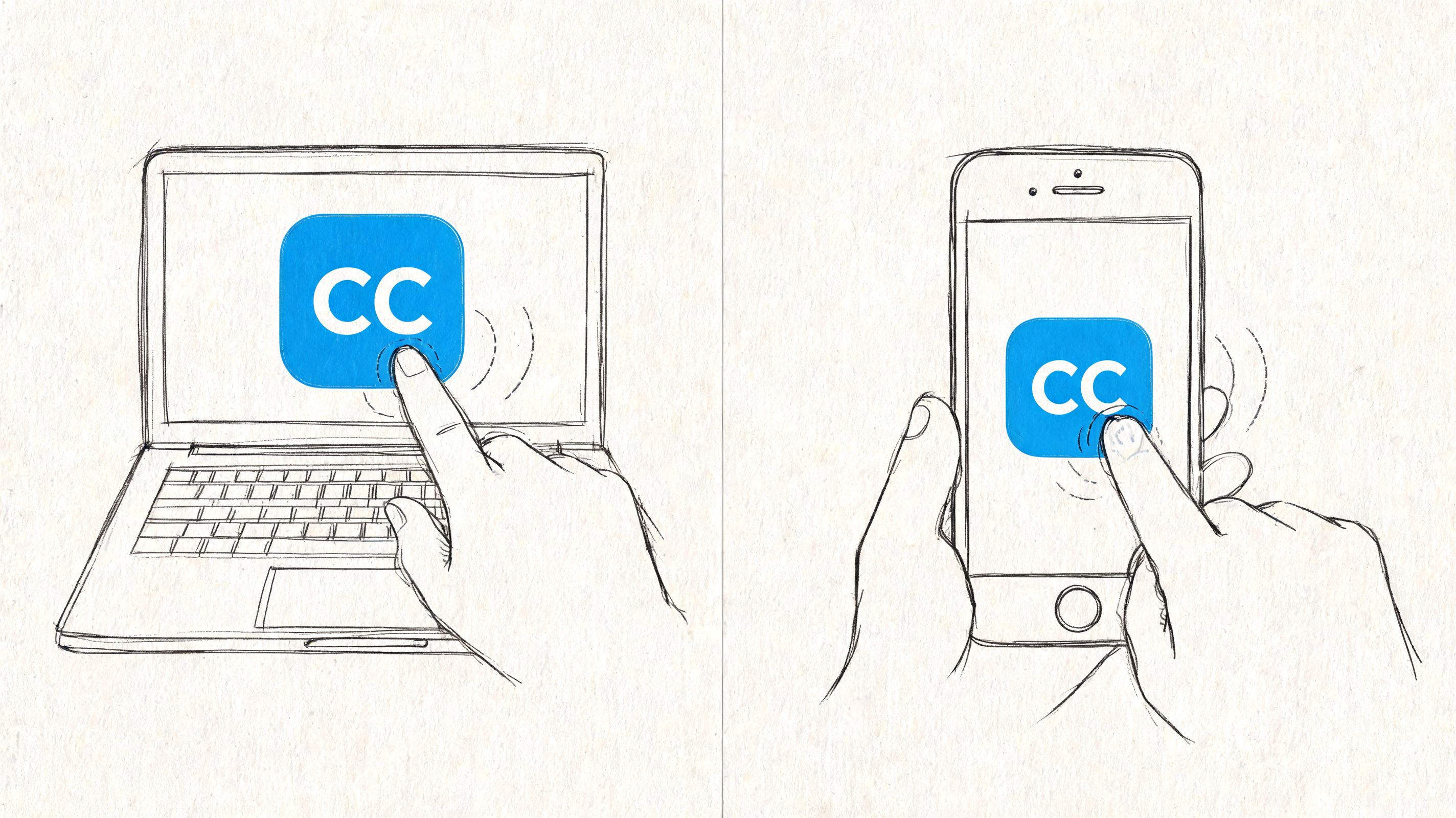
If you only watch in one app, use the app's player controls. If you want captions to appear more consistently across supported apps, turn them on at the operating-system level too.
iPhone and iPad
On iPhone and iPad, the quickest fix is usually in the app itself. Open the video, tap the screen, and look for CC, Subtitles, or Audio & Subtitles.
If you want captions to appear by default where supported, also check the accessibility settings in iOS. The exact labels can vary by version, but the pattern is the same: go to the device's accessibility area and look for caption or subtitle preferences.
Common issue on iPhone: people enable captions in the system settings but forget the app has its own subtitle toggle turned off. The app can still win.
Android phones and tablets
Android works similarly. Start with the player controls in YouTube, Netflix, your browser video player, or the meeting app you're using. If that doesn't stick across apps, check Android's accessibility settings for caption preferences.
On mobile, captions can also be hidden by orientation changes. I've seen this often with horizontal playback where the subtitle icon disappears until the controls are tapped again.
A simple checklist helps:
- Tap the screen first: Mobile apps hide controls aggressively.
- Check full-screen mode: Some apps show subtitle controls only in full-screen.
- Retry after rotating the device: Orientation can reset the overlay.
Windows and Mac
On laptops and desktops, browser playback and app playback don't always behave the same way. The browser player might have one caption toggle, while the operating system has another style or accessibility preference.
That split is why users think captions are inconsistent. They are, but usually for a reason.
For desktop playback, keep this in mind:
- Browser players control availability: If the site doesn't expose a caption track, your operating system can't force one into existence.
- System settings control appearance in supported contexts: Font, size, and style are often handled at the device level.
- Apps may override both: Dedicated apps sometimes use their own subtitle systems.
This short walkthrough is useful if you want to see a visual example of caption controls in action:
The larger pattern is straightforward. For major TV and streaming workflows, captioning is usually a UI-level toggle, but the path changes by platform, with some controls living in player overlays and others in device or menu settings. That's the practical takeaway from Rev's breakdown above, and it applies just as much on personal devices as it does in the living room.
The fastest way to troubleshoot on personal devices
If you want the shortest path to the answer, do this in order:
- Open the video and tap or move the cursor to reveal the player controls.
- Look for CC, Subtitles, or Audio & Subtitles.
- If missing, check the app settings.
- If still missing, check the phone or computer accessibility settings.
- If nothing appears anywhere, the video likely doesn't offer a caption track on that platform.
How to Get Captions in Live Video and Meetings
Live captions are different from captions on recorded video. With recorded content, someone can clean up the transcript, fix timing, and upload a proper caption file. In live video, the platform often has to generate text in real time while people interrupt each other, switch microphones, or speak over background noise.
That's why this category frustrates people more than any other. The setting might exist, but the control can be buried, host-dependent, or unavailable on one device even when it works on another.
Zoom and Google Meet
In Zoom and Google Meet, look directly in the meeting toolbar first. The caption button is usually grouped near accessibility, transcript, or more-options controls. If you don't see it, the host's meeting settings may be limiting what attendees can access.
What matters most is expectation. Live captions often lag slightly, can miss names or technical terms, and may struggle with crosstalk.
If your main use case is meetings rather than entertainment, this guide to Zoom meeting transcription is more useful than a TV-style caption tutorial because it focuses on searchable text after the call, not just on-screen display during it.
Live streams and social video
Most "how to turn on closed captioning" articles fall apart here. They assume a stable app with a stable menu. Live and social video don't work like that.
Section 508 guidance notes that users increasingly need captions across fragmented environments where controls can be inconsistent, buried, or unavailable. Their guidance on captions and transcripts for digital content is especially relevant here because it reflects the messier reality outside cable TV and polished streaming apps.
If you can't find a caption button on a live stream, that doesn't always mean you missed it. Some platforms simply don't expose the same controls for every broadcast type or device.
A practical way to think about live captions:
- Meeting platforms: Usually offer a built-in live caption or transcript feature, but hosts may control access.
- YouTube Live: Often depends on what the channel enabled and what the viewing device supports.
- Short-form and social apps: Caption controls vary the most, and some videos rely entirely on creator-added on-screen text instead of a true toggleable caption track.
What works best in practice
For live events, don't assume one setting will follow you everywhere. Check the platform toolbar, then the app settings, then any accessibility menu on the device. If you still can't enable captions, look for a post-event transcript or recording instead.
Troubleshooting Common Captioning Problems
Most caption failures come down to one of three issues: the track isn't there, the wrong layer is controlling playback, or the captions are technically on but still unusable.
When there's no caption button at all
If the player shows no CC or subtitle option, stop and consider the simplest explanation first. The video may not include a caption track on that platform.
Try these fixes:
- Switch devices: A caption option may appear on desktop even when it's hidden in a TV app.
- Reload playback: Some apps don't populate subtitle menus until the stream fully starts.
- Test another title or video: If captions work elsewhere, the issue is specific to that piece of content.
When captions are on but out of sync
Out-of-sync captions usually point to the track, not your settings. You can't fully repair a broken upload as a viewer, but you can test whether the problem is local.
Do this:
- Restart the app or browser tab: Temporary playback glitches can desync the text.
- Turn captions off and back on: This forces the player to reload the text track.
- Try the same video on another device: If the delay follows the video, the file itself is the problem.
Bad sync is usually a content problem, not user error.
When captions are too small or hard to read
This is the most overlooked problem. People manage to turn captions on, but the text still sits over graphics, blends into bright footage, or appears too small on mobile.
A few providers let you adjust style settings such as font size, color, background, or opacity, but those options vary by service and device. If the app doesn't offer styling, check the device accessibility settings instead.
Use this order:
- Check player subtitle style options
- Check device accessibility caption style
- Test desktop if mobile overlays are cramped
- Avoid videos with critical text placed in the lower third whenever possible
Closed captions are often rendered in the lower third of the screen, so videos that already place key graphics there can remain hard to follow even when captions are working.
From Viewer to Creator Generating Accurate Captions
Sometimes the actual answer to how to turn on closed captioning is frustratingly short: you can't, because the video was never captioned properly. That's common with uploads, webinars, social clips, archived live streams, and internal company videos.
When that happens, the problem shifts from viewing to production. Good captions aren't magic. They're a separate text track attached to the video, typically in formats like SRT or VTT, which lets the player turn them on and off. SpeakWrite's explanation of closed captions as separate text tracks gets this technical distinction right, and it's the key thing many creators miss.
What makes captions usable
Accurate captions need three things working together:
- Clean transcription: The words have to be right.
- Good timing: The text has to appear in sync with speech.
- Readable delivery: The final player has to display the track cleanly on actual devices.
If the audio is muddy, every downstream step gets worse. Before generating captions, it helps to clean the source audio. This guide on steps to eliminate audio hum and hiss is a practical resource when a recording has noise that will confuse transcription.
A practical creator workflow
For creators, educators, marketers, and teams archiving meetings, the efficient path is usually:
- Generate a transcript from the audio or video.
- Review names, jargon, and obvious errors.
- Export to a caption format such as SRT or VTT.
- Upload that file to the video platform.
- Test playback on desktop and mobile.
One option in that workflow is Whisper AI, which turns audio, video, and social clips into searchable transcripts and summaries, then helps you work from that text toward publishable captions. That's useful when the built-in auto-captions in a platform are missing, weak, or not easy to reuse.
The important part isn't the tool name. It's the workflow. If the caption track is separate, reviewable, and exportable, you can improve it. If the words are burned into the video itself, viewers lose the ability to toggle them off, and you lose flexibility across platforms.
If you need more than a simple on-screen toggle, Whisper AI can help turn recordings, meetings, interviews, podcasts, and social clips into searchable transcripts, summaries, and caption-ready text files. That's useful when captions are missing, when live captions need cleanup after the fact, or when you want to publish a proper SRT or VTT instead of relying on whatever a platform auto-generates.


























































































