
Mastering Zoom Meeting Transcription: A Complete Guide
Think about the conversations happening on Zoom across your company every day. Decisions are made, client feedback is shared, and critical project details are ironed out. But what happens to all that valuable information the second the "End Meeting" button is clicked? Too often, it evaporates.
This is why transcribing your Zoom meetings isn't just a nice-to-have feature; it's a fundamental business practice that turns fleeting conversations into searchable, actionable company assets. From my experience, making transcription a standard part of our workflow has saved countless hours and prevented key details from falling through the cracks.
Why is Zoom Meeting Transcription a Business Necessity?
In a world of back-to-back virtual calls, critical information gets lost. We've all been there. Key decisions, client needs, and action items can vanish, creating information silos where only attendees hold the context. This leads to misalignment, repetitive questions, and wasted time.
This is precisely where Zoom meeting transcription stops being a luxury and becomes a necessity. It effectively creates a collective memory for your team, breaking down knowledge barriers and pushing back against "Zoom fatigue."
Turning Conversations into Company Assets
Let's make this real with a scenario I see often. A project manager misses a key stakeholder call due to a conflict. Instead of chasing down colleagues for a summary, they can search the transcript for "budget approval" and find the exact decision in seconds. Projects keep moving without the usual bottlenecks.
Or think about a sales rep preparing for a follow-up. They can quickly scan the transcript from their initial discovery call to pinpoint a client's specific pain points and use their exact language. That's a level of personalization you can't get from scribbled notes. If you want to dive deeper, you can learn more about what is audio transcription in our detailed guide.
By converting spoken words into a searchable text format, you create a powerful, reusable asset. A new hire can get up to speed by reviewing past team meetings, and a product team can analyze customer feedback calls to spot common themes and feature requests.
The Tangible Impact on Productivity
The move to remote and hybrid work has only made this more critical. The AI meeting transcription market, valued at $3.86 billion in 2025, is expected to explode to $29.45 billion by 2034. This isn't surprising when you consider that nearly 60% of remote workers admit they struggle to remember key details from their virtual meetings.
The data backs this up. Companies that embrace AI transcription report a 25% reduction in meeting time and a 30% boost in meeting productivity. It completely changes how work gets done.
Ultimately, transcribing your meetings is about more than just having a record. It’s about building a single source of truth that boosts alignment, empowers your team, and drives real productivity across the organization.
How to Use Zoom’s Built-In Transcription
Before looking at third-party tools, let's explore what's already built into your Zoom account. Many users don't realize that Zoom has solid native tools for both live captions and full, post-meeting transcripts. With a few quick changes in your settings, you can turn on a feature that makes your meetings more accessible and searchable from the get-go.
If you're an account admin, enabling this is simple. You can activate it for your entire organization or just for specific user groups, which is perfect for a pilot test.
Turning On Native Transcription and Captions
First, log in to your Zoom account on the web and go to Settings. Click on the Meeting tab and scroll down to the In Meeting (Advanced) section. This is where you'll find the toggles for "Automated captions" and "Full transcript."
Just flip those on, and you're all set.
Enabling these gives any meeting host the ability to start live captions during a call and save a full transcript afterward. It’s a simple setup for adding clarity and creating a record of every conversation.
The quality is surprisingly good. Independent tests in 2025 showed that Zoom's transcription engine had one of the lowest word error rates (WER). Zoom itself reported accuracy as high as 99.05%, which is impressive and means you'll spend less time cleaning up the text. You can dig into the numbers in Zoom's AI quality report.
What Hosts and Participants Will See
Once you’ve enabled the feature, hosts will see new controls in their meeting toolbar. They can start live captions, which appear at the bottom of the screen for anyone who wants them. This is a game-changer for accessibility and a lifesaver for anyone in a noisy environment.
After the meeting ends, the full transcript gets saved right alongside the cloud recording. You'll have a complete, time-stamped text version of everything that was said.
The key difference is simple: Live captions are for in-the-moment understanding, while the full transcript is the permanent, searchable record you use after the meeting.
Knowing when to use each is crucial.
- Live Captions: Use these for real-time accessibility, helping participants with hearing impairments or those who aren't native English speakers.
- Full Transcript: This is your go-to for creating a detailed record, searching for specific keywords or decisions later on, and generating meeting summaries.
By making the most of these native tools, you're creating a valuable asset from your meetings—all without spending an extra dime or installing new software.
Choosing the Right Transcription Method for Your Team
While Zoom’s built-in tools are a fantastic starting point, the best zoom meeting transcription method isn't one-size-fits-all. The right approach depends on the meeting's purpose. A casual internal sync has different needs than a formal client discovery call, so picking the right workflow is crucial for getting the most value.
Your decision will likely come down to a balance between four key factors: speed, accuracy, cost, and advanced features. For most teams, this means choosing between Zoom's native service, a more powerful external AI like Whisper, or a dedicated third-party tool that plugs into your meetings.
Comparing Your Transcription Options
The simplest path is often using Zoom’s own transcription. It’s built-in, doesn't cost extra with an eligible plan, and provides a solid foundation for most everyday meetings. The transcript appears next to your cloud recording, making it convenient for a quick review.
However, when you absolutely need precision, exporting your audio to a specialized service like Whisper AI is a major upgrade. These AI models are trained on gigantic datasets, delivering much higher accuracy, especially with technical jargon or diverse accents. It adds an extra step—downloading the audio and uploading it elsewhere—but the boost in quality is often worth it for important conversations.
Finally, third-party integrations offer a compelling middle ground. These tools can join your meeting like a participant, giving you real-time transcription along with advanced perks like automatic speaker labels and action-item detection. It's a way to combine convenience with extra horsepower.
Comparison of Zoom Transcription Methods
To help you decide, here’s a quick breakdown of how these different workflows stack up. Think about your most common meeting types and see which column aligns best with your needs.
Ultimately, this table shows there's no single "best" option, just the best fit for a specific task.
Making the Right Call for Your Meeting
To simplify things, ask yourself one question first: do you need live captions during the meeting, or just a detailed transcript afterward? This one decision can immediately point you in the right direction.
This flowchart helps visualize that initial choice.

Figuring out if your primary need is live accessibility or a detailed archive is the first, most important step.
Here are a few real-world examples from my experience:
- Internal Team Syncs: For daily stand-ups or weekly check-ins, Zoom's native transcription is usually all you need. It’s fast, free, and captures the conversation well enough for anyone who missed the call to catch up.
- Client Calls & Sales Demos: Here, accuracy is king. Using a service like Whisper AI ensures you don't miss a single client requirement. That extra five minutes to process the audio is a small price to pay for a perfect record.
- Formal Board Meetings or Legal Depositions: For these high-stakes events, you'll want a dedicated third-party integration or a human transcription service. These provide the certified accuracy and clear speaker identification required.
The goal is to create a process that works for your team without adding friction. Don't be afraid to mix and match. You might find that Zoom’s native tool is perfect for 80% of your meetings, while you save a more powerful option for the critical 20%.
By matching your transcription method to the meeting's importance, you create a system that's both effective and affordable, getting the right level of detail when it matters most.
A Practical Guide to Using Whisper for Zoom Recordings
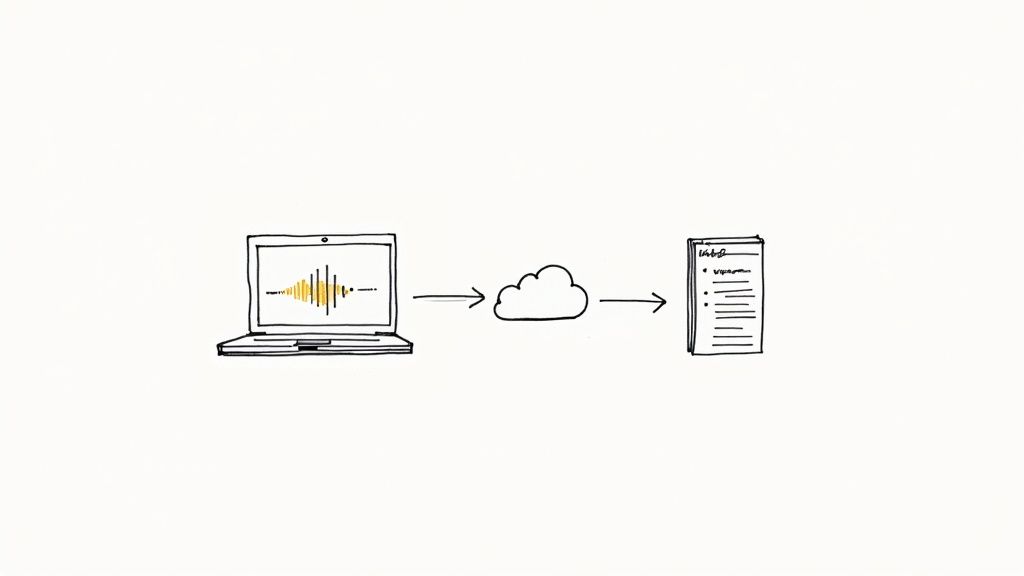
When accuracy is non-negotiable, it’s time to look beyond Zoom’s built-in tools and use a specialist like OpenAI’s Whisper. While native transcription works for a quick overview, Whisper is on another level. It’s designed to handle tough stuff—complex jargon, thick accents, and background noise.
This makes it my go-to for any recording where every word matters, like a key client call, a project kickoff, or an interview destined for a case study. The transcript it produces almost always needs far less cleanup, saving me a ton of time.
The process is more straightforward than you might think, but it hinges on one critical step: getting a clean, high-quality audio file out of Zoom. The accuracy of your transcript is directly tied to the quality of the audio you feed the AI.
Preparing Your Zoom Recording for Whisper
Before transcribing, you need to configure your Zoom settings to capture the best possible audio. The old saying "garbage in, garbage out" has never been more true. A clean audio source is the single most important factor for an accurate Zoom meeting transcription.
First, I always recommend recording to the cloud. The real secret, however, is configuring Zoom to save a separate audio track for each person speaking.
You can find this setting in your Zoom web portal by navigating to Settings > Recording. Look for the option labeled "Record a separate audio file for each participant" and switch it on.
Enabling this feature is a game-changer. It gives you individual audio files for every speaker, which dramatically improves the final transcript's accuracy and makes it infinitely easier to correctly identify who said what.
Once your meeting ends and the cloud recording processes, you can download the audio files, typically in M4A or MP4 format. This is the raw material you'll feed into Whisper.
Transcribing Your Audio File
With your audio file ready, you have two main ways to get it transcribed with Whisper.
For most people, the easiest path is using a service built on the Whisper API. These platforms offer a simple drag-and-drop interface where you upload your file and let their servers do the heavy lifting. This is perfect if you want top-tier accuracy without technical headaches. If you're just starting out, this guide on how to use Whisper AI is a great resource.
For the more technically inclined, running Whisper locally is a fantastic option. This involves setting up the model on your own machine, giving you total control and data privacy. It’s a powerful approach but requires some comfort with the command line.
Whichever route you take, you'll get a raw text file of your meeting. The next job is to turn that text into a useful document.
- Scan for Errors: Even with Whisper's incredible accuracy, give the transcript a quick read-through. Pay special attention to names, company-specific jargon, or acronyms.
- Assign Speaker Labels: If the tool didn't do it for you, now is the time to add speaker names. Those separate audio tracks make this a breeze.
- Format for Readability: Break up long walls of text. Use paragraphs, bullet points, and headings to make the document easy to scan.
Whisper is a fantastic tool, but it's just one piece of the puzzle. Exploring advanced AI content generation tools can help you take that raw transcript and turn it into meeting summaries, action items, or even draft follow-up emails. This hands-on approach ensures your most important conversations are captured with the precision they deserve.
How to Turn Raw Transcripts into Actionable Insights
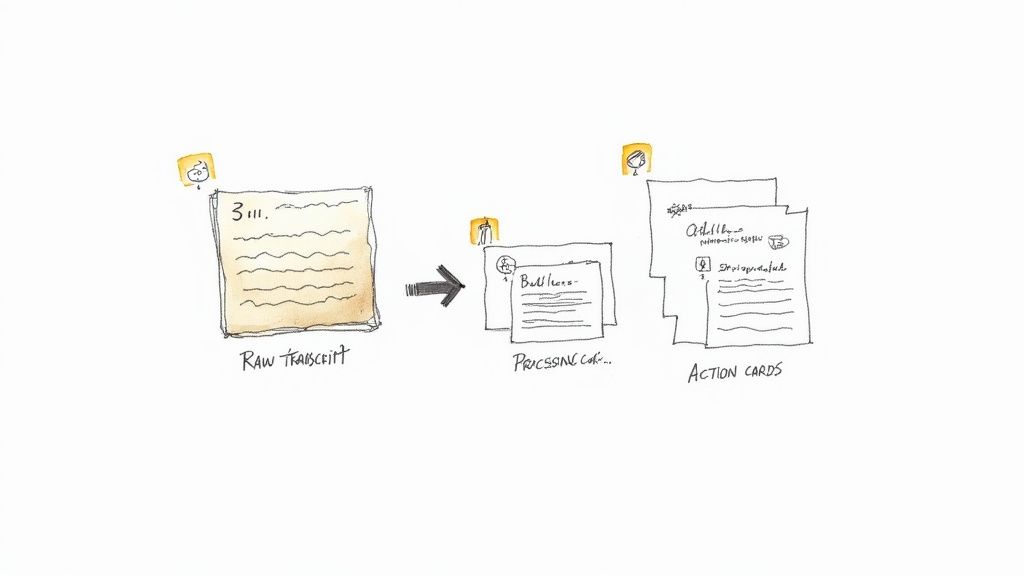
Let's be honest, a raw transcript is just the starting point. Having an accurate record is great, but the real magic happens when you turn that wall of text into something useful. This is where tools like ChatGPT or Claude can save you hours, making sure no important detail gets lost.
The goal is to stop being a simple record-keeper and start extracting intelligence. Instead of re-reading pages of dialogue, a few simple prompts can automatically generate summaries, pinpoint key decisions, and create a clear list of who needs to do what next. This step makes your Zoom meeting transcription process incredibly powerful.
From Messy Text to Clear Summaries
The first, and most useful, thing to do is to get a concise summary. A full transcript can be a lot to take in, but a well-written summary gives people the highlights in seconds. It’s perfect for sharing with teammates who couldn't attend or for a quick reference.
I've found a prompt like this works wonders. Just paste your raw transcript below this command in your AI tool:
"Act as a project manager. Read the following meeting transcript and provide a brief, professional summary of the key discussion points, decisions made, and overall meeting outcome. Focus on clarity and conciseness, using bullet points for the main topics."
This simple command immediately re-packages raw data into something anyone can digest. You get the big picture without wading through every line of conversation.
Extracting Key Decisions and Action Items
Beyond a summary, the real gold is in the specific commitments and next steps. This is where follow-ups so often break down—tasks get mentioned but never written down. With an AI assistant, you can systematically pull these critical details right out of the text.
This kind of analysis is what’s fueling the growth of the global transcription industry, projected to balloon to over $35 billion by 2032. The market is expanding because AI services now do more than just transcribe; they analyze. They turn unstructured chatter into structured data, helping teams make better decisions, faster.
To pull out these crucial elements, use more specific prompts.
- For Decisions: "Analyze this transcript and list all final decisions that were made. For each decision, note who made it and the rationale if mentioned."
- For Action Items: "Extract all action items from this transcript. List each task, the assigned owner, and the deadline if specified."
Combining these outputs gives you a clear, actionable roadmap.
Think about other uses, too, like getting a transcript for adding subtitles to videos, which always starts with a clean transcript. This five-minute routine—summarize, identify decisions, and list action items—changes your transcript from a passive document into a tool that actively pushes projects forward.
Your Zoom Transcription Questions, Answered
Even with the best tools, you're bound to have questions when starting a new process. When it comes to transcribing your Zoom meetings, a few key concerns pop up again and again—usually around security, accuracy, and what to do with the file afterward. Let's tackle those head-on.
How Do I Know My Meeting Data Is Secure?
This is the most important question. When you use Zoom's built-in transcription, your data is covered by their standard security measures. But what about when you send a recording to a third-party service?
The key is to do your homework. Any reputable AI transcription platform designed for professional use will process your files securely. They won't store your data longer than needed or use it for anything other than generating your transcript.
My advice? Always pick a service that's transparent about how they handle your data. Look for things like data encryption and compliance with privacy laws like GDPR or CCPA. This is your best guarantee that sensitive conversations stay private.
Realistically, How Accurate Are These Transcripts?
AI transcription has come a long way, but it's not flawless. A few things can trip it up: background noise, people talking over each other, heavy accents, or industry-specific jargon.
Here's what I've seen in practice:
- Zoom’s Native Transcription: It's solid for straightforward conversations where everyone is speaking clearly. You can expect accuracy somewhere north of 90%.
- Specialized AI (like Whisper): This is where you see a big jump. In good conditions, these tools can hit 95-99% accuracy because they've been trained on much more diverse audio data.
For most day-to-day internal meetings, that 90% from Zoom is often fine. But if it's a critical client call or you're repurposing the meeting into content, going the extra mile for higher accuracy is worth it.
What's the Best File Format to Export?
There's no single "best" format. The right choice depends entirely on what you need to do with the transcript next. Think about the end goal before you export.
For instance, if you just need to send the text to a colleague for a quick look, a .TXT or .PDF is perfect. But if you're planning to edit the text or collaborate on it, exporting it as a Google Doc or Word file (.docx) gives you that needed flexibility.
And for more technical uses or web content, Markdown (.md) is often the most practical choice. It all comes down to your specific workflow.
Ready to turn your Zoom meetings from temporary conversations into a library of searchable, valuable assets? Whisper AI offers a powerful, secure, and incredibly accurate way to handle all your transcription needs. You can process audio or video files in minutes and get back clean, time-stamped text with clear speaker labels. Start creating summaries, pulling out action items, and unlocking the real value trapped in your meetings today at https://whisperbot.ai.


























































































