
How to Transcribe MP4 to Text: A Complete Guide
Turning a video into text used to be a hassle, but today it's incredibly simple. You can upload an MP4 file to an AI platform, and within minutes, the tool converts all the spoken audio into a written document. What was once a locked video file becomes a searchable, editable, and versatile asset, ready for you to repurpose in countless ways.
This guide will walk you through everything you need to know to transcribe mp4 to text effectively, based on years of experience turning video content into written assets.
Why Transcribing Video is a Smart Move for Your Content
Not long ago, getting a video transcribed was a slow, expensive process, mostly reserved for specialized fields like journalism or legal work. Today, that has completely changed. Having a text version of your video is no longer a luxury—it's a core component of a modern content strategy.
This shift is driven by massive advancements in AI. The market for AI transcription was valued at around USD 4.5 billion in 2024 and is projected to skyrocket to USD 19.2 billion by 2034. This isn't just gradual growth; it’s a fundamental change from manual methods to automated tools for handling video. For a detailed look at this trend, you can explore a full market analysis on the future of transcription.
Unlock Your Video's Hidden Potential
I like to think of an MP4 file as a locked box. You can see the video and hear the audio, but all the valuable words spoken inside are essentially trapped. Transcription is the key that unlocks that value, making every single word searchable, shareable, and easy to reuse. It’s what connects your visual media to the text-first world of search engines and online content.
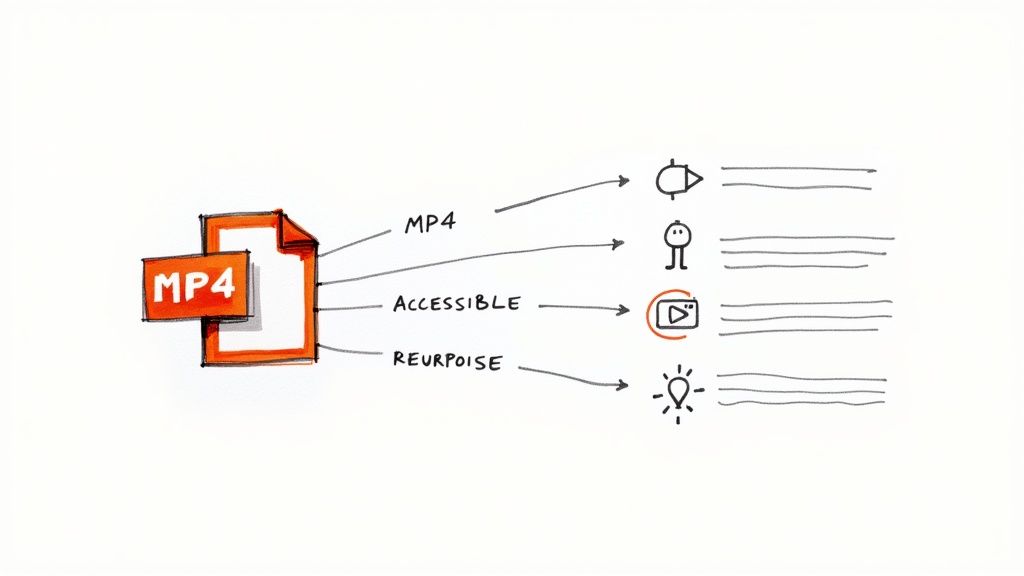
Technically, an MP4 file is just a container holding different data streams, like video and audio tracks. The transcription process focuses on the audio track, transforming it from a fleeting soundwave into a permanent, powerful asset.
Turn One Video into a Complete Content Ecosystem
So, what can you actually do with a transcript? This is where it gets exciting. When you transcribe an MP4 to text, you’re not just getting a simple document; you're creating the foundation for a wealth of new content.
The real magic happens after the transcript is generated. A one-hour webinar recording can become a detailed blog post, a series of ten social media updates, an accessible resource for hearing-impaired audience members, and a searchable knowledge base for your team.
This approach massively boosts the return on investment for every video you create. It lets you reach people in the way they prefer to consume information—whether they want to watch, read, or quickly scan for highlights. The benefits are tangible and immediate:
- Boost Your SEO: Search engines are excellent at reading text but can't "watch" a video. A transcript makes your video's content fully indexable, meaning you can start ranking for all the valuable keywords spoken in it.
- Improve Accessibility: Transcripts and captions make your content accessible to people who are deaf or hard of hearing. They also help non-native speakers who may find it easier to read along.
- Effortless Content Repurposing: Need a compelling quote for a social media post? Or a summary for an email newsletter? You can pull key ideas and highlights directly from the transcript without having to scrub through hours of footage.
Choosing Your Transcription Method: AI vs. Human Services
Once you have an MP4 file ready, your first major decision is whether to use a lightning-fast AI service or a meticulous human professional. There's no single "best" answer—the right choice depends entirely on your project's specific needs, balancing your budget, deadline, and required level of accuracy.
The decision comes down to four key factors: accuracy, speed, cost, and security. For an internal team meeting where you just need a searchable record, an AI that delivers a 95% accurate transcript in minutes is a game-changer. But for a legal deposition, you'll need the 99%+ accuracy that only a human can guarantee.
The Trade-Off: Accuracy vs. Speed and Cost
At its core, the choice between AI and human transcription is a classic trade-off. Automated services deliver incredible speed at a fraction of the cost. On the other hand, human services provide near-perfect precision, but you'll pay more and have to wait longer.
This isn't just an observation; market data supports it. While automated software currently makes up a huge portion of the market—around 58.2%—human-powered services still hold a significant 41.8% share. This split tells a clear story: businesses use AI for quick, cost-effective tasks while reserving human transcribers for high-stakes content where accuracy is non-negotiable. If you're curious about the numbers, you can dig deeper into these automated transcription statistics.
The question to ask isn't "Which one is better?" but rather, "Which is the right tool for this specific job?" A fast, affordable AI transcript is perfect for drafting blog posts or creating internal notes. A human-verified transcript is essential for court evidence or polished, public-facing video captions.
AI vs. Human Transcription: A Quick Comparison
To make the decision clearer, here’s a direct comparison of the key features. This table should help you figure out which service best fits your project's needs, budget, and timeline.
Ultimately, this side-by-side view shows there's a place for both. Your choice depends entirely on what you're trying to achieve with the final transcript.
When to Choose Each Method: Practical Examples
Let’s put this into practice with some real-world scenarios. Seeing where each service shines can make the decision a lot easier.
When to Choose AI Transcription
- Meeting Notes: You just finished a brainstorming session and need a searchable record of who said what. A few minor typos won't cause any issues.
- First Drafts for Content: You're turning a webinar into a series of blog posts. An AI transcript gives you a solid foundation to edit and repurpose in record time.
- Personal Use: You're transcribing a university lecture for your study notes. Speed and affordability are your top priorities.
When to Choose Human Transcription
- Legal or Medical Records: Accuracy isn't just nice to have; it's required for compliance and legal validity. There is absolutely no room for error.
- High-Stakes Video Content: You're adding captions to a documentary or a major brand announcement on YouTube. Mistakes would look unprofessional and damage credibility.
- Challenging Audio: The recording is messy—think heavy background noise, people talking over each other, or speakers with thick accents that would trip up an AI.
In my experience, a hybrid approach often works best: get a quick first draft from an AI and then have a human editor provide the final polish.
As you explore AI options, it's helpful to see how they stack up against the best AI tools for content creation available today. You can also dive into our guide on the different types of AI-powered transcription services to find the perfect solution for your workflow.
A Step-by-Step Guide to Transcribing Your First MP4 File
Getting your first MP4 file transcribed is a straightforward process. Let's walk through the steps on a typical AI transcription platform, where I'll highlight the key settings that ensure you get a clean, useful document instead of a jumbled mess.
The process begins with the upload. Most modern tools offer a couple of ways to get your MP4 into the system. You can either drag the file directly from your desktop or, if it's already online, paste a link from a service like YouTube, Google Drive, or Dropbox. I find the cloud link option is often faster and more reliable, especially for larger files.
Dialing in the Right Settings
Once your file is uploaded, you’ll see a few settings. Don't skip this part. Taking a moment here is the single best thing you can do to ensure you get an accurate result when you transcribe mp4 to text. These settings tell the AI what to listen for and how you want the final text formatted.
You'll almost always find these three core options:
- Source Language: This is critical. Select the primary language spoken in your video. If you leave it on English for a Spanish video, the output will be nonsensical. Most good platforms support dozens of languages.
- Speaker Identification (Diarization): This is a lifesaver for interviews or meetings. It automatically identifies who is speaking and labels them (e.g., "Speaker 1," "Speaker 2").
- Timestamps: Always turn this on. It aligns specific words and sentences with their exact time in the video. This is essential for creating captions or if you need to click on a sentence to jump to that moment in the recording.
This chart can help you decide between AI and human transcription based on what matters most for your specific project.
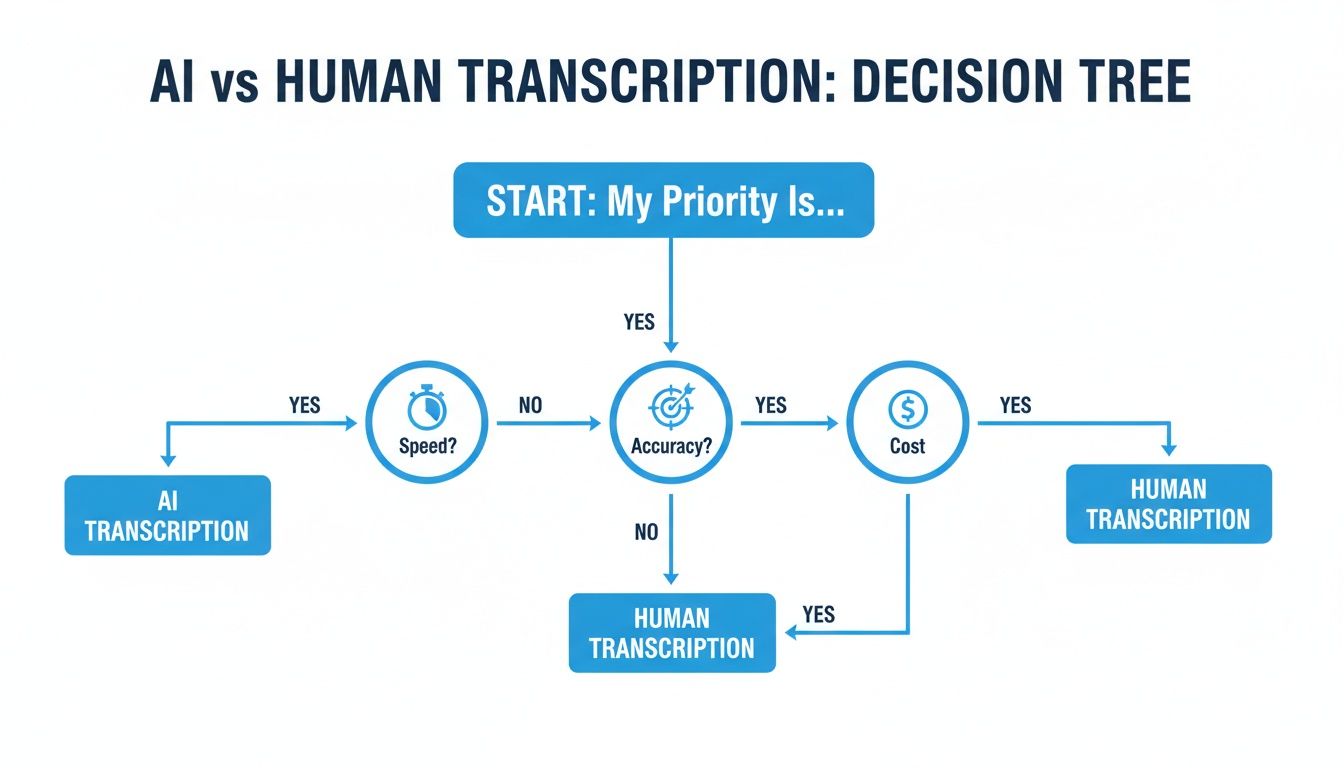
The takeaway is clear: if you need it fast and cheap, AI is your best bet. If you absolutely cannot compromise on accuracy, a human service is the way to go.
From Upload to Transcript
After you've confirmed your settings, the AI takes over. The speed is often what surprises people most. A full one-hour video can be converted to text in just a few minutes, though this can vary depending on the file size and how busy the service is.
This technology has become a staple for many businesses, especially with the rise of remote work. The global market for transcribing video conferences was valued at USD 0.806 billion in 2024 and is expected to climb to USD 1.18 billion by 2033. This growth is driven by companies needing automatic records of their MP4 meetings for everything from legal compliance to simple note-taking. You can discover more insights about the video transcription market and its rapid expansion.
The real magic happens when you get that notification: "Your transcript is ready." Suddenly, that video file is no longer a black box. It's a fully searchable, editable, and structured text document, complete with who said what and when.
With the raw transcript in hand, you're ready for the next step: refining and exporting. This is where you clean up any minor AI errors and format the text for its final purpose—whether that's turning it into a blog post, creating subtitles, or archiving an accurate record. For a deeper dive, our guide on creating a transcript covers this stage in detail.
How to Edit and Export Your Transcript
Getting the initial transcript from an AI is a fantastic start, but it's rarely the final step. The real value comes when you take that raw text and refine it into a perfectly accurate, polished document. I always think of the AI's output as an excellent rough draft—now it's my turn to add the human touch.
Most transcription tools provide an interactive editor that syncs the text directly with your video's audio, which is a game-changer. If a word looks off, you can click on it, and the editor will play that exact audio snippet. This lets you confirm what was said and make quick fixes without having to painstakingly scrub through the MP4 file yourself.
Polishing Your Transcript for Perfection
Your first editing pass should focus on cleaning up the text. Even with AI reaching up to 98% accuracy, it can still stumble on specific names, internal company jargon, or words muffled by an accent. The goal here is to make the transcript flawless and professional.
Beyond fixing words, this is your chance to correct speaker labels. The AI is good at telling voices apart, but it will likely assign generic labels like "Speaker 1" when you know it was actually "Jane Doe." Correcting these labels is crucial for clarity, especially for interviews or meetings with multiple participants.
A well-edited transcript isn’t just about getting the words right; it's about creating a clear, reliable record of a conversation. Taking a few extra minutes to correct names and tighten up timestamps elevates a good transcript to a great one.
Timestamps are another area to check. A perfectly timed transcript is essential if you're creating video captions or need to jump to a specific moment in the recording. You can usually drag the start and end times of text blocks to ensure they align perfectly with the spoken words. For a more detailed look at this, our post on creating a transcription with timecode is a great resource.
Choosing the Right Export Format
Once you're happy with your edits, it's time to export. The format you choose depends entirely on how you plan to use the text. This final step in the process to transcribe mp4 to text is where your work becomes a truly useful asset.
Here are the most common formats and what I typically use them for:
- .TXT (Plain Text): This is your best bet for simple, unformatted text. I use a .TXT file when I'm pulling quotes for social media or drafting a blog article where formatting would only get in the way.
- .SRT / .VTT (Subtitle Files): If your goal is to add captions to a video on platforms like YouTube or Vimeo, these are the industry standards. They contain both the text and the precise timing data needed to display subtitles at the right moment.
- .DOCX (Microsoft Word): Choose this format when you need a formal document to share. It’s perfect for official meeting minutes, interview records, or academic notes that you might print or email.
How to Get the Most Accurate Transcript Possible
AI transcription is a powerful tool, but its output is only as good as its input. The single biggest factor influencing the accuracy of your final text is the quality of the audio you provide. Think of it this way: if you can't clearly hear what someone is saying in a noisy room, the AI will struggle, too.
From my experience cleaning up countless messy transcripts, a little preparation upfront saves a mountain of editing later. These aren't complicated technical fixes, just common-sense practices that make a world of difference.
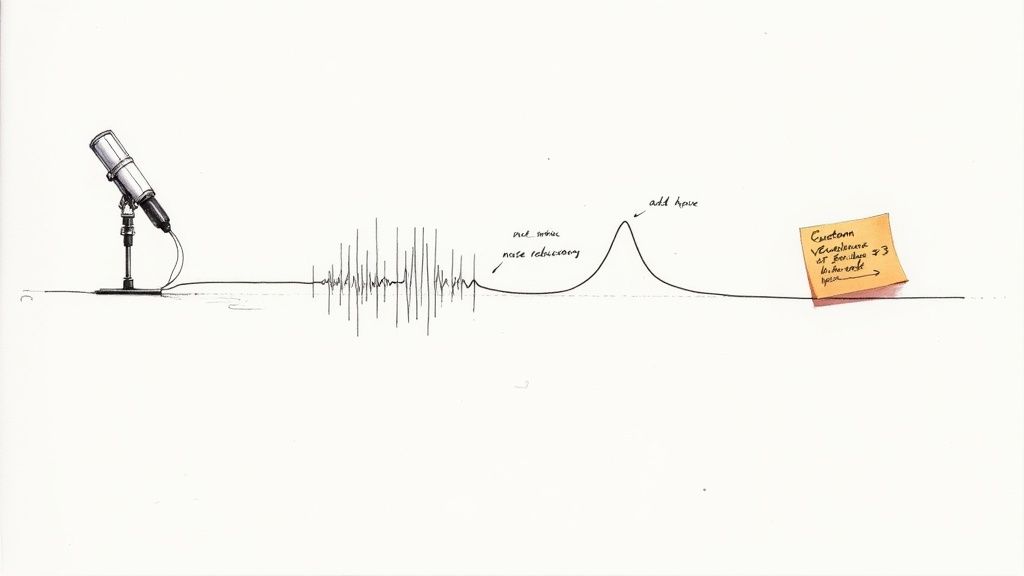
Start with Clean Audio
There's an old saying in this field: garbage in, garbage out. If your MP4 file has muddled, noisy audio, you're going to get a transcript full of mistakes. In some cases, if the AI detects too much background noise or poor acoustics, it might not be able to process the file at all.
Before you hit record on your next video, run through this quick audio checklist:
- Kill Background Noise: Find a quiet space. Turn off fans, close windows to traffic noise, and ensure no one else is having a conversation nearby. Even a low-level hum can disrupt the AI.
- Use a Decent Mic: Your laptop's built-in microphone is better than nothing, but an external microphone will capture your voice with far more clarity and is essential for high-stakes recordings.
- Speak Clearly: Remind everyone involved to speak at a steady pace, enunciate their words, and—most importantly—try not to talk over each other.
Pro Tip: Spending just five minutes to find a quiet room and set up a proper mic will do more for your transcript's accuracy than hours of editing later. It’s the single best thing you can do.
Give the AI a Cheat Sheet with Custom Vocabulary
Every industry, company, and project has its own unique language. AI models are trained on vast amounts of general text, but they often stumble on specialized terms, product names, or acronyms they've never encountered. For example, the AI might hear "Whisper AI" but transcribe it as "whisper A.I." or "whisper aye eye."
This is where a custom vocabulary list becomes your secret weapon. Most professional-grade platforms, including Whisper AI, allow you to upload a list of specific words and phrases before you start transcribing.
By feeding the AI this custom dictionary, you’re essentially priming it for success. It’s a simple step that massively boosts accuracy when you transcribe mp4 to text for technical meetings, product demos, or academic lectures. A little effort here yields a huge payoff.
Common Transcription Issues and How to Fix Them
Even with perfect preparation, you might run into a few common hiccups. Here’s a quick-reference table to help you troubleshoot the most frequent problems I see when converting MP4 files to text.
This table covers about 90% of the issues you'll likely encounter. By learning to spot and solve them quickly, you can refine your raw transcript into a polished document in no time.
Frequently Asked Questions About MP4 Transcription
Even with the best tools, you're bound to have questions when turning an MP4 file into text for the first time. Here are answers to some of the most common queries to help you move forward with confidence.
How long does it take to transcribe an MP4 file?
The time it takes depends entirely on whether you choose an AI or a human service.
With an automated AI service, the speed is remarkable. An hour-long video can often be transcribed in just a few minutes—usually faster than it would take to watch the video from start to finish.
If you opt for a human transcription service for maximum accuracy, you'll need more patience. The process is naturally slower, and you can expect your file back anywhere from a few hours to a full 24-48 hours, depending on the provider.
How accurate is AI transcription for MP4s?
Under ideal conditions, AI transcription is impressively accurate, often reaching 95-98% accuracy.
"Ideal conditions" means clear audio, one person speaking at a time, and minimal background noise.
Accuracy can decrease with poor audio quality, heavy accents, or a lot of industry-specific jargon. However, for most common uses—like creating meeting notes or drafting blog posts from a video—the AI's output is more than sufficient. For fields like law or medicine where every word is critical, having a human review the transcript is still the gold standard for achieving 99%+ accuracy.
Can I transcribe a video that isn't in English?
Absolutely. Most modern AI platforms are multilingual and can handle a wide variety of languages.
When you upload your MP4, you will see an option to specify the language spoken in the video. This is arguably the most important setting to get right. Some advanced tools can even auto-detect the language, which is helpful if you're unsure or if multiple languages are spoken.
Is it safe to upload confidential videos?
Security is a valid and crucial concern, especially with sensitive material. Any reputable transcription service makes data protection a top priority. This typically includes using encrypted connections for uploads and having strict internal data handling policies.
Before uploading anything confidential, always take a minute to read the platform's privacy policy and security terms. For businesses, look for enterprise-level plans, as they often come with enhanced security features and compliance with standards like GDPR.
If you have more detailed questions about how a specific service works, checking their help section is a good next step. For example, you can find more information on the Soreel App's FAQ page.
Ready to turn your videos into valuable text assets? Whisper AI offers fast, accurate, and secure transcription in over 92 languages. Try Whisper AI for free and get your first transcript in minutes!


























































































