
How to Get a YouTube Video Transcript Today
Knowing how to get a YouTube video transcript is surprisingly simple. For most videos, I've found there’s a built-in "Show transcript" option tucked away in the description box. From my experience, this gives you a fast, unformatted text version with timestamps—perfect for grabbing a few quick notes or finding a specific quote.
Why a YouTube Transcript Is Your Secret Weapon
Before we get into the how, let's talk about the why. A transcript is far more than just the words from your video. Think of it as a powerful asset that can seriously boost your video's reach, make it more accessible, and squeeze every last drop of value out of your content.
The most obvious win is searchability. Search engines can't watch videos, but they are fantastic at reading text. A transcript is essentially a keyword-rich document that lays out everything said in your video. This gives Google and other search engines a ton of context, helping you rank for specific phrases and long-tail keywords you might otherwise miss.
Boost Viewer Engagement and Accessibility
Beyond the search bots, transcripts make your content far more human-friendly. Accurate transcripts and captions open your videos up to a massive audience, including people with hearing impairments. They also cater to the millions of us who watch videos in loud places (like on the bus) or with the sound off (like during a boring meeting).
Don't just take my word for it. On a platform with over 2.491 billion monthly users, studies show that more than 80% of viewers are significantly more likely to watch a video all the way through if it has subtitles or a transcript. That's a huge lift in viewer retention. For a deeper dive, you can explore the full research on YouTube statistics.
This little decision tree can help you figure out which transcription path to take based on what you actually need to accomplish.

As you can see, your end goal—whether it's just grabbing some quick notes or creating a polished blog post—really dictates the best approach.
Maximize Your Content's Value
For creators and marketers, a transcript is the key to unlocking effortless content repurposing. That single video can become the foundation for a dozen other pieces of content, stretching your return on investment much further.
- Blog Posts: The transcript is basically the first draft of a comprehensive article. Just a bit of editing and formatting, and you're good to go.
- Social Media Content: Easily pull out compelling quotes, stats, or punchy one-liners to create engaging graphics and posts for platforms like X, Instagram, or LinkedIn.
- Email Newsletters: Share the top takeaways from a recent video to provide real value to your subscribers and drive them back to your channel.
Here's a real-world example from my own work: I needed to pull key quotes from a CEO's 30-minute keynote for an urgent press release. Scrubbing through the video was a nightmare. But with a searchable transcript, I found what I needed in minutes, not hours. That’s the kind of efficiency that makes transcripts invaluable.
Comparing YouTube Transcription Methods
Here’s a quick look at the main ways to get a YouTube transcript, comparing their ideal use cases, speed, accuracy, and cost.
Each method has its place. The built-in tool is great for speed, while an AI service like Whisper is what you'll want for anything that needs to be polished and professional.
Sometimes, the simplest solution is the best one. Getting a transcript for a YouTube video can be as easy as using the feature YouTube already provides. For most videos, the platform automatically generates a transcript, and you can access it in just a couple of clicks.
This is my go-to method when I just need the text quickly and don't care much about perfect formatting. It's fantastic for students trying to pull notes from a lecture or a marketer looking for a specific quote in a long interview. You get the raw text, complete with timestamps, which makes jumping to a specific moment in the video incredibly easy.

Finding and Using the Transcript
So, where is this hidden gem? You'll find it right under the video player.
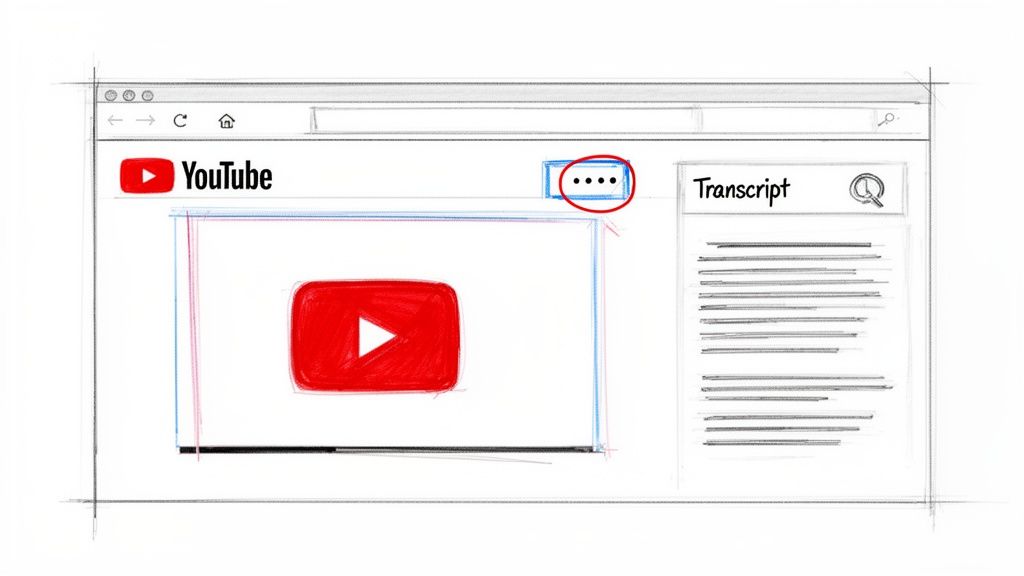
Start by looking at the video's description box. You’ll likely need to click the "...more" link to expand it and see all the details.
Once the full description is visible, scroll down. You should see a button that says "Show transcript." Click it, and a new panel will pop up, usually on the right side of the video, showing the entire text with clickable timestamps. From here, it's just a matter of highlighting, copying, and pasting it wherever you need it.
Just be aware, what you get is a first draft, and a rough one at that. Don't expect perfect punctuation, capitalization, or any speaker labels. If an interview has two or more speakers, the transcript will just be one long, undifferentiated block of text.
The Speed vs. Quality Dilemma
The real beauty of this feature is its speed. It's instant. There’s no software to download and no waiting around. But that speed comes with a trade-off: accuracy and polish.
Pros of YouTube's Built-In Transcript:
- Instant Access: The transcript is right there, ready to go for most videos.
- No Cost: It’s completely free to use.
- Integrated Timestamps: This is a killer feature. Clicking any line of text in the transcript jumps the video to that exact spot, which is perfect for checking context.
Cons of YouTube's Built-In Transcript:
- Inconsistent Accuracy: The quality can be a real coin toss. It all depends on the audio clarity, the speaker's accent, and any background noise. Specialized or technical terms often get mangled.
- Poor Formatting: You're basically getting a wall of text. It's not pretty and requires a lot of manual cleanup if you want to use it for anything professional.
- No Speaker Labels: The transcript doesn't distinguish between different speakers, making it nearly useless for panel discussions or interviews without significant editing.
Bottom line? This method is perfect for quick and dirty jobs. But if your goal is to create a well-formatted blog post or need a highly accurate record of the dialogue, you’ll find yourself spending a lot of time cleaning it up. If you're looking for more professional results, our guide on how to caption YouTube videos covers more advanced options.
Get Transcripts Instantly with Browser Extensions
Sometimes, YouTube's built-in transcript feature is just a little too clunky. When you need more flexibility and a smoother workflow, browser extensions are a fantastic upgrade. These little tools plug right into your browser and add a simple "Download" button directly to the YouTube page, making the whole process of grabbing a transcript feel effortless.
Think of it this way: instead of manually highlighting, copying, and pasting from that little transcript box, an extension does all the heavy lifting for you with a single click. This is a massive time-saver, especially if you find yourself needing transcripts from multiple videos on a regular basis.
Finding and Installing an Extension
First things first, you need to find a tool you can trust. The safest bet is always your browser's official marketplace, like the Chrome Web Store or Firefox Add-ons. A quick search for "YouTube transcript downloader" will pull up several popular choices.
Before you hit that "Add to Chrome" button, do a little homework. Check the user ratings and skim through recent reviews to see what real people are saying. Most importantly, always review the permissions it asks for. A good transcript tool should only need access to YouTube.com, not every website you visit.
Once you’ve picked a winner, getting it set up is a breeze:
- Click the "Add to browser" button on the extension's store page.
- Give the permissions a final look and approve the installation.
- You might need to refresh any YouTube pages you already have open, but after that, you should see a new download button ready to go.
What Makes Extensions So Useful?
The real magic of these extensions is how they handle the output. They take YouTube's raw text and turn it into a genuinely useful file.
- Flexible Formats: Most let you download the transcript as a plain text file (.TXT) or a SubRip Subtitle file (.SRT). An .SRT file is the gold standard for captions because it bundles the text with precise timestamps, which is perfect for uploading to other platforms.
- Timestamp Control: Don't need the time markers? No problem. Many extensions give you a simple toggle to include or remove timestamps. This is incredibly handy when you just want a clean wall of text for a blog post or show notes.
- Sheer Convenience: You never have to leave the YouTube video page. It keeps your workflow tight and efficient.
As a content creator, I often repurpose my videos into blog posts. I'll use an extension to download a clean .TXT file without timestamps, paste it into my editor, and start polishing it immediately.
For the More Technically Inclined
If you’d rather not install another extension and you're comfortable poking around under the hood, there’s another path. You can actually find the caption file yourself using your browser's built-in Developer Tools.
This involves opening the "Inspect" panel, heading to the "Network" tab, and filtering the requests to find the file containing the caption data (it's often called "timedtext"). While it's a completely free and secure way to get a YouTube video transcript, it does require some technical confidence. For most people, a good browser extension is a much simpler and faster solution.
Level Up Your Transcripts with AI-Powered Tools
While YouTube’s built-in tools and browser extensions are fine for a quick look, they just don't cut it when you need a polished, professional transcript. They pull directly from YouTube's auto-captions, meaning you inherit all the same frustrating errors—garbled technical terms, zero punctuation, and no idea who is speaking.
This is where dedicated AI transcription services really shine.
These platforms use seriously advanced speech recognition to generate transcripts that often hit over 95% accuracy. Forget the wall of text. They intelligently handle the biggest headaches by automatically identifying different speakers, adding punctuation, and formatting the text into a clean, readable document.
A Game-Changer for Content Professionals
Picture this: you've just wrapped up a fantastic one-hour podcast interview. Transcribing it by hand would be a soul-crushing, multi-hour task. Using YouTube’s tool would leave you with a messy, unformatted block of text to untangle. An AI service, on the other hand, can deliver a speaker-labeled, punctuated transcript in minutes.
Suddenly, that interview is ready to become a blog post, show notes, or a series of social media quotes. This kind of efficiency is a huge deal for a lot of people:
- Journalists can grab precise quotes from press conferences without rewinding a dozen times.
- Marketers can instantly spin video webinars or testimonials into articles, emails, and social media content.
- Students and Researchers get searchable, citable text versions of lectures and academic talks.
If you're looking for a powerful AI solution, tools like Parakeet AI are built to deliver high-accuracy transcripts from complex audio, turning around professional-grade results in a fraction of the time.
How to Transcribe a YouTube Video with an AI Tool
Getting started is surprisingly simple. Most services give you two main options: download the video from YouTube and upload the file, or—my personal favorite—just copy and paste the video's URL.
It really is that easy. Many modern AI tools have a clean, minimalist interface where all you need is the link.
As the screenshot shows, a single field for the YouTube URL is often the only thing standing between you and a perfect transcript.
Once you hit go, the AI handles everything in the background. It analyzes the audio, transcribes the speech, and lets you know when your text is ready. The best services offer more than just a wall of words, though. If you're curious about the process, you can find a deep dive on using an AI tool to transcribe YouTube videos in our other guide.
Must-Have Features in an AI Transcription Service
When you're shopping around for an AI transcriber, a few key features can make a world of difference. First, look for multi-language support. If you have a global audience or work with international content, this is non-negotiable. The AI's ability to understand different accents and dialects is also a great indicator of its quality.
Another crucial element is the variety of export options. A top-tier service will let you download the final transcript in whatever format you need, saving you from any conversion headaches later.
Look for these common formats:
- .TXT: Perfect for a simple, plain-text version.
- .DOCX: For easy editing in Microsoft Word or Google Docs.
- .SRT or .VTT: The go-to formats for creating perfectly timed video captions.
- .PDF: Ideal for a clean, shareable, non-editable document.
Having this flexibility means you’re covered no matter the end goal—whether it's producing subtitles, drafting an article, or just archiving a conversation.
Putting Your Transcript to Work
Getting the raw text from a YouTube video is just the starting line. The real magic happens when you start to shape and repurpose that text, transforming a simple transcript into a powerful engine for your content strategy.
No matter how you got it—whether from YouTube's built-in tool or a sophisticated AI like Whisper—your raw transcript will need a little TLC. This initial cleanup is a non-negotiable step if you want to look professional and make the text genuinely useful.
Refining Your Raw Transcript
Your first job is to make the text readable. I’ve found that even 10-15 minutes of focused editing can turn a messy wall of text into a polished, structured document that’s ready for anything.
Here's my typical workflow for this process:
- Fix Names and Jargon: Auto-transcription often mangles proper nouns, company names, or industry-specific terms. I always run a quick "find and replace" for common mistakes. It's a huge time-saver.
- Polish the Punctuation: AI is getting better, but it still struggles with the natural pauses and inflections of human speech. I read through the text, adding commas where they belong and making sure sentences actually end with a period or question mark. It makes a world of difference in flow.
- Create Structure: This is key. Break up those intimidating, long paragraphs. Use headings and subheadings to carve the content into logical, scannable sections, much like you would for a blog post.
The goal isn't just to have the words; it's to make them make sense at a glance. A well-formatted transcript is immediately more valuable, no matter what you plan to do with it next.
Creative Ways to Repurpose Your Content
Once your transcript is clean and organized, the fun begins. This is where you get a massive return on the effort you put into creating the video in the first place, effectively turning one asset into many.
For instance, I often take the transcript from a 20-minute interview and turn it into a Q&A-style blog post. Just make the interviewer's questions the headings and the guest's answers the body text. This creates a fantastic piece of written content and can help you rank for the exact questions your audience is searching for on Google.
If you're creating subtitles for accessibility or translation, you'll need to work with specific file formats. Knowing the difference between them is important. You can learn more about what an SRT file is and how it works in our detailed guide.
Another go-to tactic is pulling out the most powerful quotes, stats, or "aha" moments from the text. These golden nuggets are perfect for creating compelling graphics for Instagram, LinkedIn, or X (formerly Twitter). They grab attention, drive engagement, and point people back to your original video.
And don't forget your email list. You can summarize the video's core takeaways into a concise newsletter. It provides immense value to your subscribers and gives them a compelling reason to click through and watch the full video.
Beyond just repurposing content, analyzing a transcript of your own speech is an incredible tool for self-improvement. It's one of the best ways I know for improving verbal communication skills, as it shines a bright light on filler words like "um" and "uh" or repetitive phrasing you might not even realize you're using.
Frequently Asked Questions About YouTube Transcripts
As you start pulling transcripts from YouTube videos, you’ll probably run into a few common questions. From wondering if it's even possible for a certain video to finding the fastest, most reliable method, let's clear up some of the usual points of confusion.
The short answer is yes, you can get a transcript for just about any YouTube video out there. The how is what changes. If you see YouTube’s built-in “Show transcript” button, you're in luck—the creator has captions enabled. If it’s missing, they’ve turned it off.
But don't worry, that's not a dead end. This is exactly where third-party tools come in. An AI transcription service can work its magic using just the video's URL or an uploaded audio file. This neatly sidesteps YouTube's settings, letting you get a YouTube video transcript from content that doesn't offer one directly.
How Accurate Are YouTube's Own Transcripts?
This is the big question, and the answer is... it depends. YouTube's automatic transcripts have gotten better, but they are far from perfect. They tend to stumble over a few common hurdles:
- Background Noise: Music, cafe chatter, or any ambient sound can easily confuse the system.
- Multiple Speakers: The transcript often mashes everyone's dialogue together into a single, hard-to-read block of text, with no speaker labels.
- Complex Language: Niche jargon, technical terms, or heavy accents often lead to strange and inaccurate word choices.
For quickly grabbing a quote or getting the gist of a video, they're fine. But if you need that text for a blog post, precise captions, or professional documentation, you'll need something more powerful. A dedicated AI service can easily hit over 95% accuracy and is built to handle these exact challenges.
What's the Fastest Way to Get a Good Transcript?
When you need accuracy without sacrificing speed, a purpose-built AI transcription service is your best bet. YouTube’s built-in transcript is instant, but you'll likely lose all that saved time fixing mistakes, adding punctuation, and formatting the text.
Based on my experience, the most efficient workflow is simply pasting a YouTube link into a dedicated AI tool. You get a highly accurate, properly formatted, and timestamped transcript back in minutes. It's the perfect middle ground—you get a professional result without the tedious manual work.
This gives you a document you can use right away, whether you're creating subtitles, repurposing the content for an article, or just keeping a record of a meeting or interview.
Ready to skip the cleanup and get flawless transcripts in minutes? Whisper AI uses advanced AI to convert any YouTube video into accurate, speaker-labeled text. Just paste a link and let us handle the rest. Start transcribing for free today!


























































































