
How to Transcribe Zoom Meetings Accurately and Efficiently
When you need to transcribe a Zoom meeting, you have two main paths. The simplest option is using Zoom's built-in audio transcription feature for cloud recordings, which is fine for basic notes. For more critical tasks, you can use advanced third-party AI tools that deliver much higher accuracy, identify different speakers, and process files much faster. Ultimately, the best choice depends on a trade-off between convenience, precision, and cost.
Why Accurate Zoom Transcripts Are Non-Negotiable
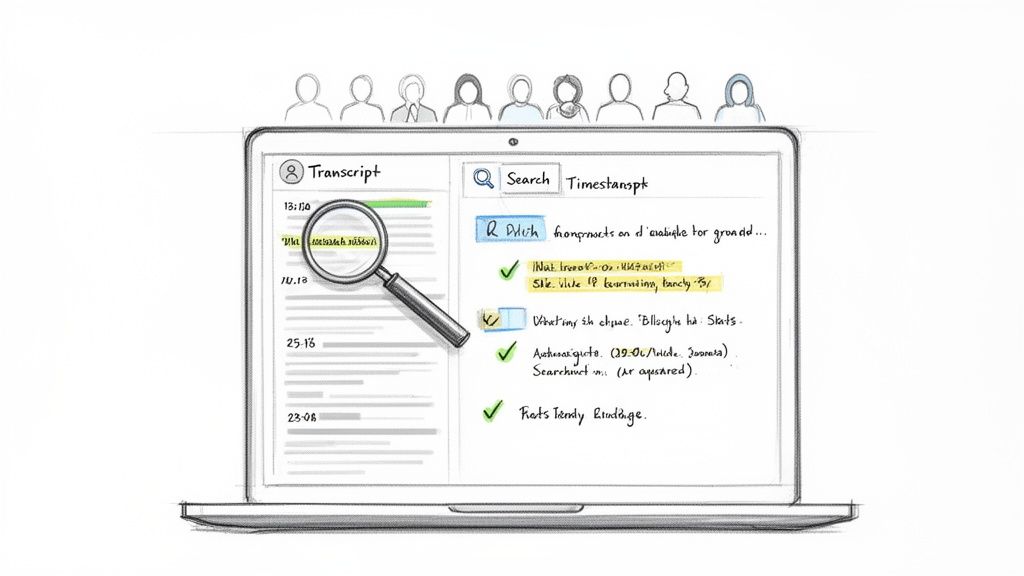
We've all experienced it. Virtual meetings are standard practice, but crucial details—decisions, action items, innovative ideas—often vanish the moment the call ends. Trying to capture everything with frantic, manual note-taking is a recipe for missed information and incomplete records.
This guide is about moving past those messy, handwritten notes. I'm going to show you, from my own experience, how to get a clear, searchable, and accurate transcript for every call. Think of a good transcription process not just as a convenience, but as a genuine productivity tool.
The Real Cost of Inefficient Meetings
The sheer volume of information shared in meetings is staggering. The average Zoom call runs about 52 minutes, and most of us spend hours on them every week. To put a number on it, Zoom hosts over 3.3 trillion meeting minutes a year. Before we had effective transcription tools, people spent up to 30% of their meeting time just trying to keep up with notes.
Now, things are different. Recent research shows that teams using AI for transcription are seeing a 25% reduction in meeting duration and a 30% boost in overall productivity. If you want to dive into the numbers, you can read the full research on AI transcription efficiency.
This change completely redefines what you can do with your meeting content. A marketer can take a one-hour webinar and quickly extract a dozen social media posts. A product researcher can sift through customer interviews with incredible precision, finding insights that were previously buried.
A solid transcription process is your secret weapon for saving time, improving accessibility, and ensuring no critical information ever slips through the cracks.
What You Will Learn
In this guide, I’ll walk you through the methods I’ve used myself, from Zoom’s native features to powerful AI tools that provide near-perfect results. We're going to get practical.
Here’s what we’ll cover:
- Different Transcription Methods: We'll compare Zoom's built-in tool against specialized AI services so you know when to use each.
- Practical Workflows: I'll give you step-by-step guidance on how to get the best possible transcript every time.
- Maximizing Accuracy: You'll learn simple, experience-based tricks to improve your audio quality, which makes a huge difference.
- Privacy and Compliance: We'll cover how to handle sensitive information responsibly when creating and storing transcripts.
By the end of this guide, you’ll have a clear playbook for transcribing your Zoom meetings, no matter your needs.
Getting a Transcript Straight From Zoom
Your first and most direct option is to use the transcription tool that's already built into Zoom. It’s convenient—no extra software to install or complicated setups to manage. However, there's a catch: you need a specific type of account and must configure your settings correctly before you can use it.
This feature, which Zoom calls audio transcription, is not available on the free Basic plan. You'll need to be on a paid plan—either Zoom Pro, Business, Education, or Enterprise. Additionally, you must be the meeting host and have cloud recording enabled.
How to Turn It On and Get It Working
First, you’ll need to log in to your Zoom account on the web. Navigate to your account settings, click the "Recording" tab, and find the "Cloud recording" section. In that section, simply ensure the "Audio transcript" box is checked. This setting instructs Zoom to automatically create a text file every time you make a cloud recording.
Once that's set up, all you have to do is start your meeting, click the "Record" button, and make sure you select "Record to the Cloud." From there, Zoom handles the rest.
After your meeting ends, Zoom needs some time to process everything. This can take a while—sometimes even twice as long as the meeting itself. You’ll get an email as soon as your recording and the transcript are ready.

As you can see, the feature is tied directly to the cloud recording functionality available in the paid plans.
Finding and Using Your New Transcript
Once you receive the "it's ready" email, you can find the files in the "Recordings" section of your Zoom account. The transcript itself is a .vtt (Video Text Tracks) file, which you can open with any basic text editor.
Even better, Zoom displays the transcript right next to the video player online. The text is timestamped and synced to the video, which is incredibly helpful when you need to review a specific part of the conversation without scrubbing through the whole recording. You can search for a keyword and click to jump directly to that moment.
The Honest Pros and Cons
While Zoom’s built-in tool is a fantastic starting point, it’s far from perfect. It's important to understand what you're getting—where it excels and where it falls short.
What's good about it:
- Convenience: It’s already there. No installations, no new logins, no fuss.
- No Extra Cost: If you're already paying for a Pro plan or higher, this feature is included.
- Synced Playback: The way the text highlights as the video plays is genuinely useful for quick reviews.
Where it falls short:
- Accuracy Can Be Spotty: In my experience, Zoom’s accuracy is hit-or-miss. It struggles with industry jargon, heavy accents, and crosstalk. In the best-case scenario, you're looking at around 90% accuracy.
- Confusing Speaker Labels: It often has difficulty identifying who is speaking, sometimes mixing up speakers or leaving them unidentified. This makes following the flow of conversation a real headache.
- Live Captions Aren't Saved: You can enable live captions (which Zoom calls "live transcription") during a meeting for real-time accessibility, but that text disappears forever unless you're also recording to the cloud.
For grabbing quick notes or having a rough record of a call, Zoom's tool is good enough. But if you need a polished, highly accurate transcript for official records, content creation, or detailed analysis, you will quickly become frustrated with its limitations.
When to Bring in the Heavy Hitters: Using Advanced AI Tools
When Zoom’s built-in transcription isn't precise enough, it's time to call in a specialist. This is the move you make when "good enough" won't do and you need genuinely high accuracy. Dedicated tools like Whisper AI are built from the ground up for one purpose: turning speech into text with stunning precision.
The process is surprisingly straightforward. You simply take the audio or video file from your Zoom cloud recording and upload it to the third-party service. This one extra step opens the door to a completely different level of transcription quality and features.
A Serious Leap in Accuracy
Let's be honest, the main reason to go this route is the significant improvement in quality. While Zoom's native transcription typically achieves around 90% accuracy, advanced AI models consistently push past 99%. That might not sound like a huge difference, but in practice, it’s the difference between a rough draft and a polished, usable document.
This level of precision means you spend far less time hunting down and fixing errors. For example, a marketer transcribing a customer interview for a new case study can get a nearly perfect script and start pulling quotes immediately, instead of losing an hour to tedious proofreading.
For anyone in legal, academic research, or content creation, that 9% accuracy gap is a chasm. An advanced AI tool closes that gap, ensuring every word is captured just as it was said.
Finally, You Can Tell Who Said What
One of the biggest frustrations with basic transcription is its inability to determine who is speaking. You often end up with a large, confusing block of text that’s impossible to follow.
Advanced AI services solve this with a feature called speaker diarization. This technology is smart enough to detect and label each unique voice in the conversation. So, instead of an unreadable mess, you get a clean, organized script that looks more like a screenplay:
- Speaker 1: "I think we should move forward with the Q3 marketing proposal."
- Speaker 2: "I agree, but we need to confirm the budget with finance first."
- Speaker 1: "Good point. I'll schedule a follow-up with their team."
This feature alone is a massive time-saver. It makes it much easier to review conversations, pull quotes, and assign action items after the meeting.
More Than Just Words: Timestamps and Global Languages
Beyond identifying speakers, these tools add another layer of utility with incredibly precise, word-level timestamps. This allows you to click anywhere in the transcript and instantly jump to that exact moment in the recording, making the review of long meetings highly efficient.
Many of these platforms also offer robust multi-language support. A service built on Whisper AI, for example, can handle over 92 languages. This is a complete game-changer for global teams or researchers conducting interviews in various languages, providing them with the same high-accuracy results.
The workflow is simple, but the results are on another level compared to the built-in options. If you're curious about the technical details of using this technology, this guide on how to use Whisper AI is a great place to start. When you combine this power with secure file processing, these tools quickly become an indispensable part of any professional's workflow.
Choosing the Right Transcription Method for Your Needs
So, you need to transcribe a Zoom meeting. Where do you start? With a few different options available, the best path forward depends on one simple question: what are you going to do with the transcript?
The answer dictates everything. The choice between Zoom’s own tool, a powerful AI service like Whisper, or a human transcriptionist depends entirely on your end goal. Each route offers a different mix of cost, speed, and—most importantly—accuracy.
For a quick internal team huddle where you just need to remember who's handling which action item, Zoom's built-in transcription is probably sufficient. It gets the job done. But for a legal deposition, a webinar you plan to publish, or a crucial customer interview, every single word counts. In those high-stakes situations, a few errors aren't just an inconvenience; they can be a serious problem.
Weighing Your Options
The key is to understand the trade-offs. An advanced AI tool gives you incredible speed and high accuracy without being prohibitively expensive. A manual service delivers that human touch and nuance but takes much longer and costs significantly more. And Zoom's native tool? It's convenient, but it's the least reliable of the bunch.
This flowchart is a great starting point for making a quick decision based on your accuracy requirements.

As you can see, if near-perfect accuracy is a must-have, a dedicated AI tool is the clear choice.
To provide an even clearer picture, here's a side-by-side comparison of the most common methods.
Zoom Transcription Methods at a Glance
This table makes it clear: for the vast majority of professional use cases, a third-party tool built on a model like Whisper AI hits the sweet spot between performance and price.
Key Factors to Consider
Still not sure? Let's break it down further. Ask yourself these four questions—your answers will point you directly to the right solution.
- How accurate does it really need to be? Is 90% good enough for your notes, or do you need 99% precision for a client-facing document? If you’re publishing it or using it for official records, you can’t compromise on accuracy.
- How fast do you need it? Do you need the transcript a few minutes after the meeting ends, or can you afford to wait a day or two? AI services are unmatched in speed, often turning around an hour-long recording in less than 15 minutes.
- What's your budget? Zoom’s feature might seem "free" since it's part of a paid plan, but dedicated AI platforms provide a much better return on investment when you factor in the time you'll save on manual corrections.
- Do you need speaker labels and timestamps? Without these, a transcript of a multi-person conversation is just a wall of text. Most third-party tools add them automatically, making the transcript instantly readable and scannable.
My most practical advice is to match the tool to the task. Don’t overpay for human transcription when a quick AI-generated text will do, but don’t risk your reputation on a basic tool when accuracy is non-negotiable.
Getting familiar with the landscape of AI-powered transcription services can give you a much better feel for what's possible with modern tech. For more guides and comparisons, you can find some great resources over on Parakeet AI's blog. By weighing these factors, you’ll be able to confidently pick a method that fits your project, your timeline, and your budget perfectly.
Pro Tips for Getting a Spot-On Transcription
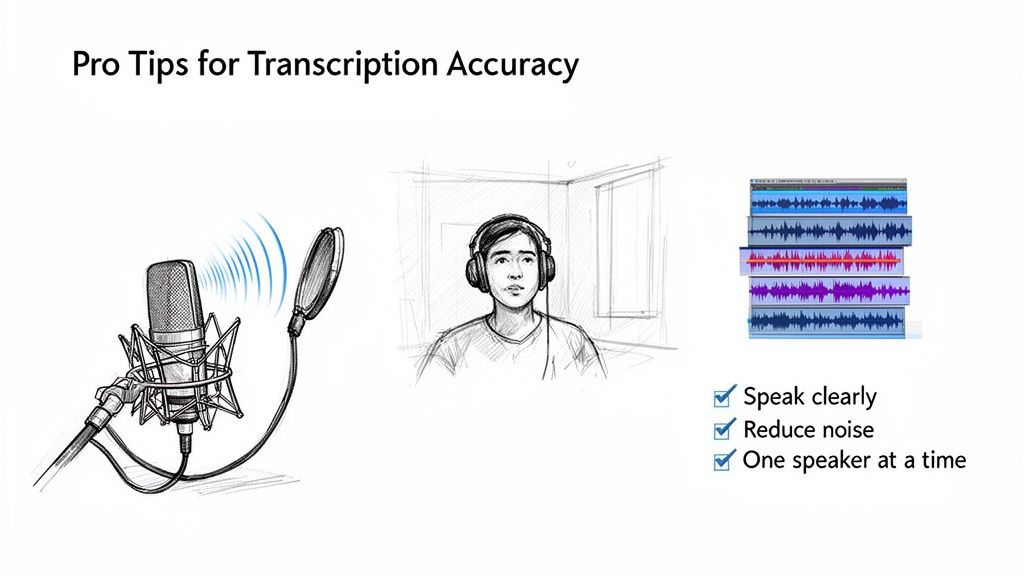
It doesn't matter if you're using Zoom's built-in tool or a sophisticated AI—your transcript is only ever as good as the audio you feed it. We've all heard the phrase "garbage in, garbage out," and it couldn't be more true for transcription. A few small tweaks before and during your call can be the difference between a clean, usable transcript and a garbled mess.
Over the years, I've found that focusing on the source audio is the most reliable way to get an accurate transcript. After all, the software can only work with what it hears. One of the best starting points is investing in a quality USB microphone. It's a simple upgrade that pays dividends by capturing clear speech and reducing background interference.
Dial In Your Audio Environment
Before you even click "Start Meeting," take a quick scan of your surroundings. Even the smartest AI transcription tools get tripped up by background noise, echoes, and people talking over each other.
Here are a few habits that make a massive difference:
- Find a Quiet Spot: If possible, choose a room away from background chatter or echoey, hard surfaces. A busy café or an open-plan office is a transcript's worst enemy.
- Headsets are Your Friend: Encourage everyone on the call to use a headset, even the basic earbuds that came with their phone. This prevents their microphone from picking up audio from their speakers, which is the main cause of echo and feedback.
- Mute is Golden: Make it a habit for everyone to mute their mic when they're not talking. This is a lifesaver in large meetings, eliminating distracting sounds like typing, coughing, or a dog barking in the next room.
My number one rule? Speak clearly and one at a time. Crosstalk is the single biggest killer of transcription accuracy. When multiple people talk at once, the AI has no idea who said what, and you're left with a jumbled transcript.
Use This Powerful (and Hidden) Zoom Feature
Here’s a fantastic tip that most people don't know about, tucked away in Zoom’s settings. If you record your meetings to the cloud, look for an option that says, "Record a separate audio file for each participant."
Check that box. It's a total game-changer.
When this is enabled, Zoom doesn't just give you one mixed audio file at the end. Instead, it saves an individual audio track for every single person on the call. This means each speaker's voice is perfectly isolated. When you feed these separate files into a transcription tool, the AI can process each voice without interference, leading to phenomenal accuracy and perfect speaker labels.
Making these small adjustments a regular part of your meeting prep will dramatically improve your transcript quality, which means less time spent cleaning up errors later. Of course, no AI is perfect, so a final review is always a good idea. You can brush up on the best techniques for proofreading in transcription to ensure your final document is flawless.
Navigating Privacy, Compliance, and What Comes Next
So, you’ve picked your transcription method. Great! But before you hit record, there’s a critical layer we need to talk about: handling the data responsibly. Meeting transcripts can be a goldmine of information, but they can also contain sensitive client details, confidential project info, or personal conversations. This makes privacy and compliance an absolute must.
The very first thing you should always do is get consent from all participants.
This isn't just about being polite; in many parts of the world, it's a legal requirement. Think about regulations like GDPR in Europe—they demand explicit consent for recording and processing personal data. A simple announcement at the start of the meeting that you'll be recording and transcribing gives everyone a clear heads-up and the chance to opt out. It’s a small step that builds trust and keeps you compliant from the get-go.
Keeping Your Transcript Data Secure
Once you have everyone's buy-in, the next question is how your chosen transcription service handles your files. This is a big one. Some platforms might use your data to train their AI models, which can be a massive privacy risk if your conversations are confidential.
It's absolutely vital to pick a service that puts security first. Dig into their data policy and look for clear statements that they do not store your files long-term or use them for training. This is your assurance that once your transcript is ready, your sensitive meeting content stays yours and doesn't linger on third-party servers, drastically reducing the risk of a breach.
The responsibility for data privacy doesn't end when the meeting is over. Your post-transcription workflow is just as critical for protecting sensitive information and making the content useful.
Making Your Transcripts Work for You
A transcript just sitting in a folder is raw data. It’s not very useful. But when you integrate that transcript into your team's workflow, it becomes a powerful asset. The goal here is to make the information easy to find and act on, without creating a new security headache. A simple, well-thought-out workflow can completely change how your team interacts with meeting content.
I've seen teams get a lot of mileage out of these simple but effective workflows:
Review and Refine in Google Docs: Place the transcript into a shared Google Doc. This allows team members to comment, correct any errors, and ensure everyone agrees on the final version. It’s simple, collaborative, and works well.
Key Takeaways in Slack: Let's be honest, nobody wants to read a 20-page transcript. Use an AI tool to generate a quick summary with the main points and action items. You can then post this bite-sized update in the relevant Slack channel, keeping everyone in the loop without information overload.
Create a Searchable Knowledge Hub: This is where the real long-term value lies. By integrating transcripts into your company wiki or knowledge base—think Notion or Confluence—you build a searchable archive of every conversation. Suddenly, past meetings become a valuable resource for the entire organization.
A Few Common Questions About Zoom Transcription
Even with the best tools at your fingertips, a few questions always seem to come up when you're getting started. Let's tackle the most common ones to save you some time and a potential headache.
What If I Wasn't the Host of the Meeting? Can I Still Transcribe It?
Yes, you can, as long as you can get the recording file. The key ingredient is the MP4 (video) or M4A (audio-only) file that the meeting host can provide.
Once the host shares the cloud recording link or sends you the file, you can download it. From there, just upload it to your preferred third-party transcription service. The only thing you can't do is use Zoom's own live transcription during the call, as that's a permission only the host can grant to participants.
How Long Does It Realistically Take to Transcribe a 1-Hour Meeting?
This is where your chosen method makes a massive difference. The turnaround time can range from a few minutes to several hours.
- Zoom's Built-in Transcription: Be prepared to wait. It often takes up to twice the duration of the meeting itself, so a one-hour call could easily take two hours to finish processing.
- Modern AI Tools: This is the fast lane. Most quality AI services will turn around an hour-long meeting in just 5 to 10 minutes. The speed is impressive.
- Manual Transcription: This is a marathon, not a sprint. A professional human transcriber typically needs 4 to 6 hours of focused work for every single hour of clear audio.
The takeaway is clear: for anyone who needs a transcript back quickly, AI tools are the undeniable winner. The speed advantage is often the biggest deciding factor.
What's the Best Way to Deal with Multiple Speakers?
The most effective and least painful way to handle a conversation with several people is to use a tool that offers automatic speaker diarization.
This is a powerful feature found in most advanced AI services. It intelligently listens, identifies who is talking, and then labels each person's dialogue (like "Speaker 1," "Speaker 2," etc.). This creates a clean, readable script that’s a world away from the giant, confusing block of text you get from more basic tools. Without it, you're stuck manually separating and labeling every single speaker, which is about as tedious as it sounds.
Ready to get fast, accurate, and perfectly organized transcripts from your Zoom meetings? Whisper AI uses state-of-the-art technology to deliver 99%+ accuracy, automatic speaker labels, and quick summaries, all while keeping your data secure. Stop wasting time on manual corrections and see the difference for yourself. Try Whisper AI today.


























































































