
What Does SRT Stand For? A Guide to the SubRip Subtitle File
If you've ever worked with video, you've likely encountered a file ending in .srt. So, what does SRT stand for? It's short for SubRip Subtitle, a plain-text file format that has become the universal standard for video captions and subtitles online.
This guide is based on my experience creating and editing video content for years. I've learned firsthand that understanding SRT files isn't just a technical skill—it's essential for making your content accessible, discoverable, and engaging for a wider audience.
What Is an SRT File and Why Is It Important?
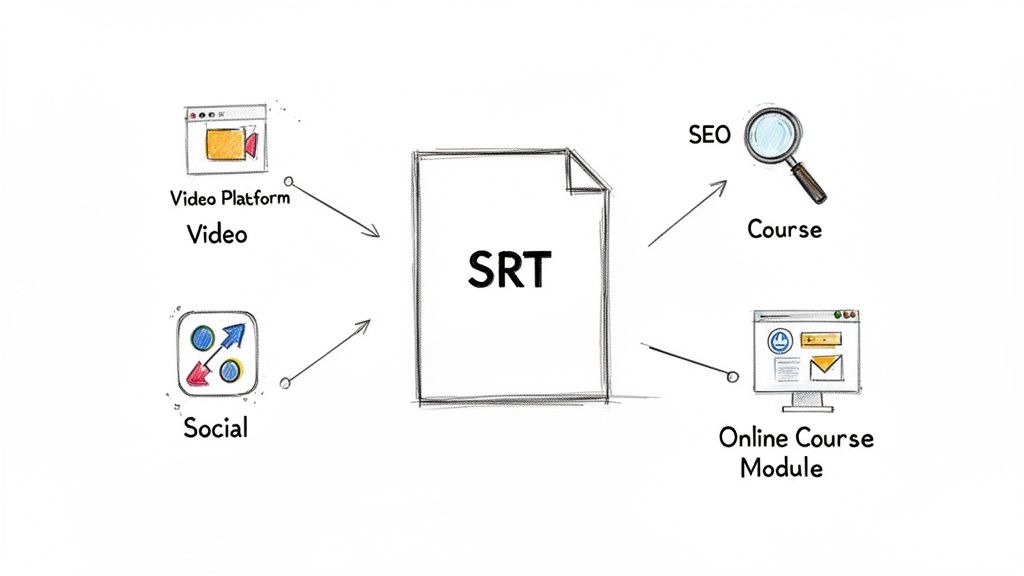
An SRT file is a simple script that tells a video player what text to display on screen and, crucially, when to display it. The power of the SRT format lies in its simplicity. Unlike more complex formats, it contains only text and timing information, without any styling like specific colors, fonts, or special effects.
This minimalist approach is its greatest strength. It ensures compatibility with virtually every video platform, social media site, and media player available. From YouTube and Vimeo to Instagram Reels and online course platforms, the SRT file is the backbone of accessible video content. Its universal acceptance makes it an indispensable tool for any modern content creator.
The Core Components of an SRT File
Every SRT file is built from a list of individual subtitle entries, and each entry follows the same three-part structure. Understanding these components is the first step to creating effective captions. While the terminology might seem technical, it becomes intuitive once you see it in action. If you're curious about the nuances, you can explore the subtle but important differences between subtitles and closed captions in another one of our guides.
My Experience: I think of an SRT file as a timed transcript. It perfectly syncs the spoken words with the video's timeline. This not only makes the content easy to follow without audio but also provides valuable text for search engines like Google to understand and rank the video.
Let's break down the anatomy of a single subtitle entry.
Anatomy of an SRT File
Here’s a quick look at the three core components that make up every SRT subtitle entry.
This simple, three-part structure is what makes SRT files so reliable and easy to work with. Whether you create them by hand in a text editor or use an automated tool, this fundamental structure remains the same.
How an SRT File Actually Works
At its core, an SRT file is just a plain-text document. It's less like a complex video file and more like a simple script telling a media player what text to show and when. This straightforward design is its biggest advantage, ensuring universal compatibility.
To truly understand the format, you just need to grasp its three main parts. It's like a set of stage directions for your captions, with each direction following a consistent pattern that is easy for both people and software to read.
The Three Pillars of an SRT File
Every subtitle that appears on screen is generated from a small, three-part block of text within the SRT file. These blocks are always separated by a blank line, which signals to the player that one caption has ended and the next is about to begin.
Let’s look at what’s inside each block:
- The Index Number: A simple counter (1, 2, 3...) that keeps the subtitles in order. Think of it like a scene number, ensuring everything plays out in the correct sequence.
- The Timestamp: This is the most critical part. It specifies the exact moment a subtitle should appear and disappear. The format is always precise:
hours:minutes:seconds,milliseconds --> hours:minutes:seconds,milliseconds. This level of detail ensures perfect synchronization with the audio. - The Subtitle Text: This is the dialogue or description the audience reads. It's typically one or two lines, and keeping it concise is crucial for readability.
Here's a visual breakdown of this simple but powerful structure.
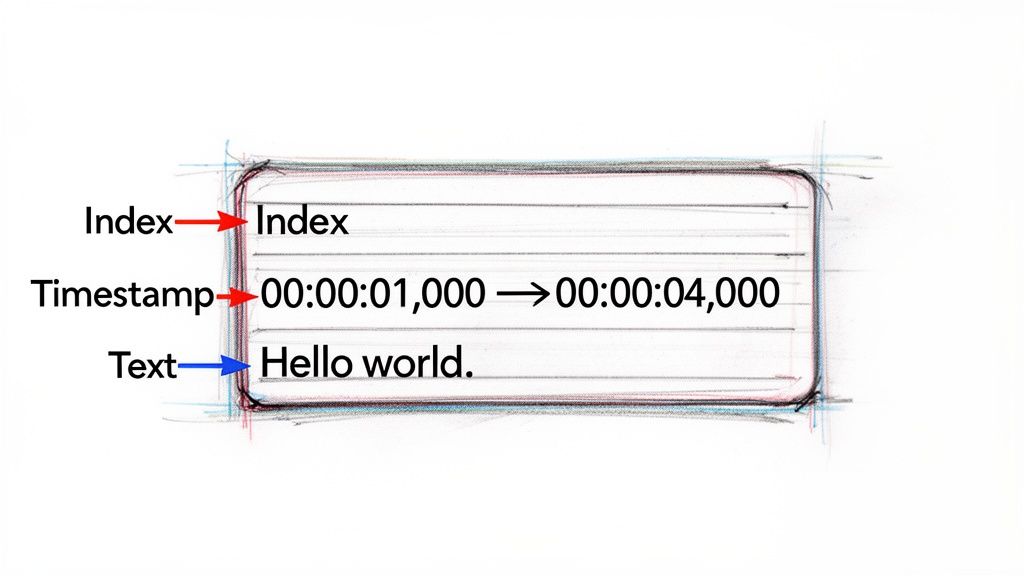
As you can see, the structure is clean and logical. The number 1 is the index, the timestamp 00:02:16,612 --> 00:02:19,376 dictates the timing, and "It's a beautiful day." is the actual text that gets displayed.
Putting It All Together
Think of it like building with Lego blocks. Each subtitle entry—with its number, timestamp, and text—is a single block. You stack these blocks one after another, leaving a blank line in between, to build the complete subtitle track for your entire video.
Key Takeaway: An SRT file isn't just a transcript; it’s a timed transcript. The tight relationship between the timestamp and the text brings the words to life, syncing them perfectly with the action on screen.
This simple design is precisely why SRT has become the standard format for subtitles. It provides a video player with all the necessary information to display captions correctly, without the extra styling code that often causes compatibility issues with other formats.
How Top Creators Use SRT Files to Grow Their Audience
While the technical details are important, the real value of SRT files is how they help creators connect with more people. When you understand what SRT stands for, you see it as a powerful tool for expanding reach, boosting engagement, and making your content accessible.
For YouTubers, SRT files are an SEO game-changer. Search engines can't watch videos, but they can read text. By uploading an accurate SRT file, you're essentially providing Google and YouTube with a word-for-word transcript. This makes your video much more discoverable when users search for the topics you've discussed.
To master this, check out our full guide on how to caption YouTube videos, which walks you through the entire process.
Expanding Your Reach on Social Media
Podcasters and social media managers also rely heavily on SRTs to maximize their content's impact. A single podcast episode can be repurposed into dozens of short, shareable video clips for platforms like Instagram, TikTok, or LinkedIn.
By adding captions from an SRT file, these clips can capture attention even when users are scrolling with the sound off—which is the default on many platforms. This simple strategy makes a huge difference in engagement.
The data supports this. The global marketing transcription market is expected to grow from USD 2.24 billion in 2025 to USD 5.64 billion by 2035. With 500 hours of video uploaded to YouTube every minute, an accurate transcript is essential for visibility.
Making Education and Training Accessible
For online course creators and educators, SRT files are a necessity. They are fundamental for accessibility, ensuring that students who are deaf or hard of hearing can fully participate.
The benefits extend further. Captions also help learners in noisy environments or non-native speakers who may need extra support to follow along.
Providing accurate captions can dramatically increase watch time and comprehension. This leads directly to higher course completion rates and happier students. It’s a simple text file that breaks down barriers and makes learning more inclusive for everyone.
Ultimately, using SRT files is a strategic move that pays dividends in audience growth and engagement. To learn more about how video content can deliver a tangible return, read this guide on The Roi Of Video Marketing How To Effectively Use Video Content. It demonstrates a commitment to quality and accessibility that modern audiences expect.
Creating Your First SRT File from Scratch
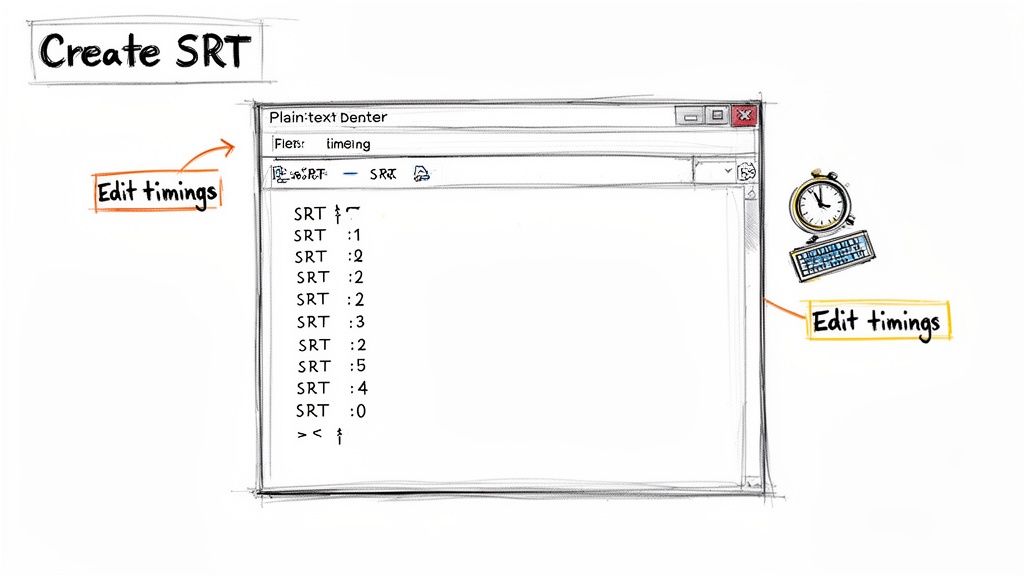
Ready to create an SRT file yourself? It's a surprisingly straightforward process that doesn't require expensive software. All you need is a basic text editor and your video.
Doing this manually is the best way to internalize the SRT structure. You'll see exactly how the index, timestamps, and text lines work together to bring your captions to life.
The Essential Tools and Setup
Before you start, gather your simple toolkit:
- Your video file: Open it in a media player that displays time down to the millisecond. Standard players like VLC Media Player or QuickTime are perfect for this.
- A plain text editor: This is crucial. Avoid word processors like Microsoft Word or Google Docs, as their hidden formatting can corrupt the file. Use Notepad on Windows or TextEdit on macOS.
- A little patience: Your first attempt might be slow, but you'll quickly get into a rhythm.
If you're using a Mac, ensure TextEdit is in "Plain Text" mode. You can switch by going to Format > Make Plain Text. This simple step prevents formatting issues and ensures the file saves correctly with the .srt extension.
Step-by-Step Guide to Manual Creation
Let's build your first subtitle. The process is simple: watch a segment of the video, note the start and end times, type the corresponding dialogue, and format it correctly.
- Start Your First Entry: Open a new, blank text file. Type the number
1and press Enter. This is the index for your first caption. - Set the Timestamp: Play your video and pause it as soon as the first line of dialogue begins. Let's say it starts at 2 seconds and 500 milliseconds. Continue playing until the line is finished, then pause again—for instance, at 5 seconds flat.
- Format the Timestamp: In your text file, on the second line, write the timing. The format is strict:
hours:minutes:seconds,milliseconds. For our example, it would be:00:00:02,500 --> 00:00:05,000. The-->arrow in the middle is essential. - Add the Text: On the next line, type the dialogue you heard, such as:
Welcome to our tutorial. - Create the Separator: Press Enter twice. This leaves a single blank line after your text, signaling to the media player that this caption is complete and to prepare for the next one.
Pro Tip: That blank line is not optional. It’s the most common mistake people make when creating SRTs by hand. Forgetting it will cause the entire file to fail, so always double-check that each subtitle block is separated by one empty line.
You've just created a perfect subtitle entry! It should look exactly like this in your text file:
100:00:02,500 --> 00:00:05,000Welcome to our tutorial.
Now, simply repeat the process. The next entry will start with 2, followed by its own timestamp and text, and then another blank line. Once you've captioned the entire video, save the file with the .srt extension (e.g., MyVideo.srt). Congratulations—you've built a subtitle file from scratch.
To help keep these rules straight, here is a quick reference guide.
SRT Formatting Quick Reference Guide
Manually editing SRT files requires precision. A single misplaced comma or extra space can break the file. Use this table as a checklist to ensure your formatting is always correct.
Following these simple rules is the key to creating valid SRT files that work flawlessly across any platform.
How to Automate SRT Creation with Whisper AI
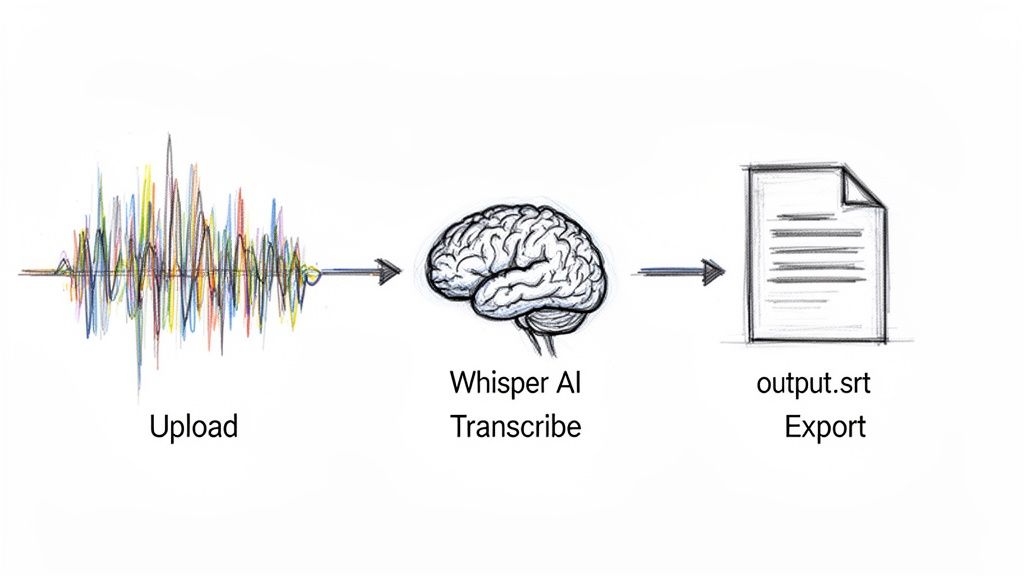
Creating subtitles manually is a game of patience, precision, and a lot of pausing and rewinding. But what if you could skip that tedious process? Modern AI tools have revolutionized this workflow, turning a task that once took hours into an automated process that delivers professional results in minutes.
Enter Whisper AI. This powerful tool is perfectly suited for this job. You simply provide your audio or video file, and the AI handles the rest. It transcribes every word with remarkable accuracy and, most importantly, generates precise timestamps automatically.
This automation eliminates the most time-consuming parts of the process. You no longer need to type out every sentence or manually sync timestamps. The AI does it all, allowing you to focus on creating great content rather than getting bogged down in technical details.
The Automated Workflow Explained
The beauty of a tool like Whisper AI is its simplicity. It transforms the complex, multi-step manual process into just a few clicks. Whether you're a seasoned video editor or a new creator, the workflow is designed for speed and efficiency.
Here’s a quick look at how it actually works:
- Upload Your Media: Drag and drop your video or audio file directly into the platform, or paste a link from a social media site.
- AI Transcription and Timing: The AI analyzes the file, generating a clean transcript. Simultaneously, it creates all the corresponding timestamps, perfectly syncing the text with the audio.
- Review and Export: Once finished, you receive a fully formatted transcript. With a single click, you can export it as a ready-to-use .srt file.
Automating the transcription and timestamping is how you scale. It's the secret to how top creators can caption their entire back catalog of videos, making their content instantly more accessible and easier to find.
This shift toward automation is a major reason the transcription industry is booming. The global market, valued at USD 23,781.14 million in 2025, is projected to reach USD 35,499.10 million by 2031. For YouTubers, accessible captioning can boost watch time by as much as 12%. You can explore the full transcription market analysis on grandviewresearch.com to see more on that trend.
If you’re new to this, we’ve put together a complete walkthrough to show you just how easy it is. Our guide on how to use Whisper AI will have you automating your subtitle workflow in no time.
Best Practices for Professional Subtitles
Getting the technical format of an SRT file right is just the beginning. Creating subtitles that are genuinely easy and pleasant to read is a separate skill. From my experience, a few simple rules can elevate your captions from a basic transcript to a polished element that enhances the viewing experience.
Rule #1: Make Readability Your Top Priority
The most common mistake I see is cramming too much text into a single subtitle block. This overwhelms the viewer, forcing them to speed-read instead of engaging with your video.
Follow these two simple guidelines:
- Keep each line under 42 characters.
- Never use more than two lines of text at a time.
This isn't an arbitrary rule; it forces conciseness. The goal is for a viewer to glance down, absorb the text, and return their focus to the video without missing a beat.
Rule #2: Sync Your Text to the Rhythm of Speech
Have you ever read subtitles that felt out of sync with the speaker? This usually happens when the text doesn't follow the natural cadence of speech. Don't break sentences just to meet a character count.
Instead, let the speaker finish a complete thought or clause before moving to the next subtitle. Listen for the natural pauses in their speech—these are your cues. This creates a smooth, intuitive reading flow that keeps the viewer immersed.
The Litmus Test: The best subtitles are invisible. A viewer should be able to follow along so easily that they forget they're even reading.
Rule #3: Always Clarify Who Is Speaking
When multiple people are in a video, captions can quickly become confusing. If it's not visually obvious who is talking, you need to use speaker labels. This is essential for podcasts, panel discussions, and interviews.
Here are a few standard methods:
- Name and Colon: Add the speaker's name at the beginning of the line.
Anna: This is the most common method. - Parentheses: Some style guides prefer this format.
(MARK): It’s a bit less common. - Italics for Off-Screen Voices: If a narrator or someone off-screen is speaking, using italics is the standard convention.
Following these practices demonstrates a commitment to the viewer's experience. Knowing what SRT stands for is the first step; mastering these details is what distinguishes amateur captions from professional-grade subtitles.
Common Questions About SRT Files Answered
Even after mastering the basics, a few common questions often arise during a project. Let's address some of the most frequent queries about working with SRT files.
What Is the Difference Between SRT and VTT Files?
The simplest way to think about it is that SRT is like a plain .txt file, while VTT is like a basic Word document. Both serve the same core function—providing timed text for video—but VTT offers more features.
SRT (SubRip Subtitle): This is the classic format. Its primary strength is its simplicity. Because it contains only timing and text, it is compatible with nearly every video player and platform. The trade-off is that it supports no styling.
VTT (WebVTT): This is a newer, web-focused format. It uses the same basic structure as SRT but adds the ability to include styling like bold, italics, and even colors directly within the file.
So, how do you choose? If you need your captions to work everywhere without any hassle, stick with SRT. If you are publishing video on the web and want more creative control over the appearance of your captions, VTT is the better choice.
Key Takeaway: An SRT file prioritizes universal compatibility through simplicity. A VTT file builds on that foundation, adding text styling options that make it a more versatile choice for modern web video.
Can I Add Colors or Font Styles to an SRT File?
In short, no. The SRT format was intentionally designed to be as basic as possible—this is a feature, not a limitation. Its simplicity guarantees that it will load correctly on a vast range of devices and software.
If you absolutely need to style your captions with colors, bolding, or different fonts, you must use a more advanced format like VTT or ASS (Advanced SubStation Alpha).
How Do I Fix an SRT File That Is Out of Sync?
This is perhaps the most common frustration when working with subtitles, but it's usually easy to fix. The problem is typically a consistent offset where the entire subtitle track is a few seconds too early or too late.
Most quality video players (like the popular VLC Media Player) and dedicated subtitle editing tools have a built-in feature to address this. You can apply a time offset, which shifts all timestamps forward or backward simultaneously until they align perfectly with the dialogue.
Stop wasting hours manually transcribing and timing your captions. With Whisper AI, you can upload any audio or video file and get a perfectly synchronized, accurate SRT file in just a few minutes. Try Whisper AI for free and see how it changes your content workflow.


























































































