
Where to Find Google Meet Recordings: A Practical Guide
You've just wrapped up an important call and clicked "Stop Recording." Now comes the real question: where on earth did that Google Meet recording go?
Don't worry, it's not lost in the cloud. Your recording is automatically sent to one of two main places: a dedicated ‘Meet Recordings’ folder in your Google Drive or attached directly to the original Google Calendar event. You'll also receive an email with a link as soon as it's finished processing.
Your Guide to Google Meet Recording Locations
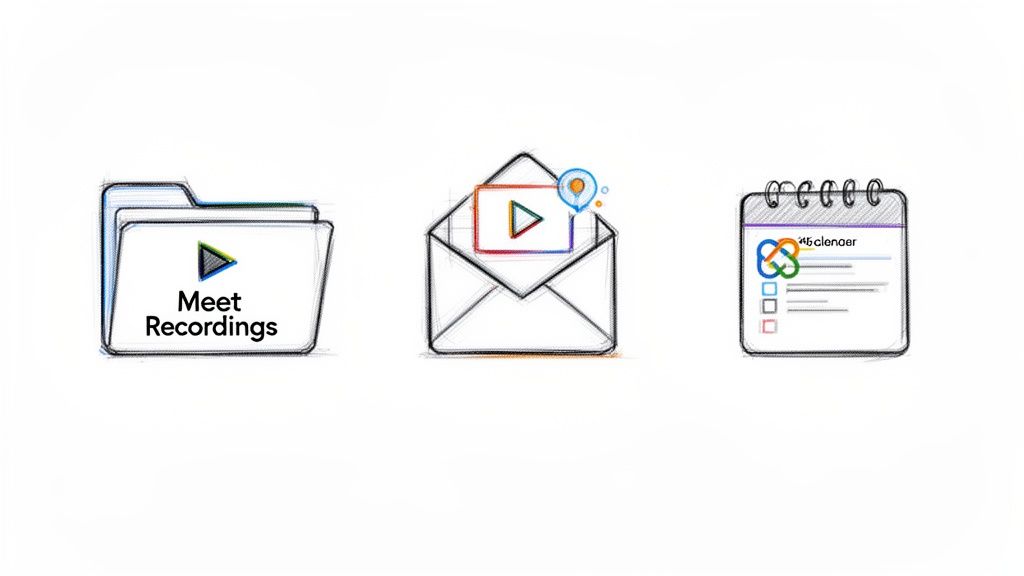
When you record a meeting, Google has a logical system in place to keep your videos accessible and secure. Once you understand where to look, you'll never misplace important conversations again.
The system is designed for convenience. For example, if you scheduled the meeting in Google Calendar, the recording link is added right back to the event details for all attendees to access. If you started a spontaneous meeting, your personal Google Drive becomes the default home for that video file.
The Go-To Spots for Your Recordings
The best part about this setup is its predictability. Once you learn the primary locations, finding any recording becomes a quick and easy task, saving you from aimlessly searching through your entire Drive.
Here are the main places your recordings are stored:
- Your Google Drive: This is the central hub. Google automatically creates a folder named "Meet Recordings" in the "My Drive" section of the meeting organizer's account.
- The Original Calendar Event: If the meeting was scheduled in Google Calendar, a link to the recording is added to the event details after it finishes processing.
- A Direct Email Notification: The meeting organizer (and the person who started the recording, if different) will always get an email containing a direct link to the video. This email often includes the chat transcript as well.
For a quick reference, here’s a breakdown of where to look.
Quick Guide to Finding Your Google Meet Recording
This table summarizes the most common places your Google Meet recordings end up, helping you find what you need quickly.
Think of these locations as your first points of call. In my experience, your recording will almost always be in one of these spots.
Advanced Storage with Gemini AI
Google is always finding new ways to handle meeting data, especially for people on premium Workspace plans. While Google Meet recordings have always been saved to Drive, a new feature has really changed the game. As of 2026, Google has integrated its Gemini AI to do more than just save the video.
It now creates an AI-generated 'Smart-Doc'. This isn't just a file; it's a document that embeds the video player right alongside a timestamped transcript and a concise summary. All of this is neatly stored in a new, specialized folder called ‘Meet AI Vault’ within your Google Drive. You can find more details about this kind of automated organization at noota.io.
Finding Recordings Directly in Your Google Calendar
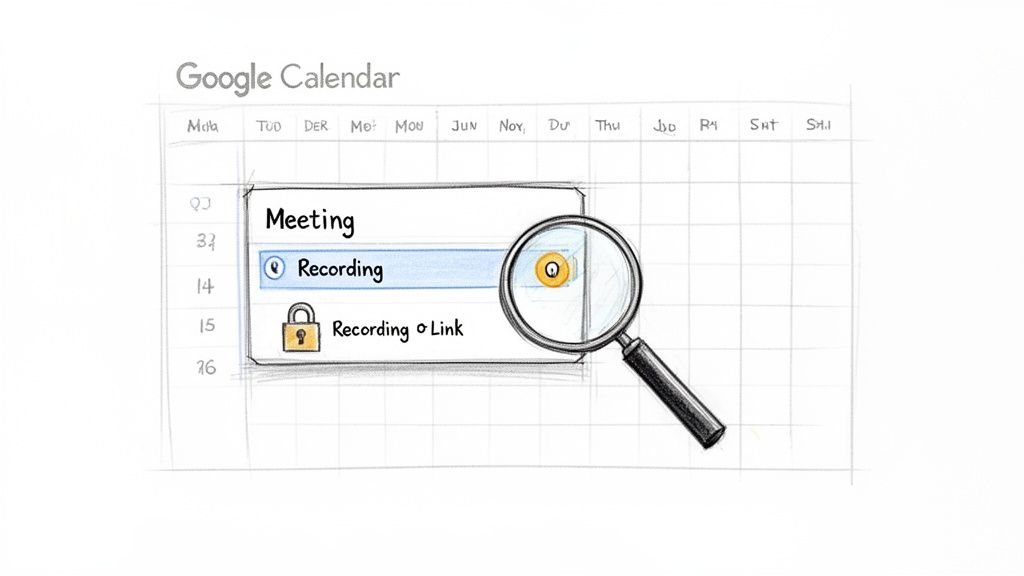
If you scheduled your meeting through Google Calendar, you've already done most of the work. From my experience, this is the most straightforward way to find a recording, as Google neatly attaches it right back to the original event.
This integration is a real lifesaver for staying organized. Forget sifting through a folder of generically named video files—the calendar event itself becomes the central hub for the meeting, complete with the recording linked right inside.
Locating the Recording in the Calendar Event
Finding the link is incredibly easy. Just open your Google Calendar and click on the event for the meeting you recorded.
Once you open the event details, the link to the recording will be attached, usually sitting just below the Google Meet join button. You’ll see a small video camera or "play" icon next to it, making it easy to spot. Keep in mind that this link won't appear instantly. It only shows up after Google has finished processing the video, which can take a few minutes for a short call or longer for a more extensive session.
Understanding Permissions and Access
One of the best parts of this method is how Google handles sharing. The system is smart enough to automatically set permissions based on who was invited to the meeting.
Key Takeaway: By default, every guest included on the original calendar invitation gets viewer access to the recording. This means they can watch it, but they can't download the file or share the link with others.
This automation is a huge time-saver. You don't have to manually share the file with 20 different people.
Of course, if you need to share the recording with someone who wasn't on the original invite, you'll have to go to the video file in Google Drive and adjust the sharing settings there. It's also worth noting that if someone else from your organization started the recording, the link still attaches to the calendar event for everyone, but the actual file will live in their “Meet Recordings” folder in Drive.
Step-by-Step: Finding Recordings in Google Drive
While the Calendar link is a great shortcut, Google Drive is the real home for all your recordings. Think of it as the central library where every video file is stored, giving you full control over how you organize, share, and manage your video archive.
When you record a meeting you've organized, Google automatically saves the video file to a special folder in your Drive. It’s like having a dedicated filing cabinet created just for your meeting videos, which is incredibly handy.
Your Default Meet Recordings Folder
Google keeps things simple by creating a folder named "Meet Recordings" right inside your "My Drive." You don't have to do anything to create this folder; it appears automatically the first time you save a recording. From then on, every meeting you own and record will be saved there, neatly named with the meeting title and date.
This automated system is a lifesaver for keeping your main Drive from getting cluttered with video files. It also means you always have a predictable place to look when you're hunting for a past conversation.
But here’s a common issue: you attended a meeting, you know it was recorded, but you can't find it in your "Meet Recordings" folder. What's going on?
The recording is always saved to the Google Drive of the meeting organizer. If you hit the record button but someone else created the event, the video file goes into their "Meet Recordings" folder, not yours. You'll get an email with a link once it's shared with you.
Using Search Operators to Find Videos Fast
If you’ve built up a backlog of dozens—or even hundreds—of recordings, scrolling through a folder is a huge waste of time. This is where Google Drive's powerful search operators become your best friend. Instead of typing a vague keyword, you can use specific commands to filter your files instantly.
Here are a few of my go-to search tricks:
type:video: This is the simplest one. It brings up every video file in your entire Drive, including all your Meet recordings.owner:me: This one is perfect for finding recordings from meetings you organized. It filters the results to show only the files you own."Project Phoenix Debrief": Have a specific meeting in mind? Put the title in quotes to search for that exact phrase in the filename. It's the fastest way to pinpoint a single recording.
You can even combine them for a more focused search, like type:video owner:me "Project Phoenix". Getting comfortable with these simple commands will save you a massive amount of time.
Once you find your recordings, you can take organization a step further by moving them into project-specific folders. A tidy Drive is so much easier to navigate, and you can learn more about how to organize meeting notes in our detailed guide: https://whisperbot.ai/blog/how-to-organize-meeting-notes.
My Drive vs. Shared with Me Explained
Understanding these two sections is crucial for navigating Drive. "My Drive" is your personal space, containing all the files and folders you own—including that important "Meet Recordings" folder.
On the other hand, "Shared with me" is a feed of all the files and folders that other people have given you access to. If a colleague records a meeting they organized, the video lives in their Drive but will appear for you in "Shared with me." This distinction matters because you can’t move or delete files from this view; you only have the permissions the owner granted you.
Can't Find Your Google Meet Recording? Here's What to Do
That sinking feeling when you finish a great meeting, go to find the recording, and it's just... gone. It's frustrating, but don't panic. More often than not, a missing video is the result of a few common and usually fixable issues.
The first place I always check is the subscription plan. Google's recording features have changed over the years, and today, they are a core part of the paid Google Workspace plans. If you're using a free, personal Gmail account, the recording feature simply isn't available. So, step one is always to confirm that your account level includes recording.
Common Culprits for a Missing Recording
Okay, you've confirmed you're on a plan that includes recording. What's next? Before assuming the file is lost forever, let's go through the most likely suspects. It’s usually a simple timing or settings issue.
Here are the top things to investigate:
- It's Still Processing: This is the most common reason. A long meeting can take a surprisingly long time for Google to process. I’ve seen it take a few hours, and in rare cases, up to 24 hours. Give it some time before you worry.
- Google Drive is Full: The recording saves to the meeting organizer's Google Drive. If their storage is full, the recording will fail to save. No space, no video.
- No One Hit "Record": It sounds almost too simple, but in the rush to start a meeting, it's easy to forget to press the record button. It happens to the best of us.
- The Organizer Left Too Early: Here's a quirky one—if the person who starts the recording leaves the meeting before anyone else has joined, Google automatically cancels the recording.
This flowchart can help you pinpoint exactly where a successful recording should have landed based on who organized the meeting.
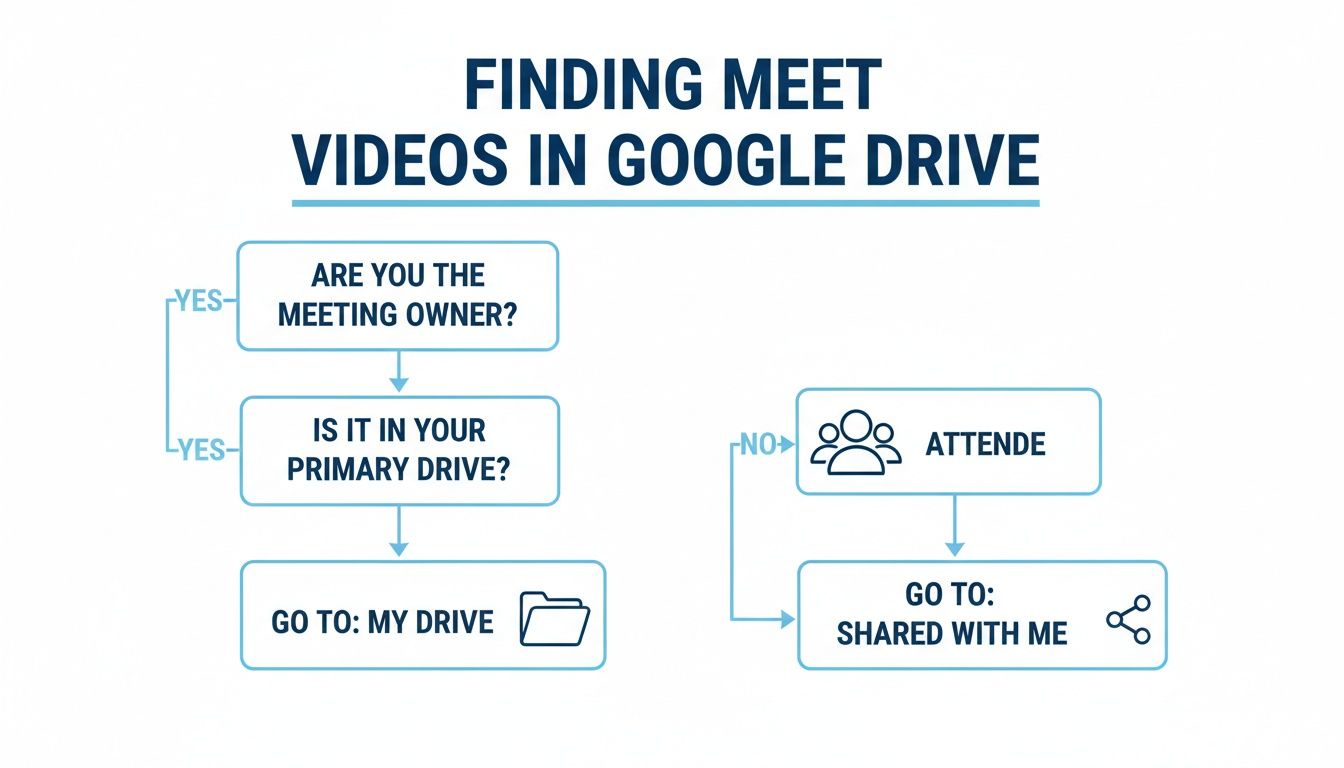
As you can see, if you organized the meeting, the video file should be waiting for you in the Meet Recordings folder inside your "My Drive." If you were just an attendee, it'll pop up in your "Shared with me" section.
Solving Permission and Access Problems
What if you know the recording exists, but you can't seem to find or open it? This almost always comes down to permissions. By default, the video is shared with everyone who was on the original calendar invite.
But if you were a late addition to the event or just joined on the fly using a direct link, you likely weren't included in that initial share.
My Go-To Advice: If you can't find a recording you're certain exists, the fastest fix is to just ask the meeting organizer. They are the file owner and can share it directly with you from their Google Drive in a matter of seconds.
It's also worth remembering that in larger companies, a Google Workspace administrator can set policies that restrict recording for certain groups of users. If you find you can never seem to record meetings, a quick message to your IT department can clear up whether your account has those permissions enabled.
And if you're looking for more advanced ways to capture meeting content, you might want to explore using a Google Meet note taker to get key details down automatically.
Unlock More Value with Transcription and AI Summaries
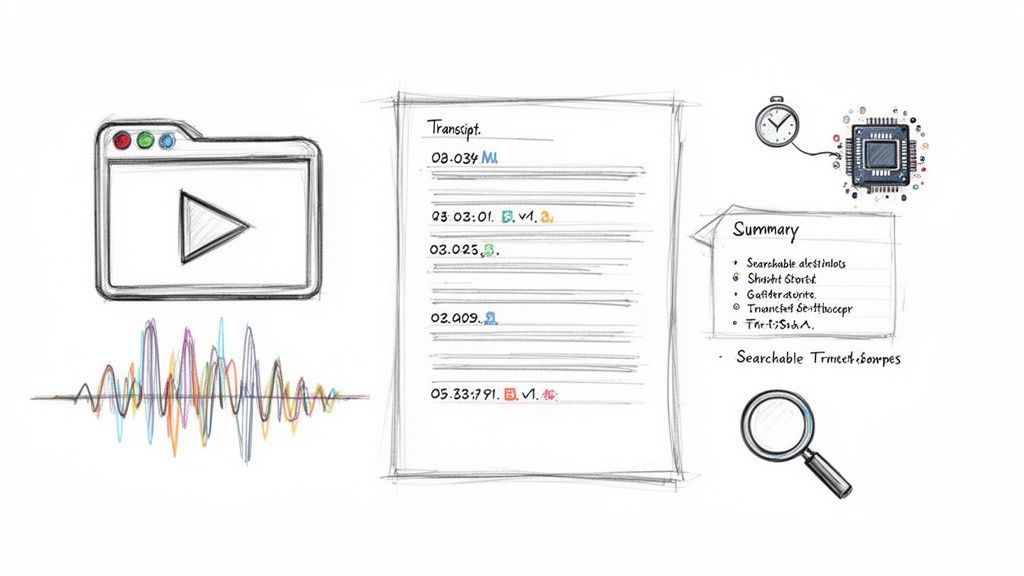
Knowing where to find your Google Meet recordings is a great start. But let's be honest, an hour-long video file is more of a digital paperweight than a useful asset. The real magic happens when you make the content inside that video searchable and actionable.
Right now, if you need to find that one moment a client approved a budget change, you’re stuck scrubbing through a timeline. It’s inefficient and frustrating. This is where transcription completely changes the game.
From Video File to Searchable Text
By converting your video’s audio into a text document, you transform your meeting from a block of time into a powerful knowledge base. That vague memory of a key decision becomes a specific, findable quote. You can just hit Ctrl+F.
The process itself is surprisingly simple. Once you’ve downloaded your Google Meet recording from Drive, an AI transcription tool can do all the heavy lifting for you. Platforms like Whisper AI are built for exactly this.
You just upload the video file, and the AI gets to work. Modern tools are sophisticated—they don't just spit out a wall of text. They can often identify different speakers and add timestamps, which makes the conversation incredibly easy to follow.
This process turns your passive video archive into an active, queryable database. Key decisions, action items, and important quotes that were once locked away in a video file are now instantly accessible through a simple text search.
This shift is fundamental. A video is something you have to watch, but a transcript is something you can scan, search, and share. Suddenly, the information from that meeting is far more accessible to everyone, even team members who couldn't attend.
Practical Steps to Transcribe Your Recording
You really don't need any technical expertise to get this done. The workflow is pretty straightforward.
- Grab the video file. First, find the recording in your "Meet Recordings" folder in Google Drive and download the MP4 to your computer.
- Upload it to a transcription service. Next, sign into a service that uses a model like Whisper AI and upload the file you just saved. The platform will handle the rest.
- Review and export. Once the AI is finished, you’ll get a full transcript. The best services include timestamps and speaker labels, which you can quickly review and clean up before exporting to a Google Doc, Word file, or PDF.
This simple process unlocks so much potential. You can now create meeting summaries in a fraction of the time, pull direct quotes for reports, and build a searchable archive of all your important conversations. To learn more, check out our guide on the benefits of AI-powered transcription services.
Creating Summaries and Action Items with AI
But why stop at a word-for-word transcript? This is where AI can really save you time. Once the transcription is done, you can ask an AI to pull out the key discussion points, list all the action items (and who they were assigned to), or just give you a high-level summary.
Think about what that means. No more assigning one person to take minutes and hope they caught everything. The AI can produce an objective summary in seconds, making sure everyone is on the same page and no critical tasks fall through the cracks. It's all pulled directly from the video you already recorded.
Got Questions? We've Got Answers
Even when you know where to look, finding and managing Google Meet recordings can bring up some specific head-scratchers. Let's tackle some of the most common questions that come up time and time again.
How Long Until My Google Meet Recording Is Ready?
This is the big one, and the honest answer is: it varies. For a short team huddle—say, under 30 minutes—you’ll often get that "recording is ready" email almost as soon as you hang up. It's impressively fast.
But for a marathon session or a big all-hands meeting that goes over an hour, you'll need a bit more patience. It's completely normal for these longer videos to take a few hours to process. On rare occasions, especially when Google's servers are slammed, it could take up to 24 hours.
The best advice is to just sit tight. You will always get an email with a link the second the video is processed and saved. That email is your green light.
Who Actually Has the Power to Record a Google Meet?
Google keeps a tight leash on recording privileges to make sure everything stays secure and intentional. It’s not a free-for-all; the ability to record is limited to a couple of key roles.
Here’s who can hit the record button:
- The Meeting Organizer: Naturally, the person who created the event in Google Calendar holds the keys.
- Someone in the Same Organization: If another attendee is part of the same company (the same Google Workspace domain), they can also start or stop the recording.
This means if you're joining as an external guest from another business or with your personal Gmail, you won't even see the record option. It's also worth remembering that the organization's admin has to have recording enabled on a Google Workspace plan that supports it in the first place.
I Accidentally Deleted a Recording—Can I Get It Back?
Yes, but you have to be quick about it. Thankfully, when you delete a Google Meet recording, it doesn't just disappear into the digital ether immediately.
It goes straight to your Google Drive’s "Trash" folder, where it will sit for 30 days. During that time, you can dive into your Trash, find the video, right-click it, and hit "Restore." It'll pop right back into your "Meet Recordings" folder like nothing ever happened.
Once that 30-day window closes, however, the file is gone for good. If your company uses Google Vault, your admin might have special retention rules that could save you, but for the average user, that 30-day countdown is absolute.
How Can I Share a Recording with People Outside My Company?
Sharing a Google Meet recording is just like sharing any other file from your Google Drive, which makes it super easy. Just navigate to your "Meet Recordings" folder, find the video you want to send, right-click, and choose "Share."
A dialog box will pop up, giving you a couple of ways to do this. You can either type in the email addresses of the specific people you want to share with or create a shareable link for broader access. The crucial part is setting the right permissions to control what they can do with it:
- Viewer: They can watch the video, but that’s it. No downloading or resharing.
- Commenter: They can watch and add comments to the video file.
- Editor: This gives them full control—they can download the file, share it with others, and more.
Before you hit send, always give those permission settings a quick once-over. It’s a simple step that ensures you’re not accidentally giving away more access than you intended.
Stop wasting time manually transcribing your meetings. Whisper AI takes your Google Meet recordings and turns them into accurate, searchable text with timestamps and speaker labels in minutes. Try it today and transform your video archive into a powerful knowledge base. Get started with Whisper AI.


























































































