
Your Guide to a Perfect Zoom Meeting Transcript
A Zoom meeting transcript is a complete text file of everything said during a video call. But to see it as just a simple log is to miss the point entirely. In practice, it's a searchable, shareable record that transforms your team's conversations into concrete data you can actually use to make better decisions.
Why Your Zoom Transcript Is a Business Superpower
It’s easy to think of transcripts as a bit dry—just a record of who said what. But a clean, accurate transcript is a secret weapon for any team. It becomes a searchable database of every decision, idea, and action item that comes out of your calls, making vital information accessible long after the meeting ends.
Think about the sheer volume of these conversations. Zoom now hosts an incredible 3.3 trillion meeting minutes every year. That number is staggering, and it's a huge jump from just a few years ago. With that much information flying around, relying on memory just isn't a viable strategy anymore. You can dig into more data on Zoom's incredible growth to see what it means for how we all communicate at work.
From Simple Log to Strategic Tool
When you stop seeing a transcript as a simple file and start seeing it as a strategic tool, everything changes. I once worked with a sales team that started analyzing their call transcripts. By reviewing the text, they were able to pinpoint the exact moment a prospect’s tone shifted from skeptical to interested. This insight helped them completely refine their pitch and close more deals.
Another time, a project team I was on used their meeting transcripts to instantly settle a debate over project scope. Instead of arguing from memory, they just pulled up the original decision from a call that happened weeks earlier. The transcript provided clarity and solved the problem in minutes.
This is the shift in perspective that really matters. An accurate record brings clarity and makes everything more efficient.
A transcript isn't just for the people who missed the meeting; it's a powerful tool for those who were there. It cuts through the fog of memory and turns spoken words into a reliable source of truth.
Key Benefits of Leveraging Transcripts
When you start treating your Zoom meeting transcript as a valuable asset, you’ll see tangible improvements across your business.
- Enhanced Accountability: When action items and commitments are written down, it’s far easier to track who is doing what and ensure everyone follows through. No more "I thought you were handling that."
- Improved Knowledge Management: Transcripts create a searchable archive of your team's collective knowledge. Need to find a specific detail from a brainstorming session last quarter? Just search for it instead of re-watching an hour-long video.
- Deeper Strategic Insights: Reading through customer calls or internal discussions can reveal patterns you'd otherwise miss—common pain points, recurring questions, or internal roadblocks.
- Greater Accessibility and Inclusion: For team members who are hard of hearing or for whom English is a second language, a text-based transcript ensures they have the same access to information as everyone else, fostering a more inclusive environment.
Using Zoom's Built-In Transcription Tool
The quickest way to get a transcript from your Zoom meeting is to use the tool that's already built into the platform. This is your path of least resistance—no extra software, no complicated setup. For most day-to-day needs, it’s a fantastic starting point.
The magic doesn't happen in the desktop app, though. You'll need to head over to the Zoom web portal to get things configured. As the host, you're in control and can set this up for every meeting you run.
Turning On Audio Transcription and Live Captions
First things first, log into your Zoom account on their website and navigate to the Settings menu. Click on the Recording tab. The most important step here is to make sure Cloud Recording is toggled on. Without it, Zoom has nowhere to save the recording and generate the transcript later.
With cloud recording enabled, just scroll down a bit until you see the Audio transcript option. Check that box. This simple action tells Zoom you want a text file of the conversation automatically created every time you record a meeting to the cloud.
Next up, let's enable live captions for real-time accessibility during the meeting.
- In your settings, find the section called In Meeting (Advanced).
- Flip the switch for Automated captions. This is a game-changer for accessibility, giving participants captions as the conversation happens.
- Right below that, make sure Full transcript is also enabled. This allows anyone in the meeting to open a side panel and see a live, scrolling transcript of everything that's been said.
Once you've done this, the process is practically automatic. Your very next cloud-recorded meeting will have a fresh VTT transcript file waiting for you alongside the video. If you want a deeper dive into the basics, our guide on creating a transcript from any audio is a great resource.
Here's a pro tip from my own experience: enable these settings at the account level if you have admin access. It saves you the headache of remembering to turn them on for individual meetings. It just becomes part of your default setup, so you never accidentally forget to capture a transcript.
What to Realistically Expect
Zoom's native tool is incredibly convenient, but it's important to have clear expectations. The accuracy has gotten surprisingly good over the years. Recent tests have even shown Zoom's engine outperforming many competitors in word error rate for real-world meetings, both for post-meeting transcription and live captioning.
However, features like cloud recording—which is necessary for transcription—are typically part of the paid plans, not the free one.
Even with its strengths, the built-in tool has its limitations. It can struggle to accurately distinguish between speakers, especially when people talk over each other. It also tends to be light on punctuation, sometimes producing a large block of text that requires manual formatting.
So, is it good enough? For a quick internal summary or personal notes, absolutely. But if you're creating a client-facing document or need a perfectly formatted transcript for compliance, you'll likely want to consider a more powerful, dedicated solution.
Choosing the Right Transcription Method for Your Needs
https://www.youtube.com/embed/h2E3O55eSfc
Not every Zoom meeting transcript needs to be flawless. An informal internal sync to plan the week is a world away from a formal client kickoff or a legal deposition. Figuring out whether to stick with Zoom's built-in tool or bring in a third-party service really just comes down to the purpose of the transcript.
For everyday, internal use—like jogging your memory about a decision made last week—Zoom's native transcription is usually sufficient. It’s integrated, included with a paid plan, and gets the job done without any extra steps.
But you'll quickly find its limits when accuracy is critical. The native tool can stumble over complex industry jargon, heavy accents, or poor audio quality. These challenges increase the word error rate, leaving you with a transcript that might be more confusing than helpful.
When to Upgrade to a Third-Party Service
So, when is it time to look for a specialized tool? The decision usually comes down to a few key factors. If you absolutely need to know who said what (a feature called diarization), require precise timestamps, or need a transcript that can stand up to scrutiny for compliance or client records, it's time to upgrade.
AI-powered services like Otter.ai or Descript are built from the ground up for high accuracy and advanced features. Their AI models are far better at telling speakers apart and navigating tricky audio situations. Plus, they usually come with handy tools for editing, collaborating, and exporting in different formats. If you want to dive deeper, you can explore the different types of AI-powered transcription services available.
This decision tree gives you a simple visual for that first choice you’ll need to make, which all starts with enabling cloud recording in your Zoom settings.
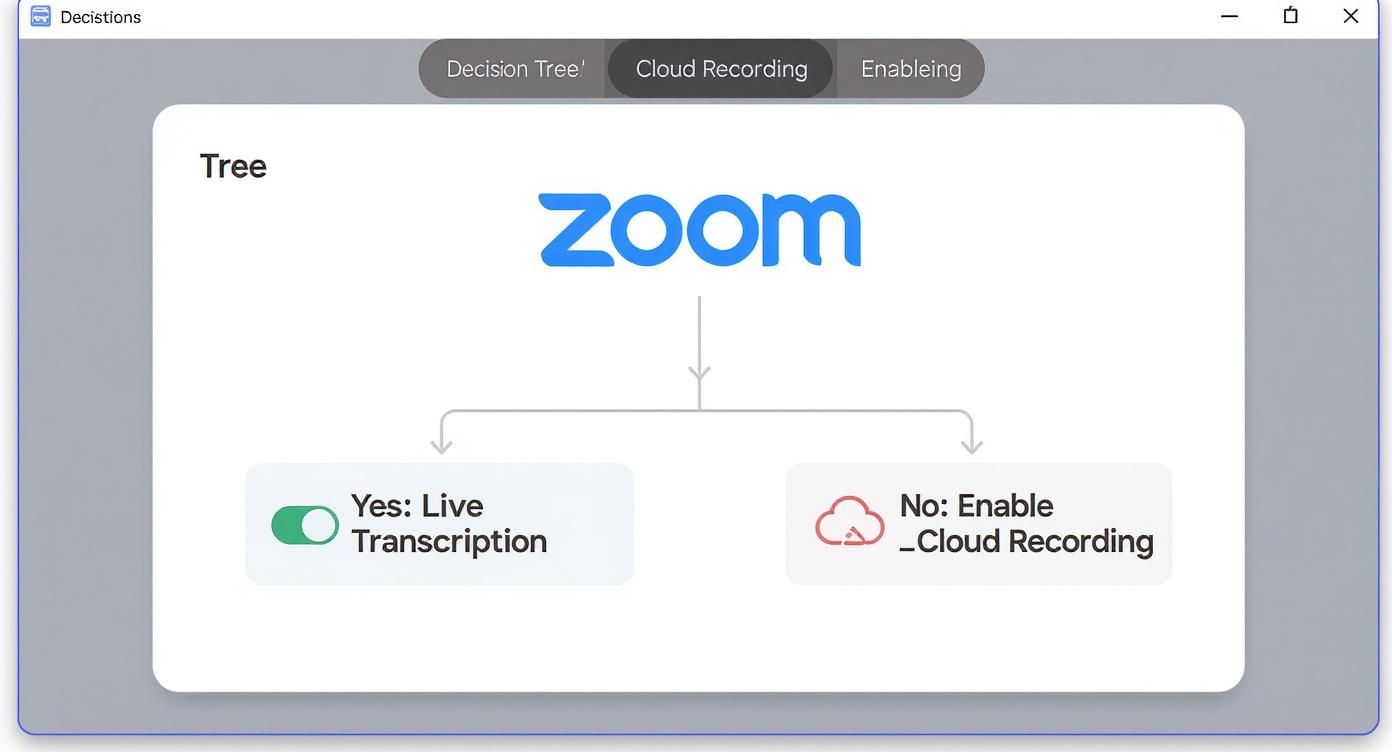
As you can see, turning on cloud recording is the foundational step. Without it, Zoom cannot generate a transcript for you, whether that's live captions during the call or a text file afterward.
Zoom Native vs Third-Party AI Transcription
To make the choice even clearer, let’s look at a head-to-head comparison. This table breaks down the key features to help you decide which transcription service best fits your needs.
The best transcription method is the one that aligns with your end goal. For quick internal notes, convenience wins. For client-facing records or detailed analysis, accuracy and features are paramount.
Think about a marketing team reviewing customer feedback calls. A native Zoom transcript might capture the general sentiment, but a dedicated third-party service could accurately label each customer's comments, provide timestamps to pinpoint key moments in the video, and correctly transcribe industry-specific product names. The result is much more valuable, actionable data.
Putting Your Transcripts to Work
Getting a raw text file of your Zoom meeting transcript is a great start, but it's only the beginning. A giant, unformatted block of text isn't very useful on its own. The real value is unlocked when you turn that raw data into a clear, actionable document.
Think of it less like archiving a conversation and more like building a searchable, living library of your team's knowledge. The goal is to make the brilliant ideas and critical decisions from your meetings just as easy to find as any other company document.
First, Make It Readable
Before you can extract any insights, you need to clean up the transcript. AI does a decent job, but it often misses conversational nuances. A few minutes of editing can make a world of difference.
Start with a quick spell-check. Pay special attention to the names of people, products, or clients—the kinds of proper nouns that transcription AI frequently misspells. Getting these right is crucial for making the document searchable later.
From there, break up those dense walls of text. Use bold text for key decisions, pull out lists of ideas into bullet points, and add simple headings to signal topic changes. This basic formatting instantly makes the document scannable and far less intimidating to read.
Pinpoint Action Items and Key Decisions
Let’s be honest, the most urgent information you need from any meeting transcript is the list of "who's doing what by when." This is where you hunt for commitments. Keep an eye out for phrases like “I’ll take that on,” “we need to figure out,” or “the next step is.”
Once you find these tasks, pull them out and create a dedicated summary section at the top or bottom of the document. For every single action item, make sure you capture:
- The task: What, exactly, needs to be done?
- The owner: Who is responsible for it?
- The deadline: When does it need to be finished?
This simple step transforms a passive record into an active accountability tool, ensuring that good conversations lead to tangible results instead of fading into memory.
Digging Deeper for Strategic Insights
Beyond the to-do list, your transcripts are filled with strategic insights. When you start analyzing transcripts across multiple meetings, you can spot patterns and trends that are invisible in the moment. Using tools with AI captions and advanced search features helps you quickly find what you're looking for.
By analyzing your meeting transcripts, you're not just reviewing what was said; you're uncovering the 'why' behind the conversation. You can spot customer pain points, internal communication gaps, or emerging market trends that you might have missed in the moment.
For example, a product team could search transcripts from all their user feedback calls for mentions of a specific feature. They could instantly gauge customer sentiment, grab direct quotes for user stories, and see how that feedback has evolved over months.
Similarly, a sales manager could review a junior representative’s call transcripts to find specific moments for coaching—like how they handle pricing objections or explain a complex feature. This analytical approach makes every conversation an opportunity to learn and improve.
Keeping Your Meeting Transcripts Private and Compliant
A Zoom meeting transcript is often packed with valuable information, but it can also contain sensitive data. Discussions on company strategy, confidential client details, or HR matters are all captured in plain text. If you're not careful, these files can quickly become a liability.
Before you even hit "record," your first step should always be to get consent. This isn't just about being polite; in many jurisdictions, it's a legal requirement. Start the meeting with a clear announcement that you'll be recording and transcribing the conversation. This simple act gives everyone the chance to agree or raise any concerns.
Your responsibility doesn't end when the meeting does. The moment a transcript is created, it becomes a piece of company data that must be managed with the same care as any other sensitive document.
Without a solid plan, these transcripts can easily end up in unsecured folders or be shared too widely, creating serious privacy risks for your company and everyone on the call.
A Smart Framework for Handling Transcripts
The best way to protect this data is to establish a simple governance framework. This doesn't need to be a massive bureaucratic undertaking, but it does need to be consistent. Start by asking a few key questions about how your team will handle every transcript you create.
Your plan should map out the entire lifecycle of the transcript, from creation to deletion. It’s also wise to understand how third-party services manage your data; reviewing their comprehensive privacy policies can help you set your own internal standards for compliance.
Here’s a practical checklist to get you started:
- Where do they live? Decide on a single, secure location for all transcripts. A designated folder on a company cloud drive is a great choice; an employee's personal desktop is not.
- Who gets the keys? Access should be on a need-to-know basis. Limit viewership strictly to those with a legitimate business reason to see the contents.
- How long do we keep them? Set a clear retention policy. Whether it's 90 days or a year, it should be defined. Once the time is up, transcripts should be securely deleted to comply with regulations like GDPR.
- What are the sharing rules? Create a straightforward protocol for sharing. For instance, no sharing outside the approved group without getting explicit permission first.
Putting these simple guardrails in place helps you build a responsible and secure system for managing your meeting data.
Got Questions About Zoom Transcripts? We’ve Got Answers.
Even with a perfect setup, you’ll probably have a few questions when you start pulling transcripts from your Zoom meetings. It happens to everyone. Let’s walk through some of the most common issues people run into so you can get ahead of them.
This section serves as your personal cheat sheet for navigating Zoom's transcription quirks. From dealing with accuracy issues to figuring out who has permission to do what, we'll cover the practical stuff that often trips people up.
Your Top Questions Answered
I’ve compiled the questions that come up time and time again. Getting these small details right can make a huge difference in your workflow and save you a ton of frustration down the road.
I’ve found that understanding the little things—like who can actually generate a transcript or how to fix a glaring typo—is what separates a smooth process from a maddening one. It's all about mastering the basics.
These answers are based on real-world situations, so you can get back to work without digging through help articles.
Quick Answers to Your Zoom Transcript Questions
Here are some straightforward answers to the most frequently asked questions about Zoom's transcription features.
The reality is, getting a polished transcript usually involves a quick manual review after the AI has done its part. Don't worry if the first version isn't perfect. A few quick edits can turn a decent transcript into a genuinely useful document, making all that valuable information from your meeting easy to find and share long after it’s over.
Ready to skip the manual work and get perfectly accurate transcripts, summaries, and action items from every meeting? Whisper AI uses advanced AI to turn your Zoom recordings into searchable, actionable documents in minutes. Join over 50,000 users who are saving time and unlocking deeper insights from their conversations. Try it for free today.


























































































