
How to Transcribe Video to Text: A Practical Guide
Turning a video into text doesn't have to mean hours of tedious typing. The fastest and most efficient way I've found to handle this is by using an AI-powered tool. Platforms built on advanced technology like Whisper AI can take a lengthy video and deliver a remarkably accurate transcript in just a few minutes, completely changing the game for anyone who works with video content.
Why AI Transcription Is the New Standard

Not long ago, getting a transcript meant sitting with headphones on, constantly hitting pause, rewind, and type. It was slow, frustrating work that I, like many others, dreaded. Thankfully, artificial intelligence has made that manual process a thing of the past. Modern AI tools offer a powerful combination of speed, affordability, and accuracy that was unimaginable just a few years ago.
This shift is about more than just convenience. Having a text version of your video makes your content instantly more accessible, fully searchable, and incredibly easy to repurpose for other platforms.
The demand for this technology is surging. The global AI transcription market, which powers these video-to-text services, is projected to grow from $4.5 billion in 2024 to an incredible $19.2 billion by 2034. According to recent market research, that's a 15.6% compound annual growth rate, fueled by the massive amount of video content being created daily. The message is clear: fast, accurate transcripts are now essential.
The Core Benefits of AI-Powered Transcription
Once you make the switch to an AI tool for transcription, the advantages are immediate. I remember the first time I used one—a task that would have taken me an entire afternoon was finished before I even refilled my coffee.
Here's a breakdown of what you gain:
- Massive Time Savings: An AI can process an hour-long video in a matter of minutes. In contrast, a human transcriber would need several hours, at best, to do the same job.
- Improved Accessibility: Transcripts and captions are crucial for viewers who are deaf, hard of hearing, or simply watching with the sound off—a common scenario on social media.
- Enhanced SEO Performance: Search engines like Google can't watch your video, but they can crawl text. By adding a transcript to your webpage, you provide search engines with a wealth of keyword-rich content to index, which can significantly improve your rankings.
- Effortless Content Repurposing: A transcript is the ultimate source material. You can easily pull quotes for social media, build a blog post, or draft an email newsletter without having to re-watch the video.
In short, learning how to transcribe video to text using AI is less about typing and more about unlocking the full potential of your content with minimal effort.
For anyone still manually transcribing, the difference between the old method and the new AI-driven approach is night and day.
AI vs. Manual Transcription at a Glance
This quick comparison highlights just how far AI has come for most modern content needs.
While a highly skilled human might still have an edge for nuanced legal or medical files, for the vast majority of creators, marketers, and businesses, AI delivers the speed and efficiency that modern workflows require.
Preparing Your Video for a Flawless Transcription
The secret to a great transcript isn't just the AI you choose; it's the quality of the audio you provide. Simply put, if a human would struggle to understand what's being said, an AI will too. Spending a few minutes preparing your video file can dramatically improve accuracy and save you a significant amount of editing time later.
Audio clarity is, without a doubt, the most critical factor. Imagine a muffled voice competing with a humming air conditioner, passing street traffic, or the background noise of a coffee shop. That's a recipe for a jumbled, inaccurate transcript. Even a simple change, like using a basic external microphone instead of your camera's built-in one, can make a huge difference. Your goal is to give the AI the cleanest possible audio signal to analyze.
Focus on Audio Quality, Not File Formats
Many people get caught up in thinking they need to convert their video into the "perfect" format, but most modern tools have made this step obsolete. Whether you have an MP4, MOV, or just a link to a YouTube video, a platform like Whisper AI can usually handle it directly. The real effort should be invested in the audio itself.
I once worked with a podcaster who was frustrated with their initial transcription results. For their next recording, they didn't buy new equipment—they simply moved to a quieter room and applied a basic noise-reduction filter in their editing software. That small adjustment boosted their transcript accuracy by over 15%. What was once a tedious editing job became a quick proofread.
This experience shows how much a little preparation can pay off. Before uploading your video, consider these quick audio cleanup steps:
- Reduce Background Noise: Free software like Audacity offers excellent noise reduction features. These can easily filter out consistent hums from fans, refrigerators, or other electronics.
- Balance Audio Levels: If multiple people are speaking, try to ensure their volume levels are relatively even. An AI can get confused if one person is shouting while another is whispering.
- Minimize Cross-Talk: Do your best to edit out sections where people are talking over each other. This is one of the quickest ways to introduce errors and jumbled sentences into your transcript.
Making these small adjustments is fundamental to learning how to transcribe video to text effectively. While you can always fix errors in the final text, preventing them in the first place is far more efficient. Give the AI the cleanest audio possible, and you'll set yourself up for a fast, accurate result.
Your First Transcription with Whisper AI
With your video file prepped and ready, it's time to see the AI in action. Getting your first transcript with a tool like Whisper AI is surprisingly straightforward. Modern platforms are designed to take you from a raw video to a complete text document in just a few clicks.
You'll typically start with two options: upload a video file from your computer or paste in a link from a site like YouTube. I almost always choose the link option. It saves me the trouble of downloading large video files, which is a real time-saver when working with online content.
Dialing in Your Transcription Settings
Once your video is loaded, you'll see a few settings. While you could just hit "transcribe" with the defaults, taking a moment here can significantly improve the quality of your final transcript. Think of this as giving the AI a clear set of instructions.
Getting the audio right beforehand is the foundation for everything that follows.
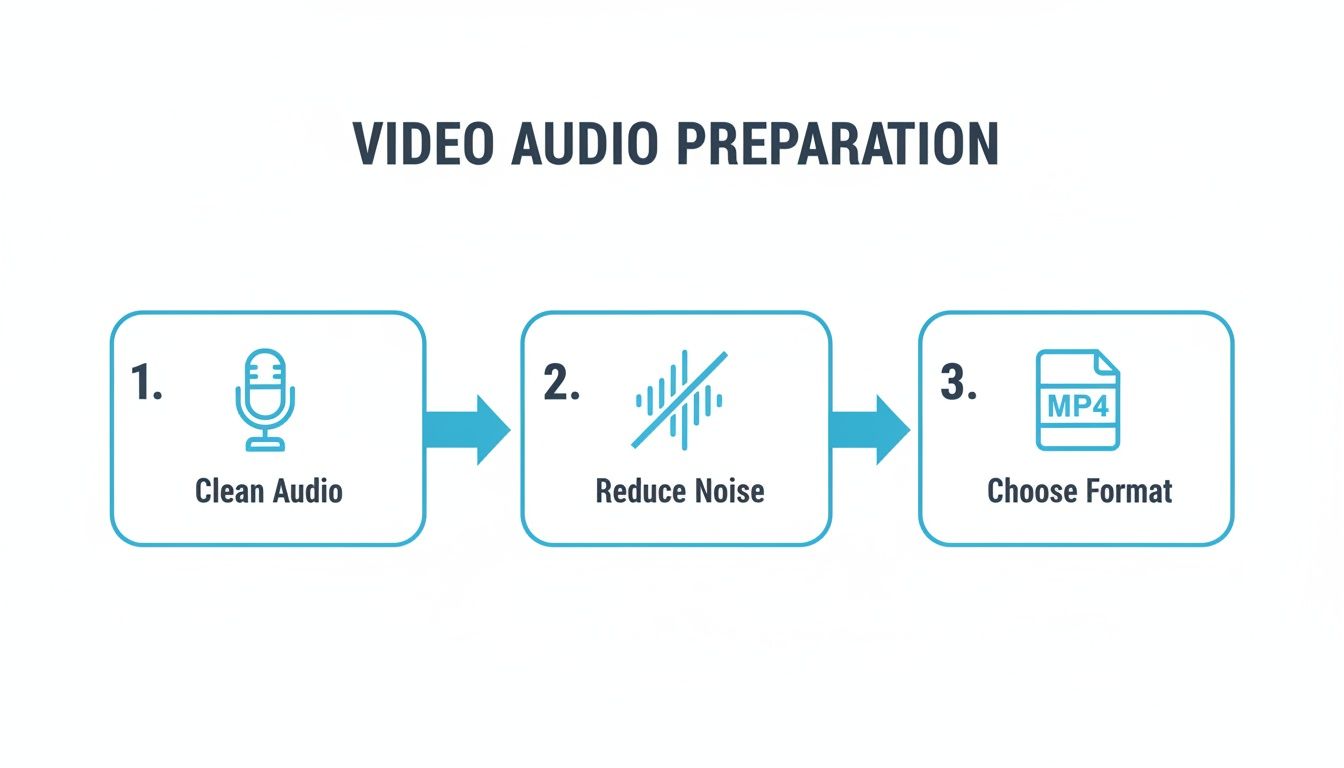
As this shows, a clean audio source is the best starting point for an accurate transcription.
Here are the key settings I always check:
- Source Language: Don't rely on auto-detection, even if it's generally accurate. Manually specifying the language—whether it's English, Spanish, or Japanese—removes any guesswork and immediately boosts accuracy.
- Speaker Detection: This is essential for any video with more than one person. Often called "diarization," this feature tells the AI to separate and label each speaker (e.g., "Speaker 1," "Speaker 2"). It's invaluable for transcribing interviews, meetings, or podcasts.
- Timestamps: I recommend always enabling this feature. Timestamps add markers to the text, indicating exactly when something was said. This is incredibly useful for creating subtitles or quickly navigating to a specific moment in the video during editing.
The incredible efficiency of AI is why the transcription market is booming. A task that used to take a professional 4-6 hours—transcribing one hour of audio—now takes an AI less than 5 minutes. That’s a staggering 95% reduction in time.
Running the AI and Polishing the Draft
With your settings configured, all that's left is to hit the "Transcribe" button. The processing time can range from a few seconds for a short clip to several minutes for a longer video.
Once complete, you'll receive the full transcript, usually within an interactive editor. This is where you can begin refining the text. You can play the video and see the words highlight in sync, which makes proofreading and correcting any errors a simple process.
My Pro Tip: Treat the first AI-generated transcript as a very strong first draft. The AI does the heavy lifting, but a quick human review is what makes it perfect.
Don't just glance at it—read through it while listening to the audio to catch any misheard words, proper nouns, or awkward phrasing. For a more detailed walkthrough of the platform's features, our guide on how to use Whisper AI is a great next step.
Finishing Touches: Editing and Exporting Your Transcript
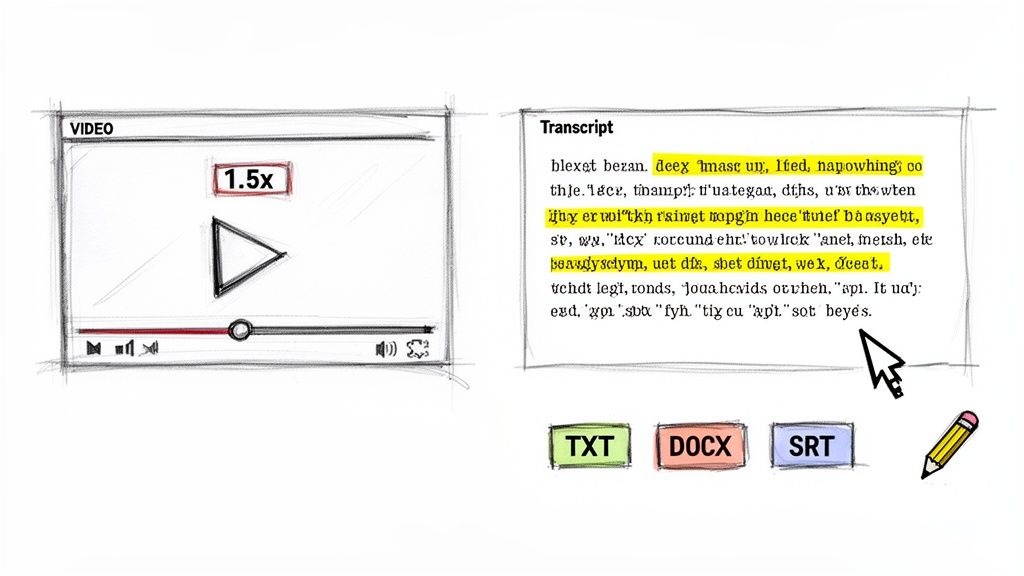
After the AI has finished its work, you'll have a nearly complete transcript. While today's technology is impressively accurate, it's not perfect. I always consider the AI's output a fantastic first draft—it handles the most time-consuming part, but a quick human review is what elevates it to a professional standard.
This final check is about catching the subtle nuances and mistakes that a machine might miss. You aren't re-doing the work; you're just applying a final layer of polish to ensure the text is perfectly clear and accurate for its intended use, whether that's for a blog post, meeting notes, or video captions.
How to Polish Your Transcript for Flawless Accuracy
The most effective way to proofread is to play the video and follow along with the text. Don't just scan the words alone; context is crucial. Most transcription tools include an interactive editor that highlights the words as they're spoken, making it easy to spot any discrepancies.
Here’s a little trick I’ve picked up over the years: play the video back at 1.5x or even 2x speed. You can still easily follow along, but you'll cut your review time almost in half. It’s a game-changer for getting through the editing process efficiently.
Keep an eye out for these common errors where AI can get confused:
- Proper Nouns: Unique names of people, companies, or specific products are often misspelled.
- Industry Jargon: Specialized terms and acronyms that aren't part of everyday language can be misinterpreted.
- Homophones: Words that sound alike but have different meanings (e.g., "their," "there," and "they're") are classic culprits.
Fixing these small but important errors is what will take your transcript from good to great.
This editing phase is where your human intelligence meets the AI's raw power. The AI gets you 95% of the way there; your job is to nail that final 5%.
Choosing the Right Export Format
With your transcript polished, the last step is to save it in the right format. Your choice here depends entirely on your end goal. A good transcription service will offer several options, each tailored for a different purpose.
Knowing your formats is a key part of learning how to transcribe video to text, because picking the right one from the start can save you a ton of reformatting headaches down the road.
Here’s a quick rundown of the most common file types and their best use cases:
For my own workflow, if I’m turning a webinar into a blog post, I'll export to DOCX so I can start writing right away. But if I need subtitles for that same video, I'll grab the SRT file. If you're new to video captions, our guide on what SRT files are and how they work is a great place to start.
What to Do With Your Transcript: Unlocking Its True Potential

Getting a finished transcript is a great accomplishment, but don't stop there. The text file itself isn't the final product—it's the raw material for so much more. The real magic happens when you start seeing that transcript as a launchpad for your entire content strategy.
Think about it: a single 30-minute webinar can easily provide enough material for a full week's worth of content. You can pull out powerful quotes for social media posts, expand the main points into a detailed blog article, and condense the key takeaways into a summary for your next email newsletter.
Turn One Video Into Many Pieces of Content
This process is known as content repurposing, and it's one of the smartest ways to work. Instead of constantly asking "what's next?", you can dive back into your existing video library and extract new value.
Your transcript is a goldmine. Every key point, interesting anecdote, or compelling statistic is already written down, waiting to be shared in a new format. This approach saves time and ensures your core message remains consistent across all channels.
Here are a few practical ways this strategy can work wonders:
- Create Blog Posts: The transcript can serve as the skeleton for a long-form article. Just add headings, images, and some additional context, and you're good to go.
- Generate Social Media Content: Pull out short, punchy quotes, tips, or surprising data points. These are perfect for X (formerly Twitter), LinkedIn, or as text overlays on Instagram images.
- Draft Email Newsletters: Summarize the video's three main takeaways. It's a fantastic way to deliver value directly to your subscribers' inboxes without requiring them to watch a full video.
Once you get the hang of it, you can see how a simple transcript fits into a larger strategic content creation plan. For a deeper dive, our guide on content repurposing strategies is packed with more ideas.
Improve Your SEO and Get Discovered
Beyond creating more content, transcripts have a direct and powerful impact on your SEO. Search engines like Google can't "watch" your video to understand its content, but they can crawl and index every single word in a text transcript.
When you add that text to your video page, you're essentially providing search engines with a detailed map of your content, rich with relevant keywords. This simple step can give your rankings a serious boost and help more people discover your work.
Learning how to transcribe video to text is no longer just a "nice to have"—it's a core skill for any serious creator or marketer looking to maximize their reach and impact.
Your Top Questions About Video Transcription, Answered
As you start turning videos into text, a few questions inevitably arise. Having helped countless creators and teams streamline this process, I've noticed the same practical concerns pop up time and again. Let's address them so you can transcribe with confidence.
These are the details that can make a real difference in your workflow.
How Accurate Is AI Video Transcription, Really?
This is the most common question, and for good reason. Modern AI, especially advanced models, can achieve up to 96% accuracy under ideal conditions. This means the audio is clear, there's minimal background noise, and only one person is speaking. For most purposes—like drafting blog posts or creating meeting summaries—that level of accuracy is more than sufficient.
However, the real world is often messy. Introduce background noise, thick accents, or overlapping speakers, and that accuracy will decrease. I always advise people to think of the AI transcript as an excellent first draft, not a finished product. It gets you 90-95% of the way there, but a quick human proofread is essential to catch the remaining errors.
Can I Transcribe a Video Straight From a YouTube Link?
Yes, you absolutely can, and it's a game-changer for workflow efficiency. Most reputable transcription tools are built for this. Instead of the cumbersome process of downloading a large video file only to re-upload it, you simply copy and paste the YouTube URL.
The platform then accesses the audio directly from the source and begins the transcription process. This is a massive time-saver, especially if you're repurposing content from YouTube or other video platforms. No more cluttered hard drives or long waits for file transfers.
From a workflow perspective, transcribing from a link is a huge win. It turns a multi-step chore into a simple copy-paste action. You’ll save a surprising amount of time on every single video.
What’s the Best Format to Export My Transcript In?
The "best" format is whichever one fits your next step. A good service will offer several key options, and choosing the right one from the start saves you from frustrating reformatting headaches later.
Here’s a quick rundown of the most common formats:
- .TXT (Plain Text): Your go-to for raw, unformatted text. Perfect for quickly copying content into an email, a simple document, or your notes app.
- .DOCX (Word Document): Ideal for collaborating with your team, writing a report, or turning the transcript into a polished article. It's compatible with both Microsoft Word and Google Docs.
- .PDF (Portable Document Format): Choose this when you need to share a final, non-editable version. It preserves the formatting and looks the same on any device.
- .SRT (SubRip Subtitle): The industry standard for video captions. It contains both the text and the precise timestamps needed to sync everything on screen, making it essential for YouTube and social media videos.
How Does the AI Know Who Is Speaking?
This feature is called speaker detection or diarization. When you set up your transcription, you'll usually see an option to enable it.
When active, the AI analyzes the audio for distinct voices. It then automatically assigns labels like "Speaker 1," "Speaker 2," and so on throughout the transcript. While you'll still need to go in and replace these generic labels with actual names, it handles the tedious task of differentiating who said what. For interviews, podcasts, or team meetings, this feature is absolutely essential.
Ready to turn your video content into accurate, usable text in just a few minutes? Whisper AI provides all the tools you need—from direct link transcription and speaker detection to a full range of export formats. Join over 50,000 users who have unlocked the full potential of their video content.


























































































