
A Complete Guide to Subtitles and Closed Captions: What's the Difference?
Have you ever wondered why some videos let you turn the text on and off, while others have it permanently burned in? Or why some text just shows dialogue, while other text describes sounds like [door creaks]? It's a common point of confusion, but the two are not the same. While people often use the terms "subtitles" and "closed captions" interchangeably, they serve very different purposes.
From my experience creating video content, I've learned that understanding this difference is crucial. At its core, the difference is this: subtitles translate language for viewers who can hear, while closed captions transcribe all audio for viewers who cannot. Think of a subtitle as your personal translator for a foreign film, and a caption as a complete script of the entire soundscape for someone who can't hear it.
Subtitles vs Closed Captions: What Is the Difference?
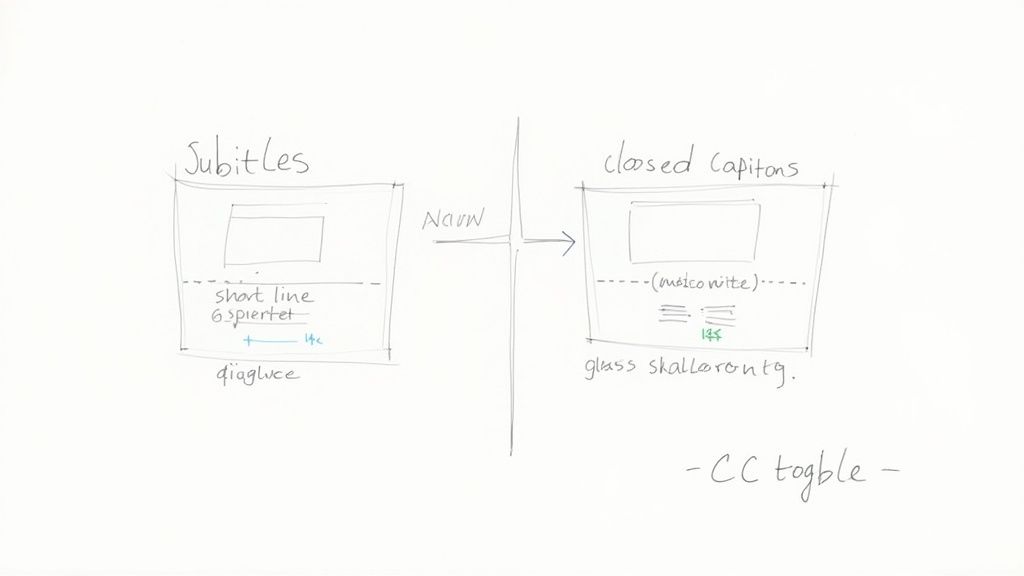
Let's clear this up right from the start. They both appear as text on your screen, but subtitles and closed captions are built for fundamentally different audiences and solve different problems. Getting this distinction right is the first real step to making your videos truly accessible and impactful.
Subtitles are designed for viewers who can hear just fine but don't understand the language being spoken. Their one and only job is translation. If you’re watching the latest K-drama but don't speak Korean, the English subtitles provide the dialogue so you can follow along. They stick to the spoken words and nothing more.
Closed captions, however, were created for an audience that is deaf or hard of hearing. The key assumption here is that the viewer can't hear anything.
More Than Just Words
Because captions are meant to create a full auditory experience through text, they must include much more than just what people are saying. They describe all the other crucial sounds that build the scene and set the mood. This is where you get those important descriptors like:
- [tense music swells]
- [glass shattering]
- [phone rings]
- [door creaks open]
These details are absolutely essential. They communicate the tone, action, and feeling of a scene that would be completely lost without sound. Closed captions aren't just transcribing dialogue; they're painting a picture of the entire soundscape.
To make this crystal clear, here’s a quick breakdown of how they stack up against each other.
Subtitles vs Closed Captions At a Glance
This table shows the core differences in a nutshell. While both add text to the screen, their intended function is what truly sets them apart.
Subtitles translate what is said, while closed captions describe what is heard. This simple distinction guides every aspect of their creation and use, from accessibility compliance to user experience.
This foundational difference has a ripple effect on everything, from legal requirements to how you actually prepare your video files. While subtitles help you reach across language barriers, it's the closed captions that open your content up to a much wider, more inclusive audience. They're a cornerstone of true accessibility.
Why Your Videos Need Captions Today
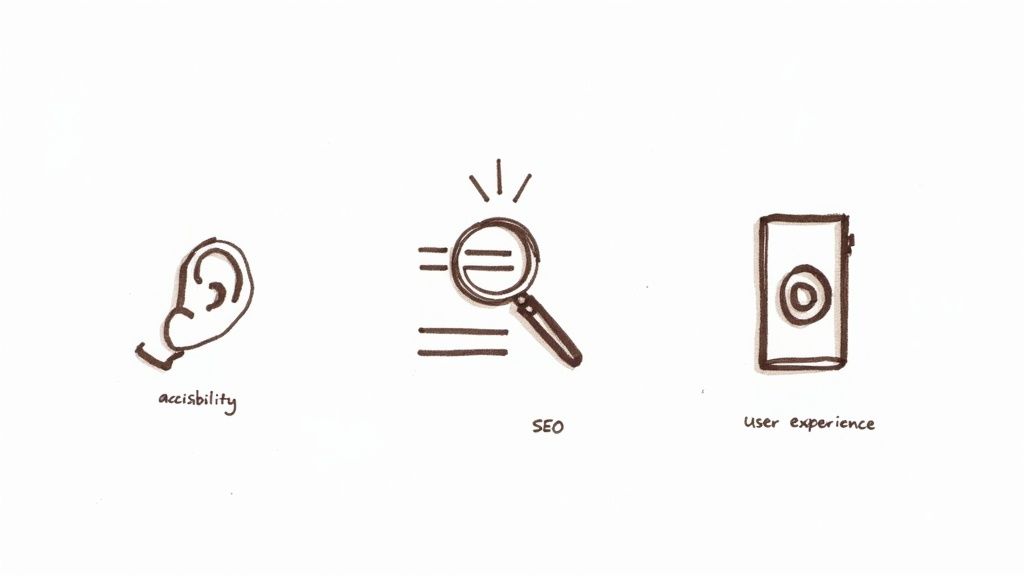
Now that we've sorted out what subtitles and captions actually are, let's get into why they're no longer just a "nice-to-have" feature. Based on what I've seen with my own content, adding them to your videos is a strategic move that boosts your reach, keeps you on the right side of the law, and makes your content far more engaging for everyone.
It all starts with accessibility. At their core, closed captions make video content usable for the millions of people who are deaf or hard of hearing. They aren't just getting a partial experience; they're getting the full story, just like any other viewer.
This isn't just about doing the right thing, either. There are serious legal reasons to pay attention. Laws like the Americans with Disabilities Act (ADA) mandate that public-facing digital content must be accessible. Skipping captions can lead to legal trouble and, more importantly, it locks out a huge part of your potential audience.
Drive Discoverability with SEO
Here’s a benefit that many people miss: captions are an absolute powerhouse for SEO. Think about it—search engines like Google can’t watch your video to figure out what it's about. They rely on text.
When you add a caption file, you're essentially giving Google a word-for-word transcript of your entire video, packed with relevant keywords and phrases. This text gets indexed, which means your video can start showing up in search results for all the specific topics you talked about. It's a direct line to more organic traffic from people searching for your exact expertise.
You can learn more about how to create these valuable text assets in our guide to AI-powered transcription services.
Elevate the User Experience for Everyone
While accessibility is the most critical reason for captions, the truth is that almost everyone uses them now. The way we watch videos has completely changed. We scroll through social media feeds in a quiet office or a loud coffee shop, where videos often autoplay on mute.
A 2022 survey found that 50% of Americans use subtitles or closed captions most of the time, whether they have hearing loss or not. Captions make your content watchable anywhere, anytime.
This is especially true for younger viewers. A 2023 YouGov poll found that an incredible 63% of Gen Z viewers watch TV with subtitles on. They’ve grown up with captions as the norm on their social feeds.
For this massive demographic, captions aren't an add-on; they're a core part of the experience. To learn more, check out these insights on how captions improve video engagement. By providing both subtitles and closed captions, you meet modern viewing habits head-on, which helps improve watch time and makes sure your message actually sticks.
Getting to Grips with Different Caption Types
Beyond the basic distinction between subtitles and closed captions, we also need to talk about how they’re delivered. You'll constantly run into the terms "open" and "closed," which simply comes down to one question: can the viewer turn them off?
Think of open captions as being permanently painted onto the video. They are literally part of the video file itself, so the viewer has no choice but to see them. This is perfect for places like social media feeds, where videos often autoplay on mute and you need to grab attention immediately.
On the flip side, closed captions (you'll recognize them by the [CC] symbol) are a separate text track that the viewer can switch on or off at will. This is the standard you see on platforms like YouTube and Netflix, putting the control squarely in the hands of the audience.
Open vs. Closed: A Quick Comparison
Let's break it down into simple, practical terms.
- Open Captions (OC): These are "burned in" to the video, so they're always visible. They’re a fantastic choice for Instagram Reels or TikToks, where you can’t assume someone will tap to turn captions on.
- Closed Captions (CC): These are delivered as a separate file (like an SRT) that the video player syncs up with the video. This offers much more flexibility, letting users decide if and when they need the text.
The core difference is all about control. Open captions force visibility, while closed captions offer a choice.
SDH: The Best of Both Worlds
There’s a third, incredibly useful option called Subtitles for the Deaf and Hard-of-Hearing (SDH). This is a brilliant hybrid that merges the key features of subtitles and captions into one powerful format.
SDH are structured like subtitles, which means they can translate dialogue into another language. But here's the clever part: they also include all the crucial non-speech information you’d find in closed captions, like [dramatic music] or [door slams]. This makes them the ultimate accessibility tool, especially for foreign-language films.
SDH ensures that viewers who are deaf or hard-of-hearing don't miss a single narrative cue, even when the content isn't in their native language.
Take documentary filmmaking, for example, where subtle ambient sounds and spoken interviews both drive the story. Using SDH opens up that experience to a much wider international audience. You can dive deeper into creating effective subtitles for documentaries in our dedicated guide.
Ultimately, choosing the right type helps you match your video's accessibility to the platform you're on and the audience you want to connect with.
Choosing the Right Caption File Format
So, you’ve got your perfectly timed and edited text ready to go. Now what? You need to package it in a format that video players can actually read and display. This is where caption file formats come into play.
Think of a format as a specific type of container for your text. Each one is built for a different job, whether you’re uploading to YouTube, embedding a video on your website, or prepping a file for a professional broadcast. Getting this right isn't just a technicality—it’s the crucial step that makes sure your captions actually show up.
The one you'll run into most often is SRT. It's the king of compatibility.
SRT: The Universal Standard
The SubRip Text (.srt) file is the undisputed workhorse of the captioning world. It’s a simple, no-frills plain text file that does one job and does it well. All it contains are three key pieces of information: a sequential number for each caption, the precise start and end timecodes, and the caption text itself.
That’s it. And its simplicity is exactly what makes it so powerful.
This clean structure is why virtually every video platform on the planet—from YouTube and Vimeo to all the major social media players—accepts it without a fuss. It just works.
When in doubt, go with SRT. It’s the closest thing we have to a universal language for captions, ensuring maximum compatibility wherever your video ends up.
Because it carries no styling information (like fonts or colors), it’s a pure, functional choice focused entirely on getting the text on screen accurately.
WebVTT: For Modern Web Video
While SRT is the jack-of-all-trades, the modern web has its own native tongue: WebVTT (.vtt), or Web Video Text Tracks. This format was built specifically for HTML5, making it the go-to choice for videos embedded directly on websites.
It started life as an evolution of SRT, so it looks very similar at a glance. But under the hood, it packs some powerful extra features.
The big win for WebVTT is its support for styling and positioning. With a VTT file, you can do things SRT can't, like:
- Change text color to match your brand.
- Move captions to a different part of the screen to avoid covering important visuals.
- Add formatting like bold or italics right in the file.
This level of control is a game-changer for anyone who wants a more polished, customized look for their on-site videos. It lets you integrate your captions visually, offering a much more refined user experience than SRT's one-size-fits-all approach.
Other Common Formats
While SRT and VTT cover most online video needs, you might run into other formats, especially in professional broadcast or authoring workflows. Here’s a quick rundown of some of the other players in the game.
| Common Caption File Formats Explained |
| :--- | :--- | :--- |
| Format | Best For | Key Feature |
| SCC | Broadcast TV, traditional media | Preserves pop-on/roll-up styles and screen positioning from classic broadcast standards. |
| XML | Professional editing software (e.g., Adobe Premiere Pro), complex workflows | Highly flexible and can store a ton of metadata beyond just text and timing. |
| TTML | Professional broadcast and streaming services (e.g., Netflix) | A powerful, XML-based format that supports extensive styling and international standards. |
| SBV | YouTube (older format) | A simple, proprietary format used by YouTube. SRT has largely replaced it. |
Ultimately, your choice of format comes down to your destination. If your video is going everywhere, SRT is your safest bet. If it’s living on your website and you want it to look just right, WebVTT is the way to go.
How to Create High-Quality Subtitles and Captions
Crafting accurate and effective subtitles and closed captions isn't as intimidating as it might sound. While there's some technical detail involved, the entire process really boils down to a clear, three-stage workflow. Think of it as translating your audio into perfectly timed on-screen text that enhances accessibility and the overall viewing experience.
Every captioning project starts with a single, crucial step: transcription. This is where you convert every spoken word into a written script. Getting this part right is everything—a sloppy transcript guarantees sloppy captions down the line.
The Three Core Steps of Caption Creation
With a clean transcript in hand, the real magic begins. This part of the process is about more than just slapping words on a screen; it's about timing, readability, and capturing the full auditory story of your video.
- Transcription: First, you need a word-for-word text version of all dialogue and any other important sounds in your video.
- Syncing and Timing: Next, you'll break that script into readable chunks and give each one a precise start and end timecode. This ensures every line pops up and vanishes in perfect sync with the speaker.
- Formatting and Review: Finally, you add the non-speech details like
[upbeat music]or speaker names, fix any awkward line breaks, and give the whole file one last look for typos or timing errors.
This visual shows how a basic caption file can be converted into different formats needed for the web or traditional broadcast.
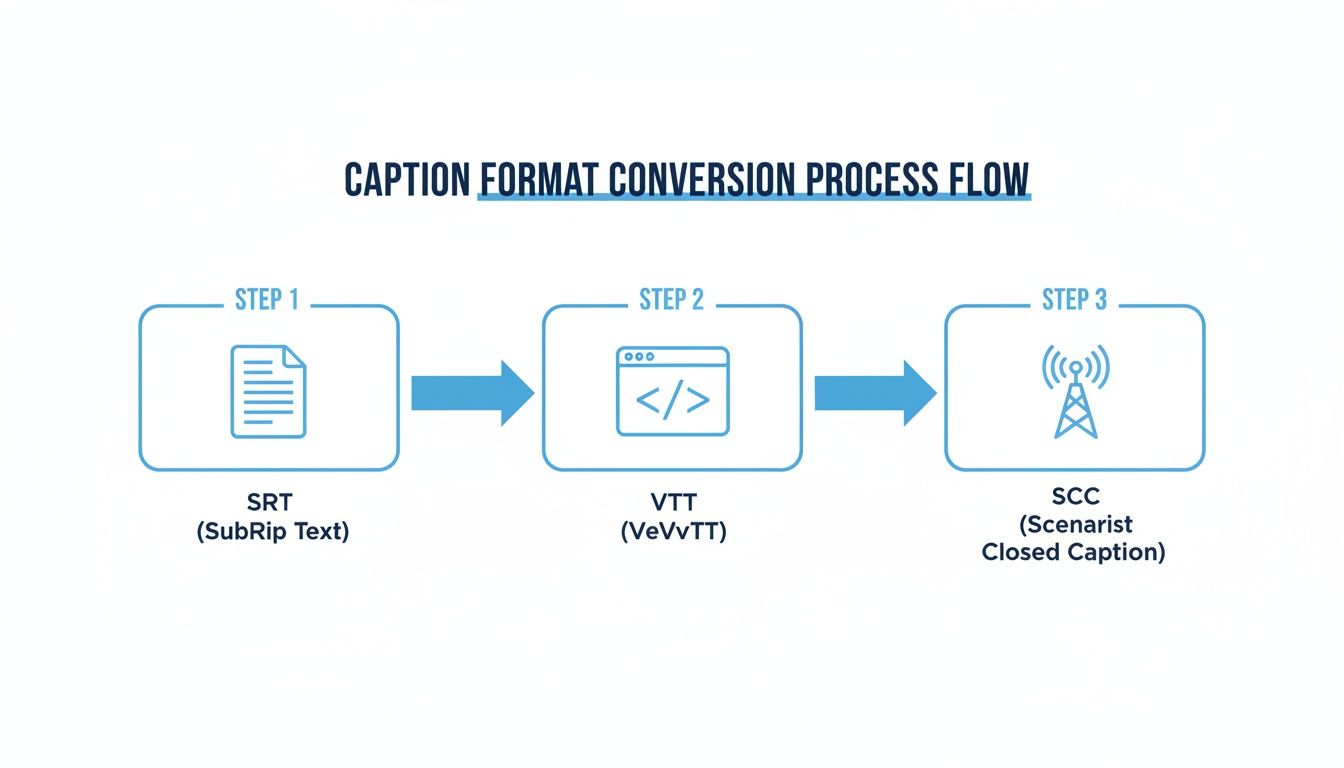
This workflow shows how a simple, universal format like SRT can be transformed into the more modern VTT for web players or the professional SCC format required for television.
Choosing Your Captioning Method
When it comes to actually creating your caption files, you have three main options: do it all by hand, hire a professional service, or use an AI-powered tool to do the heavy lifting for you.
Doing it manually gives you total control, but it's an incredibly slow and tedious process. Professional services deliver fantastic accuracy but can be expensive. For most people today, AI tools strike the perfect balance between speed, cost, and quality.
The global subtitle generator market is expected to reach $1.5 billion by 2025, and there's a good reason why: AI has made high-quality transcription fast and affordable. This boom is a direct response to the huge demand for accessible video, especially since studies show subtitles can boost watch completion by as much as 40%.
AI models like OpenAI’s Whisper can generate a highly accurate transcript in just a few minutes. This gives you a fantastic starting point that you can quickly proofread and polish, saving you hours upon hours of manual labor. If you're looking to burn captions directly into your video file, it’s also useful to learn about the different tools and techniques for putting text directly into video.
By using AI, you can easily handle the most time-consuming parts of captioning, whether you're creating a short social media clip or a feature-length film. This newfound efficiency is why more creators than ever are adding captions to every piece of content they produce.
Common Questions About Subtitles and Captions
Even with a good grasp of the basics, a few practical questions always pop up when it's time to actually create subtitles and closed captions. Let's tackle some of the most common ones I hear from creators.
What’s the Ideal Line Length for Captions?
Keep it short and sweet. The sweet spot is a maximum of two lines per caption, with each line staying under 42 characters.
This isn't an arbitrary rule; it's all about readability. Your viewers need to be able to glance at the text, absorb it, and get back to the video without feeling like they're reading a novel. Anything longer clutters the screen and becomes a chore.
Can I Just Use YouTube's Auto-Generated Captions?
YouTube's auto-captions are a decent starting point, but that's all they are. Think of them as a very rough first draft. They almost always miss the mark on punctuation, spelling, and correctly identifying who's talking, which can really muddy your message.
Always, always review and edit auto-generated captions. A much better workflow is to use a highly accurate AI tool to generate a clean transcript first, then you only need to make minor tweaks before it's ready to go.
How Do I Handle Sounds That Aren’t Speech?
For closed captions, describing important sounds is crucial for viewers who can't hear them. The standard practice is to put these descriptions in square brackets.
The key is to be descriptive but brief. You don't need to write a symphony—just convey the sounds that add meaning or context.
Good examples look like this:
- [phone rings]
- [door closes]
- [upbeat music plays]
- [glass shatters]
Do Subtitles Actually Help with SEO?
Yes, they make a huge difference. Search engine bots can't watch your video to understand what it's about, but they are fantastic at reading text.
When you upload a caption file, you're essentially handing Google a full, keyword-rich transcript of your video. This gives it all the information it needs to rank your video for relevant searches. It’s one of the most powerful (and simple) ways to get your video content found.
Ready to create accurate, professional-grade subtitles and closed captions in minutes? Whisper AI uses advanced AI to transcribe your video and audio files with remarkable precision across 92+ languages. Stop wasting hours on manual transcription and start making your content more accessible and discoverable today. Try it for free at https://whisperbot.ai.


























































































