
The 12 Best Tools for Online Teaching in 2026: An Educator's Guide
The rapid shift to digital instruction has permanently changed education. It’s no longer about finding a single stopgap solution, but about strategically assembling a personal "tech stack" to create effective, engaging, and accessible online learning environments. This guide cuts through the noise to answer the core question: what are the best tools for online teaching available right now? We go beyond generic feature lists to provide a comprehensive, experience-based breakdown of essential platforms.
This is not just another list. We have organized the top tools into critical categories, from video conferencing and learning management systems (LMS) to student engagement and content creation. To navigate the diverse landscape of digital education tools, educators may find it beneficial to consult guides on various Top Online Learning Platforms. For each tool detailed here, you will find:
- Real-world use cases to inspire your lesson planning.
- Honest pros and cons based on actual user experience.
- Clear pricing information to match your budget.
- Actionable integration tips, including screenshots and direct links.
We’ll explore how platforms like Zoom and Google Classroom handle daily instruction, how specialized tools like Nearpod and Kahoot! boost participation, and how to improve accessibility and efficiency. For example, we'll examine how services like Whisper AI can be used to generate accurate transcripts and summaries from your lecture recordings, making your content more searchable and useful for all students. This resource is designed to help you find, compare, and implement the right combination of tools to build a superior online classroom.
1. Whisper AI
Whisper AI presents a powerful solution for a common challenge in online education: managing and repurposing vast amounts of audio and video content. It functions as an all-in-one transcription and summarization platform, turning lecture recordings, student presentations, and video resources into accurate, searchable text. For educators, this automates the tedious process of creating transcripts, allowing them to focus on teaching rather than administrative tasks. The platform's ability to ingest content directly from social media links or file uploads makes it incredibly flexible for various educational contexts.
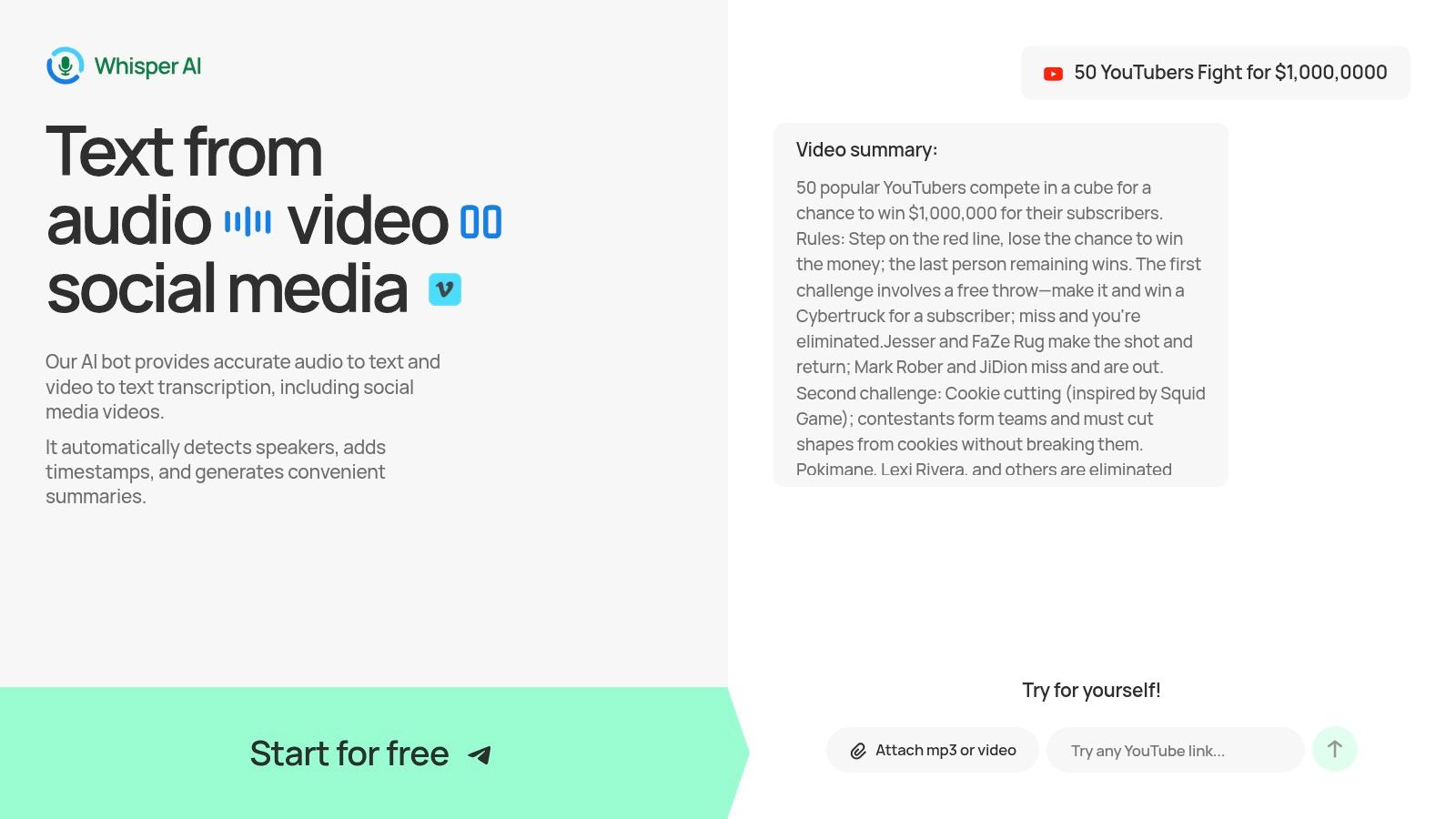
What truly sets Whisper AI apart is its focus on creating actionable outputs. It doesn't just provide a wall of text. The service automatically identifies different speakers, adds timestamps, and generates concise summaries with bullet-point highlights. This is invaluable for creating accessible course materials, generating study guides, or allowing students to quickly review key concepts from a long lecture. The built-in Q&A feature even lets users ask follow-up questions about the content, acting as a personal research assistant for both instructors and learners.
Core Strengths for Educators
- Accessibility & Content Repurposing: Instantly generate accurate captions and transcripts for video lectures, making content accessible to all students and compliant with accessibility standards. Transcripts can be repurposed into blog posts, searchable knowledge bases, or detailed study notes.
- Efficient Summarization: Automatically create bullet-point summaries and highlights from long-form recordings. This helps students grasp key takeaways without re-watching entire lectures and assists instructors in creating quick reference materials.
- Broad Language Support: With support for over 92 languages, Whisper AI is an excellent tool for multilingual classrooms and global education programs, ensuring no student is left behind due to language barriers.
- Privacy-First Design: The platform processes files securely and does not retain them beyond the task, a critical consideration for handling sensitive academic or student-submitted content.
Practical Tips for Effective Use
To maximize its utility, educators can use Whisper AI to create a searchable archive of all class sessions. Simply upload the video or audio file after each lecture. The resulting timestamped transcript allows students to search for specific keywords or topics discussed during the semester. For a deeper dive, you can explore their guide on how to use Whisper AI for advanced workflows. The platform's diverse export options (Google Docs, PDF, Word) mean the generated content fits directly into existing learning management systems or personal study habits.
Pros:
- Fast, multi-format transcription from file uploads and social media links.
- Produces actionable outputs like summaries, highlights, and Q&A.
- Supports over 92 languages, enhancing accessibility.
- Privacy-focused architecture suitable for educational materials.
Cons:
- Full pricing details for paid plans may require signing up or contacting sales.
- Accuracy can be lower on audio with significant background noise or niche technical terms.
Pricing: A free tier is available to get started, with paid plans for higher volume needs.
Website: https://whisperbot.ai
2. Zoom
Zoom has become the standard for live, synchronous online classes, cementing its place as an essential teaching tool due to its reliability and widespread adoption. Its familiarity means students and guest speakers can join sessions with minimal friction, making it a dependable choice for everything from daily lessons to virtual office hours and large-scale webinars. The platform’s strength lies in its robust features for managing live interaction.
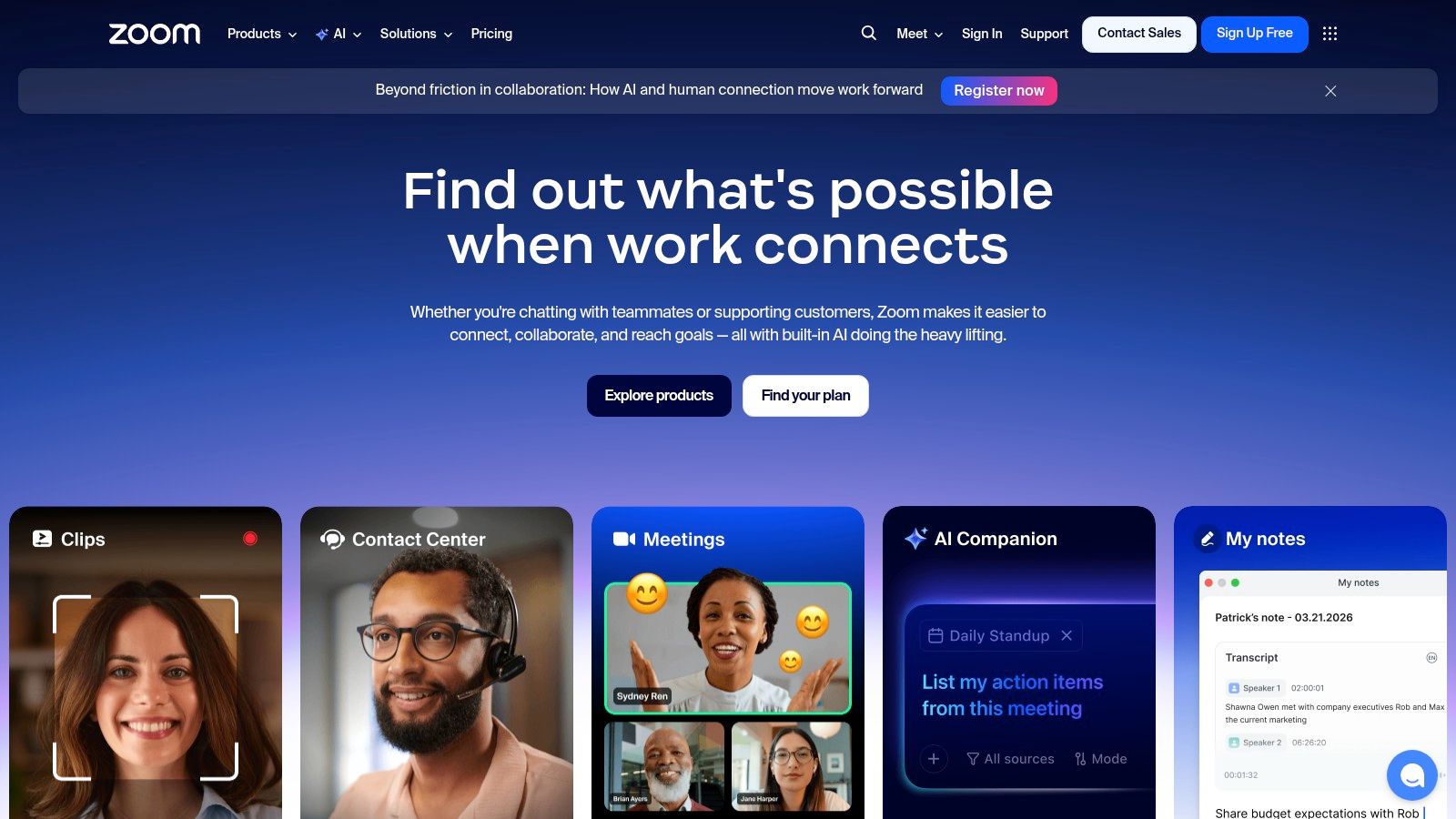
From my experience, what sets Zoom apart for teaching is its superior management of breakout rooms. It allows an instructor to easily split a large class into small groups for focused discussion and collaboration. The free "Basic" plan is functional for one-on-one meetings but imposes a 40-minute limit on group sessions, which often pushes educators toward paid tiers. These tiers unlock longer meetings, cloud recording storage, and advanced reporting.
Key Features & Use Cases
- Best For: Live synchronous teaching, interactive seminars, virtual office hours, and parent-teacher conferences.
- Standout Features: Superior breakout room controls, polling, non-verbal feedback (like raise hand), and a waiting room to manage entry.
- Integration: Extensive LTI integrations connect directly with LMS platforms like Canvas and Moodle, streamlining scheduling and grade book entries.
- Accessibility Tip: While Zoom’s live captions are helpful, they can lack accuracy. For precise documentation, record your session and use a dedicated service. You can learn how to transcribe your Zoom meetings to create searchable archives and accessible study materials.
Website: https://www.zoom.com
3. Google Classroom (part of Google Workspace for Education)
As one of the most accessible and widely used platforms, Google Classroom excels at managing classwork, assignments, and communication. It serves as a lightweight learning management system (LMS) that feels immediately familiar to anyone who uses Google products. Its core function is to create a digital home base for a class, connecting students, teachers, and assignments in one organized space, which is especially effective in K-12 settings.
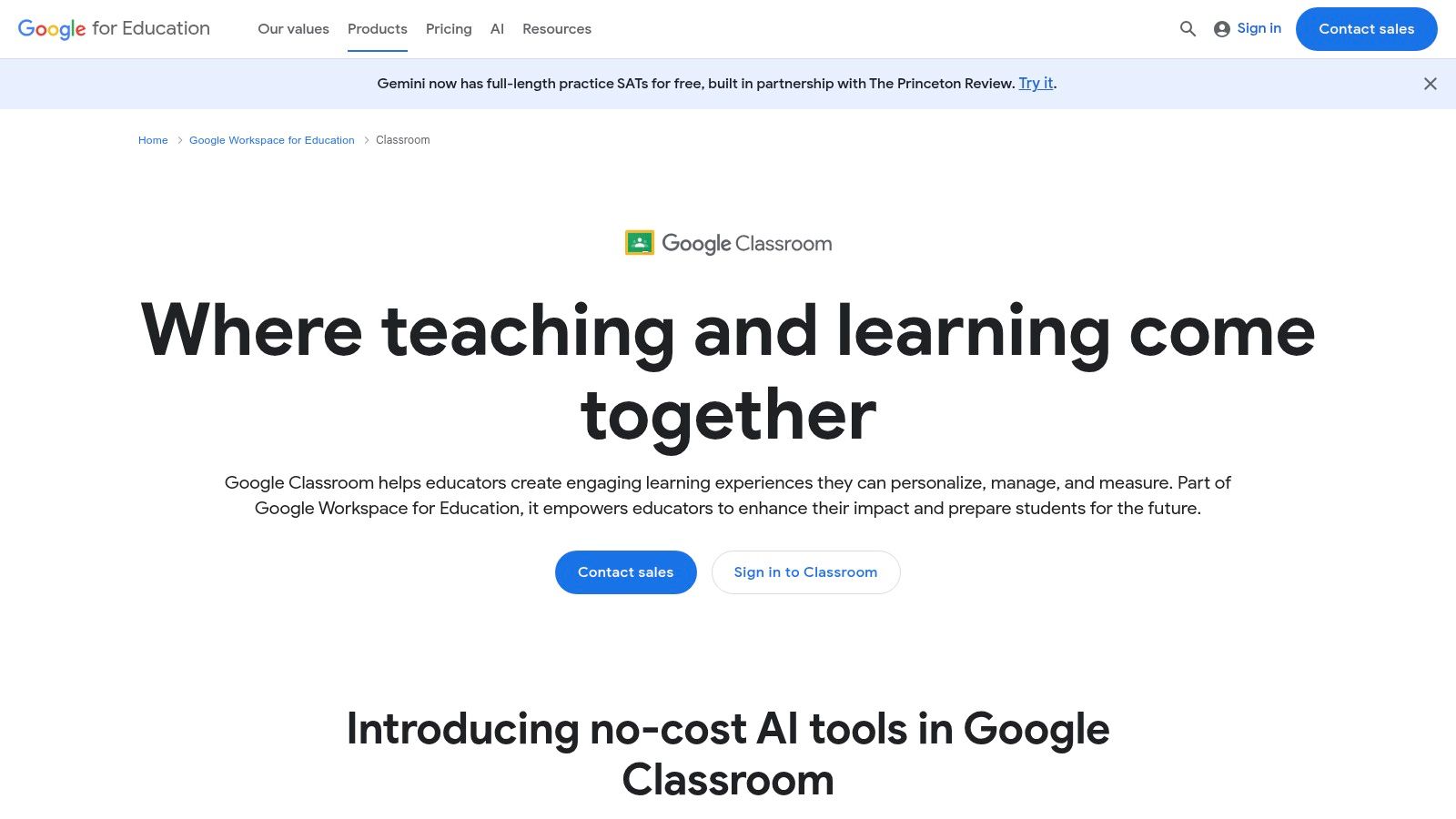
What makes Google Classroom so practical is its direct connection to Google Drive, Docs, and Meet. Teachers can distribute a Google Doc as a template, and a unique copy is automatically created for each student. The free version is powerful, but the paid Google Workspace for Education tiers add important features like advanced security controls, originality reports to check for plagiarism, and student information system (SIS) integration.
Key Features & Use Cases
- Best For: Assignment distribution and collection, streamlined grading, and fostering classroom communication in a Google-centric environment.
- Standout Features: Tight integration with Google Drive for collaborative assignments, a comment bank for providing quick feedback, and a “Stream” for class announcements.
- Integration: Natively integrates with the entire Google Workspace suite. Many school districts connect it with their SIS (like Clever or Classlink) for automated roster syncing.
- Accessibility Tip: All assignments and materials shared in Classroom are automatically stored in Google Drive, making it easy to organize. To further support student learning, establish clear guidelines for organization and file naming to ensure everyone can easily find what they need.
Website: https://edu.google.com/workspace-for-education/products/classroom
4. Microsoft Teams for Education (within Microsoft 365 Education)
For institutions standardized on the Microsoft 365 ecosystem, Microsoft Teams for Education is an all-in-one digital hub for online teaching. It combines live video meetings, persistent chat, file storage, and assignment management into a single, unified interface. This integration creates a cohesive virtual classroom where every resource and conversation is organized and accessible.
What makes Teams stand out is its deep integration with applications like OneNote Class Notebook and OneDrive, allowing educators to create rich, collaborative learning materials directly within the platform. The free A1 plan is powerful, but schools often opt for the paid A3 or A5 licenses to access advanced security controls, analytics with Insights, and broader administrative features. This structure makes it ideal for districts needing top-down management and compliance.
Key Features & Use Cases
- Best For: Schools and districts standardized on Microsoft 365, managing multiple classes in one dashboard, and integrated assignment workflows.
- Standout Features: Class Teams with built-in Assignments and Grades, integrated OneNote Class Notebook, Reading Progress for fluency checks, and powerful analytics via Insights.
- Integration: Natively connects with the entire Microsoft 365 suite (Word, PowerPoint, Excel, OneDrive) and supports LTI integrations for adding external tools.
- Accessibility Tip: Teams includes live captions and transcription in its meetings. For higher accuracy and searchable archives of your lessons, record the session and process it with a specialized transcription service for reliable study resources.
Website: https://www.microsoft.com/education/products/microsoft-365
5. Canvas LMS (Instructure)
Canvas is a dominant Learning Management System (LMS) in higher education and is gaining significant ground in K-12. It serves as a central hub for course delivery, providing a structured, reliable environment for both asynchronous and synchronous learning. Its modern, intuitive interface means both educators and students can get started with minimal training, a key advantage for large-scale deployments.
Based on my time using it, what makes Canvas stand out is its emphasis on pedagogy and assessment. The SpeedGrader tool is a prime example, allowing instructors to provide rich, personalized feedback with annotations, text, audio, and even video comments directly on student submissions. This focus on clear feedback loops and course organization, combined with its extensive integration ecosystem, makes it a powerful foundation for a digital classroom. Pricing is enterprise-level and quote-based, so it's typically an institutional decision rather than an individual purchase.
Key Features & Use Cases
- Best For: Fully online or hybrid courses requiring a central hub for content, assignments, grades, and communication.
- Standout Features: SpeedGrader with audio/video feedback, detailed analytics via MasteryPaths, organized course structure through Modules, and a rich ecosystem of LTI integrations.
- Integration: Connects with virtually any other educational tool, including Zoom for live sessions and platforms like Whisper AI for creating accurate transcripts of recorded lectures, which can then be embedded directly into Canvas pages for students to review.
- Accessibility Tip: The built-in Rich Content Editor helps create accessible course materials from the start. Instructors can easily add alt text to images and use proper heading structures, which are vital for students using screen readers.
Website: https://www.instructure.com/canvas
6. Blackboard Learn Ultra (Anthology)
Blackboard Learn Ultra is an enterprise-grade Learning Management System (LMS) designed for the demands of higher education and large school districts. Its modern Ultra Course View offers a clean, intuitive interface that organizes content, discussions, and assessments into a logical flow. This makes it an ideal choice for institutions needing a powerful, all-in-one platform with deep administrative control and analytics.
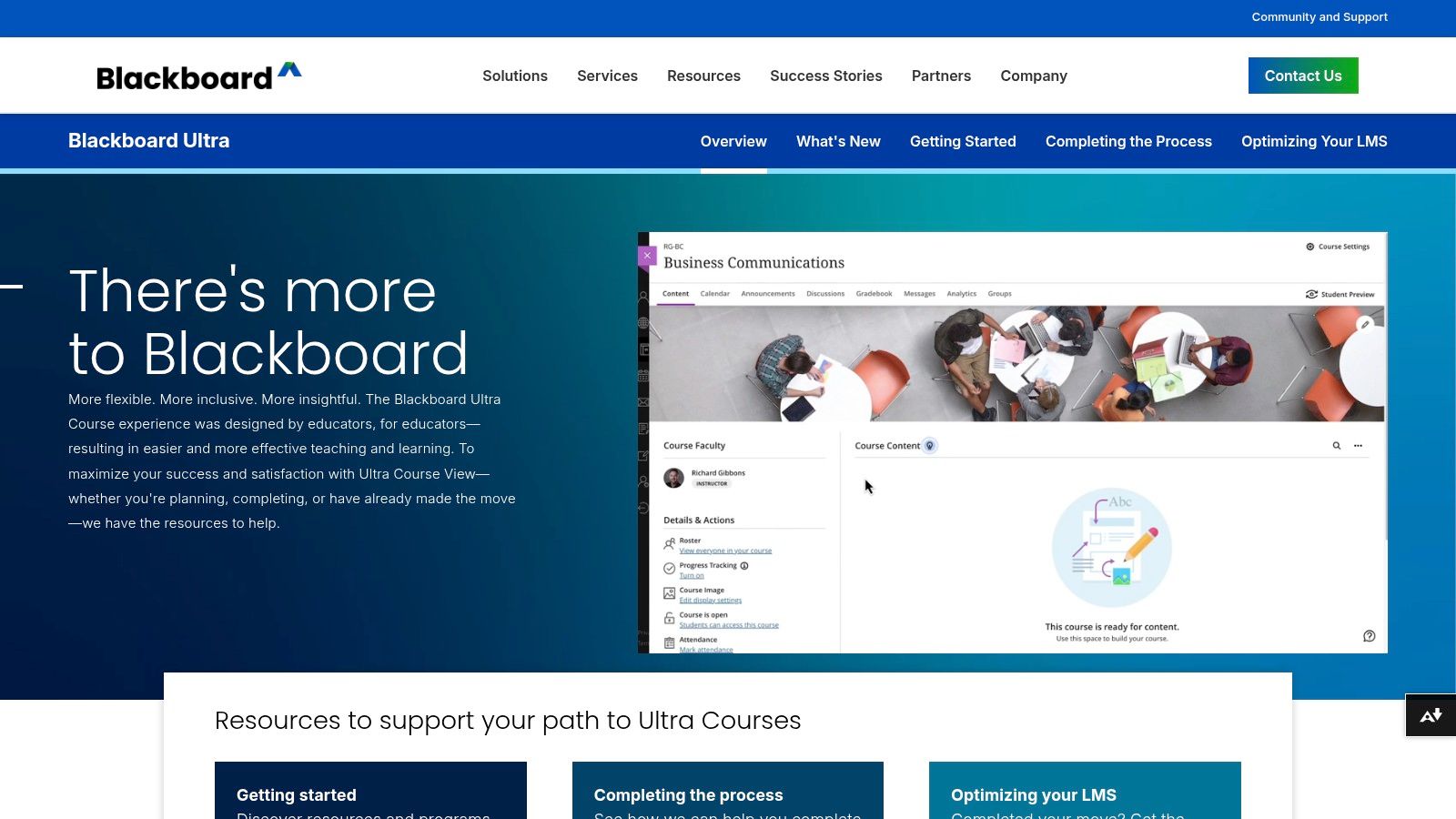
What distinguishes Blackboard Learn Ultra is its focus on robust workflows and data. The platform provides detailed progress tracking, allowing instructors to identify at-risk students early. Its assessment tools are built for complex grading scenarios, supporting detailed rubrics, delegated grading for teaching assistants, and plagiarism detection. The system's integration with Anthology's wider data and accessibility ecosystem gives institutions a full picture of student engagement and learning outcomes.
Key Features & Use Cases
- Best For: Higher education institutions and K-12 districts needing a comprehensive, scalable LMS with strong administrative and assessment capabilities.
- Standout Features: The Ultra Course View for streamlined navigation, advanced grading workflows with rubrics, and detailed student progress tracking.
- Integration: Integrates with Anthology’s full suite of tools, including the accessibility checker Ally, and supports LTI standards for connecting with third-party applications.
- Accessibility Tip: The built-in Ally tool automatically checks course content for accessibility issues and provides students with alternative formats like audio (MP3), e-braille, and translated versions. This proactive approach helps create an inclusive learning environment from the start.
Website: https://www.blackboard.com/blackboard-ultra
7. MoodleCloud (hosted Moodle by Moodle HQ)
For educators who want the power of the open-source Moodle LMS without the technical overhead of self-hosting, MoodleCloud offers a perfect entry point. As a hosted, ready-to-go service managed directly by Moodle HQ, it allows individuals and small programs to launch a complete learning environment quickly. This makes it a great option when you need a robust, proven LMS for a smaller cohort or a pilot program without requiring an IT department.
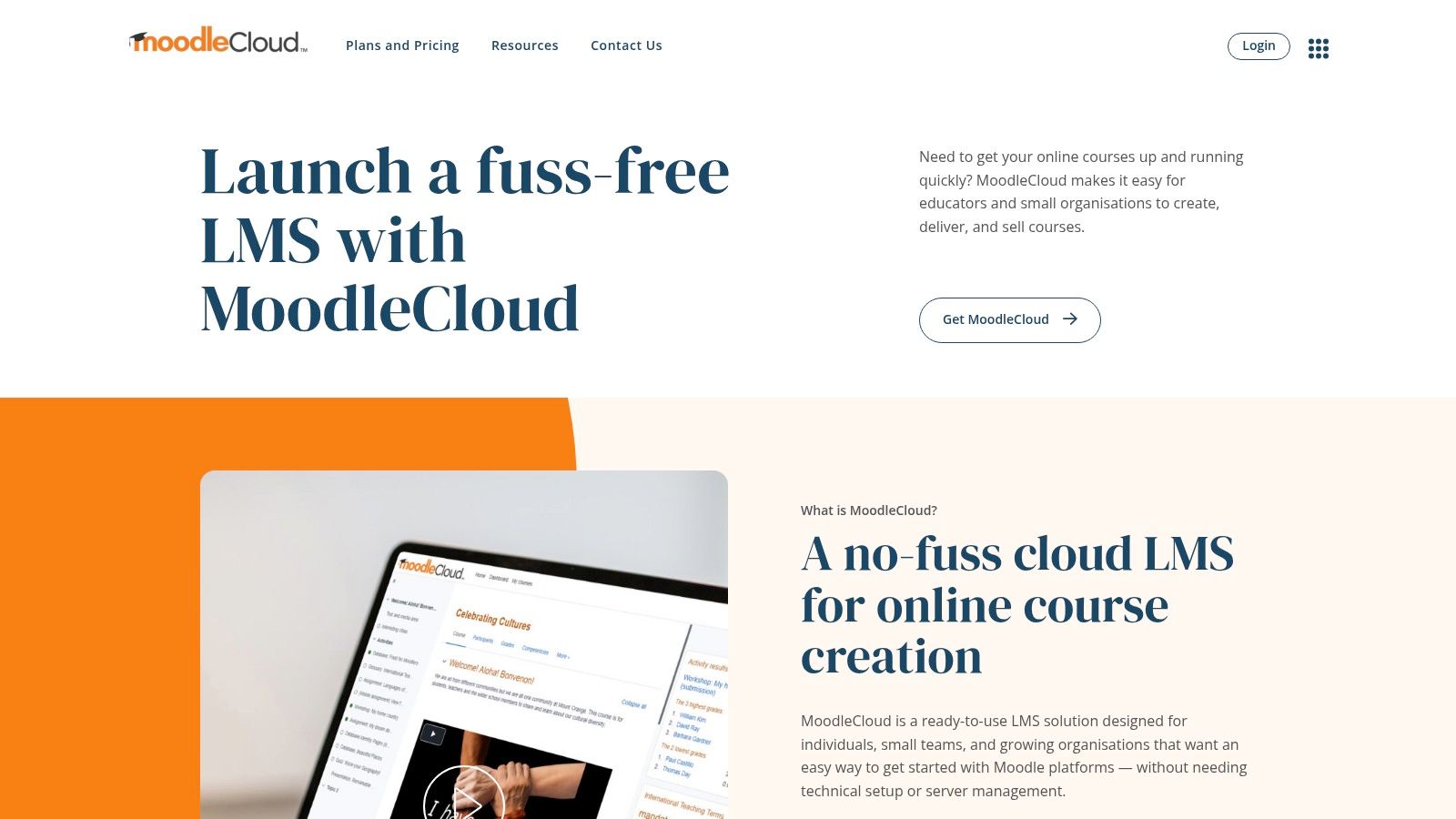
What makes MoodleCloud a practical choice is its simplicity and predictable cost. Instead of navigating server configurations, you can focus on building courses using Moodle’s core features like quizzes, forums, and gradebooks. Annual plans are based on user counts and storage, starting with a free 28-day trial to test the platform. While it delivers the essential Moodle experience, it's important to note its limitations, particularly the restriction on installing third-party plugins.
Key Features & Use Cases
- Best For: Individual teachers, small departments, or training businesses needing a quick and affordable Moodle setup.
- Standout Features: Provides core Moodle functionality (quizzes, SCORM, gradebook), direct support from Moodle HQ, and a simple, tiered pricing model.
- Integration: While plugin installation is limited, it supports core Moodle integrations and can be connected with video conferencing tools for a blended learning environment.
- Accessibility Tip: MoodleCloud supports accessibility standards. To make your course content even more accessible, consider recording video lessons and using a transcription service to create accurate text versions and captions, making materials easier for all students to study.
Website: https://www.moodlecloud.com
8. Schoology Learning (PowerSchool)
Schoology Learning stands out as a leading Learning Management System (LMS) specifically designed for the K-12 environment. Acquired by PowerSchool, it offers a classroom-centric experience that integrates directly with the wider PowerSchool ecosystem, including the Student Information System (SIS). This connection is its main advantage, making it a top choice for districts that want a single, unified system for rostering, grade passback, and parent communication.
What makes Schoology different from more university-focused platforms is its emphasis on the entire school community. It provides dedicated portals for students, teachers, administrators, and parents, ensuring everyone is connected. While it offers robust course management and assessment features, its real power comes from the deep district-level controls and streamlined data flow, which reduces administrative work for teachers. Pricing is typically determined at the district level and requires a direct quote.
Key Features & Use Cases
- Best For: K-12 school districts seeking a fully integrated LMS and SIS for centralized management of courses, grades, and parent communication.
- Standout Features: Strong SIS connection for automatic rostering and grade passback, built-in parent access portal, district-level curriculum management, and a robust App Center for third-party tools.
- Integration: Natively connects with the PowerSchool SIS. The App Center includes LTI integrations for a wide range of educational tools like Google Drive, Microsoft OneDrive, and Khan Academy.
- Accessibility Tip: Schoology supports creating accessible content. To make your video lessons even more useful, record them and then use a transcription service to generate accurate captions and a searchable text file, helping students review key concepts easily.
Website: https://www.powerschool.com/classroom/schoology-learning
9. Nearpod
Nearpod turns passive viewing into active participation by embedding interactive activities directly into lessons. This makes it an invaluable tool for online instruction, especially in K-12 settings, because it allows educators to deliver engaging presentations that prompt real-time student responses through polls, quizzes, collaborative boards, and drawing exercises. This immediate feedback loop helps teachers gauge understanding and adjust their instruction on the fly, whether teaching live or assigning student-paced work.
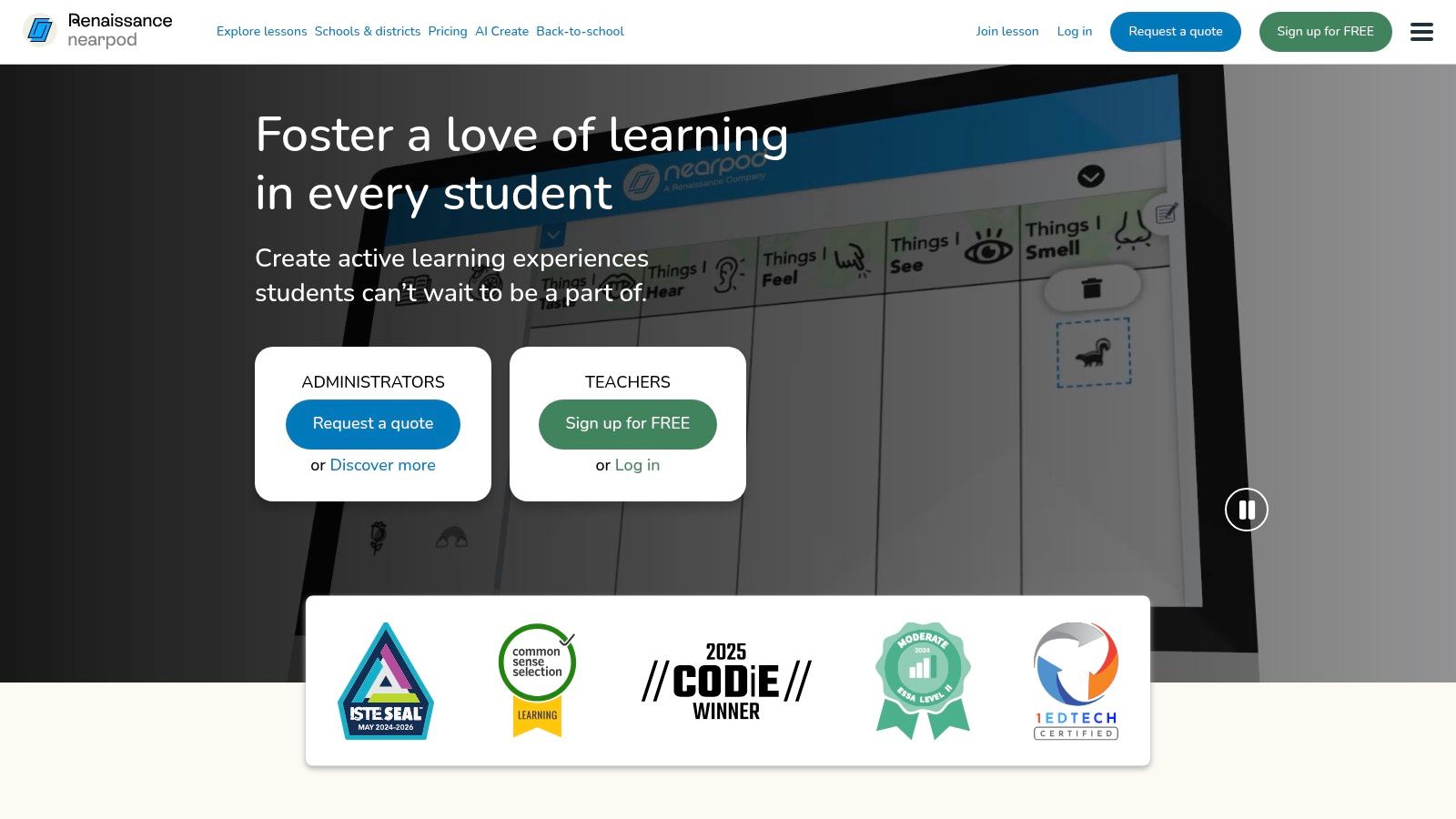
What makes Nearpod unique is its combination of ready-to-teach content and powerful activity-building tools. The extensive library of standards-aligned lessons and virtual reality field trips saves preparation time, while the ability to upload existing PowerPoints or Google Slides and add interactive elements makes adoption easy. The free "Silver" plan is functional but has limits on storage and class size, prompting frequent users to upgrade to Gold, Platinum, or school-wide licenses for more capacity and features.
Key Features & Use Cases
- Best For: Interactive lesson delivery in K-12, formative assessment, and student engagement in synchronous or asynchronous environments.
- Standout Features: Live and student-paced modes, Draw It activities, Time to Climb gamified quizzes, VR field trips, and a massive library of pre-made lessons.
- Integration: Connects seamlessly with Google Classroom, Canvas, Schoology, and Microsoft Teams, allowing for easy rostering and assignment posting.
- Accessibility Tip: Lessons can include audio recordings for instructions and content, supporting auditory learners and students with reading difficulties. Pair this with a dedicated transcription service to create text-based study guides from your recorded audio instructions, making your material even more accessible.
Website: https://www.nearpod.com
10. Kahoot! (for schools)
Kahoot! turns review sessions and knowledge checks into exciting, game-based competitions, making it a go-to tool for boosting student engagement. Its core function is creating multiple-choice quizzes (called "kahoots") that students answer on their own devices in real time. The platform’s colorful interface, catchy music, and live leaderboard create a fast-paced environment that encourages active participation and boosts information recall.
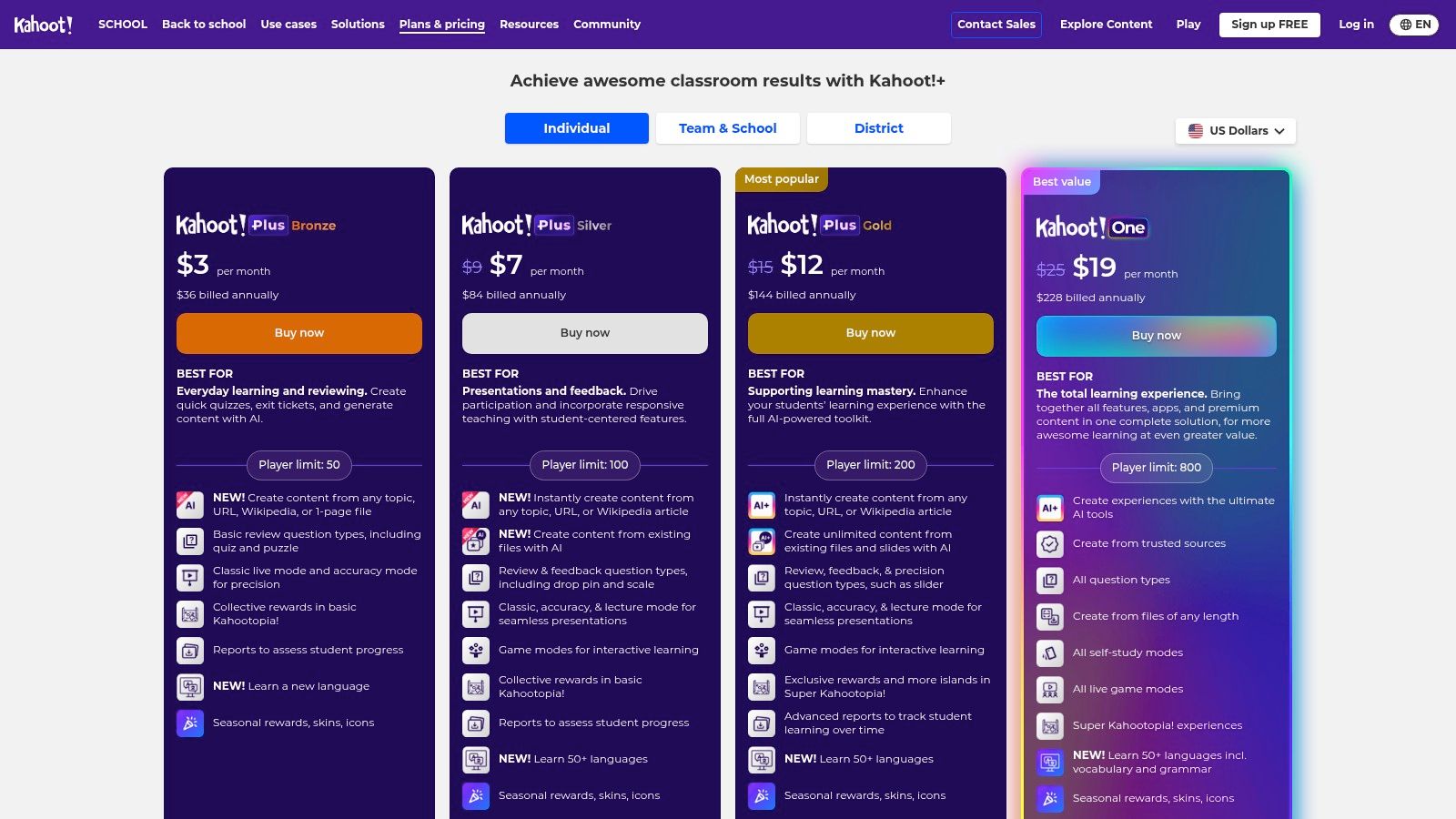
What makes Kahoot! stand out is its simplicity and immediate impact. Educators can build a quiz in minutes or draw from a huge library of user-generated content, making it perfect for bell-ringer activities or quick comprehension checks. While the free "Basic" plan is functional, it limits the number of players and question types. Upgrading to a paid plan like Kahoot!+ Premier or Max unlocks larger player limits, more interactive question formats, and detailed performance reports, which are useful for identifying learning gaps across a class or district.
Key Features & Use Cases
- Best For: Gamified reviews, formative assessments, bell-ringer activities, and boosting participation in live or virtual classes.
- Standout Features: Live game sessions with leaderboards, self-paced challenges for homework, a large marketplace of ready-to-use quizzes, and detailed reporting on higher tiers.
- Integration: Kahoot! integrates with Microsoft Teams, Google Classroom, and Zoom, allowing educators to host games directly within their existing virtual classroom or LMS.
- Accessibility Tip: The fast-paced nature of live games can be challenging for some students. Use the "self-paced challenge" mode to give learners more time to read and respond to questions at their own speed.
Website: https://kahoot.com/schools/plans/
11. Pear Deck (Pear Deck Learning)
Pear Deck transforms standard Google Slides or PowerPoint presentations into interactive, engaging lessons where every student can participate directly. It’s an essential tool for online teaching because it seamlessly embeds formative assessments and activities into the lesson flow, allowing educators to gauge understanding in real time without disrupting the class. By adding interactive questions, polls, and drawing activities, it turns passive viewing into active learning.
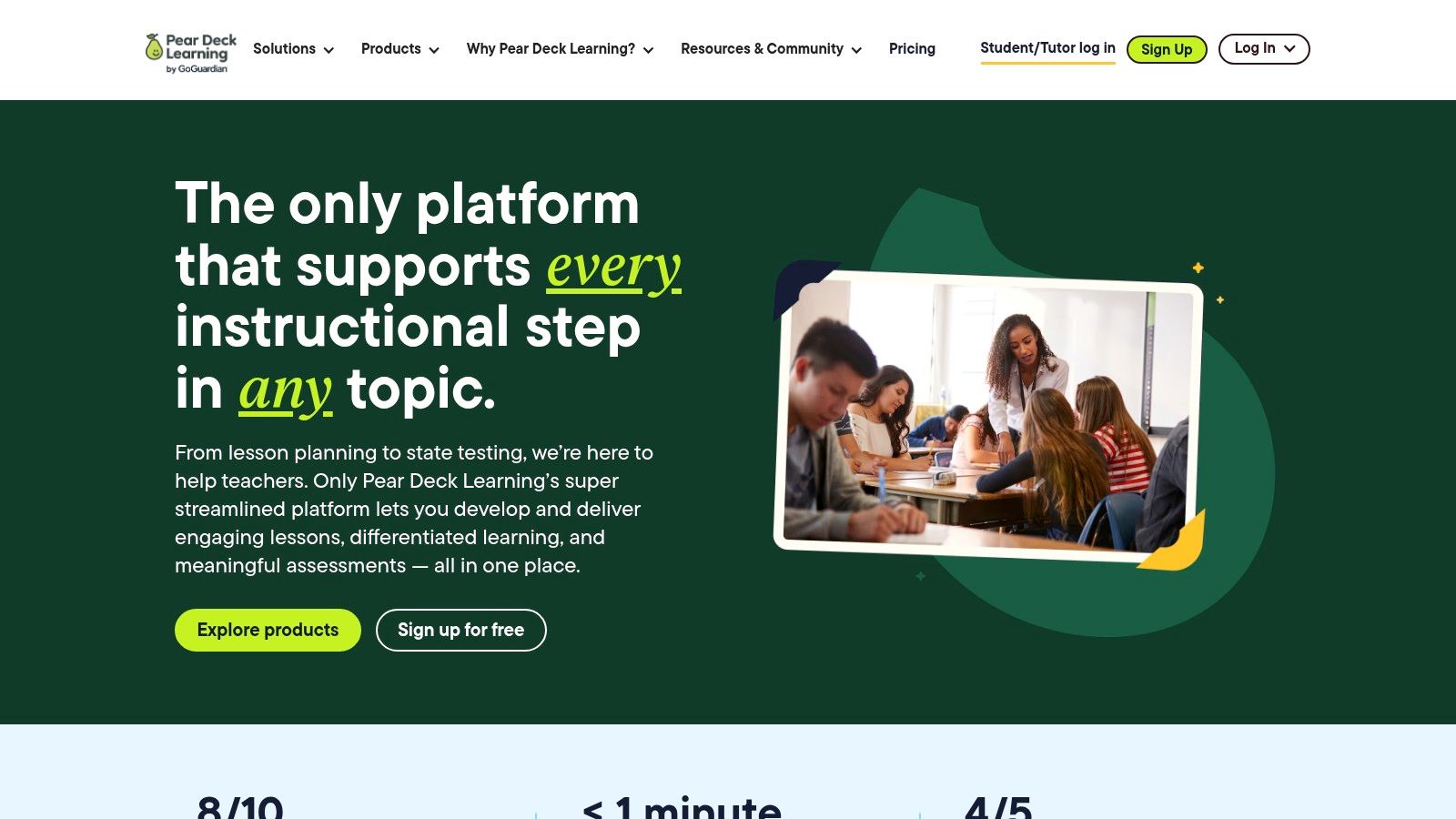
What makes Pear Deck special is its dual-mode functionality and the anonymous nature of its Teacher Dashboard. In Instructor-Paced Mode, the teacher controls the slide progression, while in Student-Paced Mode, learners can move through the material on their own time, perfect for asynchronous assignments. The free basic version is a great starting point, but the premium tier unlocks the full Teacher Dashboard, audio clips, and student takeaways, which are key for deep formative assessment and feedback.
Key Features & Use Cases
- Best For: Embedding formative assessments into live lessons, increasing participation, and asynchronous interactive homework.
- Standout Features: Instructor-Paced and Student-Paced modes, a Teacher Dashboard to view all student responses anonymously in real-time, and interactive question types like drawing, text, and draggable icons.
- Integration: Works as an add-on for Google Slides and Microsoft PowerPoint, with Single Sign-On (SSO) making access simple for both teachers and students.
- Accessibility Tip: Use Pear Deck's "Immersive Reader" integration to support students with reading difficulties. For post-lesson review, you can export text-based responses and use an AI tool to summarize key themes or common misconceptions, creating a targeted study guide.
Website: https://www.peardeck.com
12. Panopto (Video Management & Lecture Capture)
For institutions serious about building a robust library of educational videos, Panopto is a foundational online teaching tool. It acts as a secure, private YouTube for education, designed specifically for recording, managing, and delivering lecture captures and flipped classroom content. Its strength is in its ability to organize vast amounts of video, making it a go-to for higher education and large school districts.
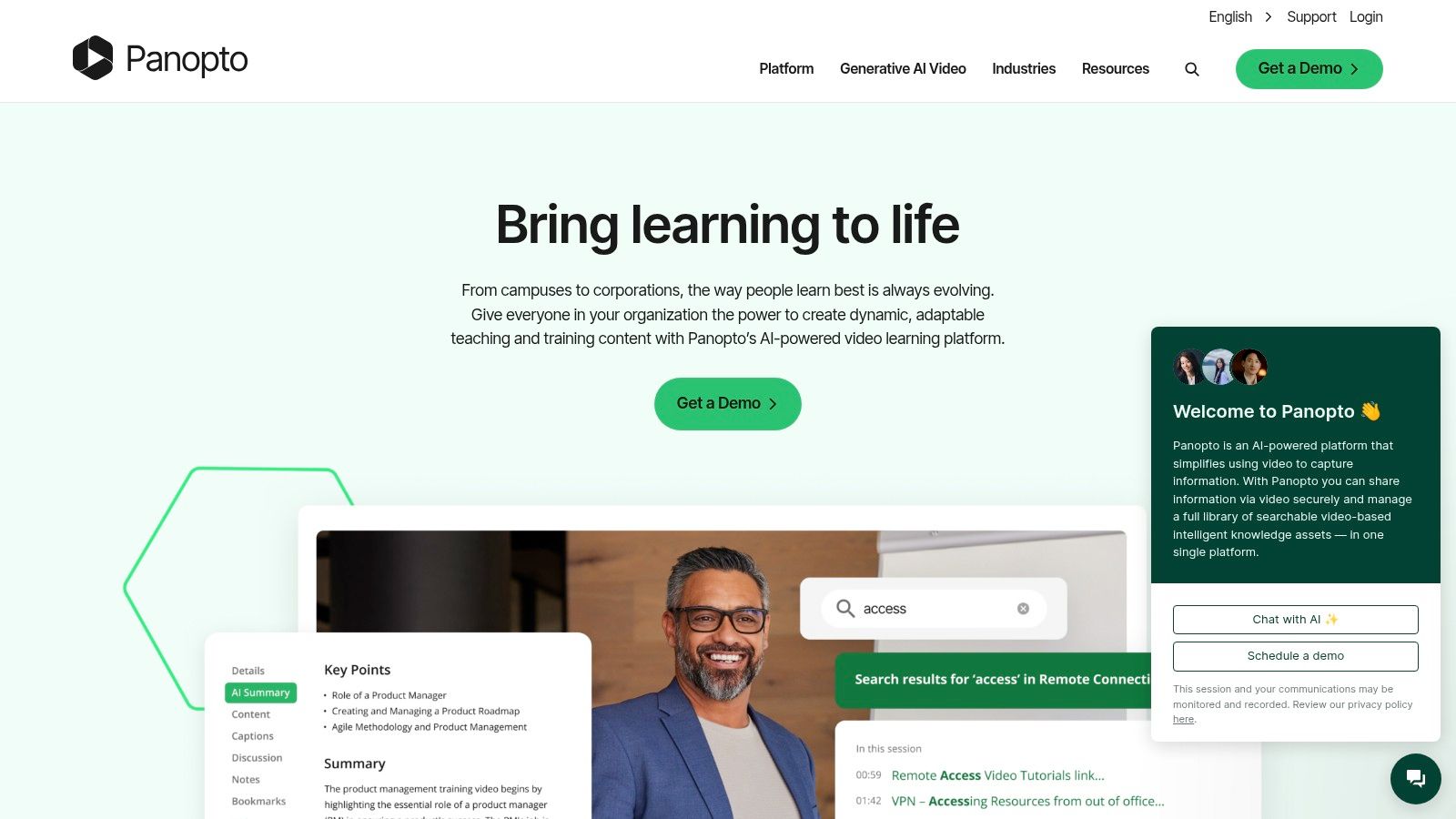
What makes Panopto stand out is its powerful "inside video" search function. It automatically transcribes audio and uses Optical Character Recognition (OCR) to read text on slides or screens, allowing students to search for a specific keyword and jump directly to that moment in any video. Panopto is sold through institutional licensing, so it isn't an option for individual teachers; it’s a top-down solution that deeply integrates with a school's existing technology stack.
Key Features & Use Cases
- Best For: Lecture capture, flipped learning models, creating a searchable video library, and institution-wide video management.
- Standout Features: Powerful smart search (ASR, OCR, slide text), in-video quizzing, detailed viewer analytics, and automated recording schedules.
- Integration: Offers deep, "plug-and-play" LTI integrations with major LMS platforms like Canvas, Blackboard, and Moodle, embedding video directly into courses.
- Accessibility Tip: Panopto's automatic captions provide a solid starting point for accessibility. For crucial content requiring near-perfect accuracy, consider exporting the ASR file and refining it with a dedicated transcription service for full WCAG compliance and improved student comprehension.
Website: https://www.panopto.com
Top 12 Online Teaching Tools: Features Comparison
Final Thoughts: Building Your Personal Online Teaching Toolkit
After exploring a wide array of platforms, from foundational Learning Management Systems like Canvas and Moodle to dynamic engagement tools like Nearpod and Kahoot!, one truth becomes clear: the quest for a single "best" tool is a distraction. The real goal is to build your personal, optimal teaching toolkit. The most effective educators don’t rely on one platform to do everything; they strategically combine a select few to create a cohesive, effective, and efficient learning environment that serves their specific students and subject matter.
The sheer number of options can feel overwhelming, but this detailed breakdown should provide a clear starting point. You’ve seen how giants like Google Classroom and Microsoft Teams offer integrated ecosystems, while specialized tools like Panopto and Pear Deck solve very specific pedagogical problems with precision. Your ideal setup will depend entirely on your context: your institution's requirements, your students' technical access, and, most importantly, your personal teaching style.
A Framework for Choosing Your Tools
To move from analysis to action, consider this simple, three-step framework for building your toolkit. This approach prioritizes a strong foundation and then adds layers of functionality based on your needs, preventing you from getting bogged down by too many new platforms at once.
- Start with Your Core (LMS & Video Conferencing): Your first decision revolves around your central hub. This is where your course content lives and where you meet your students. Evaluate if an integrated solution like Microsoft Teams for Education or a dedicated LMS like Schoology paired with Zoom is a better fit. Consider your institution's existing infrastructure, as this often dictates your primary options.
- Layer on Engagement and Interaction: Once your core is established, identify your biggest engagement challenge. Do you need to make static presentations more interactive? Pear Deck is a strong contender. Do you want to energize review sessions and check for understanding with gamification? Kahoot! is your answer. Choose one tool from this category to master first.
- Prioritize Accessibility and Efficiency from Day One: Don’t treat accessibility as an afterthought. Integrating a tool like Whisper AI at the outset does more than just generate captions. It creates accurate, searchable transcripts of every lecture, provides concise summaries for student review, and makes your video content accessible to all learners. This single step saves you immense time while fundamentally improving the learning experience.
Important Implementation Considerations
As you begin integrating these tools, keep a few key principles in mind. First, always prioritize student experience. A tool is only as good as its usability for your learners. Before a full-scale rollout, pilot the tool with a small group or conduct a brief training session. Second, check for integrations. The most powerful toolkits are those where the components work together seamlessly. For example, does your chosen engagement tool integrate directly into your LMS? Can you easily upload video files from Zoom into Panopto for editing and management?
Finally, for educators operating more independently, such as tutors or course creators, a different approach might be necessary. Instead of building a stack from disparate parts, exploring some of the best online coaching platforms could provide an all-in-one solution that handles scheduling, payments, and content delivery in a single, unified system.
Ultimately, finding the best tools for online teaching is a personal journey of experimentation and refinement. This guide is your map, but you are the explorer. Start small, be patient with yourself and your students, and focus on the pedagogical goal behind every technological choice. The right tools, thoughtfully implemented, will not only make your job easier but will also create a more engaging, equitable, and impactful learning environment for your students.
Ready to make your teaching more efficient and accessible? See how Whisper AI can automatically transcribe, summarize, and caption your video lectures with unparalleled accuracy. Start creating searchable and engaging course content today with Whisper AI.


























































































