
Master How To Download Audio From YouTube
You’ve probably done this already. You find a two-hour interview, a conference talk, a lecture, or a podcast episode on YouTube, and you don’t want the video. You want the audio so you can listen during a commute, drop it into a transcription tool, or pull quotes and notes without scrubbing through a video player.
That’s where most guides stop being useful. They show one quick trick, skip the trade-offs, and ignore the part that matters after the download. If your real goal is research, editing, clipping, show notes, or repurposing, the download is only the first step.
Why You Might Need to Download YouTube Audio
The most common reason is simple convenience. A lot of YouTube content works perfectly as audio only. Interviews, webinars, sermons, panel discussions, lectures, and podcast uploads don’t need your eyes. They need a clean file you can listen to anywhere.
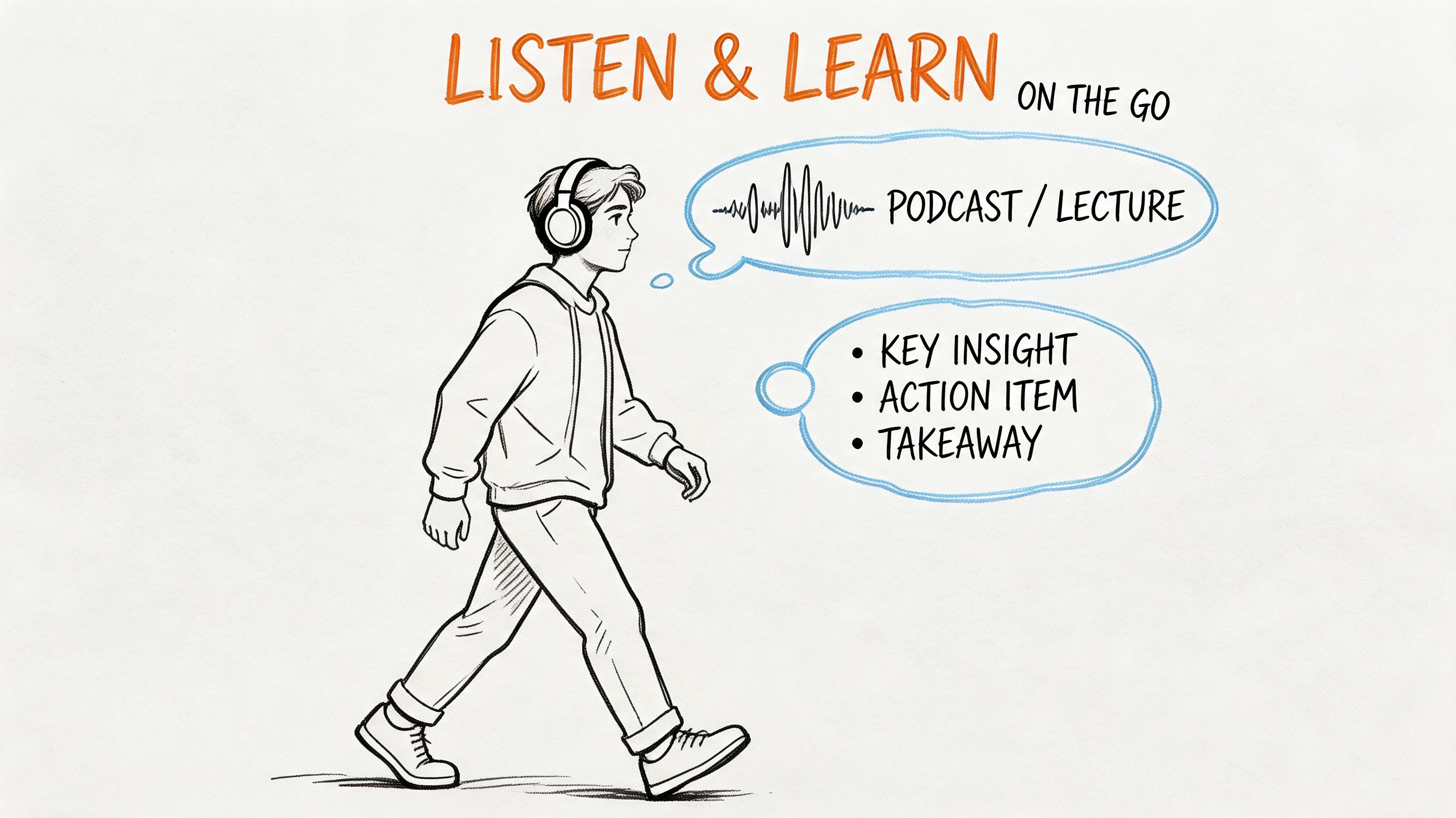
Creators and researchers usually have a second reason. They need the audio in a usable format for transcription, note-taking, clipping, or archiving. If you’ve ever tried pulling quotes from a long YouTube upload by hand, you know how slow that gets.
There’s also a content workflow angle. A downloaded audio file is easier to organize, rename, store, and process than a browser tab. That matters when you're building episode notes, preparing citations, or doing content repurposing across formats.
Common situations where audio only makes sense
- Long interviews: You want to review the conversation while walking, driving, or working.
- Educational content: You need lecture audio for study notes and searchable transcripts.
- Podcast-style uploads: The video is often static, so the audio is the main asset.
- Research and reporting: You need spoken material in text form so you can quote and analyze it faster.
Practical rule: If your next step is transcription, summaries, or highlights, choose a method that gives you a clean local file with reliable quality and minimal junk.
YouTube doesn’t give most users a native “download audio” button for arbitrary videos. That’s why people end up bouncing between converters, extensions, desktop apps, and command-line tools. Some work for a one-off file. Others are better when quality, reliability, and file management matter.
An Overview of YouTube Audio Download Methods
There are four main ways people handle how to download audio from youtube. They aren’t equal. The easiest method is often the riskiest. The most powerful method usually asks for a little setup.
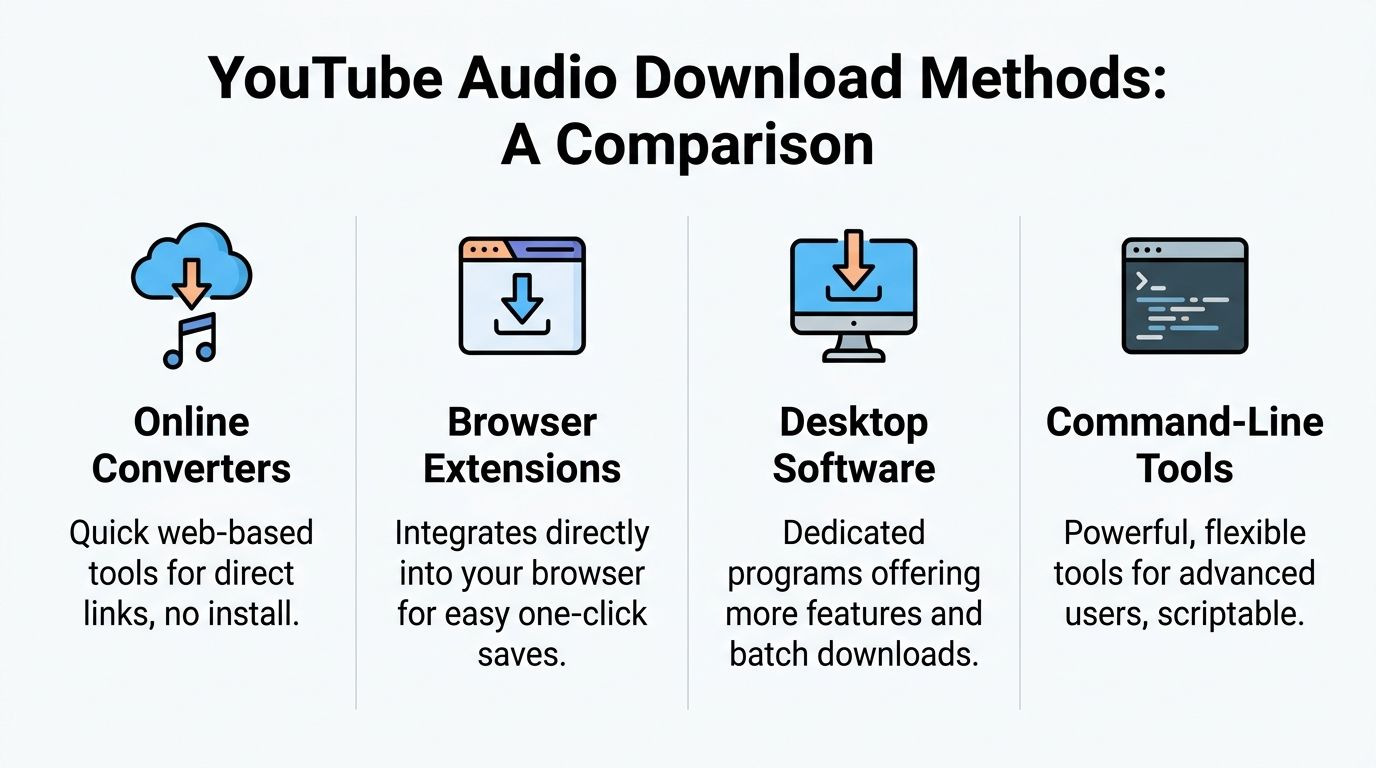
The broad categories are:
- Online converters, where you paste a link into a website and download the result.
- Browser extensions, which add a download action to Chrome, Firefox, or another browser.
- Desktop software, which gives you more stable downloads, format control, and playlist handling.
- Command-line tools, which are ideal for batch work, scripting, and advanced control.
YouTube audio download methods compared
| Method | Ease of Use | Max Quality | Security Risk | Best For |
|---|---|---|---|---|
| Online converters | Very easy | Usually limited or inconsistent | High | Quick one-off downloads |
| Browser extensions | Easy | Moderate | Moderate to high | Users who want in-browser convenience |
| Desktop software | Moderate | High | Lower if you use trusted tools | Playlists, repeat use, cleaner workflow |
| Command-line tools | Advanced | High | Low when installed from trusted sources | Bulk jobs, automation, technical users |
What each category gets right
Online converters win on speed. You don’t install anything, and for a single public video they can be the fastest path from link to file.
Browser extensions feel convenient because they live where you already work. If they function well, they remove the copy-paste step.
Desktop software is where things get more serious. You get better handling for playlists, cleaner output folders, stronger format options, and fewer interruptions from ads or broken pages.
Command-line tools are the best fit when you care about repeatability. If you routinely process interviews, lectures, or channel archives, they save time because you can batch jobs and automate naming.
Where people usually choose the wrong tool
A lot of users start with the quickest option and stay with it too long. That’s fine for a single test file. It’s not fine when you need dependable output for transcripts, searchable archives, or production use.
The right question isn’t “What downloads audio fastest?” It’s “What gets me a clean file with the least friction in the rest of my workflow?”
If you're downloading one speech for personal listening, convenience may matter most. If you're processing a playlist of interviews for notes and summaries, the wrong method can cost more time than the download itself.
Using Online Converters and Browser Extensions
You have a one-off need. A lecture, interview, or meeting recap is sitting on YouTube, and the fastest path to a transcript looks like pasting the link into a site and grabbing an MP3. Sometimes that works. Sometimes you lose 20 minutes to redirects, low-quality output, or a file that creates more cleanup work before transcription even starts.
That trade-off matters more than people expect. If your end goal is a clean transcript, summary, and searchable notes in Whisper, the download method affects the rest of the workflow.
How these tools usually work
Online converters are simple on paper:
- Copy the YouTube URL
- Paste it into the converter
- Pick an audio format
- Download the file
Browser extensions remove the copy-paste step. You stay on the YouTube page, click the extension button, and export audio from there.
That convenience is the whole appeal.
Where online converters go wrong
The weak point is reliability. Many converter sites change domains often, rotate interface elements, and crowd the page with ads that look like download buttons. Even if you avoid the obvious traps, the output can still be disappointing. Wrong file names, bad metadata, unexpected re-encoding, and bitrate choices you cannot verify are common problems.
For transcription, those details matter. A clean, stable audio file saves time later. A noisy MP3 with clipped speech or strange timing can make transcription less accurate and force extra editing.
Security is the second problem. If a converter opens new tabs, asks you to install a helper app, or pushes a browser notification prompt before the download starts, treat that as a stop sign. The same caution applies if you are comparing methods for other media tasks, such as this guide on capturing streaming video safely, because the risk pattern is similar. Fast tools attract low-trust clones.
Browser extensions are convenient, but the trust cost is higher
Extensions feel cleaner because they live in the browser you already use. The hidden cost is permissions.
Some extensions request access to page contents, browsing data, downloads, and site activity. That may be broader access than you want to hand over for a task you only do once in a while. Extensions also break often when YouTube changes its interface, and stores may remove them without warning.
If you use one, install it only from the official browser store, read recent reviews, and check the permissions before clicking Add.
When these methods are still reasonable
Online converters and extensions are fine in a narrow set of cases:
- You need one public video
- You do not need archival quality
- A failed attempt will not disrupt your work
- You are willing to inspect the file before sending it to transcription
Inspecting the file means playing the first minute, checking for missing audio, and confirming the format and duration match the original video. That quick check catches a lot of bad downloads.
Practical verdict
For one small job, these tools can be good enough.
For repeat use, they usually create more friction than they remove. If the audio is headed into Whisper for transcription, summaries, or searchable documentation, treat the download step as part of the whole pipeline, not a throwaway task. The goal is not just getting a file. The goal is getting a file you can trust.
Powerful Desktop Software for Quality and Control
Desktop tools are what I’d recommend for anyone who downloads YouTube audio more than occasionally. They’re better for quality control, more predictable with playlists, and easier to trust than ad-heavy web tools.
There are two broad paths here. One is a graphical desktop app. The other is a command-line tool.
GUI apps for people who want a clean workflow
A good example is 4K YouTube to MP3. It runs on Windows, macOS, and Linux, and it includes an in-app YouTube browser for zero-context-switch downloads. According to the cited reference, user reports put it at 92% success on playlists up to 500 videos, and it extracts Opus, AAC, and M4A at source bitrates from 128 to 320kbps with metadata tagging and conversion options such as MP3, WAV, and FLAC, as described in this walkthrough of 4K YouTube to MP3.
That matters if you’re collecting interview archives or podcast episodes and want the files named and sorted correctly from the start.
A practical setup for 4K YouTube to MP3
Use this approach:
- Install the app from the official site.
- Open Preferences and choose your output format. MP3 is the easiest universal choice.
- Set quality to the highest available option if you plan to transcribe or archive.
- Choose an organized output folder so playlist and title names stay readable.
- Paste a video, playlist, or channel URL into the app.
- Download and review the file names before moving on to your next batch.
The built-in browser is useful when you’re collecting several pieces from the same channel. You don’t keep switching between tabs and app windows, and that reduces friction.
A few caveats matter. The reference notes that some failures happen because videos are private or unavailable, and incomplete downloads can happen unless you resume or ignore errors. That’s normal desktop-software behavior, and still easier to manage than a web converter that gives no useful feedback.
yt-dlp for serious batch work
If you’re comfortable with Terminal or Command Prompt, yt-dlp is the strongest option on this list. It was forked from youtube-dl in 2021 and is used by over 10 million developers worldwide, while supporting batch processing of thousands of videos into high-bitrate MP3s with a 500% efficiency gain over manual online converters and zero malware risks, according to the seasalt.ai reference on yt-dlp.
That combination explains why technical users keep coming back to it. It’s scriptable, stable, and easy to fit into a repeatable workflow.
A simple example looks like this:
- Install yt-dlp
- Use extract-audio mode
- Set the target format
- Run one URL or a list of URLs
The reference also gives a Python example using subprocess.call(['yt-dlp', '-x', '--audio-format', 'mp3', url]), which is enough to show how naturally it fits into automation.
Field note: If you routinely handle lecture series, interview playlists, or channel backlogs, command-line tools save more time on naming, batching, and retries than any single-click web tool ever will.
Which desktop option fits best
Use a GUI app if you want:
- Visual controls
- Minimal setup
- Easy playlist management
- Built-in browsing and tagging
Use yt-dlp if you want:
- Batch jobs from a text list
- Automation
- Repeatable naming rules
- Full control over extraction behavior
For teams that also work with longer media workflows, it helps to think beyond the download itself. A broader capture-and-processing setup matters when you handle streams, recordings, and archives at scale. This guide on how to capture streaming video is useful if your source material doesn’t live as a standard YouTube file.
Understanding the Legal and Ethical Considerations
You pull a two-hour interview from YouTube because you need the transcript before a meeting. The download takes minutes. The rights question can take longer, and skipping it is where people create avoidable risk.

The cleanest use cases are the easiest to defend
Some audio is straightforward to use. Your own uploads are usually the simplest example. Audio that the creator has explicitly licensed for reuse is another. YouTube’s own Audio Library also exists for this purpose if you need music or sound effects for production work rather than speech for transcription.
That is a different category from extracting audio from a standard YouTube upload. A public video is not the same as reusable source material. Access to a stream does not automatically give download, reuse, redistribution, or commercial rights.
Where people get into trouble
The risk usually starts with assumptions. “I’m only using the audio for notes.” “I’m not reposting the whole video.” “It’s educational, so it must be allowed.” Those can matter, but none of them settles the issue on its own.
Two separate questions apply:
- Can you download it under the platform’s rules?
- Can you use the resulting audio under copyright or license terms?
Those answers are not always the same.
For practical work, I use a simple standard. If the audio is going into a private transcription workflow for research, review, or internal documentation, the risk profile is different from uploading that same audio to another platform, dropping it into a podcast, or publishing the transcript in full. The second group raises much bigger permission and reuse issues.
A better permission check
Before downloading anything, check the source with the same care you would use before publishing it.
- Did you create the video or do you manage the channel?
- Has the creator clearly allowed downloading or reuse?
- Is the material licensed, royalty-free, or in the public domain?
- Are you keeping the file private for transcription, or will it be shared, republished, remixed, or monetized?
- Does the audio include commercial music, film clips, or broadcast material owned by someone else?
That last point matters more than many people expect. Interviews, lectures, and webinars often include intro music, event stingers, or embedded clips. A transcript workflow may still be useful, but the source file can carry rights baggage that is easy to miss.
Ethics are usually clearer than the law
Fair use exists, but it is narrow, fact-specific, and expensive to argue after the fact. Ethical use is easier to apply day to day. Download what you own. Download what you have permission to process. Use licensed assets for production. Treat everything else as restricted until you verify otherwise.
This matters even if your end goal is only text. A transcript can still expose copyrighted material, private statements, or paid content that was never meant to circulate outside the original video context. If your workflow includes summaries, searchable archives, or team sharing, set rules for retention and access before you build the library.
If you want a practical next step after the rights check, this guide on using Whisper AI for transcription workflows covers how to turn approved audio into text you can search, summarize, and review.
Respect for ownership is also bigger than avoiding takedowns. The broader argument around protecting creative rights in showbiz is worth reading if you want context for why creators push back when convenience turns into unapproved reuse.
Turning Your Audio Into Transcripts with Whisper AI
You download a two-hour interview for one quote, then waste twenty minutes scrubbing the waveform to find it again. A transcript fixes that. Once the audio is in text, the file becomes searchable, easier to summarize, and far more useful for research, editing, and documentation.

For transcription work, the download is only the intake step. The subsequent workflow is: save the audio safely, upload a clean file, generate the transcript, then turn that transcript into notes, summaries, and a searchable reference you can use later.
The basic workflow
A practical transcription pass usually looks like this:
- Create an account with the transcription platform.
- Upload the downloaded audio file, such as MP3, M4A, or WAV.
- Run the transcription job.
- Review the transcript for names, technical terms, and punctuation.
- Export the result in the format that fits your process.
If a tool supports direct video link import, that can save time. I still prefer uploading the local audio file when accuracy matters. It gives you a clear record of exactly what was transcribed, and it avoids surprises if the source video changes or disappears.
What makes a transcript useful in practice
Raw text helps, but structure is what saves time. For long YouTube content, the best outputs usually include:
- Speaker labels so interviews and panel discussions stay readable
- Timestamps so you can jump back to the source audio fast
- Summaries for quick review before writing or sharing
- Highlights or bullet points for show notes, research notes, or content briefs
- Export options such as Word, PDF, TXT, Google Docs, or Markdown
That is the difference between having a text dump and having a working document.
A good transcript becomes part archive, part editing tool, and part search index.
If you want to see the workflow in action, this overview is a good starting point:
Best practices before you upload
Whisper-style transcription performs best when the source file is clean. Small choices at this stage affect the result more than people expect.
- Use the cleanest source file available. Each extra conversion can add compression artifacts.
- Keep filenames specific. A file named
2024-annual-webinar-q-and-a.m4ais easier to find later thanaudio-final-2.mp3. - Leave the recording intact unless you have a reason to trim it. Context helps when you review unclear passages.
- Listen to the first minute before uploading. Intro music, clipped starts, and bad channel balance can all slow down cleanup.
- Flag likely trouble spots early. Heavy accents, crosstalk, and domain-specific jargon usually need a quick manual review after transcription.
For a full walkthrough of upload, cleanup, export, and transcript-based workflows, keep this guide on using Whisper AI for transcription and summaries handy.
Troubleshooting and Frequently Asked Questions
What’s the best format to choose
The MP3 format is often the easiest choice because it works almost everywhere. If your downloader gives you a source audio format like M4A, AAC, or Opus, that can be a better starting point for transcription because it may preserve the original stream more cleanly. If you’re unsure, choose the highest quality available and avoid unnecessary reconversion.
Can I download audio from a private or unlisted YouTube video
Unlisted videos are often downloadable if the tool can access the URL and the video is otherwise available to you. Private videos are different. If you don’t have access in the browser, most tools won’t be able to retrieve them either. With desktop tools, failures often come down to access permissions rather than the tool itself.
What should I do if an online converter is slow or fails
Stop retrying the same broken site over and over. Try a desktop app instead. If the file matters, move to a more reliable method with better error handling and fewer ads. Web tools are the first thing to fail when YouTube changes something.
Which method should I use for transcription work
If you only need one quick file, a converter may be enough. If you plan to transcribe interviews, lectures, podcasts, or playlists regularly, use desktop software or yt-dlp. The cleaner your file intake is, the easier the rest of your workflow becomes.
The short version is this. Choose the method based on the value of the audio, not just the speed of the download. Quick tools are fine for quick jobs. Reliable tools are better when the audio is headed into a transcript, summary, archive, or publishing workflow.
If you want to turn YouTube audio into something searchable and useful, Whisper AI is built for that next step. Upload your audio or video, get transcripts with speaker labels and timestamps, generate summaries and highlights, and export the result in the format your workflow already uses.


























































































