
A Complete Guide to Zoom AI Transcription in 2026
Think of Zoom's AI transcription as your personal digital stenographer. It’s a built-in tool, part of Zoom's AI Companion, that automatically turns all the spoken words from your meetings into a written text file. You get a live version as captions during the call and a polished, searchable transcript afterward. It’s a brilliant way to capture every detail without the frantic scramble of taking notes.
How Does Zoom AI Transcription Really Work?
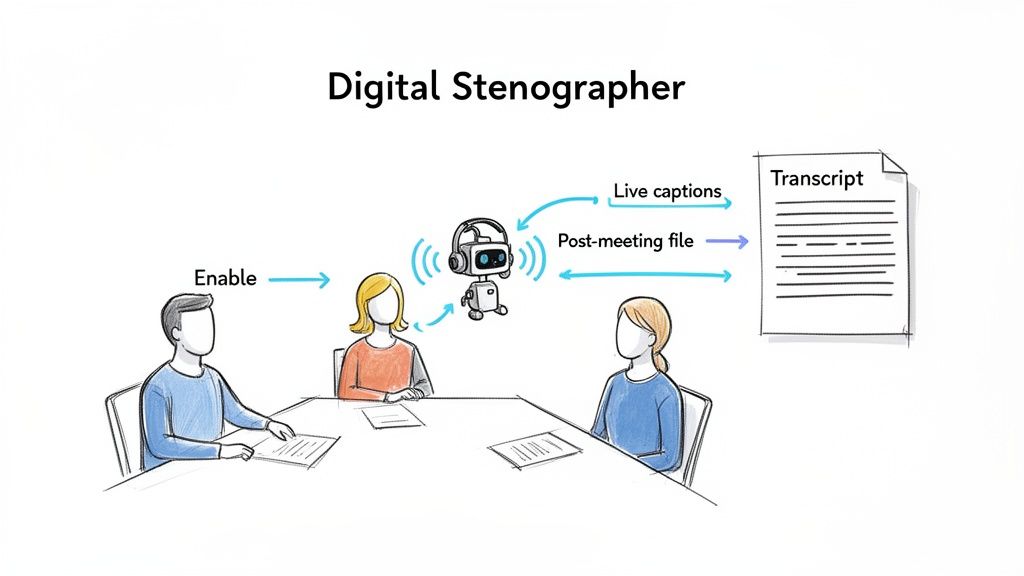
It might feel like magic, but what's happening under the hood is a sophisticated, step-by-step process. Imagine a translator who not only understands words but also catches the nuances of who is speaking and when. That's essentially what Zoom's AI is doing every time you hit record.
First, the system taps into your meeting's audio stream. It listens to everything—from the main speaker's presentation to a quick question from a colleague—and captures it as raw data. This audio is the foundation for everything that follows.
From Sound to Text
To get from spoken words to a written script, Zoom relies on some seriously impressive underlying speech-to-text technology. Its proprietary Speech AI breaks the incoming audio into the smallest units of sound, known as phonemes.
The AI then runs these phonemes through a massive language model, cross-referencing them to find the most probable words and sentences. This is how it can convert an entire conversation into text in almost real-time.
But just getting the words down isn't enough. The system then performs what’s called speaker diarization—a technical way of saying it figures out who is talking. By analyzing the unique pitch and tone of each person's voice, it can accurately label the transcript with the speaker's name.
This one feature is a game-changer. It turns a confusing wall of text into a clear, readable script. You never have to guess who committed to a deadline or proposed a new idea; it’s all laid out for you.
What You Experience as a User
For you, the host, the process is incredibly simple. If you're on a supported Zoom plan, you just need to turn the feature on. Once you do, everyone in the meeting gets a small notification, so they know the conversation is being transcribed.
As the meeting progresses, the AI gets to work in two key ways:
- Real-Time Captions: It generates live captions that scroll across the screen. This is a huge win for accessibility, not to mention a lifesaver for anyone joining from a loud coffee shop.
- Full Transcription: At the same time, it's building a complete transcript of the entire meeting in the background, which gets saved with your cloud recording.
After you click "End Meeting," Zoom takes the audio file and does one final pass to clean up the transcript and improve its accuracy. You'll get an email as soon as the recording and its companion transcript are ready. The final product is a time-stamped, searchable document organized by speaker, ready for you to review action items, pull quotes, or share with your team. It effortlessly transforms your meetings from fleeting conversations into valuable, organized assets.
Digging into the Key Features of Zoom AI Companion
Sure, turning spoken words into text is the main event, but that's just scratching the surface. The real magic of Zoom AI Companion is in the smart features that work behind the scenes to make you more productive. Think of it less as a simple transcription tool and more as an assistant that helps you find the signal in the noise of a long meeting.
One of the most obvious and helpful features is real-time captioning. As people talk, their words pop up on the screen, creating a live script of the entire conversation. This is a game-changer for accessibility, making sure colleagues who are deaf or hard of hearing can follow along without missing a beat. It’s also incredibly useful for anyone who has to join from a loud coffee shop or for non-native speakers who find it easier to read along.
This screenshot from Zoom gives you a peek at how the AI Companion organizes everything, from meeting summaries to smart recordings, into a clean, easy-to-read format.
You can see how it helps you get caught up on a meeting you missed or quickly find that one key decision without re-watching the whole thing.
Turning Dialogue into Action
Beyond the live captions, the AI Companion is built to make the transcript genuinely useful after the meeting ends. A huge part of this is speaker identification, which you might also hear called "diarization." Instead of getting a giant, confusing wall of text, the AI automatically figures out who is talking and puts their name next to their part of the dialogue.
Imagine trying to remember who promised to send the follow-up email. With speaker identification, you can just search the transcript for that task and instantly see who raised their hand for it. No more guesswork or awkward "who was supposed to do that?" moments.
This one feature turns a simple transcript into a clear record of the conversation, which is critical for keeping everyone accountable and your notes accurate.
Automated Summaries and Smart Chapters
This is where the Zoom AI transcription service really starts to feel like a superpower. Once your meeting is over, the AI Companion doesn't just hand you a raw transcript. It gets to work analyzing the conversation to give you two incredibly valuable things:
Automated Meeting Summaries: The AI pulls out the key topics, major decisions, and important takeaways, then boils them down into a short, concise summary. If you're a project manager, this means you can get the high-level overview of a status update in about 30 seconds instead of sifting through an hour of conversation.
Smart Chapters: The recording is automatically broken down into logical "chapters" based on what was being discussed. This lets you click and jump straight to the part of the meeting about "Q3 Budgeting" or "New Marketing Campaign" without having to guess and scrub through the video timeline.
A content creator, for instance, could use smart chapters to find specific quotes from a long interview in seconds, saving a ton of time. Features like these are why the AI meeting transcription market is exploding—it’s projected to jump from $3.86 billion in 2024 to an astonishing $29.45 billion by 2034.
This isn't just hype; it's driven by real results. In fact, 90% of professionals say these tools save them significant time on documentation, which is a massive win for everyone from social media managers to journalists. If you're curious, you can review more statistics on business communication tools to see how the market is evolving. At the end of the day, these smart features give you back the one thing you can't make more of—time.
How Accurate Is Zoom's Transcription Really?
When you’re relying on an automated transcript, accuracy is everything. We’ve all been there—trying to decipher a garbled sentence or realizing a key decision was missed entirely. A single wrong word can twist the meaning of a conversation, and spending hours on corrections defeats the whole purpose of using AI in the first place. So, the big question is: can you actually trust what Zoom AI transcription produces?
More and more, the answer is a confident yes. The industry standard for measuring this is Word Error Rate (WER), a simple metric that counts how many words the AI gets wrong for every 100 spoken. The lower the WER, the less time you'll spend cleaning up the text.
Setting a New Bar for Accuracy
Zoom has been pouring resources into its AI, and it's starting to pay off in a big way. The latest performance reports from 2026 show that its models are outperforming many key competitors, setting a new benchmark for what's possible with built-in transcription tools.
Zoom's AI transcription now operates with a Word Error Rate (WER) of just 7.40%. To put it simply, the AI correctly identifies over 92 out of every 100 words, delivering a transcript that's remarkably faithful to the original conversation.
This isn't just about a good score on a spec sheet. A low WER means you can pull quotes for a report, confirm action items, and share meeting notes with confidence, knowing the transcript is a reliable record.
To add some context, here’s how Zoom stacks up against other platforms based on data from a 2026 independent analysis.
Zoom vs Competitors Word Error Rate (WER) Comparison
This table, based on the TestDevLab report, directly compares the transcription errors of major video conferencing tools. It gives a clear picture of how much more accurate Zoom's engine has become.
| Platform | Word Error Rate (WER) | Accuracy Advantage vs Zoom |
|---|---|---|
| Zoom | 7.40% | Baseline |
| Webex | 10.14% | Zoom has 27% fewer errors |
| Microsoft Teams | 11.56% | Zoom has 36% fewer errors |
As the numbers show, Zoom’s focus on transcription quality has given it a noticeable edge. These differences matter when you need a dependable record of what was said. For a deeper dive into the methodology, you can check out the full 2026 Zoom AI Performance Report.
Accuracy Beyond Just Words
But getting the words right is only half the battle. True understanding comes from context. Zoom's Large Language Model (LLM) Assistant, which handles features like meeting summaries, was found to have a 99.05% contextual accuracy score. This means the summaries and highlights it generates are incredibly good at capturing the actual intent and key takeaways from a discussion.
This push for more intelligent, time-saving AI is what's fueling massive growth across the industry.
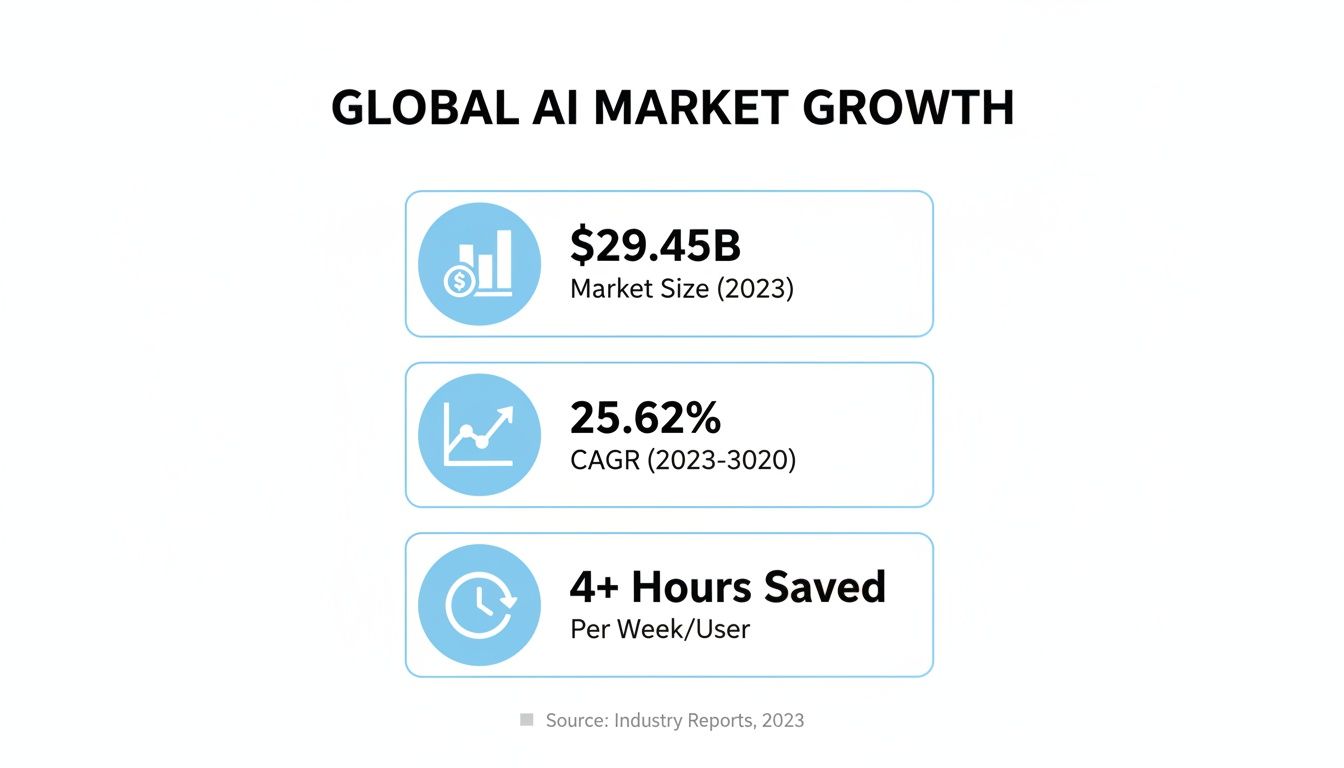
As this infographic illustrates, the AI market is projected to be worth nearly $30 billion, driven by tools that give professionals back hours of their week.
Language Support for Global Teams
In our connected world, meetings often include people from different countries speaking different languages. A transcription tool that only understands English is no longer enough.
Zoom has made impressive strides here, now supporting over 36 languages for real-time transcription. Some of the major languages include:
- English
- Spanish
- French
- German
- Chinese (Simplified)
- Japanese
- Portuguese
This is a huge win for global companies and educational institutions, making meetings more accessible and inclusive for everyone. If your needs extend beyond this list, it’s worth looking at the broader ecosystem of AI-powered transcription software to find the perfect fit.
Ultimately, Zoom's AI transcription has evolved into a genuinely dependable tool. Whether you're a journalist capturing precise quotes, a researcher documenting interviews, or a manager tracking decisions, it provides a solid foundation that drastically cuts down on manual work.
Practical Ways to Use Zoom AI Transcription
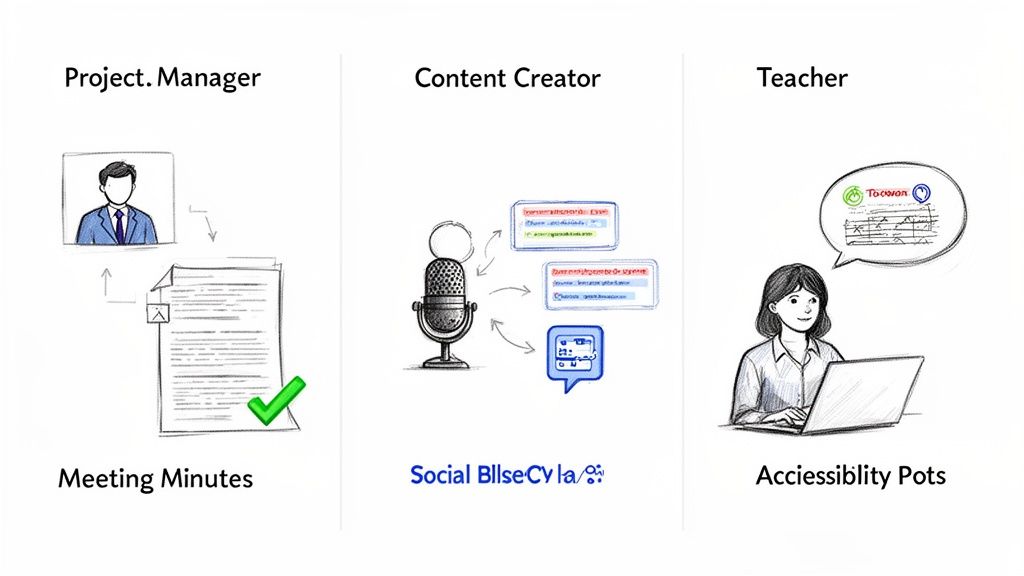
It’s one thing to talk about the tech behind Zoom AI transcription, but where does the rubber really meet the road? The true magic happens when you see how it solves everyday problems. This isn't just about saving a few minutes of typing; it’s about fundamentally changing how we work.
At its core, all of this is built on the simple but powerful idea of using voice input as a productivity tool. Let's look at how people are actually putting this to use.
Automating Meeting Minutes for Business Teams
If you're a project manager, you know the post-meeting grind. You spend an hour in a meeting, then another hour deciphering your notes, assigning tasks, and sending a summary. It's a huge time-sink.
Zoom's AI transcription completely flips that script. After a project check-in, you get a full, time-stamped transcript. Instead of trying to remember who said what, you can just search for "deadline" or "next steps."
The best part? It’s an instant accountability tracker. When someone says, "I'll get the report done by Friday," the transcript captures it, name and all. There's no more ambiguity about who owns a task, which means things stop falling through the cracks.
That one-hour meeting summary now takes just a few minutes to review and send. That's time you get back for work that actually moves the needle.
Repurposing Content for Creators and Marketers
For anyone creating content—podcasters, marketers, you name it—the goal is to get the most mileage out of every piece of work. A single webinar or interview is a goldmine, but digging through it manually is a nightmare.
With an AI transcript, that goldmine is suddenly easy to access.
- Turn Audio into Articles: That 45-minute podcast interview? It's now the foundation for a 2,000-word blog post. The raw text is right there, ready for you to edit and shape.
- Create Social Media Gold: Scan a webinar transcript for powerful quotes or surprising stats. You can pinpoint those moments in the video and quickly chop them up into dozens of short, shareable clips for TikTok, LinkedIn, or Instagram Reels.
- Generate Show Notes Instantly: Podcasters can use the AI summary as a first draft for their episode descriptions. What used to take an hour now takes a few minutes of polish.
This is how smart creators work—they record once and then slice and dice that content to reach a wider audience across multiple platforms.
Enhancing Accessibility for Educators and Students
In any classroom, virtual or hybrid, accessibility is non-negotiable. Educators are finding that AI transcription is a massive help in creating a more supportive learning environment for everyone.
Live captions during a Zoom lecture immediately help students who are deaf or hard of hearing. But the benefits don't stop there. The full transcript becomes an invaluable study tool for the entire class.
Students can search the text for a concept they didn't quite catch, review a complex explanation at their own pace, or get caught up if they missed a class. It gives them the flexibility to learn in the way that works best for them. For a detailed guide on setting this up, our article on how to transcribe Zoom meetings walks you through it.
Ensuring Precision for Journalists and Researchers
For a journalist or academic researcher, an interview transcript is a sacred document. Every word, every hesitation, can be critical. Manually transcribing hours of audio is not only slow but mind-numbingly tedious.
Zoom AI transcription provides a solid first draft, saving them from that initial heavy lifting. Given that Zoom holds 55.91% of the video conferencing market, its tools have become standard for many professionals who depend on accuracy. For them, a dependable transcript is a must-have, and it's no surprise that 90% of users report saving a significant amount of time on documentation.
Simple Tips to Improve Transcription Accuracy
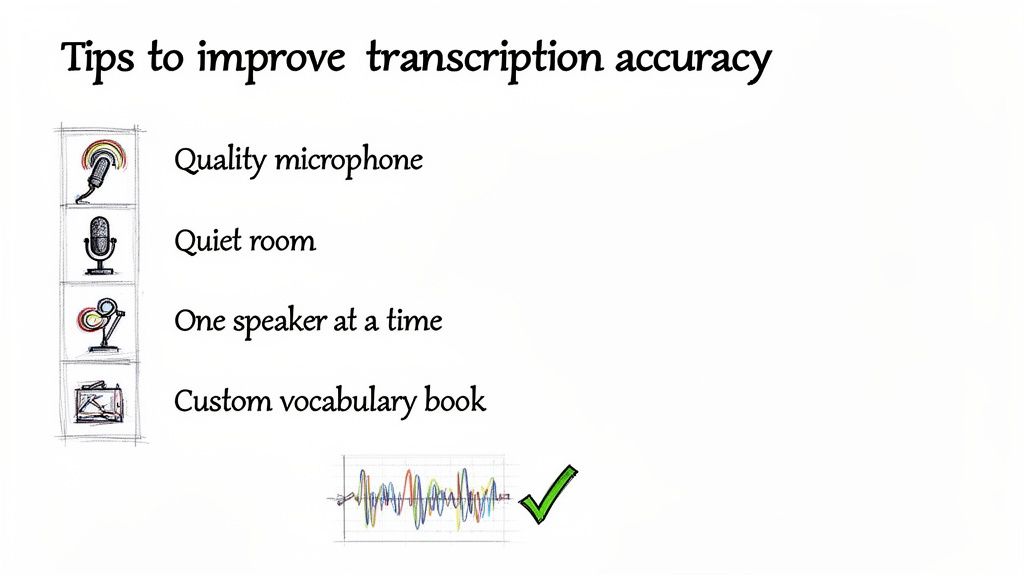
While Zoom AI transcription is surprisingly good right out of the box, you can take a few simple steps to get even better results. Think of it like this: you're feeding information to the AI. The clearer and cleaner the audio you provide, the more accurate the transcript will be.
It’s the oldest rule in computing: garbage in, garbage out. By making a few small adjustments to your setup and how you run your meetings, you can drastically cut down on transcription errors and save yourself a ton of editing time later.
Invest in a Quality Microphone
If you only do one thing on this list, make it this one. The biggest leap in accuracy comes from using a decent microphone. Your laptop's built-in mic is fine in a pinch, but it's designed to pick up everything—your typing, the air conditioner, your dog barking two rooms away.
An external USB mic or even a quality headset is built to focus on your voice and filter out that distracting background noise. This clean audio signal is the bedrock of an accurate transcript. When the AI doesn't have to strain to separate your voice from the chaos, its error rate plummets.
Control Your Environment
Background noise is the arch-nemesis of any transcription AI. The system has to burn extra processing power trying to figure out if that sound was you saying "launch" or a car horn outside. This is where you get those bizarre, nonsensical words in your transcript.
A simple rule of thumb is to treat your meeting like a recording session. Close the door, shut the window, and try to find the quietest space available. A little bit of preparation goes a long way in preventing garbled text.
If a silent room isn't an option, a noise-canceling headset is your best friend. It actively filters out ambient sounds before they ever get to Zoom's AI, doing much of the cleanup work for you.
Improve Speaking Habits
You don't need to speak like a robot, but clarity is key. Mumbling or talking too fast causes words to blur together, making it nearly impossible for the AI to tell where one word ends and the next begins. Aim for your normal conversational pace, but focus on enunciating.
It’s also crucial to get people to speak one at a time. When speakers talk over each other, the audio becomes a tangled mess. Even the most powerful AI can't reliably untangle that, which leads to incomplete sentences and wrongly attributed speakers in the final Zoom AI transcription.
A few quick tips can make a big difference:
- Pause Briefly: Take a quick breath before you start talking so the mic can cleanly pick up the start of your sentence.
- Moderate Pace: Speak at a natural, even speed. There's no need to rush.
- One at a Time: Encourage everyone to use Zoom’s "raise hand" feature in busy meetings to keep the conversation orderly.
Teach Zoom Your Lingo
Does your team use special acronyms, brand names, or technical jargon? Standard AI models won't know these terms and will often mis-transcribe them. Luckily, you can give Zoom a cheat sheet.
Zoom lets you create a custom vocabulary. By adding your company's unique terms, product names, and industry-specific acronyms to this list, you're essentially training the AI to recognize your language. Taking a few minutes to set this up will save you from correcting the same mistakes over and over again.
When to Use a Specialized Tool Like Whisper AI
Zoom’s built-in transcription is fantastic for day-to-day meetings. It’s right there, it’s convenient, and it does a respectable job of capturing what was said. But at some point, you might notice you’re bumping up against its limits, especially as your needs get more complex. This is the moment you don’t need to scrap your process—you just need to level it up with a dedicated tool.
Think of it like the camera on your phone. It's perfect for capturing everyday moments. But if you’re a professional photographer shooting for a magazine, you’re going to grab your DSLR for its powerful lenses, manual controls, and uncompromising quality. In the transcription world, a service like Whisper AI is that pro-grade DSLR. It's built from the ground up for people who need the absolute best in accuracy, flexibility, and analytical power from their audio and video.
Overcoming Platform Limitations
The biggest drawback of any built-in feature is that it lives inside its own little world. Zoom’s AI Companion is brilliant at transcribing Zoom calls, but what happens with that podcast interview you recorded in another app? Or the video file of a keynote speech a client just sent over? This is exactly where a dedicated service proves its worth.
A specialized tool like Whisper AI doesn't care where your audio comes from; it's platform-agnostic. It’s designed to handle audio and video from pretty much any source you can throw at it.
- Upload Anything: You can simply drag and drop audio or video files in dozens of different formats.
- Transcribe from Links: Got a link to a YouTube or Vimeo video? Just paste it in, and the tool will grab and transcribe the audio for you.
- Handle Any Content: It’s fine-tuned for a huge range of content, from podcasts and formal interviews to lectures and social media clips.
This freedom means you’re no longer stuck in one ecosystem. You can finally process all your media through a single, powerful, and consistent transcription engine. Instead of a complicated, multi-step process for different media types, you get a clean, simple workflow: upload your file, let the AI work its magic, and get a highly accurate transcript back, no matter where it started.
Gaining Unmatched Accuracy and Intelligence
While Zoom's accuracy has gotten really good, specialized models are constantly pushing the envelope. This is especially noticeable with challenging audio—think meetings with multiple speakers talking over each other, thick accents, or dense technical jargon.
A dedicated service like Whisper AI often uses state-of-the-art models to get remarkably close to human-level accuracy. It’s particularly strong with speaker detection (also known as diarization), cleanly separating who said what, even in messy, overlapping conversations.
For researchers, journalists, and content marketers, that level of precision isn't just a nice-to-have; it's essential. These tools also go way beyond just words on a page. They can provide intelligent summaries, pull out key highlights, and even let you ask follow-up questions about the content itself. You can find out more about how Whisper AI enhances transcription workflows in our in-depth guide.
So, a real power-user workflow starts to emerge. You can keep recording your meetings in Zoom, taking advantage of its excellent video conferencing platform. But once the call is over, you export the audio or video file and run it through Whisper AI for the final transcript. This simple two-step process gives you the best of both worlds: a reliable meeting platform and a world-class transcription and analysis engine. It’s the secret that helps global teams, researchers, and marketers turn everyday conversations into genuinely valuable assets.
Common Questions About Zoom Transcription
When you start digging into Zoom AI transcription, a few practical questions always come up. People often ask about the cost, how their data is handled, and who actually gets to use the feature. Let's clear up the confusion with some straight answers.
Is Zoom AI Transcription Free?
For most people with a paid account, the answer is yes. Zoom bundles its AI Companion—which includes transcription, summaries, and live captions—into all of its paid plans at no extra cost. So, if you're paying for any Zoom license, these AI tools are already yours to use.
This was a smart move by Zoom. Instead of charging extra, they've made their paid plans stickier by adding a ton of value. It instantly made powerful transcription available to everyone, from one-person consultancies to massive corporations.
How Does Zoom Handle My Data Privacy?
This is a big one, and Zoom's stance is pretty clear: they process your meeting data to generate the transcript, but they don't use it to train their AI models unless you explicitly say they can.
Your meeting audio, video, and chats are kept confidential. For any business worried about proprietary conversations getting fed into a public AI, this "no-train" policy is a critical reassurance. Your data remains your data.
Who Can Use the Transcription Feature?
To get things started, the meeting host needs to be on a paid Zoom plan. It's the host who has the power to enable AI Companion features for the meeting.
Once the host flips the switch, everyone in the meeting—even those on free accounts—can see things like live captions in real time. However, getting the full post-meeting transcript and summary is a different story. Access to those files is controlled by the host, ensuring the final recording only goes to the people who are supposed to have it.
If you need near-perfect accuracy, advanced analysis, or want to transcribe any audio or video file—not just meetings—it might be time to look beyond Zoom's built-in tool. Whisper AI is designed for just that. See how our platform can turn all your media into actionable, searchable text. Visit https://whisperbot.ai to get started.


























































































