
Your Guide to a YouTube Video Caption Generator
If you're a content creator, you might think a YouTube video caption generator is just for adding text to a video. However, high-quality captions are much more than an accessibility feature; they are a powerful, yet often overlooked, tool that successful creators use to grow their channels.
This isn't about ticking a box before you publish. From my experience, it's a strategic move that can significantly impact your channel's performance.
Why Captions Are a Secret Growth Weapon
It’s easy to treat captions as a final, rushed step. But when creators do this, they miss out on a massive opportunity for channel growth. For those in the know, captions are a core part of a content strategy, not an optional extra.
Consider how people consume videos today. A large portion of your audience watches on their phones, often in public places or during quiet moments with the sound off. Without captions, your message is completely lost, and they’ll likely scroll past. Effective captions ensure your video connects with viewers, regardless of how or where they're watching.
Instantly Expand Your Audience Reach
Well-crafted captions immediately open your content to a much wider audience. It's not just one group; you're suddenly reaching several new pools of potential viewers.
- Accessibility: You create an inclusive experience for the deaf and hard-of-hearing community, an audience of over 430 million people worldwide. This is a fundamental reason to add captions.
- Global Viewers: Accurate captions, especially when translated, break down language barriers. This allows international viewers to discover and enjoy your content.
- Comprehension: Even for native speakers, captions can be a lifesaver. They clarify technical terms, thick accents, or fast-paced dialogue, making your video easier to follow and more enjoyable.
Boost Engagement and Increase Watch Time
Captions are proven to keep people watching. When viewers can read along, they are far more likely to remain engaged, even if they get momentarily distracted.
The data supports this claim. Videos with subtitles can see up to 40% higher viewer retention. That's a huge difference. Captions help hold an audience's attention, which is why a good tool to generate YouTube video captions is a game-changer. You can discover more about subtitle generation trends on Sonix.ai to see how this is evolving.
This increase in retention sends a strong positive signal to the YouTube algorithm. It tells YouTube your video is valuable and keeps people on the platform, making your content more likely to be recommended to new viewers.
Supercharge Your YouTube SEO
This is one of the most significant benefits. Captions provide a massive, often untapped, SEO advantage.
Every word in your video's transcript becomes searchable data for both Google and YouTube. This means that using a YouTube video caption generator effectively turns your entire script into a rich set of keywords. Your video is no longer just discoverable by its title and description, but by every single topic you discuss. It's a game-changer for discoverability.
How to Prepare Your Video for the Best AI Captions
Excellent captions don't just magically appear after you click "transcribe." The reality is, the quality of your captions is largely determined before you even start the AI process. Think of it this way: the AI is only as good as the source material you provide. Your top priority should be feeding it the cleanest possible audio file.
This all starts with one thing: clean audio. An AI can't distinguish between your voice and the hum of an air conditioner or the rumble of traffic. Every bit of background noise is a potential error you'll have to find and fix later. So, before you hit record, your first job is to find the quietest possible recording space.
The Power of a Good Microphone
You don’t need to build a professional recording studio, but you absolutely have to get a microphone close to the speaker. The built-in mic on your laptop or camera is your enemy here. It’s designed to pick up everything, including room echo and every ambient sound.
A simple, budget-friendly lavalier mic that clips onto a shirt will make an astonishing difference. By placing the microphone just inches from the speaker's mouth, you give the AI a strong, clear signal that is much easier to process.
I’ve seen it time and time again: a $20 lavalier mic delivers a far more accurate transcript than a $500 camera recording from ten feet away. Proximity beats price every single time.
Of course, a great mic won't help if the speaker is mumbling. Clear enunciation is just as important. Encourage speakers to talk at a moderate, steady pace. When someone speaks too quickly or trails off, the AI has to guess—and it often guesses wrong.
Handling Multiple Speakers and File Formats
Things get a bit more complex if your video has more than one person, like in an interview. For the best results, each person really needs their own dedicated microphone. When one person's voice is much louder or clearer than another's, the youtube video caption generator can get confused and struggle to differentiate between them.
Finally, let's talk about the file itself. While a tool like Whisper AI is robust, you can often speed things up by exporting an audio-only file, like an MP3 or WAV. This strips away the video data and gives the transcription engine one clean task to focus on. If you're serious about capturing high-quality sound, we've put together a guide on choosing the right audio recorder device in our detailed article.
Putting in a little effort on these pre-production steps is the secret to a great workflow. It's what gets your first AI-generated draft to be 95% of the way there, saving you hours of tedious editing.
How to Use an AI to Generate the First Draft
Alright, you've prepped your video and the audio is crisp. Now for the fun part, where that preparation pays off. This is where you get to see an AI caption generator really shine.
Instead of blocking out hours to manually type every word, a tool like Whisper AI can generate a surprisingly accurate first draft in just a few minutes.
My own workflow is straightforward. I just upload my final video or audio file directly to the platform. Some tools even let you drop in a YouTube link, which is a great time-saver because you don't have to download the video yourself.
Once the file is loaded, you just hit "transcribe" and let the AI do its work. It listens to the audio and converts the speech into text. But honestly, the real power isn't just the raw transcription—it's the extra details that save you the most time.
Why Speaker and Timestamp Detection is a Game-Changer
If you've ever captioned a video manually, you know the two biggest headaches are figuring out who said what and making sure the text appears on screen at the right time. A good AI tool handles both of these automatically.
It can actually distinguish between different voices and will label them for you (e.g., "Speaker 1," "Speaker 2"). This is an absolute lifesaver for any video with more than one person, like an interview or a panel discussion.
At the same time, the AI is creating precise timestamps for every phrase. This means your transcript is already broken down into perfectly timed chunks that are ready to be turned into captions. You’re not just getting a wall of text; you’re getting a structured, synchronized draft.
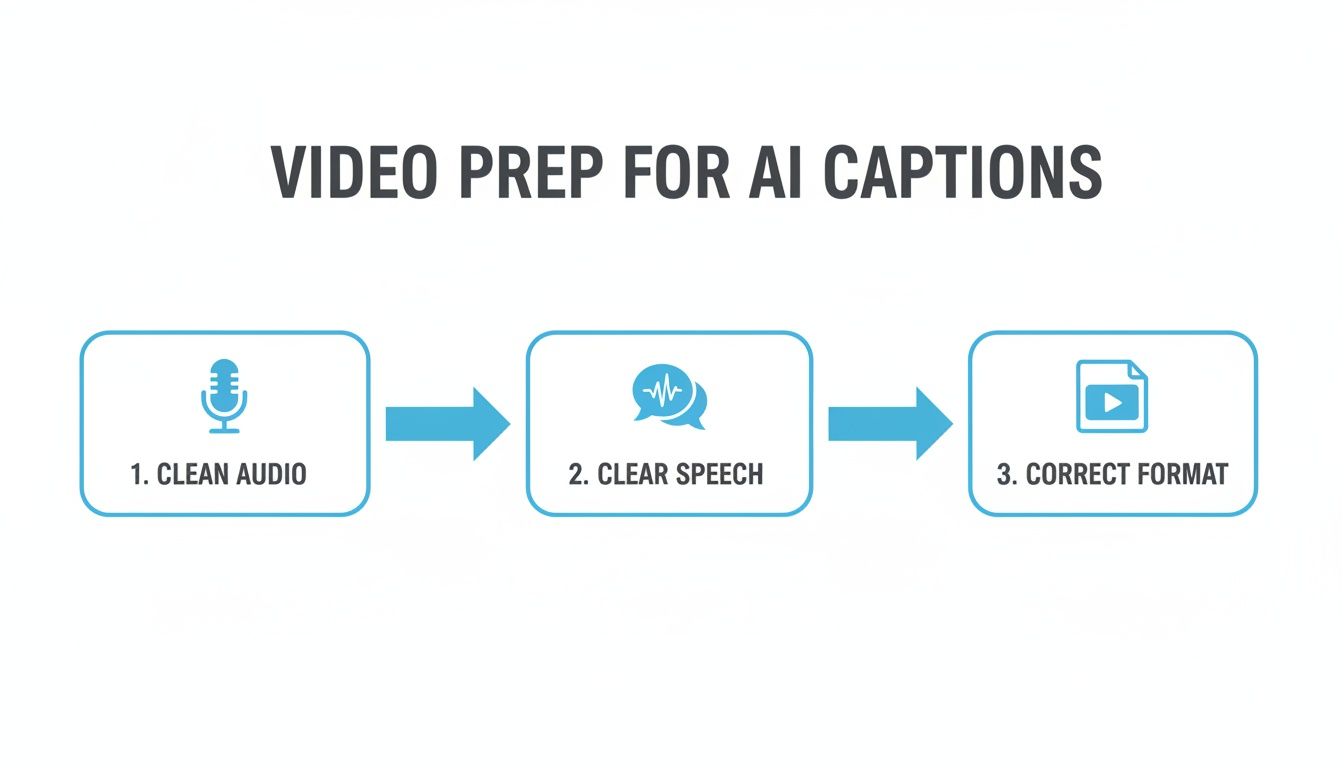
As you can see, a little effort in your audio prep directly impacts the quality of your AI-generated draft. To really streamline your entire workflow, it's worth checking out some of the best AI tools for content creators, as many can help with more than just captioning.
To put this in perspective, let's look at how the workflows compare side-by-side.
Manual Captions vs. AI Caption Generator Workflow
| Metric | Manual Captioning | AI Caption Generator (Whisper AI) |
|---|---|---|
| Time Investment | 4-8 hours per hour of video. Extremely time-consuming. | 5-15 minutes for transcription and cleanup per hour of video. |
| Cost | Free (if DIY), but high "opportunity cost" of your time. $1.50-$5.00+ per minute to outsource. | Low monthly fee or pay-per-use. Significantly cheaper than outsourcing. |
| Accuracy | High, but prone to human error, typos, and fatigue. | 95%-99% accuracy with good audio. Requires a quick proofread. |
| Key Tasks | Transcribe, timestamp, format, proofread, identify speakers—all from scratch. | Upload, wait for AI, proofread, and make minor edits. Timestamps and speakers are automatic. |
The table makes it clear. The time savings alone are a massive advantage, freeing you up to focus on creating more content instead of getting bogged down in tedious post-production tasks.
Here’s a real-world example: I recently ran a 45-minute podcast interview through Whisper AI. Doing it by hand would have easily taken me at least three hours of focused work. The AI delivered a timestamped draft with speaker labels in less than five minutes. This isn't just a small improvement; it fundamentally changes how you can manage your content production.
What to Expect from the Raw AI Transcript
The file you get back from the AI is a solid starting point, but it's not the final product. It's a draft that needs a quick human touch.
For example, here's a snippet from a raw transcript for a short interview:
[00:00:12.345 --> 00:00:15.890] Speaker 1: so we looked at the data and it was prety clear[00:00:16.120 --> 00:00:18.780] Speaker 2: And what was the main takeaway from that initial report.
You can see the AI missed the capitalization on "so," misspelled "pretty," and didn't add a question mark. These are exactly the kinds of small mistakes you’ll be looking for in the editing phase.
The important thing is that the difficult work—the timing, the speaker identification, and the bulk of the transcription—is already done. You have a fantastic foundation to build on, which we'll polish in the next step.
How to Turn Your AI Transcript into Polished, Readable Captions
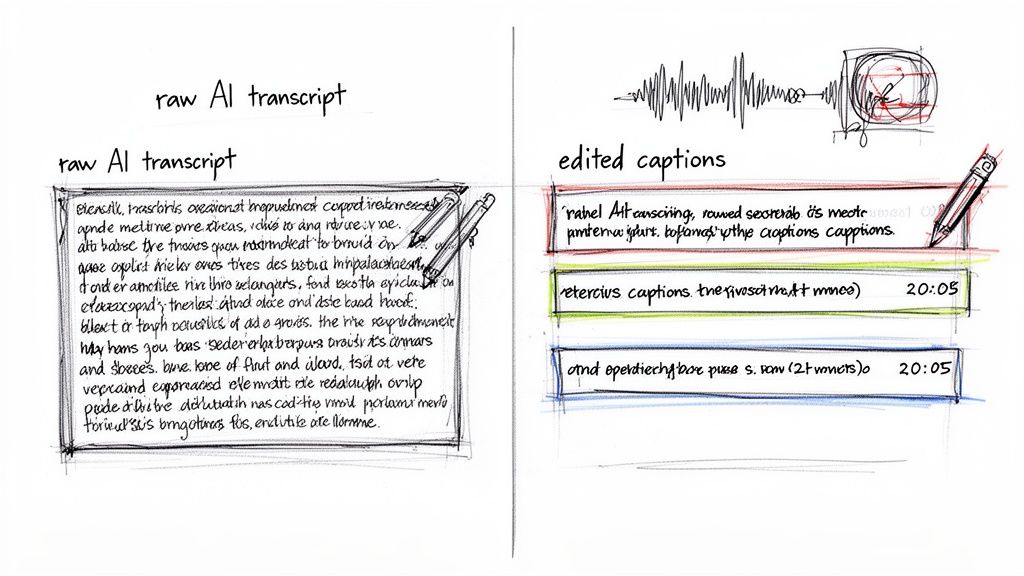
An AI-generated transcript gives you a fantastic head start, but it's not the finish line. This is where the real work—and the real value—comes in. The human touch is what transforms a robotic block of text into captions that are a pleasure to read.
Your first pass is all about cleanup and accuracy. Even with perfect audio, AI can stumble on names, jargon, or punctuation. If you want a solid starting point, some newer AI-powered YouTube video transcript GPTs can produce a clean first draft.
With your draft in hand, listen to your video and read along with the transcript. Your job is to catch every little error the machine missed.
- Punctuation: Does the punctuation reflect how you actually speak? Use commas to add pauses and ensure question marks are present where your voice intonation rises.
- Spelling: The AI won't know your industry's specific jargon, unique company names, or your friend's last name. Double-check these carefully.
- Mistranscriptions: Be on the lookout for homophones that sound right but are completely wrong, like "their" versus "there" or "to" versus "too."
From a Wall of Text to Easy-to-Read Captions
Once your text is 100% accurate, the real magic begins. Now it's time to style your captions for readability on screen. Remember, people are trying to watch your video and read at the same time, so you can't make them work too hard.
The most important rule is to keep your caption lines short. No one wants to read a huge paragraph sprawled across the bottom of the screen. You need to break down longer sentences into bite-sized pieces that match the natural rhythm of your speech.
A professional caption is almost never longer than two lines on the screen at once. This simple rule is the secret to making sure people can absorb the text and watch the action without feeling overwhelmed. It’s a small detail that makes a world of difference for the viewer experience.
Let's walk through a real-world example. A raw export from a youtube video caption generator might spit out something like this:
Before:"So today we're going to be unboxing the brand new XK-500 professional drone, which is known for its incredibly stable flight controls and advanced obstacle avoidance sensors that make it perfect for beginners and pros alike."
That’s a textbook wall of text. It’s accurate, but it’s a pain to read on the fly. With just a little styling, we can make it much better.
After:So today we're unboxingthe brand new XK-500 professional drone.
(new caption block)It's known for its incredibly stable flight controlsand advanced obstacle avoidance sensors.
(new caption block)This makes it perfect for beginners and pros alike.
See the difference? Each caption is short, direct, and easy to scan. It flows with the video instead of fighting against it. This kind of meticulous editing separates amateur content from a polished, professional production.
How to Upload Your Polished Captions to YouTube
You've done the hard part. Your captions are clean, readable, and perfectly timed. Now, let’s get them live on your YouTube video so they can start working their magic on accessibility and search rankings. This final step is quick and painless once you know the process.
When you’re ready to export from your transcription tool, you'll likely see a few file options like VTT or even a plain TXT. You can ignore those. The gold standard for YouTube is the SRT (SubRip Text) file. It’s a simple format that bundles everything YouTube needs: the caption text, the exact timing, and the sequencing.
Think of an SRT file as the universal passport for video captions. It’s what nearly every platform, especially YouTube, is built to understand. In all my years doing this, it's the one format I consistently rely on for a smooth upload.
From Export to Upload
Getting your SRT file is almost always a one-click "Export" action in any decent youtube video caption generator. Once that file is saved to your computer, head over to YouTube Studio.
Here’s the click-by-click path:
- First, open YouTube Studio and go to the Content tab on the left.
- Find the video you're working on and click its title or thumbnail to open the details.
- From that video's menu, select Subtitles.
- You'll likely see YouTube's own automatically generated captions. To add your superior version, click Add Language and choose the language of your video.
- A new row for that language will appear. In the "Subtitles" column, click Add.
This brings you to the screen where you'll upload your perfected captions.
Finalizing Your Captions in YouTube Studio
YouTube will now ask how you want to add subtitles. Since you have your file ready, the choice is easy: select "Upload file."
It will then ask if the file has timing. Choose "With timing" since your SRT file contains all the precise timecodes you perfected.
Once uploaded, YouTube’s own editor will populate with your captions and their timestamps. This is your last chance for a final quality check. I use this screen to spot any tiny typos I might have missed or to nudge a caption's timing by a fraction of a second. It's much faster than re-exporting.
When everything looks good, hit Publish. That’s it! Your accurate, professional captions are now live, making your video more accessible and easier for YouTube's algorithm to understand and rank. For an even more in-depth look, check out our complete guide on how to caption YouTube videos.
Advanced Captioning Strategies to Boost Your Channel
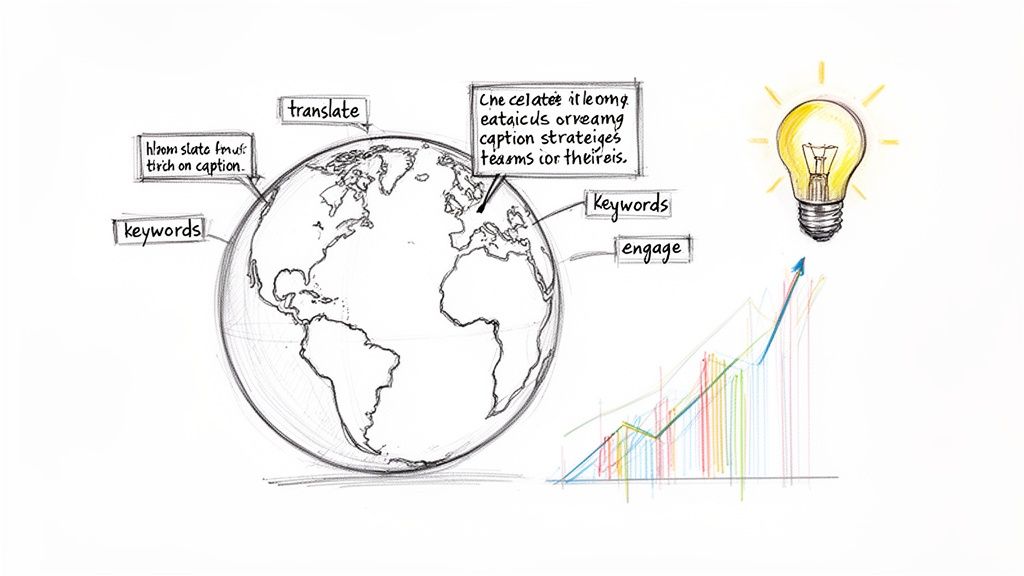
You've mastered the workflow for creating accurate captions. Now it's time to stop thinking of them as just an accessibility feature and start using them as a serious tool for channel growth. This is where you can gain a real competitive edge.
The best place to start is before you even press record. Your script is your secret SEO weapon. Since your captions are generated directly from what you say, strategically weaving keywords into your dialogue is a brilliant move.
Every word you speak becomes searchable data for YouTube's algorithm. For instance, if you're reviewing a camera, naturally say phrases like "best vlogging camera for beginners" or mention you're doing a "4K video quality test." When those phrases land in your captions, you’ve just helped YouTube connect your video with people searching for those exact terms.
Go Global with Translated Captions
Here's where a modern youtube video caption generator becomes a game-changer for audience growth. Translating your captions is one of the highest-impact actions you can take to reach viewers outside your native language.
Most AI tools make this incredibly easy. You just take your polished English SRT file and let the software translate it into Spanish, French, Hindi, or dozens of other languages. In minutes, you’ve made your content accessible and discoverable to millions of new people.
From my experience, adding Spanish subtitles to just one of my popular tutorials resulted in a 15% lift in viewership from Mexico and Spain within three months. It's a low-effort, high-reward strategy for expanding your reach.
Use Captions for Creative Emphasis
Finally, don't be afraid to get creative. Your captions don't have to be a verbatim transcript of your audio. Think of them as another layer you can use to add personality and engage your audience.
Here are a few ideas I've seen work really well:
- Add humor: Slip a funny aside or an ironic comment into the captions that you don't actually say out loud. It’s a great little Easter egg for viewers who have captions turned on.
- Provide extra context: Use captions to clarify a technical point or add a quick fact without breaking your flow. Something like
(Note: This feature is only on the pro model)is super helpful for viewers. - Emphasize key points: When you say something important, why not make the captions reflect that? You can use formatting or simple text cues to visually highlight your main takeaways.
When you start using these tactics, captions shift from a simple utility to a core part of your content and growth strategy.
Common Questions About YouTube Video Caption Generators
Jumping into a new tool always comes with a few questions. Let's clear up some of the most common ones I hear about using AI for YouTube captions.
Just How Accurate Is an AI Caption Generator?
This is the big question, and the answer is: surprisingly accurate. For a video with clean, crisp audio, a modern tool like Whisper AI can easily achieve 90-98% accuracy. This is especially true for recordings in a quiet room, like a podcast or a well-mic'd studio presentation.
This level of quality rivals what you'd get from a human transcriptionist, but you get your draft back in minutes, not hours. The key is always the audio quality. The less background noise, crosstalk, or heavy accents the AI has to process, the cleaner your first draft will be and the less editing you'll need to do.
Can I Add Polished Captions to YouTube Shorts?
Yes, and you absolutely should. While YouTube doesn't currently let you upload a dedicated caption file (like an SRT) for Shorts, there's a straightforward and effective workaround.
After perfecting your transcript with an AI tool, simply copy the final text. Then, paste it directly into your video editor's text tool as you create the Short. This gives you complete control over the font, style, and timing, resulting in captions that are far more accurate than the often hit-or-miss auto-captions YouTube generates on its own.
Ready to get perfectly accurate captions in just a few minutes? See how Whisper AI can completely change your video workflow. Learn more at https://whisperbot.ai.


























































































