
Audio to Text on Mac: Best Tools & Methods for 2026
You've got the recording. Now you need the text.
That's the moment most Mac users hit the same confusion. Apple gives you Dictation, Voice Memos, Notes, and a growing set of speech features, so it feels like audio to text on Mac should be easy. Sometimes it is. Sometimes it absolutely isn't.
The difference is the workflow. If you're speaking live into your Mac to draft notes, built-in tools are convenient. If you're trying to turn a recorded interview, lecture, meeting, podcast, or video into clean text, you need to stop thinking “dictation” and start thinking “file-based transcription.”
Your Guide to Mac Audio Transcription
Individuals looking for audio to text on Mac generally have one of two main needs.
The first is simple. You want to talk and see words appear in a document, email, or note. That's live dictation. The second is heavier. You already have an audio or video file and need a usable transcript. That's transcription.
Those sound similar, but they behave very differently in practice. A lot of frustration comes from using the wrong tool for the wrong job. If you try to push recorded audio through a feature designed for live speech input, the experience usually feels clumsy, even if the Mac itself is working as intended.
Here's the practical split:
- Use built-in Mac tools when you want quick personal notes, rough drafting, or lightweight transcription inside Apple's ecosystem.
- Use a dedicated transcription workflow when the file matters, the audio is messy, or you need speaker labels, timestamps, and editable output.
Practical rule: Choose the tool based on the source. Live voice goes to dictation. Saved files go to transcription software.
That distinction saves time immediately. It also helps you ignore a lot of bad advice online, where “speech to text” gets treated like one feature instead of several separate workflows.
If you want a broader look at how file transcription works across devices and formats, this guide to audio-to-text workflows is a useful companion. For Mac users, though, the primary question is simpler: are you speaking now, or are you transcribing something that already exists?
Once you answer that, the right setup becomes much easier.
Using Your Mac's Built-In Transcription Tools
Apple gives you two very different native options. One is old-school Dictation for live speech input. The other is the newer file transcription route inside Voice Memos and Notes on newer macOS versions.
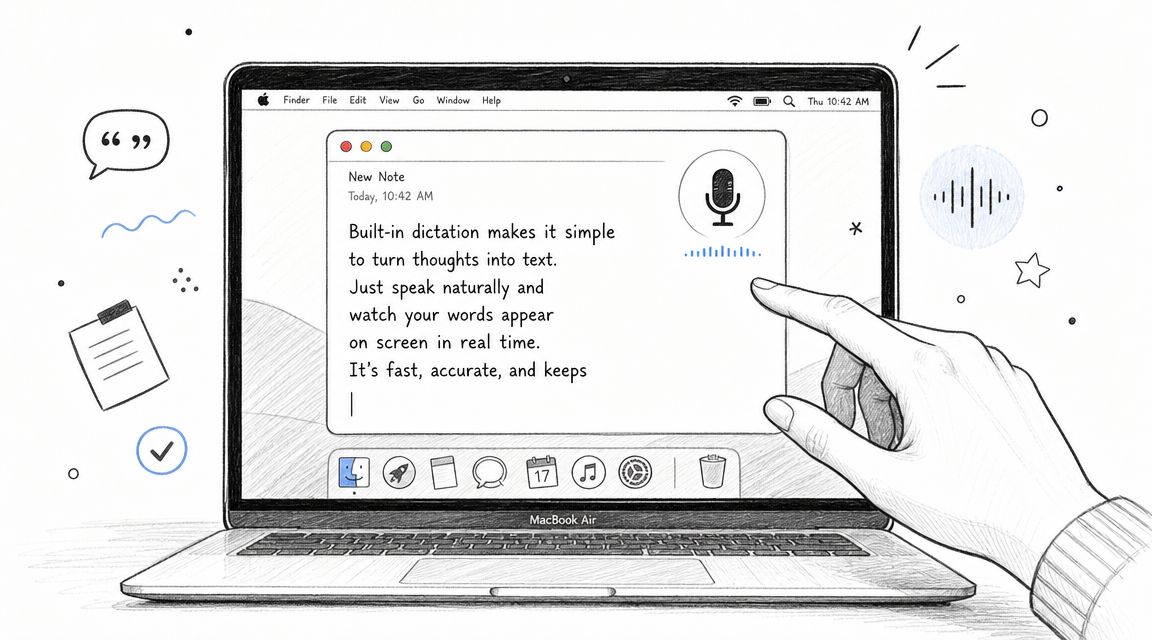
Using Dictation for live speech
Apple's Mac Dictation documentation makes the setup straightforward. You turn it on in System Settings > Keyboard > Dictation, then start it with the Microphone key, a keyboard shortcut, or Edit > Start Dictation. Apple also notes that it can run for any length of text, but it stops automatically after 30 seconds of no speech.
That tells you exactly what Dictation is for. It's a system-level live input tool, not a batch transcription engine.
It works well when you're:
- Drafting a message and want hands-free input
- Taking quick notes during solo work
- Thinking out loud into Pages, Notes, or a text field
It's less useful when you're:
- Playing back a recording and hoping the Mac will transcribe it cleanly
- Handling multiple speakers
- Working from noisy source audio
Dictation is at its best when you can pause, correct, and continue.
That's why it feels smooth for writing and awkward for recorded media.
Using Voice Memos and Notes for recorded files
If you're on macOS Sequoia or later, the more relevant built-in option is transcription inside Voice Memos and Notes. A practical walkthrough from MacMost's guide to transcribing audio on a Mac shows that you can import recorded audio and view the transcript under a Transcript tab. It also notes that the language must be set to English for one of Apple's supported countries.
This is the first native Mac workflow that feels like file-based transcription rather than keyboard dictation.
A few practical notes matter here:
- Imported files matter: If the app won't accept the file, the problem is often format compatibility rather than speech recognition.
- Video may need prep: You can convert video to audio first, then import the audio for transcription.
- Single-speaker audio is easier: Clean lecture audio and simple voice notes are a better fit than cross-talk and chaotic room recordings.
If you regularly work with Apple recordings, this companion guide on transcribing Voice Memos is worth keeping around.
Here's a quick visual overview of the native route in action:
What built-in tools do well
Apple's tools are solid for convenience. They're already on the Mac, tightly integrated, and easy to reach.
They're a good fit when your priority is:
| Good use case | Best built-in option |
|---|---|
| Speaking directly into your Mac | Dictation |
| Transcribing a clean saved audio file | Voice Memos or Notes |
| Casual personal notes | Either, depending on source |
Where they fall short is the stuff professionals care about. Messy interviews, overlapping speakers, inconsistent volume, imported media from different sources, and polished deliverables all push beyond the comfortable limits of the native setup.
For Accurate Results Use a Dedicated AI Tool
The most common mistake I see is this: someone has a recorded interview or lecture, opens Dictation, presses play, and expects a transcript. That workflow fights the tool from the start.
MacMost says Dictation “won't work well with recorded dictation” in its forum explanation of Mac transcription workflows. That matches real use. Dictation is for active speech input where the user can pause and fix errors as they go. Recorded files need a service that's built to ingest files directly.
What a dedicated tool changes
A dedicated AI transcription tool handles the job as a document workflow, not a keyboard input trick.
That means you can usually expect features like:
- Direct file upload for audio and video
- Language selection before processing
- Speaker detection for interviews, meetings, and podcasts
- Timestamps so you can jump back to the exact moment in the recording
- Export options that fit editing, publishing, and note-taking
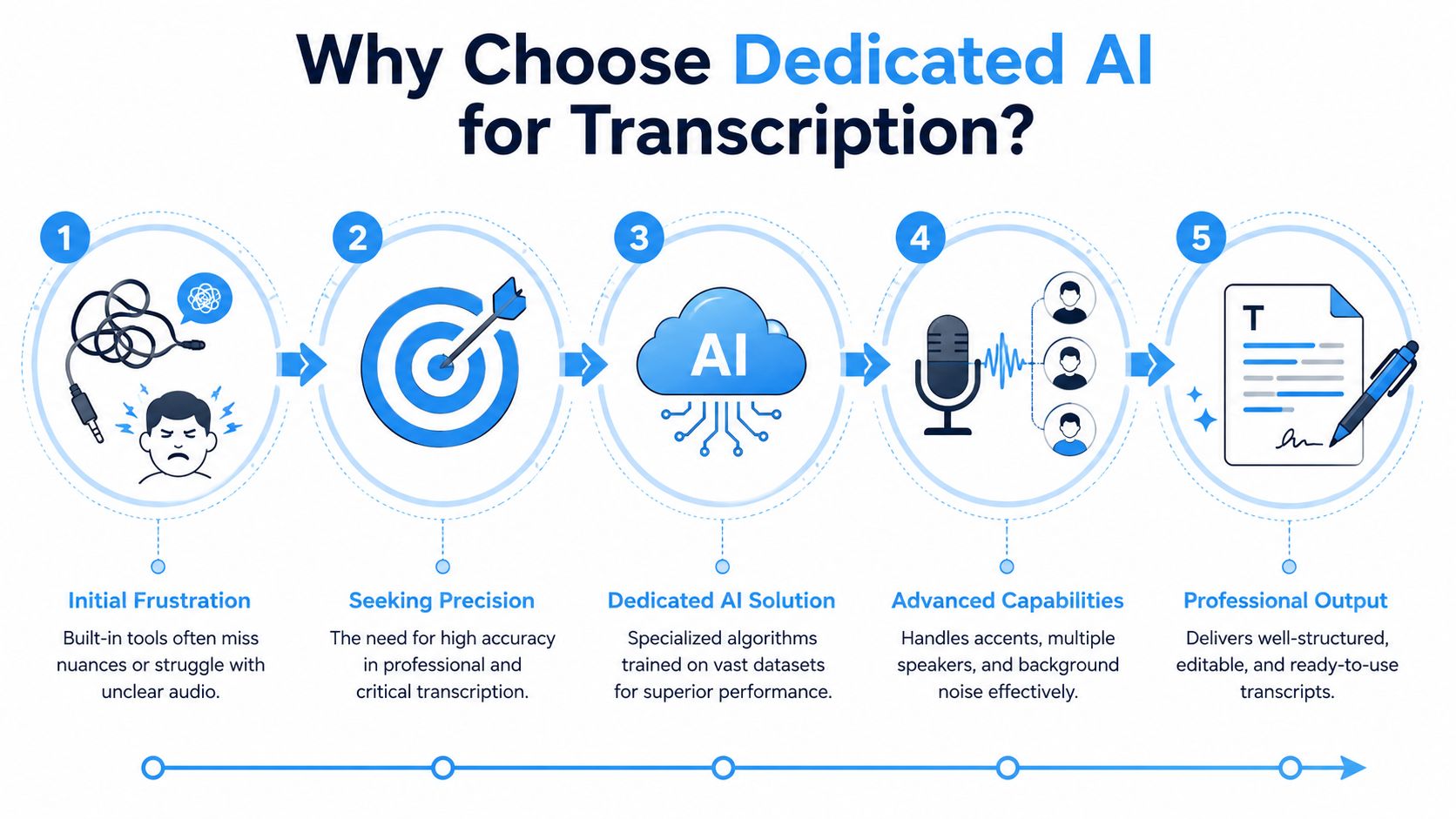
Those features aren't just nice extras. They solve the worst parts of manual cleanup. If you've ever had to identify who said what in a roundtable interview or find one quote buried deep in a long recording, you already know why timestamps and speaker labels matter.
A practical professional workflow
For professional transcription, the flow is usually simple:
Upload the source file
Start with the original audio or video. If your work involves clips from social platforms, use a tool that can also ingest links when needed.Choose the language and settings
This matters more than people think. Even good systems need the right language context.Enable speaker detection if the recording includes more than one voice
This turns an unreadable block of text into something you can edit.Review the transcript with timestamps visible
Don't edit blind. Jump between transcript and source audio as you verify names, jargon, and quotes.Export to the format your workflow needs
Writers often want plain text or Markdown. Teams may want Word, PDF, or a shared doc.
If you're evaluating software beyond transcription alone, this roundup of best AI tools for productivity gives useful context on where transcription fits in a larger content or knowledge workflow.
One option in this category is an AI transcription tool like Whisper AI, which handles uploaded audio, video, and links, then returns searchable transcripts with speaker detection, timestamps, and exportable text. That kind of setup is where Mac users usually land when the recording has real stakes and the built-in route starts costing more time than it saves.
Clean output matters more than “free” once you're spending your own time fixing the transcript.
That's the key upgrade. You're not paying for text alone. You're paying to avoid re-listening, reformatting, and reconstructing the conversation from a rough draft.
Comparing Mac Transcription Methods
A Mac can handle two very different transcription jobs, and people often mix them up. One is live dictation, where you speak and the Mac turns your voice into text as you go. The other is file-based transcription, where you upload a recording and expect a usable transcript back. Those are different workflows, with different limits.
Apple has improved the second category. You can now do more with recorded audio inside the built-in apps than you could a few macOS versions ago. That helps for personal notes, short voice recordings, and light admin work. It does not erase the gap between "I need the words" and "I need a transcript I can trust."
The practical question is simple: are you capturing ideas in the moment, or processing audio that already exists? Start there, and the tool choice gets easier.
Mac Transcription Options at a Glance
| Feature | macOS Dictation | Voice Memos (Sequoia+) | Whisper AI |
|---|---|---|---|
| Primary use | Live speech input | File-based transcription inside Apple apps | Dedicated file transcription workflow |
| Best for | Quick notes and drafting | Clean recorded audio already in your Apple workflow | Interviews, meetings, podcasts, lectures, video |
| Accuracy on simple audio | Good for live solo speech | Good for straightforward recordings | Handles simple audio well, and usually holds up better as complexity rises |
| Speaker detection | No | Limited | Yes |
| File support | Not built for uploaded recordings | Imported audio, sometimes with extra prep | Broad support for audio, video, and link-based inputs |
| Timestamps | No | Limited | Yes |
| Output readiness | Rough draft text | Fine for lighter review and reference | Better for editing, quoting, publishing, and shared work |
| Cost | Built in | Built in | Paid service or app, depending on tool |
How to choose without wasting time
Dictation is the fastest option if the job starts with you speaking into the Mac right now. I use it for quick outlines, email drafts, and notes I plan to clean up myself. It is not the right tool for turning a recorded interview or meeting into a transcript.
Voice Memos or Notes makes sense when the audio file is clean, the stakes are low, and you want to stay inside Apple's apps. For a short memo to yourself, that can be enough.
Whisper AI fits the other kind of job. If the recording has multiple speakers, messy audio, long runtimes, or any deadline attached to it, dedicated transcription tools usually save time because they return text that needs less repair.
That trade-off matters more than the feature list. Free and built in sounds good until you spend half an hour fixing names, separating speakers, and checking where quotes begin and end.
My rule is straightforward. Use live dictation for capture. Use built-in file transcription for convenience. Use a dedicated AI tool when the transcript needs to hold up in real work.
Pro Tips for Better Accuracy and Formatting
Transcription quality starts before you click upload. Most errors aren't caused by the model alone. They start with bad source audio, unclear speakers, and unrealistic expectations.
Apple's WWDC session on newer speech tooling highlights the core reality in its discussion of on-device speech analysis. Accuracy depends heavily on audio conditions, and harder situations like noisy recordings or multi-speaker conversations require trade-offs between privacy, local processing, and more capable cloud systems.
Improve the input first
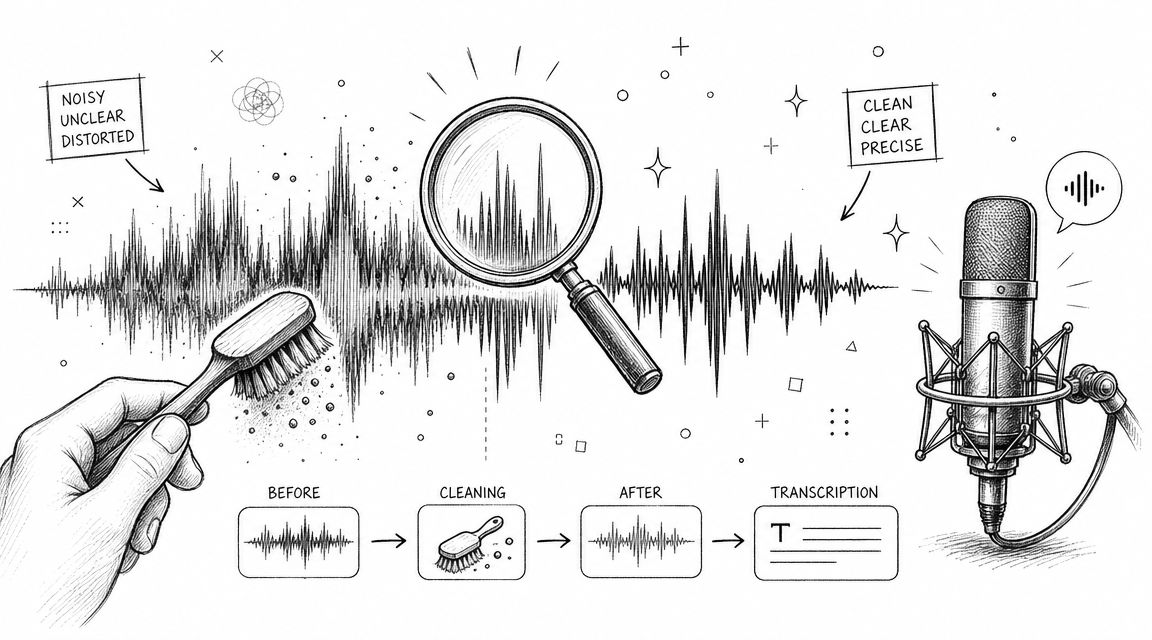
A better recording beats a clever fix later.
Use these habits whenever you can:
- Get the mic closer: Distance hurts clarity fast. Even a basic external microphone usually beats a laptop mic across the room.
- Reduce competing sound: Fans, traffic, room echo, and keyboard noise all make transcripts worse.
- Separate speakers when possible: If two people keep talking over each other, the transcript becomes harder to read and harder to trust.
- Check names and jargon early: Product names, technical terms, and surnames are common cleanup points.
The transcript is only as good as the audio you feed it.
Edit smarter, not line by line
Don't start by reading the entire transcript from top to bottom. That's the slowest possible way to clean it.
Instead:
- Scan for obvious trouble spots such as abrupt wording changes, repeated fragments, and garbled proper nouns.
- Use timestamps to jump straight to unclear moments.
- Fix speaker labels first in interviews and meetings, because the structure makes the rest of the edit easier.
- Export into the format you typically write in so you're not doing formatting work twice.
Think about privacy before you choose the tool
Here, Mac users should slow down.
Some workflows lean toward on-device processing, which can be appealing for sensitive recordings. Others rely on cloud-based AI, which may offer stronger handling for difficult audio or richer output options. Neither is automatically right for every job.
Use on-device or local-first options when:
- The content is sensitive
- You need tighter control over where processing happens
- The file is simple enough that local performance is acceptable
Use a cloud workflow when:
- The recording is messy
- You need speaker separation and polished output
- Collaboration or export flexibility matters more than keeping everything local
The right answer depends on the recording, not ideology.
Frequently Asked Questions
Can I transcribe audio in languages other than English on my Mac
For Apple's newer built-in file transcription workflow, language support is more limited in practice. MacMost notes that the macOS Sequoia Voice Memos and Notes transcription workflow requires English set to one of Apple's supported countries in the setup it demonstrates. If you regularly work across many languages, dedicated transcription tools are usually the more practical route.
How do I transcribe a YouTube video on a Mac
There are two workable approaches. You can extract or convert the video into an audio format and then import it into a transcription app, or you can use a transcription service that accepts links directly. If you stay inside Apple's built-in path, file compatibility matters, so conversion is often part of the process.
Is there a limit to the length of audio I can transcribe
For live Dictation, the bigger practical limit is that it stops after 30 seconds of no speech, which makes it a poor fit for passive playback. File-based transcription tools are the better choice for long recordings because they're designed around saved media rather than live keyboard input.
What's the fastest option for quick notes
Use Dictation. It's built into macOS, available system-wide, and ideal when you're speaking directly into your Mac instead of working from a saved recording.
What's the better option for interviews or meetings
Use a dedicated transcription workflow with speaker labels and timestamps. That structure matters more than raw text when multiple people are talking.
If you need a practical way to turn recordings into searchable transcripts without fighting your Mac's live dictation tools, Whisper AI is built for the file-based workflow. Upload audio, video, or a link, get back text with timestamps and speaker labels, then export it in the format you use.


























































































