
How to Download Zoom Recording: All Scenarios 2026
The meeting is over, everyone leaves the call, and the useful part starts.
You need the recording now. Not tomorrow, not after digging through three folders, not after asking your team which Zoom account hosted the session. Maybe it was a client interview you want to turn into notes. Maybe it was a webinar you plan to clip for YouTube. Maybe it was an internal review call that needs a clean transcript before details fade.
A lot of people stop at “the meeting was recorded.” That is not the finish line. A recording sitting inside Zoom, or buried somewhere on a laptop, is still trapped content. It is hard to search, hard to reuse, and easy to lose track of if you do not download and organize it quickly.
Effective workflow starts with one simple move: download zoom recording files while the meeting is still fresh in your head. That is when you still remember the topic, the speakers, and what you want to do with the file next.
Your Zoom Meeting Ended What Happens Now
The most common mistake happens right after a good call. People assume Zoom will keep everything tidy for them forever.
Then the scramble begins. Someone asks for the file. Another person wants the transcript. A producer wants the audio-only version. A marketer wants clips. Nobody remembers whether the session was saved locally, recorded to the cloud, or shared with download permission.
That is why I treat every Zoom recording like raw source material. If the call mattered, I do not leave it sitting where it landed. I pull it down, rename it, and decide what role it plays in the content pipeline. That one habit saves a lot of second-guessing later.
Three common post-meeting situations come up again and again:
- Interview workflow: You finished a guest interview and need the MP4 for editing, the audio for a podcast feed, and text for article drafting.
- Team workflow: A planning call ended, and people want searchable notes instead of rewatching the full thing.
- Training workflow: A walkthrough or demo needs to become a reusable resource for future hires or clients.
If your end goal is recap material rather than a full transcript, it helps to see how teams turn long conversations into concise notes. This guide on how to summarize a meeting shows what that next step can look like once you have the file in hand.
Practical rule: if a meeting matters, download the source files the same day. Waiting creates naming problems, access problems, and memory gaps.
The rest of the process depends on one thing people often skip. You need to know where the recording lives.
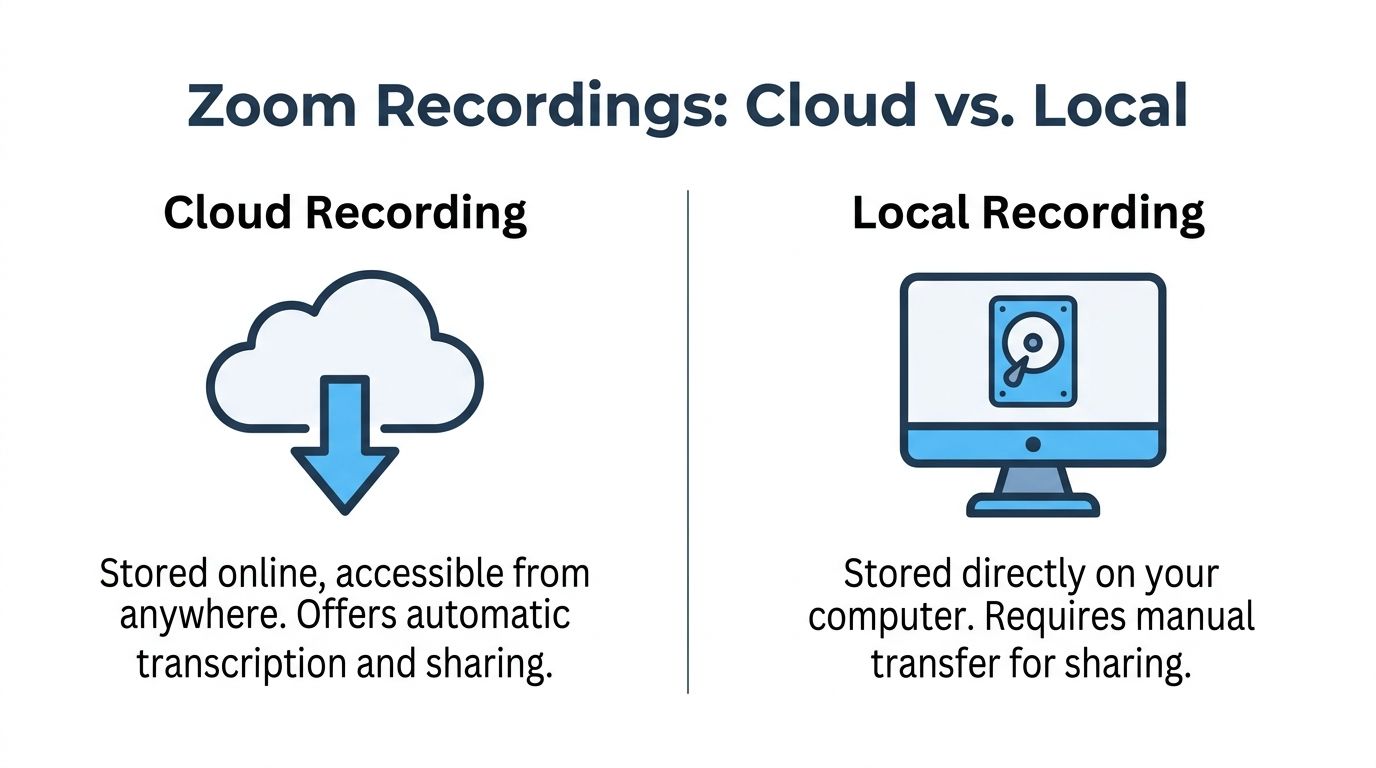
Cloud vs Local Recordings A Quick Primer
Start with one question. Where did Zoom save the meeting?
Before you try to download zoom recording files, confirm whether the session was saved as a cloud recording or a local recording. That single detail determines who can access the file, where you need to look, which assets are available, and how much cleanup you will need after the download.
What cloud recording means in practice
A cloud recording lives in the Zoom web portal under the host account. It is usually the better fit for teams that need fast sharing, remote access, and extra outputs from the same meeting.
In practical terms, cloud recordings are easier to turn into working assets. You may get the full video, an audio-only export, captions, transcript files, and different layouts depending on the account setup. That matters after the download. Editors want the MP4, podcast teams want the M4A, and operations teams often just want searchable text.
The trade-off is control. If the host loses access, disables downloads, or runs into account storage limits, everyone else gets blocked until that is fixed.
What local recording changes
A local recording is stored on the computer that recorded the meeting. For solo creators and producers, that often means faster access and fewer permission headaches because the source file is already on the machine that will be used for editing.
Local is also the safer option when you care about preserving the best source material for clipping, reframing, color correction, or subtitle burn-in. In my workflow, local files are usually the ones I keep as the master copy. They are simpler to archive, back up, and reprocess later with transcription or repurposing tools.
The downside is obvious. Nobody else can grab the file until someone manually uploads or shares it.
A side by side view
| Recording type | Best when you need | Main drawback |
|---|---|---|
| Cloud recording | Quick sharing, access from anywhere, downloadable extras like audio or transcript files | Dependent on host permissions and account storage |
| Local recording | Better file control, easier archiving, cleaner source footage for editing | Stuck on one device until someone moves it |
If you work across platforms, this storage confusion is not unique to Zoom. This guide on where to find Google Meet recordings is useful for comparing how different platforms hide recordings behind different account and storage rules.
Quick decision rule: choose cloud when speed of access matters most. Choose local when the recording will be edited, repurposed, or turned into a long-term content asset.
Downloading Recordings as the Meeting Host
The meeting ends, everyone drops off, and now you need the file before the next task starts piling up. As host, you are in the best position. You either already have the local recording on the computer that captured it, or you can pull the cloud version from your Zoom account and save the format that fits the job.
Find a local recording on your computer
Local recordings are usually the fastest host workflow because the file is already on the machine that did the recording. Open the Zoom desktop app, check the recorded meetings area if you use it, or go straight to the folder Zoom was set to use for saved recordings.
A practical sequence looks like this:
- Open the Zoom desktop app.
- Check your saved recordings area, or open the default recording folder on your computer.
- Find the meeting folder with the converted files.
- Open it and confirm which files you need.
- Move those files into your main archive instead of leaving them in Zoom's default folder.
Do the rename step immediately. Waiting until later is how you end up with five versions of the same client call and no idea which one has the clean audio.
Date-first naming holds up well over time:
- 20260118-client-interview.mp4
- 20260118-client-interview-audio.m4a
- 20260118-q1-planning-notes.txt
That naming pattern seems boring. It saves hours once your archive grows.
Download a cloud recording from the Zoom web portal
For cloud recordings, the cleanest route is the Zoom web portal on desktop. Sign in with the same host account that owned the meeting. If you use multiple Zoom logins for different teams or clients, check that first. A surprising number of "missing recording" problems come from being in the wrong account.
Then follow this process:
- Open a desktop browser and sign in to your host account.
- In the left menu, open Recordings.
- Choose Cloud recordings.
- Search by date, meeting title, or meeting ID.
- Open the recording entry.
- Click Download or use the available file options.
- Save the file to your computer.
- Rename it before you open your editor, upload it to Drive, or send it to anyone else.
Desktop is still the better choice here. It is more reliable for larger files, easier to verify where the download went, and simpler to manage if Zoom gives you multiple file types.
Pick the right file type
Hosts often waste time by downloading the largest file first, then realizing they only needed audio or a transcript.
Use the file that matches the next step in your workflow:
- MP4: best for editing video, clipping highlights, review, and repurposing into social or course content
- M4A: best for transcription, podcast prep, AI note extraction, or any workflow that only needs speech
- Transcript or text files: useful for search, summarization, show notes, and pulling quotes fast
- Gallery or speaker layout variants: useful when screen composition matters and you need to preserve who was visible
In my workflow, I usually grab both the MP4 and the audio-only file if the meeting is important. Video becomes the archive master. Audio moves faster through transcription and AI tools.
Know what a normal download looks like
Large Zoom files can take a while, especially if the meeting ran long, included HD video, or had multiple speakers on screen. That delay is normal.
Two checks matter more than anything else. Make sure the destination drive has enough free space, and confirm the browser is still actively downloading instead of waiting behind a permissions prompt. If the file is big, give it time before you assume something failed.
A slow download is annoying. A half-finished download that you mistake for a complete file is worse.
What works and what does not
For important recordings, use a desktop browser and save the file locally first. Mobile access is useful in a pinch, but it is not where I would handle a client interview, webinar replay, or anything that needs to be archived cleanly.
It also helps to decide up front what the recording is for. If the goal is editing, keep the highest-quality source file and store it properly. If the goal is transcription or summarization, the audio file is usually enough and much easier to move through your stack.
Host shortcut: download on desktop, save the exact file type you need, and rename it before the file gets buried in your Downloads folder.
A clean host archive setup
A simple folder structure beats an elaborate one you will not maintain. This setup is enough for most creators, consultants, and small teams:
- Raw Zoom Files
- Audio Exports
- Transcripts
- Clips and Edits
That separation matters later. Once you start turning Zoom recordings into articles, clips, summaries, training material, or searchable internal knowledge, you need the source file, the lightweight working files, and the finished assets to live in predictable places. That is where value starts, not at the moment the download finishes.
How to Download If You Weren't the Host
Non-host downloads are where most confusion starts. People assume a shared Zoom link automatically means they can save the file.
It does not.
The rule that decides everything
If you were a participant, co-host, guest, client, or attendee, you can only download a cloud recording if the host shared it with download permission enabled.
If the host recorded locally, you cannot pull that file from Zoom at all. They have to send it to you directly.
That distinction saves time. If you do not see a download option on a shared cloud recording page, the issue is usually not your browser. It is permission.
What to do when the host shared the recording properly
When a host sends a Zoom cloud recording link with downloads allowed, the process is usually straightforward:
- Open the shared link on desktop if possible.
- Enter any passcode the host provided.
- Sign in if the recording page requires account access.
- Look for the Download control on the recording page.
- Save the file locally and rename it right away.
If the page shows multiple downloadable files, choose based on use. Video for editing. Audio for transcription or podcast prep. Text-based files if the host included them.
After you download, store the file outside your browser’s default clutter folder. That one move prevents later confusion over which version you kept.
If the button is missing
This is the moment where people waste time trying random fixes.
Try these checks first:
- Check permissions: The host may have allowed viewing but not downloading.
- Check account access: Some links only work for signed-in users, or only for users inside a specific organization.
- Check the device: Desktop access is usually cleaner than mobile for this task.
A quick walkthrough can help if you want to compare what the participant flow should look like:
The simplest request to send the host
When download access is missing, ask directly and keep it easy for them to act on.
Use something like this:
Hi [Name], I can view the Zoom recording, but I do not see a download option. Could you enable downloads for the shared recording or send me the MP4/M4A directly? I need it for [editing / notes / archive / transcription]. Thanks.
Short, specific, and easy to process.
Mobile reality
You can open shared recording links on mobile, but downloading large files there is more fragile. Permissions, browser behavior, and storage prompts vary a lot between devices.
For anything important, use desktop. It is faster to solve access issues there, and less likely to fail halfway through the download.
Troubleshooting Common Zoom Download Problems
A Zoom recording link can look fine and still fail at the last step. In practice, the problem usually falls into one of five buckets: missing permissions, unfinished cloud processing, access restrictions, wrong file type, or a weak download setup.
Start by identifying the symptom. That saves far more time than trying random fixes.
The download button is missing
On desktop, Zoom is usually explicit. If the button is not there, the account or the permission is wrong.
For hosts, the first check is simple: confirm you are signed into the same Zoom account that created the recording. This trips up consultants, agencies, and anyone juggling client workspaces. A recording saved under one tenant will not behave like it belongs to another.
For participants, the missing button often means view access was enabled but file download was not. At that point, the fastest move is to ask for the MP4 or ask the host to turn on downloads instead of troubleshooting browsers for half an hour.
The recording is stuck on processing
Cloud recordings often need time after the meeting ends, especially if Zoom generated video, audio, transcript, and chat files from the same session.
Wait a bit, then check again in the web portal. I have seen the video file appear after the audio, or captions show up later than the MP4. Repeated refreshes rarely speed anything up.
If you need the content urgently, use the waiting time well. Queue the next step, such as a Zoom meeting transcription workflow, so the file is ready to process as soon as Zoom finishes.
Access denied even though the link works for someone else
A shared link is not universal access.
Hosts can restrict recordings to signed-in users, users inside a specific organization, or viewers with the correct passcode. That means one teammate can open the page while another gets blocked from the same URL.
Check three things before doing anything else:
- whether Zoom is asking for sign-in
- whether you are signed into the expected account
- whether the host applied domain or organization-level restrictions
Those checks solve a lot of "broken link" reports.
You downloaded the file, but it is audio-only
That usually means you grabbed the M4A instead of the MP4.
Zoom often creates several outputs for one meeting. If you are the host, open the file list and choose deliberately. If you are collecting footage for editing, download the MP4. If your next step is transcription or note extraction, the audio file may be the better choice because it is smaller and faster to process.
The right file depends on the job.
Large files fail halfway through
Long webinars and team all-hands can produce heavy downloads, and failures are often local. Browser instability, low disk space, flaky Wi-Fi, and mobile storage limits cause more trouble than Zoom itself.
When a file stalls, use this order:
- Retry on desktop, not mobile.
- Confirm you have enough local storage.
- Pause other large downloads or sync jobs.
- Try a stable browser session or a direct re-download from Zoom.
If you download recordings often, build a repeatable workflow. Save to a dedicated folder, rename the files immediately, and keep the transcript, chat, and captions together. That small habit prevents a lot of cleanup later when you turn the meeting into clips, notes, or searchable reference material.
Turn Your Recording into a Searchable Asset
A downloaded Zoom file has almost no utility on its own if you need to find one decision, one quote, or one action item a week later. The value shows up after you turn that file into text, timestamps, and reusable outputs.
I treat the download as the handoff point, not the finish line. Once the recording is local, the goal is simple: make it searchable, easy to skim, and ready for whatever comes next, whether that is editing, documentation, internal knowledge sharing, or content repurposing.
Choose the right file for the next job
Zoom often gives you more than one output from the same meeting, and picking the wrong one creates extra cleanup later.
- MP4 is the default choice for editing, clipping, and any workflow where the visual context matters.
- M4A is usually faster to upload, cheaper to store, and easier to process if you only need transcription or summaries.
- VTT or caption files help when you want subtitles, searchable playback, or a quick way to review key moments by timestamp.
- TXT files can help with rough reference, but they usually need cleanup before anyone wants to rely on them.
If your immediate goal is a transcript, use the smallest file that still preserves what you need. For most interview, webinar, and meeting workflows, that means audio first, video second. This guide on how to transcribe Zoom meetings walks through that path in more detail.
Why raw recordings slow teams down
A 60-minute recording forces someone to sit through 60 minutes of material just to pull out five useful points. That is fine once. It is a bad system if you do this every week.
Different teams hit the same bottleneck in different ways. Marketing needs quotes and clips. Sales needs objection language and follow-up notes. Operations needs decisions and owners. Producers need speaker-separated transcripts they can scan instead of rewatching the whole session.
Searchable text fixes that.
Once the meeting is transcribed, one recording can support several outputs at the same time: meeting notes, chapter markers, blog research, social clips, customer language, support docs, and internal handoff summaries.
A workflow that holds up in real use
The cleanest setup is usually the least fancy one.
Download and rename the source file
Use a name that tells you the date, meeting type, and owner at a glance.Store the original separately
Keep one untouched copy in case you need to re-export, re-edit, or verify a quote later.Process the best file for the task
Upload M4A for transcript-first work. Upload MP4 if framing, slides, or on-screen reactions matter.Generate the working outputs
Transcript, speaker labels, timestamps, summaries, action items, and clip candidates should come from the same source file.Save related assets together
Keep the transcript, chat log, captions, and final notes in one folder. That cuts retrieval time later.
This is the part many guides skip. Downloading the recording solves access. Processing it is what makes the meeting useful again next month.
When it makes sense to automate
Manual downloads work well for occasional meetings. They break down fast if you manage training libraries, client interview archives, podcast recordings, or recurring webinars.
At that point, an API-based workflow can save real time. The usual pattern is to authenticate, pull the list of cloud recordings, collect the available recording files, and send the finished MP4 or M4A into your transcription or archive process. The practical trade-offs matter more than the endpoint names. Access tokens expire, download links do not stay valid forever, and rate limits can interrupt bulk jobs if you queue too aggressively. For high-volume teams, the fix is a small amount of automation: check recording status before fetching, retry failed jobs, and keep the transcript pipeline separate from the download step.
That route is overkill for a solo creator downloading one client call a week. For a media team or training operation, it removes repetitive admin work and keeps recordings from piling up untouched.
If you want the downloaded Zoom file to become something useful fast, Whisper AI is built for that next step. Upload your MP4 or M4A, get searchable transcripts with speaker identification and timestamps, then turn long meetings, interviews, webinars, and clips into summaries, notes, and repurposable content without doing the manual cleanup yourself.


























































































