
Master Voice To Text On Google Docs: A Practical Guide
Ready to ditch the keyboard and start talking to your document? Using voice to text in Google Docs is surprisingly easy because it's already built-in. From my experience, the quickest way to get started is to open a new document, head up to the Tools menu, and click on Voice typing. You'll see a small microphone icon pop up; click it, grant permission if prompted, and you're ready to start dictating.
Getting Started With Google Docs Voice Typing
Sometimes the hardest part of writing is just getting started. That blinking cursor on a blank page can feel pretty daunting. This is where converting your speech to text really shines. It's a fantastic way I've found to blast through writer's block and get my ideas flowing onto the page.
Google’s built-in feature, officially called 'Voice typing,' is a powerful tool that a lot of people don't even know exists. It’s perfect for more than just jotting down quick notes. I've used it to draft everything from blog posts to detailed meeting summaries, all without laying a finger on my keyboard.
Best of all, there’s no complicated setup. Since it’s a native part of Google Docs, you don't have to install anything. It works most reliably in the Google Chrome browser. Just give it microphone permissions when it asks, and you can get right to work. This simple approach lets you focus on what you want to say, not how you're going to type it.
Speaking your thoughts directly into a document unlocks some immediate advantages:
- Serious Speed: Most of us talk way faster than we type. Dictation lets you capture your thoughts at their natural pace, making for a much quicker first draft.
- A More Accessible Workflow: For anyone with physical limitations or repetitive strain injuries like carpal tunnel, voice typing isn't just a convenience—it's an essential tool that improves accessibility.
- Hands-Free Flexibility: Need to read from a physical book or a stack of notes? Voice typing lets you do that without constantly looking back and forth between your source and your screen.
Choosing The Right Transcription Tool
Now, while Google’s tool is fantastic for live dictation, it's important to know its limits from firsthand experience. It’s built for one person speaking in real-time. If you have more complex needs—like transcribing a recorded interview or a meeting with multiple speakers—you’ll be better off with a dedicated AI transcription service.
To help you figure out which tool is right for the job, here's a quick look at how they stack up.
Google Docs Voice Typing vs Advanced Transcription AI
This table breaks down the key differences between the free, built-in feature and more powerful, specialized tools based on what they're designed to do.
| Feature | Google Docs Voice Typing | Whisper AI (Advanced Tool) |
|---|---|---|
| Best For | Live, single-person dictation directly into a document. | Transcribing pre-recorded audio or video files with high accuracy. |
| Speaker ID | No. It captures all speech as a single block of text. | Yes. It can identify and label different speakers in a conversation. |
| Timestamps | No. You only get the raw, un-timed text. | Yes. It adds precise timestamps to the transcript, which is crucial for review. |
| Accuracy | Good, but can struggle with heavy accents or background noise. | Very high. It's trained on a massive dataset to handle various accents and less-than-ideal audio. |
| Cost | Free. | Typically a paid service based on the length of your audio/video. |
The takeaway is simple: Google's tool is your go-to for straightforward, live dictation. But for anything pre-recorded or involving multiple people, a dedicated service like one powered by Whisper AI is the way to go.
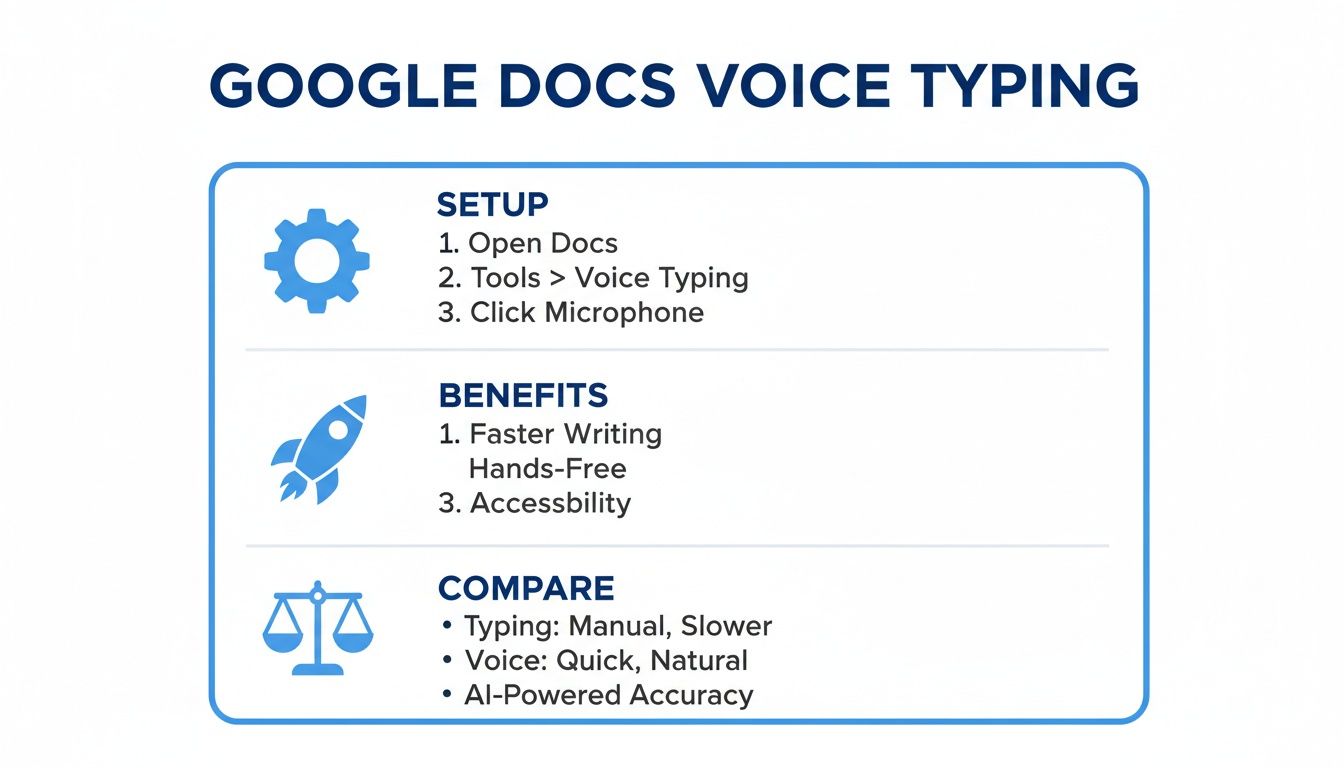
As the infographic shows, Google's built-in tool is a great starting point, but knowing when to switch to a more powerful option is key. If you're looking to explore beyond Google's offering, our guide on the best voice to text solutions can point you in the right direction.
How To Dictate On Your Desktop And Mobile Device
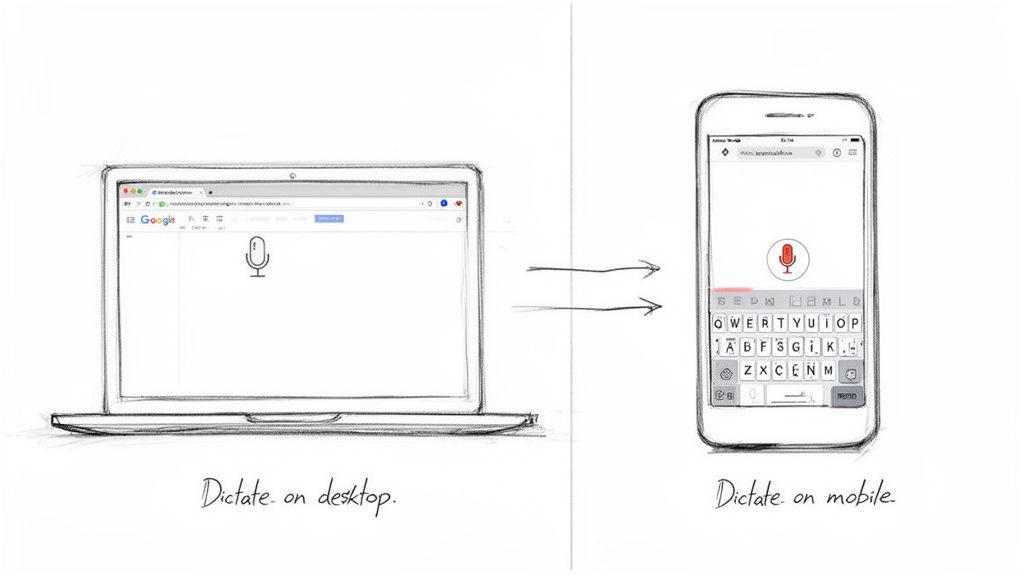
Getting voice typing up and running on your desktop is incredibly simple, especially if you're on Google Chrome, where it works best. Just open a document and head to Tools > Voice typing. A small microphone icon will pop right up, ready for you to use.
This simplicity is what makes it so powerful. I personally keep an "ideas" document open in a dedicated browser tab. Whenever a thought pops into my head, I can just flip over to that tab, click the microphone, and get the idea down before it vanishes.
It effectively turns any Google Doc into a live transcription tool, capturing your thoughts as fast as you can speak them.
Dictating From Your Desktop Computer
For the best experience using voice to text on Google Docs, you'll want to be using Google Chrome. Because both are Google products, the integration is seamless. While it might work on other browsers like Firefox or Edge, I've found it's most stable and reliable in its native environment.
The very first time you click the microphone icon, your browser will ask for permission to access your mic. You have to click "Allow" for dictation to work. If you accidentally hit "Block," don't worry—it's an easy fix. Just click the little lock icon in the address bar and switch the microphone permission back to "Allow."
A Quick Tip From Experience: You can click and drag the microphone icon anywhere on your screen. I always pull it down next to the paragraph I'm actively working on. This way, I can quickly toggle it on and off without having to move my cursor all over the page.
Using Voice Typing On Your Phone
One of the biggest questions I get is how to dictate in the Google Docs mobile app. It's a bit of a surprise, but the app doesn't actually have the same "Voice typing" button you see on the desktop.
Luckily, there's an easy workaround: just use your phone's built-in keyboard dictation. This feature works in any app where you can type, and Google Docs is no exception.
- On an iPhone: When your keyboard pops up, tap the microphone icon at the bottom of the screen. Start talking, and your words will appear right in the document.
- On an Android (using Gboard): You'll find the microphone icon near the top right of your keyboard. Tap it, begin speaking, and watch the text fill in.
This technique is fantastic for getting work done when you're away from your desk. Whether you're quickly capturing notes after a meeting or drafting a reply on the train, it turns the Docs app into a powerful dictation tool. For those who record a lot of audio on the fly, you might also want to check out our guide on how to transcribe voice memos to process those recordings later.
Pro Tips And Commands For Flawless Dictation
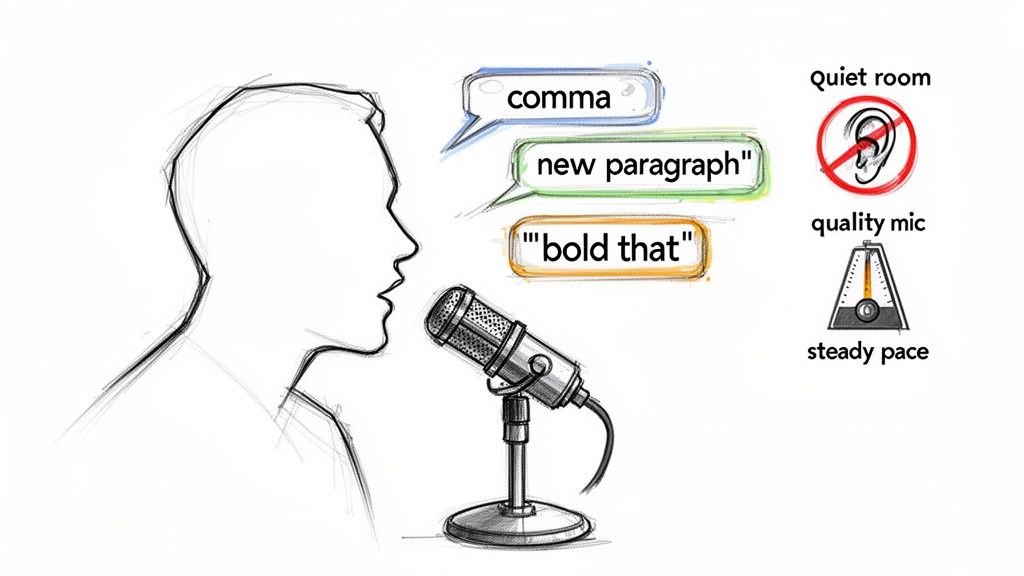
Simply turning on voice typing is one thing, but getting it to work well is another entirely. The real magic happens when you move beyond just dictating words and start using commands to edit and format your document on the fly. This is how you make voice to text on Google Docs go from a neat party trick to a serious productivity tool.
Before you even think about commands, you need to get your audio right. A clean audio signal is, without a doubt, the single biggest factor in transcription accuracy.
I can't stress this enough from my own testing: find a quiet room. Background noise from a fan, a TV, or even an echo in the room will throw off the transcription. Your microphone is just as important. While the mic built into your laptop will work in a pinch, you'll see a massive leap in accuracy by using a decent headset or a dedicated USB microphone.
Best Practices For High-Accuracy Dictation
Once your setup is solid, the next piece of the puzzle is how you speak. Try to maintain a natural, consistent pace. Don't rush your words, but also try to avoid long, awkward pauses in the middle of your sentences. Just talk to it like you would another person.
- Enunciate Clearly: Mumbling is the absolute enemy of voice typing. Make an effort to speak your words distinctly.
- Dictate in Full Sentences: The tool is smarter than you think; it uses the context of your full thought to improve its accuracy.
- Stay Close to the Mic: Keep your microphone a consistent distance from your mouth, usually just a few inches. This provides a steady audio level for the software to work with.
From my own experience, I've found that pausing for a beat right before and after a punctuation command helps the tool register it cleanly. For example, I'll say, "This is my first sentence period" and then take a short breath before starting the next one. It's a small habit, but it makes a huge difference.
Essential Voice Commands You Need To Know
Mastering voice commands is what truly unlocks speed. Instead of constantly breaking your flow to grab the mouse, you can just tell Google Docs what to do while you're still speaking.
Here are a few of the commands I find myself using every single day:
For Punctuation
- Period
- Comma
- Question mark
- Exclamation point
- New line
- New paragraph
For Formatting and Editing
- Select [word or phrase]
- Bold / Italicize / Underline
- Bold last word
- Apply heading [1-6]
- Create bulleted list
- Go to the end of the line
Putting it all together, I could say something like, "New paragraph Voice commands make dictation much faster period Apply heading 3," and watch the document format itself instantly. It takes a bit of practice to make it second nature, but once you do, you'll wonder how you ever wrote without it.
This shift toward voice isn't just a niche trend. The voice AI market is massive, with over 8.4 billion voice assistants in use across the globe. For professionals who use voice to text on Google Docs regularly, this tech has become essential for everything from scripting videos to transcribing meeting notes, often cutting content production costs by 20-30%. If you're curious about AI's broader impact, you can dig into these Google Gemini statistics to see how it's changing the productivity game.
Solving Common Voice Typing Problems
Using voice to text on Google Docs can feel like a superpower—right up until the moment it stops working. It’s a familiar frustration, but the good news is that most of these hiccups have surprisingly simple fixes. You click the microphone icon, and... nothing. This is almost always an issue with your browser or microphone access.
When the tool freezes up or just plain ignores you, it can throw a real wrench in your flow, especially when you're trying to capture a great idea. Let’s walk through the most common headaches and how I solve them to get back to dictating quickly.
Restoring Microphone Access
More often than not, the culprit is a simple permissions issue. The very first time you use voice typing, Chrome will ask for permission to use your microphone. If you accidentally clicked "Block" in that moment, the feature is essentially turned off until you say otherwise.
Luckily, fixing this takes just a few seconds. Look for the little lock icon in Chrome’s address bar, right next to the URL. Click on it, find the “Microphone” setting in the dropdown, and just flip it from "Block" to "Allow." A quick refresh of the page, and you should be back in business.
If that doesn't do the trick, the next place to look is your computer’s main system settings.
- On Windows: Head to Settings > Privacy & Security > Microphone. From there, make sure the toggle for "Let apps access your microphone" is on.
- On macOS: Go to System Settings > Privacy & Security > Microphone and check the box to give Google Chrome permission.
Key Takeaway: In my experience, 9 out of 10 times, a "frozen" microphone is just a permissions problem. Always check that lock icon in the address bar first—it can save you a ton of time and frustration.
This quick check is the first thing I do, and it almost always resolves the problem on the spot.
Improving Recognition And Accuracy
Sometimes the problem isn't that the tool is frozen, but that it's just not listening very well. If Google Docs is constantly butchering your words, a few different things could be going on. Background noise is a huge one—a barking dog, a nearby conversation, or even just an echoey room can wreak havoc on accuracy.
Your speaking style also plays a massive role. You don't need to talk like a robot, but mumbling or speaking too quickly will trip the system up. Remember, the AI is using context to figure out what you're saying, so speaking in clear, complete sentences gives it a much better chance of getting it right.
Here are a few adjustments that almost always lead to immediate improvements in my own work:
- Get closer to your mic: I try to stay a consistent few inches away.
- Find a quiet spot: This is non-negotiable. Close the door, turn off the TV, and escape the chaos.
- Upgrade your hardware: Even a basic headset or an external USB mic will be a world of difference compared to the tiny microphone built into your laptop.
By getting a cleaner audio signal to the software, you’ll see a direct improvement in how well voice to text on Google Docs works for you.
When To Use A Professional Transcription Service
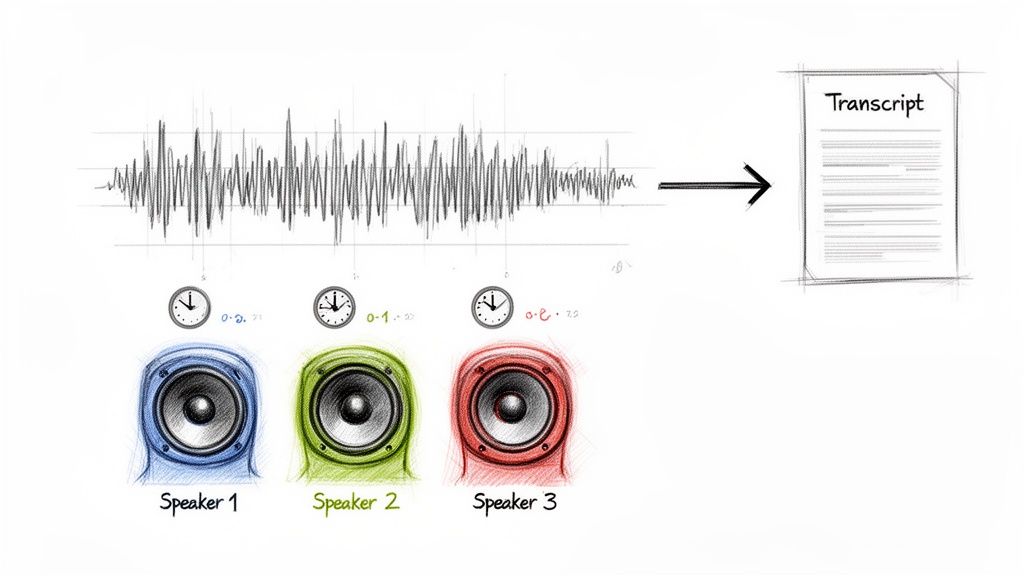
Look, the built-in voice to text on Google Docs is fantastic for getting your own thoughts down on paper. It’s a great tool for live dictation. But what happens when you have an hour-long recorded interview, a team meeting with five different speakers, or a podcast episode you need to turn into a blog post?
That’s where you hit a wall. Google’s tool is designed for your voice, right now. It can't process audio files you’ve already recorded.
I’ve seen people try the old workaround: blasting the audio from their phone’s speaker while their computer microphone listens. It’s a clumsy solution that almost never works well. You end up with a garbled mess of text, and the time you spend fixing it is often more than it would have taken to type the whole thing from scratch. For anyone producing content professionally, that’s a deal-breaker.
When You Need More Than Google Can Offer
There are a handful of common situations where Google's voice typing just won't cut it. If your task sounds like any of these, you’ll save yourself a massive headache by using a dedicated tool instead.
You Have Pre-Recorded Audio: This is the big one. If you're a journalist with interview recordings, a student with lecture audio, or a podcaster with an episode file, you need a way to upload that file and get a transcript back.
There Are Multiple Speakers: Google’s tool will just create one giant, confusing block of text. A proper transcription service can tell the difference between speakers and label their dialogue (e.g., Speaker 1, Speaker 2), which is crucial for interviews, focus groups, and meeting minutes.
You Need Timestamps: If you're a video editor or researcher, you need to know when something was said. Timestamps let you jump straight to a specific quote in your audio or video file without scrubbing through the entire recording. It's a non-negotiable feature for serious work.
The Audio Isn't Perfect: Let's be real—most recordings aren't made in a professional studio. A dedicated service is far better at handling background noise, different accents, and technical jargon because it's trained on millions of hours of diverse audio.
This is exactly where a specialized AI service like Whisper AI comes in. Think of it not as a simple dictation tool, but as a powerful audio processing engine. You can upload almost any audio or video file, and it returns a highly accurate transcript complete with speaker labels and timestamps.
While voice-to-text in Google Docs is a productivity game-changer—with tools like Gemini helping edit over 1.4 billion Docs files in the first half of 2025—it has clear limits. For podcasters and researchers, the inability to handle recorded media is a major gap. This is where services like Whisper AI, with 3,000 paying customers processing over 60,000 hours of media, become essential. They can detect speakers, add timestamps, and even export a polished transcript right back into Google Docs. For more on this, check out this report on voice AI trends and their enterprise adoption.
Ultimately, these tools turn your raw recordings into usable, organized content. If you regularly need to convert complex audio into clean text, exploring AI-powered transcription services is the next logical step. It saves an incredible amount of time, freeing you up to focus on the creative part of your job.
Answering Your Top Voice Typing Questions
Even the handiest tools can leave you with a few questions. Let's clear up some of the most common ones we hear about using voice to text on Google Docs.
Does Google Docs Voice Typing Work In Other Languages?
Yes, absolutely. Google has built-in support for a massive list of languages and their various accents. You can find a simple dropdown menu right above the microphone icon to switch between them on the fly, which is a fantastic feature if you work in multiple languages.
Just keep in mind that the accuracy can be a bit hit-or-miss depending on the language. For a casual email or drafting notes, it’s usually fine. But if you’re working on something that requires near-perfect transcription across more than 90 languages, or you have a recording with several speakers, a dedicated service like Whisper AI is going to give you much cleaner results.
Can I Transcribe A Recording With Google Docs Voice Typing?
This is a big one, and the short answer is no—at least not directly. Google Docs is designed for live dictation, meaning it transcribes your voice as you speak. It has no built-in feature to upload and process an existing audio or video file.
Many people try a common workaround: playing a recording out loud through their speakers and letting their computer's microphone pick it up. I’ve seen this attempted countless times, and the result is almost always a garbled, inaccurate mess. It’s just not worth the frustration.
For pre-recorded interviews, meetings, or lectures, your best bet is to use a tool built for the job. You can just upload the file, and a proper transcription service will return a clean transcript, often complete with timestamps and speaker labels.
Is My Dictation Data Kept Private?
When you dictate in Google Docs, your speech is sent over the internet to Google's servers for processing. According to Google's privacy policy, they handle this data securely. For most day-to-day tasks, this is perfectly acceptable.
However, if you're dealing with highly sensitive information—think confidential business strategies, private client interviews, or protected health information—it’s common practice to seek out services with more explicit privacy guarantees.
This is especially true in professional settings where data security is non-negotiable. As voice commands become more a part of our daily workflow—with 58% of users aged 25-34 already using voice for daily tasks—the demand for secure solutions is growing. You can find more on these game-changing search statistics to see how user habits are evolving.
While Google's free tool is incredibly convenient, its limitations are what push professionals toward platforms that guarantee privacy and can deliver flawless transcripts from dozens of languages right back into their documents.
Ready to move beyond basic dictation? Whisper AI offers a powerful, privacy-focused solution for transcribing your pre-recorded audio and video with incredible accuracy. https://whisperbot.ai


























































































