
Google Meet History: Find, Access & Export Past Meetings
You’re probably here because you know a past Google Meet happened, but you can’t find the proof of it in one clean place.
That frustration is normal. Google Meet history isn’t a single timeline. Parts of it live in Google Calendar, parts in the Meet interface, parts in Google Drive, and some details only exist if your account type supports them. If you use a personal Gmail account, the experience gets even more inconsistent. If you use Google Workspace, you’ll usually have more options, but they’re still scattered.
The practical fix is to stop looking for one magic history page and start treating Google Meet history as a set of separate records: event history, call logs, recordings, transcripts, and admin reports. Once you do that, finding what you need gets much easier.
Why Is Finding Your Google Meet History So Complicated?
You finish a client call, remember that someone promised a deadline change, and go looking for the record. The Calendar event exists. The recording might be in Drive. The participant list may only be available to an admin. The transcript depends on plan type and whether it was turned on. That is a core problem with Google Meet history. The meeting happened, but the evidence is scattered.
Google Meet was not built around a single post-meeting archive for every user. It started as Hangouts Meet for G Suite customers in 2017, then expanded far beyond that original use case. After Meet became free to the public in April 2020, usage surged by over 100x, according to Google Meet's history and growth timeline. The product grew fast. Its history model never fully caught up.
The core mismatch
People usually expect one place to answer four practical questions:
- What meetings happened?
- Who joined?
- Where is the recording or transcript?
- Can I retrieve all of that later without guessing?
Google answers those questions across multiple products, permission layers, and subscription tiers. Calendar tracks scheduled events. Google Meet may show recent calls. Drive stores recordings for eligible accounts. Attendance reports and audit data depend on Workspace access. If you support a distributed team, this creates constant cleanup work because "meeting history" is really a bundle of separate records, not one archive.
That split is hardest on freelancers, consultants, and small teams using personal Gmail accounts. They often need a clean trail for client work, but native history is thinner there. ScreenApp's analysis of Google Meet history limitations points to the same issue. Google keeps some meeting data intentionally limited on free accounts, which is understandable from a privacy and product design standpoint, but frustrating if you need dependable records after the call.
Practical rule: If a meeting matters for billing, approvals, editorial review, hiring, or compliance, do not rely on Google Meet alone to preserve the full trail.
Google Meet history features by account type
| Feature | Personal Account (Free) | Google Workspace Account (Paid) |
|---|---|---|
| Past events in Google Calendar | Usually available if the meeting was scheduled in Calendar | Available |
| Meet call log via web interface | May be available depending on account activity and browser context | Available, plus broader admin options |
| Native meeting recording | Limited compared with Workspace plans | Available on eligible Workspace plans |
| Recording storage in Google Drive | Not the standard path for most free users | Available for eligible hosts/co-hosts |
| Attendance reporting | Generally not available natively | Available for eligible Workspace setups |
| Admin audit and reporting | Not available | Available through Admin Console |
| Complete native archive of all meeting assets | No | Not really, still fragmented |
The trade-off is clear. Google gives businesses more reporting and retention features, but even paid accounts do not get a clean, unified meeting history page that ties every artifact together. You still end up checking several places, and the answer changes based on who hosted the call, how it was scheduled, and which Workspace plan is in use.
That is why many teams stop chasing a perfect native history view and build their own archive instead. A practical setup combines Google's built-in records with transcripts, summaries, and searchable notes in one system. If recording is part of that workflow, get consent first. This guide on whether it's legal to record calls covers the legal side. Later in this article, I’ll show how Whisper AI closes the gap and gives you a single source of truth across recordings, transcripts, and meeting notes.
How to Find Past Meetings and Call Logs
If you need google meet history quickly, start with the two places most likely to help: Google Calendar and the Meet call log page.
The first is best for confirming that a meeting was scheduled. The second is better when you want call-level metadata.
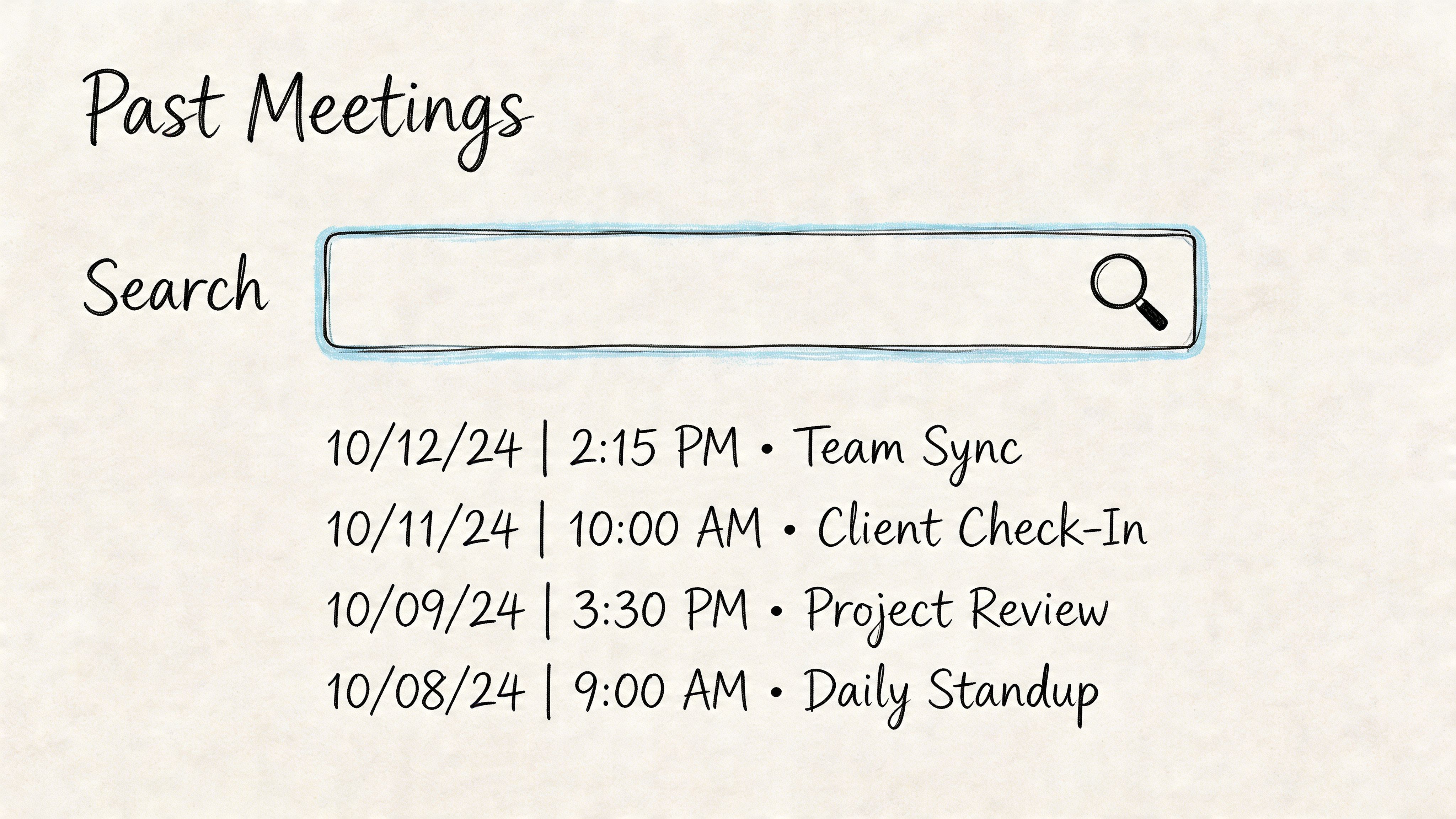
Use Google Calendar first
Calendar won’t give you a perfect meeting history, but it’s often the fastest way to reconstruct what happened.
Try this workflow:
- Search by participant or topic: Use the Calendar search bar with the client name, project name, or meeting title.
- Switch to a broader date view: Month view is good for locating rough timing. Schedule view is better once you know the week.
- Open the event details: Look for the Meet link, invitees, attachments, and any follow-up files attached to the event.
- Check for recording links: In some Workspace setups, past event pages can surface recording links or related assets.
This method works best when the meeting was formally scheduled. It won’t help much with ad hoc calls that started outside a calendar event.
Use the Meet call log page
Google also has a less obvious route for call history. According to Tactiq's Google Meet history guide, you can go directly to meet.google.com/calling/, open the Settings gear, and choose Download call log. For active accounts, that process works, but it can return nothing if that browser or account hasn’t recorded any call activity.
Here’s the click path:
- Sign in to your Google account.
- Open Google Meet calling history in your browser.
- Click the gear icon in the top-right area.
- Choose Call log or Download call log.
- Review or export the CSV.
What you may see in the export:
- Meeting dates
- Start and end times
- Duration
- Participant count
- Call type
The call log is useful, but it isn’t a universal truth layer. It depends on the account and browser context you used.
Why the call log looks empty
This is the issue I see most often. Users assume there’s no history when the problem is that they’re checking the wrong browser profile, the wrong Google account, or a browser that never hosted that activity.
A few checks help:
- Verify the signed-in account: Many people have a personal Gmail and a Workspace account open at the same time.
- Try the original browser: Call logs can be device or browser specific.
- Test another recent meeting: If one meeting doesn’t appear, compare it against another you know happened.
If you want a visual walkthrough before exporting anything, this video is a decent companion:
When admins need more than users can see
Regular users can only go so far. If your organization needs detailed join and leave data, the primary reporting layer usually sits in the Google Workspace Admin Console, not in the standard Meet interface.
That distinction matters. End users often expect admin-grade history from a consumer-style dashboard. Google doesn’t really provide that.
Locating Recordings Transcripts and Attendance Reports
Finding that a meeting happened is one thing. Locating the assets from that meeting is often where time is lost.
For Google Meet, the important difference is this: history metadata and meeting outputs are not stored in the same place. If your real goal is to review what was said, you should stop searching the event itself and go straight to Drive and Workspace-level reporting.
Where recordings usually go
For eligible Google Workspace users, recordings are automatically saved to a Meet Recordings folder in the host’s Google Drive. The technical review from HuddleCamHD notes that recording success is high on stable connections, but failures become more likely with bandwidth pressure and other constraints. It also points out a common failure mode: hitting the free Drive storage ceiling mid-recording. You can read that in HuddleCamHD's review of Google Meet recording behavior.
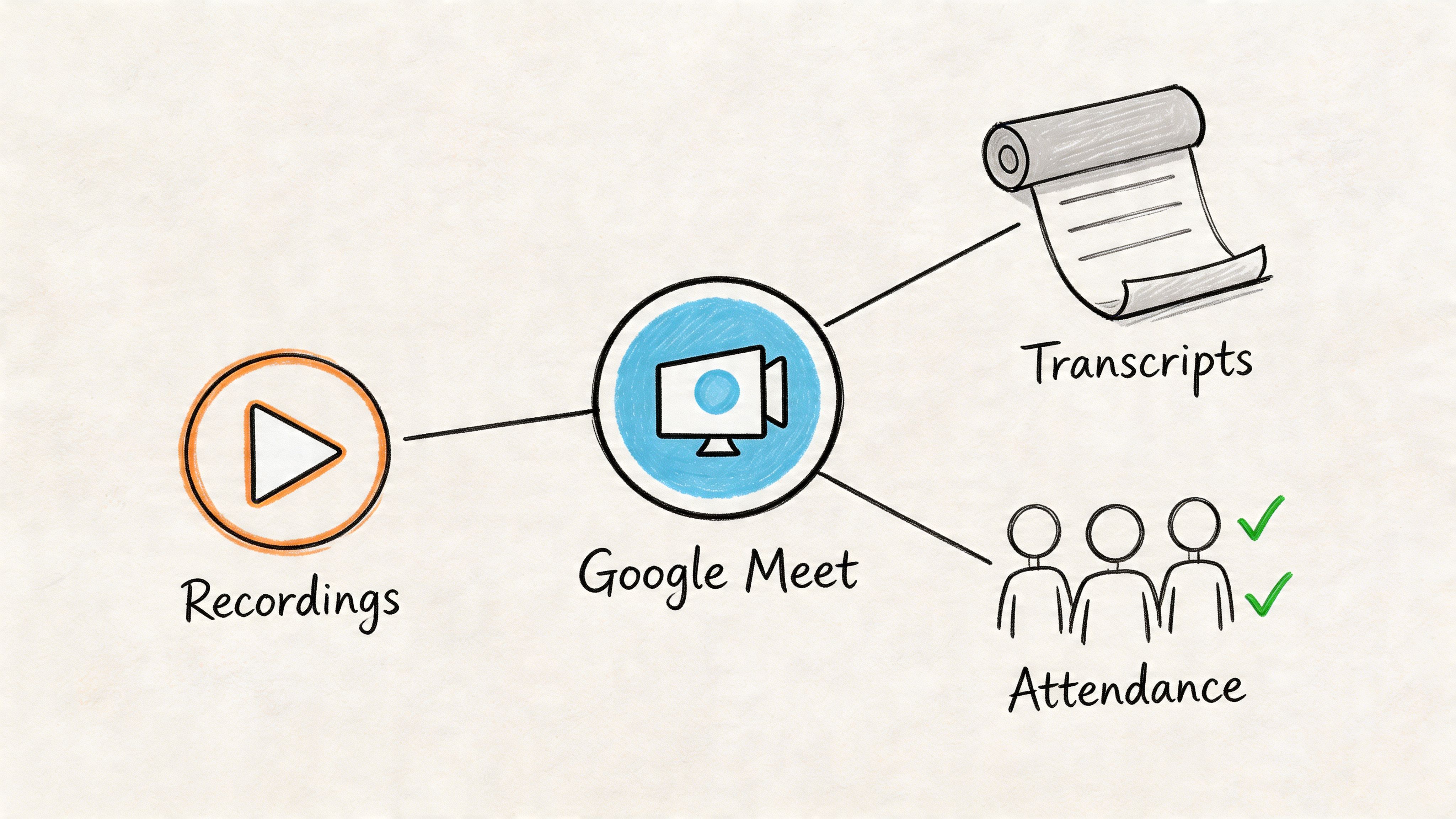
The simplest retrieval process looks like this:
- Open Google Drive.
- Search for Meet Recordings.
- Sort by recent activity if the folder is crowded.
- Open the file and confirm the meeting title and date.
- Move or rename important files before they get buried.
If you want a separate walkthrough focused on file location and ownership, this guide on where to find Google Meet recordings is useful.
What to look for besides the video
A lot of people only search for the MP4. That’s usually too narrow.
After a meeting, you may need:
- The recording itself: Best for review, clipping, or proof of what was discussed.
- Transcript files: Availability depends on account setup and enabled features.
- Attendance information: More likely in Workspace contexts than personal accounts.
- Calendar attachments or follow-up links: Sometimes the event becomes the easiest path back to the file.
Don’t search by memory alone. Search by host account, meeting date, and file type. Those three filters solve most “missing recording” complaints.
Attendance reports and admin access
Attendance reporting is one of those features users often expect and rarely understand. In Google Meet, it’s generally tied to eligible Workspace plans and organization settings. If you’re a team member, you may not be able to generate it yourself. If you’re an admin, you may need to look in reporting tools rather than in the meeting page.
That’s why attendance often feels “missing” even when the organization technically has access to it. The access belongs to the admin layer, not the average participant.
Why recordings fail even when the button exists
A few recurring causes show up in practice:
- Storage problems: Drive quota gets exhausted during or after the session.
- Connection instability: Recording reliability drops when the host connection can’t keep up.
- Large meeting strain: More participants increase the chance of friction.
- Wrong host assumptions: The person expecting the file may not be the person Google treats as the recording owner.
If a file hasn’t appeared yet, wait for processing, then check the host’s Drive, not every attendee’s.
Troubleshooting Common Google Meet History Issues
You finish a client call, remember one decision clearly, and then lose 20 minutes trying to prove where that meeting lives. The Calendar event is there. The recording is not. The transcript might exist, but only under the organizer’s account. That pattern is common in Google Meet because “history” is spread across several products instead of one archive.
The fastest way to fix the problem is to identify which layer failed. You are usually dealing with one of four things: meeting metadata, browser or device history, Drive ownership, or Workspace permissions. Once you separate those, the next step gets clearer.
My call log is empty
An empty call log usually points to context, not deletion.
Start with the account that joined the meeting. Then check the browser profile and device used that day. If you joined from a work Chrome profile and now you are checking from a personal account on another laptop, Google may show nothing useful even though the meeting happened.
Use this sequence:
- Confirm the signed-in account: Check every Google account in the browser, especially if you switch between work and personal profiles.
- Open the original browser profile or device: Local history and recent Meet activity can be easier to recover from the same environment.
- Cross-check a known meeting: Look for another call from the same week to confirm whether the issue is the log itself or the account context.
If your team needs a record that survives account switching and browser changes, build a searchable transcript archive instead of relying on native history alone. A practical setup is to use Whisper AI for meeting transcription and searchable records.
My recording never showed up
Treat this as a file ownership problem first.
In Google Meet, the person who needs the recording is often not the person Google treats as the owner. I see teams waste time checking every attendee’s Drive when the file is sitting, processing, or permission-locked under the organizer’s account.
| Problem | Likely cause | Best next step |
|---|---|---|
| No file in Drive | Recording belongs to the organizer or host account | Ask the meeting organizer to check their Meet Recordings folder and email notifications |
| Recording stopped partway through | Connection drop, storage limit, or session disruption | Confirm host stability and available Drive storage, then check whether a partial file was saved |
| File opens for one person only | Drive sharing settings | Request direct access from the owner instead of reusing the event link |
There is a real trade-off here. Google’s native recording flow is convenient when the host, storage, and permissions are all aligned. It becomes fragile when meetings involve contractors, multiple domains, or shared responsibility for follow-up.
I can see the calendar event but nothing else
A Calendar event only proves the meeting was scheduled. It does not confirm that a recording, transcript, or attendance artifact was created and saved in a place you can access.
This is one of the biggest points of confusion with Google Meet history. The interface suggests one meeting record. In practice, the useful pieces are split. The event lives in Calendar. The file may live in Drive. Access may depend on admin settings. If your team later wants to turn those discussions into summaries, training clips, or internal explainers, many teams end up exporting material into other workflows, including Text to Video AI Generator tools, because Meet itself does not act as a single archive.
A good test is simple. Ask three questions in order: Was anything recorded? Who owned the output? Where was it saved?
I can’t access a recording someone shared
This is usually a Drive permission problem.
Check the Google account currently signed in before doing anything else. Then verify whether the sender shared the actual Drive file or only pasted the Calendar event, chat thread, or meeting link. In managed Workspace environments, external sharing rules can block access even when the owner believes the file was shared correctly.
I use one phrasing with teams because it resolves confusion fast: stop calling it “the Meet recording.” Call it “the Drive file owned by the host.” That directs people to the right system immediately.
If access still fails, ask the owner to do one of these specific actions:
- Share the Drive file directly to your email
- Grant viewer access to the correct Google account
- Move the file into a shared drive, if your organization allows it
- Confirm whether domain restrictions block outside viewers
Google Meet can confirm that a conversation happened. Recovering the actual content often takes extra work unless you create your own single source of truth.
Beyond Native History An Advanced Workflow with Whisper AI
Native Google Meet history is good enough for confirming that a meeting happened. It’s not good enough if your job depends on reusing what was said.
That’s the point where organizations often start stitching together a patchwork of Calendar events, Drive folders, CSV call logs, notes in docs, and one or two third-party tools. The result is familiar: files everywhere, context nowhere.
Why fragmented history becomes a real problem
The practical issue isn’t just inconvenience. It’s fragmentation.
The broader market has drifted toward third-party tools because Google’s native options don’t create one durable archive. That has produced data silos across Meet, Calendar, Drive, and external apps. It also creates uncertainty about which system should be the record of truth. That pattern is called out in this discussion of fragmented Google Meet history workflows.
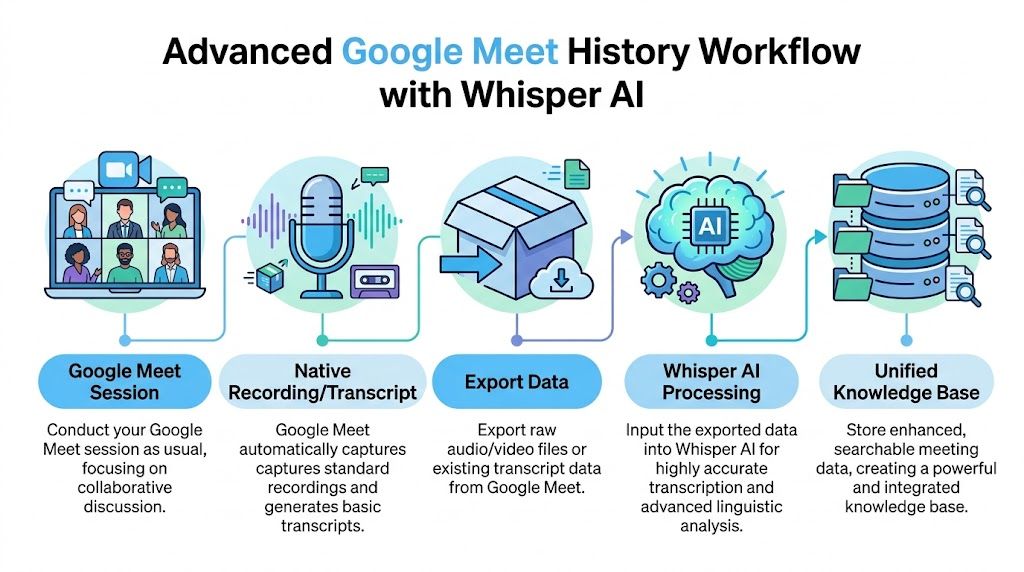
If you run interviews, sales calls, editorial meetings, podcasts, research sessions, or distributed team check-ins, scattered metadata isn’t enough. You need one place where you can search the actual conversation.
A better workflow for a unified archive
The strongest setup I’ve seen is simple:
- Run the meeting in Google Meet
- Save the recording and any available transcript
- Export the meeting file from Drive
- Send the file into an AI transcription workflow
- Store the searchable output in one archive
That archive becomes more useful than Google Meet history itself, because now you can search by topic, quote, speaker, or decision instead of hunting through dates and file names.
A practical guide to the processing side lives in this article on how to use Whisper AI.
What this changes in day-to-day work
Once a meeting is transcribed and summarized into a searchable record, the work changes in a few important ways:
- Editorial teams can pull quotes and themes from old interviews without replaying full videos.
- Client-facing teams can verify decisions and commitments without relying on memory.
- Creators and marketers can repurpose long calls into clips, summaries, and follow-up content.
- Operations teams can treat meeting records as working documentation instead of dead files.
If you repurpose meeting content after the fact, tools built for media reuse can also help. For example, some teams pair transcripts with Text to Video AI Generator tools when turning webinars, interviews, or internal recordings into short-form video assets.
Native history helps you find the meeting. A unified transcript archive helps you use the meeting.
What works better than relying on filenames
Folders alone break down fast. A month later, “Client Sync Final v2” tells you almost nothing.
A better archive usually includes:
- Consistent naming: Date, team, topic, and owner
- Transcript searchability: So you can query what was said
- Speaker separation: Useful for interviews, team calls, and accountability
- Summary layers: Quick review without replaying the full session
- Exportable outputs: Handy for docs, approvals, and knowledge sharing
Google Meet can still be the capture layer. It just shouldn’t be the only archive layer if the conversation matters after the call ends.
Frequently Asked Questions about Google Meet History
Some google meet history questions don’t show up until you’ve already lost time trying to find something. These are the ones I hear most often.
How long does Google keep Google Meet history?
It depends on which part of the history you mean.
Call logs accessed through the Meet web interface may be retained for a limited period in that environment, while recordings stored in Drive remain available until they’re deleted or affected by storage and admin policies. Some workflows also run into deletion issues because metadata loss can become permanent after removal windows expire in related storage flows. In practice, if a meeting matters, export or organize it early instead of trusting a vague default retention pattern.
Can I see Google Meet history on mobile?
You can see some recent activity on mobile, but mobile is not the best place to manage history.
The desktop browser gives you more control over call logs, exports, Drive access, and admin-level navigation. If you need to download records, inspect ownership, or verify recordings, use desktop first. Mobile is fine for quick checks, not for serious retrieval work.
Why can I find the meeting in Calendar but not in Meet?
Because Calendar and Meet aren’t the same archive.
Calendar tracks that an event existed. Meet may show call activity. Drive may hold the recording. Those systems overlap, but they don’t guarantee the same output. If your search starts in the wrong product, it can look like the meeting disappeared when it really just left traces in a different place.
What happens to recordings if the host leaves the company?
Ownership becomes the key issue.
If the recording lives in the host’s Google Drive or a managed Workspace environment, access depends on your organization’s admin policies and account lifecycle handling. In healthy Workspace setups, admins can usually recover or transfer important records. In messy offboarding situations, files can become hard to track unless the company has a standard handoff process.
Can personal Gmail users get full native Google Meet history?
Not reliably in the way one might expect.
Personal users may see partial history, but they usually don’t get a complete built-in archive with all the metadata and meeting outputs professionals want. That’s why freelancers, creators, and consultants often end up combining Calendar, local exports, Drive files, and outside tools.
What’s the most reliable way to keep a usable meeting archive?
Treat Google Meet as the meeting layer, not the archive layer.
Keep your scheduled events tidy in Calendar, confirm where recordings are stored, export what matters, and maintain one searchable repository for transcripts and summaries. That workflow takes a little discipline, but it’s far more dependable than trusting scattered native history pages.
If you want a simpler way to turn messy meeting files into a searchable archive, Whisper AI is worth a look. It can transcribe recordings, separate speakers, add timestamps, generate summaries, and make past conversations easier to search than Google Meet’s native history tools ever were.


























































































