
Best Transcription Software for Mac 2026: Top AI Tools
You finish recording a client interview on your Mac, close the lid for lunch, and come back to 45 minutes of audio that still needs to become quotes, notes, and next steps before the day gets away from you.
Good transcription software for Mac solves that bottleneck. The core value is not the raw transcript alone. It is how quickly you can search a quote, clean up speaker labels, pull action items, and turn a recording into usable work.
On Mac, the biggest divide is practical. Some tools run locally and keep sensitive files on your machine. Others send everything to the cloud and give you shared workspaces, meeting bots, comments, summaries, and team handoff. That is the lens that matters in daily use, especially if you are choosing between privacy-first apps like MacWhisper or Aiko and collaboration-heavy platforms like Descript, Otter, or Trint.
That split also helps explain why this category keeps growing even though Apple now offers built-in recording and transcripts in Notes. Apple's tools are convenient for quick capture. Third-party apps still do more of the work professionals need, such as better export options, cleaner editing, batch handling, speaker management, and workflow support for podcasts, interviews, lectures, and internal meetings.
I have found that the right choice usually comes down to one question. Do you need local processing and control, or do you need collaboration and speed across a team? This guide is organized around that trade-off, with practical recommendations and sample workflows for different kinds of Mac users. If you want a broader look at how modern AI-powered transcription software fits into content and meeting workflows, that context helps here too.
1. Whisper AI
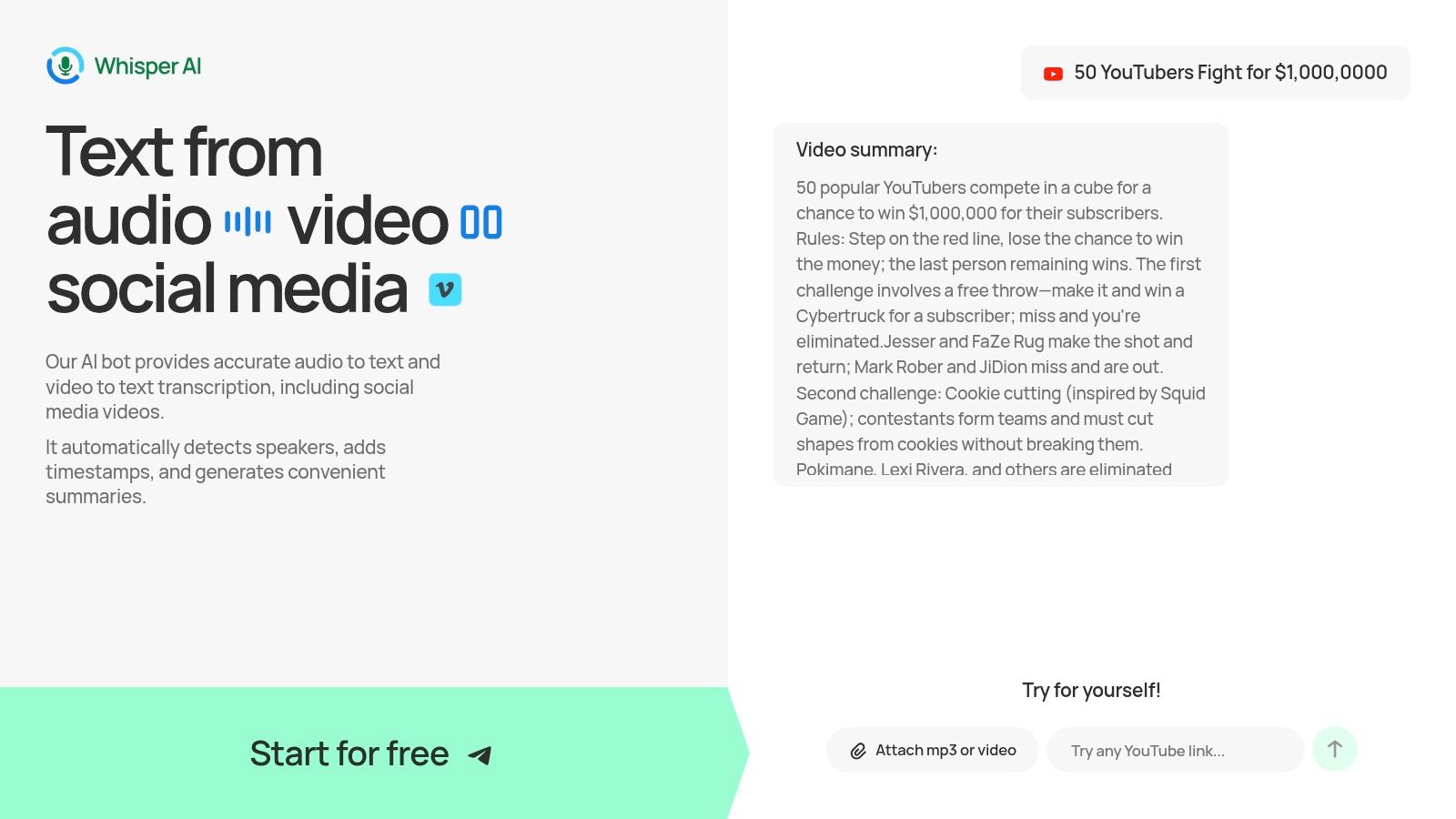
Whisper AI is the one I'd point most Mac users to first if they want the shortest path from raw media to usable output. It handles audio, video, and social clips in one place, then layers in the features people tend to need after the transcript appears: speaker detection, timestamps, summaries, highlights, exports, and follow-up prompting.
That combination matters because transcription software for Mac has moved well beyond basic dictation. Independent Mac-focused coverage in 2025 describes a category built around workflow features like speaker detection, timestamps, custom dictionaries, batch processing, YouTube transcription, and multiple export formats, not just plain speech-to-text, in Jamie's roundup of transcription software for Mac. Whisper AI fits that more mature model well.
Why it works well on a Mac
The practical strength here is flexibility. If your day includes interview recordings, webinar replays, YouTube links, and social clips, you don't want a tool that only likes one file type or one kind of workflow. Whisper AI is built for mixed media input and fast output.
It's especially good when your end goal isn't “get text” but “get decisions, content, or publishable assets.”
- For creators: It's strong for turning long recordings into summaries, quote pull-outs, and repurposing drafts.
- For researchers and journalists: Speaker labels and timestamps make review less painful.
- For teams: Export options and structured output make handoff easier than copy-pasting from a raw transcript pane.
A more detailed look at that workflow shows up in Whisper AI's own guide to AI-powered transcription software.
Practical rule: If you often ask, “Can this transcript become notes, a brief, captions, and action items?” you want an AI-native workflow tool, not a bare transcription utility.
Trade-offs to know
Whisper AI does a lot in one place, which is the main reason to use it. You're not stitching together one app for transcript generation, another for summarization, and another for export cleanup.
The trade-off is familiar to anyone who's used automated transcription at scale. Very noisy recordings, heavy overlap, and domain-specific jargon still need review. That's not a Whisper AI problem so much as a reality of transcription work. You'll move much faster, but you still need a human pass when the transcript is legally sensitive, publication-critical, or packed with technical terms.
Another thing to note is pricing visibility. There's a free starting point, but if you're buying for a team or expecting high volume, you may need to talk to sales rather than reading every detail off a simple pricing page.
2. Descript

Descript isn't the cleanest choice if all you need is a transcript. It is one of the best choices if transcription is only step one in a creator workflow.
Its biggest advantage on Mac is simple. You can record, transcribe, edit, caption, clip, and export from one workspace. That's why podcasters and video teams keep coming back to it even when lighter tools are faster to learn.
Best for creators who edit by text
If you've never used a text-based editor, Descript can feel oddly intuitive. Delete a sentence in the transcript, and you've effectively cut the media. For talking-head videos, interviews, and podcasts, that's a real time-saver.
The Mac workflow is strongest when you're doing all of this in one project:
- Record the source
- Generate a transcript
- Clean filler words and rough speech
- Create captions and clips
- Export finished media
That's why it's often compared in creator circles with broader editing stacks, including discussions around Descript AI for social media video.
If you publish weekly video or audio, Descript often replaces two or three separate tools.
Where it falls short
Descript can feel heavy if transcription is your only goal. The editing workspace, feature set, and project structure make sense for production. They can feel like overkill for a student trying to transcribe lectures or a journalist trying to process interviews quickly.
It's also one of those tools where updates arrive often. That's good for capability, but it can mean the interface shifts under you. For solo users who want a stable, minimal setup, that can get old fast.
3. Otter.ai
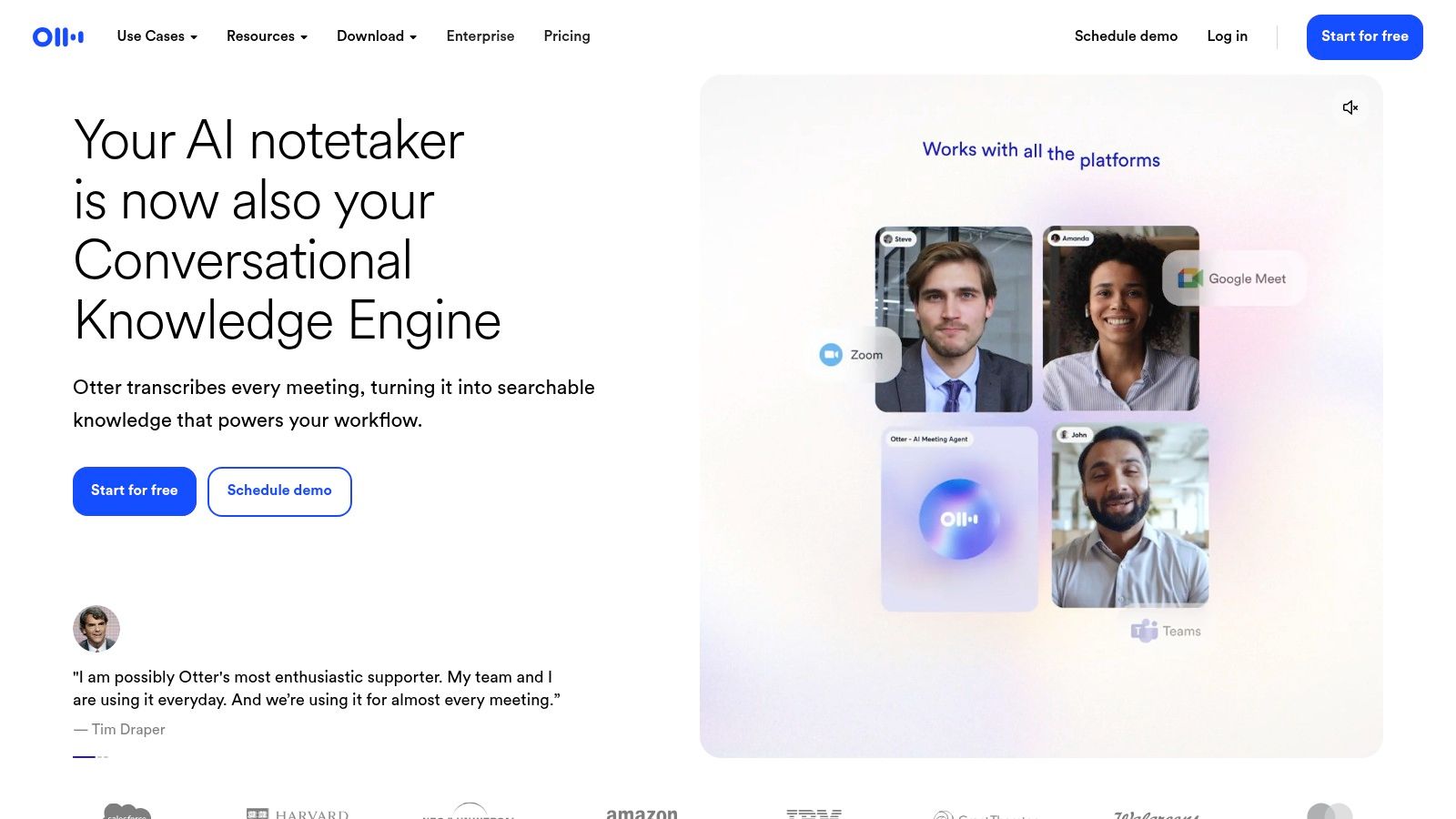
Otter.ai is a meeting tool first and a transcription tool second. That's not a criticism. It's the reason many teams adopt it.
If your main job is capturing Zoom, Google Meet, or Microsoft Teams conversations, Otter usually makes more sense than a file-only app. It's built around real-time notes, searchable archives, summaries, and easy sharing with other people who missed the call.
Best for recurring meetings and shared notes
Otter works best when the transcript needs to live beyond one person's laptop. Sales calls, client updates, hiring interviews, internal planning sessions, and recurring standups all fit that model.
You get the most value when your workflow depends on:
- Live capture during meetings
- Speaker identification
- Search across past conversations
- Shared notes for a team
- Templates and admin controls
If you're comparing tools in that category, it's worth reviewing a broader set of Otter.ai alternatives for meeting transcription.
The real trade-off
Otter is convenient, but convenience often comes with plan boundaries. Lower tiers can feel restrictive if you import lots of files or need deeper integrations. And once you price it out for multiple seats, the cost structure matters more than it does with a solo app.
This is the right tool when meetings are your source material. It's less compelling when your work is mostly post-production, long-form interviews, or offline files.
4. Sonix
You finish a recorded interview on your Mac, drop the file into a browser tab, and need a transcript you can search, clean up, and export without learning a full editing suite. That is the use case where Sonix tends to fit.
Sonix sits firmly in the cloud-based collaboration side of this list, not the on-device privacy-first camp. That matters. If your priority is easy access from any Mac, simple sharing, and flexible exports, the browser-first approach is convenient. If your priority is keeping everything local, tools later in this list will make more sense.
Good fit for researchers and media teams
I usually recommend Sonix to people who treat transcription as an organizing step, not the center of the creative process. Researchers, interview-based podcasters, agencies handling client recordings, and media teams archiving lots of source material often need fast turnaround, searchable text, speaker labels, timestamps, and subtitle exports more than they need a polished editing canvas.
The usage-based pricing can also work well for uneven workloads. A small team with heavy months and quiet months may prefer paying for what it processes instead of carrying extra seats year-round.
Useful features here include:
- Searchable transcripts
- Speaker labeling
- Timestamped editing
- Subtitle and caption exports
- Custom vocabulary for repeated names and terms
A practical workflow on Mac looks like this. Record in QuickTime, Riverside, or Zoom, upload the file to Sonix, review terminology with the custom dictionary, clean speaker labels, then export a transcript or subtitle file for editorial, client review, or publishing.
What to watch out for
Sonix is efficient, but it does not feel like a native Mac app. The interface is functional and clear enough, though the experience is still browser software first.
That trade-off is easy to accept for shared, cloud-based work. It is harder to accept if you want offline access, local processing, or the tighter feel of a dedicated macOS tool.
Plan details also matter. Collaboration features, automation options, and API access can change the total cost quickly, so it is worth checking the pricing against your actual workflow before you commit.
5. Trint
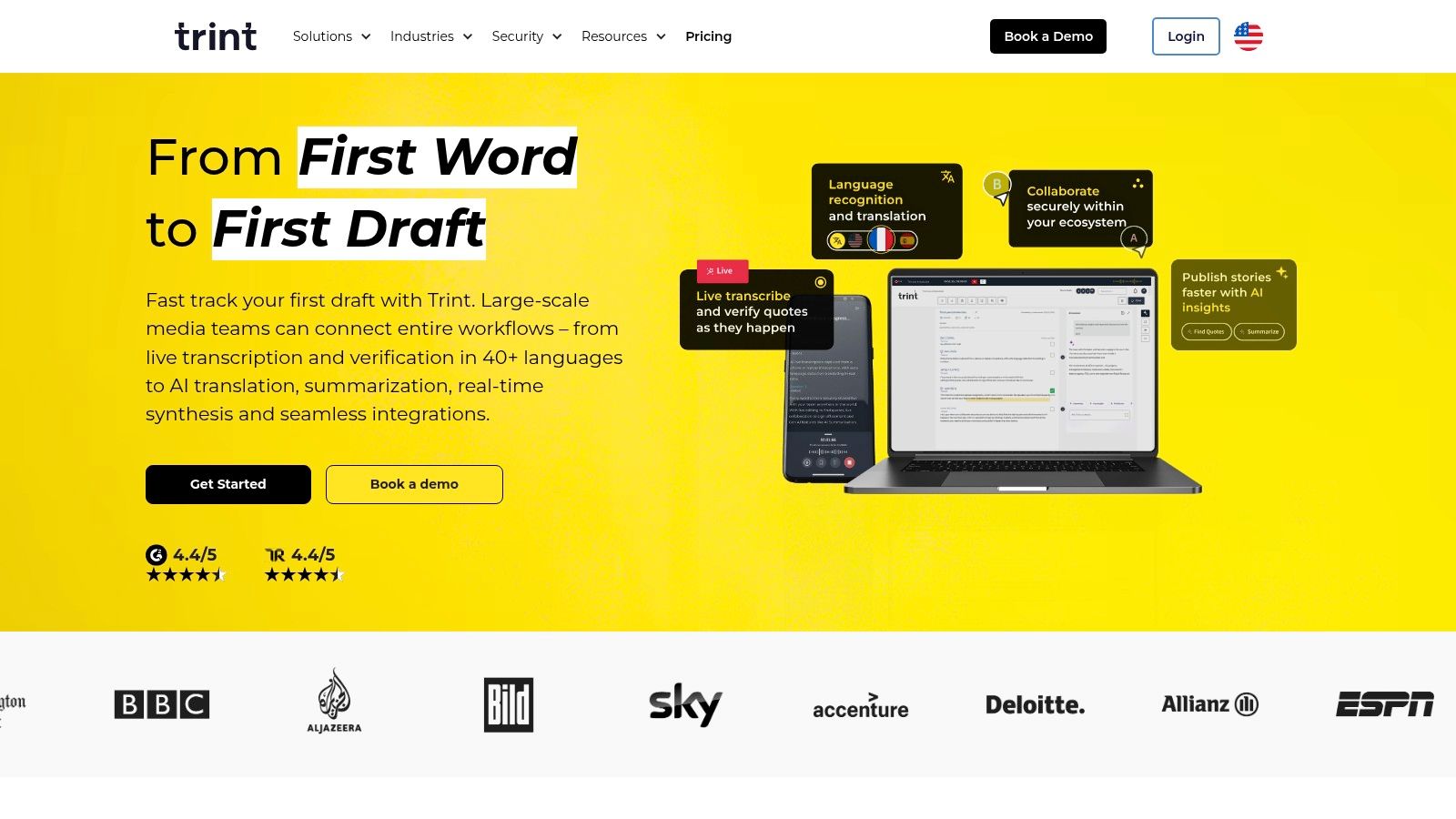
Trint is one of the few tools on this list that feels clearly built for editorial work, not just generic business transcription. If you've ever had to turn transcripts into scripts, selects, rough cuts, or story structure, that orientation shows up quickly.
For journalists, documentary teams, and content producers, that's a meaningful distinction. You're not just collecting words. You're shaping narrative from recorded material.
Where Trint stands out
Story Builder is the headline feature because it moves the transcript closer to editorial assembly. That's useful when you're pulling quotes, sequencing beats, or drafting a script from interviews.
Trint tends to suit teams that need:
- Comments and collaborative review
- Shared drives and versioning
- Caption editing
- Exports for production workflows
- A transcript that becomes an editorial asset
Editorial teams don't just need accurate text. They need a workspace where transcript lines can turn into publishable structure.
Where it's less attractive
Trint isn't the most transparent tool when you're trying to understand cost before committing. That alone can push solo users toward simpler alternatives.
It also makes less sense if you don't need collaboration. A lone creator clipping a few podcasts doesn't need newsroom-style workflow features unless those features directly save time.
6. Happy Scribe
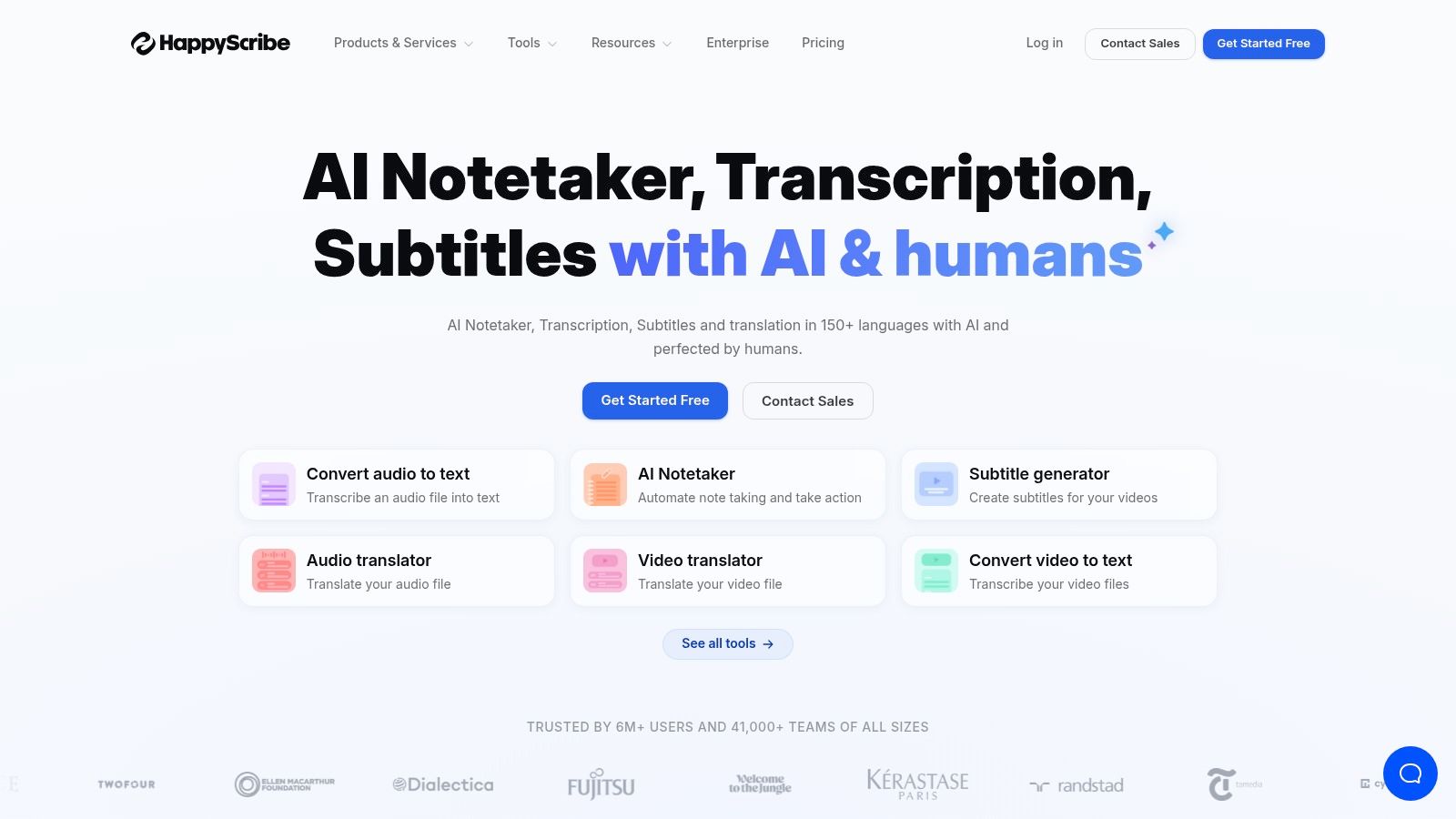
Happy Scribe is one of the more flexible choices when your work crosses into subtitles, translations, and multilingual publishing. That makes it especially useful for video creators, training teams, and anyone shipping content to audiences in more than one language.
It's web-based on Mac, and that's usually fine because most of its value sits in processing and output, not in a native desktop experience.
Best when subtitles matter as much as transcripts
A lot of tools say they do transcription, then treat captions as an afterthought. Happy Scribe feels more balanced. You can go from spoken content to editable text and subtitle formats without a messy detour.
That makes it a strong option for workflows like:
- YouTube or course captions
- Translated subtitle delivery
- Interview transcripts with timecodes
- Mixed AI and human-service needs
The trade-offs
Happy Scribe works best if you're organized. Minute pools, add-ons, and plan-dependent features are manageable, but they reward people who know their monthly volume.
It's also less ideal if you want an always-on free plan you can sit in for a long time. This is a tool to use deliberately, especially when captioning and multilingual output are part of the job.
7. Fireflies.ai
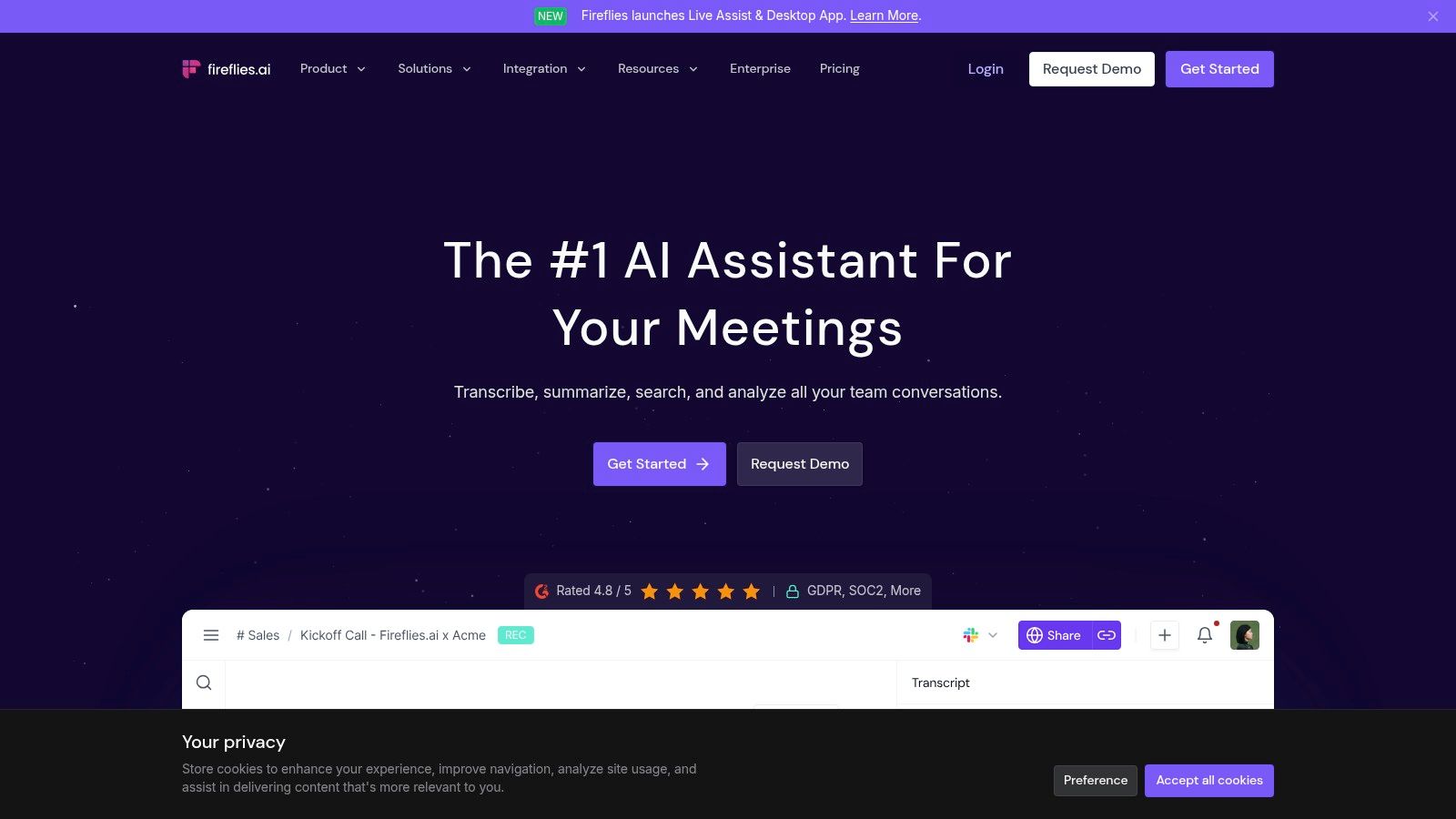
A common Mac workflow goes like this. Five calls happen in a day, nobody writes clean notes, and by Friday the team is arguing over what the client approved. Fireflies.ai is built for that problem.
It fits the cloud-based collaboration side of this list, not the on-device privacy-first camp. The point is less about polishing a transcript by hand and more about capturing meetings automatically, turning them into summaries and action items, and making past conversations easy to search later.
Best for teams that need meeting memory, not just transcription
Fireflies works well for sales teams, customer success managers, recruiters, founders, and operations leads who live in Zoom or Google Meet. On a Mac, that usually matters more than whether the app feels native, because the value shows up after the call ends.
The practical benefit is speed. Instead of reviewing a full recording, teams can scan the summary, jump to the relevant moment, and confirm what was said. That is useful in workflows like client handoffs, deal reviews, onboarding calls, and recurring internal check-ins.
Its core strengths are clear:
- Automatic meeting recording and transcription
- AI summaries and action items
- Search across past calls
- Conversation analytics for team review
- Integrations with common meeting and CRM tools
The trade-off to decide upfront
Fireflies often depends on a meeting bot joining the call. That works fine in many internal environments. It can feel awkward in external meetings, especially with clients in regulated fields or anyone already cautious about recording.
That single detail usually decides whether Fireflies is a fit on Mac.
If your team wants a shared meeting archive and is comfortable with cloud processing, Fireflies can save a lot of admin time. If privacy, local capture, or bot-free recording is the higher priority, one of the on-device tools later in this list will make more sense.
8. Notta
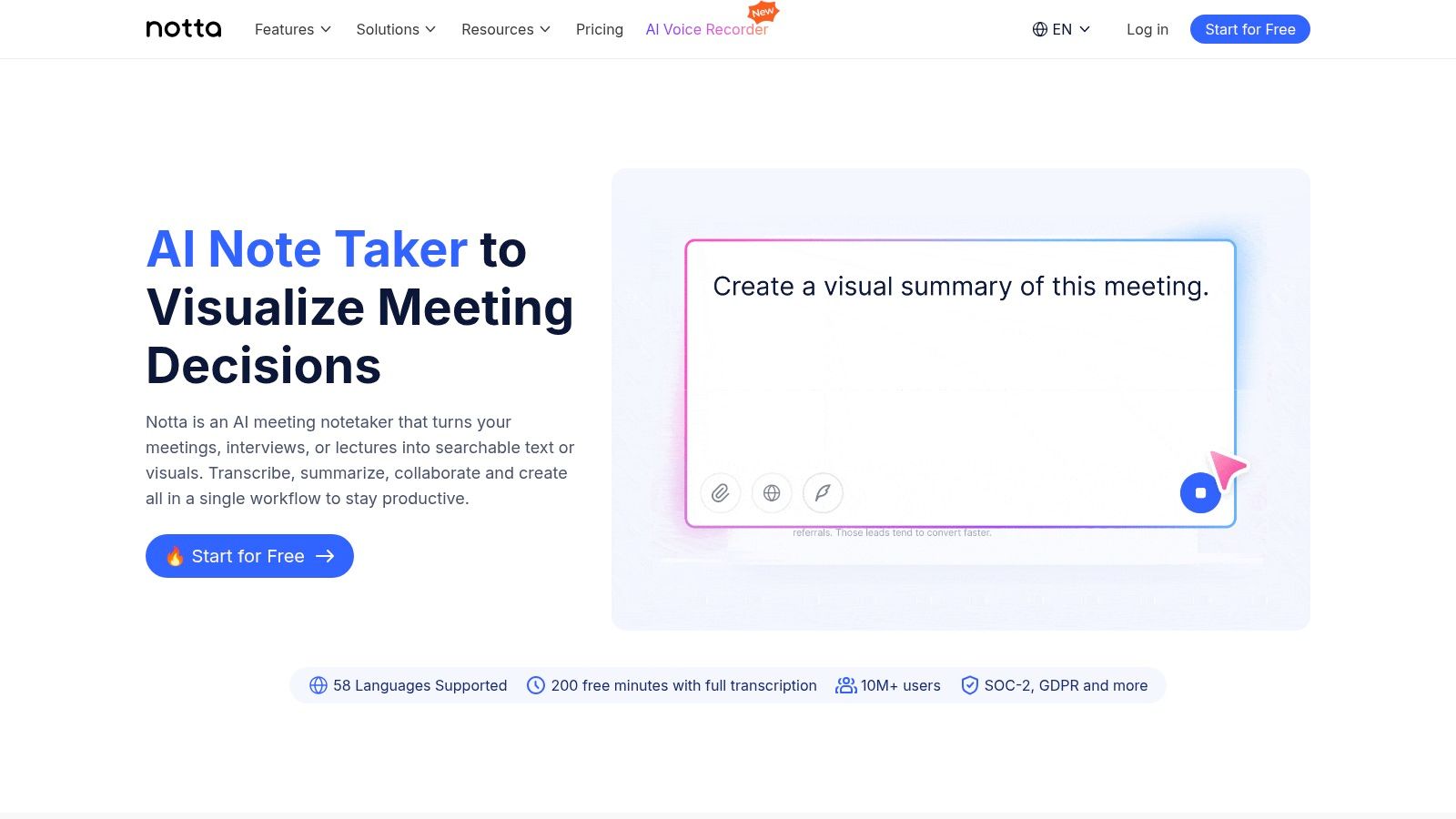
A common Mac workflow looks like this. A manager finishes six calls, needs clean notes before the next standup, and does not want to open a video editor just to find action items. Notta fits that kind of job well.
It is a cloud-based collaboration platform, not a local privacy-first app. That distinction matters. Teams that care more about shared transcripts, summaries, translation, and searchable meeting history than local processing will usually get value from it faster than solo users editing interviews on their Mac.
Best for shared meeting workflows on Mac
Notta makes sense when transcription is only one step in a larger process. Its benefit is getting from call to usable notes quickly, then making those notes easy for other people to search, review, and reuse.
On a Mac, that often means a few practical wins:
- Meeting transcription with searchable text
- AI summaries and follow-up notes
- Translation for multilingual teams
- Shared workspace features for teams
- Integrations that reduce copy-paste admin work
That combination puts Notta closer to Otter.ai and Fireflies.ai than to local tools like MacWhisper or Aiko. If your buying criteria starts with privacy and offline use, look elsewhere. If your team works across Zoom, Google Meet, and recurring internal calls, Notta is easier to justify.
Where it fits best
I would put Notta in the "operations-friendly" bucket. It works well for managers, coordinators, client-facing teams, and distributed companies that need a reliable written record after meetings.
A few examples:
- Operations leads need searchable archives for recurring project calls.
- Team managers need summaries they can scan between meetings.
- Global teams benefit from translation more than from a highly polished editing timeline.
- Admins and IT buyers usually prefer tools with clearer workspace controls over creator-focused features.
If your use case is broader than meetings, this roundup of audio to text tools for Mac gives a better view of apps built for dictation, interviews, and local file transcription too.
The trade-off to check before you buy
Notta is strongest as a cloud meeting workflow tool. That also creates its main limitation. Some advanced features and higher usage limits sit behind more expensive plans, so pricing needs a close read before rollout.
It is also less compelling for creators who need waveform-level editing, transcript-driven video production, or strict on-device handling of sensitive files. In those cases, a production tool or a local-first Mac app will be a better fit.
9. MacWhisper
MacWhisper fits the moment after a long interview, lecture, or recorded call is already sitting on your Mac and you need clean text without sending sensitive audio to a web service. That is why I place it firmly in the "On-Device Privacy-First Apps" group, not the cloud collaboration camp.
It runs locally, feels native on macOS, and takes good advantage of Apple Silicon. Batch transcription is useful if you are clearing a week of recordings at once, and YouTube import saves time when a source file is not already downloaded.
A strong local-first pick for serious file transcription
MacWhisper earns its place here because it solves a specific Mac workflow well. Drop in files, process them on the machine, review the transcript, and export. For journalists, researchers, lawyers, documentary editors, and anyone working with confidential material, that setup removes a lot of friction and a lot of privacy concern.
I also like that it sits in the middle ground between bare-bones utilities and full meeting platforms. You get more control than a lightweight app, but you do not have to buy into a team workspace just to transcribe audio.
If you are comparing local file-based tools rather than meeting bots, this guide to audio to text tools for Mac is a useful companion.
Where it fits best
MacWhisper works best for people with an existing recording workflow.
A few examples:
- Journalists transcribing interviews before pulling quotes
- Researchers processing private conversations or field recordings
- Podcast producers turning raw episodes into searchable text
- Students and academics working through lectures and seminars offline
The common thread is simple. The recording already exists, accuracy matters, and sending files to a cloud platform is either undesirable or unnecessary.
The trade-off to check before you buy
MacWhisper is strongest as a post-recording transcription app. It is less compelling if your day depends on live meeting capture, shared workspaces, automatic attendee summaries, or instant distribution across a team.
That trade-off matters. If your workflow starts with uploaded files and privacy requirements, MacWhisper is one of the more practical options on a Mac. If your workflow starts inside meetings and ends with collaborative follow-up, a cloud-based collaboration platform will usually fit better.
10. Aiko
Aiko is what I'd recommend to someone who wants local transcription on a Mac with almost no ceremony. No complex workspace. No account-heavy onboarding. No team dashboards you'll never use.
You drag in a file, let it process on-device, and get a transcript with timestamps and sentence-level segmentation. For a lot of individual users, that simplicity is the whole appeal.
Best for lightweight private transcription
Aiko suits people who don't need collaboration features and don't want to think about software architecture every time they transcribe something.
It's a good fit for:
- Students transcribing lectures
- Writers transcribing voice notes
- Researchers processing interviews privately
- Mac users who prefer App Store simplicity
The best local app is often the one you'll actually open instead of postponing the job because the interface feels like work.
Where it stops
Aiko doesn't try to be a meeting platform, editing suite, or collaboration hub. That's a strength until it becomes a limitation.
If you need action items, team handoff, cloud archives, or deep post-processing, you'll outgrow it. But if your main requirement is private file transcription on Apple Silicon with minimal friction, it does that job cleanly.
Top 10 Mac Transcription Tools, Quick Comparison
| Product | Core features | UX & Quality ★ | Price & Value 💰 | Target audience 👥 | Unique selling point ✨ |
|---|---|---|---|---|---|
| 🏆 Whisper AI | Multi-model transcription, multi‑speaker, timestamps, summaries, 92+ languages | 4.7★, accurate & fast, scalable | Start free; scalable paid plans 💰 | Podcasters, creators, teams, researchers 👥 | Privacy-first processing, exports to Google Docs/Word/PDF/MD, follow-up Q&A ✨ |
| Descript | Text-based audio/video editor, multitrack, AI cleanup | 4.5★, production-grade editor | Free tier; editing plans can be pricier for transcript-only 💰 | Podcasters, YouTubers, producers 👥 | Edit audio/video by editing text; strong publishing tools ✨ |
| Otter.ai | Live meeting transcription, speaker ID, summaries, apps/extensions | 4.3★, reliable for meetings | Free tier; per-seat plans with limits on low tiers 💰 | Teams, remote workers, meeting-heavy orgs 👥 | Real-time capture for Zoom/Meet/Teams and shared transcript archive ✨ |
| Sonix | Browser transcription, 50+ languages, timestamps, API | 4.2★, predictable accuracy | Transparent per-hour pricing; free trial 💰 | Researchers, media teams, automation users 👥 | Clear per-hour costs, strong export/options & compliance ✨ |
| Trint | Real-time/file transcription, Story Builder, collaboration | 4.1★, editorial workflow focused | Less transparent pricing; typically pricier for individuals 💰 | Journalists, production/edit teams 👥 | Story Builder for assembling narratives; NLE exports ✨ |
| Happy Scribe | AI & human transcription, subtitling, 100+ languages | 4.2★, high accuracy with human option | Pay-per-minute; no ongoing free plan (trial only) 💰 | Creators needing captions & translations 👥 | Option to choose human transcription for max accuracy ✨ |
| Fireflies.ai | Meeting recording, summaries, action items, analytics | 4.0★, strong meeting capture | Free tier limits; competitive per-seat annual pricing 💰 | Sales, internal teams, webinar hosts 👥 | Conversation analytics and AI assistant (AskFred) ✨ |
| Notta | Cross-platform transcription, translation, large minute quotas | 4.0★, generous quotas for teams | Clear plans & add-ons; business fair‑use limits 💰 | Teams with admin/security needs 👥 | High monthly minutes, admin controls and integrations ✨ |
| MacWhisper | On‑device Whisper, batch jobs, YouTube link transcription | 4.3★, very fast on Apple Silicon | Free small models; one-time Pro license option 💰 | Journalists, researchers, privacy-conscious Mac users 👥 | Fully local/offline processing; Apple Silicon optimized ✨ |
| Aiko | Simple on-device Whisper app, sentence segmentation, timestamps | 4.1★, private & lightweight | Paid App Store app; no account required 💰 | Individuals wanting quick private file transcriptions 👥 | No uploads or accounts; straightforward local transcription ✨ |
Choosing the Right Transcription Tool for Your Workflow
The easiest mistake people make with transcription software for Mac is choosing by feature count alone. That usually leads to buying a meeting platform when you needed an offline file transcriber, or installing a heavyweight editing suite when all you wanted was fast searchable text.
A better way to choose is by workflow category.
On-device privacy-first apps
If your recordings are sensitive, or you prefer not to upload source files, start with local apps. MacWhisper and Aiko are the clearest picks here. They're best for journalists, researchers, students, and solo professionals who already have recordings and want control over where the audio lives.
These tools are also a strong fit if you work on planes, in patchy internet conditions, or in environments where confidentiality matters more than collaboration. The trade-off is that you typically give up some of the easiest team features, live meeting automation, and cloud-based sharing.
Cloud-based collaboration platforms
If your transcript needs to be shared, searched, summarized, and turned into tasks, cloud tools usually win. Otter.ai, Fireflies.ai, Notta, Sonix, Trint, and Happy Scribe all sit somewhere in that broader collaboration camp, though each leans toward a different use case.
For meetings, Otter.ai and Fireflies.ai make the most sense when the transcript is part of ongoing team knowledge. For editorial work, Trint is better. For subtitle-heavy or multilingual work, Happy Scribe is stronger. For predictable browser-based transcript processing and exports, Sonix stays a solid choice.
Creator workflow vs meeting workflow
Creators often need something different from teams. If you record podcasts, YouTube videos, courses, or interviews, the best tool is often the one that helps you repurpose content after transcription. Descript is the standout when editing and publishing matter as much as the transcript itself.
Whisper AI sits in a particularly useful middle ground. It's strong for creators, researchers, and teams because it doesn't stop at raw text. It turns recordings into summaries, highlights, and action-ready output that can move the work forward.
Sample workflows that make the choice easier
- Podcast host or YouTuber: Use Descript if editing is central. Use Whisper AI if your priority is transcript plus summaries, highlights, and repurposing.
- Journalist or researcher: Use MacWhisper or Aiko when privacy and offline handling matter most.
- Remote team manager: Use Otter.ai, Fireflies.ai, or Notta when recurring meetings and shared notes drive the need.
- Documentary or newsroom team: Use Trint when transcripts need to become story structure.
- Multilingual content team: Use Happy Scribe when subtitles and translated outputs are a core requirement.
The good news is that this is no longer a tiny niche. The category is mature, and Mac users now have real options across local-first apps, creator suites, and meeting platforms. Start with your dominant source material, meetings, media files, interviews, or videos. Then choose the tool that removes the biggest bottleneck after the transcript appears.
If you want one tool that handles transcription, speaker detection, timestamps, summaries, highlights, and flexible exports in a clean workflow, Whisper AI is a strong place to start. It's especially good for creators, marketers, researchers, and teams who need more than a raw transcript and want usable output fast.


























































































