Best Speech to Text App Mac 2026: Top 10 Tools Reviewed
Tired of Typing? Find Your Perfect Mac Speech to Text App
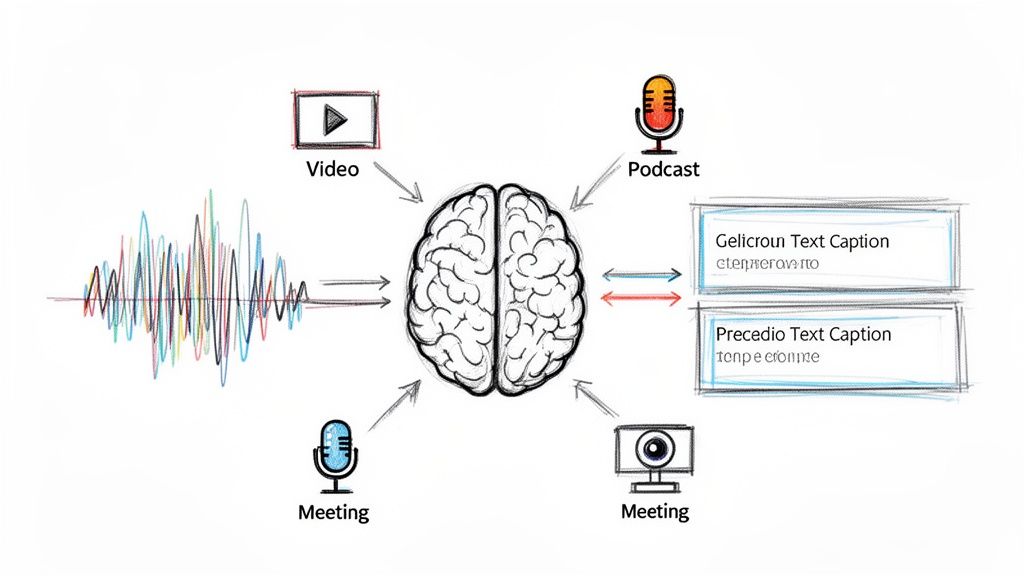
Whether you're juggling meeting notes, transcribing a long interview, or trying to turn a rough voice memo into publishable text, typing everything by hand gets old fast. A good speech to text app for Mac can take that friction out of your day. You talk, upload, or record, and the text shows up where you need it.
The problem is that Mac users don't just need one kind of tool. Some people want live dictation inside Slack, Notion, or Google Docs. Others need batch file transcription for podcasts, lectures, and video edits. Some need an editor that turns transcripts into summaries, captions, and reusable content without bouncing between five apps.
I've used enough of these tools to know the split matters more than the feature list. A dictation app can be great for email replies and terrible for a recorded interview. A file transcription app can be accurate and private, but useless if you need system-wide voice input all day.
This guide gets straight to the tools that matter, grouped by what they do well. If you also work with synthetic voice workflows, these AI voice generator options are worth a look alongside transcription.
1. Whisper AI
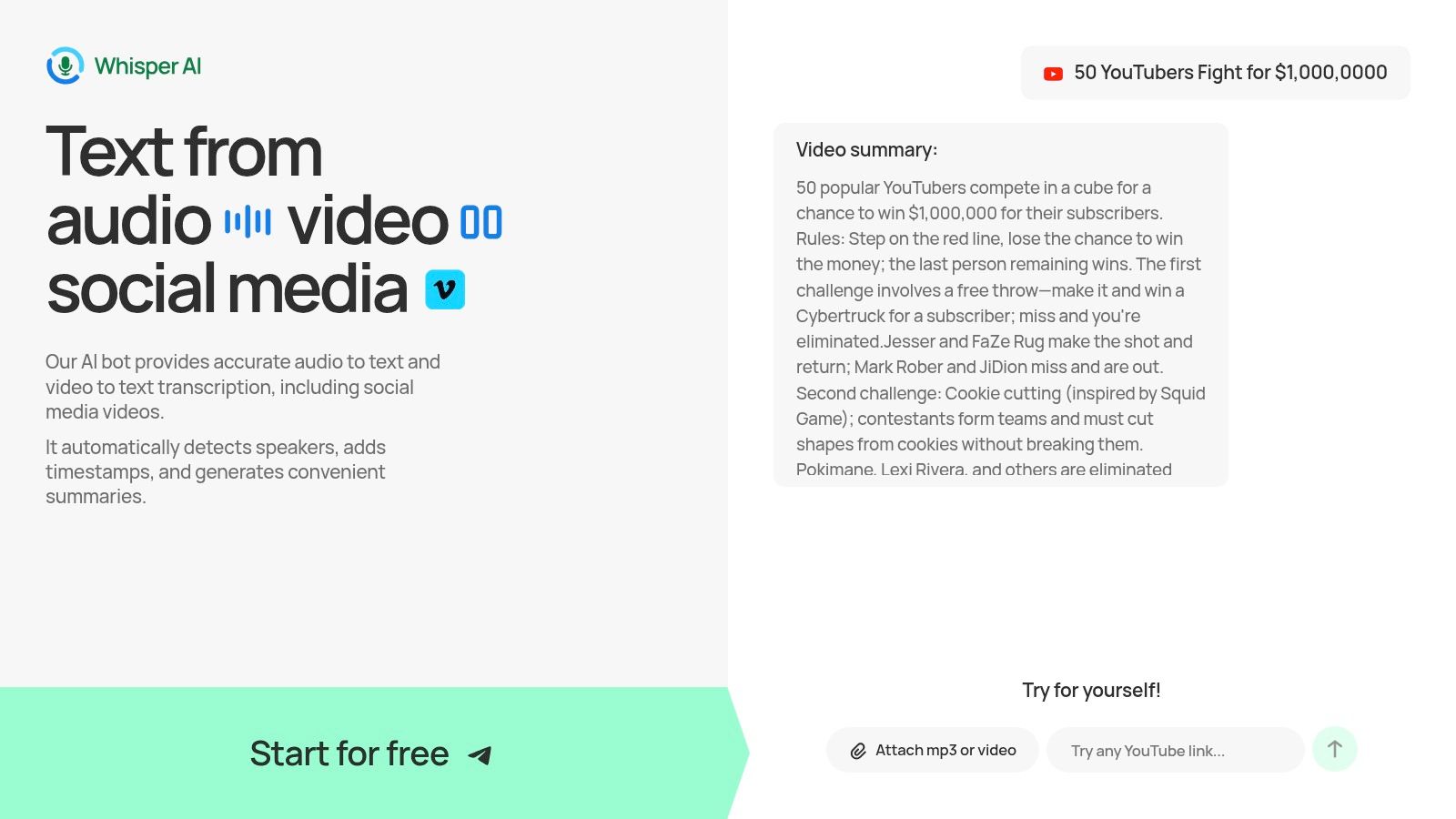
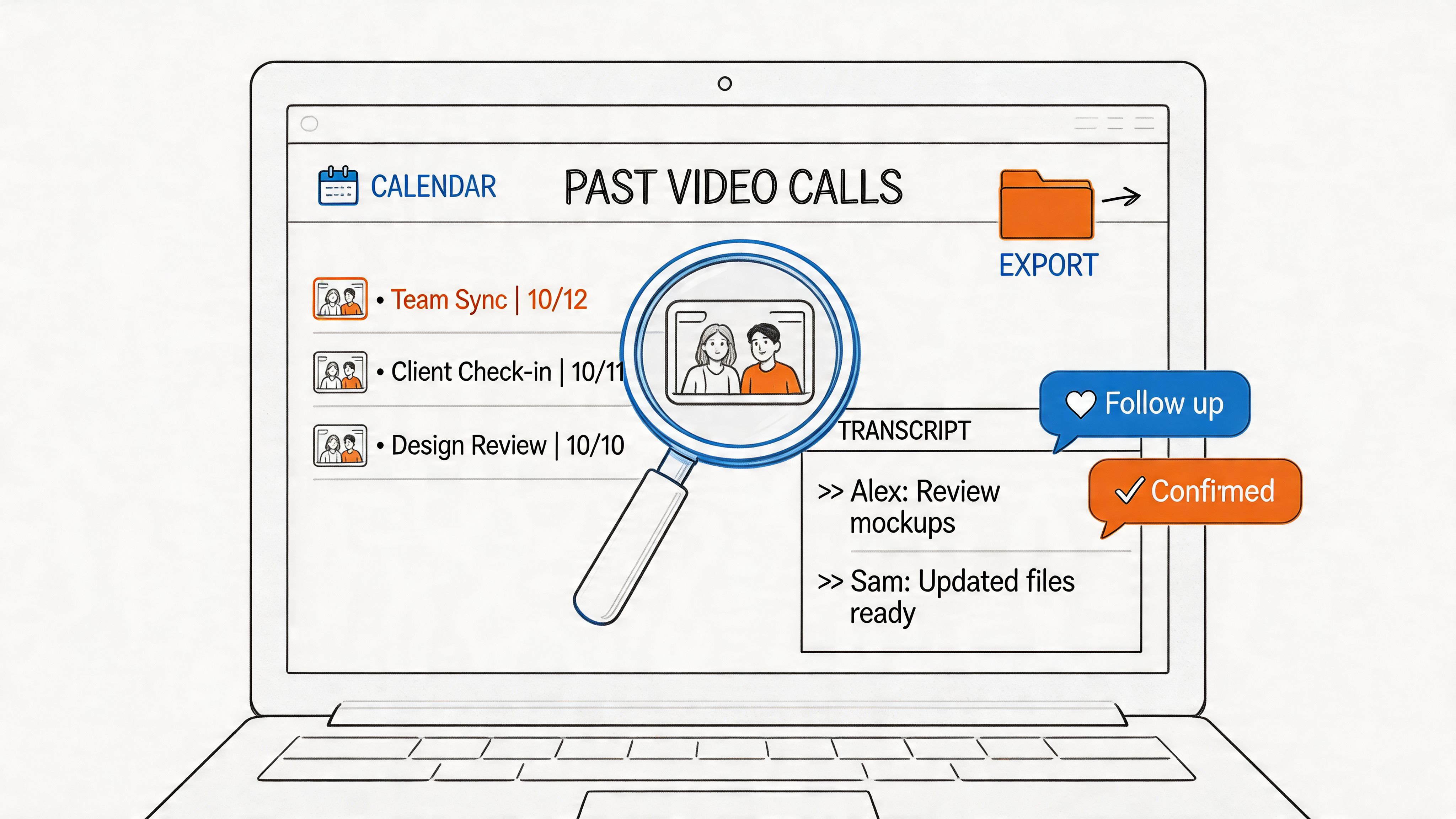
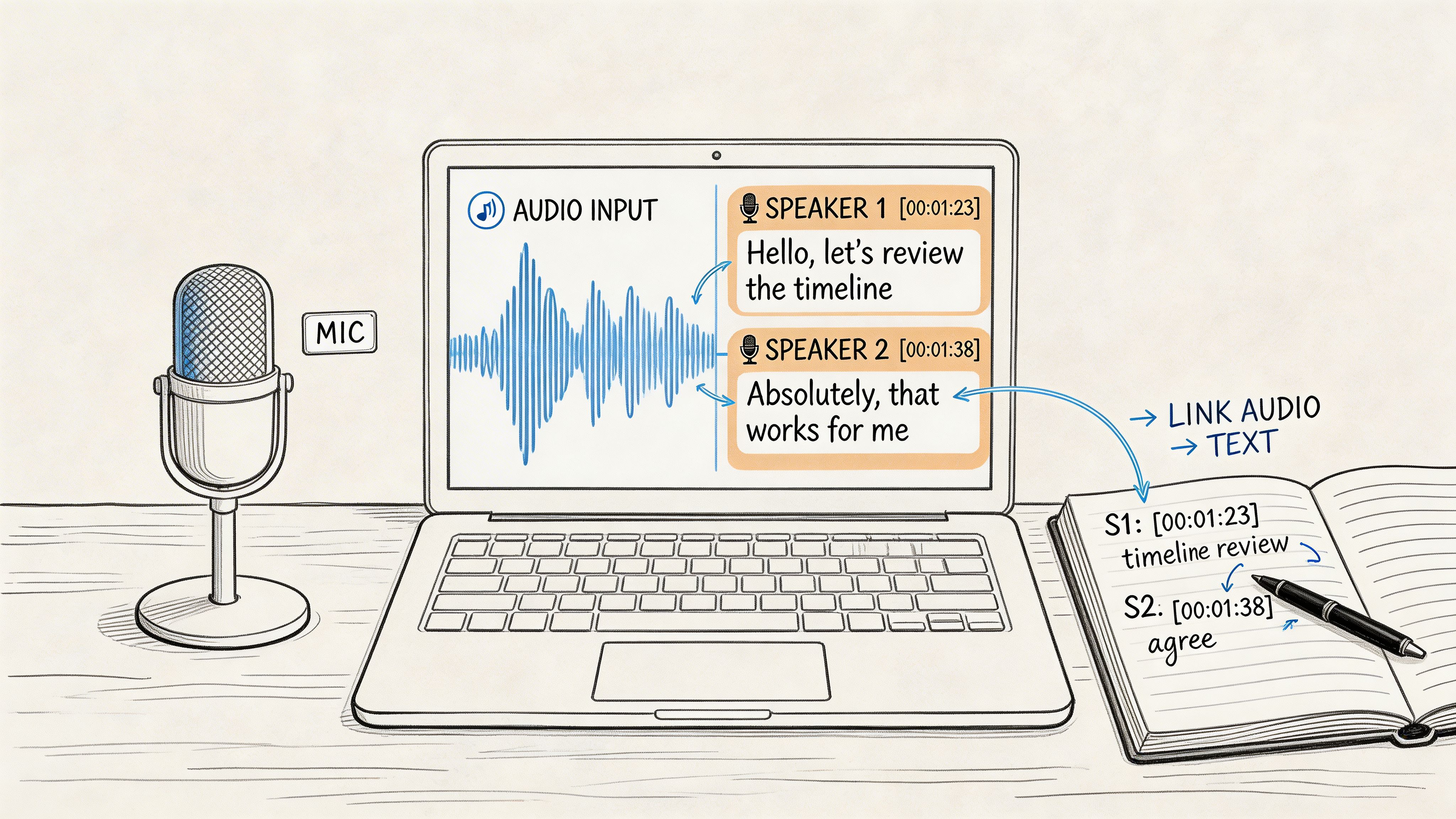
You finish a 45-minute interview on your Mac and need more than text. You need speaker labels, a usable summary, timestamps for editing, and something your editor or client can readily work with. That is the use case Whisper AI fits best.
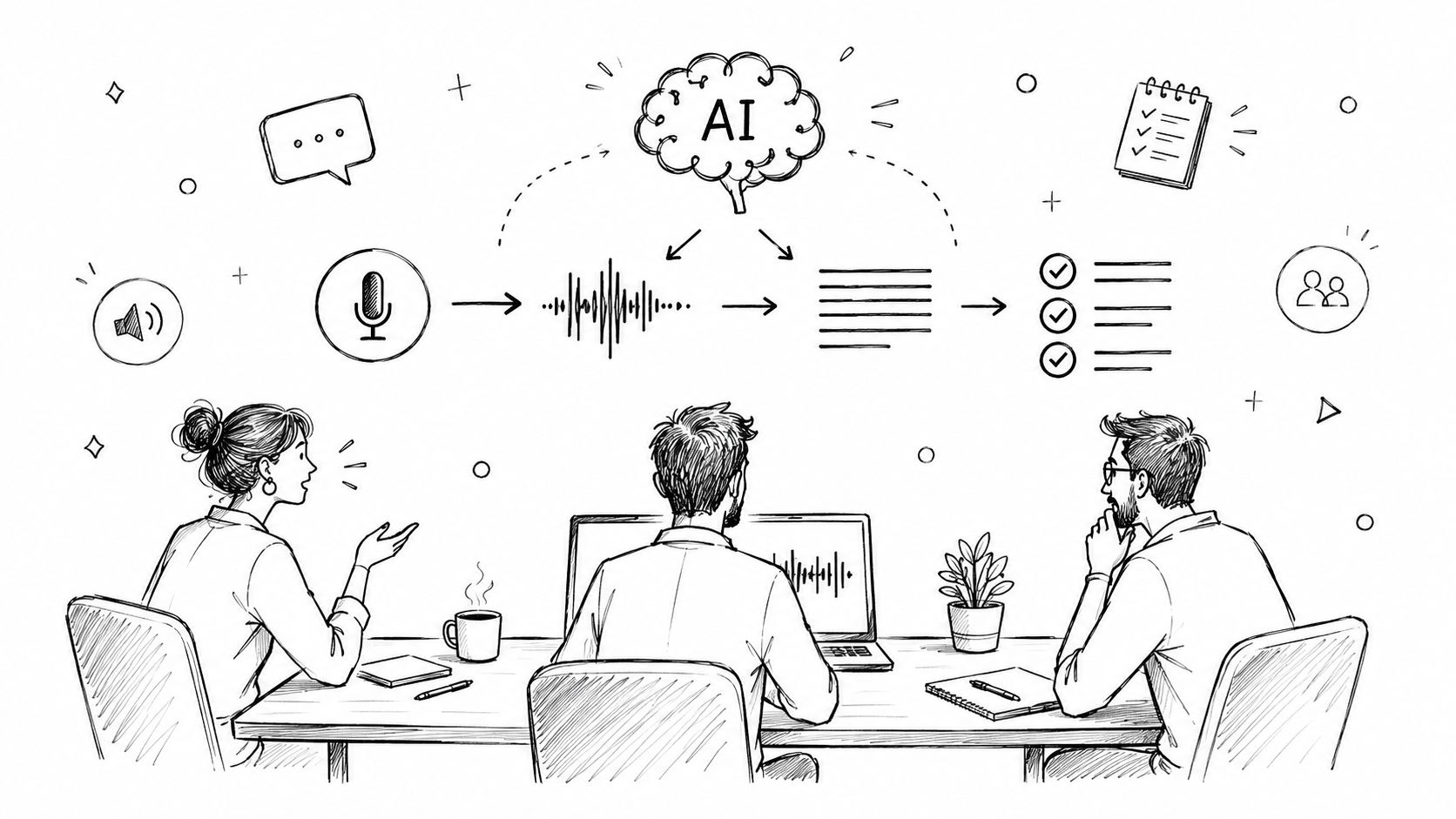
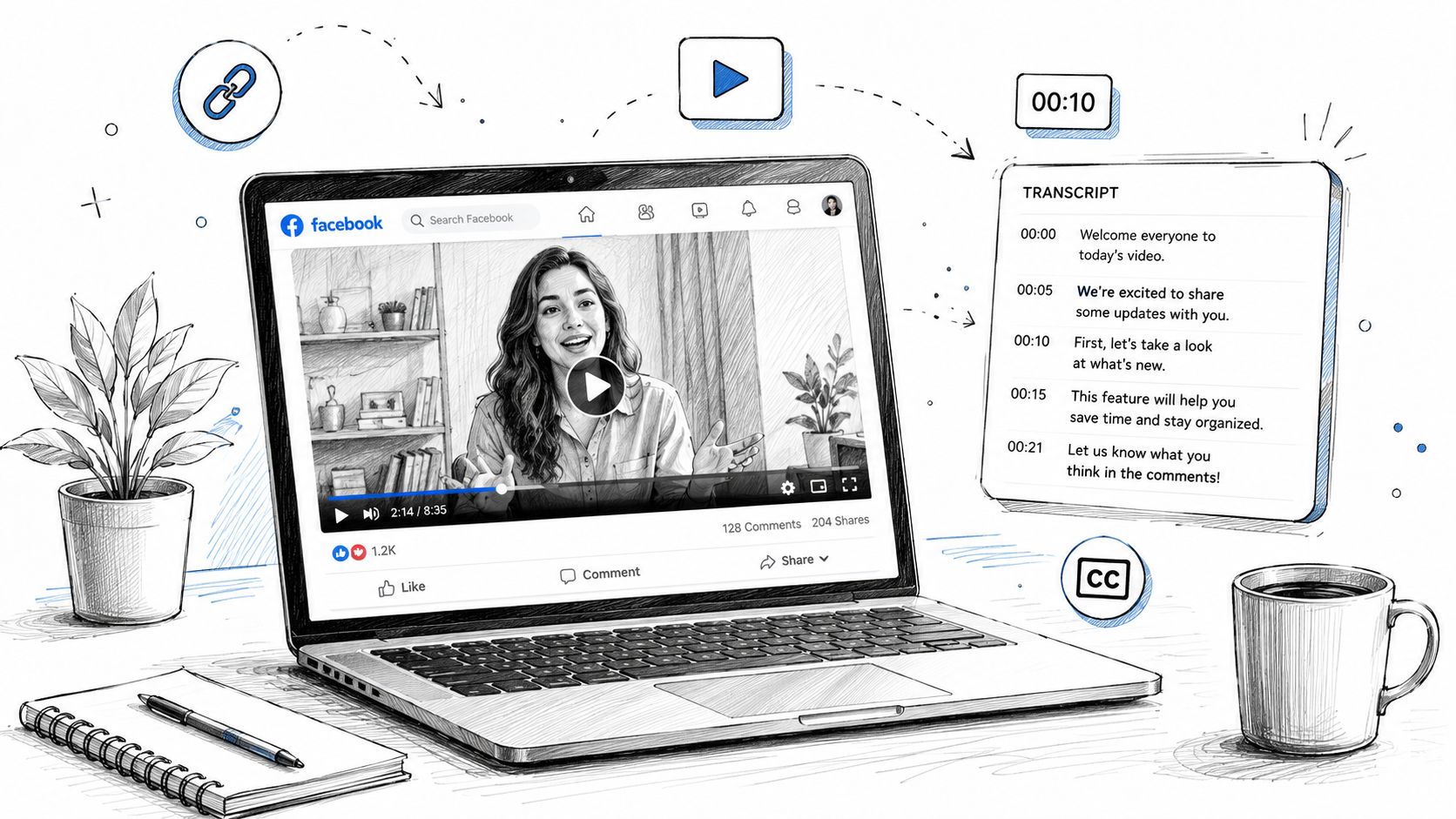
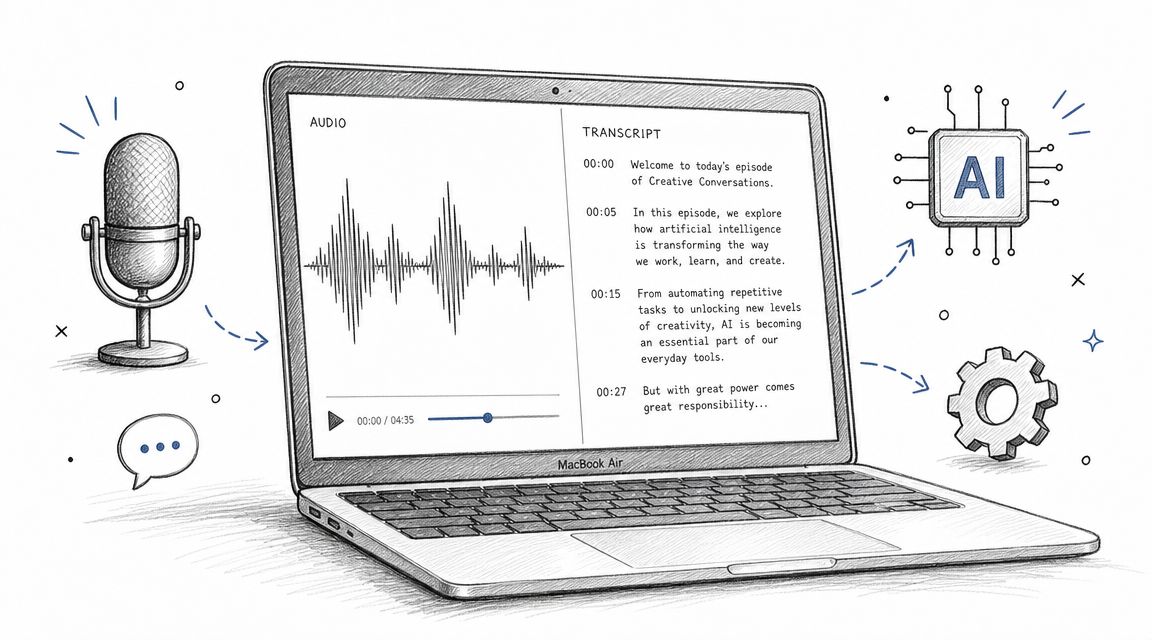
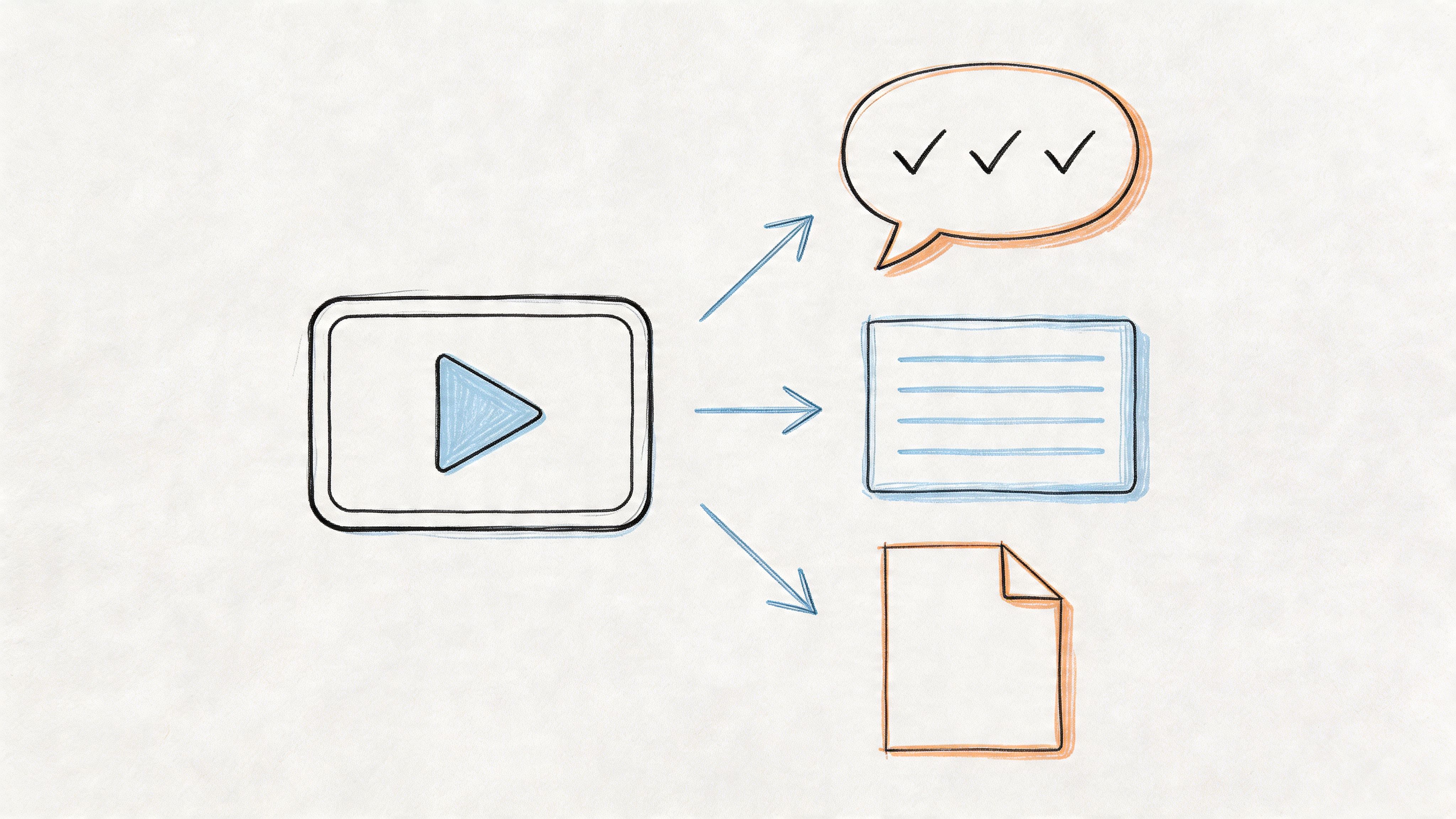
I would not put it in the same bucket as live dictation tools. Whisper AI is for recorded media first. It handles audio, video, and short social clips, then adds the pieces that save time after transcription, including speaker detection, summaries, timestamps, and follow-up Q&A. The distinction is important when you're trying to turn one recording into publishable assets instead of just getting words onto the page.
On Mac, that makes it a better fit for podcast producers, interview-heavy writers, researchers, and content teams than for someone dictating quick replies into Mail. You can drop in source files, work from different media formats, and export to Docs, Word, PDF, TXT, or Markdown without cleaning everything up in separate apps.
Why it stands out
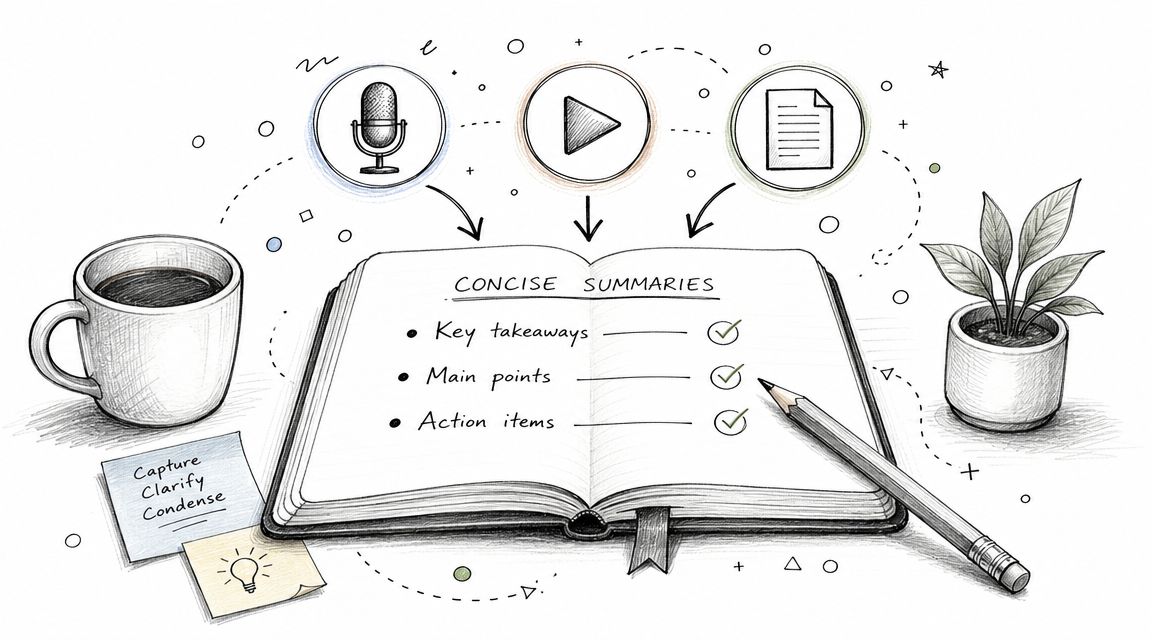
A key advantage is what happens after the first pass. Plenty of apps can generate a transcript. Fewer can take a messy recording and give you output that is searchable, condensed, and ready for editing or handoff.
If your workflow is built around recorded conversations, this guide to transcription software for Mac is a useful next read.
Practical rule: If you regularly need action items, highlights, or content drafts from a recording, you need a transcription workflow tool, not basic dictation.
Whisper AI also works well for multilingual projects and mixed media inputs, which helps if your files come from interviews, uploaded videos, or social clips rather than one clean recording source. If you're creating or studying content across languages, it can also sit alongside tools that help you start your Irish language journey.
Best fit and real trade-offs
Whisper AI is strongest in a few specific workflows:
- Long-form transcription: Interviews, webinars, meetings, lectures, and podcasts
- Content repurposing: Turning one recording into summaries, notes, captions, and draft content
- Team handoff: Sharing searchable transcripts and exports with editors, marketers, or researchers
- Whisper-based implementation: Building around Whisper models through dedicated apps or local setups, instead of relying on a basic recorder with text output
The trade-offs are real. Pricing is not especially clear from the landing-page experience, so you may need to create an account before you understand the full cost. It also is not the tool I would choose for system-wide live dictation inside every Mac app. And like every speech-to-text system, output quality still tracks closely with input quality. Crosstalk, weak microphones, and domain-specific jargon can still require a manual cleanup pass.
2. Apple Dictation
Apple Dictation is the baseline because it's already on your Mac and takes almost no setup. If you want to speak a quick reply in Mail, add a paragraph in Notes, or punch out a short draft in a browser field, it works. That's why so many Mac users start there and, for lightweight tasks, stay there.
The limits show up the moment you push beyond short bursts. Apple Dictation has a documented word error rate of 15 to 18 percent and a hard 60-second timeout per session, which is exactly why it breaks down for professional transcription and longer-form creation work, according to this review of speech to text on Mac.
Where it still makes sense
For fast, free, system-wide dictation, it's hard to beat. No account, no export step, no extra app in the menu bar. You press the shortcut and talk.
That simplicity makes it useful for:
- Short text entry: Emails, messages, quick notes, and rough paragraphs.
- Low-friction use: It works in the places you already type.
- Casual users: If you only dictate occasionally, the built-in tool is enough.
If you're trying to move beyond those short bursts, this walkthrough on audio to text on Mac is a good next step.
Apple Dictation is convenient. It isn't a serious transcription platform.
The practical downside
There are no advanced editing tools, no speaker labeling, and no batch file workflow. The language story is also narrower than what newer AI tools offer, which becomes obvious if you work across languages or accents.
I still recommend Apple Dictation to people who want the fastest zero-cost starting point. I don't recommend building a content workflow around it unless your needs are very small and very forgiving.
3. MacWhisper
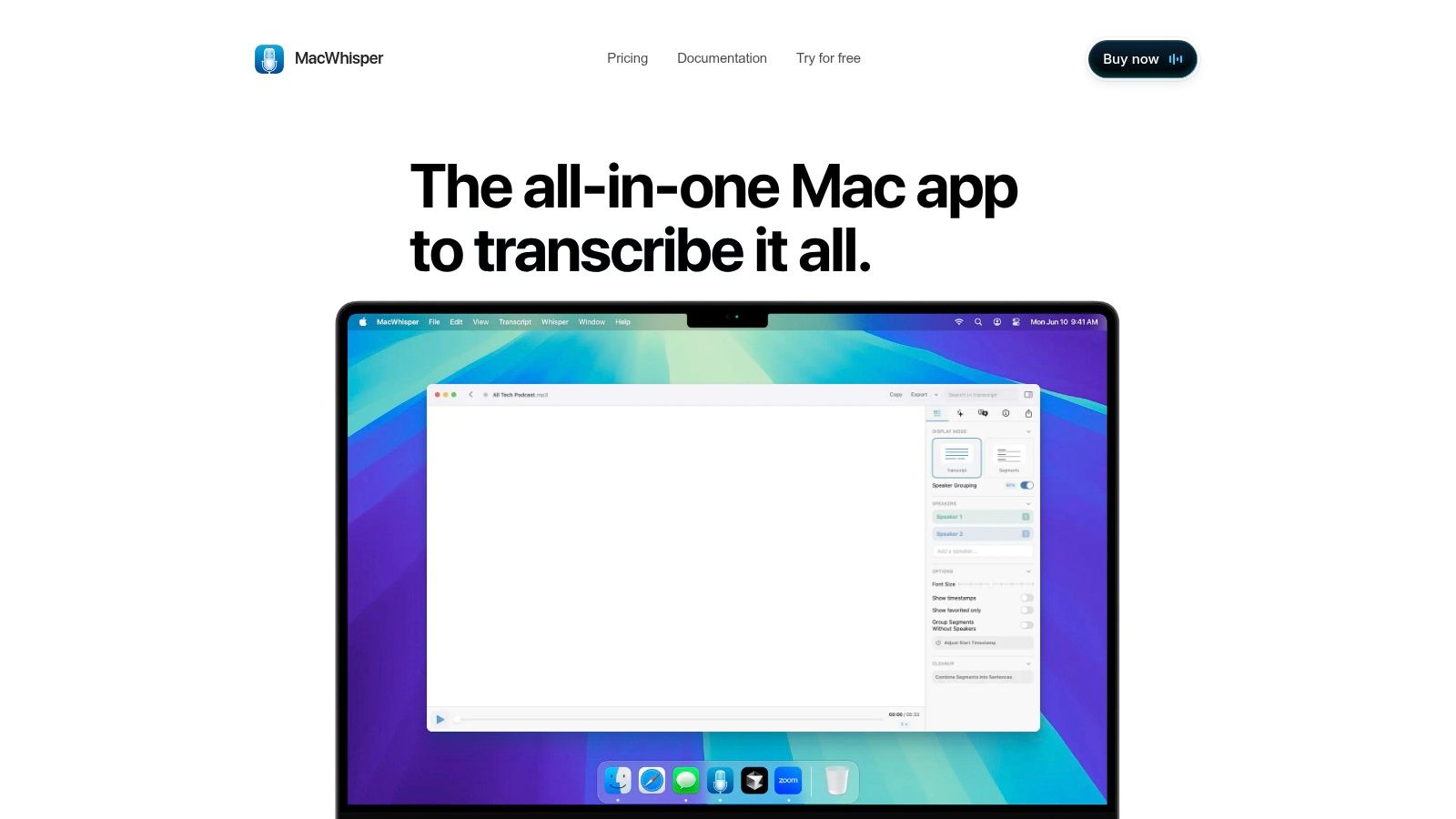
MacWhisper is one of the easiest ways to turn a Mac into a serious local transcription machine. It focuses on recorded files, not flashy workspace features, and that focus is exactly why many creators like it. Drop in audio or video, let the model run locally, and work from the output.
What makes it compelling is the engine underneath. Apps built on OpenAI's Whisper model consistently deliver 95 to 99 percent accuracy across accents, noise conditions, and technical domains, which is why Whisper-based transcription has become the standard for local transcription on Apple Silicon Macs, as noted in this write-up on dictation on Mac.
Why creators keep choosing it
MacWhisper is strongest when privacy and file handling matter more than live dictation. Podcasters, journalists, students, and researchers can process recordings offline and avoid sending source material to a cloud service.
The pricing model also helps. There's a free tier, plus a one-time Pro option, which appeals to people who don't want another monthly software bill hanging over a file-based workflow.
The trade-off nobody should miss
MacWhisper isn't a full replacement for a system-wide speech to text app for Mac. It won't feel like a natural voice keyboard in every app because that's not the point. It's better thought of as a transcription workstation for recorded media.
- Best for: Interviews, podcasts, lectures, webinars, and video caption prep
- Less ideal for: Real-time dictation into email, chat, or docs
- Watch for: Heavier CPU use on long jobs and larger models
If your day starts with a folder full of recordings, MacWhisper makes a lot of sense. If your day starts with a blinking cursor in ten different apps, look elsewhere.
4. Otter.ai
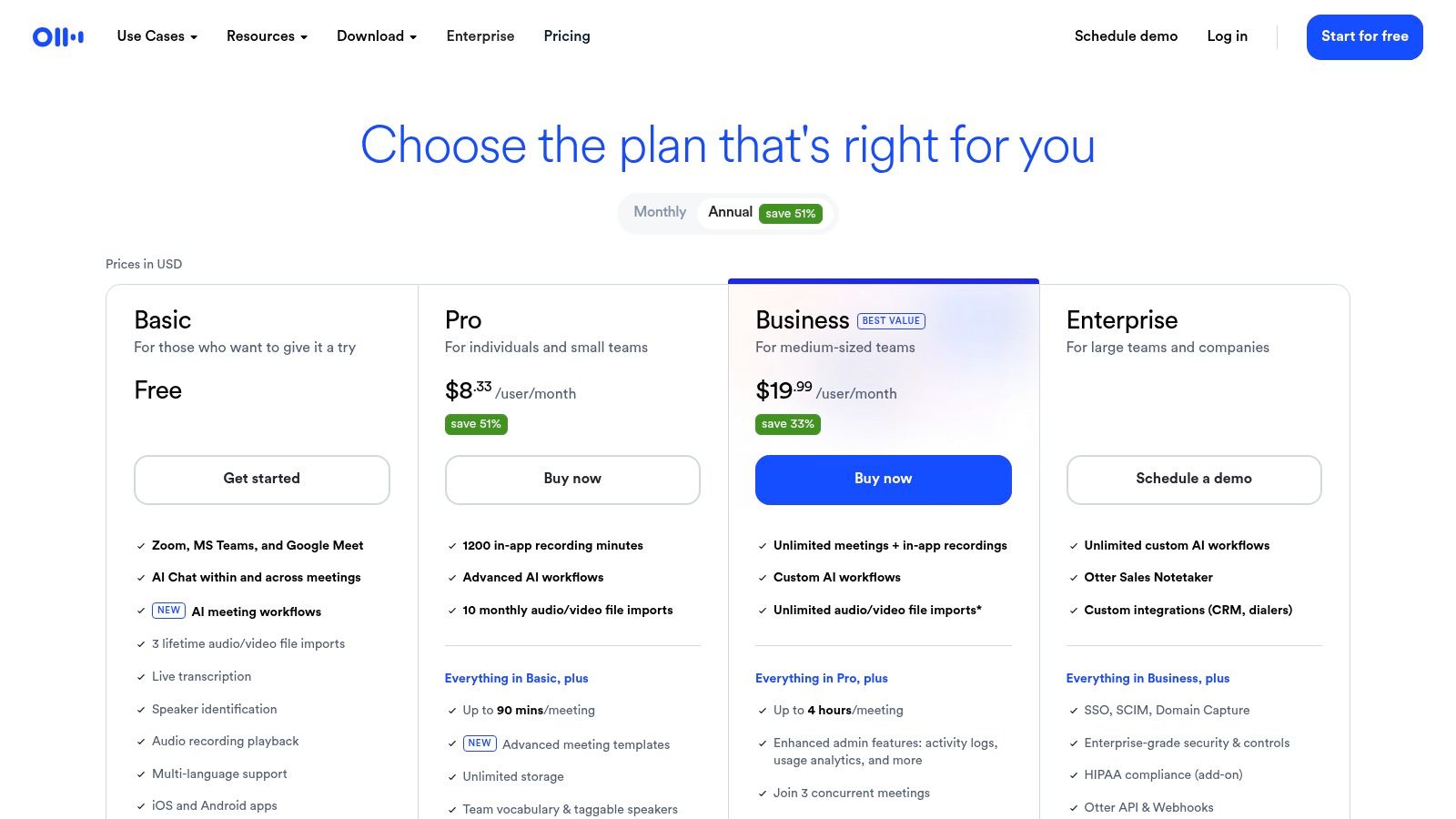
A Monday full of Zoom calls, client reviews, and internal standups is where Otter.ai makes sense on a Mac. It is built for conversations that need to be captured, shared, searched, and turned into follow-up work, not for cursor-level dictation across apps.
That distinction matters. Otter fits the Live Dictation and meeting-notes side of this guide far better than the file-transcription or local Whisper workflows covered elsewhere. I would pick it for recurring team calls, interview debriefs, sales discovery, and classes where the transcript needs to live in a shared workspace after the meeting ends.
Where Otter works best
Otter's strength is collaboration. It keeps transcripts in the cloud, makes them easy to search later, and works well if your day moves between Mac, browser, and phone. Shared notes, speaker separation, and meeting summaries are the reasons teams stay with it.
If you're weighing it against tools that handle recordings, subtitles, or private offline transcription better, this roundup of Otter AI alternatives for different workflows is a useful comparison.
Use this when: your transcript is part of a team process, and other people need to read it, search it, or pull action items from it later.
Where it falls short
Otter is cloud-first, so I would not use it for sensitive recordings that should stay on-device. It is also a weaker fit for creators who need detailed export control, batch file processing, or transcript-based media editing.
Solo users should look closely at that trade-off. If you mainly record interviews or lectures and want raw transcription accuracy with tighter privacy, other tools in this guide are usually a better fit. Otter earns its place when meetings are the product, and shared notes are the main outcome.
5. Descript
Descript is what I reach for when transcription is only the beginning. It turns the transcript into the editing interface, which changes the whole workflow for podcasts, tutorials, interviews, and talking-head videos. Delete a sentence in text, and the media edit follows.
That text-first approach makes Descript feel very different from a typical speech to text app for Mac. You're not just converting speech. You're shaping an episode, a clip, or a lesson from the transcript outward.
Why it's great for creators
Descript works best for people who produce content regularly and want one environment for transcribing, editing, and exporting. Speaker labeling, filler removal, and publishing workflows help reduce the number of handoffs between tools.
A few places where it shines:
- Podcast editing: The transcript becomes the fastest way to find and cut sections.
- Video repurposing: Pulling short clips and captions is easier when the words are already mapped.
- Team edits: Writers and editors can often work directly in the transcript instead of scrubbing a timeline.
The catch
Descript has a learning curve. If all you want is voice typing into docs, it's overkill. If you already edit in a more traditional audio or video stack, you also need to decide whether transcript-based editing fits your habits or just adds friction.
This is an editor with transcription built in, not a lightweight dictation utility. For the right creator, that's a strength. For everyone else, it can feel like bringing a studio into a note-taking job.
6. Superwhisper
Superwhisper is for people who live in text fields all day and want voice input to behave like a power tool, not a novelty. It pastes transcribed text where your cursor is, supports local models, and gives you more control over behavior than Apple's built-in option.
That flexibility matters because on-device speech models on Apple Silicon have reached a word error rate of about 3.7 percent in 2026, while Apple's built-in Dictation sits much higher on technical or accented speech, according to benchmarks collected in this guide to the best voice-to-text apps for Mac. That gap is exactly why power users started looking beyond macOS defaults.
Why power users like it
Superwhisper lets you shape the workflow around the app you're in. That's useful if you dictate differently in code editors, chat apps, email, and long-form writing tools.
- System-wide dictation: It behaves more like a real replacement for keyboard typing.
- Model flexibility: Local transcription is available, with optional cloud cleanup for people who want polished output.
- Advanced control: Per-app behavior is the kind of feature that sounds niche until you use it daily.
For coding, long-form writing, and cross-app workflows, customization matters more than flashy summaries.
What to watch
Superwhisper takes a bit of setup to feel right. Privacy-conscious users should also check defaults carefully if they're mixing local and cloud-based features. And while there are different license options, the higher-end experience costs more than simpler alternatives.
If you like tweaking shortcuts, modes, and app-specific behavior, Superwhisper is one of the better Mac-native choices. If you want dead-simple file transcription, something like MacWhisper is usually easier.
7. Aiko by Sindre Sorhus
Aiko feels like the indie alternative for people who want local transcription without a sales pitch, account funnel, or subscription upsell in every corner. You open the app, feed it a file, and get a transcript. That's the whole charm.
It runs Whisper locally, which means it benefits from the same broader shift toward offline transcription on Apple Silicon Macs. That shift matters because local apps can keep audio on-device, which is a major advantage for privacy-sensitive work, as highlighted in the earlier reference on Whisper-based Mac transcription.
The best reason to use Aiko
Simplicity. Aiko is easy to recommend to students, journalists, and solo professionals who want fast, high-quality file transcription without needing collaboration layers or AI summaries.
It also plays nicely with Shortcuts, which makes it a good fit if you like building small automations around repeated file tasks.
The limitation is obvious
Aiko is file-first. It isn't the app to buy if your goal is live dictation into every text box on your Mac. There's also no built-in editing environment, so you'll probably move the transcript into another app for cleanup and publishing.
- Best for: Quick private transcriptions of recordings
- Less ideal for: Team collaboration and live cursor-based dictation
- Nice bonus: Clean interface, clear documentation, and no obvious bloat
For a lot of people, that restraint is a feature, not a bug.
8. Notta Desktop
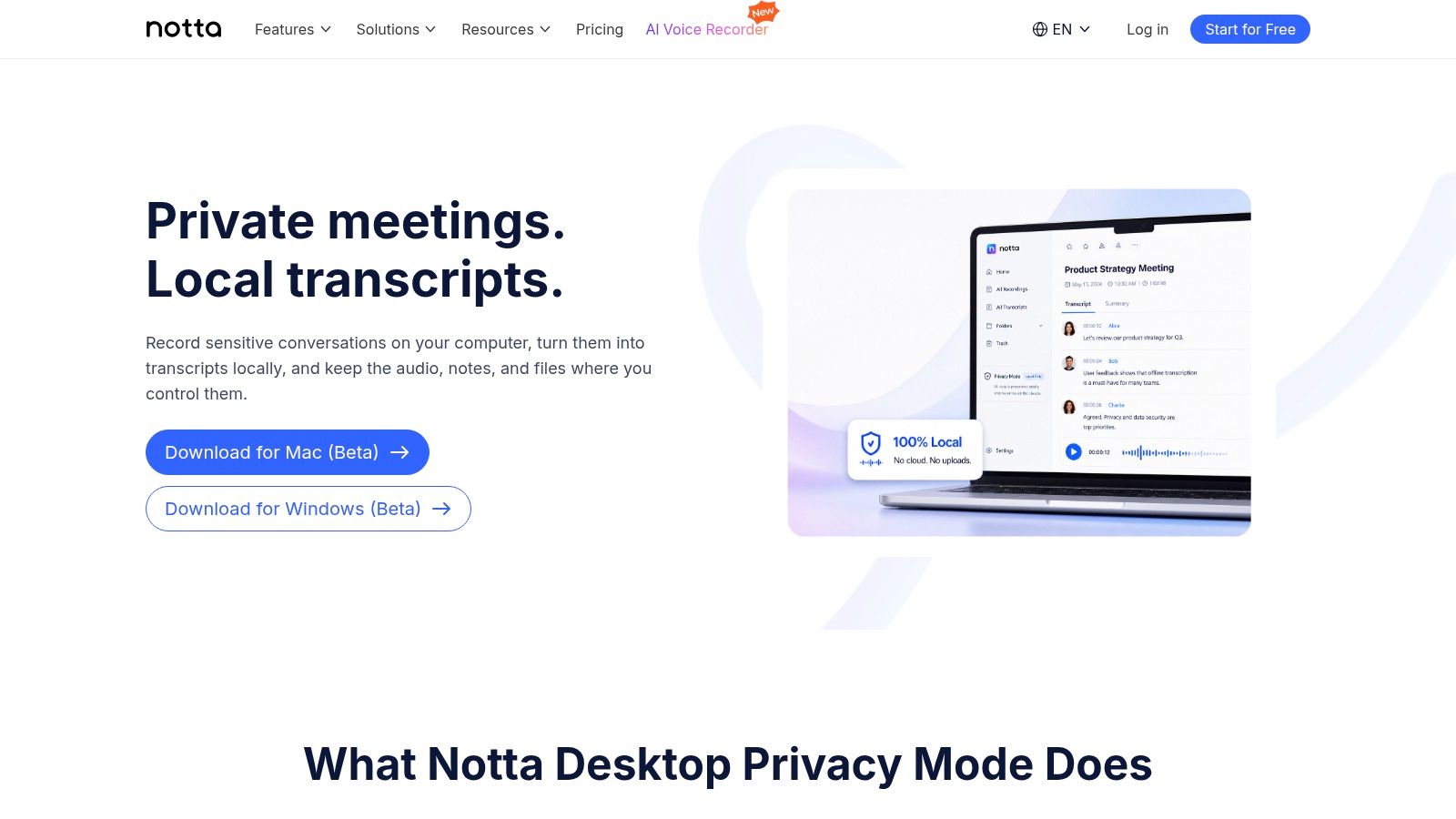
Notta sits in the middle ground between convenience and privacy. It has a Mac desktop app, supports meeting recording and transcription, and offers a Privacy Mode for offline or on-device handling where available. That's a useful combination if you don't want to commit fully to either a pure cloud workspace or a pure local utility.
I usually think of Notta as a practical compromise tool. It tries to give you sync, summaries, exports, and some local privacy options without forcing every use case into the same box.
Where it fits nicely
Notta is a reasonable choice for professionals who move between devices and want both desktop recording and cloud access. Speaker differentiation and export options make it more useful than a barebones recorder.
It makes sense for:
- Meeting-heavy schedules: You can capture discussions and keep them accessible later.
- Mixed privacy needs: Some jobs can stay more local, others can live in the cloud workspace.
- Teams in transition: It works for people who aren't ready to go all-in on a local-only stack.
Real limitation
Some of the more advanced AI features still lean on cloud credits, and the privacy side is still evolving. If you work in a highly sensitive environment, I'd still test carefully before assuming it matches a fully local workflow.
Notta is solid when you want balance. It isn't the cleanest option for pure local transcription, and it isn't the deepest collaboration suite either. That's also why it can fit more users than you'd expect.
9. Trint
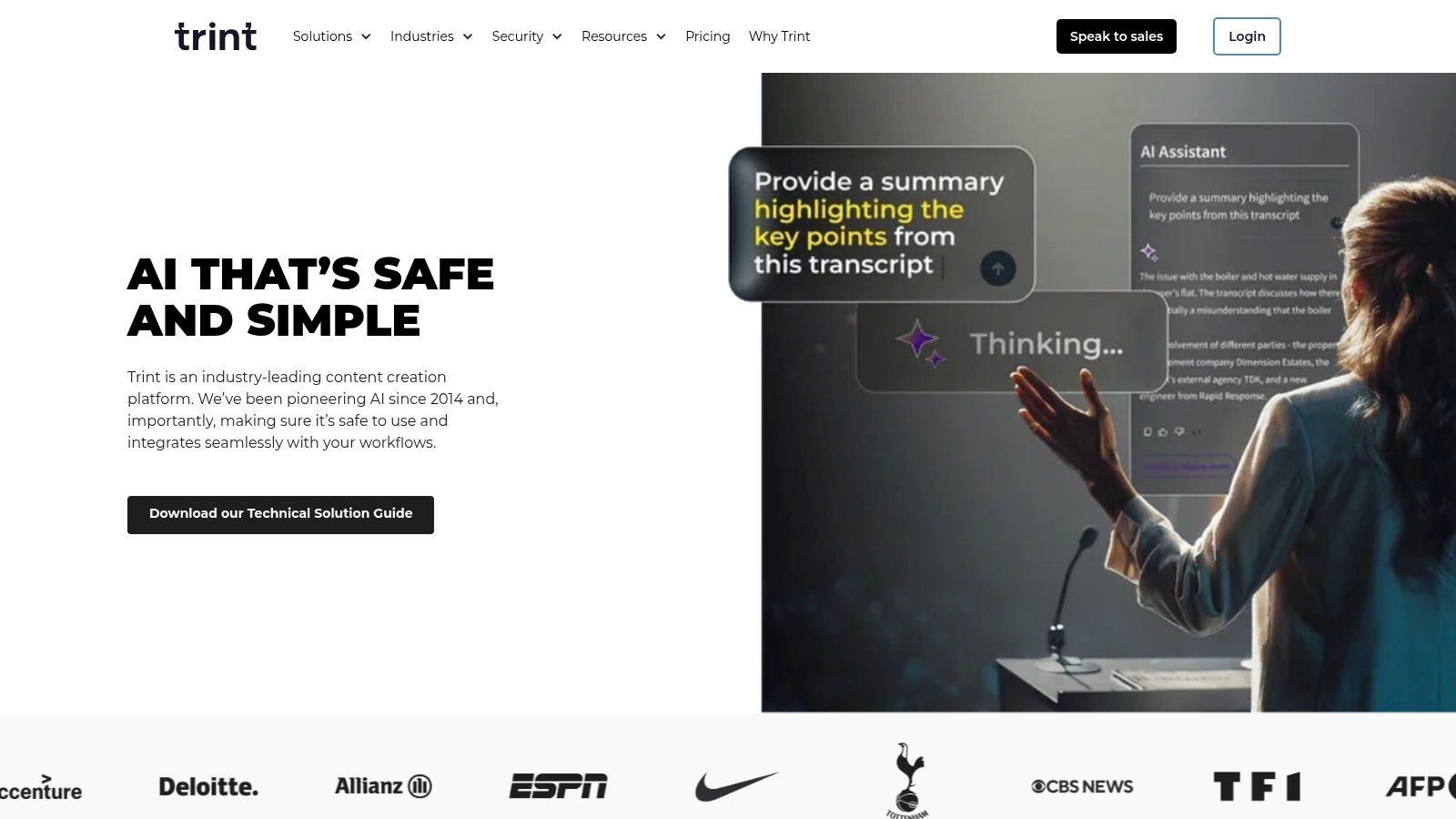
Trint has always felt closer to newsroom software than creator software. It isn't trying to be a casual voice typing tool. It's built for teams that need transcripts reviewed, edited, approved, and sometimes translated before publication or internal use.
That's why journalists, media teams, and larger organizations still look at it seriously. Timecodes, speaker detection, collaboration, and review workflows matter a lot when more than one person touches the transcript.
Why teams choose it
The custom dictionary and collaboration layer are the big draws. If your organization handles recurring names, terminology, or multilingual material, those details save more time than a flashy interface ever will.
In team environments, the best transcription tool isn't always the one with the nicest live demo. It's the one that survives review, edits, and approvals without a mess.
The trade-off
Trint is usually more than a solo creator needs. Pricing tends to sit higher than creator-focused tools, and some live or enterprise features may require plan upgrades and direct sales involvement.
I like Trint most when transcripts are part of a publishing or compliance process, not just a personal productivity habit. If you're a single user transcribing your own media, you'll probably get more value from a lighter app.
10. Sonix
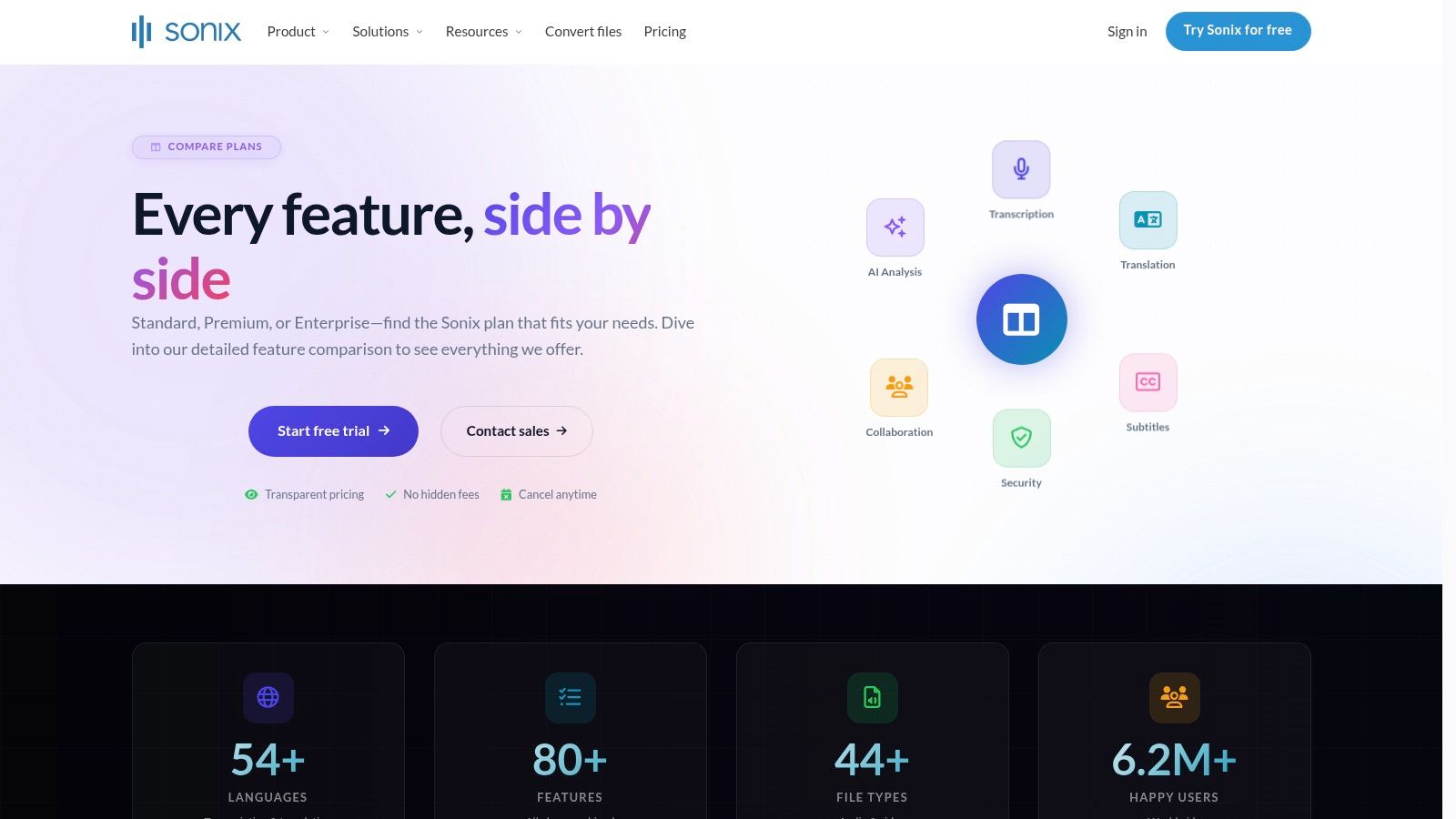
Sonix is the browser-first option on this list. That makes it easy to dismiss if you only want native Mac apps, but that would be a mistake. For teams that want fast uploads, broad export support, and flexible pricing without installing a dedicated desktop environment, Sonix is practical.
I tend to recommend it to people who care more about getting files transcribed and shared than about building a local Mac-specific workflow.
Where Sonix is strongest
Its web-first setup is useful when different people on a team use different machines. You don't have to standardize around one desktop app just to keep the workflow moving.
A few reasons people like it:
- Flexible access: Browser-based use is simple for mixed-device teams.
- Export variety: Good when transcripts need to move into editing, legal review, or publishing systems.
- Clear pricing structure: Easier to evaluate upfront than some competitors.
The downside
If you want a native speech to text app for Mac that can dictate directly into apps, Sonix isn't that. It also leans more heavily on add-ons for certain AI features depending on your plan.
For browser-based transcription and collaboration, it's a strong option. For Mac power users who want tight desktop integration, the local and system-wide tools above are usually a better fit.
Top 10 Mac Speech-to-Text Apps Comparison
| Product | Key features ✨ | Quality ★ | Price/value 💰 | Audience 👥 |
|---|---|---|---|---|
| Whisper AI 🏆 | ✨ Multi-format & social-link ingestion; speaker detection, timestamps, summaries; 92+ langs | ★★★★★ (fast, scalable, accurate) | 💰 Freemium → paid tiers (contact/sales) | 👥 Creators, podcasters, journalists, teams |
| Apple Dictation (macOS) | ✨ System-wide live dictation; on-device processing & voice commands | ★★★☆☆ (great for short notes) | 💰 Free, preinstalled | 👥 Casual users, quick replies, short edits |
| MacWhisper | ✨ Local/offline Whisper models; subtitles & timestamp exports; 100+ langs | ★★★★☆ (accurate offline) | 💰 Free + one-time Pro upgrade | 👥 Creators batch-transcribing on Apple Silicon |
| Otter.ai | ✨ Live meeting capture, searchable workspace, team sync & summaries | ★★★★☆ (strong collaboration) | 💰 Freemium; paid team plans | 👥 Teams, meeting note-takers, remote workers |
| Descript | ✨ Transcript-based editing (overdub, filler removal), multitrack timeline | ★★★★☆ (production-grade workflow) | 💰 Freemium; per-seat/minute tiers | 👥 Podcasters, video creators, editors |
| Superwhisper | ✨ Real-time system-wide dictation; local+cloud engines; per-app modes | ★★★★☆ (highly customizable) | 💰 Subscription or lifetime license | 👥 Power users, coders, long-form dictation |
| Aiko by Sindre Sorhus | ✨ On-device Whisper; macOS Shortcuts integration; simple UI | ★★★★☆ (privacy-first, reliable) | 💰 Free download | 👥 Privacy-conscious users, quick file transcribes |
| Notta Desktop | ✨ Recording + transcribe; Privacy Mode (offline) + cloud workspace | ★★★☆☆ (balanced convenience/privacy) | 💰 Competitive plans; cloud credits for advanced AI | 👥 Meeting recorders, hybrid local/cloud users |
| Trint | ✨ Newsroom-grade tools: live capture, translation, review & approvals | ★★★★☆ (enterprise & compliance focus) | 💰 Higher-priced enterprise plans | 👥 Journalists, enterprises, legal/research teams |
| Sonix | ✨ Fast web transcription + translation; transparent pay-as-you-go pricing | ★★★★☆ (fast & flexible) | 💰 Pay-as-you-go & subscriptions; free trial minutes | 👥 Teams preferring browser workflows, translators |
The Right Tool for the Job Making Your Choice
A Mac can handle three very different speech-to-text jobs in the same hour. You might dictate a Slack reply, transcribe a recorded interview, and capture notes from a live client call. The mistake is treating those jobs as interchangeable.
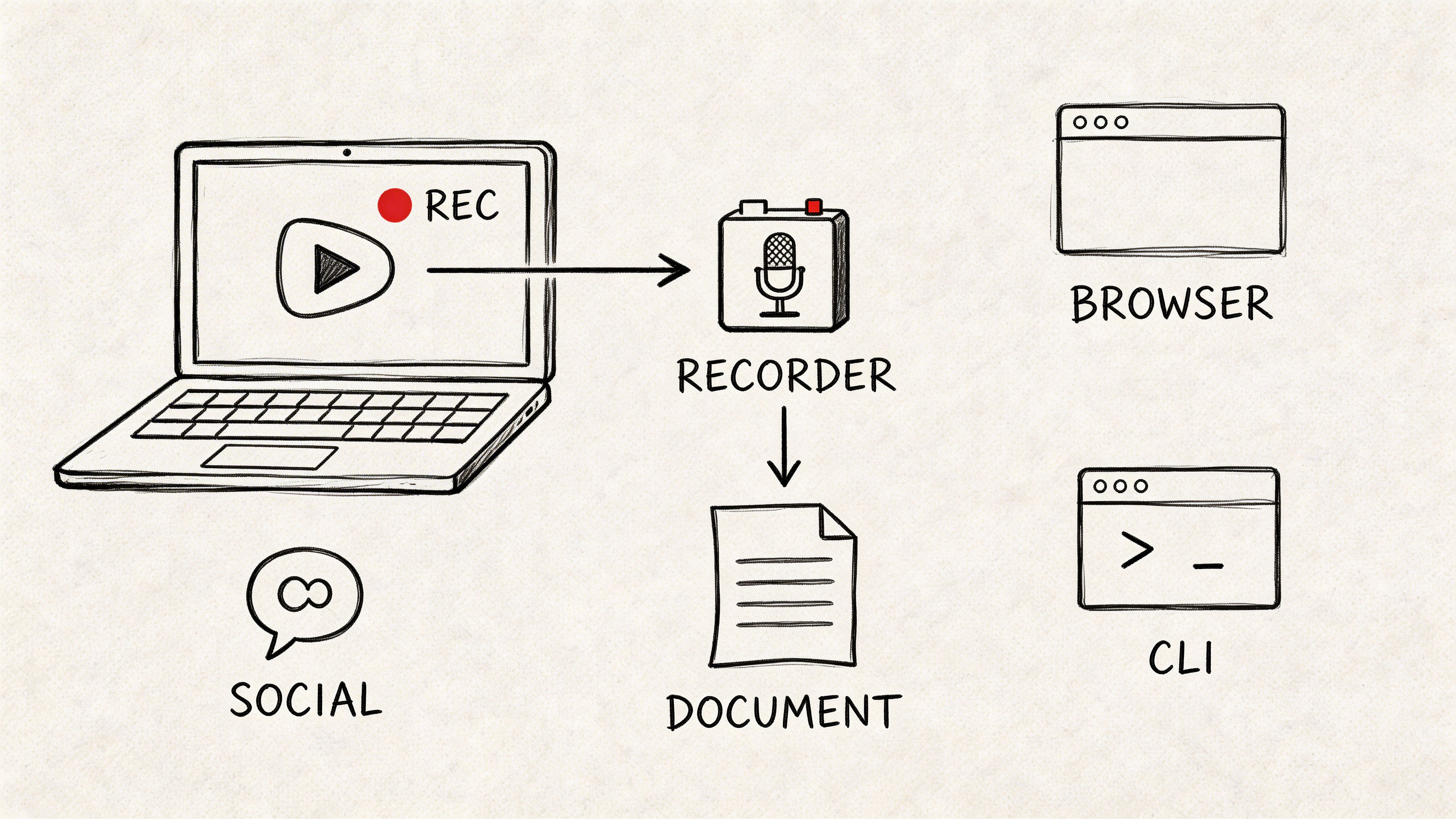
Start by sorting apps into use cases. Live Dictation tools convert speech into text as you talk. File Transcription tools process recorded audio and video. All-in-One Editors turn the transcript into part of a larger production workflow. That framing matters more than a long feature table because the best app for one bucket is often mediocre in another.
For quick writing anywhere in macOS, Apple Dictation still wins on convenience. It launches fast, requires almost no setup, and works well for short messages, emails, search fields, and rough notes. Superwhisper is the stronger pick for people who dictate often and want better control over accuracy, app behavior, and model choice. I would still avoid both for long interviews, legal testimony, or technical recordings that need careful speaker separation and reliable terminology.
Recorded files need a different toolset. MacWhisper and Aiko are strong choices if privacy comes first and you want processing to stay on the Mac. On Apple Silicon, local Whisper workflows are finally practical enough for daily use, especially for writers, consultants, researchers, and journalists handling sensitive material. For regulated environments, raw accuracy is only part of the decision. Retention policy, storage location, user access, and review workflow matter just as much, as covered by the NIST AI Risk Management Framework.
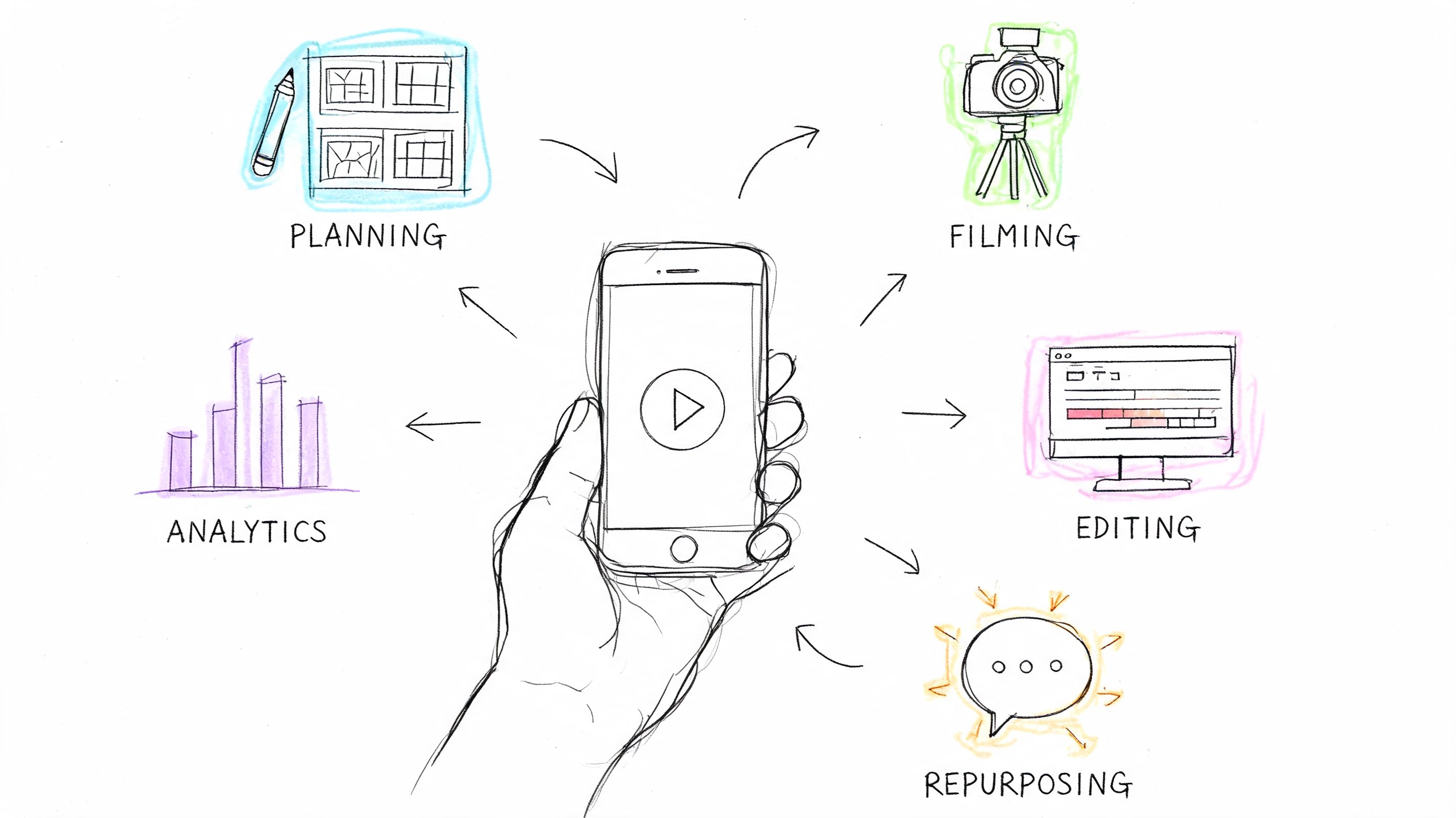
Meeting capture is another category. Otter.ai and Notta make more sense when the job includes live recording, searchable history, summaries, and team access. Descript belongs in the editor bucket. It is best when the transcript is not the end product, but the starting point for a podcast, video, interview cutdown, or social clip workflow.
Whisper-based apps deserve their own note because they span multiple categories. You can use Whisper in a polished Mac app, run it locally for offline transcription, or choose a hosted implementation that adds timestamps, summaries, speaker detection, and exports with less setup. That flexibility is a major advantage. The model is only part of the workflow. Setup time, export quality, batch handling, and privacy controls usually decide whether a tool stays in use.
Choose local or cloud early.
Local tools give you tighter control over private recordings and reduce upload concerns. Cloud tools are easier to share, search, and manage across a team. I usually recommend local transcription for client interviews, research calls, and anything confidential. Cloud apps fit recurring meetings, collaborative review, and organizations that need shared archives more than strict device-level control.
The short version is simple. Use Apple Dictation or Superwhisper for live writing. Use MacWhisper or Aiko for private file transcription. Use Otter.ai or Notta for meetings. Use Descript when transcription feeds editing and publishing. If Whisper is the direction you want, start with the implementation that matches your workflow, dedicated app, local setup, or hosted service, then adjust once you know where the bottleneck is. If you're comparing your options as a student or researcher, this roundup of Cramberry's AI study tool analysis is also useful for the broader productivity stack.