Send Voice Memo iPhone: Your Complete 2026 Guide
You've probably done the easy part already. You tapped record, captured the thought before it disappeared, and now the file is sitting in Voice Memos with a forgettable name and no obvious next move.
That's where people stall. They don't need help recording. They need a clean way to get audio off the iPhone without wrecking quality, hitting app limits, or sending the wrong type of audio entirely. If you're trying to send voice memo iPhone files for work, interviews, content ideas, or team updates, the method matters.
Why You Need to Share Voice Memos
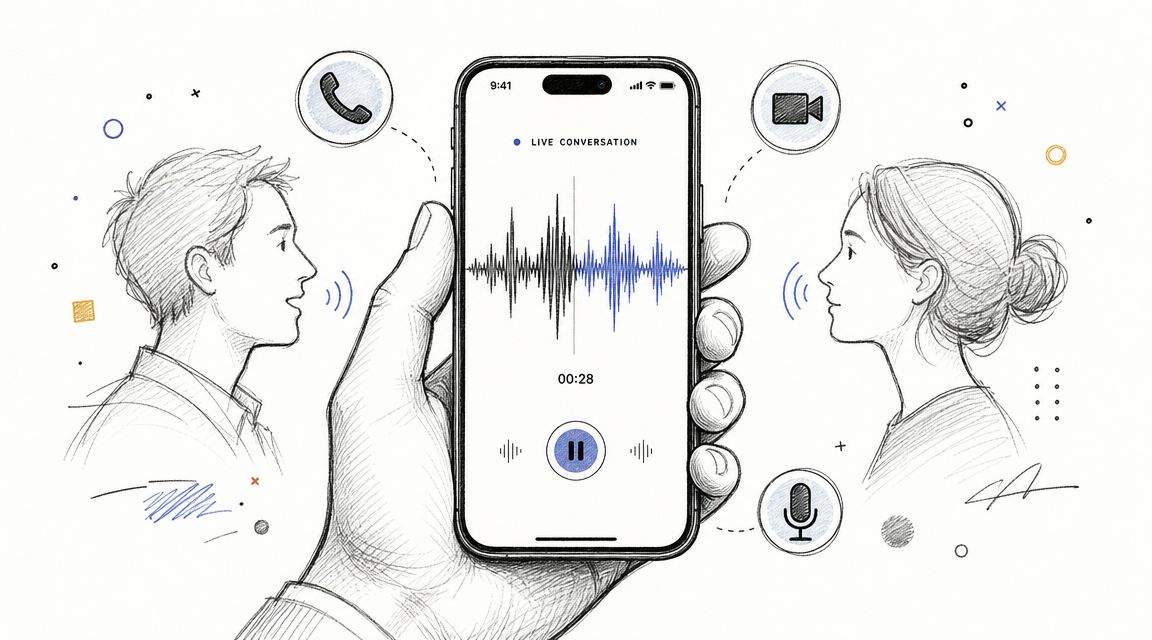
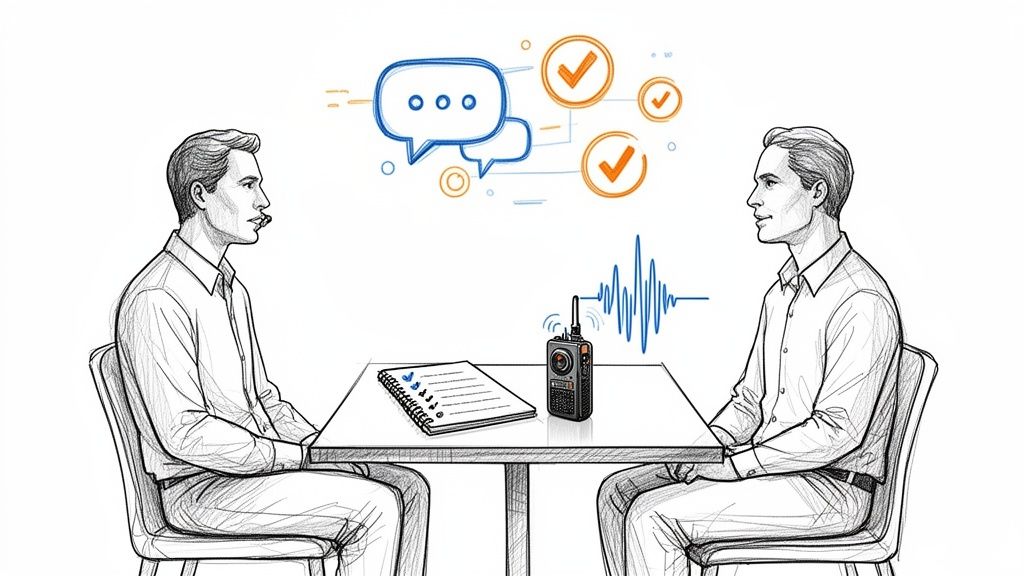
A voice memo usually starts as something small. A podcast opener you don't want to lose. A quote from an interview. A walking note to yourself before a meeting. The problem isn't capturing it. The problem is turning that recording into something usable by another person, another app, or your future self.

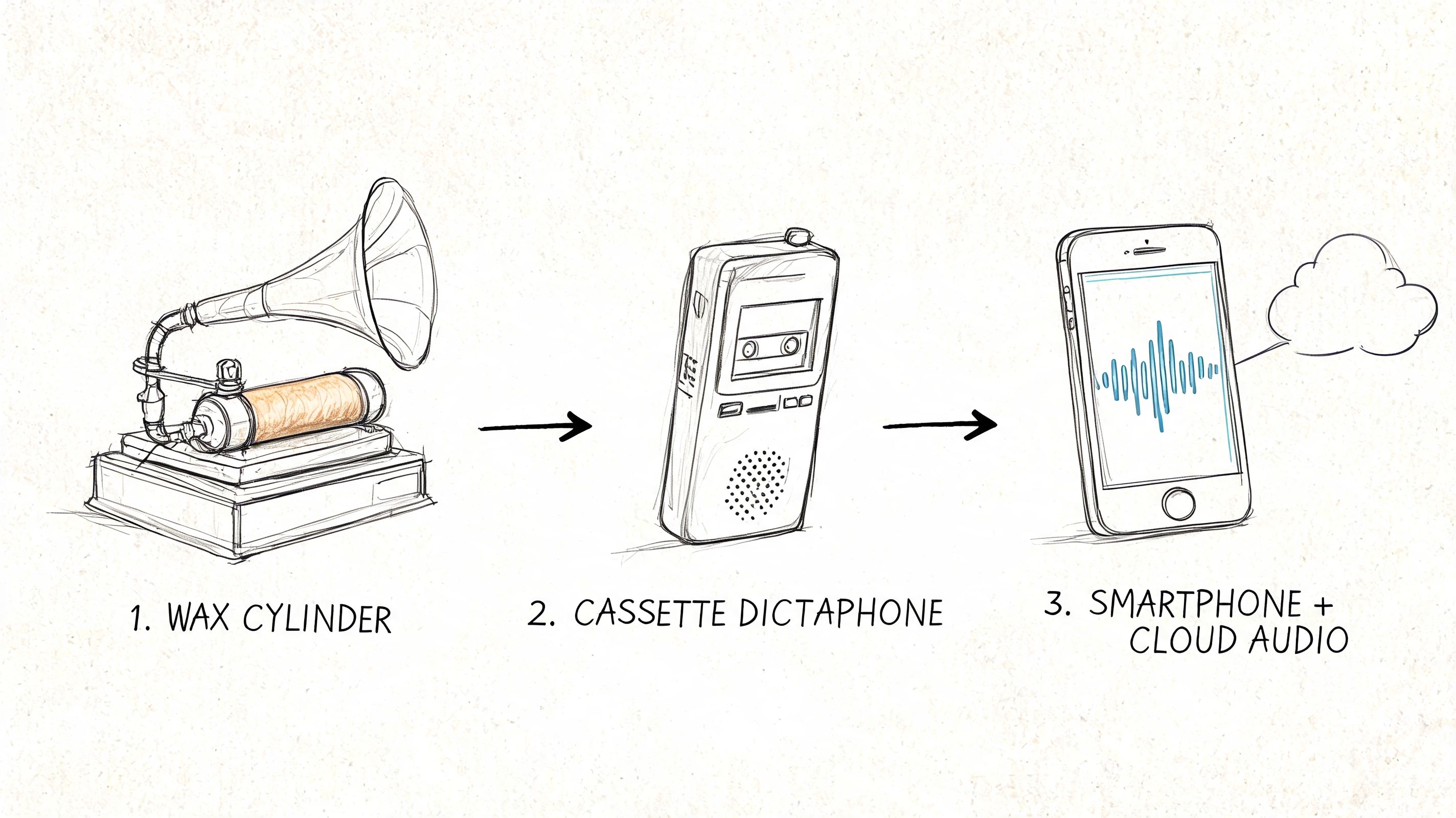
For creators and professionals, voice memos sit in a useful middle ground. They're faster than typing, more deliberate than a live call, and easier to revisit than a spontaneous conversation. That's why this workflow keeps showing up in journalism, production, education, and client work.
The broader behavior matches that reality. 2 in 3 Americans send voice notes, and 41% have noticed usage increasing in recent years, according to Preply's summary of a 2023 global survey. That matters because sending spoken updates isn't niche anymore. It's normal.
Where voice memos help most
- Capturing ideas fast: A spoken note preserves phrasing, tone, and momentum better than a rushed typed draft.
- Sharing context: A client, editor, or teammate can hear hesitation, emphasis, or urgency that text often flattens.
- Working asynchronously: You can send the thought now and let the recipient deal with it when they have time.
Practical rule: If the wording matters, save it as a Voice Memo file first. Don't rely on a chat app's built-in record button unless speed matters more than quality.
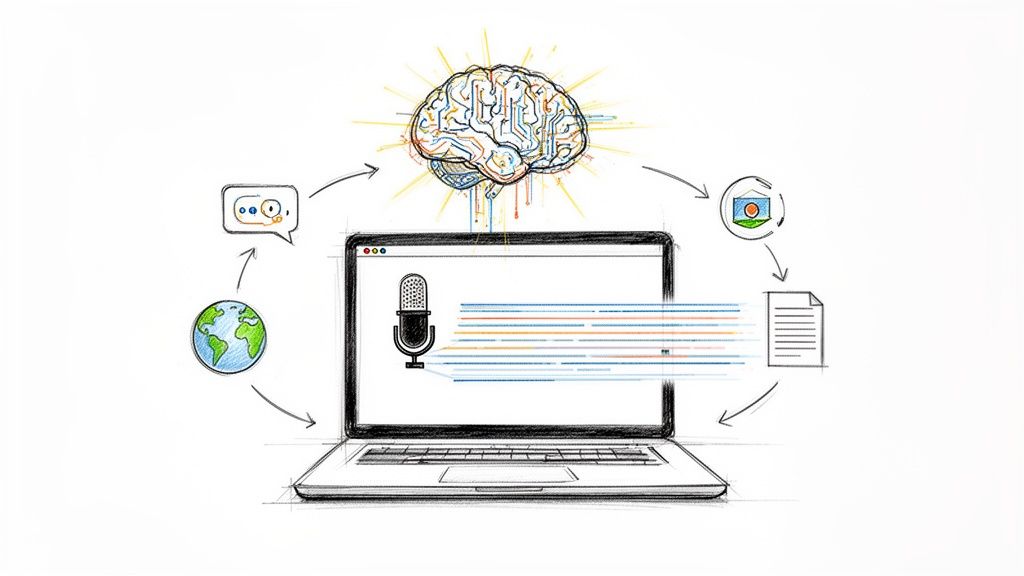
There's also a useful distinction people miss. An iPhone audio message inside Messages is not the same thing as a file from Voice Memos. One is conversational and app-bound. The other is a saved recording you can route into email, storage, editing, and transcription later. If the memo has value beyond a single chat thread, treat it like a file from the start.
The Fastest Ways to Send a Voice Memo on iPhone
The most reliable workflow is simple. Record in Voice Memos, tap Done, then use the Share sheet. Apple documents that process in its Voice Memos recording guide. That route preserves the original recording instead of turning it into a disposable in-app voice note.
Start with the right workflow
Open Voice Memos and record there if the audio matters. Stop or pause when you're finished, save it, then open the memo and share it from the three-dot menu or share icon.
Apple also notes that you can pause and resume a recording, which is useful when you're collecting a longer thought with interruptions. Another practical detail from Apple's guide is mic distance. Moving the iPhone closer or farther away changes the input level, which is why so many weak or distorted memos come down to recording position, not the sending method.
iPhone Voice Memo Sharing Methods at a Glance
| Method | Best For | File Size Limit | Key Consideration |
|---|---|---|---|
| Messages | Quick sharing to someone already in your texts | Depends on the service and attachment handling | Convenient, but not ideal for very large recordings |
| Formal sending, paper trail, cross-platform delivery | Depends on the mail service and attachment handling | Better for work, but large files can still be an issue | |
| AirDrop | Fast transfer to a nearby Apple device | Works differently from chat attachment limits | Best when both devices are nearby and in Apple's ecosystem |
Send through Messages
If you want speed and the recipient is already in your Messages app, this is the fastest handoff. Open the saved memo, tap Share, choose Messages, pick the contact, and send.
This is a good option for short clips, rough ideas, and quick approvals. It's less ideal when the recording is long, when you need a formal archive, or when the recipient isn't using an Apple-friendly workflow.
Send through Mail
Mail is the practical choice when the memo belongs to a project, an interview thread, or client communication. Share the memo to Mail, add a subject line that says what the file is, and include context in the body.
Use Mail when the recipient might be on Android or Windows, or when they'll need to download the file later. It also reduces the confusion that happens when a memo gets buried in a chat.
Send the file with a sentence that explains what it is. “Interview pull quote,” “meeting recap,” or “draft intro idea” saves the recipient from guessing.
Send through AirDrop
AirDrop is the cleanest transfer when both devices are nearby and both are Apple devices. Tap Share, choose AirDrop, then select the receiving device.
This is usually the least fussy option for larger files because you're not dealing with chat composer limits or mail attachment behavior. If I'm moving a memo from an iPhone to a Mac for editing, this is the path I trust first.
Sharing Voice Memos in WhatsApp, Slack, and More
Third-party apps work, but they change the experience. The share flow often starts the same way from Voice Memos, yet what happens after that depends on the app. That's where people run into compression, awkward file previews, or workspace restrictions.
WhatsApp and Messenger
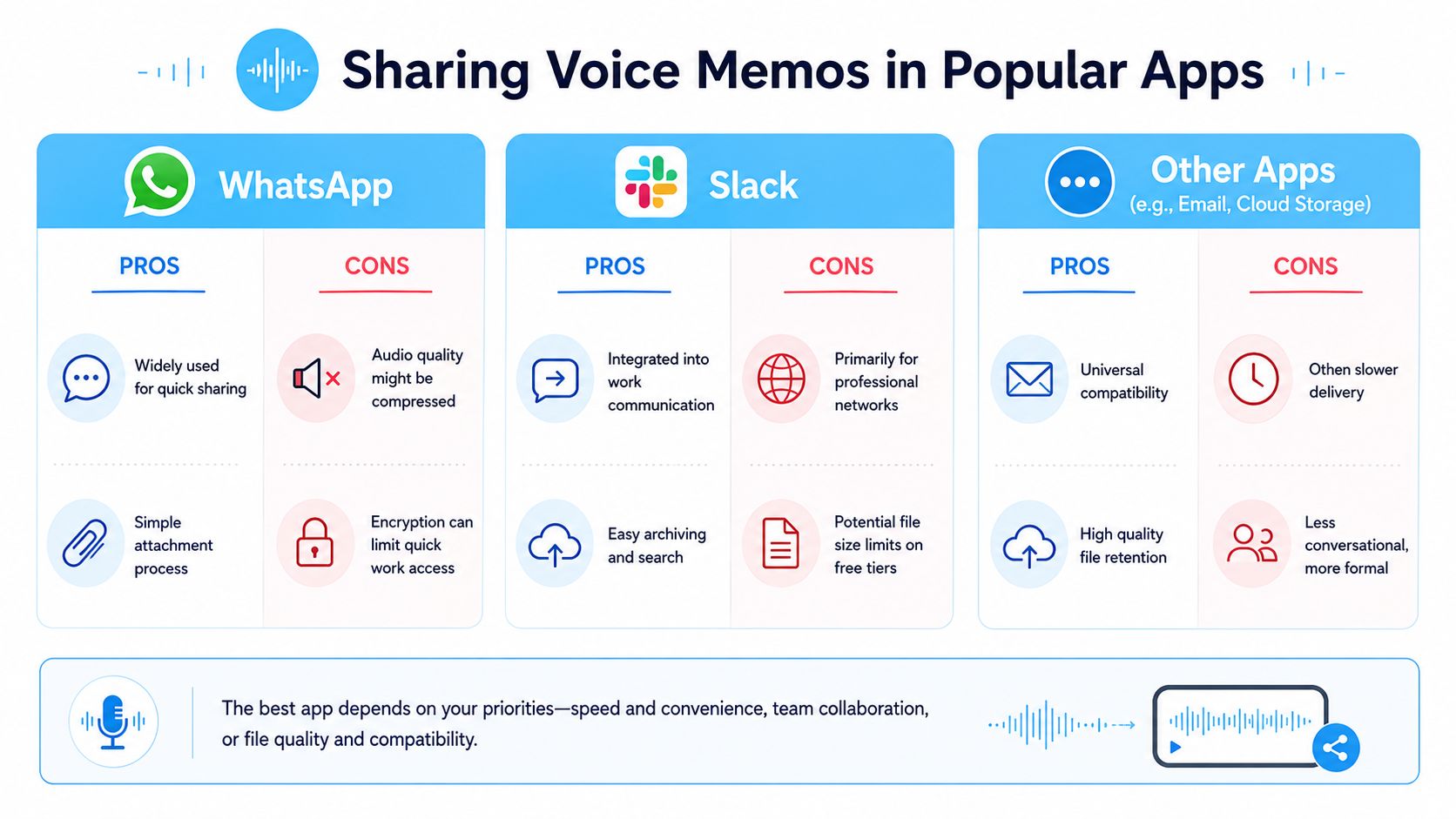
WhatsApp is convenient because almost everyone has it, and attaching a memo from the iPhone share sheet is straightforward. The trade-off is that chat apps are built for conversation first, file preservation second. If you care about keeping the recording in its original state, you should assume less control than you'd get with Mail, AirDrop, or cloud storage.
Facebook Messenger and similar apps fall into the same category. They're fine for quick exchanges. They're not where I'd send source material, interview audio, or anything I plan to repurpose later.
Slack and work tools
Slack fits team workflows better because the file lives in a searchable workspace and stays tied to project discussion. That makes it useful for review, approvals, and internal updates.
The downside is practical, not theoretical. Some workspaces handle uploads differently, and free-tier environments can create friction around file handling and retention. If your memo is important, don't assume the chat app is your archive.
- Use Slack when collaboration matters: Good for team review and keeping discussion attached to the audio.
- Use cloud storage when permanence matters: Better when multiple people need access later.
- Use email when the audience is mixed: Safer when recipients aren't all in the same app ecosystem.
For teams that want the spoken note turned into text after sharing, a guide on converting a voice message to text can help connect the chat workflow to something searchable.
If a platform is optimized for chat, expect trade-offs in file handling. If it's optimized for files, expect a slower but cleaner workflow.
How to Trim and Rename Your Voice Memo Before Sending
Most voice memos improve with thirty seconds of cleanup. Dead air at the start, a fumbled first sentence, or a generic filename can make a simple recording feel messy. Before you send anything important, trim it and name it properly.
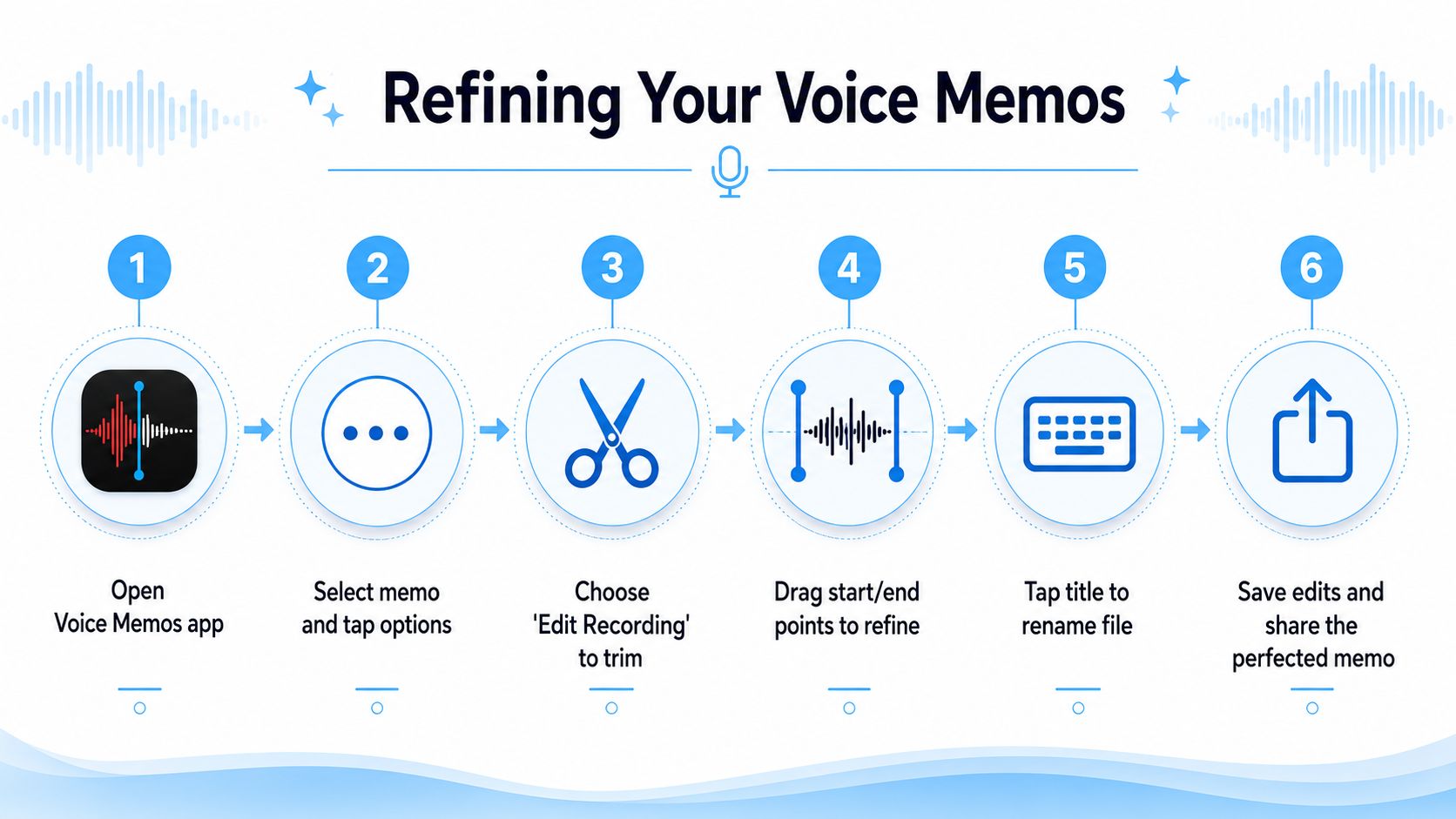
Trim the recording
Open Voice Memos, tap the memo, then open the options for editing. Use the trim controls to remove silence, false starts, or the extra chatter at the end.
This matters more than people think. A shorter file is easier to review, easier to send, and easier for the recipient to trust. If you're handing off multiple memos in a day, those small edits reduce friction fast.
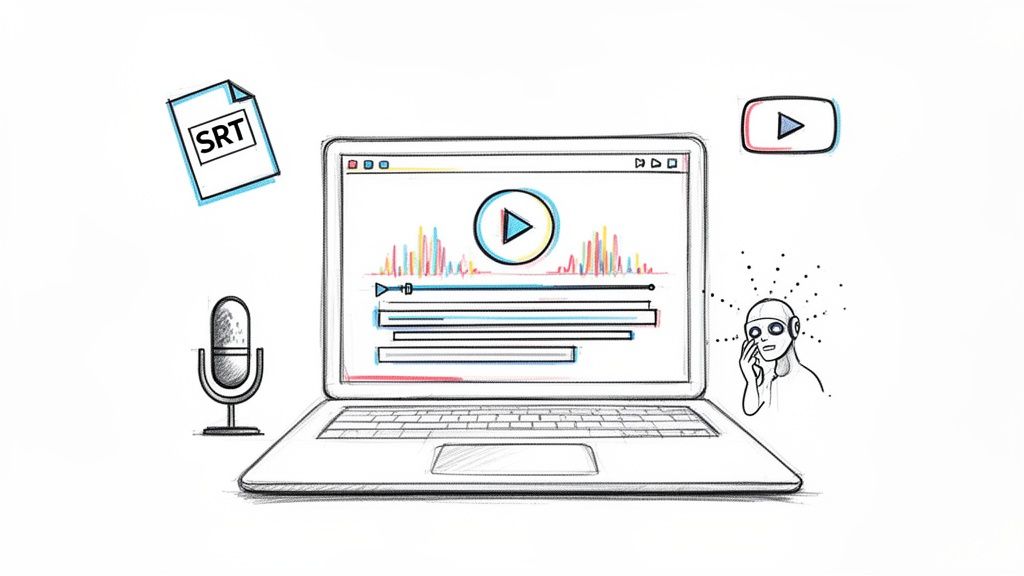
A visual walkthrough helps if you haven't used the editor before:
Rename it like it's a real asset
Don't send “New Recording” anything. Tap the title and rename it with context the recipient can understand immediately.
Good names tend to include the subject and purpose. Examples:
- Podcast intro idea
- Client meeting notes
- Interview quote on product launch
- Draft voiceover take
If the recording is headed toward transcription, naming matters even more. It's much easier to manage an audio library when the file tells you what it is before you open it. If your memo will eventually become text, this guide on M4A to text conversion is useful because Voice Memos commonly exports in that format.
Naming shortcut: title the memo for what the recipient needs from it, not for when you recorded it.
Solving Common Voice Memo Sending Problems
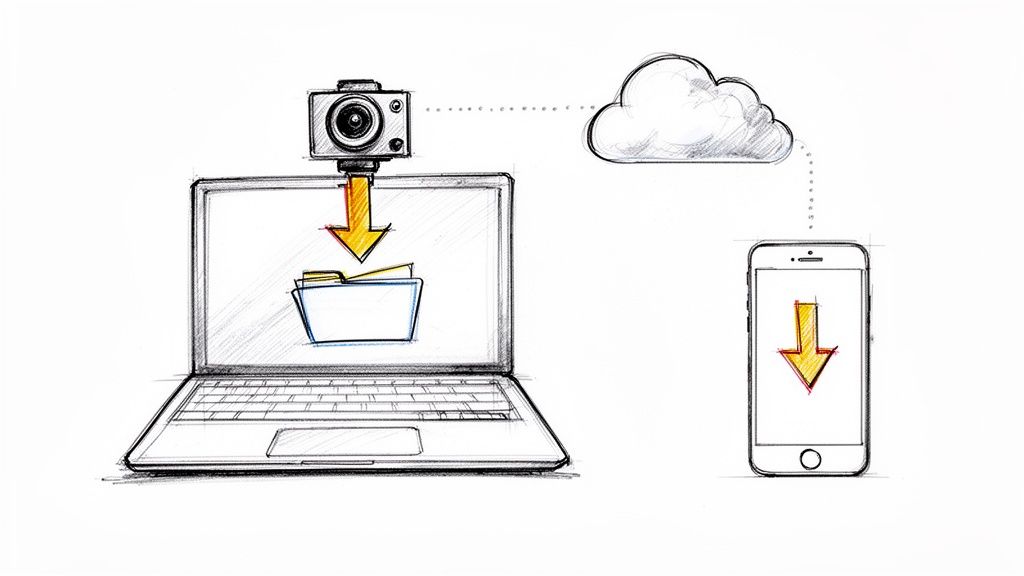
The most common failures aren't recording issues. They're packaging and delivery issues. The iPhone share sheet can attach the file cleanly, but success still depends on the app you choose and how that app handles file size. A video walkthrough on sharing Voice Memos notes that very large recordings may fail in messaging apps but work through AirDrop or cloud storage.
What if the file is too large?
Switch the delivery method first. Don't keep retrying the same app.
Messages and some chat tools are the first place people hit limits. If the memo is long, use Mail, AirDrop, or upload it to cloud storage and send a link. The problem usually isn't the recording itself. It's the channel.
What if the recipient can't open the file?
Voice Memos files are commonly shared as audio attachments, and some recipients won't know what to do with them. That happens more often when the other person is on a different platform or using a locked-down work device.
Try one of these:
- Use Mail instead of chat: Email handles attachments more predictably across devices.
- Use cloud storage: The recipient can download the file directly rather than opening it inside a messaging app.
- Move to another device first: If your own iPhone storage or app behavior is getting in the way, even older hardware can still be useful. People looking for a backup device or dedicated recording phone sometimes browse buy refurbished iPhones options so they can keep capture and transfer workflows separate.
What if the Share option is missing or grayed out?
This usually points to a local app glitch, a sync issue, or a partially saved file. Open the memo directly in Voice Memos, confirm it has fully saved, then try again. If that doesn't work, close the app and reopen it before sharing.
A second common mistake is using the Messages app's audio feature when you meant to send a real Voice Memo file. Those are different workflows. If you need a transferable file, go back to Voice Memos and share from there.
Turn Your Voice Memos into Actionable Content
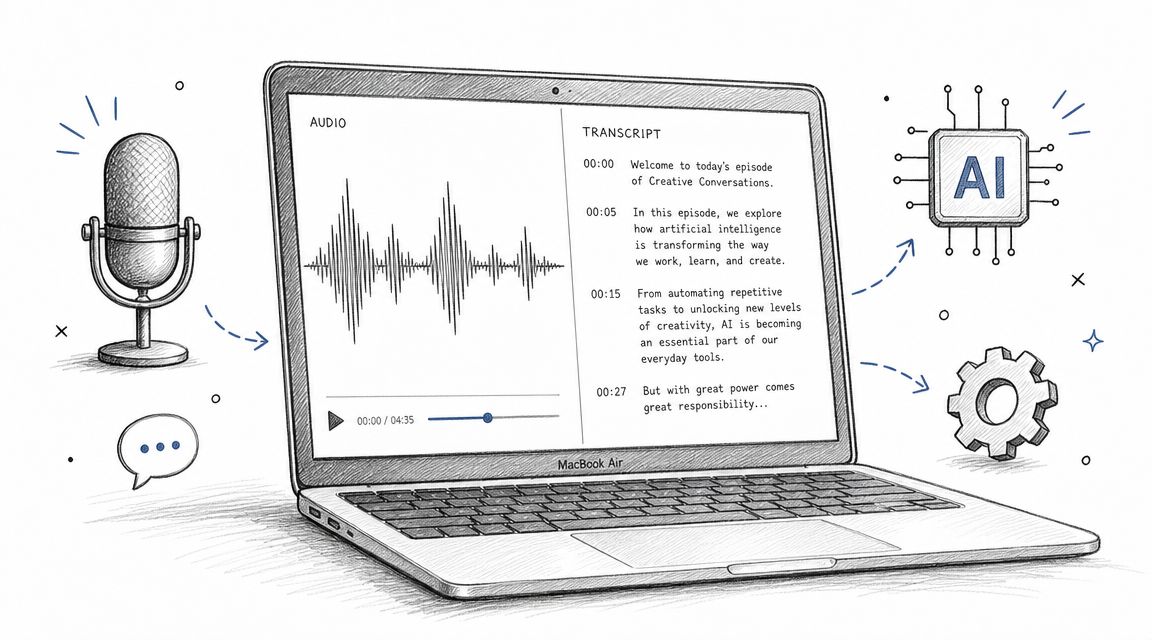
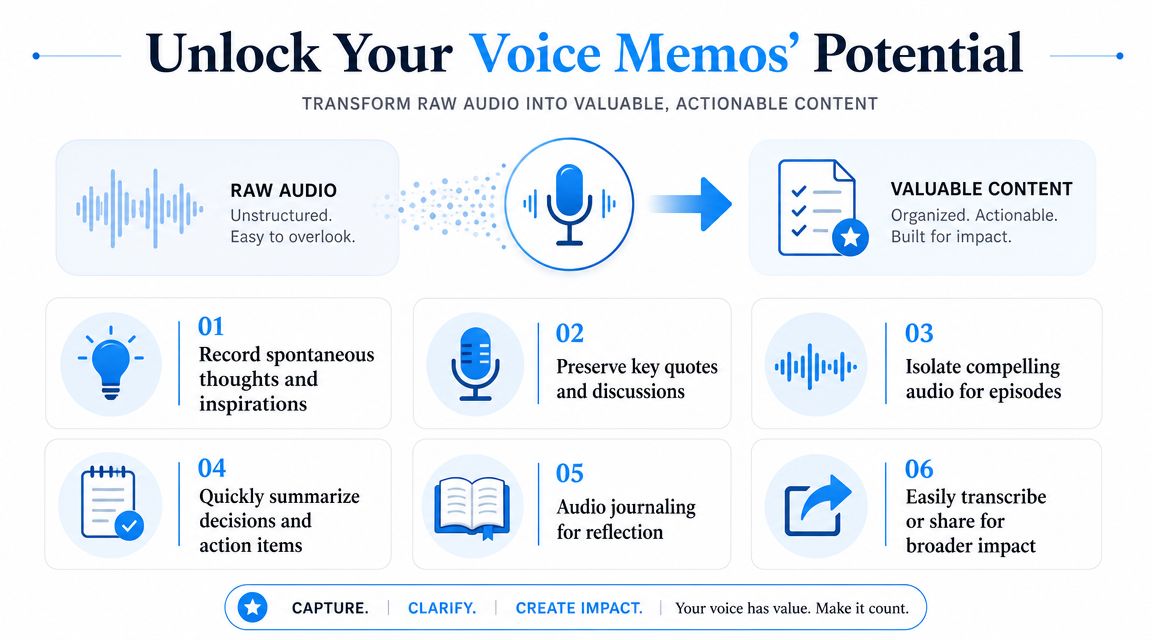
A saved memo is useful. A searchable transcript is where it becomes part of your real workflow. That's especially true if you record interviews, episode ideas, meeting recaps, or on-the-go research notes.
Apple's ecosystem already supports that direction. Apple documents audio sharing across core apps and supports sending rendered .m4a files or editable versions in some workflows, as shown in its iPhone audio messaging and sharing guide. That makes the iPhone a strong capture device for anyone who wants to move spoken ideas into text later.
A practical repurposing workflow
A clean creator workflow often looks like this:
- Record the idea in Voice Memos
- Trim and rename it
- Send it to storage, email, or a transcription tool
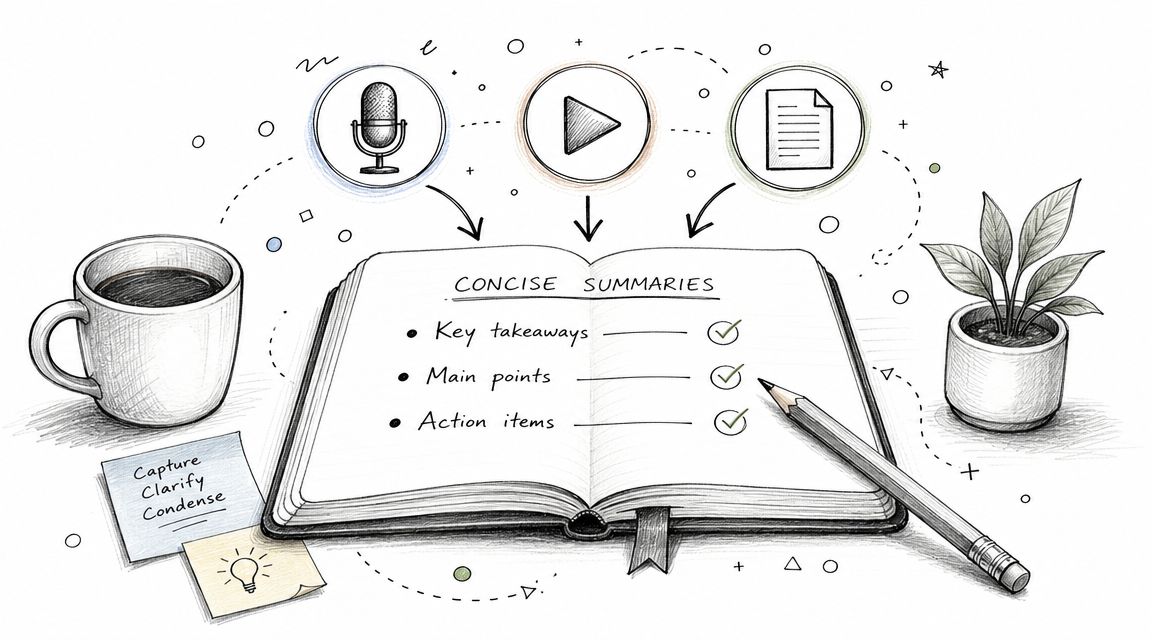
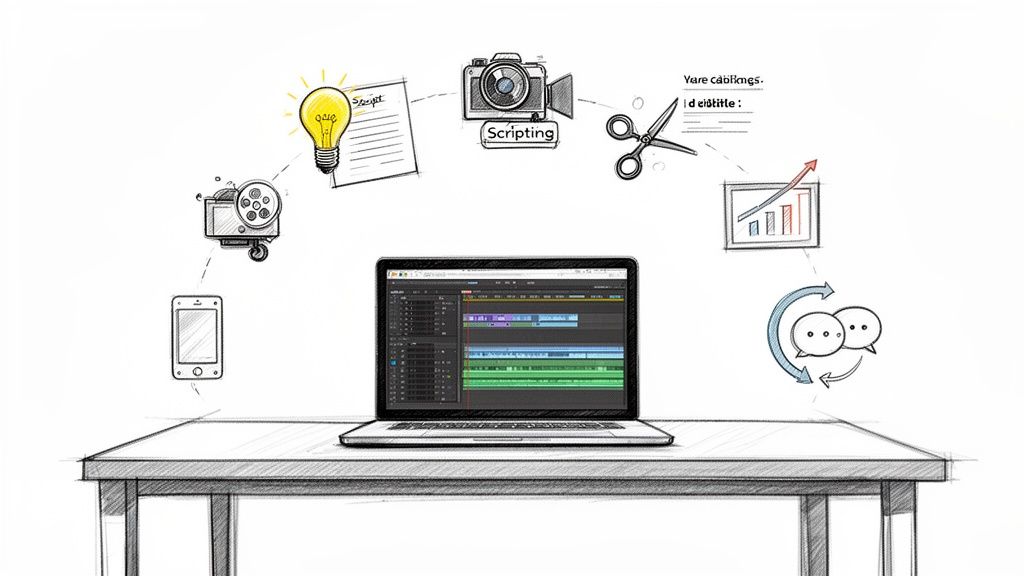
- Turn the transcript into notes, outlines, quotes, or action items
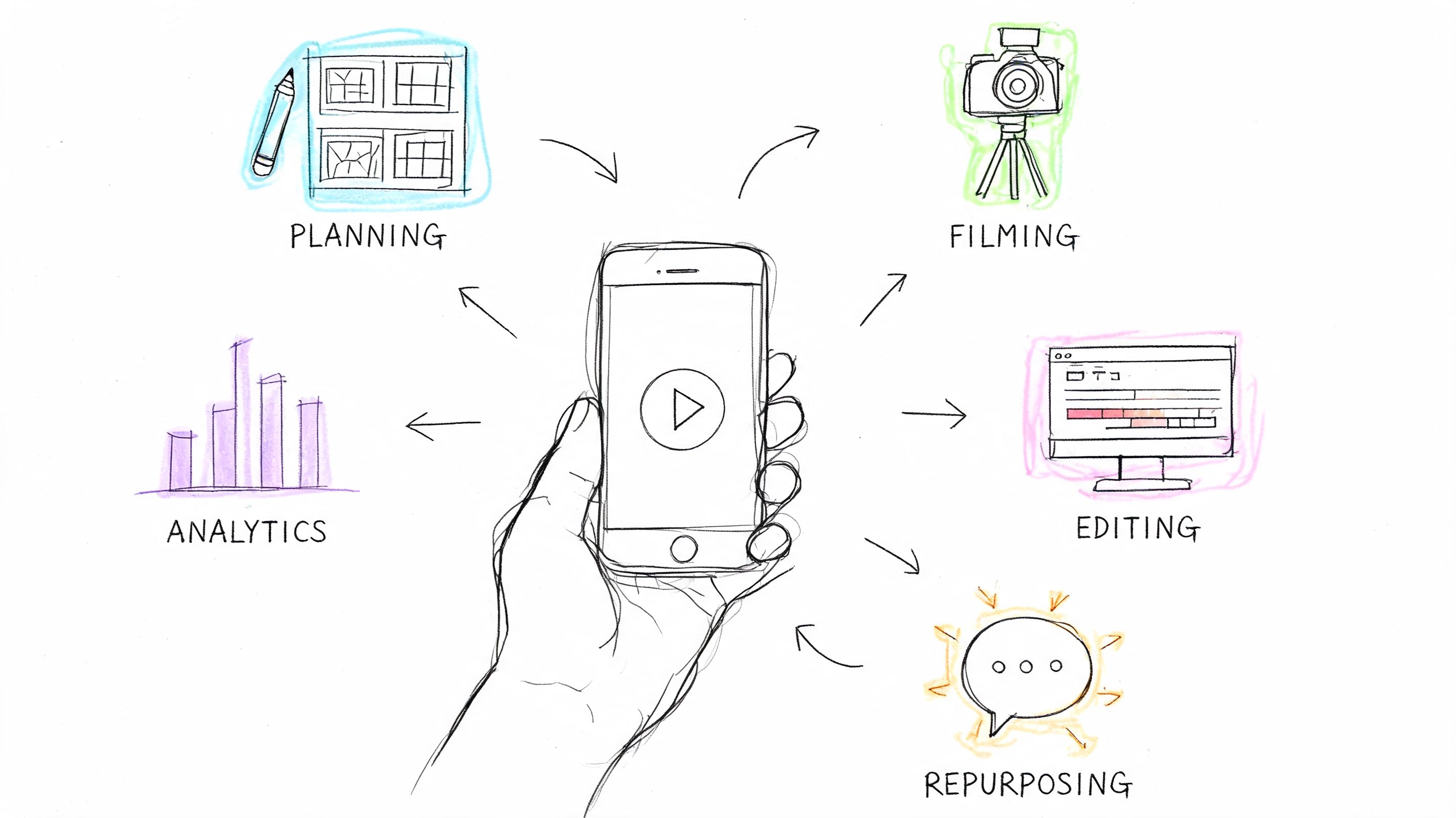
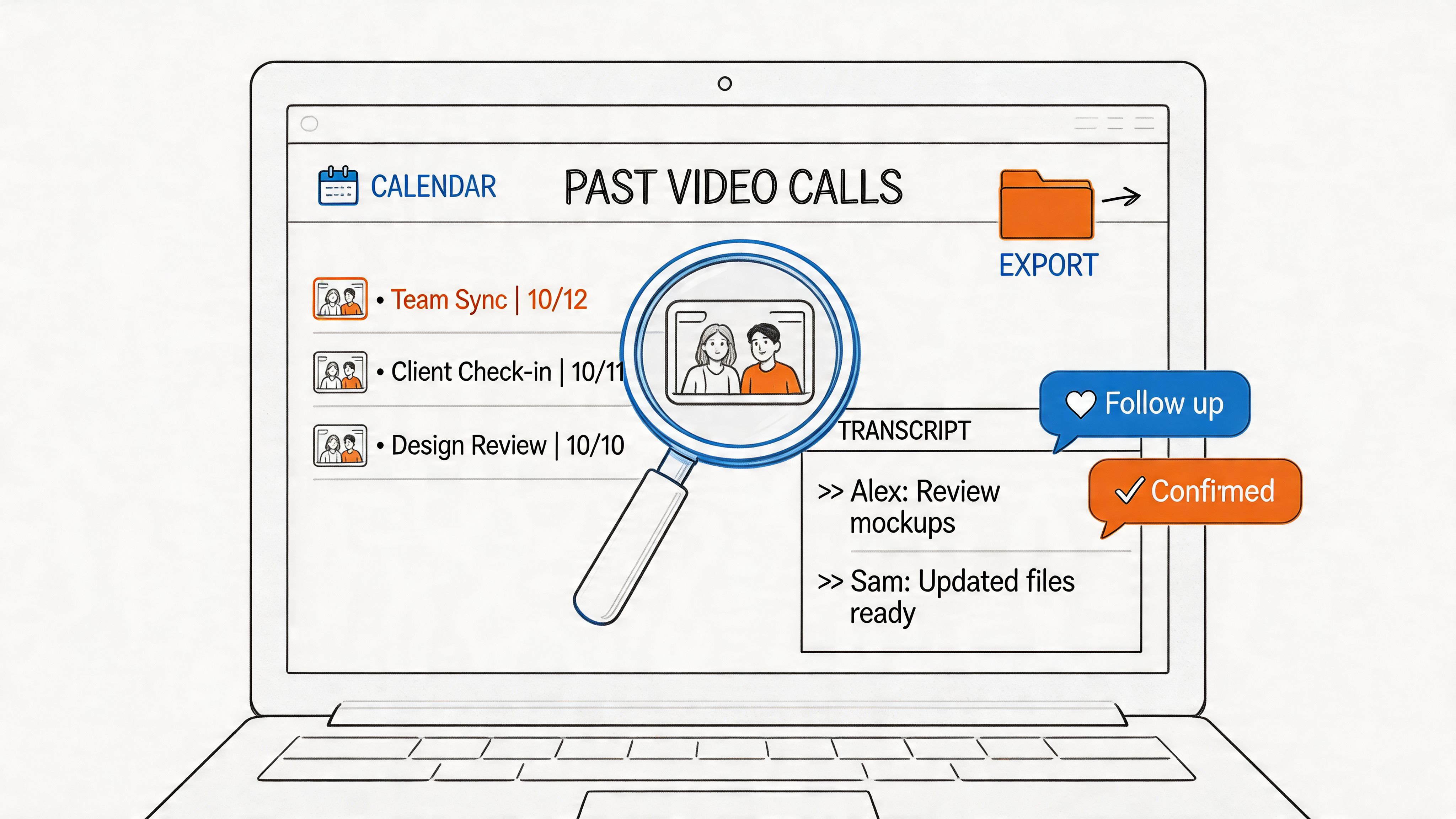
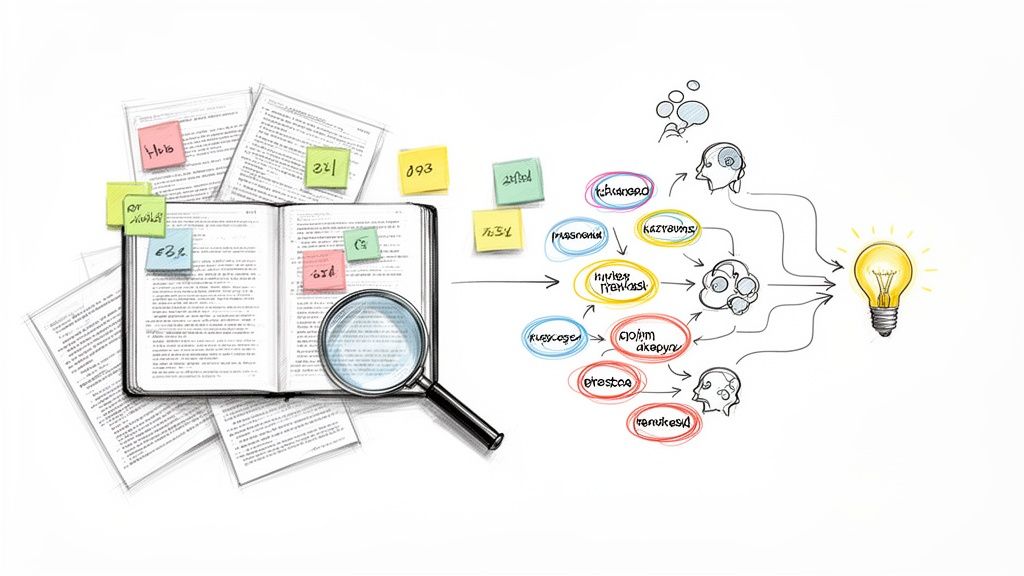
That's how a rough voice note becomes a blog draft, show notes, a research log, or a list of next steps from a meeting. If you want the specifics, this guide on how to transcribe voice memos walks through the handoff.
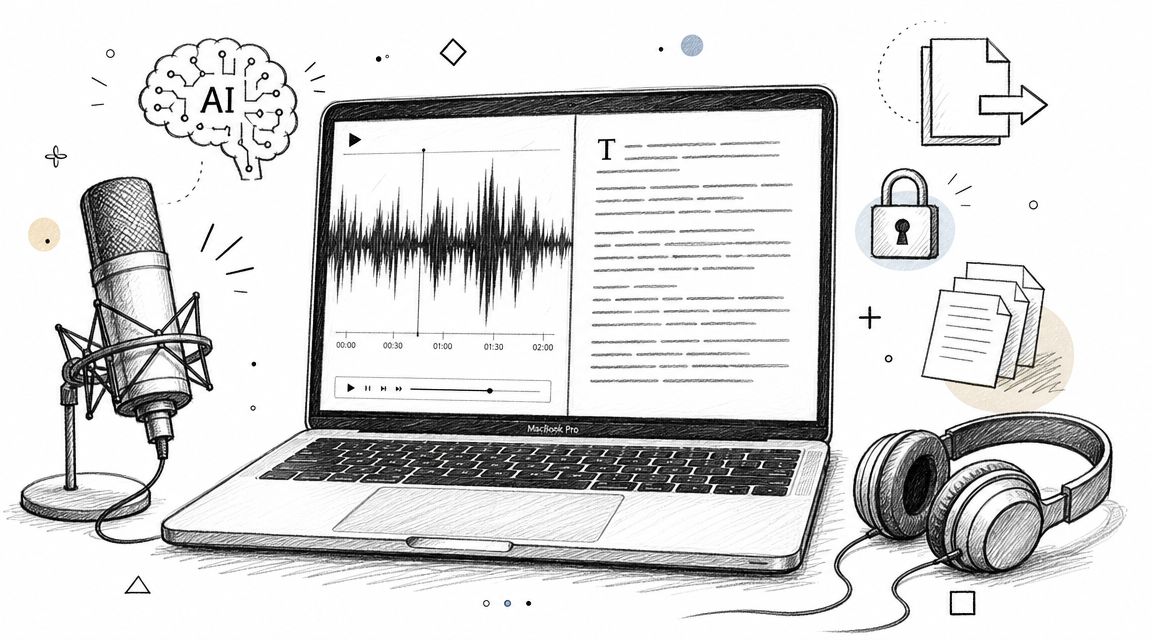
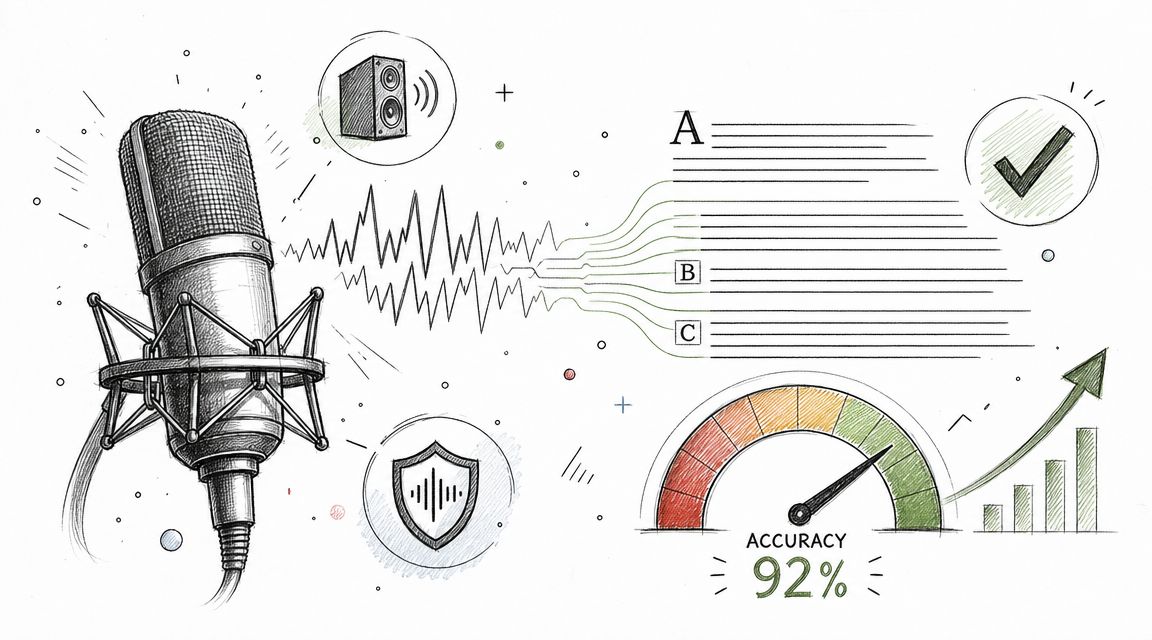
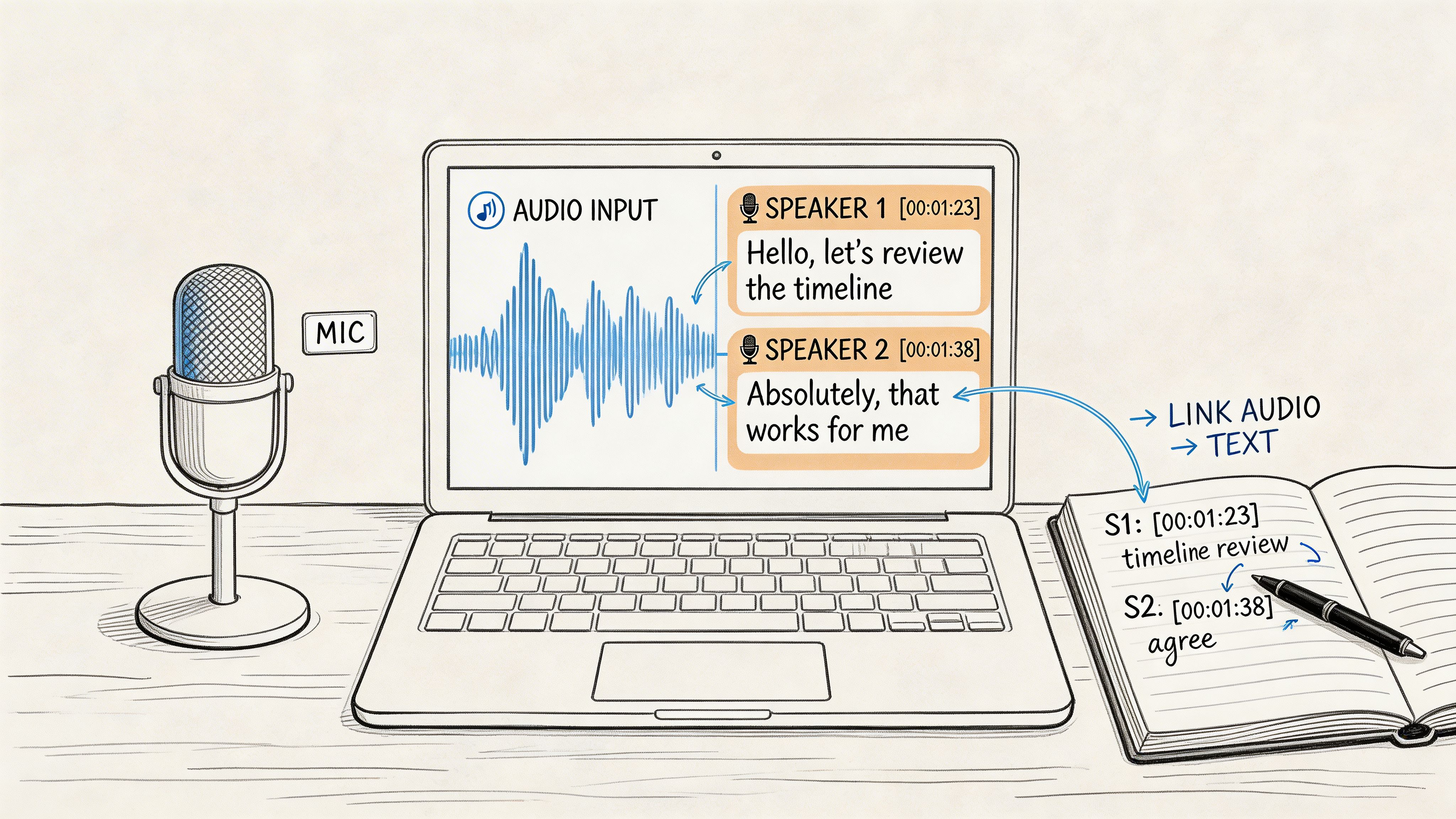
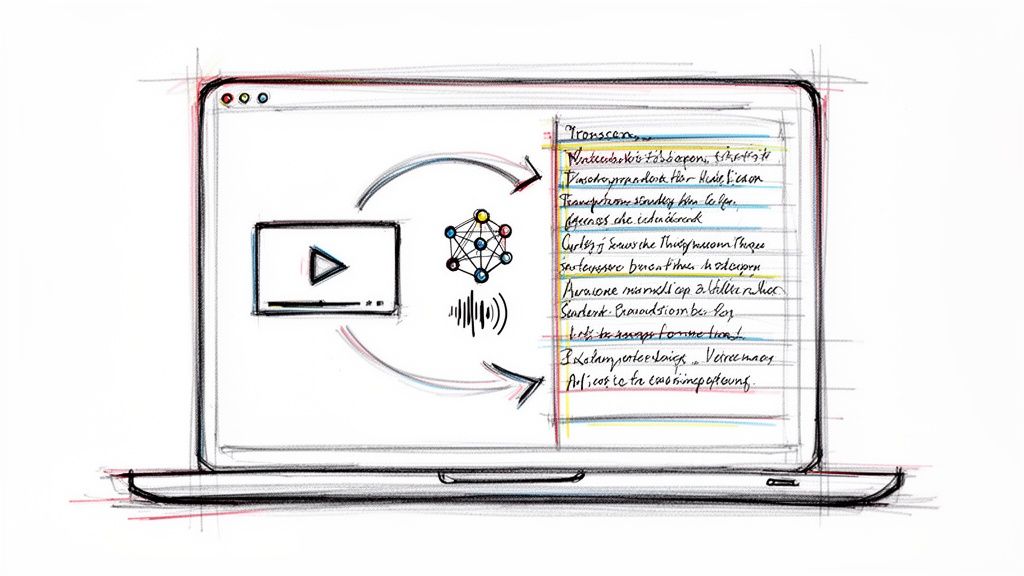
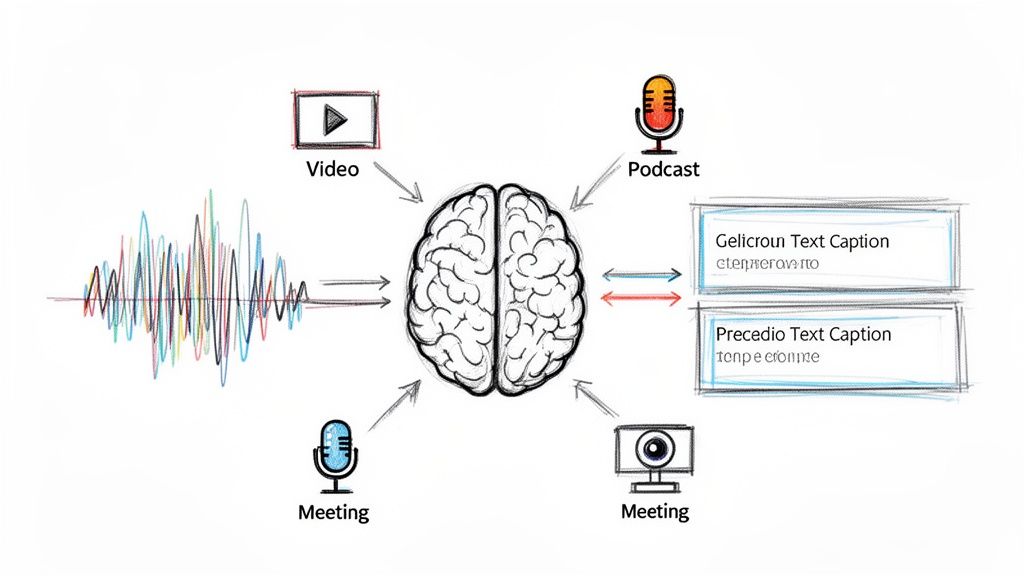
Whisper AI is one option for that stage. It converts audio and video into searchable text, adds timestamps and speaker detection, and exports in formats like Google Docs, Word, PDF, TXT, or Markdown. The key point isn't the tool name. It's that once the memo becomes text, it stops being trapped inside your phone.
Spoken ideas move fast. The useful habit is not just recording them, but getting them into a format you can search, edit, and reuse.
If you already rely on iPhone voice memos for ideas, interviews, or work updates, Whisper AI can help you turn those recordings into transcripts, summaries, and usable notes without manual cleanup. It's a practical next step when sending the file is only half the job.