
Your Best Free Converter from YouTube to MP3 in 2026
You've probably got a simple goal right now. There's a YouTube video you want to listen to offline, maybe a song, a podcast episode, a lecture, or a long interview, and you want the audio without keeping a browser tab open all day.
That's why people search for a free converter from YouTube to MP3. The problem is that most guides act like every converter is equally safe, equally reliable, and equally legal. They aren't. Some are quick but risky. Some are slower but far more dependable. And in plenty of cases, the smartest move isn't converting to MP3 at all. It's extracting the information you need from the video in a safer way.
Why You Need a YouTube to MP3 Converter (And What to Watch Out For)
The use case is easy to understand. You want to take a YouTube video and turn it into audio you can play during a commute, at the gym, or while working. For music, podcasts, and spoken content, MP3 is still the most convenient format because it plays almost anywhere.
A lot of people are doing exactly this. VidtoMP3 registered over 10 million users, primarily from North America, which shows how large the demand is for offline audio from YouTube content, from songs to podcasts (Digital Music News). So if this is what you're trying to do, you're not some edge case.
What matters is choosing the right path for your situation.
The three real options
Users often end up in one of these buckets:
- Fast and disposable. You paste a URL into an online converter and hope the file downloads cleanly.
- Safer and more controlled. You use desktop software such as VLC and work from a local file.
- Information-first. You don't need an MP3. You need the words, ideas, quotes, or notes from the video.
If your goal is to repurpose YouTube content into audio files for listening, the first two options can make sense. If your real goal is research, quoting, summarizing, studying, or clipping insights, the third option often saves more time.
Practical rule: Decide whether you need a playable audio file or usable information. That choice changes which tool is best.
The trade-off most people miss
Online converters feel convenient because they remove friction. Copy URL. Paste URL. Click download. Done.
That same simplicity is why people ignore the hidden cost. The easiest tools are often the least trustworthy. Before you use any free converter from YouTube to MP3, think about two questions:
- Is this method exposing your device to junk downloads or malware?
- Do you have the right to download this content?
Those questions matter more than the converter's homepage design or how high it claims the quality will be.
Using Online YouTube to MP3 Converters The Right Way
The standard online workflow is familiar. Sites like YTMP3, Y2Mate, and CNVMP3 usually follow the same pattern: copy the YouTube link, paste it into a box, then click a download button. That's why these tools spread so widely. They feel instant.
The issue is that the process around the conversion can be more dangerous than the conversion itself. Online converters like YTMP3 and Y2Mate are known for a deceptive process that exposes users to aggressive pop-ups, misleading download buttons, and redirects to malicious sites, creating a significant risk of virus infection (Nearstream).
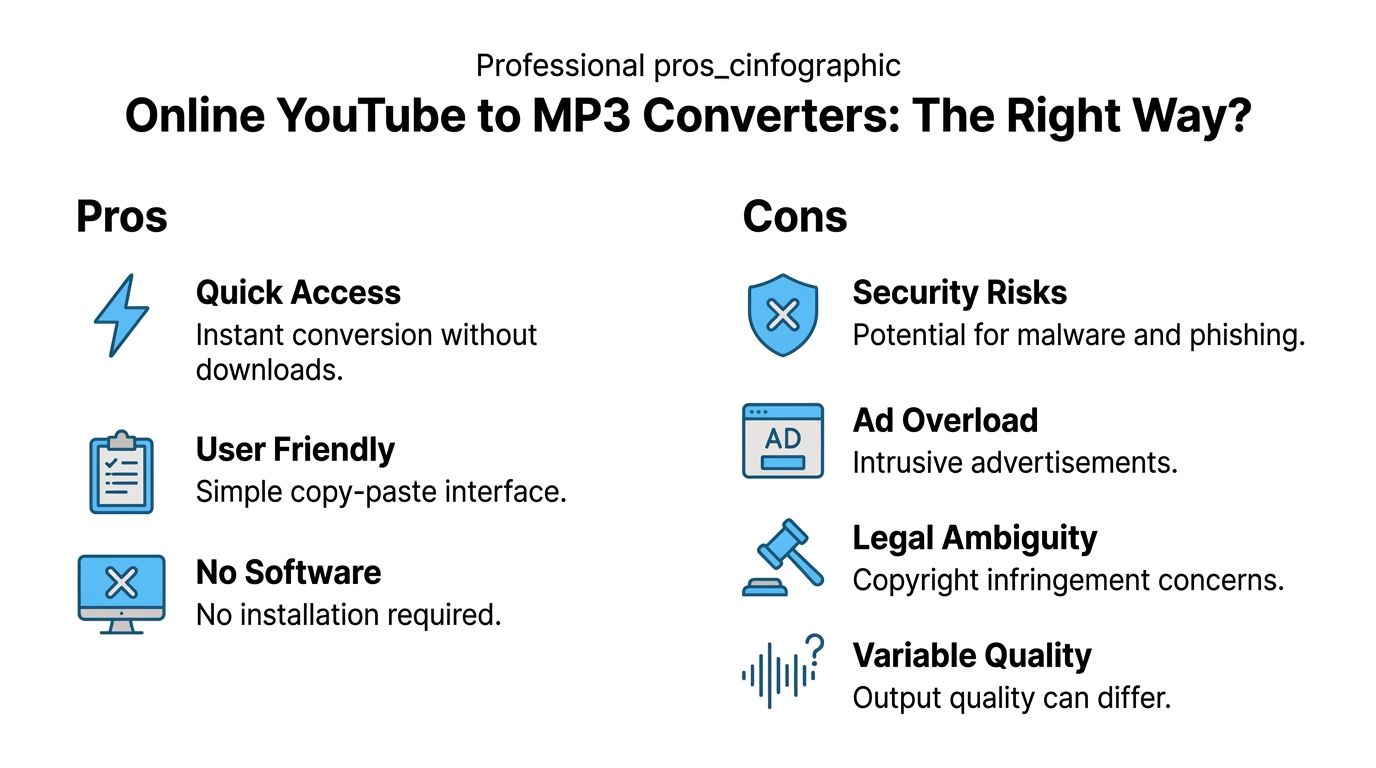
What works with online converters
If you're doing a one-off grab and you accept the risks, online tools are attractive for obvious reasons:
- No installation. You don't need to add another app to your computer.
- Quick turnaround. The copy-paste-download flow is easy.
- Good enough for casual listening. For spoken content, many people won't notice small quality differences.
Some free tools also advertise 320kbps output, which is the top-end MP3 benchmark many users look for. Tools such as DVDVideoSoft and CnvMP3 are noted for offering that maximum quality tier without requiring software installation (DVDVideoSoft).
What usually goes wrong
The danger signs are pretty consistent across sketchy converter sites:
- Fake buttons. The biggest button on the page often isn't the actual download.
- Pop-up chains. One click opens multiple tabs you didn't ask for.
- Wrong files. Instead of an MP3, you may get a useless or suspicious file.
- Redirect traps. You start on one converter and end up on a completely different domain.
That's why I treat online conversion as a harm-reduction exercise, not a best practice.
For a broader walkthrough of browser-based workflows, this guide on free YouTube video conversion options is useful as a comparison point.
A safer checklist if you still use one
If you're going to use an online converter anyway, reduce the blast radius:
- Use a browser with strong blocking tools. An ad blocker and anti-pop-up protection help cut down obvious traps.
- Check the file extension before opening anything. If you expected an MP3 and got something else, stop there.
- Avoid extra installers. A web converter shouldn't need you to install a “download helper.”
- Prefer spoken-word downloads over precious files. Don't use a risky site on the same machine where you keep important work without basic protections.
- Scan the file if anything about the process felt off.
If a converter page looks like a casino, treat it like one. Leave.
Exploring Safer Desktop and Mobile Conversion Methods
If online tools are the convenience play, desktop software is the control play. It asks for a little more setup, but in return you get fewer surprises, better consistency, and less exposure to deceptive web behavior.
VLC Media Player is the tool I'd point individuals to first because it's already familiar to many users and it isn't built around bait-click advertising.
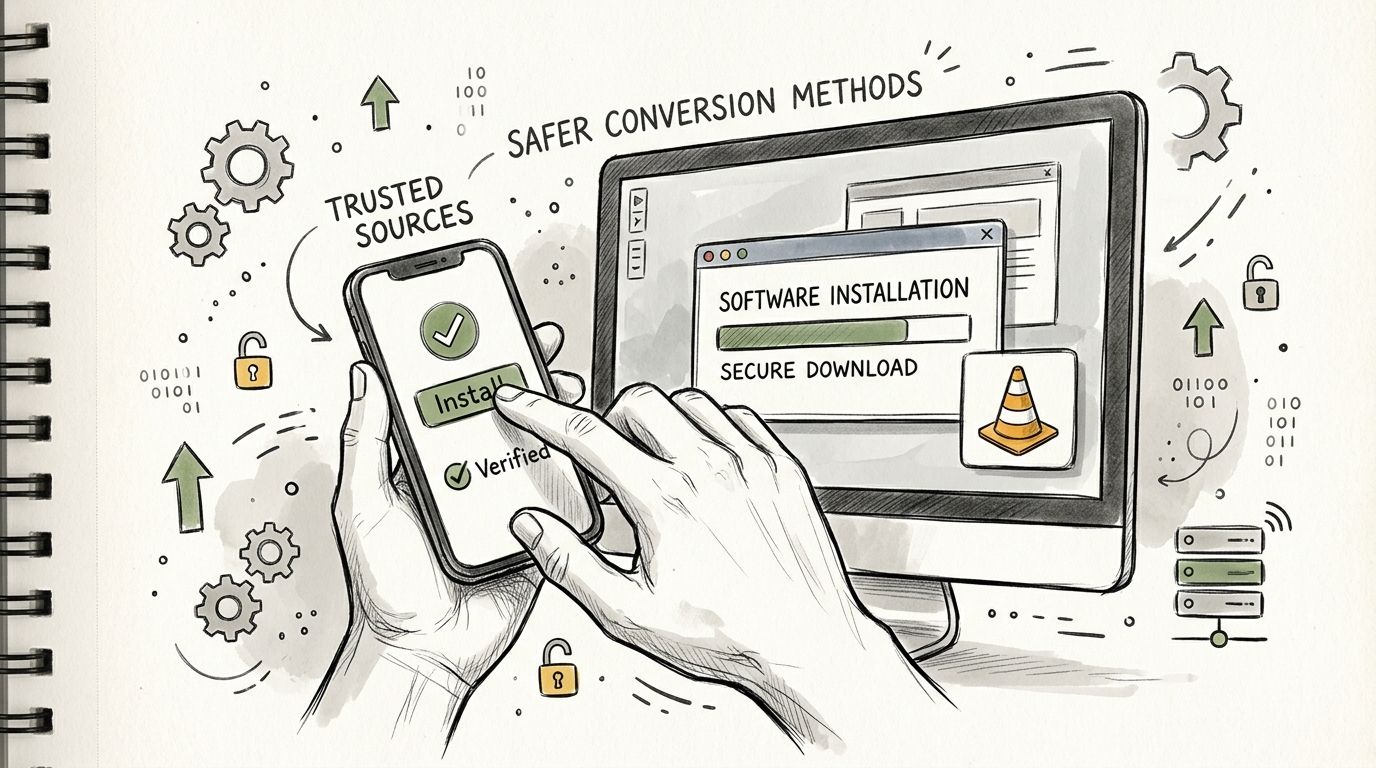
VLC direct stream versus local file workflow
There are two distinct ways people use VLC here.
| Method | How it works | Trade-off |
|---|---|---|
| Direct stream | VLC pulls from the live YouTube URL | Faster to try, but less reliable |
| Local file conversion | You download the video first, then convert it inside VLC | More steps, but more stable |
The reliability gap is meaningful. Using VLC Media Player's network stream extraction for standard YouTube videos achieves a 95% success rate, while converting a pre-downloaded local video file often approaches a 98 to 99% success rate because it avoids network errors and audio desynchronization issues tied to live URL streaming (Vatis Tech).
The method I'd actually recommend
If consistency matters, use VLC with a local video file:
- Download the source video file through a trusted method.
- Open VLC.
- Go to Media > Convert/Save.
- Add the local MP4 file.
- Choose the MP3 audio profile.
- Set the destination and start the conversion.
This is less flashy than a web page with a giant green button, but it's usually the better workflow.
Better workflow: Let VLC convert files you already have locally. Don't make it fight with a constantly changing live stream if you don't need to.
For users who want more detail on audio extraction from existing media files, this explanation of extracting audio from video fits well with the VLC approach.
What about mobile
You can do this on iPhone or Android, but I don't usually recommend mobile-first conversion unless you have a very specific reason. App store restrictions, browser limitations, storage prompts, and permission issues make the process more annoying than most guides admit.
Mobile works best when you're using official offline features or handling content you already own. For repeated conversions, desktop still wins on stability and file control.
Understanding the Legal and Security Minefield
A free converter can turn into a bad download in under a minute. One click opens a fake “Start” button, the next opens a push-notification prompt, and the file you wanted is suddenly the least important thing on the screen.
A lot of YouTube to MP3 guides underplay two separate questions. Are you allowed to download the audio, and is the tool trying to abuse your browser while you do it? Both matter.
The legal side is usually clearer than people want it to be. Downloading copyrighted YouTube content without permission can violate YouTube's Terms of Service and may also create copyright problems depending on your jurisdiction. The safer category is content you created, content you have explicit permission to use, or material released under terms that clearly allow downloading and reuse.
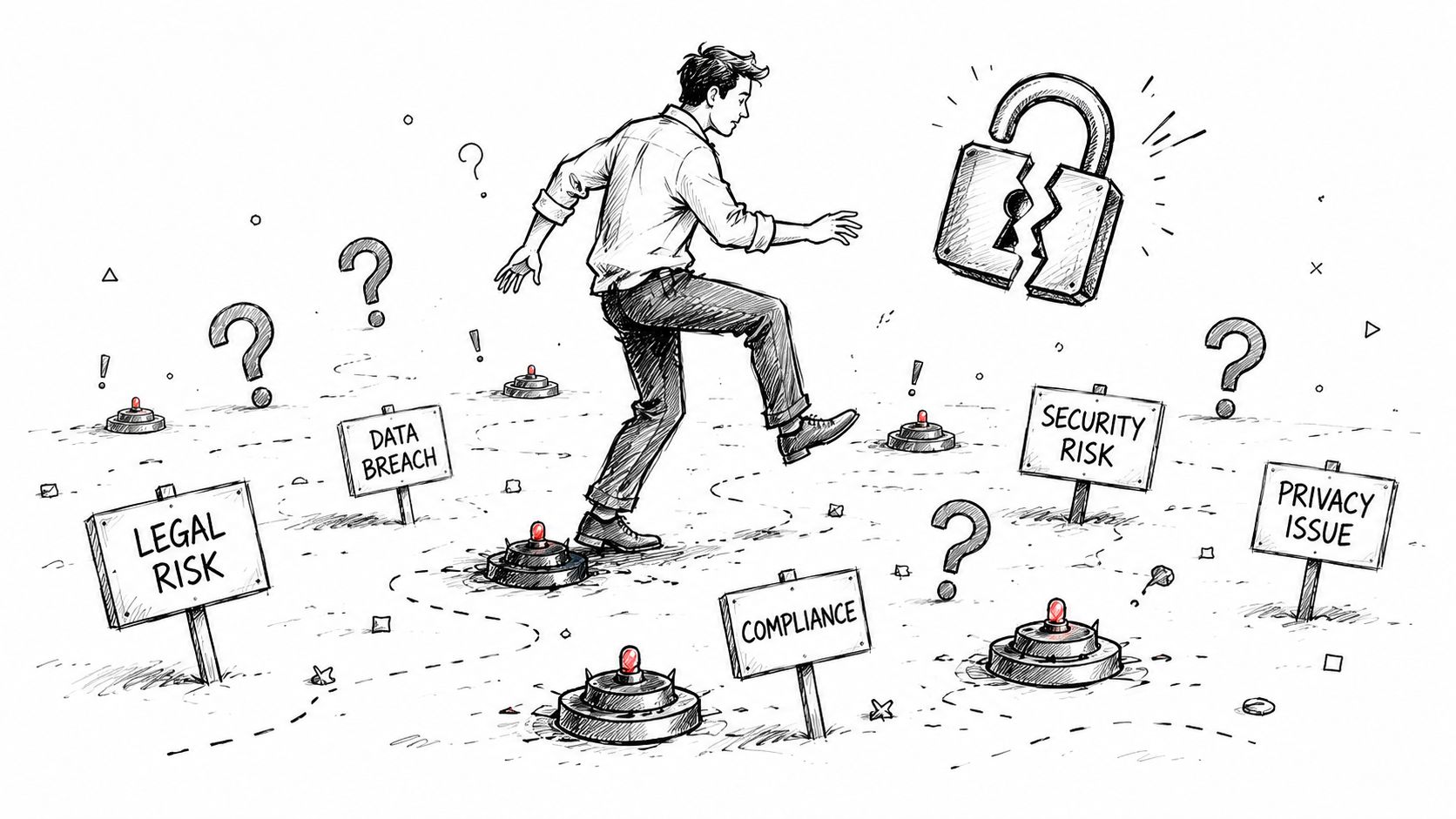
The security side is messier because low-quality converter sites change domains constantly, rotate ad networks, and often rely on misleading buttons or redirects to stay profitable. The U.S. Federal Trade Commission has repeatedly warned that scam sites use fake download buttons, deceptive pop-ups, and malware delivery tactics that look like normal media downloads (FTC consumer guidance on dark patterns and online scams). This forms the core risk profile with random converter pages. The MP3 itself is often not the only thing being delivered.
I treat online converters as disposable tools, not trusted services. They do not get browser notification access. They do not get permission to install extensions. They do not get my main browser profile with saved passwords and active logins.
If your real goal is research, notes, quotes, or searchable access to what was said in a video, skip the converter mindset and use a tool to transcribe YouTube videos with AI instead. That route avoids a lot of shady front-end sites and gives you text you can search, summarize, and verify. For teams working with approved video data at scale, it can also make more sense to solve YouTube API integration challenges than to depend on consumer-grade download pages.
Use this quick filter before you save anything:
- You made the video or own the rights. Lowest legal risk.
- You have written permission from the owner. Usually acceptable.
- The license clearly allows downloading or reuse. Check the exact terms.
- It is a commercial upload, music track, podcast, or creator video without download permission. Risk goes up fast.
One rule saves a lot of trouble. Technical access is not the same as permission.
A Better Alternative Extracting Insights with AI Transcription
You save a two-hour lecture as MP3, then spend the next week dragging the timeline back and forth trying to find one useful quote. That is the point where the file format stops being the main problem.
For lectures, interviews, webinars, tutorials, meetings, and podcasts, the better output is often text. Audio helps with listening later. A transcript helps with finding, checking, quoting, summarizing, and reusing what was said.
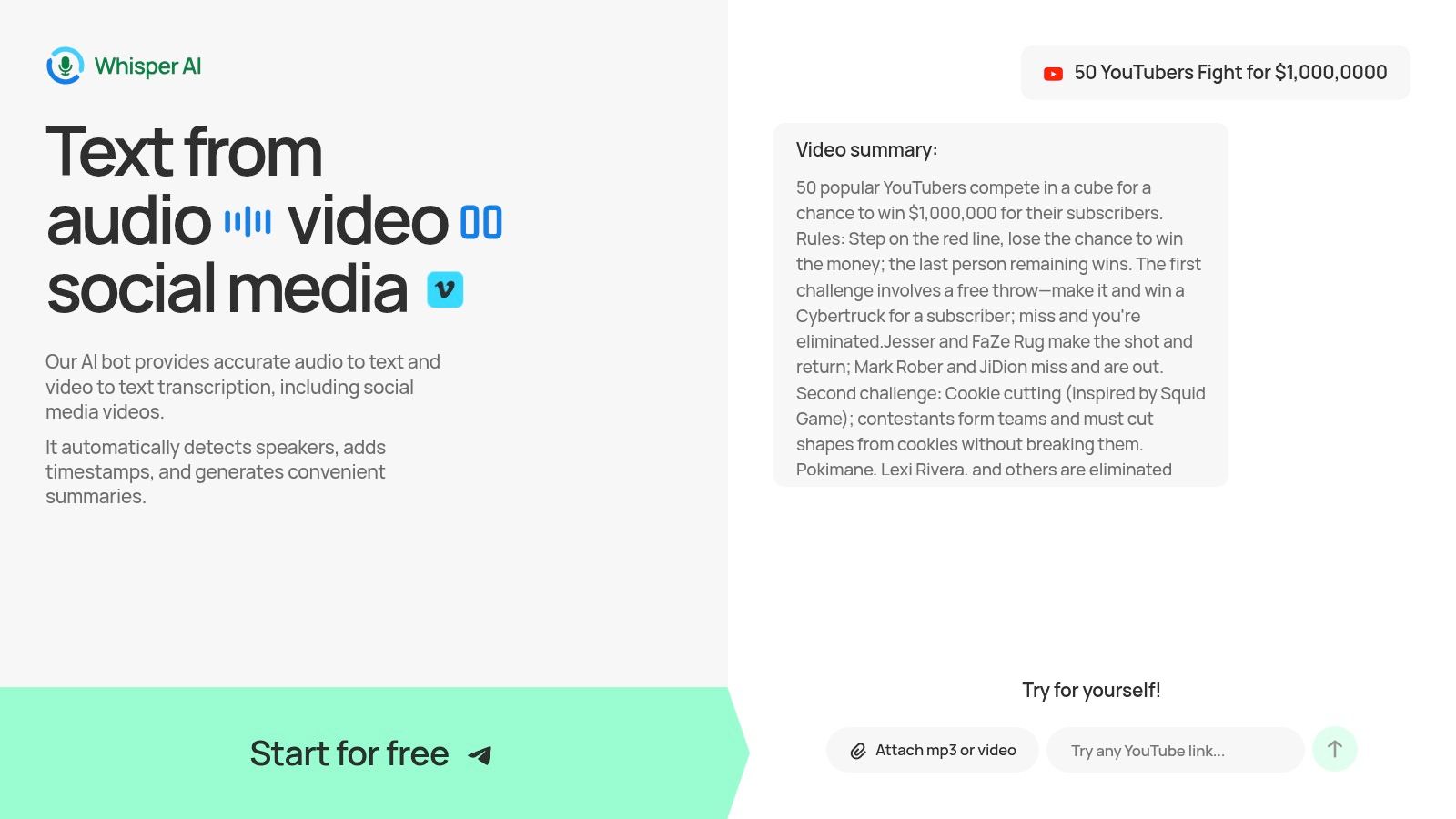
When an MP3 is the wrong output
An MP3 keeps the whole recording intact, but it does very little to reduce the work. If the speaker mentions a name once at minute 47, or gives the key explanation in the middle of a long tangent, you still have to hunt for it manually. That gets worse with multi-speaker interviews or technical videos where one missed phrase changes the meaning.
A transcript changes the workflow:
- Searchable text lets you find names, topics, and specific claims fast
- Timestamps point you back to the exact moment in the video
- Summaries cut a long recording into the main takeaways
- Speaker labels make interviews and panels easier to review
- Export options help you move useful parts into notes, briefs, captions, or drafts
That is why researchers, students, journalists, and content teams often compare transcription tools with best AI video to text converters. They are solving a different problem than casual audio playback.
Utility first, with less friction
If your goal is understanding the content, transcription is usually the cleaner path. You skip the whole routine of downloading a file, naming it, storing it, and scrubbing through it later. You get a working document instead.
I recommend this approach most for information-heavy videos. A transcript gives you something you can search in seconds, paste into your notes, and verify against the original timestamps. If you want a practical walkthrough, this guide on AI tools to transcribe YouTube videos shows how the process works.
Here's a quick visual overview of how that kind of process works in practice.
Who should choose transcription first
Transcription is usually the better first move if you're:
- Studying lectures and need notes more than background listening
- Reviewing interviews and need exact phrasing
- Researching niche topics and want keyword search instead of timeline scrubbing
- Repurposing content into articles, captions, outlines, or summaries
- Working with team members who need text they can share, mark up, and reuse
A plain MP3 gives you access to sound. A transcript gives you access to meaning.
Your Final Checklist for YouTube Audio
Pick the method based on what you're trying to accomplish.
If you just want casual listening
An online converter can work for a one-off file, but treat it as the riskiest option. Use caution, verify the file you downloaded, and don't assume the biggest button is the correct one.
If you want the safest traditional conversion path
Desktop software is the better route. VLC is a practical choice, especially when you convert from a local video file instead of a live URL. That workflow is less flashy, but it's far more controlled.
If you need information, not just audio
Skip the MP3-first mindset. For lectures, interviews, podcasts, and explainers, transcription is often the smarter output because you can search, summarize, quote, and organize the content instead of replaying it over and over.
Here's the simplest decision filter:
- Music or simple offline playback. Use caution and think about legal rights first.
- Reliable MP3 creation from a file you control. Use desktop software.
- Research, learning, writing, clipping, or analysis. Use transcription.
The best free converter from YouTube to MP3 depends less on the file format and more on your intent. Start with the often-skipped question: Why do you need the audio at all? Once you answer that, the right tool usually becomes obvious.
If your real goal is to pull useful ideas from videos instead of just saving another audio file, Whisper AI is worth trying. It converts video and audio into searchable text with timestamps, speaker detection, summaries, and export options, which makes lectures, interviews, podcasts, and long YouTube videos much easier to work with.


























































































