How to Transcribe Facebook Video: 2026 Complete Guide
You've got a Facebook video that's worth more than a single post.
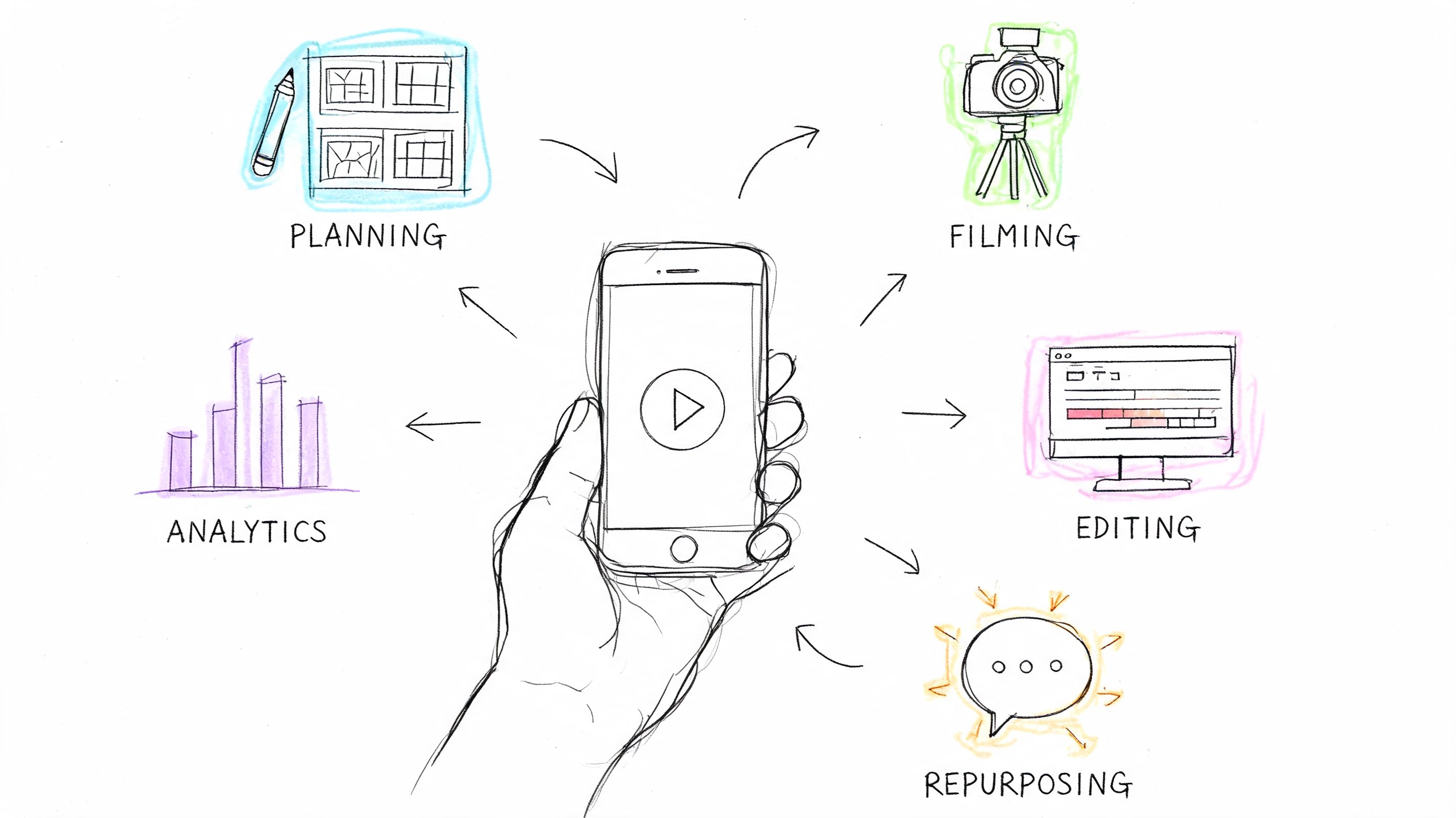
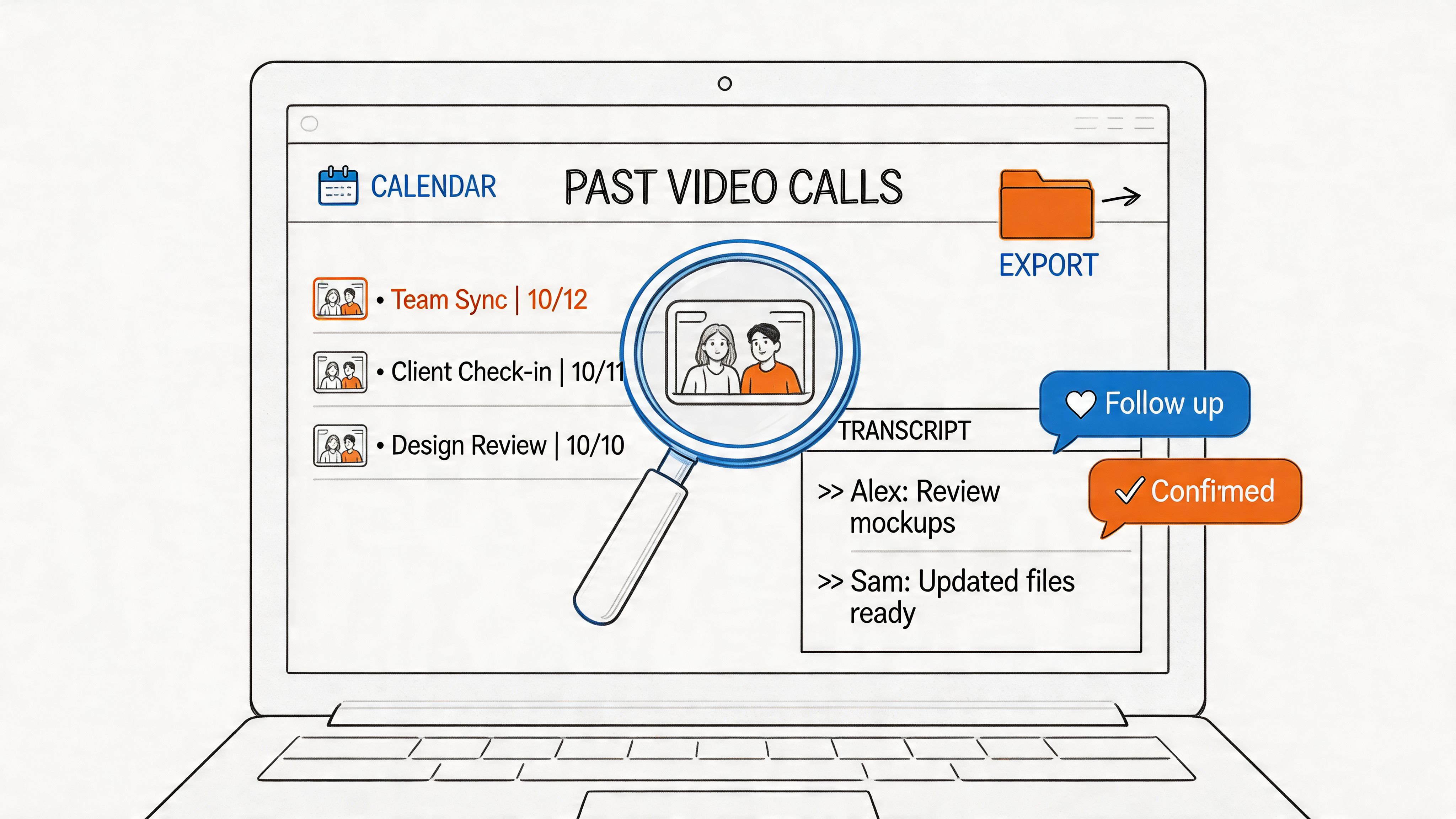
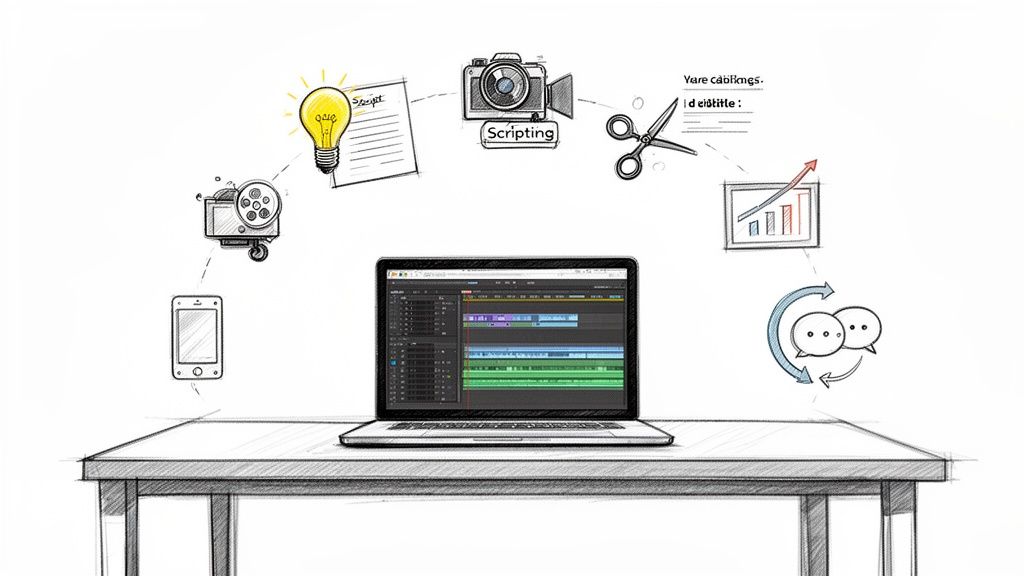
Maybe it's a live interview, a customer Q&A, a webinar replay, or a founder update that performed well once and then disappeared into the feed. The hard part is that video trapped the value in spoken form. If you want a blog post, captions, quotes for social, or clean notes for your team, you need a transcript that's readily usable.
That's where most guides fall short. They tell you how to run a file through a tool. They don't show the workflow that turns a rough transcript into repurposable content without wasting an afternoon fixing preventable mistakes. If you need to transcribe Facebook video for publishing, not just for archiving, the process matters as much as the tool.
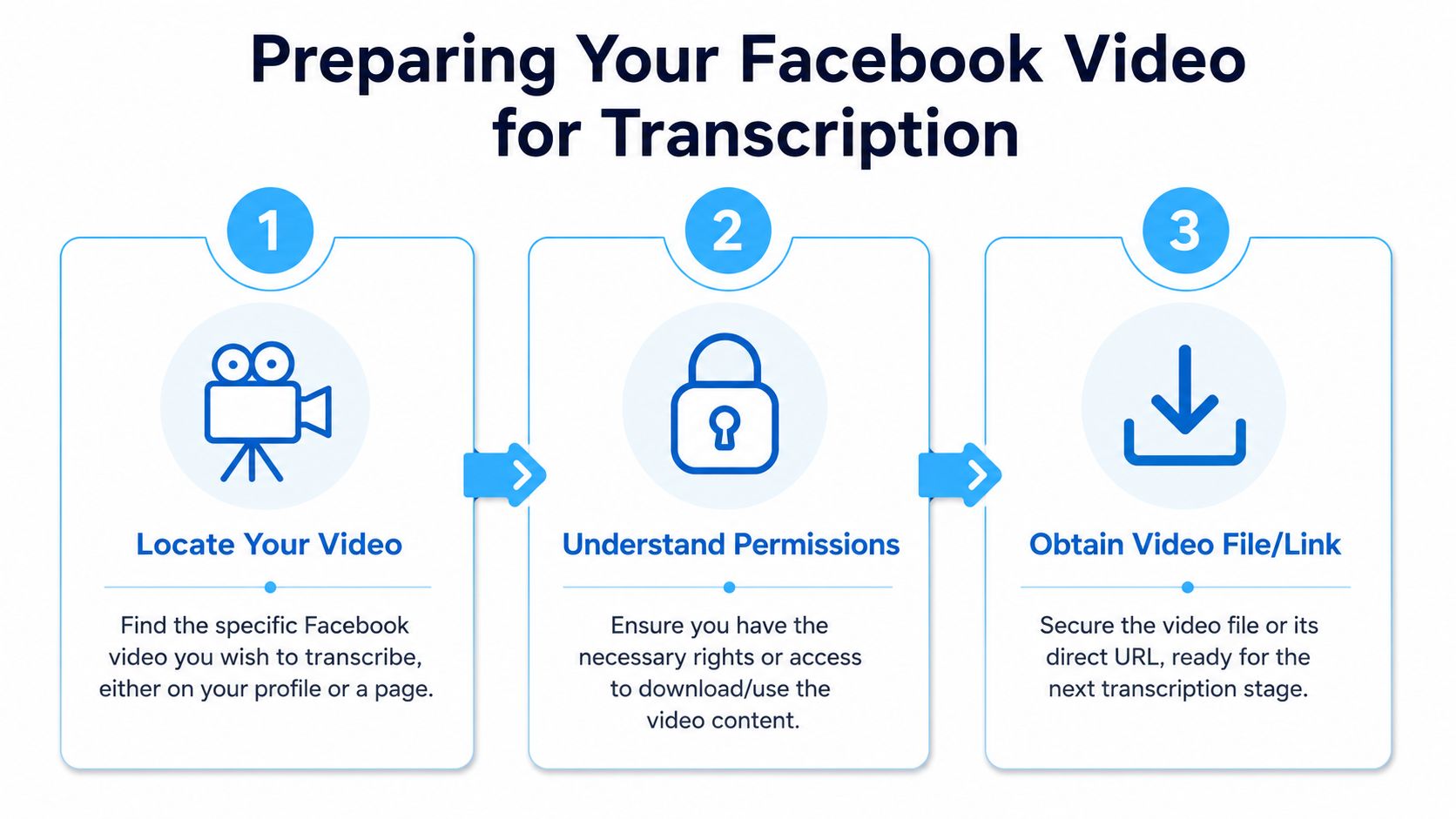
Getting Your Facebook Video File or Link
Before you transcribe anything, confirm you're allowed to use it.
If it's your own Facebook video, or a video from a Page you manage, the workflow is straightforward. If it belongs to someone else, get permission first. That matters legally, and it matters editorially. Journalists, researchers, and marketers all run into the same issue: a transcript may be easy to create, but that doesn't automatically make it yours to repurpose.
Start with access and rights
A lot of friction shows up before transcription even starts. The video may be public, but downloading, editing, and publishing a derivative version is a separate question. If you're working on behalf of a brand, verify that the Page admin or original creator has approved reuse. If you're repurposing interviews, save that approval in the project folder.
Practical rule: If you wouldn't feel comfortable publishing the transcript publicly, don't generate one until permissions are clear.
That sounds conservative, but it saves cleanup later. It's much easier to pause before processing than to remove text assets after they've already been turned into posts, captions, and summaries.
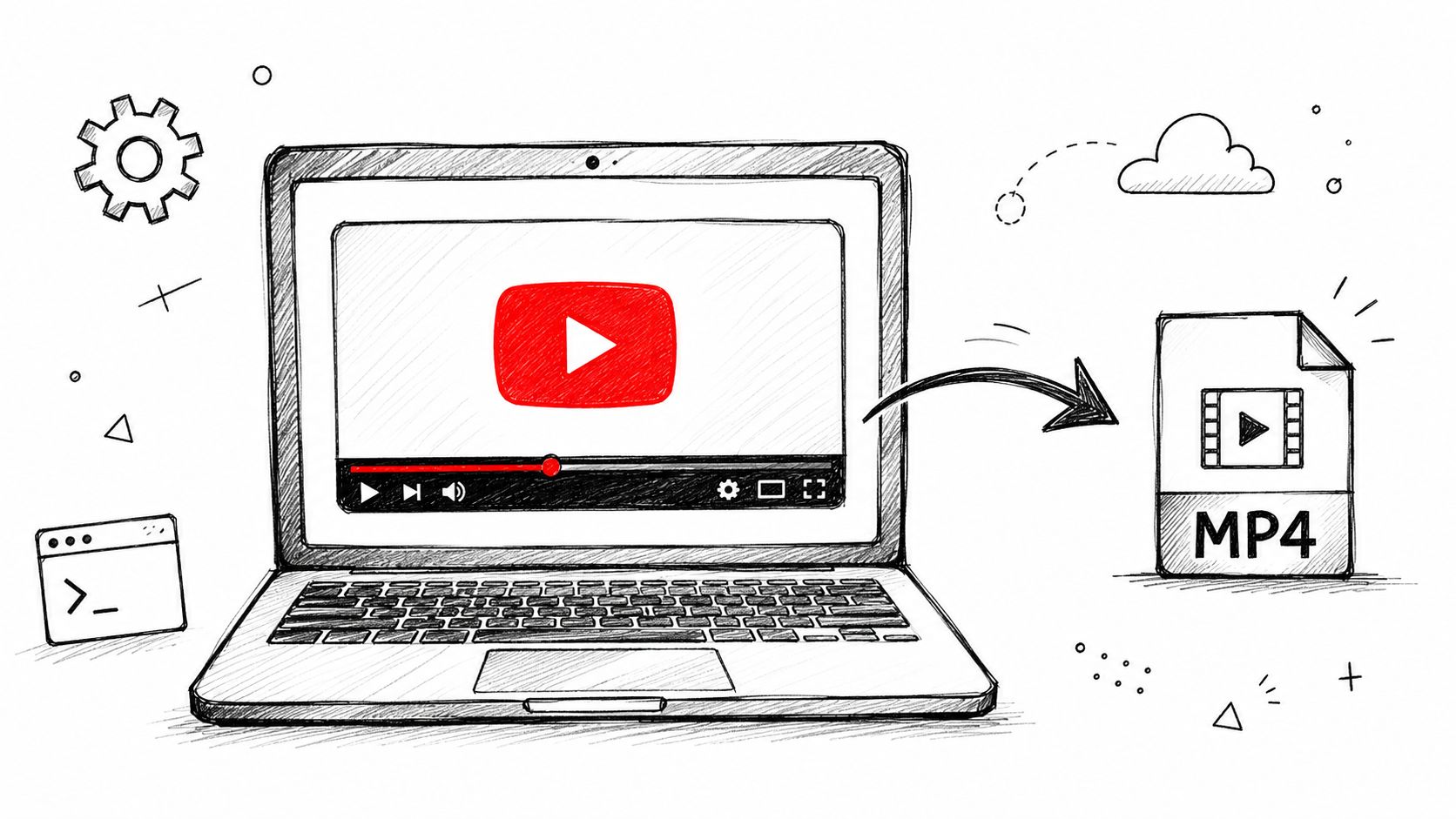
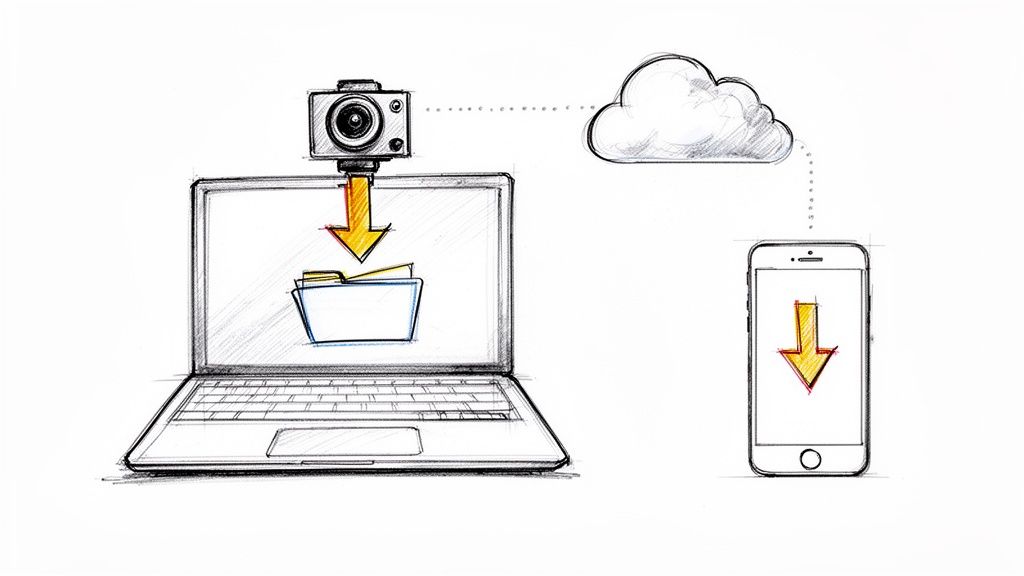
Choose between a file and a link
There are two clean ways to source a Facebook video for transcription.
- Use the video file
- Use the video link
Both work. The better option depends on what you need to control.
- Choose a file when you want full control over the source media, need to archive the original asset, or expect to edit captions with close timing review.
- Choose a link when you want the fastest path and don't want to waste time downloading and re-uploading a large video.
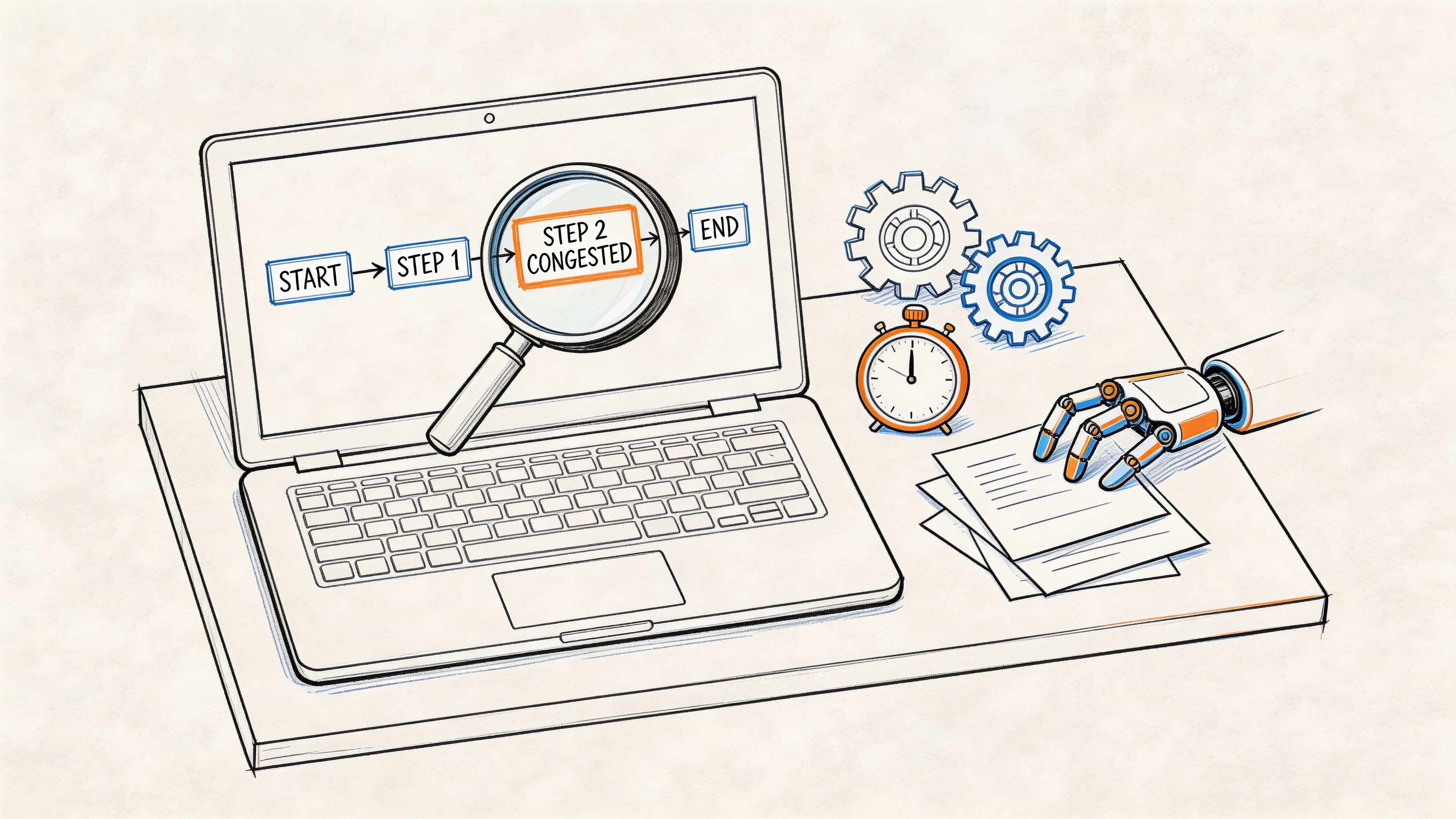
- Avoid switching back and forth unless there's a real reason. Most project delays happen when teams duplicate effort with both methods.
If you're clipping from a livestream or replay, file size can become the deciding factor. For live Facebook videos under 2 hours, the file size typically remains under 450MB, which is the maximum upload limit for many external transcription services; videos exceeding this threshold must be split into segments or re-encoded at a lower bitrate to be processed successfully (Facebook Live file size guidance).
What works best in practice
For speed, a direct link is usually the least annoying route. You skip the download, avoid duplicate files on your desktop, and move straight into transcript generation. If the source platform or workflow doesn't play nicely with direct links, then use the downloaded MP4.
If your video is long or came from a stream, keep a fallback plan ready. Splitting a long recording into logical segments often beats forcing one giant upload through a service that keeps stalling. If you're dealing with capture issues before you even reach transcription, this guide on capturing streaming video cleanly is worth reviewing.
A simple prep checklist keeps this stage clean:
- Confirm ownership: Make sure you can legally download, transcribe, and repurpose the content.
- Check the source: Open the video and verify it's the correct version, not an edited repost or lower-quality duplicate.
- Pick one input method: Use either the direct URL or the downloaded file based on speed and control needs.
- Watch for upload limits: Longer livestreams may need splitting or re-encoding before they'll process smoothly.
Once the source is settled, generating the first draft transcript only takes a few minutes. True gains come from setting it up correctly from the start.
Generating an Automated Transcript in Minutes
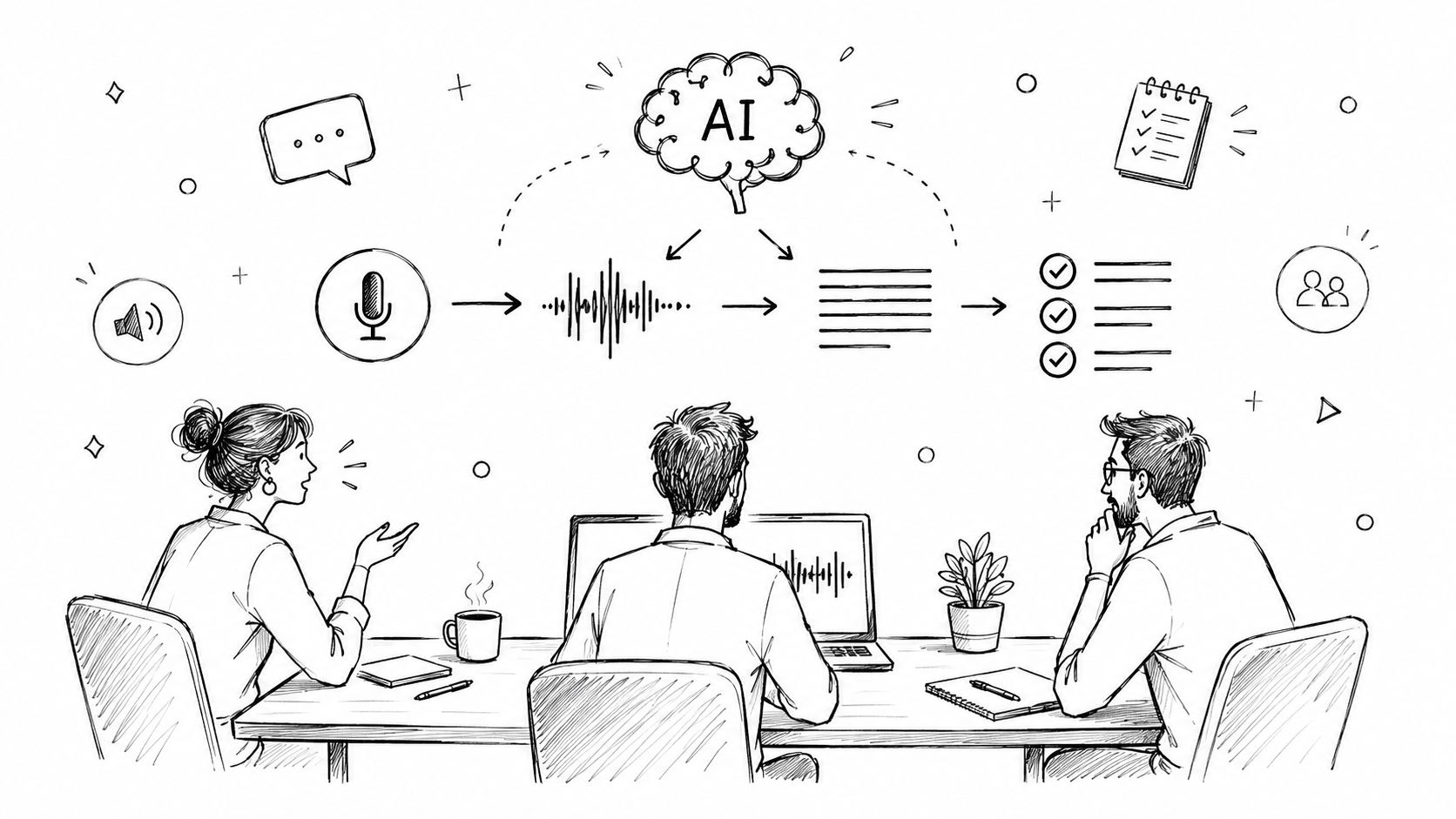
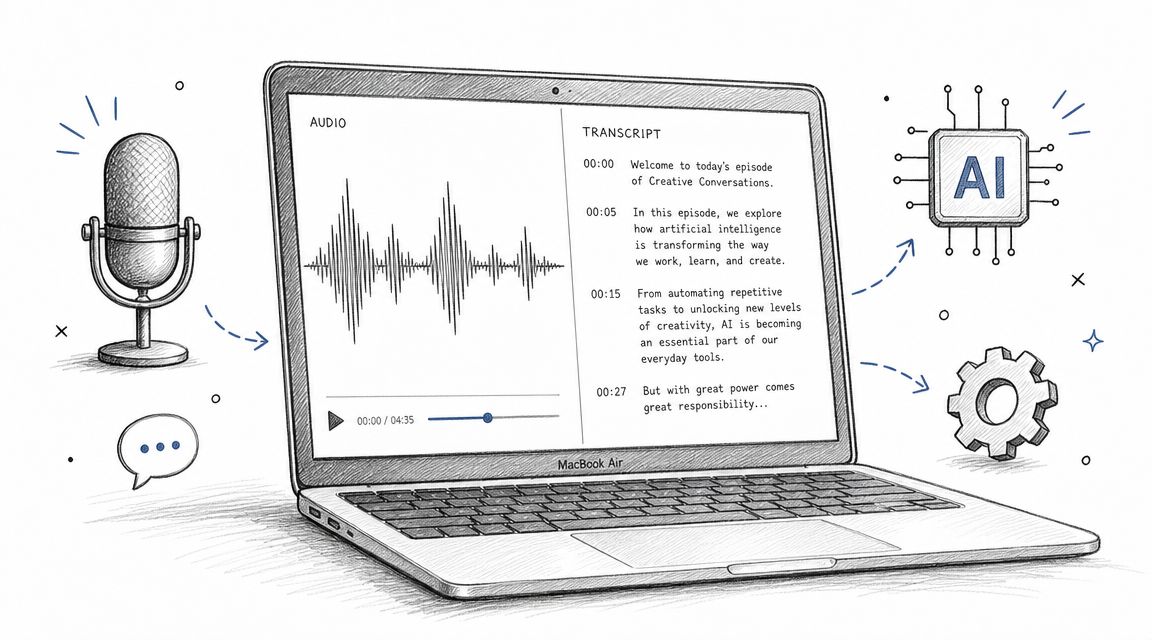
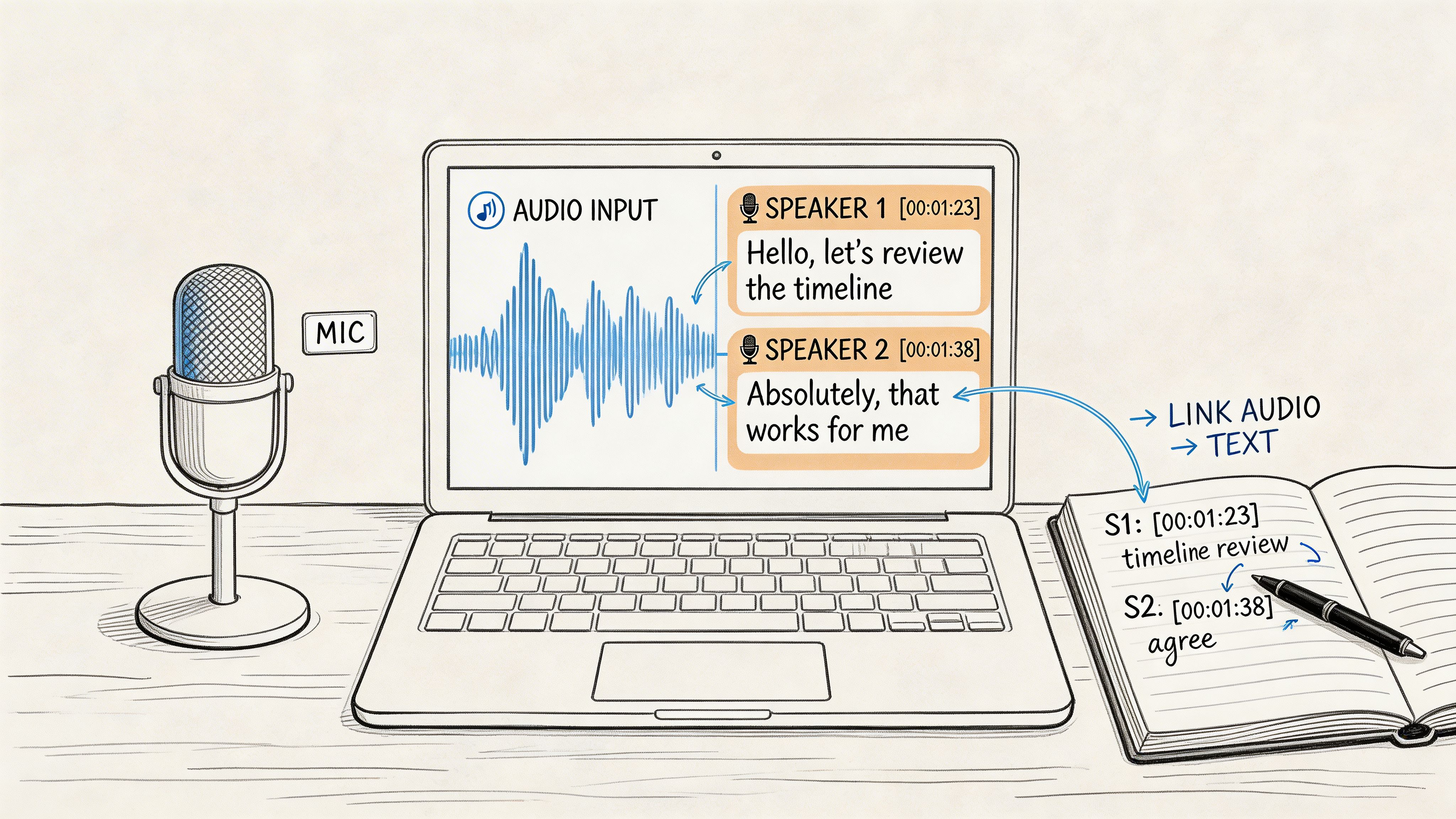
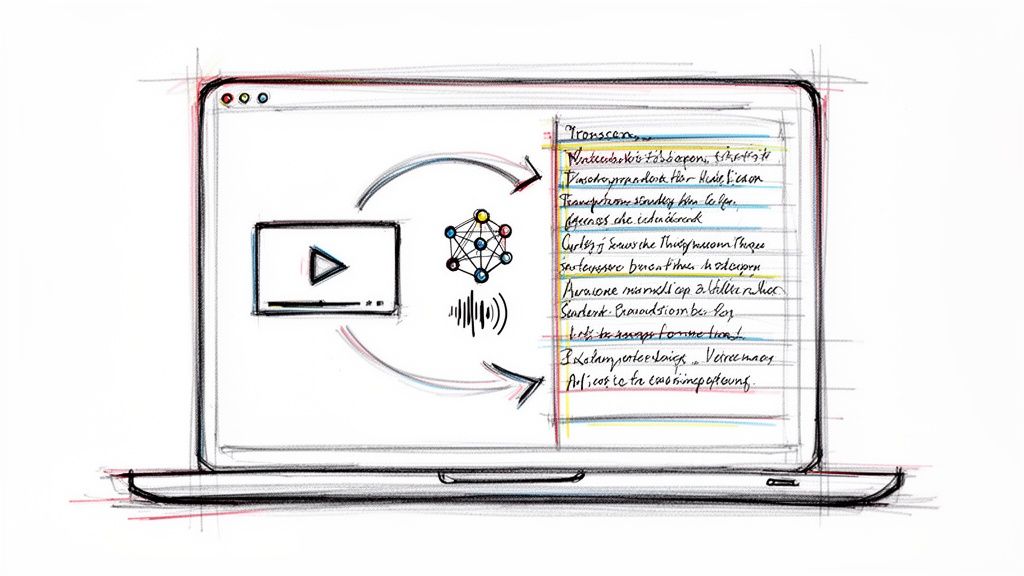
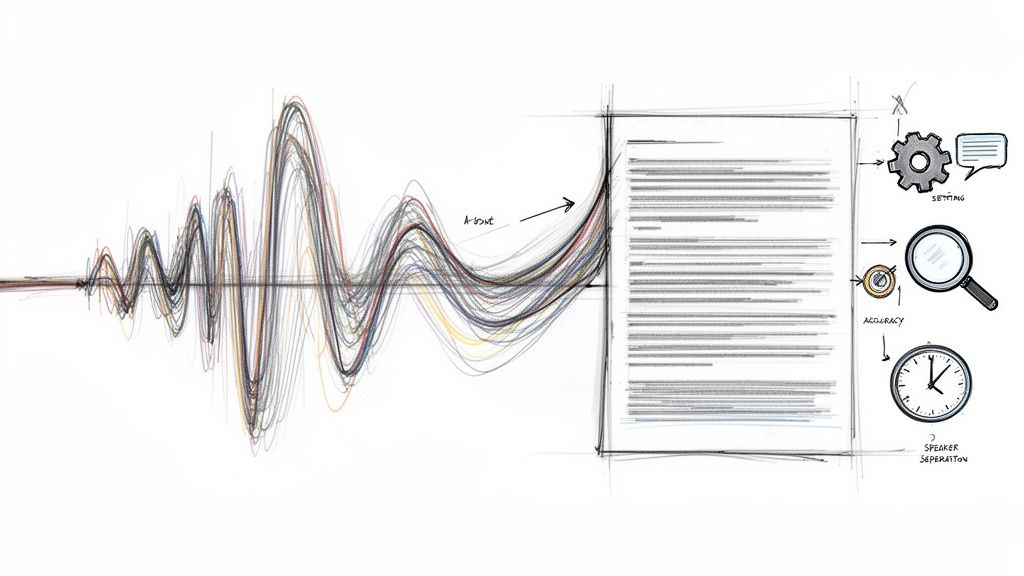
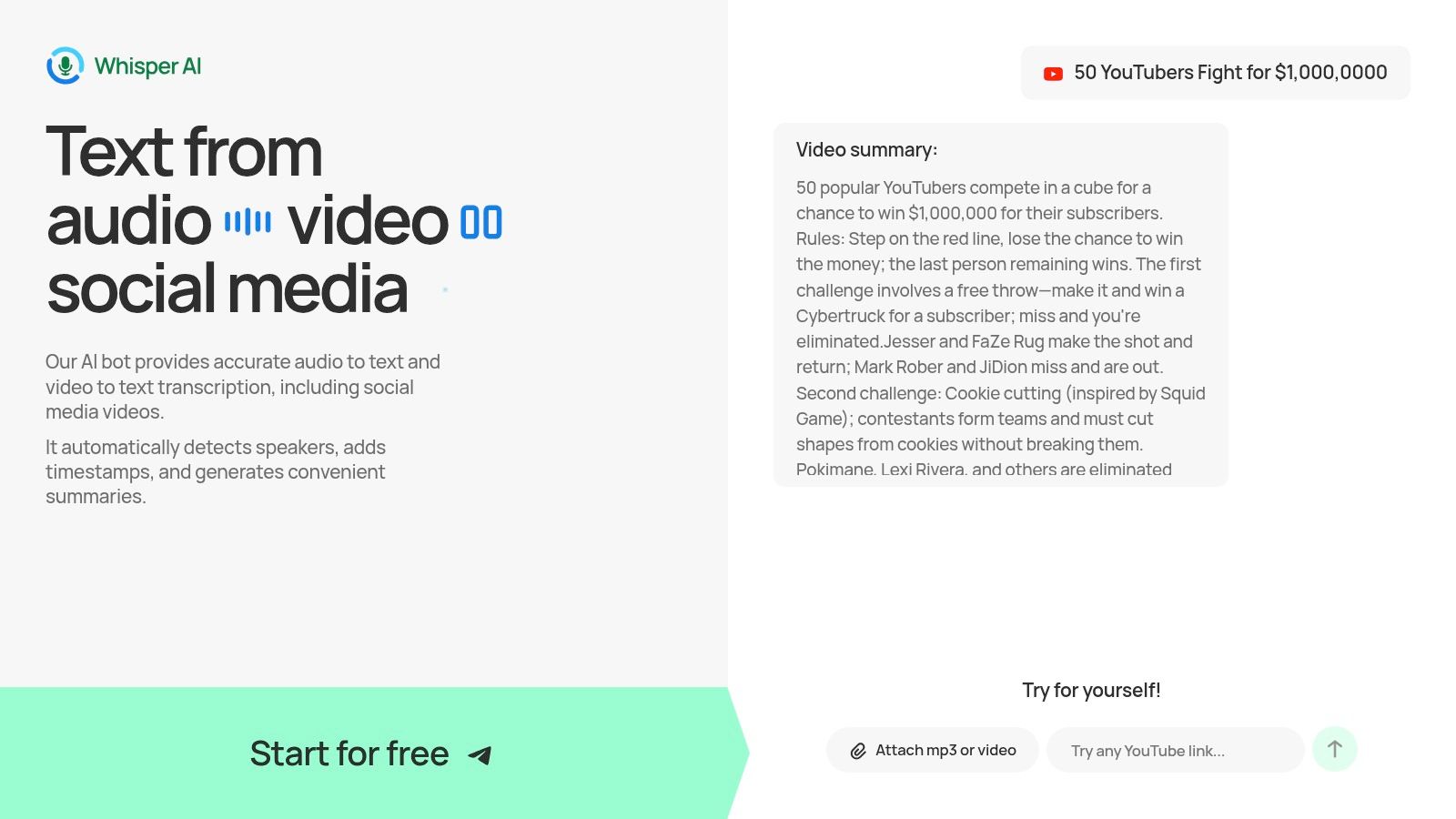
The fastest way to transcribe Facebook video is usually link ingestion. Paste the Facebook URL into an AI transcription tool, confirm the language, turn on speaker detection if more than one person talks, and let the first draft generate.
That's the workflow I'd choose for almost every content repurposing job unless the source file needs repair first.
The clean setup that saves editing time
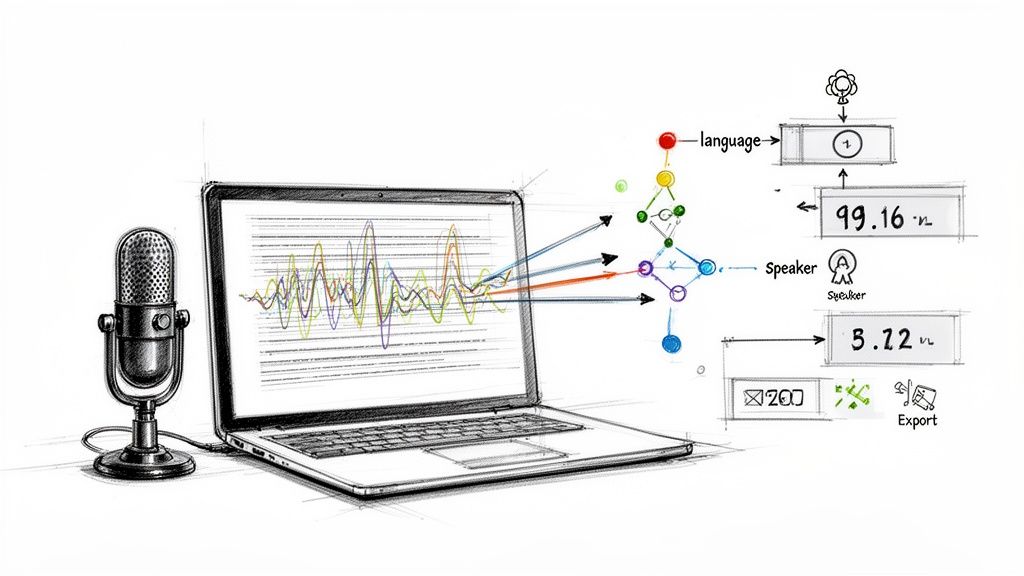
The setup matters because bad defaults create messy transcripts. Before you click transcribe, check these items:
- Language selection: Don't leave it ambiguous if the video includes accents, brand terms, or industry jargon. Pick the spoken language directly when possible.
- Speaker detection: Turn it on for interviews, panels, podcast clips, Q&As, and any video with handoffs between people.
- Timestamped output: Enable timestamps if you'll use the transcript for captions, review, or content extraction tied to moments in the video.
- Original source check: Make sure the pasted URL points to the actual Facebook post you want, not a shared wrapper post.
The step people skip most often is speaker detection. That mistake gets expensive later because cleanup becomes slower once the transcript is already full of generic labels.
Data shows multi-speaker detection accuracy drops significantly when audio is compressed or clipped, a common issue with Facebook-streamed video, yet most tutorials skip the critical step of early speaker renaming and overlap correction. This gap is especially relevant for journalists and researchers repurposing interview content, where speaker attribution is legally and ethically vital (multi-speaker Facebook transcription guidance).
Rename speakers early, while the synced video still makes identity obvious. If you wait until the wording pass, you'll spend more time retracing who said what.
Use the first draft for structure, not trust
A good AI transcript gives you momentum. It does not give you permission to stop reviewing.
When the draft appears, scan the opening minute, one middle section, and the ending before you export anything. You're looking for three things: whether the right language was captured, whether the tool separated speakers reasonably well, and whether timestamps feel aligned enough for editing. If any of those are off, fix the setup before doing detailed edits.
This is also the best point to decide what kind of asset you're building. A clean transcript for a blog post needs different editing choices than subtitle-ready caption text.
A quick walkthrough helps if you want to see the flow in action:
What usually goes wrong
The first draft usually fails in predictable places.
- Overlapping speech: The tool may flatten interruptions into one speaker block.
- Compressed audio: Facebook streams can smear consonants and proper nouns.
- Generic speaker labels: “Speaker 1” and “Speaker 2” aren't useful once you start quoting or repurposing.
- False confidence: The text looks readable, but key names, product terms, and transitions are still wrong.
Treat the automated draft as a working document. If the setup is right, you'll have something solid enough to refine instead of something you need to rebuild.
How to Refine and Edit Your AI Transcript
A raw transcript is a draft. A usable transcript is edited in passes.
That distinction separates content you can confidently publish from text that creates hidden problems. If you're repurposing a Facebook interview, panel, or live session, the editing stage is where you recover credibility. Here, names get fixed, speaker identity gets preserved, and timestamps become reliable enough for captions.
Use a three-pass review
Professional transcription workflows hold up because they're structured. Expert-level methodology for transcribing Facebook videos requires a three-pass refinement process: First, verify audio clarity and speaker distinctness; second, trim filler words and fix misattributed speaker labels while synchronizing timestamps for SRT/VTT outputs; third, conduct a standalone review to ensure technical terms, names, and formatting consistency (three-pass Facebook transcription method).
That sounds formal, but it's faster than random editing because each pass has one job.
Pass one for clarity and speaker identity
In the first pass, don't fuss over wording. Listen and watch for where the transcript breaks trust.
Your target is obvious accuracy: muffled phrases, wrong speaker switches, dropped names, and any moment where the audio itself is hard to parse. If the video includes multiple people, rename speakers now. Don't leave generic labels in place for later.
I've found this is the point where synced playback matters most. Once you've moved into trimming and rewriting, the visual cues that made speaker identity obvious aren't as top-of-mind.
- Check audio trouble spots: Mark sections with noise, clipping, or crosstalk.
- Rename speakers immediately: Replace generic labels with real names while context is still fresh.
- Correct overlaps: If two people speak across each other, decide whether the transcript should show both or simplify for readability.
The best transcripts preserve who said something, not just what was said.
Pass two for readability and timing
Now clean the transcript for its actual use. If it's becoming captions, timing matters. If it's becoming an article, readability matters more than verbal exactness.
You trim filler words, remove repeated starts, and tighten rambling sentences without changing meaning. You also align timestamps for subtitle files so text appears when viewers need it, not a beat late.
A few edits make the biggest difference:
- Cut filler with restraint: Remove “um,” “uh,” and repeated starts when they don't add meaning.
- Fix timestamp drift: Small sync issues become very noticeable once you export SRT or VTT.
- Break long blocks: Dense text is hard to read in captions and hard to reshape into posts.
If you want a sharper cleanup routine, this piece on proofreading transcripts efficiently is a useful companion.
Pass three for consistency
The final pass happens without the audio running constantly in the background. Read the transcript as a standalone text asset.
Look for branded terms, product names, guest names, acronyms, capitalization, and formatting choices that changed mid-document. This pass is less about hearing and more about editorial finish.
A transcript often gets touched by different people after this stage. Marketing may turn it into a blog post. Social may extract quotes. Video may export captions. If the naming and formatting aren't consistent, every downstream asset inherits the mess.
Exporting Formats for Content Repurposing
Once the transcript is clean, export format becomes a content decision, not a technical checkbox.
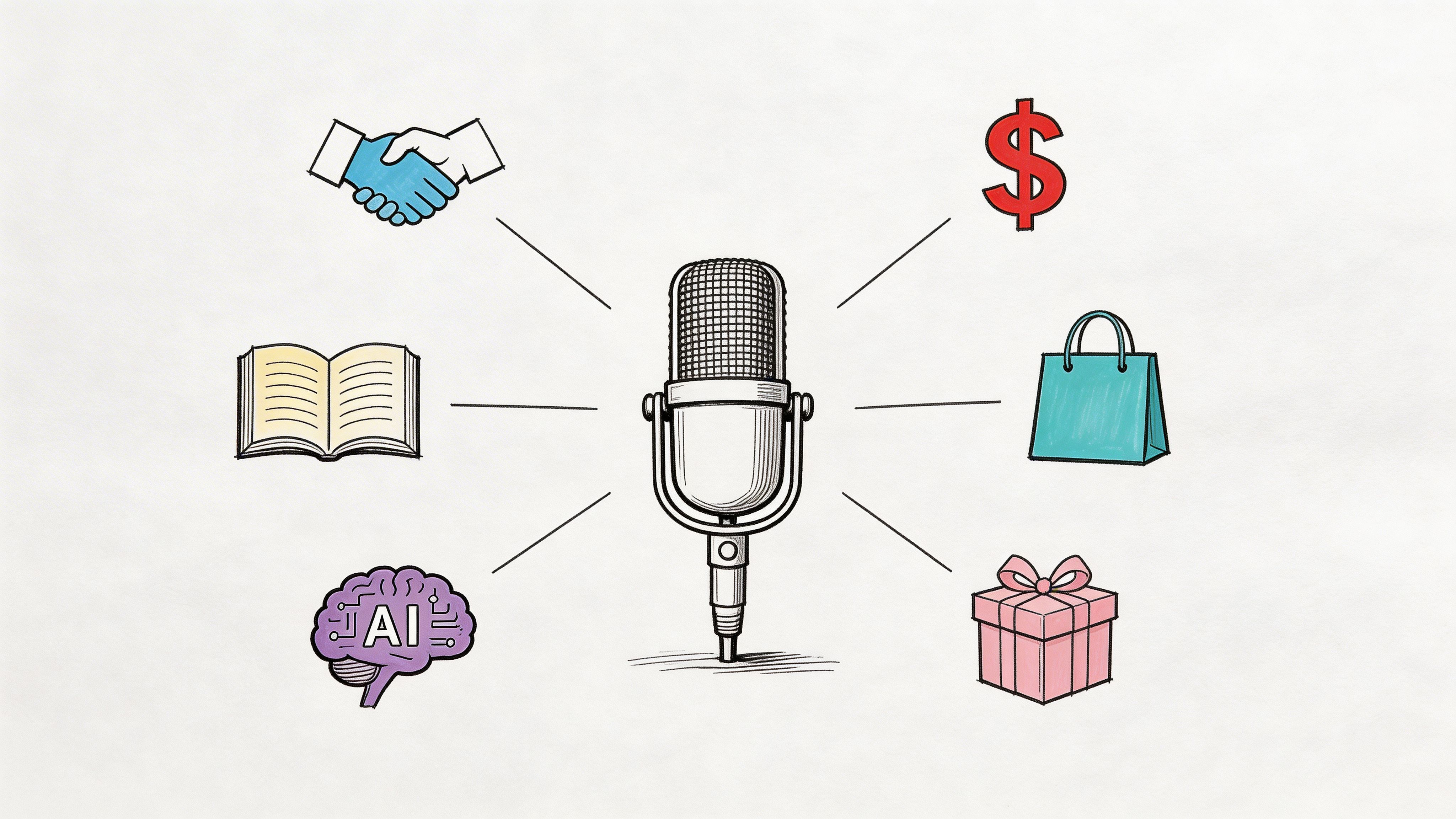
A lot of teams dump everything into plain text and call it done. That works for storage, but it wastes the full advantage of transcription. One Facebook video can feed captions, a blog draft, quote graphics, show notes, internal documentation, and newsletter copy. The trick is choosing the export that matches the next job.
Pick the format based on the next asset
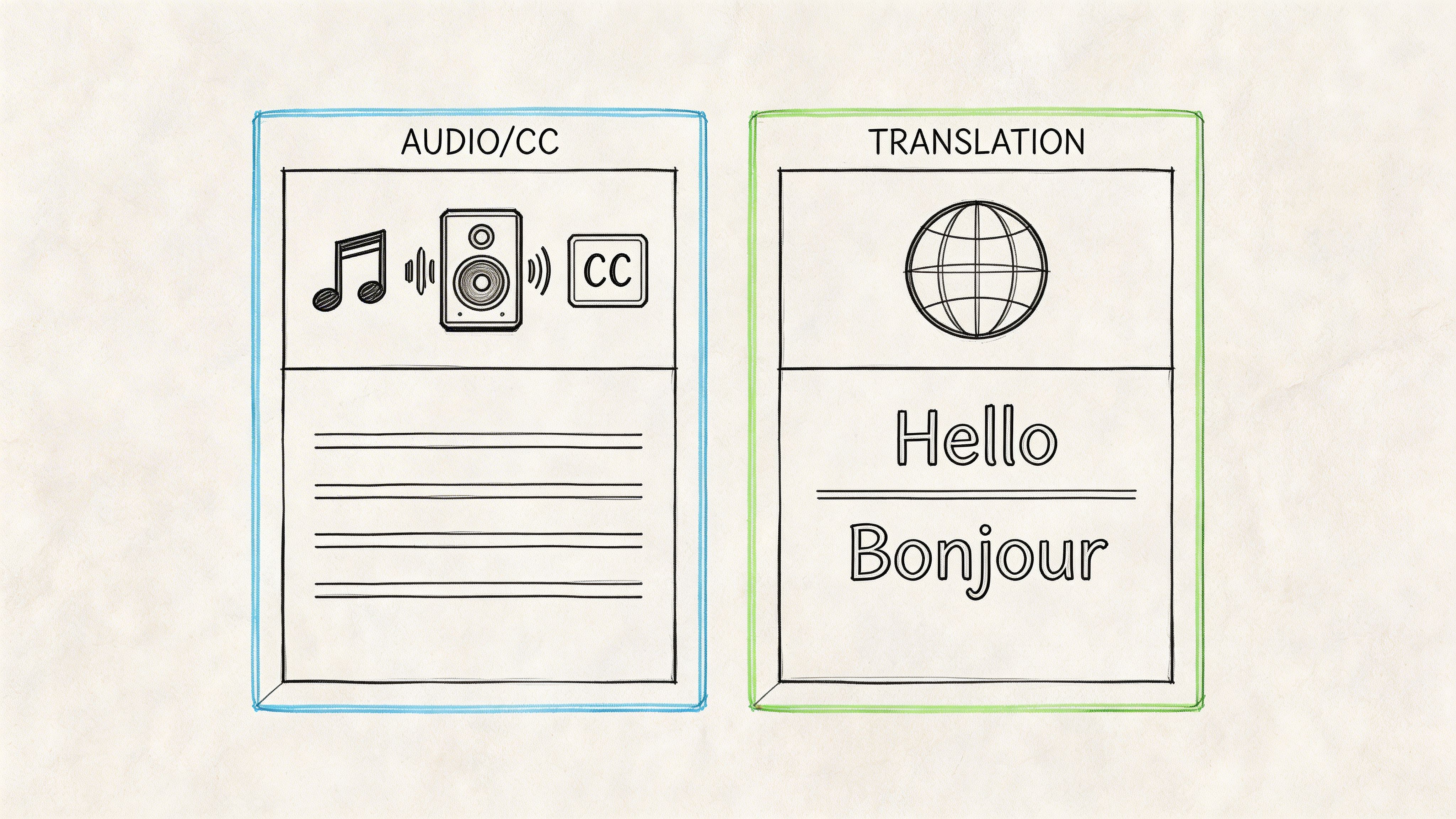
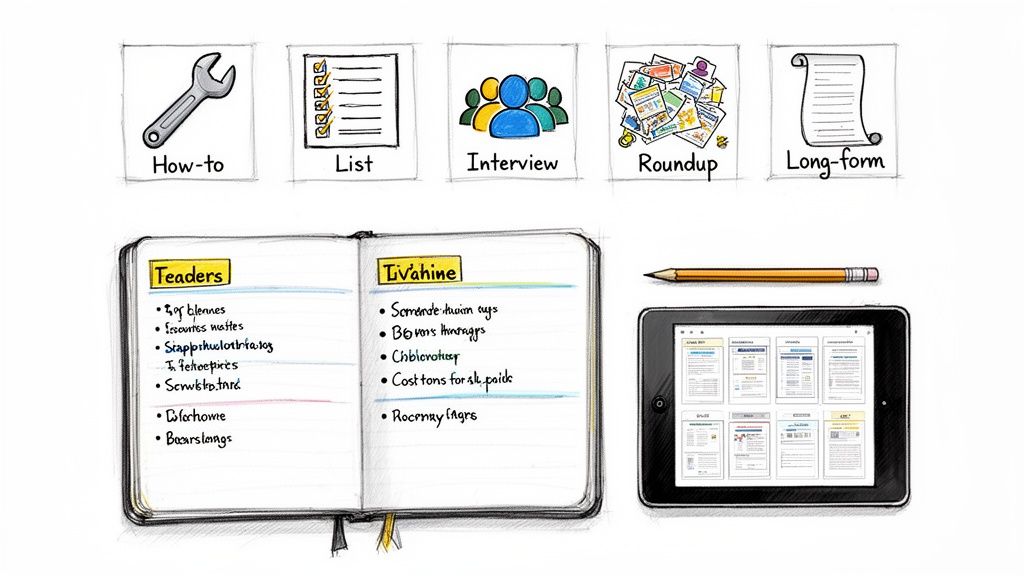
If you're adding subtitles back to video, you want a caption format such as SRT or VTT. If an editor is turning the conversation into an article, DOCX is easier to shape and comment on. If you're pulling quick snippets or feeding the transcript into another workflow, TXT stays lightweight and portable.
Here's the practical breakdown:
| Format | Primary Use Case | Best For |
|---|---|---|
| SRT | Subtitle upload and caption timing | Facebook captions, short-form video publishing, accessibility workflows |
| VTT | Web video captions with timing support | Embedded players, web publishing teams, broader subtitle compatibility |
| DOCX | Editorial rewriting and collaboration | Blog posts, articles, interview edits, stakeholder review |
| TXT | Fast extraction and lightweight reuse | Notes, quote pulling, social copy drafts, archive search |
| Fixed-reference reading copy | Approvals, sharing non-editable versions, internal records | |
| Markdown | Structured publishing workflows | CMS drafts, knowledge bases, technical publishing teams |
The strategic use of each export
The smartest repurposing workflows don't ask one export to do everything.
Use SRT when the transcript needs to return to video. Use DOCX when someone needs to massage the content into polished prose. Use TXT when speed matters more than formatting. If your workflow includes publishing in a CMS or knowledge base, Markdown can be a cleaner handoff than rich text.
A transcript becomes more valuable when you stop treating it as one document and start treating it as source material.
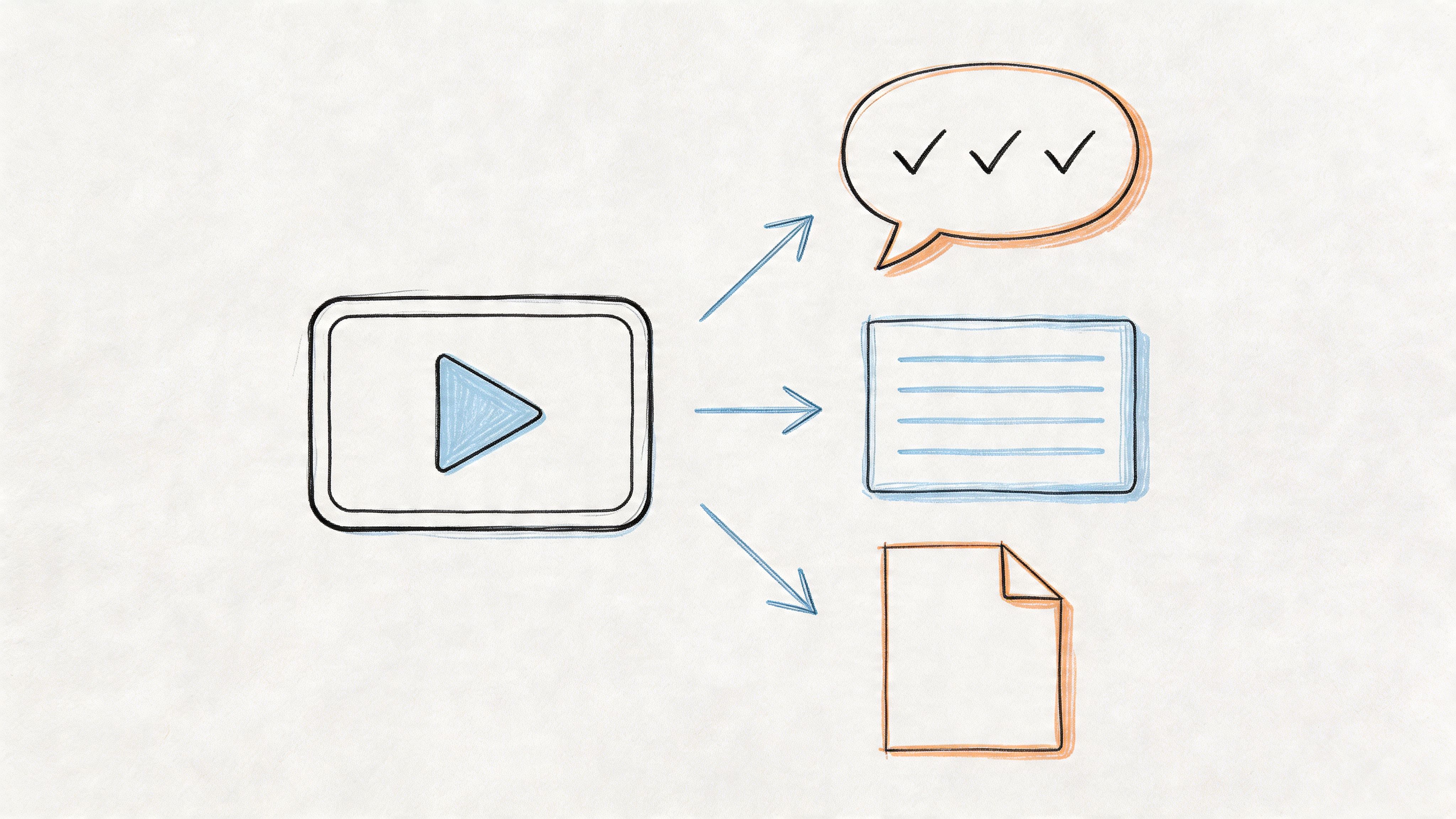
That shift changes how teams work. Instead of “we transcribed the video,” the better question is “which assets are we producing from this transcript?” Once that's clear, export choices get simple.
A practical pattern looks like this:
- Interview replay: Export DOCX for the article, SRT for captions, TXT for social quote extraction.
- Training video: Export VTT for web playback and PDF for internal review.
- Live Q&A: Export SRT for Facebook, then TXT or Markdown for FAQs and support docs.
The operational value of Facebook video transcription becomes clear. You're no longer forcing every team to rewatch the same recording just to find one useful segment.
Adding Polished Captions Back to Facebook
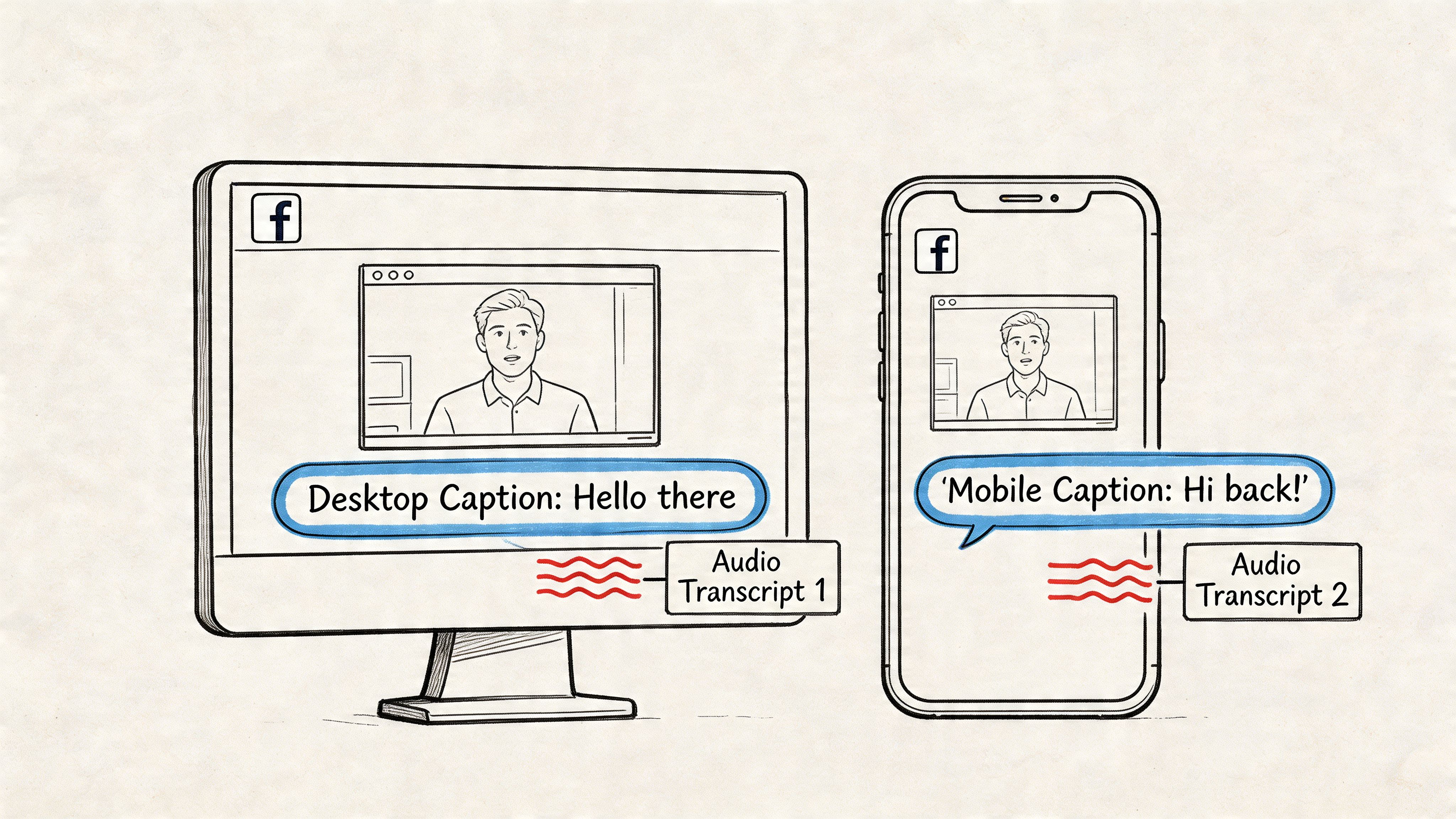
A caption file can look clean in the editor and still feel off once it is back on the video. That gap shows up fast on Facebook, especially on mobile, where cramped lines and late timing make viewers work harder than they should.
Rough transcription work becomes visible here. If captions lag, stay on screen too long, or break in the wrong place, the video feels less polished than it should. Good pacing keeps attention on the speaker instead of forcing viewers to chase text.
Upload the refined subtitle file
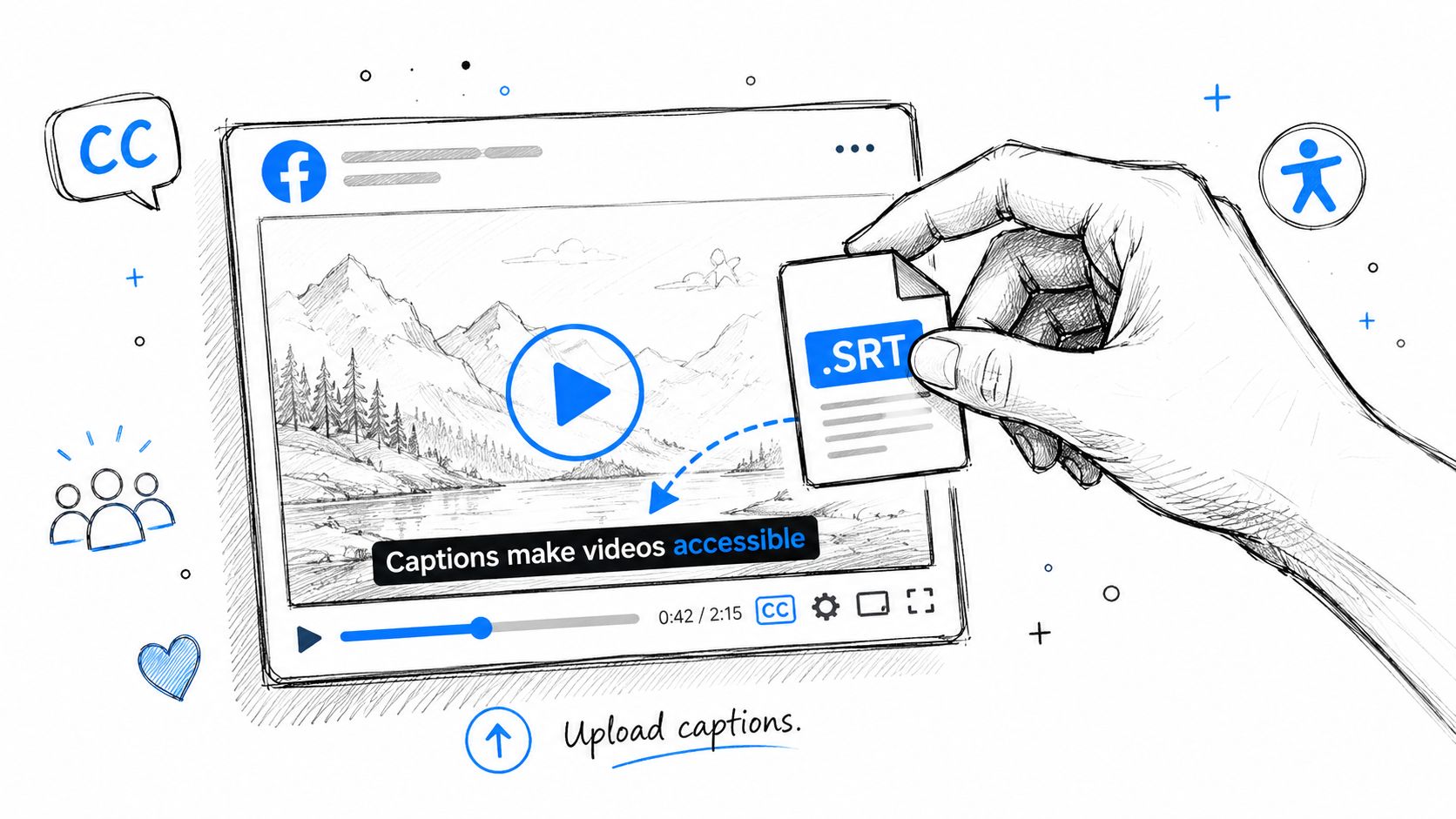
Upload the edited SRT, not the first export from your transcript tool. In Facebook's video editor, add the final file and preview several sections before saving.
I usually check the opening, a fast-talking middle segment, and the final caption. Those three spots catch most problems. If you used Whisper AI to get the first draft, this is the stage where the human pass pays off. Speaker labels, timing trims, and line breaks need to hold up inside Facebook's player, not just inside the transcript editor.
Pace captions for viewers, not transcripts
Captions work best as reading units. Each block should deliver one idea at a pace that feels natural on screen.
A practical review pass looks like this:
- Read for meaning first: Keep each caption focused on a single thought.
- Trim crowded blocks: If two lines feel dense on desktop, they will feel worse on mobile.
- Bring captions in slightly earlier when needed: Viewers should have time to read before the phrase has already passed.
- Check speaker attribution carefully: Multi-speaker clips often need manual fixes, especially when one person interrupts or talks over another.
- Test mobile playback: Facebook video captions need tighter pacing and cleaner breaks on a phone.
For a closer look at readable line breaks and timing choices, see this guide to editing Facebook video captions for readability.
If viewers are splitting attention between the speaker and a rushed caption block, the timing needs more work.
This is the step teams skip when they treat captions as a byproduct. In practice, it is where repurposing quality gets decided. A well-timed caption file is easier to reuse for cutdowns, quote videos, and paid social edits because the text already follows the rhythm of the spoken content.
Final checks before publishing
Run one last pass before saving the updated video:
- Speaker-sensitive moments: Confirm names, labels, and turn-taking are correct.
- Opening hook: The first caption has to appear quickly and read cleanly.
- Technical terms and brand language: Fix product names, acronyms, and niche terms so they match your standard usage.
- Ending frame: Make sure the last caption stays up long enough to finish reading.
The transcript is only the raw material. The finished caption file is the publish-ready asset that makes the Facebook video easier to watch and easier to reuse later.
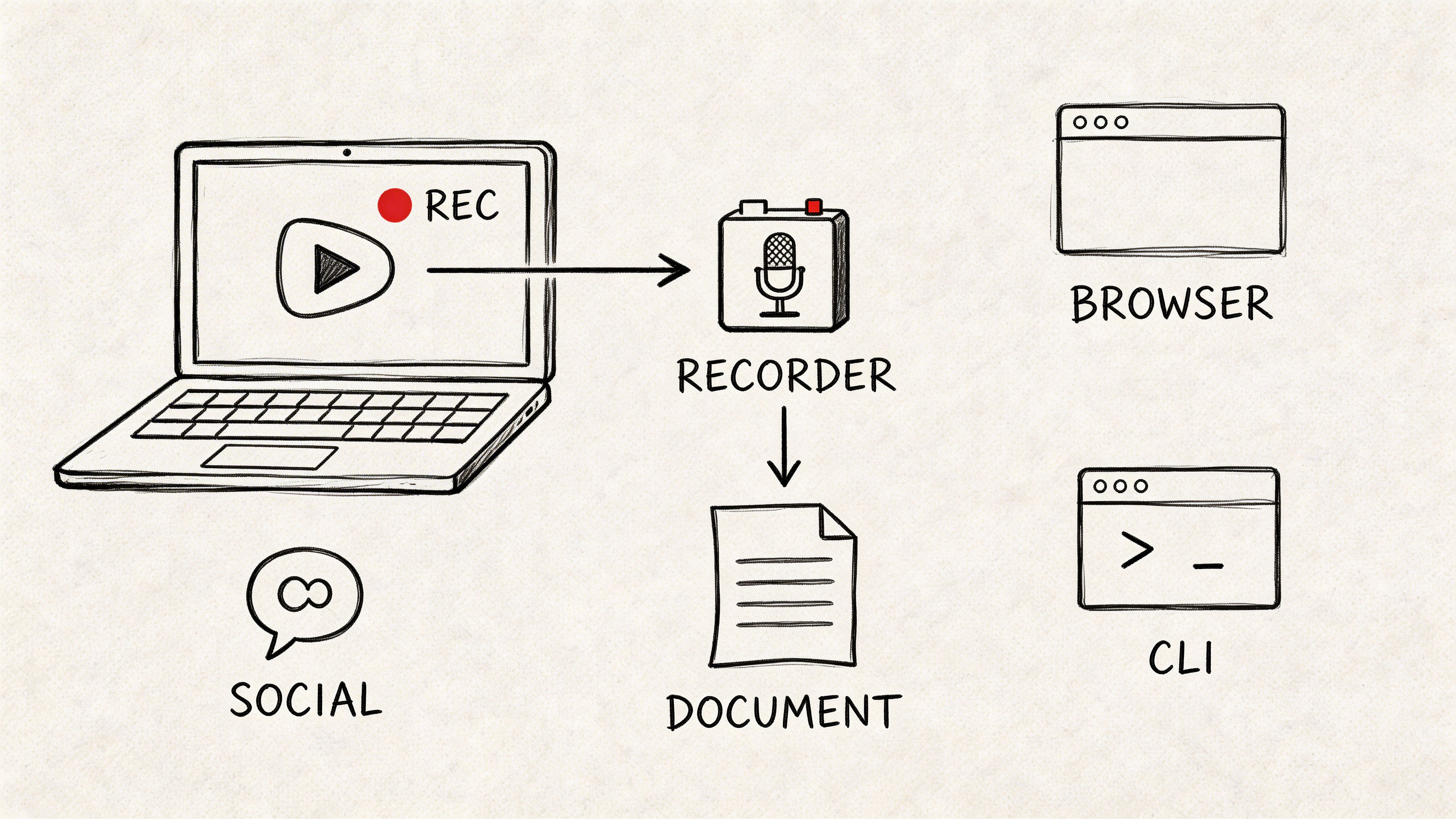
If you want the fastest path from Facebook video to clean transcript, captions, and repurposable text assets, Whisper AI is a strong place to start. It handles video and social links, detects speakers, adds timestamps, and gives you exports that are useful for publishing workflows instead of just storage.