
Subtitles on Apple TV: The Complete How-To Guide (2026)
You sit down to watch something on Apple TV, the opening scene is quiet, the music is loud, and the first important line disappears into the mix. So you reach for the remote, knowing subtitles will fix it, but not necessarily knowing where Apple hid the setting this time. That moment is common whether you’re watching a foreign film, catching every line in a documentary, or checking a cut of your own work before delivery.
Subtitles on Apple TV are simple right up until they aren’t. Turning them on during playback is easy. Getting them to stay on by default, making them readable from across the room, dealing with apps that ignore your preferences, and delivering creator-grade caption files that pass platform requirements takes more care.
Your Guide to Mastering Apple TV Subtitles
A common question arises: How do I get captions on the screen right now, without pausing the movie for five minutes and diving through settings?
That’s the practical side of subtitles on Apple TV. You need a fast toggle, a reliable default, and text that doesn’t strain your eyes. For many viewers, that’s enough. For creators, distributors, and editors, there’s another layer entirely. Apple’s ecosystem has strict expectations for subtitle formats, timing, line length, and accessibility.
The gap between those two worlds is bigger than it should be. Casual viewers need better guidance on readability and app behavior. Content creators need a cleaner checklist for what Apple TV accepts and what tends to break in review or playback.
If you also want a quick refresher on the broader difference between subtitle types, this guide on subtitles and closed captions is a useful companion before you fine-tune your Apple TV setup.
Good subtitles do two jobs at once. They disappear when you don’t need them, and become instantly usable when you do.
That’s the standard worth aiming for. On the viewing side, it means speed and legibility. On the production side, it means technical compliance and clean sync. Both matter more than commonly realized.
How to Turn Subtitles On or Off Instantly
If you’re already in the middle of a show, don’t go to the main Settings app first. The fastest controls are usually available during playback.
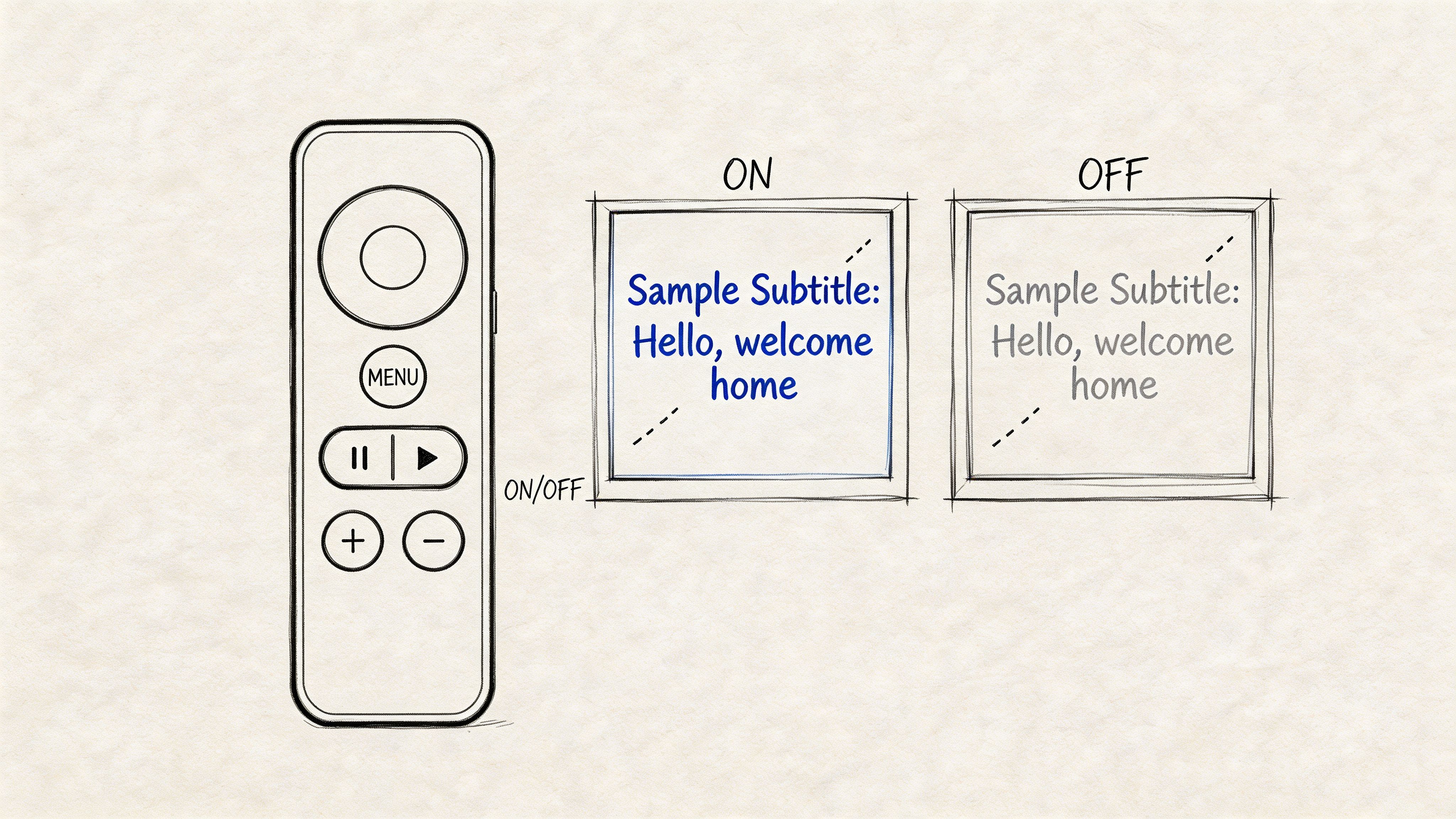
Use the playback menu
While a video is playing, bring up the on-screen playback controls with the Siri Remote, then open the audio and subtitle options. On many apps, you’ll see available subtitle tracks listed by language or by label such as English, English CC, or SDH.
A practical sequence looks like this:
- Wake the playback controls by touching or pressing the remote during playback.
- Open the subtitle or info panel from the video overlay.
- Choose a subtitle track such as English or another available language.
- Select Off when you want to disable subtitles again.
This is the best option when you only want captions for one movie, one episode, or one app session. It’s faster than changing a global preference, and it lets you override whatever the app picked automatically.
Use Siri when your hands are busy
Voice control is often the quickest path if you’re halfway through dinner or trying not to interrupt a scene. Ask Siri to turn subtitles on or off, or ask for a specific language if the app supports multiple tracks.
Useful commands include:
- Turn on subtitles
- Turn off subtitles
- Turn on English subtitles
- Turn on closed captions
Siri is especially helpful when the app’s playback overlay is cluttered or inconsistent. Not every app presents subtitle options the same way, but voice control often cuts through that.
Practical rule: If you need captions for this one video only, use the in-player controls or Siri. Save the main Settings app for your permanent defaults.
What works best in real use
For most viewers, the fastest method depends on context:
| Situation | Best option | Why |
|---|---|---|
| One-off subtitle toggle | Playback menu | Fast and precise |
| Hands-free change | Siri | Good during active viewing |
| Wrong language selected | Playback menu | Lets you choose a specific track |
| Subtitles won’t turn off | Playback menu first, then app restart | Rules out a stuck app setting |
The important trade-off is that instant controls are temporary. They’re ideal when you want flexibility, but they won’t always carry over across apps or future playback sessions.
Customizing Subtitle Appearance for Accessibility
Default subtitles often fail for a simple reason. They were designed to be acceptable for everyone, not optimal for you.
Apple TV does let users customize caption appearance, but there’s still a real guidance gap around advanced accessibility needs such as font size, contrast, and background treatment for different vision conditions, as noted in Apple’s caption and subtitle support documentation.
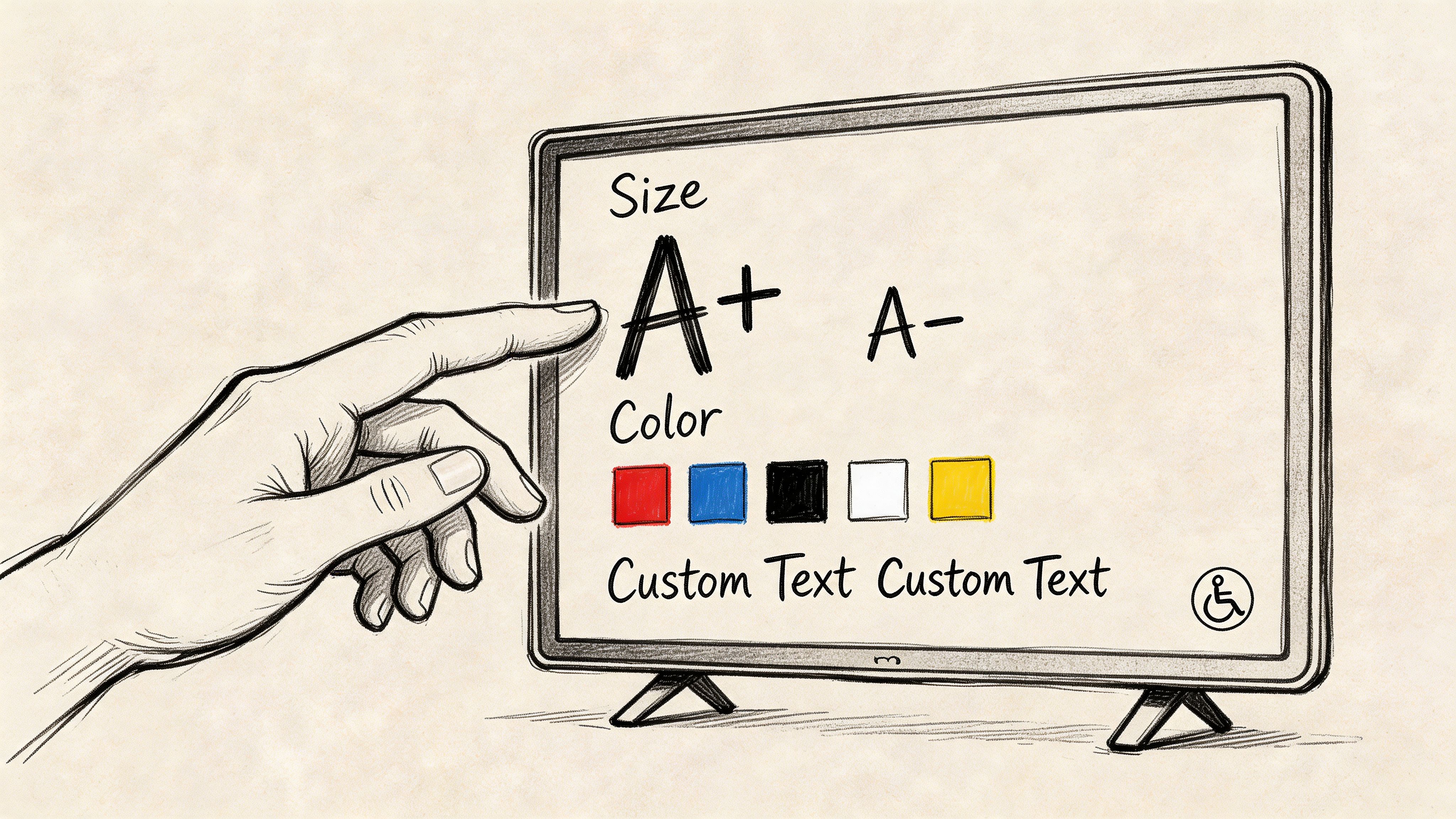
Where to change subtitle style
On Apple TV, go into the system accessibility settings and look for subtitle and caption styling. There you can select a preset or create a custom style that changes the way captions appear across supported apps.
The settings usually include options for:
- Font choice for cleaner letter shapes
- Text size for distance viewing
- Text color to improve contrast
- Outline or edge style so letters don’t vanish against bright scenes
- Background color for separation from the image
- Background opacity to reduce visual clutter without covering the whole frame
If you watch from across a living room, text size is usually the first thing to change. If you struggle with bright or fast-moving scenes, outline and background opacity tend to help more than color alone.
What usually works better than the defaults
Many people make subtitles harder to read by choosing style over contrast. Thin fonts, pale text, and transparent backgrounds can look elegant in menus and become useless in an actual movie.
Here’s a practical way to consider this:
| Viewing challenge | Better adjustment | Why it helps |
|---|---|---|
| Small text at couch distance | Increase size | Reduces squinting and missed lines |
| Bright or busy scenes | Add outline or darker background | Keeps letters from blending in |
| Low-contrast vision needs | Strong text and background contrast | Improves recognition speed |
| Night viewing | Softer background opacity | Easier on the eyes than a full solid box |
A good subtitle style should survive three kinds of footage: dark scenes, white skies, and fast edits. If it only looks good in menus, it isn’t the right style.
For a visual walkthrough, this video is a useful companion while you change settings on the device:
Accessibility trade-offs to keep in mind
System-level styling doesn’t always control every app perfectly. Some apps honor Apple TV’s accessibility settings closely. Others prioritize their own subtitle renderer and only partially respect system preferences.
That inconsistency matters. If you’ve built a caption style that works for your eyes, test it in the apps you use most rather than assuming one setting will behave the same everywhere.
If a subtitle style works in one app and looks wrong in another, the problem may be the app’s renderer, not your Apple TV setup.
The best setup is usually a larger font, strong contrast, and some edge definition, then small adjustments from there. Fancy styling rarely helps. Readability does.
Managing Default Subtitle and Language Settings
If you turn subtitles on every night, stop doing it one title at a time. Apple TV works better when you set a global preference and let the device choose the right track automatically whenever it can.
Set your preferred defaults
In the main Apple TV Settings app, look for language, accessibility, and subtitle-related preferences. The exact layout can vary by tvOS version, but the goal is the same. Choose the subtitle behavior you want before playback starts.
That usually means deciding:
- whether subtitles should be on by default
- which subtitle language you prefer
- which audio language you want when multiple tracks are available
- whether you want CC or SDH when both exist
This is the difference between temporary playback control and system preference. Playback controls solve the moment. Default settings reduce friction every time you hit play.
Know the labels before you choose
A lot of viewers see multiple English options and assume they’re duplicates. They’re not always.
Here’s the quick distinction:
| Label | What it usually means | Best for |
|---|---|---|
| Subtitles | Spoken dialogue only, often for translation | Viewers who want text for speech |
| CC | Closed captions, including accessibility-focused text | General accessibility use |
| SDH | Subtitles for the Deaf and Hard of Hearing | Viewers who want speech plus key sound cues |
Apple requires closed captions for transactional English-language movies and TV episodes in the US, and SDH is preferred when available, including descriptive cues such as [music swells], according to Apple’s movie and TV closed caption requirements.
That’s why SDH is usually the best default if accessibility matters more than having the cleanest-looking screen text.
A better default for most people
If you frequently watch interviews, documentaries, dramas with quiet dialogue, or international content, defaulting to SDH is the safer choice. You can always step down to dialogue-only subtitles for a specific title when the extra sound descriptors feel unnecessary.
If you want to understand the file and format terminology behind subtitle labels, this breakdown of what SRT stands for helps clear up the naming confusion.
The strongest Apple TV subtitle setup is usually boring on purpose. Pick the right language, prefer SDH for accessibility, and let the device do the repetitive work.
Troubleshooting Common Apple TV Subtitle Problems
Most subtitle problems on Apple TV fall into three buckets. The subtitles aren’t there, they’re the wrong ones, or they’re there but behave badly.
A common frustration is inconsistent subtitle availability across streaming apps on Apple TV, and many guides mention the issue without really explaining the app-by-app limitations or workarounds, as noted in this discussion of subtitle availability gaps.
When subtitles don't appear at all
This is often not a device problem. It’s usually one of these:
- The app doesn’t offer a subtitle track for that title
- The subtitle track exists only in certain regions or languages
- Live or imported content has no subtitle support
- The app ignores your system defaults
Start with the per-video controls during playback. If no subtitle track appears there, the issue is likely with the content or app, not your Apple TV settings.
A good troubleshooting sequence is:
- Check the playback subtitle menu for available tracks.
- Try another title in the same app to see whether the issue is title-specific.
- Try the same title in another profile or language setting if the app supports it.
- Restart the app, then test again.
- Restart Apple TV if the subtitle menu appears stuck or missing.
If subtitles work in one app and not another, treat that as an app limitation first, not a full-system failure.
When subtitles are out of sync
Out-of-sync captions are especially distracting because they pull your attention away from both the dialogue and the image. For viewers, the fix is usually simple. Restart playback, switch subtitle tracks off and back on, or close and reopen the app.
For creators and distributors, sync errors are a much deeper issue. Apple TV+ delivery workflows expect frame-accurate timing, and subtitle files should be validated carefully before delivery. The most common viewer-facing symptom is text arriving early or late enough to feel detached from the speech.
If the same subtitle drift happens on every playback attempt for the same title, assume the file is wrong. If it happens only once, assume the app or stream glitched.
When the language is wrong or keeps changing
This usually comes from a mismatch between system defaults, app defaults, and the subtitle tracks embedded in the title itself.
Try this order:
| Problem | Likely cause | Best fix |
|---|---|---|
| Wrong subtitle language starts automatically | App chose a different default | Override during playback |
| Captions switch after the next episode | App preference overrides system setting | Check in-app language settings |
| Forced subtitles don’t appear | Title may not include them properly | Test a different version or app |
| Captions persist after turning off | App playback state is stuck | Force close and reopen app |
What works best is isolating the layer that failed. Test another title, then another app. That tells you whether you’re dealing with the content, the service, or Apple TV itself.
A Creator's Guide to Perfect Apple TV Captions
A subtitle file can look fine on a desktop timeline and still fail where it counts: on a TV, from ten feet away, inside a real app, under a real delivery check. That gap is where many Apple TV caption problems start.
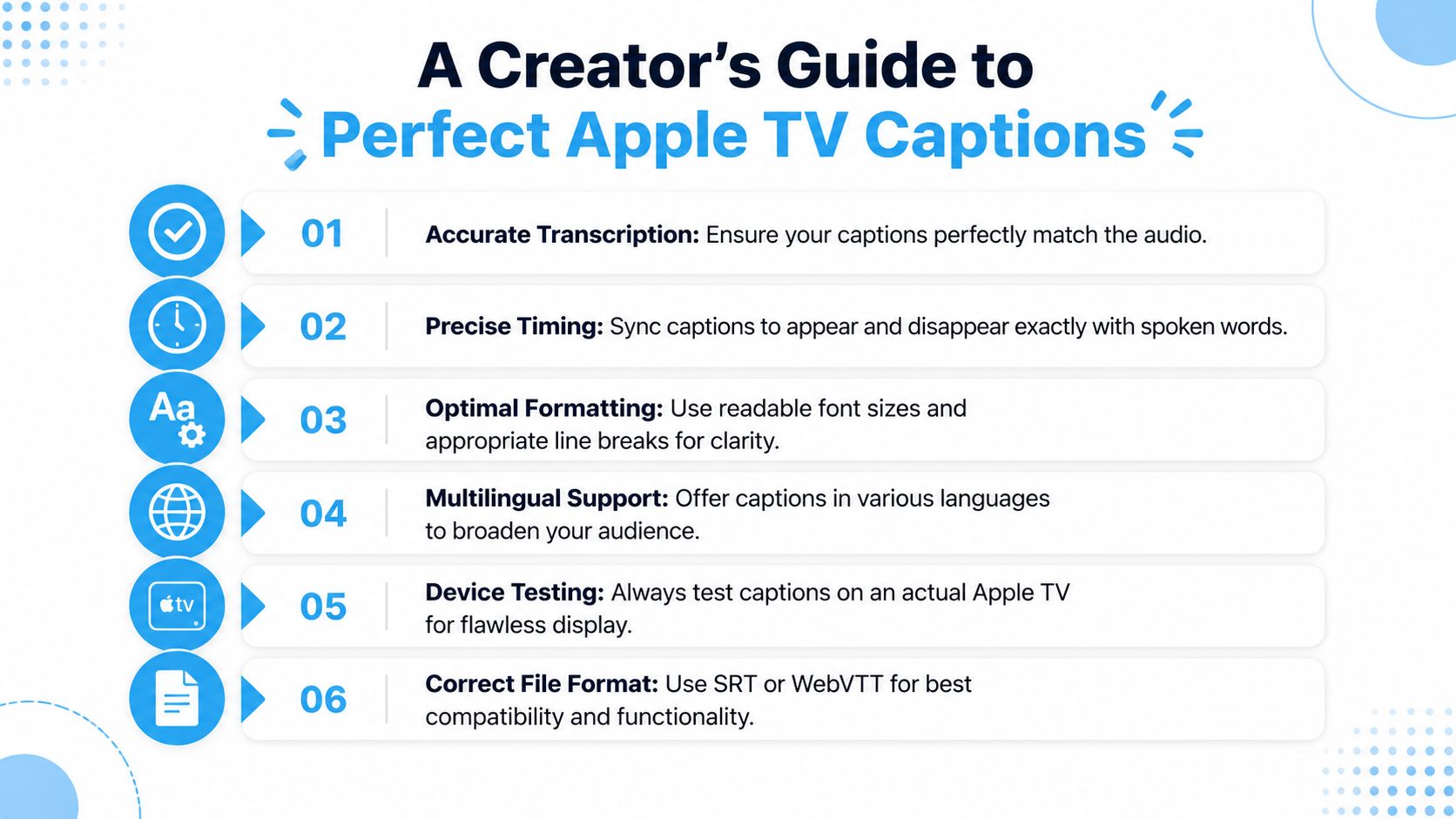
The delivery rules that matter
For Apple TV+ delivery, subtitle prep is more strict than what many editing tools suggest by default. ODMedia’s summary of Apple subtitle specs notes that Apple TV+ subtitle delivery uses .ITT, limits subtitles to 2 lines, allows 42 characters per line, and requires a minimum 3-frame gap between subtitle events.
Those are not arbitrary formatting rules. They affect readability, QC, and playback reliability:
- .ITT format fits the delivery pipeline Apple expects for professional ingestion.
- 2-line maximum keeps text readable on a television instead of turning captions into blocks.
- 42 characters per line helps prevent cramped text and awkward wraps.
- 3-frame gaps reduce event collisions that can create flicker or dropped cues.
The same spec summary also calls out other details creators often miss: keep subtitles in sync, avoid blank lines and subtitle credits, and prepare Forced Narratives correctly for foreign-language dialogue or on-screen text. Closed captions and subtitles are not interchangeable in every workflow, so teams handling both need separate checks before export.
What a clean workflow looks like
Good Apple TV captions come from a disciplined post workflow, not a last-minute export.
Start with an accurate transcript. Then edit for reading speed, not just spoken wording. People can process less text on a TV than on a laptop, so lines that feel acceptable in an NLE often read too slowly in a living room.
From there, the process is straightforward:
- Transcribe and edit the dialogue carefully. Bad text survives every later step.
- Author subtitles in a professional tool such as Adobe Premiere or Subtitle Edit.
- Set manual line breaks so names, verbs, and key phrases stay intact.
- Export in the delivery format the distributor requires. A generic subtitle export is not enough for every Apple workflow.
- Review timing against picture at frame level. Shot changes, pauses, and fast exchanges need special attention.
- Test on Apple TV hardware and in the target app environment. QC passes on a workstation do not guarantee clean playback in the living room.
If your team captions inside Adobe tools, this guide to Premiere Pro subtitles is a useful reference for building cleaner subtitle timelines before final conversion and delivery.
The mistakes that cause the most trouble
The failures I see most often are rarely dramatic. They are small editorial and technical choices that stack up until captions feel unreliable.
Common problems include:
- Lines that are too long and break poorly on television screens
- Subtitle events packed too tightly with little visual breathing room
- Picture edits made after subtitle timing is approved
- No forced narrative plan for foreign speech or burned-in text equivalents
- Treating SRT as a universal master format even when the delivery spec requires something else
One trade-off matters here. Consumer apps may display SRT or WebVTT without complaint, but that does not mean those formats are valid for Apple TV+ delivery. Playback compatibility and platform delivery compliance are different jobs. Teams that mix them together usually lose time in QC.
What creators should optimize for
The target is not confined to passing file validation. The target is captions that feel native on Apple TV.
That means text appears on time, clears before it overstays, survives dark scenes, and stays readable during fast cutting or multilingual moments. It also means planning for accessibility, because viewers may enlarge subtitle styles at the system level, and dense captioning that barely works in your preview can collapse once the text is rendered larger.
If the file passes spec but still feels clumsy, the issue is usually editorial judgment. Shorter lines, cleaner cueing, and real-device testing fix more Apple TV subtitle problems than decorative formatting ever will.
Frequently Asked Questions about Apple TV Subtitles
Do subtitles work when I use AirPlay to stream to Apple TV
Sometimes yes, sometimes no. It depends on the app you’re streaming from and whether subtitle handling happens on the sending device, the receiving device, or inside the stream itself. If captions disappear during AirPlay, first enable them on the source device, then check whether Apple TV playback controls show a subtitle option.
Why do some live TV streams have no subtitles
Live streams are less predictable than on-demand titles. Some apps support live captions well, while others offer limited or inconsistent subtitle handling. If you rely on subtitles for live content, test the specific service rather than assuming Apple TV itself is the limiting factor.
Can I get subtitles in fitness, education, or gaming apps
Only if the app supports them. Apple TV system settings help most with video playback, but third-party apps may use custom interfaces and custom text rendering. In practice, some educational apps handle captions well, while many gaming or interactive apps offer little or no subtitle control.
Why do subtitles look different across apps
Because not every app uses Apple’s subtitle styling the same way. Some follow the system accessibility style closely. Others render their own subtitle layer and only partially reflect your preferences.
If a video has no subtitles, can Apple TV create them automatically
Not in a universal, system-wide way for every title and app. If native subtitles are missing, your options depend on the source platform. Some services provide their own caption generation or accessibility features, while others do not offer a fallback.
Should I choose subtitles, CC, or SDH
If you only want spoken dialogue, standard subtitles are often cleaner. If accessibility is the priority, CC and especially SDH are usually better because they include important non-speech information.
What should I do first when subtitles stop working
Use a short triage process:
- Check the current title to see whether subtitle tracks are available
- Try another title in the same app to identify whether the issue is content-specific
- Restart the app if settings appear stuck
- Reboot Apple TV if the problem affects multiple apps
- Test another service to determine whether the failure is app-specific
If you create videos, podcasts, interviews, courses, or social clips, Whisper AI can help you turn spoken content into clean, searchable text faster. It’s useful for transcripts, summaries, and subtitle prep when you want less manual cleanup and a smoother path from raw media to publish-ready captions.


























































































