
Convert YouTube Video to Audio File: Easy Guide 2026
You've probably got a very specific job in front of you right now. Maybe it's a long interview you want to listen to offline, a lecture you need to quote from, a panel discussion you want to summarize, or your own uploaded video that needs to be repurposed into text, clips, and notes. In all of those cases, turning a YouTube video into an audio file is less about “downloading an MP3” and more about preparing content for the next step.
That next step matters. A clean audio file is easier to archive, easier to review, and often easier to send into transcription or analysis tools than a full video file. If the end goal is a transcript, searchable notes, quotes, summaries, or speaker-level analysis, then the conversion method you choose affects everything that follows.
Why You Need to Convert YouTube Videos to Audio
A lot of people search for a youtube video to audio file workflow because video is inconvenient when audio is all they need. A talking-head interview doesn't need a screen if you're commuting. A classroom recording doesn't need visuals if you're reviewing the spoken explanation. And a creator doing research usually cares more about what was said than what the thumbnail looked like.
For content work, audio extraction is often the first useful cut. It strips away the visual layer and leaves you with the asset that matters for listening, transcription, quoting, clipping, and tagging. That's especially true for podcasts published on YouTube, webinars, creator interviews, earnings calls, lectures, and livestream replays.
Common situations where audio is enough
- Offline listening: You want to hear a long discussion in the car, on a walk, or while doing admin work.
- Research and note-taking: You need the spoken content in a form that's easier to archive and process than a video tab left open in a browser.
- Content repurposing: You're turning one video into multiple outputs like summaries, transcripts, newsletters, or written posts. If that's your broader goal, these content repurposing strategies are a good reference point.
- Editing your own source material: If you uploaded the video, pulling the audio lets you clean it up, clip it, or feed it into a speech-to-text workflow.
There's also a creator-side angle that gets ignored. If you publish on YouTube, every asset around the video matters. Titles, clips, transcripts, audio derivatives, and social proof all shape discovery and reuse. For channels trying to build momentum, even resources around audience growth, such as buy YouTube likes, fit into the same broader publishing system because they address distribution rather than just file handling.
Practical rule: Convert with the final use in mind. Listening, editing, and transcription each reward a slightly different format and quality choice.
The main mistake is treating conversion as a one-click commodity. Fast methods exist, but some are messy, low-control, and risky. Reliable methods take a little more setup, but they're easier to trust when the audio is important.
Choosing Your Conversion Method
A good conversion method does more than get sound out of a YouTube link. It sets up everything that happens after: clean listening on the go, accurate transcription, searchable notes, and analysis in Whisper AI or a similar workflow.
The right choice depends on the job. A single public clip for personal listening has very different requirements from a batch of interviews you plan to transcribe, summarize, and archive. If you want a quick walkthrough of the low-friction route, this guide to convert videos from YouTube free covers the basic options.
Comparison of YouTube to Audio Conversion Methods
| Method | Best For | Pros | Cons |
|---|---|---|---|
| Online converters | Quick one-off downloads | No install, simple paste-and-convert workflow, fast for casual use | Ads, privacy concerns, inconsistent quality controls, links can break |
| Desktop software | Regular use and better control | More stable, better format control, works well for local files, fewer browser risks | Requires installation, extra steps for setup |
| Command-line utilities | Power users, batch processing, scripting | Highly flexible, repeatable, efficient for large libraries or research workflows | Higher learning curve, not ideal if you dislike terminal-based tools |
| API or job-based workflows | Teams, products, or heavy workloads | Scales better, avoids browser timeout issues, easier to plug into transcription pipelines | Needs technical setup and workflow design |
What usually works best
For one lecture, podcast episode, or interview, an online converter is often enough. It is fast, disposable, and fine if the stakes are low.
Regular use changes the calculation. Browser tools tend to drift in quality over time, add clutter, and make it hard to know what is happening behind the page. Desktop software takes longer to set up once, but it gives steadier results and better control over format, bitrate, and file handling.
Command-line tools sit in the middle. I use them when I need repeatability. They are excellent for research pulls, channel archives, and any workflow where the audio is heading straight into transcription. A saved command is easier to trust than clicking through a different website every week.
API or job-based workflows are best for teams and heavier workloads. The reliable pattern is asynchronous: fetch the source, submit a conversion job, wait for completion, then pull the output file. That approach holds up better for larger queues and batch processing, especially if the audio will feed a downstream transcription or summarization pipeline.
A simple decision filter
Ask three practical questions before you pick a tool:
How often will I do this?
One file points to convenience. Repeated work points to tools you can trust and repeat.How sensitive is the material?
Public clips are one thing. Client calls, private uploads, or unpublished research should not go through random converter sites.What happens after conversion?
If the file is headed into editing, Whisper AI transcription, or analysis, clean extraction matters more than saving thirty seconds on the download.
Pick the method that supports the next step, not just the download. The audio file is usually the start of the workflow, not the finish.
Using Online Converters The Fast But Cautious Way
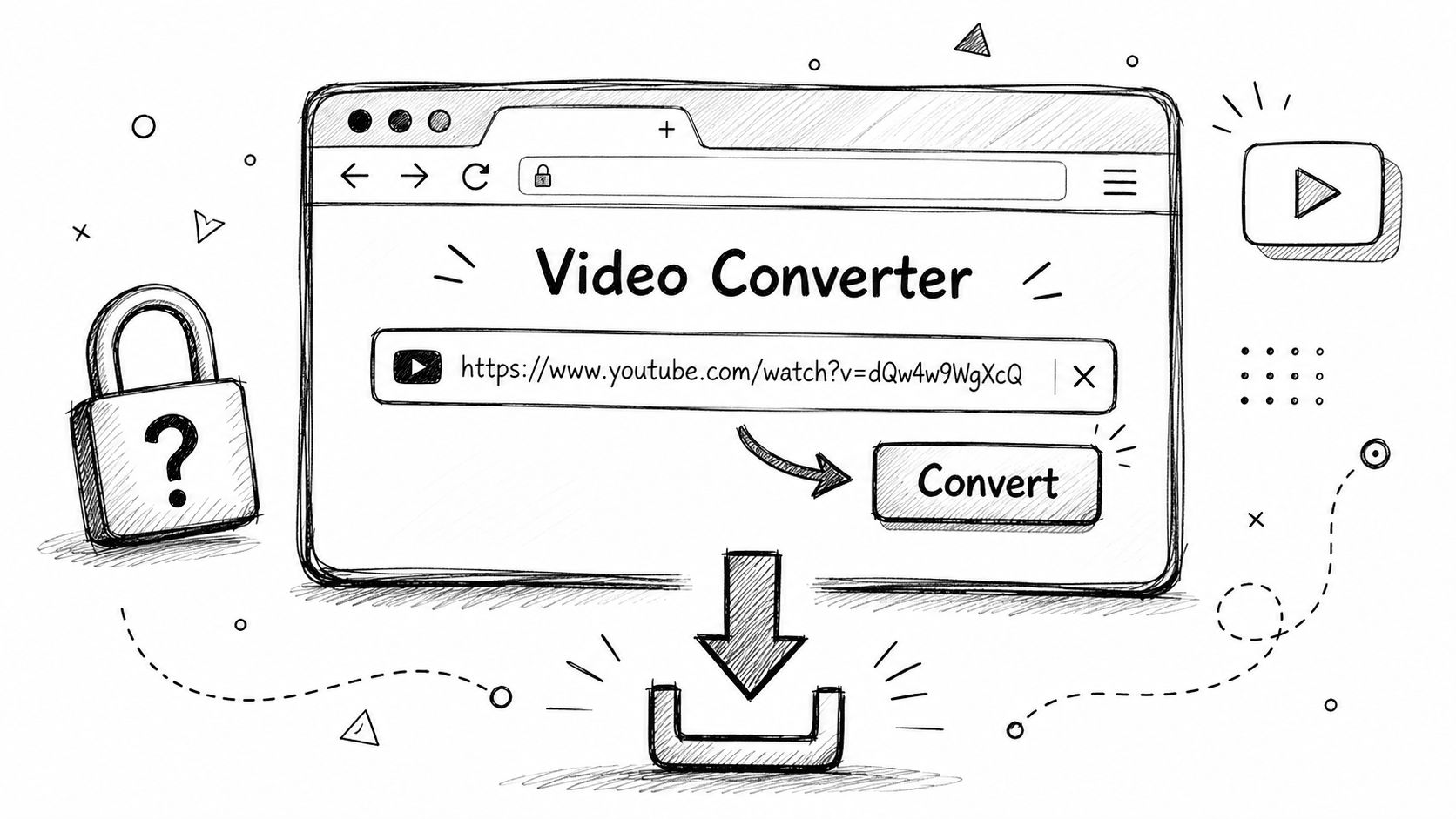
Online converters stay popular because they remove friction. No installation. No terminal. No settings rabbit hole. You paste a YouTube link, pick an output, and download the file.
That convenience is real, and for lightweight use it can be enough.
The basic workflow
Most online tools follow the same pattern:
- Paste the video URL.
- Let the site parse the video.
- Choose an output format, usually MP3 or M4A.
- Pick a quality preset if one is offered.
- Download the converted file.
That's all most users want. But this is also where bad habits start, because many sites compete on simplicity while hiding aggressive ad behavior, misleading buttons, or forced redirects.
What to check before you use one
A safer online converter should feel boring. If it feels chaotic, close the tab.
- HTTPS connection: If the page isn't secured, don't use it.
- Clear file flow: You should know whether the tool is processing a link or asking you to upload a file.
- No forced app downloads: If the site suddenly insists you install a helper tool, that's a red flag.
- Readable privacy language: If the policy is missing or vague, assume your usage isn't handled carefully.
- Few fake buttons: Ad-heavy pages often place multiple “Download” buttons that don't download your file.
A practical alternative, especially if your goal is transcription rather than collecting standalone MP3s, is to skip generic converter sites and use a cleaner workflow built around the end result. For example, this guide on free YouTube video conversion workflows is more useful if you're trying to move from source video to usable output without bouncing between random sites.
Where online tools go wrong
The biggest issue isn't always quality. It's trust.
If I'm grabbing a public talk for a quick listen, an online converter can be fine. If I'm handling interview material, internal content, or something I'll later transcribe and quote, I avoid these sites unless I know exactly how they behave.
Watch for this: If a converter page opens new tabs, hides the actual download, or asks for browser permissions unrelated to file export, leave immediately.
Later in the workflow, video-based tutorials can help if you want to compare interfaces and user flow before picking a tool:
Online converters are fast. They're also the option most likely to waste time when the file matters.
Reliable Desktop Tools For Quality and Control
If you convert YouTube video files often, desktop tools are the point where the process stops feeling flimsy. You install them once, learn the workflow, and then reuse it without dealing with misleading browser pages.
Two common routes are available. VLC Media Player if you want a graphical workflow. yt-dlp if you want power and repeatability.
VLC for a straightforward local workflow
VLC is already on a lot of machines, which makes it the easiest desktop starting point. Its Convert/Save function works well when you already have the video file and just need a clean audio export.
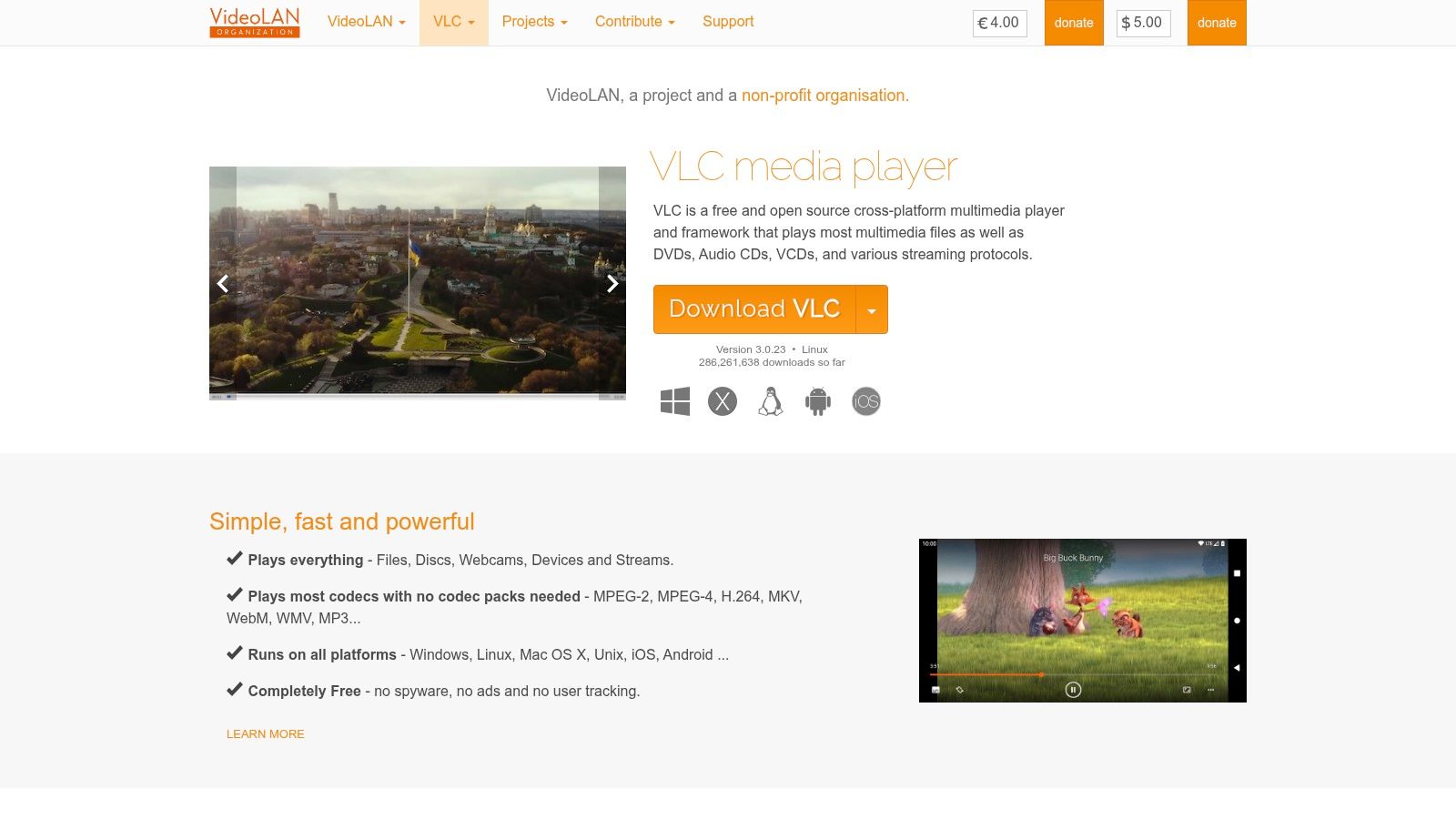
A practical VLC method is documented in a tutorial showing this sequence: open the media file, choose Convert/Save, select the Audio-MP3 profile, name the output file, and start conversion. One common pitfall is that you need to manually end the filename with .mp3, or VLC may create a file that looks blank or unrecognized until you rename it (VLC conversion walkthrough on YouTube).
Here's the workflow in plain language:
- Open the file: Use a local video you've already downloaded or exported.
- Go to Convert/Save: Add the source file and proceed to conversion.
- Pick an audio profile: Audio-MP3 is the familiar choice for compatibility.
- Name the destination carefully: Add the extension yourself, such as
interview-audio.mp3. - Start and verify: Let it finish, then open the output to confirm it plays properly.
VLC isn't flashy, but it's predictable. That matters.
yt-dlp for repeat work
For power users, yt-dlp is the tool that tends to stick. It's ideal if you regularly pull audio from public videos, archive material for research, or script your own workflow.
A simple example looks like this:
yt-dlp -x --audio-format mp3 "YOUTUBE_URL"If you want to preserve more control over output, you can target other formats instead of MP3 depending on your downstream use. The value here isn't just speed. It's repeatability. You can reuse commands, build folders around projects, and process batches without clicking through the same UI every time.
Which desktop option to choose
Use VLC if you want:
- A visual interface
- No terminal work
- A quick local conversion from a file already on your computer
Use yt-dlp if you want:
- Batch processing
- Scriptable workflows
- More direct control over extraction and format choice
If audio is part of your weekly workflow, desktop tools save time by being consistent, not by being flashy.
Understanding Audio Formats Quality and Copyright Rules
The technical side of a youtube video to audio file workflow matters more than most guides admit. The legal side matters even more. A lot of bad advice comes from ignoring both.
Audio quality starts with the source
You can't extract quality that isn't there. The audio inside a YouTube video has already gone through YouTube's delivery pipeline, so your exported file preserves what the source allows. It doesn't create studio quality from a weak upload.
YouTube-related encoding guidance discussed in a mastering forum cites 24-bit PCM at 44.1 kHz for music-video uploads, while compressed delivery guidance points to AAC-LC at 44.1 kHz and 320 kbps or higher, with 256 kbps accepted. The same discussion also notes 48 kHz Opus encodes in some contexts, which helps explain why extraction quality depends on the source stream and codec path rather than the converter's marketing copy (Gearspace discussion of YouTube audio specs).
That's why format choice should match use case:
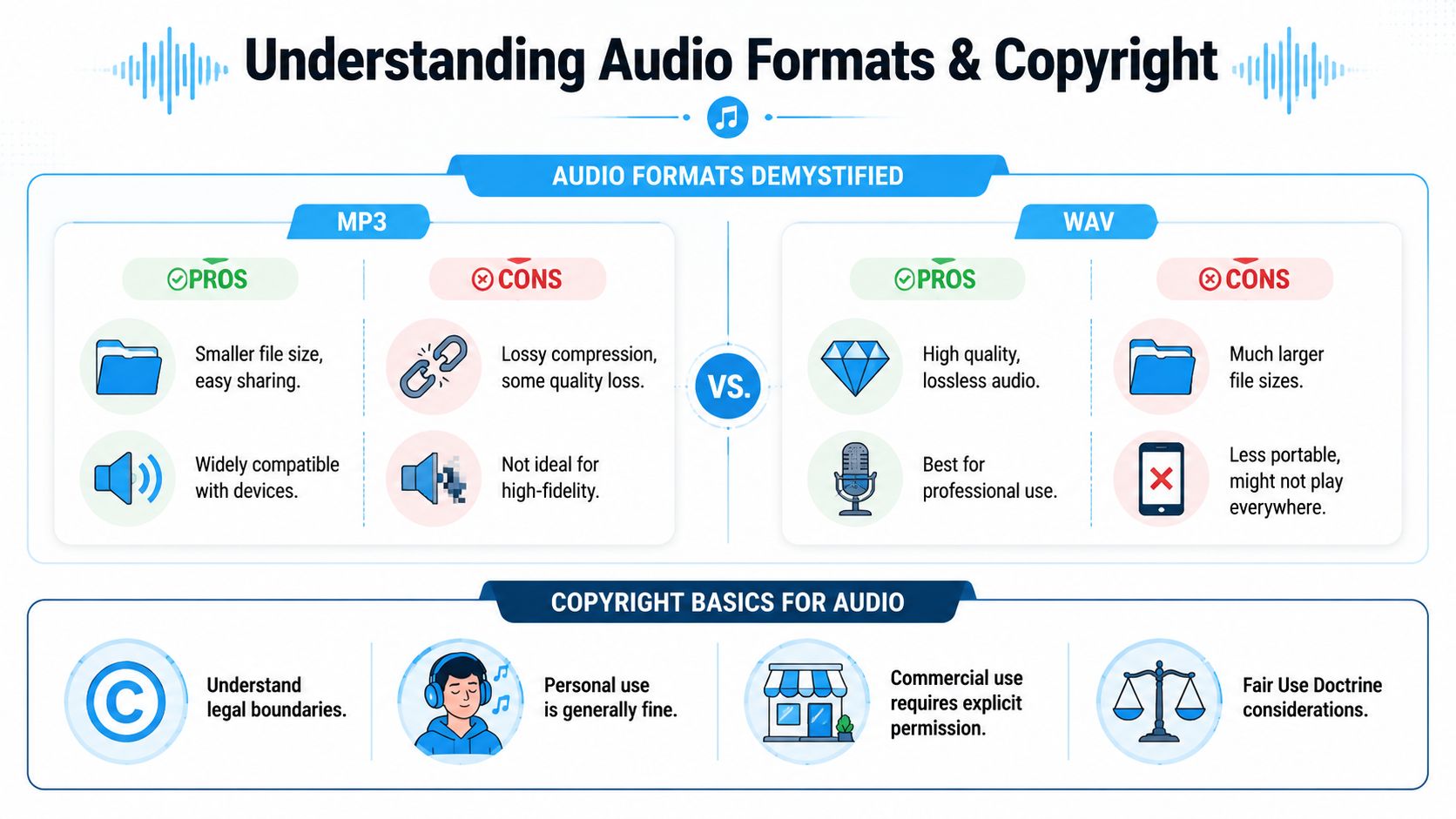
- MP3: Easy compatibility and small files. Good for casual listening and most speech use.
- M4A or AAC: Often a sensible compressed option when you want efficiency.
- WAV or FLAC: Better for editing, archiving, or analysis where you don't want another lossy step.
Bitrate choices that make practical sense
For speech-heavy content, lower bitrates are often acceptable because intelligibility matters more than texture. For music, higher bitrates are usually worth it.
One industry guide notes that 320 kbps is effectively the ceiling for MP3 and estimates file size at about 2.4 MB per minute. By that rule of thumb, a 4-minute track is roughly 9.6 MB at 320 kbps, compared with about 4 MB at 128 kbps (TubeGrabr's audio format guide).
A useful rule of thumb:
- Lectures and podcasts: prioritize convenience and smaller files.
- Music and sound design references: preserve as much fidelity as the source gives you.
- Transcription input: clarity matters more than audiophile settings, but avoid needlessly poor exports.
Copyright and platform rules aren't the same thing
Many tutorials become irresponsible at this stage. They show the mechanics and skip the permission question.
A YouTube help page covers supported formats and audio specs for uploads, not download rights. Separate tutorial material also warns that conversion should be limited to files you own or have rights to use, which highlights the core issue: a conversion method can be lawful for one case and problematic for another (YouTube Help on supported file formats).
Here's the simple version:
- Your own videos: generally the safest case for extraction.
- Public domain or clearly licensed material: usually lower risk, assuming the license allows your intended use.
- Commercial reuse of copyrighted media: needs permission.
- Personal listening: often treated differently from redistribution, but platform terms and copyright law are not the same thing.
Don't confuse “I can technically extract this” with “I have permission to reuse this.”
Turn Your Audio File into Actionable Insights with AI
You export the audio from a 90-minute interview because you need one quote for a writeup. Twenty minutes later, you are still scrubbing through the file, trying to find the moment where the speaker made the point that mattered. The download was the easy part. The actual work starts after that.
Audio on its own is hard to review, hard to search, and slow to reuse. Text changes that. Once speech becomes a transcript, you can search for names, pull exact quotes, check timestamps, spot speaker changes, and turn a long recording into notes someone else can use.
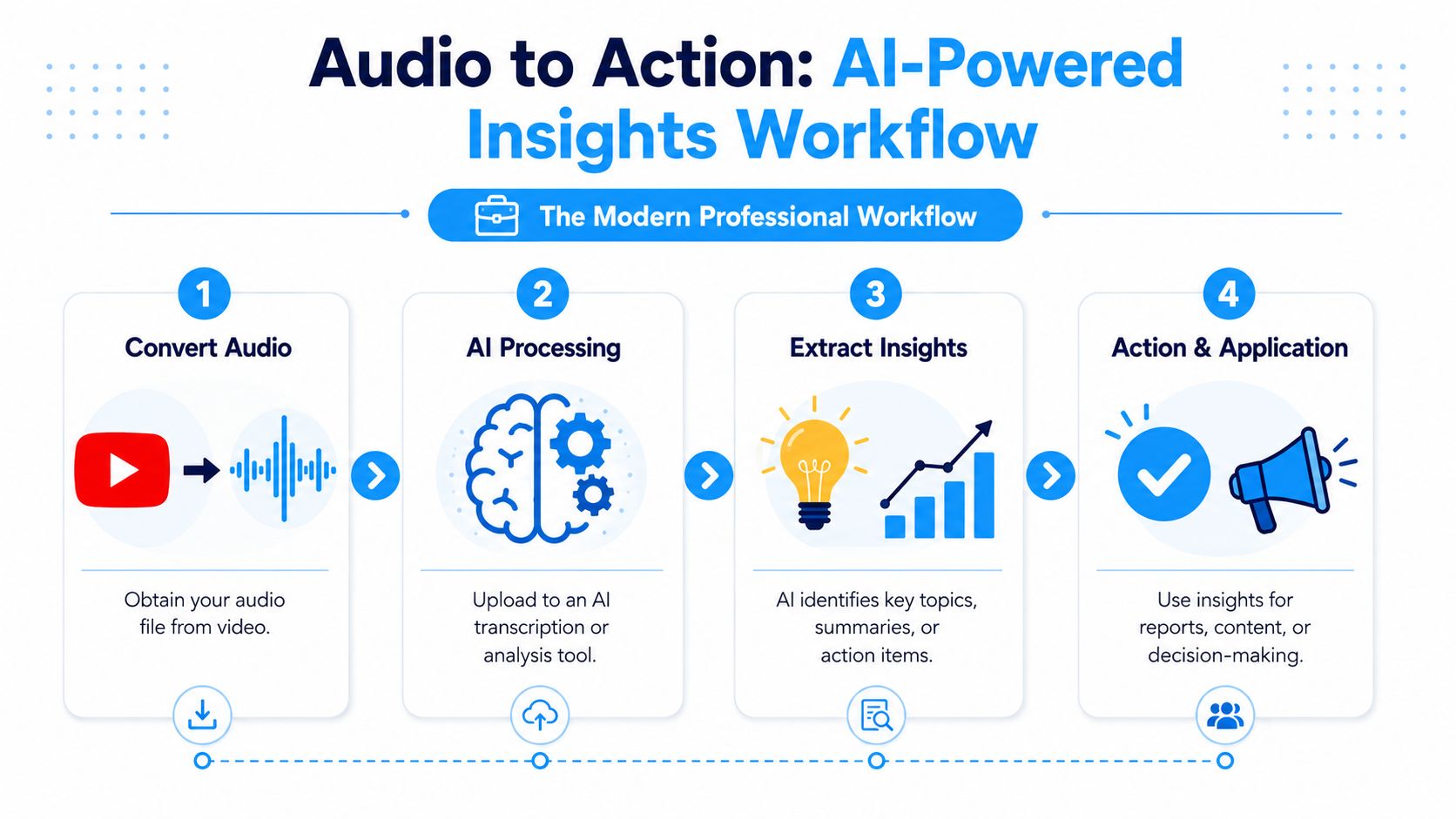
AI transcription addresses this problem. In a practical workflow, the extracted audio is the input, not the final deliverable. The value comes from what you do next: transcription, summarization, quote extraction, and analysis.
The workflow that holds up under real use
For quick listening, a one-off conversion is often enough. For research, content production, or documentation, it usually is not. Longer files create a second problem after conversion: someone still has to review them efficiently.
A reliable workflow looks like this. Get a clean audio file. Send it to transcription. Work from the transcript to create summaries, extract decisions, mark timestamps, or pull reusable clips and quotes. That process is slower to set up than a simple browser converter, but it saves far more time once the recording passes a few minutes.
One practical route is using AI tools to transcribe YouTube videos. The point is not only to save the audio. It is to turn spoken material into something searchable, editable, and reusable.
What this looks like in practice
A long panel discussion is a good example. If you only keep the MP3, you still need to listen again to find the section where a speaker mentioned a product launch, disagreed with a claim, or assigned a next step. With a transcript, the job changes fast.
- Search instead of scrub: jump to the exact phrase, name, or topic.
- Summarize for stakeholders: turn a long recording into usable notes.
- Extract decisions and action items: helpful for editorial planning, research, or internal reporting.
- Repurpose the material: turn spoken ideas into captions, briefing notes, article drafts, or quote cards.
I use this approach differently depending on the task. For a casual listen, a basic audio export is enough. For interviews, lectures, customer research, or source material I may cite later, I want a transcript immediately because memory is a poor indexing system.
Tools like Whisper AI make that workflow practical by converting audio or video into text with timestamps, speaker separation, and summary support. That keeps the conversion step tied to a larger research and content process instead of treating it like a standalone download task.
A downloaded audio file helps you hear the content. A transcript helps you work with it.
If the goal is real output, not just file conversion, the better sequence is simple. Extract clean audio. Transcribe it. Use the text to search, summarize, cite, and publish. That is how long-form YouTube material becomes useful for professional work.
If you want to move beyond basic conversion and turn YouTube audio into transcripts, summaries, and searchable notes, try Whisper AI. It fits the workflow many creators, researchers, and teams need: get the spoken content out of the video, convert it into text, and use that text to produce something useful.


























































































