
Closed Captioning on Amazon Prime: How to Enable & Fix
You sit down to watch a movie on Prime Video, and within the first five minutes someone mumbles a line, the music swells, and now you're backing up to hear what was said. That's the moment viewers start looking for captions.
Closed captioning on amazon prime can help with more than hearing loss. It's useful when kids are asleep, when accents are hard to follow, when your room is noisy, or when dialogue is mixed at a low volume. It also matters for accessibility in a much bigger way, because some viewers depend on captions to follow the story at all.
Making Every Word Count on Prime Video
Before you tap any settings, it helps to know what you're turning on. A lot of people use the words interchangeably, but they aren't always the same thing.
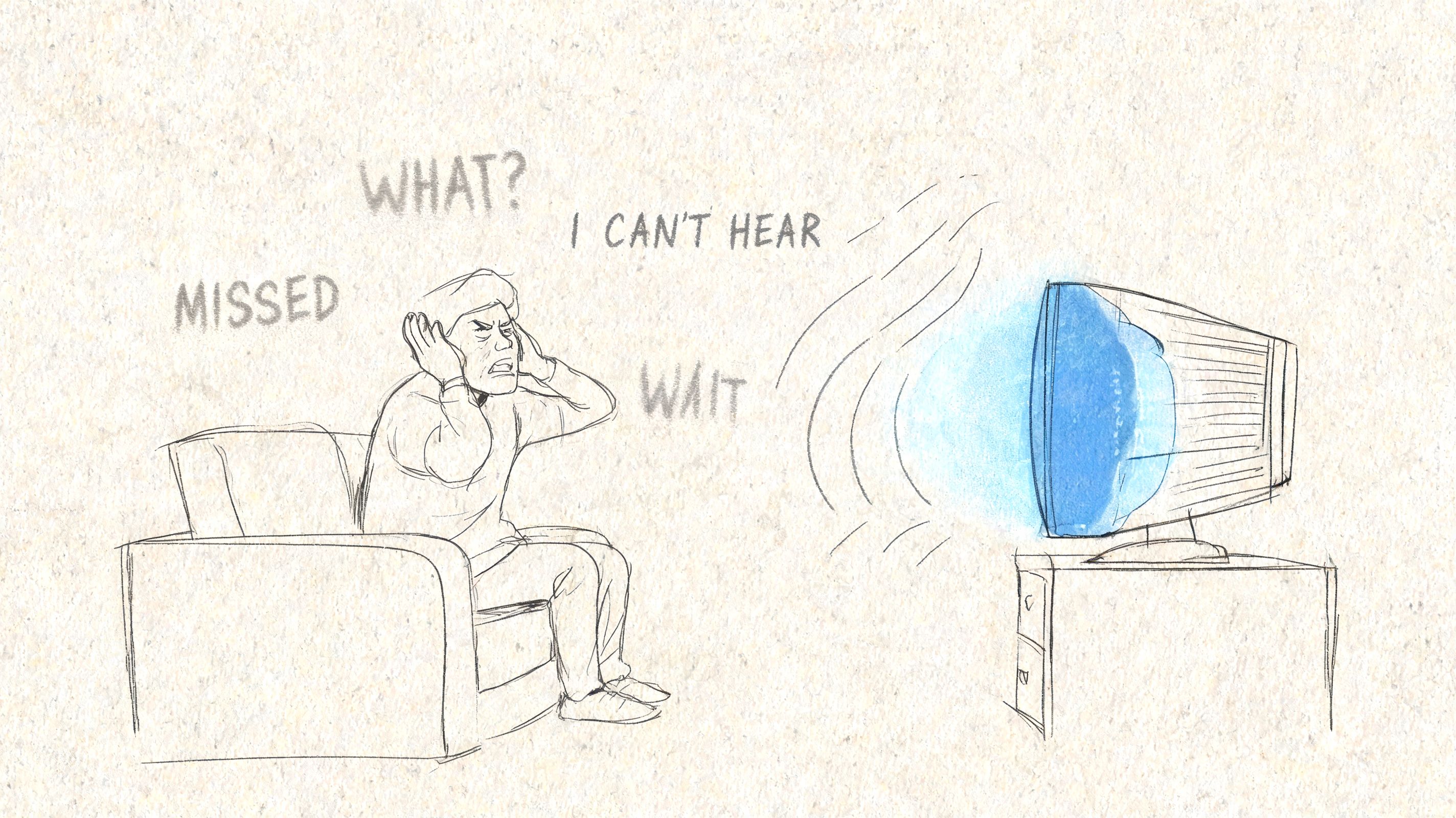
What subtitles and captions actually mean
Subtitles usually focus on spoken dialogue. They're often used when the viewer can hear the audio but needs help understanding the language or catching every word.
Closed captions go further. They include dialogue, but they can also include sound cues such as music changes, door slams, laughter, or who's speaking off screen. That extra detail is what makes captions an accessibility feature, not just a convenience tool.
SDH, or Subtitles for the Deaf and Hard of Hearing, often look like subtitles on screen but carry the same kind of descriptive detail you'd expect from captions.
If you want a simple side by side explanation, this guide on the difference between subtitles and closed captions clears up the terms without jargon.
Closed captions help you follow both the words and the context around the words.
Why this matters on Prime Video
Prime Video gives you access to a huge mix of content, and not every title sounds the same. Some shows have whispery dialogue. Some movies have heavy accents. Some documentaries switch between speakers quickly. Captions make that easier to track.
For families getting started with the service, a broader overview like this Premier Broadband video streaming guide can also help you understand how Prime Video fits into your setup before you fine tune features like captioning.
Here's the simple takeaway:
- If you need translation help, subtitles may be enough.
- If you need full accessibility support, look for closed captions or SDH.
- If you're not sure which option you see, turn it on during playback and check whether it includes sound descriptions and speaker labels.
How to Turn On Captions on Any Device
The good news is that Prime Video usually makes caption controls easy to reach once a video starts playing. The confusing part is that the button can look a little different depending on your screen.
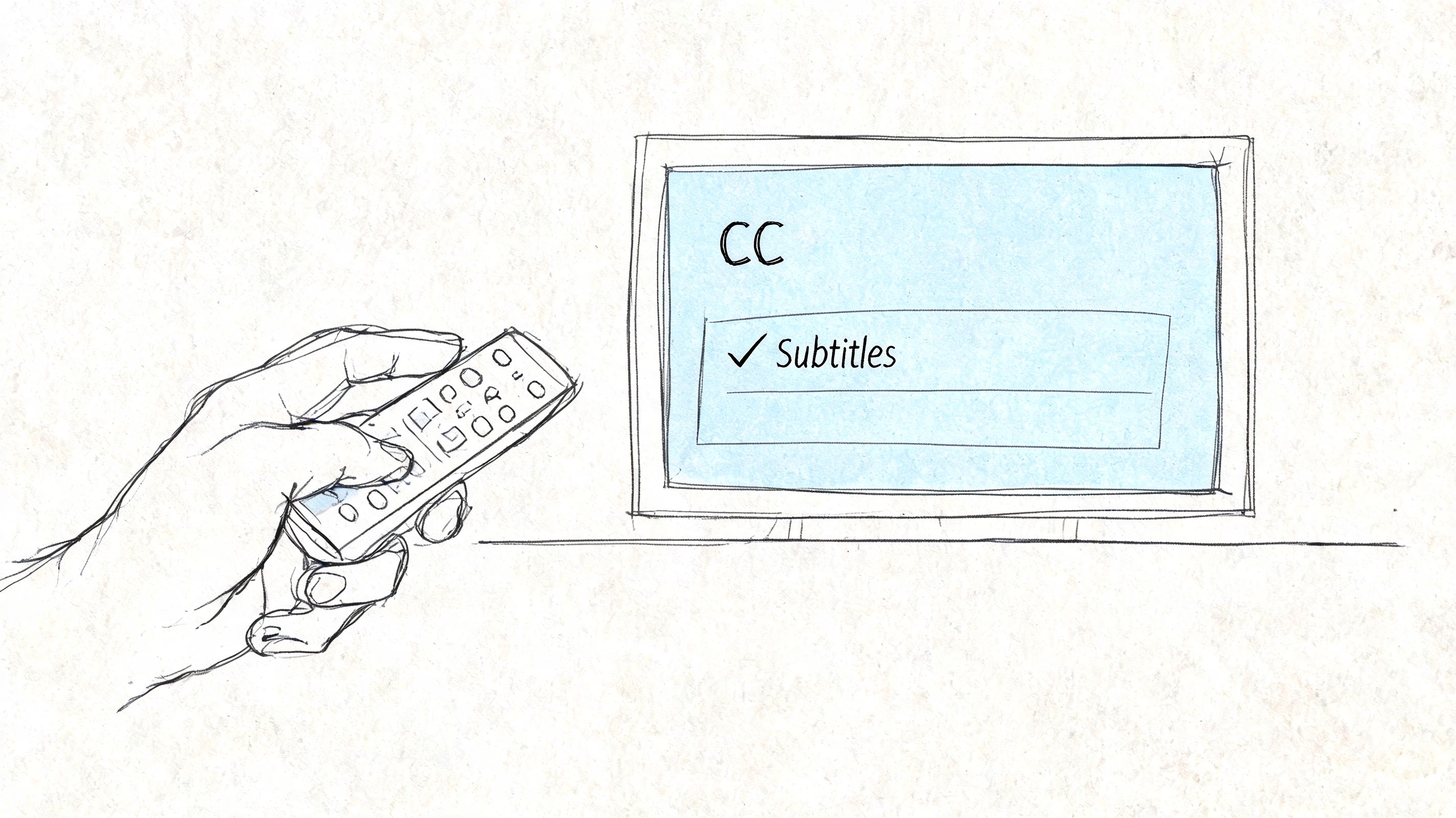
On a web browser
If you're watching on a laptop or desktop browser, start the movie or show first. The caption settings usually don't show until the video player is active.
Try this:
- Move your mouse over the video so the playback controls appear.
- Look for the speech bubble or subtitle icon near the player controls.
- Select your caption option such as English, CC, or SDH if available.
- Resume playback and confirm the text appears on screen.
If you don't see the icon right away, pause the video. On some layouts, the control is easier to spot when the playback bar is visible.
On iPhone and Android
The mobile app follows the same basic logic, but the screen is smaller so the controls can feel more hidden.
Use this path:
- Tap the screen once while the video is playing.
- Open the subtitle or speech bubble icon.
- Choose the caption track you want.
- Exit the menu and return to the video.
A common snag on phones is accidental full screen mode changes. If the icon seems to disappear, rotate your phone or tap again to bring the controls back.
Practical rule: If you can't find caption settings, start playback first. Most Prime Video apps hide those controls until a title is already playing.
On smart TVs and streaming devices
People often get tripped up most often at this stage. The steps are similar, but the remote and menu style change from device to device.
On Fire TV, Roku, Apple TV, many smart TVs, and some game consoles, the process usually looks like this:
- Play the title first
- Press the remote button that reveals playback controls
- Move to the subtitles or CC menu
- Select the available caption track
- Return to the video
Some devices place captions under a gear icon. Others show a speech bubble. On certain TVs, you may need to press the directional pad up or down before the subtitle menu appears.
A quick visual walkthrough can help if your screen layout doesn't match what you expected:
If captions still don't appear
Before assuming something is broken, check these basics:
- Title support: Some content has multiple language options, while some titles only offer limited tracks.
- Wrong selection: You may have chosen subtitles instead of CC or SDH.
- Playback reset needed: Back out of the video and reopen it.
- Device settings conflict: Your TV or streaming box may have its own accessibility settings that affect the app.
A useful habit is to test captions on two different titles. If captions work on one but not the other, the issue may be the content rather than your device.
Personalizing Your Caption and Subtitle Display
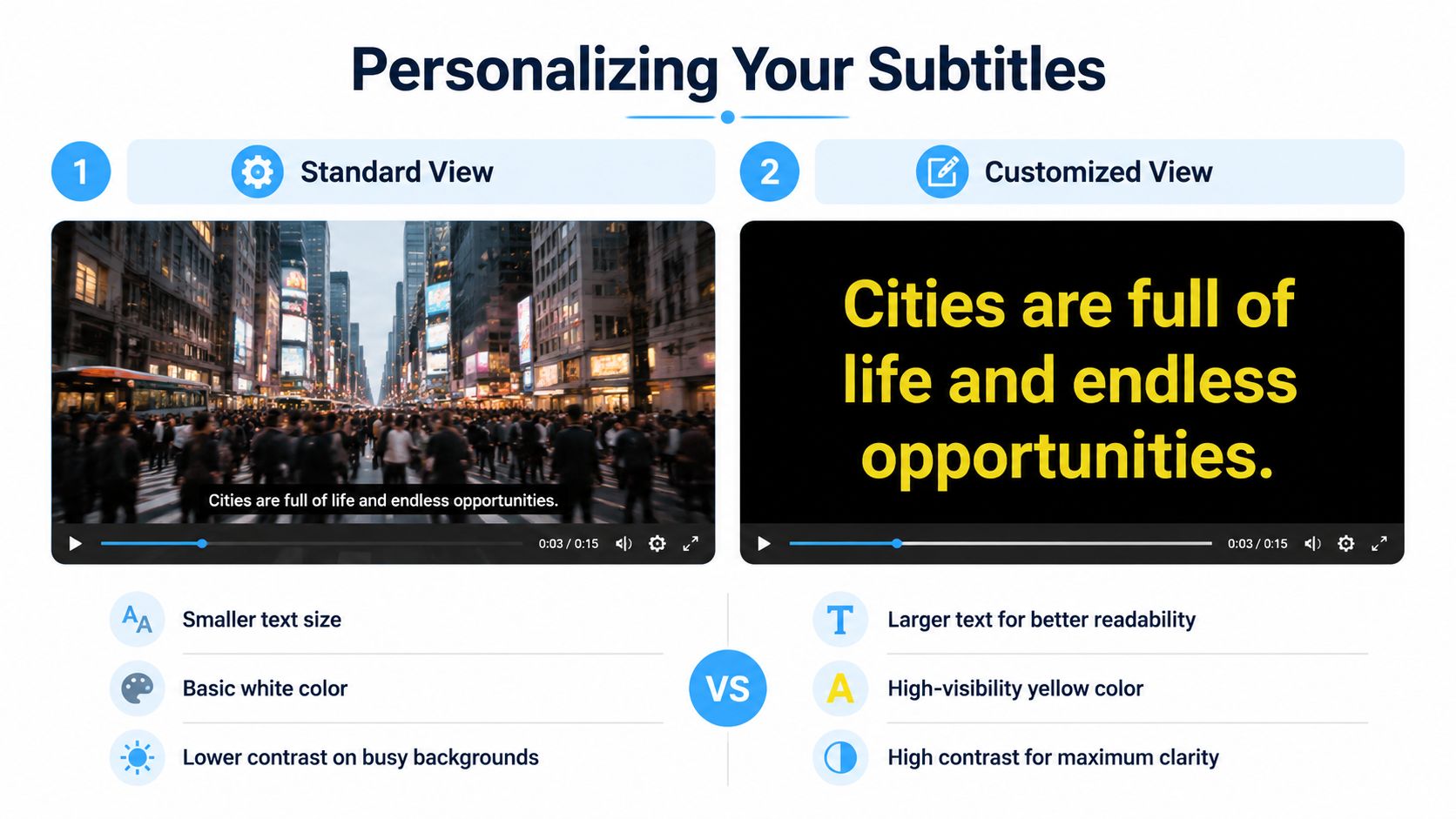
Turning captions on is only half the job. If the text is tiny, low contrast, or blending into the picture, it won't help much.
That's why display settings matter. A readable caption style can reduce eye strain and make dialogue easier to follow, especially in dark scenes or busy action sequences.
What you can usually change
On supported devices, Prime Video may let you adjust things like:
- Font size for easier reading at a distance
- Text color if white text washes out against bright scenes
- Background opacity to create a darker box behind the words
- Window color or presets for stronger contrast
Why the options look different on different devices
This is one of the biggest sources of frustration. The availability of advanced caption customization varies by device and region. Devices like Fire TV often offer stronger presets, while many smart TV apps and older streaming sticks offer fewer options, and regional licensing can also affect which accessibility features are available for some content, as noted in this caption customization overview.
That means two people can both be using Prime Video and still see very different menus.
| Device situation | What you might notice |
|---|---|
| Newer streaming device | More style presets and easier readability controls |
| Smart TV app | Fewer font or background choices |
| Older streaming stick | Basic on or off options, limited appearance settings |
| Different region | Caption availability or display options may vary by title |
Best settings for easier reading
If you're helping a parent, child, or anyone with visual strain, start with function over style.
Try these preferences first:
- Larger text: Easier to read from a couch
- High contrast colors: Light text on a dark background usually stands out best
- Solid or semi opaque background: Useful when scenes are visually busy
- Simple font shapes: Cleaner letterforms reduce confusion
Not every app version lets you control all of these. If your TV app is too limited, watching the same title on a different device can give you a better caption experience.
If captions are technically on but still hard to read, the real problem is often the display style, not the text itself.
Fixing Common Caption and Subtitle Problems
Captions don't always fail in obvious ways. Sometimes they never appear. Sometimes they show up late. Sometimes they vanish in the middle of a show and leave you wondering whether you changed a setting by accident.
Captions won't turn on
Start with the simple fixes. They solve more problems than people expect.
- Toggle captions off and on again: Reopen the subtitle menu and reselect the track.
- Back out and restart the title: The player may not have loaded the caption track correctly.
- Try another show or movie: This helps you tell whether the issue is with one title or with the app itself.
- Update the app: Older app versions can behave oddly with playback features.
If you're on a smart TV, also restart the TV itself. Native TV apps sometimes hold onto bad app state longer than mobile or browser apps do.
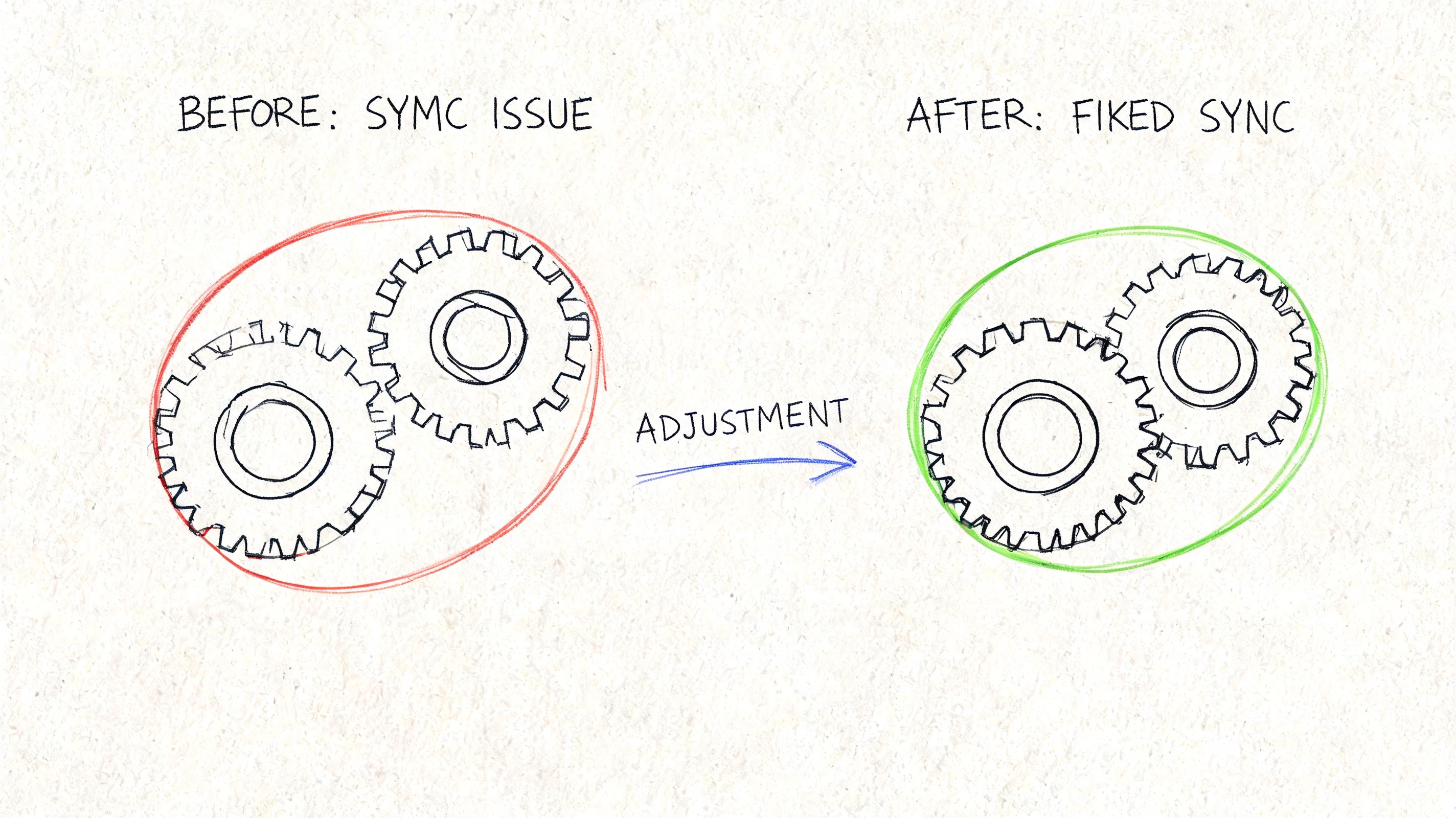
Captions are out of sync
This is one of the most common complaints with streaming video. Captions may appear too early, too late, or drift further off as the video continues.
A useful way to think about it is this: the text track and the video track are separate pieces that have to stay aligned.
Try this checklist:
- Pause and resume playback
- Exit the video and reopen it
- Check your internet stability
- Switch devices if possible
- Look for app updates or a device restart
Research cited in this caption lag discussion notes that auto-generated captions can have 5-15% error rates, and timing problems are more likely during live events or in content with poor audio quality. That same discussion also notes that Amazon's documentation doesn't usually specify whether captions are human verified, which helps explain why quality can vary.
Captions stop midway through playback
This problem often feels random, but there are a few usual suspects:
- Playback glitch: Rewinding slightly can sometimes reload the text track.
- App cache issue: On some devices, clearing app cache helps.
- Temporary content issue: One episode or title may have a broken caption segment.
- Device memory hiccup: A full restart can smooth things out.
If you keep hitting messy captions across different platforms, it helps to understand how automated tools create them. This plain language guide to an AI caption generator explains why accents, background noise, and speaker overlap can make text less reliable.
Poor caption timing doesn't always mean you pressed the wrong button. Sometimes the caption file itself is the problem.
A Quick Guide for Creators on Prime Video Direct
If you upload video for distribution, captions aren't just a nice extra. They're part of getting the content accepted and making it accessible.
Amazon Prime Video requires English closed captions for all US-produced videos to comply with the ADA and FCC standards, according to these Prime Video caption delivery requirements. That same source says supported formats include SMPTE-TT (.xml) and STL (.stl), and the files must be UTF-8 encoded.
What Amazon expects in a caption file
The technical side matters, but so does the quality of the text itself.
Captions need to be:
- Complete: They should capture spoken dialogue and relevant sounds
- Accurate: Missed words and wrong words can trigger rejection
- Properly synced: Timing has to match the video
- Correctly formatted: The file type and encoding have to meet the required spec
The same requirements note that files start at zero-hour timecode in linear sequence and are checked for sync at the beginning, middle, and end. That's a strong reminder that captions are treated like a production deliverable, not an afterthought.
Why creators should care early
It's much easier to build captioning into your workflow before delivery than to scramble after a rejection. If you're new to the terminology, this short explainer on what closed captioning is gives a useful foundation before you prepare files for a platform like Prime Video Direct.
For creators, the big lesson is simple. Accessible captioning is part compliance, part audience care, and part technical quality control.
Enjoying a More Accessible Viewing Experience
Closed captioning on amazon prime gets easier once you separate the job into three parts. First, turn the feature on. Second, make the text readable on your device. Third, troubleshoot calmly when the captions look wrong or arrive late.
The details matter because captions do more than display dialogue. They help viewers follow tone, sound cues, and speaker changes. For some people, that's helpful. For others, it's the difference between being included and being left out of the experience.
Good captions also expose where streaming still falls short. Sync lag, uneven accuracy, and inconsistent customization are real issues. But once you know where those limits are, you can work around many of them and choose settings that make Prime Video much easier to use.
If you create videos, podcasts, interviews, or clips for streaming, Whisper AI can help you turn audio into searchable transcripts, timestamps, summaries, and export-ready text faster, so your captioning workflow is easier to manage from the start.



























































































